Quantcast
Channel: Sameh Attia
Viewing all 1417 articles
Browse latest View live

5 approaches to learning Python

$
0
0
https://opensource.com/article/17/11/5-approaches-learning-python

Whatever your learning style, there’s a resource for learning Python designed just for you. Here are five popular options.

5 approaches to learning Python
Image by : 
opensource.com
Python is a powerful, versatile programming language that's popular with open source software developers. Whether you're a seasoned developer looking to test your code, or you just want to learn the basics, the following resources might help.

1. Codecademy: The hands-on approach

Do you like a hands-on approach to learning? Try Codecademy. Codecademy courses include lessons, projects, and quizzes to help you learn Python and other coding languages. A free account grants access to interactive lessons and exercises, while a pro account also allows you to practice with quizzes and project challenges.
Each Codecademy lesson is completely interactive, and setup is painless. All the hard work—handling imports, packages, compiling, etc.—is done for you, so all you have to do is write the Python code. Lessons cover an array of topics in a variety of categories, including strings, functions, control flow, and loops. Some users compare learning to program with Codecademy to learning to ride a bicycle with training wheels; however, when you’re a beginner, training wheels are essential. You may want to learn the simple syntax of a coding language before tackling complex topics like build processes and compilation.

2. Khan Academy: The lecture hall approach

Khan Academy is a video tutorial site with hundreds of videos on topics ranging from math to history to electrical engineering—and everything in between. If you prefer learning from lectures, this site might be great for you. Creating an account is free, but you don’t even need an account to watch videos on the site.
Khan Academy offers an “online class” feel, where an individual lectures in a series of videos. Each video describes one element of Python. You can then take the knowledge gained in each video and utilize it in your own code. For example, one video discusses for loops written in Python. For loops are a crucial control flow element used to specify iteration, so once you've learned about them, your Python code can greatly increase in complexity.
Unfortunately, when I was writing this article, the Khan Academy Python series was removed from the main website, but you can still find it on the Khan Academy YouTube channel.

3. Tutorialspoint: The textbook approach

Tutorialspoint is a gold mine of documentation, tutorials, and articles on any computer-related topic imaginable. (There are also resources for sports, monuments, and soft skills.) Essentially, if there is a computational topic you wish to learn, check Tutorialspoint. The website is free, requiring no login to view any of the content. If you prefer to learn by reading, this might be the best resource for you.
Tutorialspoint’s basic Python tutorial bypasses the training wheels placed by Codecademy and walks you through each step of setting up Python locally. After discussing installation and interpretation via command line, the tutorial progresses into the language itself. The first few pages cover basic syntax and variable types, but the advanced tutorial covers networking, XML processing, and multithreading.
Tutorialspoint is a great free resource for Python beginners as well as those who need a refresher or who want to learn about more complex topics.

4. GitHub: The exploratory approach

GitHub offers an exploratory approach to learning Python. This method may be best if you have experience in a coding language. GitHub is a centralized repository that anyone can use to house and maintain code, and it contains a plethora of Python projects that are available for exploration. Learning Python via GitHub would involve independent examination of existing Python projects.
From a simple search on the main page of GitHub, I found thousands of Python projects, ranging in skill level from beginner to expert. Some of these projects were specifically designed as examples for users interested in learning Python. Others were real projects written in Python, allowing for close inspection of real-world examples.
Two education-based projects belong to GitHub users Adaptives and Keon. The first of these two projects contains files showing simple examples such as defining different data types and raising exceptions. The second project is more advanced, providing Python implementations of many popular algorithms, such as the knapsack problem and different sorting algorithms.
Not all projects on GitHub are code-based. This constantly evolving guide provides a comprehensive overview of many Python concepts, from installation to debugging to writing documentation.

5. Python Tutor: The inspective approach

Python Tutor is a unique addition to this list. Once you have the basics of Python under your belt, this tool enables you to step through your code, line by line, to inspect variable values every step of the way. This is helpful for debugging, understanding how algorithms run from start to end, and preventing the perpetuation of incorrectly returning code. Once you’ve used the resources above, try out Python Tutor to better visualize the code you’ve written.
If you know of other online resources for learning Python, let us know in the comments below.

How to Speed Up WordPress with Redis Caching

$
0
0
https://www.rosehosting.com/blog/how-to-speed-up-wordpress-with-redis-caching

How to Speed Up WordPress with Redis Caching
How to Speed Up WordPress with Redis Caching in few easy steps. Redis is an in-memory database which can be used as a data store or cache. Redis is an ideal solution to speed up WordPress and any other software that supports Redis caching. In this tutorial we are going to show you how to setup WordPress caching with Redis on a Linux based VPS.

1. Install Redis on a Linux VPS

We assume that WordPress is already installed on your system so we will skip the WordPress installation step. If you don’t have WordPress installed, you can follow our tutorial about how to install WordPress on a Linux VPS, or if you are using one of our WordPress hosting plans you can contact our admins to install WordPress for you.
The installation of Redis is straightforward. If you are using Ubuntu VPS run the following command to install Redis:
apt-get install redis-server
For more detailed instructions you can also check our tutorial about how to install Redis on Ubuntu VPS.
If you are using CentOS VPS you can use the following command to install Redis:
yum install redis
Make sure that you have EPEL (Extra Packages for Enterprise Linux) repo enabled on your server.
Start and enable Redis on system boot:
systemctl start redis.service
systemctl enable redis.service

2. Install Redis PHP extension on a Linux VPS

In order to be able to use Redis as object cache for your WordPress website you need to install the Redis PHP extension. It will allow WordPress to communicate with the Redis key-value store.
On Ubuntu run the following command:
apt-get install php-redis

3. On CentOS run the following command:

yum install php-pecl-redis

4. Install Redis Caching Plugin in WordPress

Log in to your WordPress dashboard and navigate to Plugins > Add new. Search for Redis and install the Redis Object Cache plugin from the list. Once the installation is completed, navigate to Plugins again and enable the Redis Object Cache plugin.
Next, navigate to Settins > Redis and click on Enable Object Cache to enable the object caching in WordPress. The default configuration should work out of the box sonce the default Redis listening address is 127.0.0.1 and the default listening port is 6379.

5. Verify Redis caching on WordPress

To check whether the WordPress caching works OK with Redis you can connect to your server via SSH and run the following command:
redis-cli monitor
By using the Redis monitor you will be able to see all the requests processed by the Redis server and it will help you to understand what is happening to the database. The output should be similar to the one below:
# redis-cli monitor
OK
1510415208.863435 [0 127.0.0.1:50076] "PING"
1510415208.865491 [0 127.0.0.1:50076] "GET""wp_:default:is_blog_installed"
1510415208.870259 [0 127.0.0.1:50076] "GET""wp_:options:notoptions"
1510415208.870433 [0 127.0.0.1:50076] "GET""wp_:options:alloptions"
1510415208.871197 [0 127.0.0.1:50076] "GET""wp_:site-options:1:notoptions"
1510415208.875126 [0 127.0.0.1:50076] "GET""wp_:options:uninstall_plugins"
1510415208.882241 [0 127.0.0.1:50076] "GET""wp_:wordfence:alloptions"
1510415208.913368 [0 127.0.0.1:50076] "GET""wp_:site-options:1:notoptions"
1510415208.913547 [0 127.0.0.1:50076] "GET""wp_:site-options:1:notoptions"
1510415208.916283 [0 127.0.0.1:50076] "GET""wp_:site-options:1:notoptions"
1510415208.916434 [0 127.0.0.1:50076] "GET""wp_:site-options:1:notoptions"
1510415208.947299 [0 127.0.0.1:50076] "GET""wp_:site-options:1:notoptions"
1510415208.947480 [0 127.0.0.1:50076] "GET""wp_:options:can_compress_scripts"
1510415208.947637 [0 127.0.0.1:50076] "GET""wp_:site-options:1:notoptions"
1510415208.954565 [0 127.0.0.1:50076] "GET""wp_:posts:last_changed"
Enabling WordPress caching with Redis is an easy task if you have a WordPress Hosting with us. Feel free to ask our expert Linux Administrators to speed up your WordPress with Redis caching on your server for you, and it will be taken care of immediately. They are available 24×7, so you can get the help you need at any time.
PS. Feel free to share this blog post on How to Speed Up WordPress with Redis Caching, by using the social network shortcuts – you can also leave a comment instead, found under the share buttons.

How to Easily Remember Linux Commands

$
0
0
https://www.maketecheasier.com/remember-linux-commands

  • The command line can be daunting for new Linux users. Part of that is remembering the multitude of commands available. After all, in order to use the command line effectively, you need to know the commands.
    Unfortunately, there’s no getting around the fact that you need to learn the commands, but there are some tools that can help you out when you’re getting started.
    Linux Bash History Commands
    The first thing you can use to remember commands that you’ve already used is your own command line history. Most Linux shells, including the most common default, Bash, create a history file that lists your past commands. For Bash, you can find it at “/home//.bash_history.”
    It’s a plain text file, so you can open it in any text editor and loop back through or even search.
    There’s actually a command that helps you find other commands. It’s called “apropos,” and it helps you find the appropriate command to complete the action you search or. For example, if you need to know the command to list the contents of a directory, you can run the following command:
    apropos"list directory"
    Linux Apropos
    There’s a catch, though. It’s very literal. Add an “s” to “directory,” and try again.
    apropos"list directories"
    It doesn’t work. What apropos does is search through a list of commands and the accompanying descriptions. If your search doesn’t match the description, it won’t pick up the command as a result.
    There is something else you can do. By using the -a flag, you can add together search terms in a more flexible way. Try this command:
    apropos"match pattern"
    Linux Apropos -a Flag
    You’d think it’d turn up something, like grep? Instead, you get nothing. Again, apropos is being too literal. Now, try separating the words and using the -a flag.
    apropos"match"-a"pattern"
    Suddenly, you have many of the results that you’d expect.
    apropos is a great tool, but you always need to be aware of its quirks.
    Linux ZSH Autocomplete
    ZSH isn’t really a tool for remembering commands. It’s actually an alternative shell. You can substitute ZSH for Bash and use it as your command line shell. ZSH includes an autocorrect feature that catches you if you enter in a command wrong or misspell something. If you enable it, it’ll ask you if you meant something close. You can continue to use the command line as you normally would with ZSH, but you get an extra safety net and some other really nice features, too. The easiest way to get the most of ZSH is with Oh-My-ZSH.
    The last, and probably simplest, option is to use a cheat sheet. There are plenty available online like this one that you can use to look up commands quickly.
    linux-commandline-cheatsheet
    You can actually even find them in image form and set one as your desktop wallpaper for quick reference.
    This isn’t the best solution for actually remembering the commands, but when you’re starting out, it can save you from doing a search online every time you don’t remember a command.
    Rely on these methods when you’re learning, and eventually you’ll find yourself referring to them less and less. No one remembers everything, so don’t feel bad if you occasionally forget or run into something you haven’t seen before. That’s what these resources and, of course, the Internet are there for.
  • 11 Useful split command examples for Linux/UNIX systems

    $
    0
    0
    https://www.linuxtechi.com/split-command-examples-for-linux-unix

    As the name suggests ‘split‘ command is used to split or break a file into the pieces in Linux and UNIX systems. Whenever we split a large file with split command then split output file’s default size is 1000 lines and its default prefix would be ‘x’.
    In this article we will discuss 11 useful split command examples for Linux Users. Apart from this we will also discuss how split files can be merge or reassembled into a single file. Syntax for split command:
    # split {options} {file_name} {prefix}
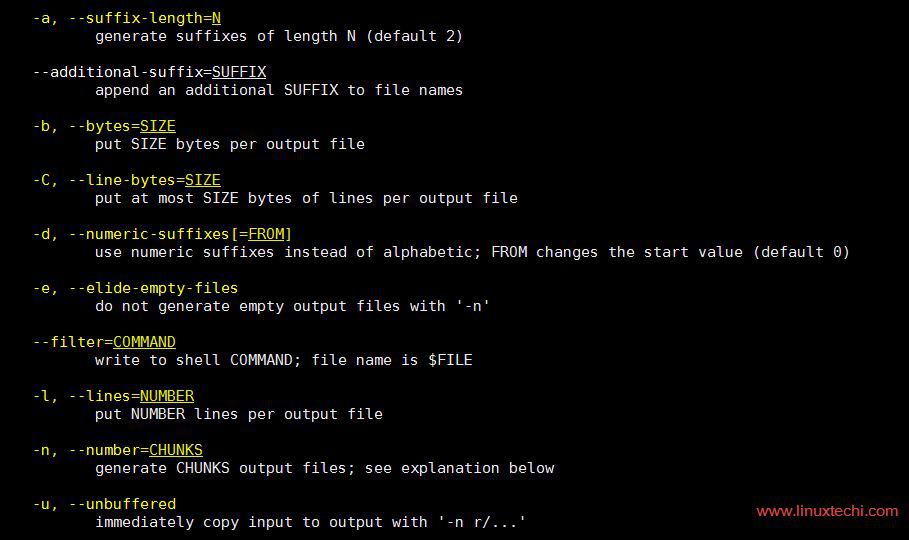
    Some of the important options of split command is shown below:
    Split-Command-Options-Linux

    Example: 1) Split File into Pieces

    Let’s assume we have file name with tuxlap.txt, Use below split command to break into the pieces
    [root@linuxtechi ~]# split tuxlap.txt
    [root@linuxtechi ~]# ll
    total 32
    -rw-------. 1 root root  980 Aug 12 00:11 anaconda-ks.cfg
    -rw-r--r--. 1 root root 9607 Nov 11 03:22 tuxlap.txt
    -rw-r--r--. 1 root root 8744 Nov 11 03:23 xaa
    -rw-r--r--. 1 root root  863 Nov 11 03:23 xab
    [root@linuxtechi ~]#
    As we can see the above output ‘tuxlab.txt‘ is split into two pieces with the name ‘xaa’ and ‘xab’.

    Example: 2) Split Command with verbose option

    We can run split command in verbose mode with option ‘–verbose‘, example is shown below:
    [root@linuxtechi ~]# split tuxlap.txt --verbose
    creating file ‘xaa’
    creating file ‘xab’
    [root@linuxtechi ~]#

    Example: 3) Split files with customize line numbers (-l)

    Let’s suppose we want to split a file with customize line numbers, let say I want max 200 lines per file.
    To achieve this, use  ‘-l’ option in split command.
    [root@linuxtechi ~]# split -l200 tuxlap.txt --verbose
    creating file ‘xaa’
    creating file ‘xab’
    creating file ‘xac’
    creating file ‘xad’
    creating file ‘xae’
    creating file ‘xaf’
    [root@linuxtechi ~]#
    Verify the lines of each file using below command
    [root@linuxtechi ~]# wc -l xa*
     200 xaa
     200 xab
     200 xac
     200 xad
     200 xae
      91 xaf
    1091 total
    [root@linuxtechi ~]#

    Example: 4) Split files with file size using option  -b

    Using Split command we can split a file with file size. Use the following syntax to split files with size in bytes, KB , MB and GB
    # split  -b{bytes}  {file_name}
    # split  -b  nK      {file_name}    // n is the numeric value
    # split  -b   nM    {file_name}      // n is the numeric value
    # split  -b   nG     {file_name}     // n is the numeric value
    Split file based on bytes:
    [root@linuxtechi ~]# split -b2000000 tuxlap.txt
    Split file based on KB:
    [root@linuxtechi ~]# split -b 50K tuxlap.txt
    Split file based on MB:
    [root@linuxtechi ~]# split -b 50M tuxlap.txt
    Split file based on GB:
    [root@linuxtechi ~]# split -b 1G tuxlap.txt

    Example: 5) Create Split files with numeric suffix instead of alphabetic (-d)

    In the above examples we have seen that split command output files are created with alphabetic suffix like xaa, xab….. xan , Use ‘-d’ option with split command to create split output files with numeric suffix like x00, x01, … x0n
    [root@linuxtechi ~]# split -d tuxlap.txt

    [root@linuxtechi ~]# ll
    total 1024256
    -rw-------. 1 root root        980 Aug 12 00:11 anaconda-ks.cfg
    -rwx------. 1 root root 1048576000 Nov 11 03:54 linux-lite.iso
    -rw-r--r--. 1 root root     120010 Nov 11 04:39 tuxlap.txt
    -rw-r--r--. 1 root root      11998 Nov 11 04:41 x00
    -rw-r--r--. 1 root root      12000 Nov 11 04:41 x01
    -rw-r--r--. 1 root root      12000 Nov 11 04:41 x02
    -rw-r--r--. 1 root root      12000 Nov 11 04:41 x03
    -rw-r--r--. 1 root root      12000 Nov 11 04:41 x04
    -rw-r--r--. 1 root root      12000 Nov 11 04:41 x05
    -rw-r--r--. 1 root root      12000 Nov 11 04:41 x06
    -rw-r--r--. 1 root root      12000 Nov 11 04:41 x07
    -rw-r--r--. 1 root root      12000 Nov 11 04:41 x08
    -rw-r--r--. 1 root root      12000 Nov 11 04:41 x09
    -rw-r--r--. 1 root root         12 Nov 11 04:41 x10
    [root@linuxtechi ~]#

    Example: 6) Split file with Customize Suffix

    With split command we can create split output files with customize suffix. Let’s assume we want to create split output files with customize suffix
    Syntax:
    # split  {file_name}  {prefix_name}
    [root@linuxtechi ~]# split tuxlap.txt split_file_

    [root@linuxtechi ~]# ll
    total 1024248
    -rw-------. 1 root root        980 Aug 12 00:11 anaconda-ks.cfg
    -rwx------. 1 root root 1048576000 Nov 11 03:54 linux-lite.iso
    -rw-r--r--. 1 root root      11998 Nov 11 04:56 split_file_aa
    -rw-r--r--. 1 root root      12000 Nov 11 04:56 split_file_ab
    -rw-r--r--. 1 root root      12000 Nov 11 04:56 split_file_ac
    -rw-r--r--. 1 root root      12000 Nov 11 04:56 split_file_ad
    -rw-r--r--. 1 root root      12000 Nov 11 04:56 split_file_ae
    -rw-r--r--. 1 root root      12000 Nov 11 04:56 split_file_af
    -rw-r--r--. 1 root root      12000 Nov 11 04:56 split_file_ag
    -rw-r--r--. 1 root root      12000 Nov 11 04:56 split_file_ah
    -rw-r--r--. 1 root root      12000 Nov 11 04:56 split_file_ai
    -rw-r--r--. 1 root root      12000 Nov 11 04:56 split_file_aj
    -rw-r--r--. 1 root root         12 Nov 11 04:56 split_file_ak
    -rw-r--r--. 1 root root     120010 Nov 11 04:39 tuxlap.txt
    [root@linuxtechi ~]#

    Example: 7) Generate n chunks output files with split command (-n)

    Let’s suppose we want to split an iso file into 4 chunk output files. Use ‘-n’ option with split command limit the number of split output files.
    [root@linuxtechi ~]# split -n5 linux-lite.iso
    Verify the Split out files using ll command.
    [root@linuxtechi ~]# ll
    total 2048124
    -rw-------. 1 root root        980 Aug 12 00:11 anaconda-ks.cfg
    -rwx------. 1 root root 1048576000 Nov 11 03:54 linux-lite.iso
    -rw-r--r--. 1 root root     120010 Nov 11 04:39 tuxlap.txt
    -rw-r--r--. 1 root root  209715200 Nov 11 05:22 xaa
    -rw-r--r--. 1 root root  209715200 Nov 11 05:22 xab
    -rw-r--r--. 1 root root  209715200 Nov 11 05:22 xac
    -rw-r--r--. 1 root root  209715200 Nov 11 05:23 xad
    -rw-r--r--. 1 root root  209715200 Nov 11 05:23 xae
    [root@linuxtechi ~]#

    Example: 8) Prevent Zero Size Split output files with option (-e)

    There can be some scenarios where we split a small file into a large number of chunk files and zero size split output files can be created in such cases, so to avoid zero size split output file, use the option ‘-e’
    [root@linuxtechi ~]# split -n60 -e tuxlap.txt
    [root@linuxtechi ~]# ls -l x*
    -rw-r--r--. 1 root root 2000 Nov 11 05:34 xaa
    -rw-r--r--. 1 root root 2000 Nov 11 05:34 xab
    -rw-r--r--. 1 root root 2000 Nov 11 05:34 xac
    -rw-r--r--. 1 root root 2000 Nov 11 05:34 xad
    -rw-r--r--. 1 root root 2000 Nov 11 05:34 xae
    -rw-r--r--. 1 root root 2000 Nov 11 05:34 xaf
    -rw-r--r--. 1 root root 2000 Nov 11 05:34 xag
    -rw-r--r--. 1 root root 2000 Nov 11 05:34 xah
    .............
    -rw-r--r--. 1 root root 2000 Nov 11 05:34 xce
    -rw-r--r--. 1 root root 2000 Nov 11 05:34 xcf
    -rw-r--r--. 1 root root 2000 Nov 11 05:34 xcg
    -rw-r--r--. 1 root root 2010 Nov 11 05:34 xch
    [root@linuxtechi ~]#

    Example:9) Create Split output files of customize suffix length (-a option)

    Let’s suppose we want to split an iso file and where size of each split output file is 500MB and suffix length is to be 3.  Use the following split command:
    [root@linuxtechi ~]# split -b 500M linux-lite.iso -a 3

    [root@linuxtechi ~]# ll
    total 2048124
    -rw-------. 1 root root        980 Aug 12 00:11 anaconda-ks.cfg
    -rwx------. 1 root root 1048576000 Nov 11 03:54 linux-lite.iso
    -rw-r--r--. 1 root root     120010 Nov 11 04:39 tuxlap.txt
    -rw-r--r--. 1 root root  524288000 Nov 11 05:43 xaaa
    -rw-r--r--. 1 root root  524288000 Nov 11 05:43 xaab
    [root@linuxtechi ~]#

    Example: 10) Split ISO file and merge it into a single file.

    Let’s suppose we have a Windows Server ISO file of size 4.2 GB and we are unable to scp this file to remote server because of its size.
    To resolve such type of issues we can split the ISO into n number of pieces and will copy these pieces to remote sever and on the remote server we can merge these pieces into a single file using cat command,
    [root@linuxtechi ~]# split -b 800M Windows2012r2.iso Split_IS0_
    View the split output files using ll command,
    [root@linuxtechi ~]# ll
    total 8871788
    -rw-------. 1 root root        980 Aug 12 00:11 anaconda-ks.cfg
    -rw-r--r--. 1 root root  838860800 Nov 11 06:29 Split_IS0_aa
    -rw-r--r--. 1 root root  838860800 Nov 11 06:29 Split_IS0_ab
    -rw-r--r--. 1 root root  838860800 Nov 11 06:29 Split_IS0_ac
    -rw-r--r--. 1 root root  838860800 Nov 11 06:29 Split_IS0_ad
    -rw-r--r--. 1 root root  838860800 Nov 11 06:29 Split_IS0_ae
    -rw-r--r--. 1 root root  347987968 Nov 11 06:29 Split_IS0_af
    -rw-r--r--. 1 root root     120010 Nov 11 04:39 tuxlap.txt
    -rwx------. 1 root root 4542291968 Nov 11 06:03 Windows2012r2.iso
    [root@linuxtechi ~]#
    Now scp these files to remote server and merge these files into a single using cat command
    [root@linuxtechi ~]# cat Split_IS0_a* > Windows_Server.iso
    [root@linuxtechi ~]#

    Example: 11) Verify the Integrity of Merge file using md5sum utility

    As per Example 10, once the split output files are merged into a single file, then we can check the integrity of actual & merge file with md5sum utility. Example is shown below:
    [root@linuxtechi ~]# md5sum Windows2012r2.iso
    5b5e08c490ad16b59b1d9fab0def883a  Windows2012r2.iso
    [root@linuxtechi ~]#

    [root@linuxtechi ~]# md5sum Windows_Server.iso
    5b5e08c490ad16b59b1d9fab0def883a  Windows_Server.iso
    [root@linuxtechi ~]#
    As per the above output, it is confirm that integrity is maintained and we can also say split file are successfully restored to a single file.
    That’s all from this article, If you like these examples then please do share your valuable feedback and comments in the comments section below.

    Date & time management in Linux using timedatectl command

    $
    0
    0
    https://kerneltalks.com/commands/date-time-management-using-timedatectl-command

    Learn timezone management using timedatectl command. Article explaining different uses of timedatectl command along with examples.
    Learn timedatectl command
    Learn timedatectl command

    In our previous article we have seen how to change timezone of Linux server using files or variables in system. Few of our readers pushed timedatectl command to achieve this task easily. So I thought of writing separate article on timedatectl command explaining all its usage.
    In this article, we will see how to display server time details, view, list and change timezone of server using timedatectl command.
    timedatectl is Time Date Control command! It used to control date and time of server in Linux. To check your current system date and time details, run this command without any switch –
    In the output these are the fields :
    Local time : Your system’s local date and time
    Universal time : Current UTC time
    RTC time : Current Real time clock time
    Time zone : Your system’s current timezone
    NTP enabled : Is NTP is enabled on system or not
    NTP synchronized : NTP time synced or not.
    RTC in local TZ : Is RTC maintaining in configured system TZ? It is recommended to keep it off.
    DST active : Daylight saving time enabled or not

    List and change timezone using timedatectl

    timedatectl allow you to change timezone of system with list of available timezones.  To view list of available timezones use command with list-timezones switch.
    You will be presented with list of available timezones in paged manner. You can use any of thee timezones to set on your local system. To change timezone of your system use set-timezone switch.
    Above command will change server timezone to Australia/Sydney one.

    Change date and time using timedatectl

    Most of the servers are configured with NTP these days. But if not and/or if you want to change date and time manually then you can use set-time switch. Time should be supplied with YYYY-MM-DD HH:MM:SS
    If NTP is configured then you might see error Failed to set time: Automatic time synchronization is enabled when attempting to change system time manually.

    Enable/Disable RTC and NTP using timedatectl

    You cn enable or disable RTC (Real Time Clock) and NTP using timedatectl. For RTC use set-local-rtc and for NTP use set-ntp switch. Both arguments accepts 1 (to enable) and 0 (to disable) as values.
    Please note that enabling NTP here does not take you through NTP configuration steps. That has to be done separately . This only controls if system should sync time using configured NTP or not.

    Manage date and time of other machine

    You can use timedatectl command to manage date and time of local containers or remote machines. To manage time of local container use -M switch whereas to connect to remote host and manage its time use -H switch.
    -M switch takes argument as --host=ip/hostname. -H switch takes argument as --machine=container_name.

    Thats all switchs which are mainly useful for you in day today operations. There are few more which can be referred from its man page.

    adcli – Easy Way To Join RHEL/CentOS System To Active Directory Domain

    $
    0
    0
    https://www.2daygeek.com/join-integrate-rhel-centos-linux-system-to-windows-active-directory-ad-domain

    As you know, Day by day technology is going to next level and most of the IT infrastructure using single sign-on (SSO) which allow users to use same login credentials to access multiple applications.

    What Is adcli?

    adcli is a command line tool that help us to integrate or join Linux systems such as RHEL & CentOS to Microsoft Windows Active Directory (AD) domain. It’s allow us to use the same AD login credential to access Linux machine.
    This tool allow us to perform many actions in an Active Directory domain from Linux box.

    What Is SSSD?

    The System Security Services Daemon (SSSD) provides a set of daemons to manage access to remote directories and authentication mechanisms. It provides Name Service Switch (NSS) and Pluggable Authentication Modules(PAM) interfaces toward the system and a pluggable back end system to connect to multiple different account sources.
    Note: Make Sure Linux machine is able to resolve Active Directory servers in order to join it.

    Install the required packages

    Use the yum command to install following required packages on system.
    # yum install adcli sssd authconfig

    Join Linux system To Windows Domain

    Everything in place before join the domain, run the following command and discover the AD domain. It will show some details about the AD domain.
    # adcli info ad.2daygeek.com
    [domain]
    domain-name = ad.2daygeek.com
    domain-short = 2DAYGEEK
    domain-forest = ad.2daygeek.com
    domain-controller = vps-centos.2daygeek.com
    domain-controller-site = Chennai
    domain-controller-flags = pdc gc ldap ds kdc timeserv closest
    domain-controller-usable = yes
    domain-controllers = vps-centos.2daygeek.com
    [computer]
    computer-site = Chennai
    Now, run the following command to join the Linux system to AD domain. By default, it prompts for the Administrator password and you can specify another user by adding -U option. Make sure, the mentioned user should have admin privilege.
    # adcli join ad.2daygeek.com
    Password for Administrator@ad.2daygeek.com: ******
    When you perform the above action, it configure /etc/sssd/sssd.conf, /etc/krb5.conf and /etc/krb5.keytab files automatically which used for authentication.
    To verify list of keys held in a keytab file, run the following command. It lists the Kerberos principal and Kerberos tickets held in a credentials cache.
    # klist -kte
    Keytab name: FILE:/etc/krb5.keytab
    KVNO Timestamp Principal
    ---- ----------------- -----------------------------------------
    6 10/05/17 11:29:44 host/ds-test.2daygeek.com@ad.2daygeek.com
    6 10/05/17 11:29:44 host/ds-test.2daygeek.com@ad.2daygeek.com
    6 10/05/17 11:29:44 host/ds-test.2daygeek.com@ad.2daygeek.com
    6 10/05/17 11:29:44 host/ds-test.2daygeek.com@ad.2daygeek.com
    6 10/05/17 11:29:45 host/ds-test@ad.2daygeek.com
    6 10/05/17 11:29:45 host/ds-test@ad.2daygeek.com
    7 11/04/17 19:34:49 ds-test@ad.2daygeek.com
    Configure /etc/krb5.conf file to use AD domain.
    # vi /etc/krb5.conf
    includedir /var/lib/sss/pubconf/krb5.include.d/

    [logging]
    default = FILE:/var/log/krb5libs.log
    kdc = FILE:/var/log/krb5kdc.log
    admin_server = FILE:/var/log/kadmind.log

    [libdefaults]
    default_realm = AD.2DAYGEEK.COM
    dns_lookup_realm = true
    dns_lookup_kdc = true
    ticket_lifetime = 24h
    renew_lifetime = 7d
    forwardable = true

    [realms]
    AD.2DAYGEEK.COM = {
    kdc = vps-centos.2daygeek.com
    admin_server = vps-centos.2daygeek.com
    }

    [domain_realm]
    .ad.2daygeek.com = AD.2DAYGEEK.COM
    ad.2daygeek.com = AD.2DAYGEEK.COM
    Run the following command to set up the Name Service Switch (/etc/nsswitch.conf) and PAM stacks (/etc/pam.d/password-auth and /etc/pam.d/system-auth). This will enable “sss” authentication on required entries.
    # authconfig --enablesssd --enablesssdauth --enablemkhomedir --update
    The same has been validated using following command.
    # grep sss /etc/nsswitch.conf
    passwd: files sss
    shadow: files sss
    group: files sss
    services: files sss
    netgroup: files sss
    automount: files sss
    Finally configure the SSSD as follows.
    # vi /etc/sssd/sssd.conf

    [sssd]
    services = nss, pam, ssh, autofs
    config_file_version = 2
    domains = ad.2daygeek.com
    #debug_level = 9

    [domain/AD.2DAYGEEK.COM]
    id_provider = ad
    #auth_provider = ad
    #chpass_provider = ad
    #access_provider = ad
    ad_server = vps-centos.2daygeek.com
    override_homedir = /home/%u
    default_shell = /bin/bash
    #ad_gpo_access_control = enforcing
    #debug_level = 9

    [nss]
    #debug_level = 9

    [pam]
    #debug_level = 9
    Make sure sssd.conf is owned by root and file permissions should be 600.
    # chown root:root /etc/sssd/sssd.conf
    # chmod 600 /etc/sssd/sssd.conf
    Start the SSSD service and enable in boot.
    # service sssd start
    # chkconfig sssd on
    Use id command to verify the user’s uid and gid and their group information from Linux system.
    # id Administrator
    uid=6819600500(administrator) gid=6819600513(domain admins) groups=6819600513(domain users),6819600512(domain admins),6819600520(group policy creator owners),6819600519(enterprise admins),6819600518(schema admins)
    Just rename the smb.conf file and add below contents. Samba is an important component to integrate Linux Servers and Desktops into Active Directory environments.
    # mv /etc/samba/smb.conf /etc/samba/smb.conf.bk
    # vi /etc/samba/smb.conf

    [global]
    workgroup = 2DAYGEEK
    password server = vps-centos.2daygeek.com
    realm = AD.2DAYGEEK.COM
    security = ads
    client signing = yes
    client use spnego = yes
    kerberos method = secrets and keytab
    log file = /var/log/samba/%m.log
    If you modify anything on sssd.conf file, post modification run the following command once to take effect.
    # service sssd stop ; rm -rf /var/log/sssd/* /var/lib/sss/db/* ; service sssd start
    We have successfully joined our Linux system to AD domain but now every one can login to Linux machine using their AD login details. So, in next article will discuss how to allow only certain groups from AD.

    20 Sed (Stream Editor) Command Examples for Linux Users

    $
    0
    0
    https://www.linuxtechi.com/20-sed-command-examples-linux-users


    sed-examples-linux
    Sed command or Stream Editor is very powerful utility offered by Linux/Unix systems. It is mainly used for text substitution , find & replace but it can also perform other text manipulations like insertion, deletion, search etc. With SED, we can edit complete files without actually having to open it. Sed also supports the use of regular expressions, which makes sed an even more powerful test manipulation tool.
    In this article, we will learn to use SED command with the help some examples. Basic syntax for using sed command is,
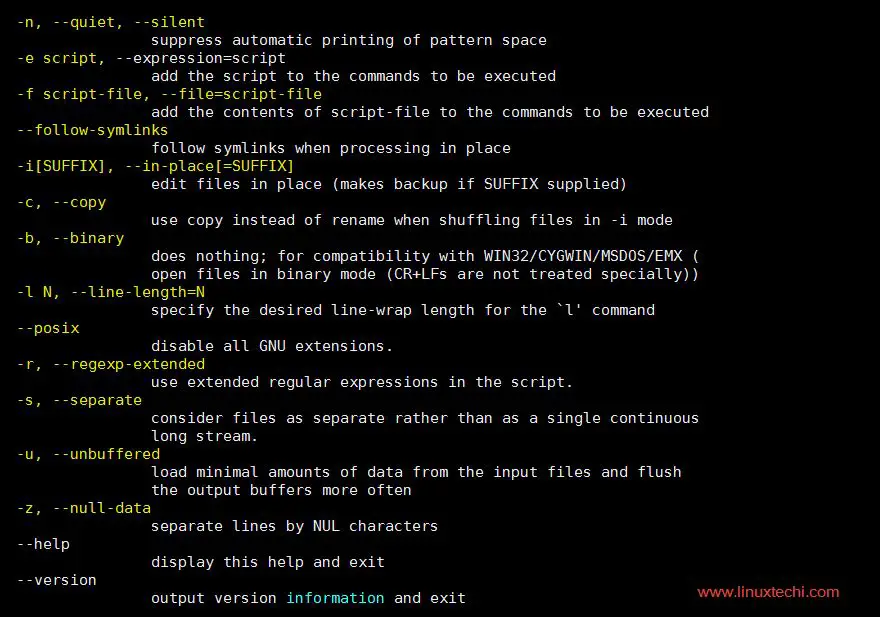
    sed OPTIONS… [SCRIPT] [INPUTFILE…]
    Sed-Command-Options
    Now let’s see some examples.

    Example :1) Displaying partial text of a file

    With sed, we can view only some part of a file rather than seeing whole file. To see some lines of the file, use the following command,
    [linuxtechi@localhost ~]$ sed -n 22,29p testfile.txt
    here, option ‘n’ suppresses printing of whole file & option ‘p’ will print only line lines from 22 to 29.

    Example :2) Display all except some lines

    To display all content of a file except for some portion, use the following command,
    [linuxtechi@localhost ~]$ sed 22,29d testfile.txt
    Option ‘d’ will remove the mentioned lines from output.

    Example :3) Display every 3rd line starting with Nth line

    Do display content of every 3rd line starting with line number 2 or any other line, use the following command
    [linuxtechi@localhost ~]$ sed -n '2-3p' file.txt

    Example :4 ) Deleting a line using sed command

    To delete a line with sed from a file, use the following command,
    [linuxtechi@localhost ~]$ sed Nd testfile.txt
    where ‘N’ is the line number & option ‘d’ will delete the mentioned line number. To delete the last line of the file, use
    [linuxtechi@localhost ~]$ sed $d testfile.txt

    Example :5) Deleting a range of lines

    To delete a range of lines from the file, run
    [linuxtechi@localhost ~]$ sed '29-34d' testfile.txt
    This will delete lines 29 to 34 from testfile.txt file.

    Example :6) Deleting lines other than the mentioned

    To delete lines other than the mentioned lines from a file, we will use ‘!’
    [linuxtechi@localhost ~]$ sed '29-34!d' testfile.txt
    here ‘!’ option is used as not, so it will reverse the condition i.e. will not delete the lines mentioned. All the lines other 29-34 will be deleted from the files testfile.txt.

    Example :7) Adding Blank lines/spaces

    To add a blank line after every non-blank line, we will use option ‘G’,
    [linuxtechi@localhost ~]$ sed G testfile.txt

    Example :8) Search and Replacing a string using sed

    To search & replace a string from the file, we will use the following example,
    [linuxtechi@localhost ~]$ sed 's/danger/safety/' testfile.txt
    here option ‘s’ will search for word ‘danger’ & replace it with ‘safety’ on every line for the first occurrence only.

    Example :9) Search and replace a string from whole file using sed

    To replace the word completely from the file, we will use option ‘g’  with ‘s’,
    [linuxtechi@localhost ~]$ sed 's/danger/safety/g' testfile.txt

    Example :10) Replace the nth occurrence of string pattern

    We can also substitute a string on nth occurrence from a file. Like replace ‘danger’ with ‘safety’ only on second occurrence,
    [linuxtechi@localhost ~]$ sed ‘s/danger/safety/2’ testfile.txt
    To replace ‘danger’ on 2nd occurrence of every line from whole file, use
    [linuxtechi@localhost ~]$ sed 's/danger/safety/2g' testfile.txt

    Example :11) Replace a string on a particular line

    To replace a string only from a particular line, use
    [linuxtechi@localhost ~]$ sed '4 s/danger/safety/' testfile.txt
    This will only substitute the string from 4th line of the file. We can also mention a range of lines instead of a single line,
    [linuxtechi@localhost ~]$  sed '4-9 s/danger/safety/' testfile.txt

    Example :12) Add a line after/before the matched search

    To add a new line with some content after every pattern match, use option ‘a’ ,
    [linuxtechi@localhost ~]$ sed '/danger/a "This is new line with text after match"' testfile.txt
    To add a new line with some content a before every pattern match, use option ‘i’,
    [linuxtechi@localhost ~]$ sed '/danger/i "This is new line with text before match"' testfile.txt

    Example :13) Change a whole line with matched pattern

    To change a whole line to a new line when a search pattern matches we need to use option ‘c’ with sed,
    [linuxtechi@localhost ~]$ sed '/danger/c "This will be the new line"' testfile.txt
    So when the pattern matches ‘danger’, whole line will be changed to the mentioned line.

    Advanced options with sed

    Up until now we were only using simple expressions with sed, now we will discuss some advanced uses of sed with regex,

    Example :14) Running multiple sed commands

    If we need to perform multiple sed expressions, we can use option ‘e’ to chain the sed commands,
    [linuxtechi@localhost ~]$  sed -e 's/danger/safety/g' -e 's/hate/love/' testfile.txt

    Example :15) Making a backup copy before editing a file

    To create a backup copy of a file before we edit it, use option ‘-i.bak’,
    [linuxtechi@localhost ~]$ sed -i.bak -e 's/danger/safety/g'  testfile.txt
    This will create a backup copy of the file with extension .bak. You can also use other extension if you like.

    Example :16) Delete a file line starting with & ending with a pattern

    To delete a file line starting with a particular string & ending with another string, use
    [linuxtechi@localhost ~]$ sed -e 's/danger.*stops//g' testfile.txt
    This will delete the line with ‘danger’ on start & ‘stops’ in the end & it can have any number of words in between , ‘.*’ defines that part.

    Example :17) Appending lines

    To add some content before every line with sed & regex, use
    [linuxtechi@localhost ~]$ sed -e 's/.*/testing sed &/' testfile.txt
    So now every line will have ‘testing sed’ before it.

    Example :18) Removing all commented lines & empty lines

    To remove all commented lines i.e. lines with # & all the empty lines,  use
    [linuxtechi@localhost ~]$ sed -e 's/#.*//;/^$/d' testfile.txt
    To only remove commented lines, use
    [linuxtechi@localhost ~]$ sed -e 's/#.*//' testfile.txt

    Example :19) Get list of all usernames from /etc/passwd

    To get the list of all usernames from /etc/passwd file, use
    [linuxtechi@localhost ~]$  sed 's/\([^:]*\).*/\1/' /etc/passwd
    a complete list all usernames will be generated on screen as output.

    Example :20) Prevent overwriting of system links with sed command

    ‘sed -i’ command has been know to remove system links & create only regular files in place of the link file. So to avoid such a situation & prevent ‘sed -i‘ from destroying the links, use ‘–follow-symklinks‘ options with the command being executed.
    Let’s assume i want to disable SELinux on CentOS or RHEL Severs
    [linuxtechi@localhost ~]# sed -i --follow-symlinks 's/SELINUX=enforcing/SELINUX=disabled/g' /etc/sysconfig/selinux
    These were some examples to show sed, we can use these reference to employ them as & when needed. If you guys have any queries related to this or any article, do share with us.

    Simon Tatham’s Portable Puzzle Collection – Games for the Brain

    $
    0
    0
    https://www.ossblog.org/simon-tathams-portable-puzzle-collection-games-brain

    Simon Tatham’s Portable Puzzle Collection

    I recently published an article identifying 13 fun open source puzzle games. Each game is worth downloading. As a reader pointed out, the article didn’t include an exquisite puzzle collection. That’s Simon Tatham’s Portable Puzzle Collection. Let’s call it the Puzzle Collection for brevity.
    Every game in this Puzzle Collection is published under an open source license. And the collection is portable. What does that mean? Well, the games run on almost every modern operating system. Besides Linux, Windows, Mac OS X, you can play the games on anything that supports Java, or JavaScript. They can also be played on the web.
    In fact the portability of the games are one of their chief virtues. You can be just about anywhere, on any combination of hardware and operating system, and indulge in a few minutes of puzzling. That’s the lead developer’s intention. These games aren’t intended to hog the whole afternoon. Instead, they are great to dip into when you need a brief diversion from whatever you are meant to be doing.
    Many of the puzzles are not invented by Simon or any of project’s other contributors. A number of the puzzles were invented by Nikoli, a Japanese publisher that specializes in games and, particularly, logic puzzles. There are some classic puzzles included in the Puzzle Collection. Implementations of quintessential puzzle games like Master Mind, Sudoku, and Minesweeper are featured. And there are lots of small puzzles that most people will never have played elsewhere. The diversity of the collection makes it a treasure trove.
    Here is a short video demonstrating Guess (Master Mind), Inertia, Tents, Mines (Minesweeper), and Solo (Sudoku).

    Besides the 39 puzzles below, there are a few unfinished puzzles lurking in the project’s repository including implementations of Block Puzzle (another puzzle invented by Nikoli), the block-sliding puzzle ‘Klotski’, and the well-known Sokoban barrel pushing game. There’s also a puzzle called Group which is, in fact, complete. It’s a Latin-square puzzle, but played with groups’ Cayley tables. You are given a Cayley table of a group with most elements blank and a few clues, and you must fill it in so as to preserve the group axioms. It’s not included in the puzzle collection because Simon considers it too esoteric and hard. But it’s easy to compile at least.

    Puzzles

     
    Black BoxFind the hidden balls in the box by bouncing laser beams off them
    BridgesConnect all the islands with a network of bridges
    CubePick up all the blue squares by rolling the cube over them
    DominosaTile the rectangle with a full set of dominoes
    FifteenSlide the tiles around to arrange them into order
    FillingMark every square with the area of its containing region
    FlipFlip groups of squares to light them all up at once
    FloodTurn the grid the same colour in as few flood fills as possible
    GalaxiesDivide the grid into rotationally symmetric regions each centred on a dot
    GuessClassic, deductive, code-breaking game, Master Mind
    InertiaCollect all the gems without running into any of the mines
    KeenComplete the latin square in accordance with the arithmetic clues
    Light UpPlace bulbs to light up all the squares
    LoopyDraw a single closed loop, given clues about number of adjacent edges
    MagnetsPlace magnets to satisfy the clues and avoid like poles touching
    MapColour the map so that adjacent regions are never the same colour
    MinesFind all the mines without treading on any of them
    NetRotate each tile to reassemble the network
    NetslideSlide a row at a time to reassemble the network
    PalisadeDivide the grid into equal-sized areas in accordance with the clues
    PatternFill in the pattern in the grid, given only the lengths of runs of black squares
    PearlDraw a single closed loop, given clues about corner and straight squares
    PegsJump pegs over each other to remove all but one
    RangePlace black squares to limit the visible distance from each numbered cell
    RectanglesDivide the grid into rectangles with areas equal to the numbers
    Same GameClear the grid by removing touching groups of the same colour squares
    SignpostConnect the squares into a path following the arrows
    SinglesBlack out the right set of duplicate numbers
    SixteenSlide a row at a time to arrange the tiles into order
    SlantDraw a maze of slanting lines that matches the clues
    SoloFill in the grid so that each row, column and square block contains one of every digit
    TentsPlace a tent next to each tree
    TowersComplete the latin square of towers in accordance with the clues
    TracksFill in the railway track according to the clues
    TwiddleRotate the tiles around themselves to arrange them into order
    UndeadPlace ghosts, vampires and zombies so that the right numbers of them can be seen in mirrors
    UnequalComplete the latin square in accordance with the > signs
    UnrulyFill in the black and white grid to avoid runs of three
    UntangleReposition the points so that the lines do not cross
    Below is a short tutorial showing you how to download and compile the latest source code for this game, and the other 38 games in the puzzle collection. The tutorial takes place in Linux, using the Ubuntu 17.10 distribution, but the procedure will be the same, or very similar, for other Linux distributions.
    If you find the videos helpful, please give them each a like and subscribe to our YouTube channel.

    OSSupportedNotes
    Besides the main 3 operating system, the puzzle collection has also been ported by contributors to Palm, Android, Symbian 60, iPhone, iPad, and the Windows Store.

    Homepage: www.chiark.greenend.org.uk/~sgtatham/puzzles/
    Developer: Simon Tatham, Richard Boulton, James Harvey, Mike Pinna, Jonas Kölker, Dariusz Olszewski, Michael Schierl, Lambros Lambrou, Bernd Schmidt, Steffen Bauer, Lennard Sprong, and Rogier Goossens
    License: MIT
    Written in: C, Java, JavaScript

    Getting started with Logstash

    $
    0
    0
    https://opensource.com/article/17/10/logstash-fundamentals

    No longer a simple log-processing pipeline, Logstash has evolved into a powerful and versatile data processing tool. Here are basics to get you started.

    Transform your data with Logstash
    Image by : 
    opensource.com
    Logstash, an open source tool released by Elastic, is designed to ingest and transform data. It was originally built to be a log-processing pipeline to ingest logging data into ElasticSearch. Several versions later, it can do much more.
    At its core, Logstash is a form of Extract-Transform-Load (ETL) pipeline. Unstructured log data is extracted, filters transform it, and the results are loaded into some form of data store.
    Logstash can take a line of text like this syslog example:


    Sep 11 14:13:38 vorthys sshd[16998]: Received disconnect from 192.0.2.11 port 53730:11: disconnected by user


    and transform it into a much richer datastructure:


    {

      "timestamp":"1505157218000",

      "host":"vorthys",

      "program":"sshd",

      "pid":"16998",

      "message":"Received disconnect from 192.0.2.11 port 53730:11: disconnected by user",

      "sshd_action":"disconnect",

      "sshd_tuple":"192.0.2.11:513730"

    }


    Depending on what you are using for your backing store, you can find events like this by using indexed fields rather than grepping terabytes of text. If you're generating tens to hundreds of gigabytes of logs a day, that matters.

    Internal architecture

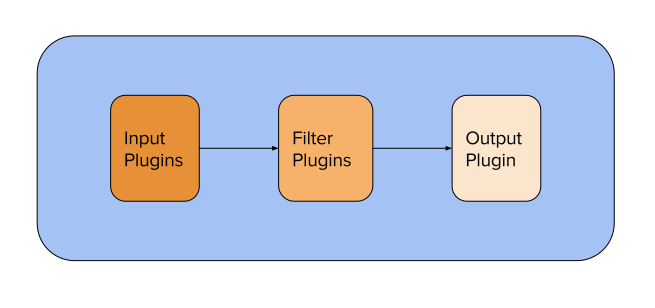
    Logstash has a three-stage pipeline implemented in JRuby:
    Logstash pipeline, showing input, filter, and output stages
    The input stage plugins extract data. This can be from logfiles, a TCP or UDP listener, one of several protocol-specific plugins such as syslog or IRC, or even queuing systems such as Redis, AQMP, or Kafka. This stage tags incoming events with metadata surrounding where the events came from.
    The filter stage plugins transform and enrich the data. This is the stage that produces the sshd_action and sshd_tuple fields in the example above. This is where you'll find most of Logstash's value.
    The output stage plugins load the processed events into something else, such as ElasticSearch or another document-database, or a queuing system such as Redis, AQMP, or Kafka. It can also be configured to communicate with an API. It is also possible to hook up something like PagerDuty to your Logstash outputs.
    Have a cron job that checks if your backups completed successfully? It can issue an alarm in the logging stream. This is picked up by an input, and a filter config set up to catch those events marks it up, allowing a conditional output to know this event is for it. This is how you can add alarms to scripts that would otherwise need to create their own notification layers, or that operate on systems that aren't allowed to communicate with the outside world.

    Threads

    In general, each input runs in its own thread. The filter and output stages are more complicated. In Logstash 1.5 through 2.1, the filter stage had a configurable number of threads, with the output stage occupying a single thread. That changed in Logstash 2.2, when the filter-stage threads were built to handle the output stage. With one fewer internal queue to keep track of, throughput improved with Logstash 2.2.
    If you're running an older version, it's worth upgrading to at least 2.2. When we moved from 1.5 to 2.2, we saw a 20-25% increase in overall throughput. Logstash also spent less time in wait states, so we used more of the CPU (47% vs 75%).

    Configuring the pipeline

    Logstash can take a single file or a directory for its configuration. If a directory is given, it reads the files in lexical order. This is important, as ordering is significant for filter plugins (we'll discuss that in more detail later).
    Here is a bare Logstash config file:


    input {}

    filter {}

    output {}


    Each of these will contain zero or more plugin configurations, and there can be multiple blocks.

    Input config

    An input section can look like this:


    input {

      syslog {

        port =>514

        type =>“syslog_server”

      }

    }


    This tells Logstash to open the syslog { } plugin on port 514 and will set the document type for each event coming in through that plugin to be syslog_server. This plugin follows RFC 3164 only, not the newer RFC 5424.
    Here is a slightly more complex input block:


    # Pull in syslog data

    input {

      file {

        path =>[

          "/var/log/syslog",

          "/var/log/auth.log"

        ]

        type =>"syslog"

      }

    }


    # Pull in application-log data. They emit data in JSON form.

    input{

      file {

        path =>[

          "/var/log/app/worker_info.log",

          "/var/log/app/broker_info.log",

          "/var/log/app/supervisor.log"

        ]

        exclude =>"*.gz"

        type    =>"applog"

        codec   =>"json"

      }

    }


    This one uses two different input { } blocks to call different invocations of the file { } plugin: One tracks system-level logs, the other tracks application-level logs. By using two different input { } blocks, a Java thread is spawned for each one. For a multi-core system, different cores keep track of the configured files; if one thread blocks, the other will continue to function.
    Both of these file { } blocks could be put into the same input { } block; they would simply run in the same thread—Logstash doesn't really care.

    Filter config

    The filter section is where you transform your data into something that's newer and easier to work with. Filters can get quite complex. Here are a few examples of filters that accomplish different goals:


    filter {

      if[program]=="metrics_fetcher"{

        mutate {

          add_tag =>['metrics']

        }

      }

    }


    In this example, if the program field, populated by the syslog plugin in the example input at the top, reads metrics_fetcher, then it tags the event metrics. This tag could be used in a later filter plugin to further enrich the data.


    filter {

      if"metrics"in[tags]{

        kv {

          source =>"message"

          target =>"metrics"

        }

      }

    }


    This one runs only if metrics is in the list of tags. It then uses the kv { } plugin to populate a new set of fields based on the key=value pairs in the message field. These new keys are placed as sub-fields of the metrics field, allowing the text pages_per_second=42 faults=0 to become metrics.pages_per_second = 42 and metrics.faults = 0 on the event.
    Why wouldn't you just put this in the same conditional that set the tag value? Because there are multiple ways an event could get the metrics tag—this way, the kv filter will handle them all.
    Because the filters are ordered, being sure that the filter plugin that defines the metrics tag is run before the conditional that checks for it is important. Here are guidelines to ensure your filter sections are optimally ordered:
    1. Your early filters should apply as much metadata as possible.
    2. Using the metadata, perform detailed parsing of events.
    3. In your late filters, regularize your data to reduce problems downstream.
      • Ensure field data types get cast to a unified value. priority could be boolean, integer, or string.
        • Some systems, including ElasticSearch, will quietly convert types for you. Sending strings into a boolean field won't give you the results you want.
        • Other systems will reject a value outright if it isn't in the right data type.
      • The mutate { } plugin is helpful here, as it has methods to coerce fields into specific data types.
    Here are useful plugins to extract fields from long strings:
    • date: Many logging systems emit a timestamp. This plugin parses that timestamp and sets the timestamp of the event to be that embedded time. By default, the timestamp of the event is when it was ingested, which could be seconds, hours, or even days later.
    • kv: As previously demonstrated, it can turn strings like backup_state=failed progress=0.24 into fields you can perform operations on.
    • csv: When given a list of columns to expect, it can create fields on the event based on comma-separated values.
    • json: If a field is formatted in JSON, this will turn it into fields. Very powerful!
    • xml: Like the JSON plugin, this will turn a field containing XML data into new fields.
    • grok: This is your regex engine. If you need to translate strings like The accounting backup failed into something that will pass if [backup_status] == 'failed', this will do it.

    Output config

    Elastic would like you to send it all into ElasticSearch, but anything that can accept a JSON document, or the datastructure it represents, can be an output. Keep in mind that events can be sent to multiple outputs. Consider this example of metrics:


    output {

      # Send to the local ElasticSearch port, and rotate the index daily.

      elasticsearch{

        hosts =>[

          "localhost",

          "logelastic.prod.internal"

        ]

        template_name =>"logstash"

        index         =>"logstash-{+YYYY.MM.dd}"

      }


      if"metrics"in[tags]{

        influxdb {

          host         =>"influx.prod.internal"

          db           =>"logstash"

          measurement  =>"appstats"

          # This next bit only works because it is already a hash.

          data_points =>"%{metrics}"

          send_as_tags =>['environment','application']

        }

      }

    }


    Remember the metrics example above? This is how we can output it. The events tagged metrics will get sent to ElasticSearch in their full event form. In addition, the subfields under the metrics field on that event will be sent to influxdb, in the logstash database, under the appstats measurement. Along with the measurements, the values of the environment and application fields will be submitted as indexed tags.
    There are a great many outputs. Here are some grouped by type:
    • API enpoints: Jira, PagerDuty, Rackspace, Redmine, Zabbix
    • Queues: Redis, Rabbit, Kafka, SQS
    • Messaging Platforms: IRC, XMPP, HipChat, email, IMAP
    • Document Databases: ElasticSearch, MongoDB, Solr
    • Metrics: OpenTSDB, InfluxDB, Nagios, Graphite, StatsD
    • Files and other static artifacts: File, CSV, S3
    There are many more output plugins.

    The special thing: codecs

    A codec is a special piece of the Logstash configuration. We saw one used on the file {} example above.


    # Pull in application-log data. They emit data in JSON form.

    input{

      file {

        path =>[

          "/var/log/app/worker_info.log",

          "/var/log/app/broker_info.log",

          "/var/log/app/supervisor.log"

        ]

        exclude =>"*.gz"

        type    =>"applog"

        codec   =>"json"

      }

    }


    In this case, the file plugin was configured to use the json codec. This tells the file plugin to expect a complete JSON data structure on every line in the file. If your logs can be emitted in a structure like this, your filter stage will be much shorter than it would if you had to grok, kv, and csv your way into enrichment.
    The json_lines codec is different in that it will separate events based on newlines in the feed. This is most useful when using something like the tcp { } input, when the connecting program streams JSON documents without re-establishing the connection each time.
    The multiline codec gets a special mention. As the name suggests, this is a codec you can put on an input to reassemble a multi-line event, such as a Java stack dump, into a single event.


    input {

      file {

        path =>'/var/log/stackdumps.log'

        type =>'stackdumps'

        codec => multiline {

          pattern =>"^\s"

          what    => previous

        }

      }

    }


    This codec tells the file plugin to treat any log line that starts with white space as belonging to the previous line. It will be appended to the message field with a new line and the contents of the log line. Once it hits a log line that doesn't start with white space, it will close the event and submit it to the filter stage.
    Warning: Due to the highly distributed nature of Logstash, the multiline codec needs to be run as close to the log source as possible. If it reads the file directly, that's perfect. If the events are coming through another system, such as a centralized syslog system, reassembly into a single event will be more challenging.

    Architectures

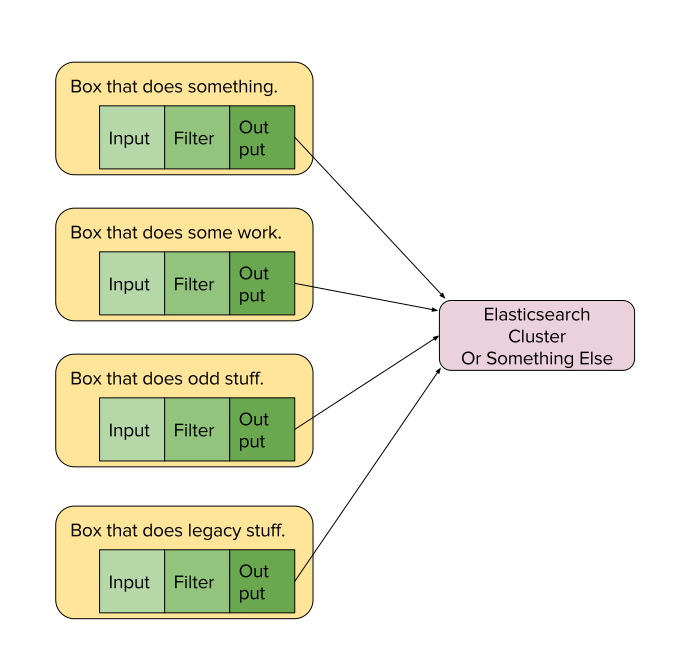
    Logstash can scale from all-in-one boxes up to gigantic infrastructures that require complex event routing before events are processed to satisfy different business owners.
    Diagram showing four application boxes running logstash, each submitting processed events to an ElasticSearch cluster In this example, Logstash is running on each of the four application boxes. Each independent config sends processed events to a centralized ElasticSearch cluster. This can scale quite far, but it means your log-processing resources are competing with your application resources.
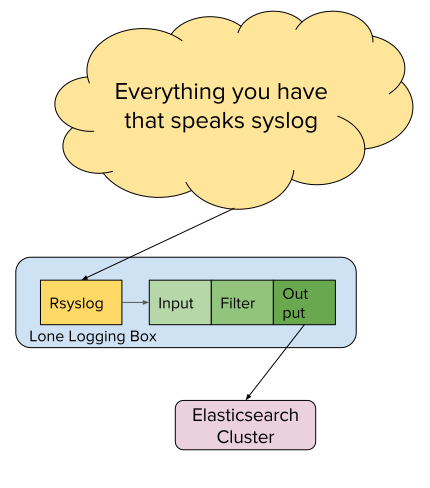
    Diagram showing a cloud of syslog-speaking services talking to RSyslog on a box, where Logstash consumes the rsyslog output This example shows an existing centralized logging infrastructure based on Syslog that we are adding onto. Here, Logstash is installed on the centralized logging box and configured to consume the file output of rsyslog. The processed results are then sent into ElasticSearch.

    Further reading

    Learn more in Jamie Riedesel's talk, S, M, and L Logstash Architectures: The Foundations, at LISA17, which will be held October 29-November 3 in San Francisco, California.

    Learn how to program in Python by building a simple dice game

    $
    0
    0
    https://opensource.com/article/17/10/python-101

    Python is a good language for young and old, with or without any programming experience.

    Learn how to program in Python by building a simple dice game
    Image by : 
    opensource.com
    Python is an all-purpose programming language that can be used to create desktop applications, 3D graphics, video games, and even websites. It's a great first programming language because it can be easy to learn and it's simpler than complex languages like C, C++, or Java. Even so, Python is powerful and robust enough to create advanced applications, and it's used in just about every industry that uses computers. This makes Python a good language for young and old, with or without any programming experience.

    Installing Python

    Before learning Python, you may need to install it.
    Linux: If you use Linux, Python is already included, but make sure that you have Python 3 specifically. To check which version is installed, open a terminal window and type:
        python3 -V
    If that command is not found, you'll need to install Python 3 from your package manager.
    MacOS: If you're on a Mac, follow the instructions for Linux above to see if you have Python 3 installed. MacOS does not have a built-in package manager, so if Python 3 is not found, install it from python.org/downloads/mac-osx. Although macOS does have Python 2 installed, you should learn Python 3.
    Windows: Microsoft Windows doesn't currently ship with Python. Install it from python.org/downloads/windows. Be sure to select Add Python to PATH in the install wizard.

    Running an IDE

    To write programs in Python, all you really need is a text editor, but it's convenient to have an integrated development environment (IDE). An IDE integrates a text editor with some friendly and helpful Python features. IDLE 3 and NINJA-IDE are two options to consider.

    IDLE 3

    Python comes with a basic IDE called IDLE.
    It has keyword highlighting to help detect typos and a Run button to test code quickly and easily. To use it:
    • On Linux or macOS, launch a terminal window and type idle3.
    • On Windows, launch Python 3 from the Start menu.
      • If you don't see Python in the Start menu, launch the Windows command prompt by typing cmd in the Start menu, and type C:\Windows\py.exe.
      • If that doesn't work, try reinstalling Python. Be sure to select Add Python to PATH in the install wizard. Refer to docs.python.org/3/using/windows.html for detailed instructions.
      • If that still doesn't work, just use Linux. It's free and, as long as you save your Python files to a USB thumb drive, you don't even have to install it to use it.

    Ninja-IDE

    Ninja-IDE is an excellent Python IDE. It has keyword highlighting to help detect typos, quotation and parenthesis completion to avoid syntax errors, line numbers (helpful when debugging), indentation markers, and a Run button to test code quickly and easily.

    ninja.png

    Ninja-IDE
    Ninja-IDE
    To use it:
    1. Install Ninja-IDE. if you're using Linux, it's easiest to use your package manager; otherwise download the correct installer version from NINJA-IDE's website.
    2. Launch Ninja-IDE.
    3. Go to the Edit menu and select Preferences.
    4. In the Preferences window, click the Execution tab.
    5. In the Execution tab, change python to python3.

    pref.png

    Python3 in Ninja-IDE
    Python3 in Ninja-IDE

    Telling Python what to do

    Keywords tell Python what you want it to do. In either IDLE or Ninja, go to the File menu and create a new file. Ninja users: Do not create a new project, just a new file.
    In your new, empty file, type this into IDLE or Ninja:
        print("Hello world.")
    • If you are using IDLE, go to the Run menu and select Run module option.
    • If you are using Ninja, click the Run File button in the left button bar.

    ninja_run.png

    Run file in Ninja
    Run file in Ninja
    The keyword print tells Python to print out whatever text you give it in parentheses and quotes.
    That's not very exciting, though. At its core, Python has access to only basic keywords, like print, help, basic math functions, and so on.
    Use the import keyword to load more keywords. Start a new file in IDLE or Ninja and name it pen.py.
    Warning: Do not call your file turtle.py, because turtle.py is the name of the file that contains the turtle program you are controlling. Naming your file turtle.py will confuse Python, because it will think you want to import your own file.
    Type this code into your file, and then run it:
        importturtle
    Turtle is a fun module to use. Try this:


        turtle.begin_fill()

        turtle.forward(100)

        turtle.left(90)

        turtle.forward(100)

        turtle.left(90)

        turtle.forward(100)

        turtle.left(90)

        turtle.forward(100)

        turtle.end_fill()


    See what shapes you can draw with the turtle module.
    To clear your turtle drawing area, use the turtle.clear() keyword. What do you think the keyword turtle.color("blue") does?
    Try more complex code:


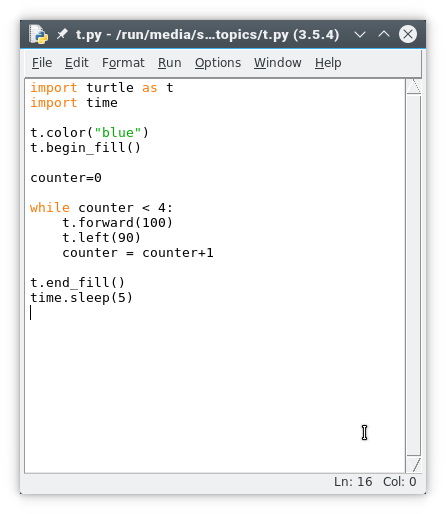
        importturtleas t

        importtime


        t.color("blue")

        t.begin_fill()


        counter=0


        while counter <4:

            t.forward(100)

            t.left(90)

            counter = counter+1


        t.end_fill()

        time.sleep(5)


    Once you have run your script, it's time to explore an even better module.

    Learning Python by making a game

    To learn more about how Python works and prepare for more advanced programming with graphics, let's focus on game logic. In this tutorial, we'll also learn a bit about how computer programs are structured by making a text-based game in which the computer and the player roll a virtual die, and the one with the highest roll wins.

    Planning your game

    Before writing code, it's important to think about what you intend to write. Many programmers write simple documentationbefore they begin writing code, so they have a goal to program toward. Here's how the dice program might look if you shipped documentation along with the game:
    1. Start the dice game and press Return or Enter to roll.
    2. The results are printed out to your screen.
    3. You are prompted to roll again or to quit.
    It's a simple game, but the documentation tells you a lot about what you need to do. For example, it tells you that you need the following components to write this game:
    • Player: You need a human to play the game.
    • AI: The computer must roll a die, too, or else the player has no one to win or lose to.
    • Random number: A common six-sided die renders a random number between 1 and 6.
    • Operator: Simple math can compare one number to another to see which is higher.
    • A win or lose message.
    • A prompt to play again or quit.

    Making dice game alpha

    Few programs start with all of their features, so the first version will only implement the basics. First a couple of definitions:
    A variable is a value that is subject to change, and they are used a lot in Python. Whenever you need your program to "remember" something, you use a variable. In fact, almost all the information that code works with is stored in variables. For example, in the math equation x + 5 = 20, the variable is x, because the letter x is a placeholder for a value.
    An integer is a number; it can be positive or negative. For example, 1 and -1 are both integers. So are 14, 21, and even 10,947.
    Variables in Python are easy to create and easy to work with. This initial version of the dice game uses two variables: player and ai.
    Type the following code into a new text file called dice_alpha.py:


        importrandom


        player =random.randint(1,6)

        ai =random.randint(1,6)


        if player > ai :

            print("You win") # notice indentation

        else:

            print("You lose")


    Launch your game to make sure it works.
    This basic version of your dice game works pretty well. It accomplishes the basic goals of the game, but it doesn't feel much like a game. The player never knows what they rolled or what the computer rolled, and the game ends even if the player would like to play again.
    This is common in the first version of software (called an alpha version). Now that you are confident that you can accomplish the main part (rolling a die), it's time to add to the program.

    Improving the game

    In this second version (called a beta) of your game, a few improvements will make it feel more like a game.

    1. Describe the results

    Instead of just telling players whether they did or didn't win, it's more interesting if they know what they rolled. Try making these changes to your code:


        player =random.randint(1,6)

        print("You rolled " + player)


        ai =random.randint(1,6)

        print("The computer rolled " + ai)


    If you run the game now, it will crash because Python thinks you're trying to do math. It thinks you're trying to add the letters "You rolled" and whatever number is currently stored in the player variable.
    You must tell Python to treat the numbers in the player and ai variables as if they were a word in a sentence (a string) rather than a number in a math equation (an integer).
    Make these changes to your code:


        player =random.randint(1,6)

        print("You rolled " + str(player))


        ai =random.randint(1,6)

        print("The computer rolled " + str(ai))


    Run your game now to see the result.

    2. Slow it down

    Computers are fast. Humans sometimes can be fast, but in games, it's often better to build suspense. You can use Python's time function to slow your game down during the suspenseful parts.


        importrandom

        importtime


        player =random.randint(1,6)

        print("You rolled " + str(player))


        ai =random.randint(1,6)

        print("The computer rolls....")

        time.sleep(2)

        print("The computer has rolled a " + str(player))


        if player > ai :

            print("You win") # notice indentation

        else:

            print("You lose")


    Launch your game to test your changes.

    3. Detect ties

    If you play your game enough, you'll discover that even though your game appears to be working correctly, it actually has a bug in it: It doesn't know what to do when the player and the computer roll the same number.
    To check whether a value is equal to another value, Python uses ==. That's two equal signs, not just one. If you use only one, Python thinks you're trying to create a new variable, but you're actually trying to do math.
    When you want to have more than just two options (i.e., win or lose), you can using Python's keyword elif, which means else if. This allows your code to check to see whether any one of some results are true, rather than just checking whether one thing is true.
    Modify your code like this:


        if player > ai :

            print("You win") # notice indentation

        elif player == ai:

            print("Tie game.")

        else:

            print("You lose")


    Launch your game a few times to see if you can tie the computer's roll.

    Programming the final release

    The beta release of your dice game is functional and feels more like a game than the alpha. For the final release, create your first Python function.
    A function is a collection of code that you can call upon as a distinct unit. Functions are important because most applications have a lot of code in them, but not all of that code has to run at once. Functions make it possible to start an application and control what happens and when.
    Change your code to this:


        importrandom

        importtime


        def dice():

            player =random.randint(1,6)

            print("You rolled " + str(player))


            ai =random.randint(1,6)

            print("The computer rolls....")

            time.sleep(2)

            print("The computer has rolled a " + str(player))


            if player > ai :

                print("You win") # notice indentation

            else:

                print("You lose")


            print("Quit? Y/N")

            cont =input()


            if cont =="Y"or cont =="y":

                exit()

            elif cont =="N"or cont =="n":

                pass

            else:

                print("I did not understand that. Playing again.")


    This version of the game asks the player whether they want to quit the game after they play. If they respond with a Y or y, Python's exit function is called and the game quits.
    More importantly, you've created your own function called dice. The dice function doesn't run right away. In fact, if you try your game at this stage, it won't crash, but it doesn't exactly run, either. To make the dice function actually do something, you have to call it in your code.
    Add this loop to the bottom of your existing code. The first two lines are only for context and to emphasize what gets indented and what does not. Pay close attention to indentation.


            else:

                print("I did not understand that. Playing again.")


        # main loop

        whileTrue:

            print("Press return to roll your die.")

            roll =input()

            dice()


    The while True code block runs first. Because True is always true by definition, this code block always runs until Python tells it to quit.
    The while True code block is a loop. It first prompts the user to start the game, then it calls your dice function. That's how the game starts. When the dice function is over, your loop either runs again or it exits, depending on how the player answered the prompt.
    Using a loop to run a program is the most common way to code an application. The loop ensures that the application stays open long enough for the computer user to use functions within the application.

    Next steps

    Now you know the basics of Python programming. The next article in this series will describe how to write a video game with PyGame, a module that has more features than turtle, but is also a lot more complex.

    Install a Centralized Log Server with Rsyslog in Debian 9

    $
    0
    0
    https://www.howtoforge.com/tutorial/rsyslog-centralized-log-server-in-debian-9

    In Linux, the log files are files that contain messages about the system functions which are used by system administrators to identify eventual issues on the machines. The logs help administrators to visualize the events that happened in the system over time periods. Usually, all log files are kept under /var/log directory in Linux. In this location, there are several types of log files for storing various messages, such as a log file for recording system events, a log file for security related messages, other log files dedicated for kernel, users or cron jobs. The main purpose of log files is to troubleshoot system problems. Most log files in Linux are controlled by rsyslogd service. On newer releases of Linux distributions, the log files are also controlled and managed by the journald system service, which is a part of systemd initialization program. The logs stored by journal daemon are written in a binary format and are mainly volatile, stored in RAM and in a ring-buffer in /run/log/journal/. However, the journal service can be also configured to permanently store the Syslog messages.
    In Linux, the rsyslog server can be configured to run a central log manager, in a service-client model fashion, and send log messages over the network via TCP or UDP transport protocols or receive logs from network devices, servers, routers, switches or other systems or embedded devices that generate logs.
    Rsyslog daemon can be setup to run as a client and server at the same time. Configured to run as a server, Rsyslog will listen on default port 514 TCP and UDP and will start to collect log messages that are sent over the network by remote systems.  As client, Rsyslog will send over the network the internal log messages to a remote Ryslog server via the same TCP or UDP ports.
    Rsyslog will filter syslog messages according to selected properties and actions. The rsyslog filters are as follows:
    1. Facility or Priority filers
    2. Property-based filters
    3. Expression-based filters
    The facility filter is represented by the Linux internal subsystem that produces the logs. They are categorized as presented below:
    • auth/authpriv = messages produced by authentication processes
    • cron= logs related to cron tasks
    • daemon = messages related to running system services
    • kernel = Linux kernel messages
    • mail = mail server messages
    • syslog = messages related to syslog or other daemons (DHCP server sends logs here)
    • lpr = printers or print server messages
    • local0 - local7 = custom messages under administrator control
    The priority or severity levels are assigned to a keyword and a number as described below.
    • emerg = Emergency – 0
    • alert = Alerts – 1
    • err = Errors – 3
    • warn = Warnings – 4
    • notice = Notification – 5
    • info = Information – 6
    • debug = Debugging – 7 highest level
    There are also some special Rsyslog keywords available such as the asterisk (*) sign to define all
    facilities or priorities, the none keyword which specify no priorities, the equal sign (=) which selects only that priority and the exclamation sign (!) which negates a priority.
    The action part of the syslog is represented by the destination statement. The destination of a log message can be a file stored in the file system, a file in /var/log/ system path, another local process input via a named pipe or FIFO. The log messages can be also directed to users, discarded to a black hole (/dev/null) or sent to stdout or to a remote syslog server via TCP/UDP protocol. The log messages can be also stored in a database, such as MySQL or PostgreSQL.

    Configure Rsyslog as a Server

    The Rsyslog daemon is automatically installed in most Linux distributions. However, if Rsyslog is not installed on your system you can issue one of the below commands in order to install the service> you will require root privileges to run the commands.
    In Debian based distros:
    sudo apt-get install rsyslog
    In RHEL based distros like CentOS:
    sudo yum install rsyslog
    In order to verify if Rsyslog daemon is started on a system execute the below commands, depending on your distribution version.
    On newer Linux distros with systemd:
    systemctl status rsyslog.service
    On older Linux versions with init:
    service rsyslog status
    /etc/init.d/rsyslog status
    In order to start the rsyslog daemon issue the following command.
    On older Linux versions with init:
    service rsyslog start
    /etc/init.d/rsyslog start
    On latest Linux distros:
    systemctl start rsyslog.service
    To setup an rsyslog program to run in server mode, edit the main configuration file in /etc/rsyslog.conf. In this file make the following changes as shown in the below sample.
    sudo vi /etc/rsyslog.conf
    Locate and uncomment by removing the hashtag (#) the following lines in order to allow UDP log message reception on 514 port. By default, the UDP port is used by syslog to send-receive messages.
    $ModLoad imudp 
    $UDPServerRun 514
    Because the UDP protocol is not reliable to exchange data over a network, you can setup Rsyslog to output log messages to a remote server via TCP protocol. To enable TCP reception protocol, open /etc/rsyslog.conf file and uncomment the following lines as shown below. This will allow the rsyslog daemon to bind and listen on a TCP socket on port 514.
    $ModLoad imtcp 
    $InputTCPServerRun 514
    Both protocols can be enabled in rsyslog to run at the same time.
    If you want to specify to which senders you permit access to rsyslog daemon, add the following line after the enabled protocol lines:
    $AllowedSender TCP, 127.0.0.1, 10.110.50.0/24, *.yourdomain.com
    You will also need to create a new template that will be parsed by rsyslog daemon before receiving the incoming logs. The template should instruct the local Rsyslog server where to store the incoming log messages. Define the template right after the $AllowedSender line as shown in the below sample.
    $template Incoming-logs,"/var/log/%HOSTNAME%/%PROGRAMNAME%.log" 
    *.*  ?Incoming-logs
    & ~
     To log only the messages generated by kern facility use the below syntax.
    kern.*   ?Incoming-logs
    The received logs are parsed by the above template and will be stored in the local file system in /var/log/ directory, in files named after the client hostname client facility that produced the messages: %HOSTNAME% and %PROGRAMNAME% variables.
    The below & ~ redirect rule configures the Rsyslog daemon to save the incoming log messages only to the above files specified by the variables names. Otherwise, the received logs will be further processed and also stored in the content of local logs, such as /var/log/syslog file.
    To add a rule to discard all related log messages to mail, you can use the following statement.
    mail.* ~
    Other variables that can be used to output file names are: %syslogseverity%, %syslogfacility%, %timegenerated%, %HOSTNAME%, %syslogtag%, %msg%, %FROMHOST-IP%, %PRI%, %MSGID%, %APP-NAME%, %TIMESTAMP%, %$year%, %$month%, %$day%
    Starting with Rsyslog version 7, a new configuration format can be used to declare a template in an Rsyslog server.
    A version 7 template sample can look like shown in the below lines.
    template(name="MyTemplate" type="string"
             string="/var/log/%FROMHOST-IP%/%PROGRAMNAME:::secpath-replace%.log"
            )
     Another mode you can write the above template can also be as shown below:
    template(name="MyTemplate" type="list") {
        constant(value="/var/log/")
        property(name="fromhost-ip")
        constant(value="/")
        property(name="programname" SecurePath="replace")
        constant(value=".log")
        }
    In order to apply any changes made to rsyslog configuration file, you must restart the daemon to load the new configuration.
    sudo service rsyslog restart
    sudo systemctl restart rsyslog
    To check which rsyslog sockets in listening state are opened on a Debian Linux system, you can execute the netstat command with root privileges. Pass the results via a filter utility, such as grep.
    sudo netstat –tulpn | grep rsyslog
    Be aware that you must also open Rsyslog ports in firewall in order to allow incoming connections to be established.
    In RHEL based distros with Firewalld activated issue the below commands:
    firewall-cmd --permanent --add-port=514/tcp
    firewall-cmd --permanent --add-port=514/tcp
    firewall-cmd –reload
    In Debian based distros with UFW firewall active issue the below commands:
    ufw allow 514/tcp
    ufw allow 514/udp
    Iptables firewall rules:
    iptables -A INPUT -p tcp -m tcp --dport 514 -j ACCEPT
    iptables -A INPUT -p udp --dport 514 -j ACCEPT

    Configure Rsyslog as a Client

    To enable rsyslog daemon to run in client mode and output local log messages to a remote Rsyslog server, edit /etc/rsyslog.conf file and add one of the following lines:
    *. *  @IP_REMOTE_RSYSLOG_SERVER:514
    *. *  @FQDN_RSYSLOG_SERVER:514
    This line enables the Rsyslog service to output all internal logs to a distant Rsyslog server on UDP port 514.
    To send the logs over TCP protocol use the following template:
    *. *  @@IP_reomte_syslog_server:514
    To output only cron related logs with all priorities to a rsyslog server, use the below template:
    cron.* @ IP_reomte_syslog_server:514
    In cases when the Rsyslog server is not reachable via network, append the below lines to /etc/rsyslog.conf file on the client side in order temporarily store the logs in a disk buffered file, until the server comes online.
    $ActionQueueFileName queue
    $ActionQueueMaxDiskSpace 1g
    $ActionQueueSaveOnShutdown on
    $ActionQueueType LinkedList
    $ActionResumeRetryCount -1
    To apply the above rules, Rsyslog daemon needs to be restarted in order to act as a client.

    How To Display Date And Time In History Command

    $
    0
    0
    https://www.2daygeek.com/display-date-time-linux-bash-history-command

    We all are familiar with History command. It stores/keep all the commands executed by bash in terminal into .bash_history file, which will help us to recheck the previously executed commands by user for further investigation.
    By default history command shows only the commands executed by users and it doesn’t print the date and time but it logs the time when you ran a command.
    Whenever you run history command, it looks for an environment variable called HISTTIMEFORMAT, which tells how to format date & time with history command.
    If the value is null or not set then it will shows default results like how most of the systems shows (Without date and time).
    HISTTIMEFORMAT takes values from strftime (strftime – convert date and time to a string). When you have date and time in history command output, it might help you to track the issue easily.
    • %T : Replaced by the time ( %H : %M : %S ).
    • %F : Equivalent to %Y – %m – %d (the ISO 8601:2000 standard date format).
    See below default history command output.
    # history
    1 yum install -y mysql-server mysql-client
    2 service mysqld start
    3 sysdig proc.name=sshd
    4 sysdig -c topprocs_net
    5 sysdig proc.name=sshd
    6 sysdig proc.name=sshd | more
    7 sysdig fd.name=/var/log/auth.log | more
    8 sysdig fd.name=/var/log/mysqld.log
    9 sysdig -cl
    10 sysdig -i httplog
    11 sysdig -i proc_exec_time
    12 sysdig -i topprocs_cpu
    13 sysdig -c topprocs_cpu
    14 sysdig -c tracers_2_statsd
    15 sysdig -c topfiles_bytes
    16 sysdig -c topprocs_cpu
    17 sysdig -c topprocs_cpu "fd.name contains sshd"
    18 sysdig -c topprocs_cpu "proc.name contains sshd"
    19 csysdig
    20 sysdig -c topprocs_cpu
    21 rpm --import https://s3.amazonaws.com/download.draios.com/DRAIOS-GPG-KEY.public
    22 curl -s -o /etc/yum.repos.d/draios.repo http://download.draios.com/stable/rpm/draios.repo
    23 yum install -y epel-release
    24 yum update
    25 yum makecache
    26 yum -y install kernel-devel-$(uname -r)
    27 yum -y install sysdig
    28 sysdig
    29 yum install httpd mysql
    30 service httpd start
    We can set this environment variable in three ways based on our requirements.
    • Temporarily to current user
    • Permanently to current/other user
    • Permanently to all users
    Note : Don’t forget to add space before the last single-quotes, otherwise the output would be messy.

    Method-1 :

    Run the following command to set HISTTIMEFORMAT variable temporarily to current user. This will go away after reboot.
    # export HISTTIMEFORMAT='%F %T '

    Method-2 :

    Append following HISTTIMEFORMAT variable to .bashrc or .bash_profile file to make it permanent for every user.
    # echo 'HISTTIMEFORMAT="%F %T "'>> ~/.bashrc
    or
    # echo 'HISTTIMEFORMAT="%F %T "'>> ~/.bash_profile
    Run the following command to to effect the changes made to the file.
    # source ~/.bashrc
    or
    # source ~/.bash_profile

    Method-3 :

    Append following HISTTIMEFORMAT variable to /etc/profile file to make it permanent to all users.
    # echo 'HISTTIMEFORMAT="%F %T "'>> /etc/profile
    Run the following command to to effect the changes made to the file.
    # source /etc/profile
    See the sample output.
    # history
    1 2017-08-16 15:30:15 yum install -y mysql-server mysql-client
    2 2017-08-16 15:30:15 service mysqld start
    3 2017-08-16 15:30:15 sysdig proc.name=sshd
    4 2017-08-16 15:30:15 sysdig -c topprocs_net
    5 2017-08-16 15:30:15 sysdig proc.name=sshd
    6 2017-08-16 15:30:15 sysdig proc.name=sshd | more
    7 2017-08-16 15:30:15 sysdig fd.name=/var/log/auth.log | more
    8 2017-08-16 15:30:15 sysdig fd.name=/var/log/mysqld.log
    9 2017-08-16 15:30:15 sysdig -cl
    10 2017-08-16 15:30:15 sysdig -i httplog
    11 2017-08-16 15:30:15 sysdig -i proc_exec_time
    12 2017-08-16 15:30:15 sysdig -i topprocs_cpu
    13 2017-08-16 15:30:15 sysdig -c topprocs_cpu
    14 2017-08-16 15:30:15 sysdig -c tracers_2_statsd
    15 2017-08-16 15:30:15 sysdig -c topfiles_bytes
    16 2017-08-16 15:30:15 sysdig -c topprocs_cpu
    17 2017-08-16 15:30:15 sysdig -c topprocs_cpu "fd.name contains sshd"
    18 2017-08-16 15:30:15 sysdig -c topprocs_cpu "proc.name contains sshd"
    19 2017-08-16 15:30:15 csysdig
    20 2017-08-16 15:30:15 sysdig -c topprocs_cpu
    21 2017-08-16 15:30:15 rpm --import https://s3.amazonaws.com/download.draios.com/DRAIOS-GPG-KEY.public
    22 2017-08-16 15:30:15 curl -s -o /etc/yum.repos.d/draios.repo http://download.draios.com/stable/rpm/draios.repo
    23 2017-08-16 15:30:15 yum install -y epel-release
    24 2017-08-16 15:30:15 yum update
    25 2017-08-16 15:30:15 yum makecache
    26 2017-08-16 15:30:15 yum -y install kernel-devel-$(uname -r)
    27 2017-08-16 15:30:15 yum -y install sysdig
    28 2017-08-16 15:30:15 sysdig
    29 2017-08-16 15:30:15 yum install httpd mysql
    30 2017-08-16 15:30:15 service httpd start

    How To Enable Jumbo Frames In Linux

    $
    0
    0
    https://linuxconfig.org/how-to-enable-jumbo-frames-in-linux

    Objective

    Configure Linux to use jumbo frames.

    Distributions

    This will work with any Linux distribution.

    Requirements

    A working Linux install with network connectivity and root privileges.

    Difficulty

    Easy

    Conventions

    • # - requires given command to be executed with root privileges either directly as a root user or by use of sudo command
    • $ - given command to be executed as a regular non-privileged user

    Introduction

    Are file transfers slow on your network? Are you constantly passing data between your computers? Well, maybe jumbo frames are for you.

    Jumbo frames are larger than standard network packet payloads. Normally the payload size or MTU(Maximum Transfer Unit) is set to 1500 bytes. Jumbo frames can support to 9000 bytes per packet.

    Jumbo frames decrease the overhead associated with transferring files by limiting the number of packets that your networking equipment needs to process.

    Set Up Your Network

    For jumbo frames to work properly, every device on your network should be configured to use them. That said, if they don't it's not the end of the world. A device that doesn't support them will just break up the packets when they arrive. You should, at very least, configure your router and any switches on your network to use them.

    MTU Settings on a DD-WRT Router

    A lot of routers have settings that allow you to change the MTU size. It's in a different place on every router, but it usually appears in a general settings tab that controls the entire device or network.

    When you find it, set it to a value that you think all of your devices can support. Remember, the upper limit for jumbo frames is 9000 bytes.

    Check Your MTU size

    Now that your network supports jumbo frames, check what your computer is set to. It's probably 1500 bytes, since that's the default, but it's good to make sure.

    Everything here is going to be handled with the ip command. So, use it to check the MTU size allowed by your network interfaces.
    $ ip link show | grep mtu
    The numbers directly after the mtu is the value you're looking for.

    Set A New Size

    Setting the MTU size is really easy with ip. You just need to tell it which interface you want to modify and the size you want to set it to.
    # ip link set eth0 mtu 9000
    You can set every interface on your computer, if your hardware supports it.
    # ip link set wlan0 mtu 9000

    Make It Permanent

    There are a couple of different ways you can make the new MTU size permanent. There is no specific utility for it, but the easiest thing you can do is create a script that runs at startup to set the MTU. If you're very comfortable working with systemd, you can change the network files it supplies to change the default MTU as well.

    Your script should look something like this:
    #! /bin/bash

    ip linkset eth0 mtu 9000;
    ip linkset wlan0 mtu 9000;
    If you're on systemd, create a simple unit, and set it to run at startup.

    OpenRC users can place their script in /etc/init.d/, and run it as a service at default.

    Closing Thoughts

    Jumbo frames reduce stress on your network, and can free up your router's computational resources. They're not going to make a huge difference in your network speed, but they may reduce the time required for file transfers.

    10 layers of Linux container security

    $
    0
    0
    https://opensource.com/article/17/10/10-layers-container-security

    Employ these strategies to secure different layers of the container solution stack and different stages of the container lifecycle.

    10 layers of container security
    Image by : 
    opensource.com
    Containers provide an easy way to package applications and deliver them seamlessly from development to test to production. This helps ensure consistency across a variety of environments, including physical servers, virtual machines (VMs), or private or public clouds. These benefits are leading organizations to rapidly adopt containers in order to easily develop and manage the applications that add business value.
    Enterprises require strong security, and anyone running essential services in containers will ask, "Are containers secure?" and "Can we trust containers with our applications?"
    Securing containers is a lot like securing any running process. You need to think about security throughout the layers of the solution stack before you deploy and run your container. You also need to think about security throughout the application and container lifecycle.
    Try these 10 key elements to secure different layers of the container solution stack and different stages of the container lifecycle.

    1. The container host operating system and multi-tenancy

    Containers make it easier for developers to build and promote an application and its dependencies as a unit and to get the most use of servers by enabling multi-tenant application deployments on a shared host. It's easy to deploy multiple applications on a single host, spinning up and shutting down individual containers as needed. To take full advantage of this packaging and deployment technology, the operations team needs the right environment for running containers. Operations needs an operating system that can secure containers at the boundaries, securing the host kernel from container escapes and securing containers from each other.
    Containers are Linux processes with isolation and resource confinement that enable you to run sandboxed applications on a shared host kernel. Your approach to securing containers should be the same as your approach to securing any running process on Linux. Dropping privileges is important and still the best practice. Even better is to create containers with the least privilege possible. Containers should run as user, not root. Next, make use of the multiple levels of security available in Linux. Linux namespaces, Security-Enhanced Linux (SELinux), cgroups, capabilities, and secure computing mode (seccomp) are five of the security features available for securing containers.

    2. Container content (use trusted sources)

    When it comes to security, what's inside your container matters. For some time now, applications and infrastructures have been composed from readily available components. Many of these are open source packages, such as the Linux operating system, Apache Web Server, Red Hat JBoss Enterprise Application Platform, PostgreSQL, and Node.js. Containerized versions of these packages are now also readily available, so you don't have to build your own. But, as with any code you download from an external source, you need to know where the packages originated, who built them, and whether there's any malicious code inside them.

    3. Container registries (secure access to container images)

    Your teams are building containers that layer content on top of downloaded public container images, so it's critical to manage access to and promotion of the downloaded container images and the internally built images in the same way other types of binaries are managed. Many private registries support storage of container images. Select a private registry that helps to automate policies for the use of container images stored in the registry.

    4. Security and the build process

    In a containerized environment, the software-build process is the stage in the lifecycle where application code is integrated with needed runtime libraries. Managing this build process is key to securing the software stack. Adhering to a "build once, deploy everywhere" philosophy ensures that the product of the build process is exactly what is deployed in production. It's also important to maintain the immutability of your containers—in other words, do not patch running containers; rebuild and redeploy them instead.
    Whether you work in a highly regulated industry or simply want to optimize your team's efforts, design your container image management and build process to take advantage of container layers to implement separation of control, so that the:
    • Operations team manages base images
    • Architects manage middleware, runtimes, databases, and other such solutions
    • Developers focus on application layers and just write code
    Finally, sign your custom-built containers so that you can be sure they are not tampered with between build and deployment.

    5. Control what can be deployed within a cluster

    In case anything falls through during the build process, or for situations where a vulnerability is discovered after an image has been deployed, add yet another layer of security in the form of tools for automated, policy-based deployment.
    Let's look at an application that's built using three container image layers: core, middleware, and the application layer. An issue is discovered in the core image and that image is rebuilt. Once the build is complete, the image is pushed to the container platform registry. The platform can detect that the image has changed. For builds that are dependent on this image and have triggers defined, the platform will automatically rebuild the application image, incorporating the fixed libraries.
    Add yet another layer of security in the form of tools for automated, policy-based deployment.
    Once the build is complete, the image is pushed to container platform's internal registry. It immediately detects changes to images in its internal registry and, for applications where triggers are defined, automatically deploys the updated image, ensuring that the code running in production is always identical to the most recently updated image. All these capabilities work together to integrate security capabilities into your continuous integration and continuous deployment (CI/CD) process and pipeline.

    6. Container orchestration: Securing the container platform

    Of course, applications are rarely delivered in a single container. Even simple applications typically have a frontend, a backend, and a database. And deploying modern microservices applications in containers means deploying multiple containers, sometimes on the same host and sometimes distributed across multiple hosts or nodes, as shown in this diagram.
    When managing container deployment at scale, you need to consider:
    • Which containers should be deployed to which hosts?
    • Which host has more capacity?
    • Which containers need access to each other? How will they discover each other?
    • How will you control access to—and management of—shared resources, like network and storage?
    • How will you monitor container health?
    • How will you automatically scale application capacity to meet demand?
    • How will you enable developer self-service while also meeting security requirements?
    Given the wealth of capabilities for both developers and operators, strong role-based access control is a critical element of the container platform. For example, the orchestration management servers are a central point of access and should receive the highest level of security scrutiny. APIs are key to automating container management at scale and used to validate and configure the data for pods, services, and replication controllers; perform project validation on incoming requests; and invoke triggers on other major system components.

    7. Network isolation

    Deploying modern microservices applications in containers often means deploying multiple containers distributed across multiple nodes. With network defense in mind, you need a way to isolate applications from one another within a cluster. A typical public cloud container service, like Google Container Engine (GKE), Azure Container Services, or Amazon Web Services (AWS) Container Service, are single-tenant services. They let you run your containers on the VM cluster that you initiate. For secure container multi-tenancy, you want a container platform that allows you to take a single cluster and segment the traffic to isolate different users, teams, applications, and environments within that cluster.
    With network namespaces, each collection of containers (known as a "pod") gets its own IP and port range to bind to, thereby isolating pod networks from each other on the node. Pods from different namespaces (projects) cannot send packets to or receive packets from pods and services of a different project by default, with the exception of options noted below. You can use these features to isolate developer, test, and production environments within a cluster; however, this proliferation of IP addresses and ports makes networking more complicated. In addition, containers are designed to come and go. Invest in tools that handle this complexity for you. The preferred tool is a container platform that uses software-defined networking (SDN) to provide a unified cluster network that enables communication between containers across the cluster.

    8. Storage

    Containers are useful for both stateless and stateful applications. Protecting attached storage is a key element of securing stateful services. Container platforms should provide plugins for multiple flavors of storage, including network file systems (NFS), AWS Elastic Block Stores (EBS), GCE Persistent Disks, GlusterFS, iSCSI, RADOS (Ceph), Cinder, etc.
    A persistent volume (PV) can be mounted on a host in any way supported by the resource provider. Providers will have different capabilities, and each PV's access modes are set to the specific modes supported by that particular volume. For example, NFS can support multiple read/write clients, but a specific NFS PV might be exported on the server as read only. Each PV gets its own set of access modes describing that specific PV's capabilities, such as ReadWriteOnce, ReadOnlyMany, and ReadWriteMany.

    9. API management, endpoint security, and single sign-on (SSO)

    Securing your applications includes managing application and API authentication and authorization.
    Web SSO capabilities are a key part of modern applications. Container platforms can come with various containerized services for developers to use when building their applications.
    APIs are key to applications composed of microservices. These applications have multiple independent API services, leading to proliferation of service endpoints, which require additional tools for governance. An API management tool is also recommended. All API platforms should offer a variety of standard options for API authentication and security, which can be used alone or in combination, to issue credentials and control access.
    Securing your applications includes managing application and API authentication and authorization.
    These options include standard API keys, application ID and key pairs, and OAuth 2.0.

    10. Roles and access management in a cluster federation

    In July 2016, Kubernetes 1.3 introduced Kubernetes Federated Clusters. This is one of the exciting new features evolving in the Kubernetes upstream, currently in beta in Kubernetes 1.6. Federation is useful for deploying and accessing application services that span multiple clusters running in the public cloud or enterprise datacenters. Multiple clusters can be useful to enable application high availability across multiple availability zones or to enable common management of deployments or migrations across multiple cloud providers, such as AWS, Google Cloud, and Azure.
    When managing federated clusters, you must be sure that your orchestration tools provide the security you need across the different deployment platform instances. As always, authentication and authorization are key—as well as the ability to securely pass data to your applications, wherever they run, and manage application multi-tenancy across clusters. Kubernetes is extending Cluster Federation to include support for Federated Secrets, Federated Namespaces, and Ingress objects.

    Choosing a container platform

    Of course, it is not just about security. Your container platform needs to provide an experience that works for your developers and your operations team. It needs to offer a secure, enterprise-grade container-based application platform that enables both developers and operators, without compromising the functions needed by each team, while also improving operational efficiency and infrastructure utilization.
    Learn more in Daniel's talk, Ten Layers of Container Security, at Open Source Summit EU, which will be held October 23-26 in Prague.

    An introduction to machine learning today

    $
    0
    0
    https://opensource.com/article/17/9/introduction-machine-learning

    Machine learning and artificial intelligence have changed a lot since the last wave of interest, about 25 years ago.

    An introduction to machine learning today
    Image by : 
    opensource.com
    Machine learning and artificial intelligence (ML/AI) mean different things to different people, but the newest approaches have one thing in common: They are based on the idea that a program's output should be created mostly automatically from a high-dimensional and possibly huge dataset, with minimal or no intervention or guidance from a human. Open source tools are used in a variety of machine learning and artificial intelligence projects. In this article, I'll provide an overview of the state of machine learning today.
    In the past, AI programs usually were explicitly programmed to perform tasks. In most cases, the machine's "learning" consisted of adjusting a few parameters, guiding the fixed implementation to add facts to a collection of other facts (a knowledge database), then (efficiently) searching the knowledge database for a solution to a problem, in the form of a path of many small steps from one known solution to the next. In some cases, the database wouldn't need to or couldn't be explicitly stored and therefore had to be rebuilt.
    One example is an object/scene manipulation, such as "take the red stone and put it on top of the yellow stone" that incorporates implicit information (e.g., that the red stone is under the blue one). The possible transformations of this world are given; it's up to the AI program to find a solution to get from the start to the end. Another example is steering a car. The AI is given specific boundary conditions, and possible actions (steering, braking, accelerating) are expressed. For a given action, there's a start position, an end position, and boundary conditions, and it's up to the AI to handle it. For example: "Turn 90 degrees to the right, end 50 meters forward and to the right, do not drive more than 15km/h, and do not decelerate more than 10m/s2."
    These are search and optimization problems, and solving them is not necessarily AI or a learning program. The core part of learning—and what makes it interesting—is that if there is a set of rules, they are numerous. But sometimes no rules exist, and it's just a matter of whether the program's individual steps are possible and useful. These types of problems cannot really be solved with old-style AI programs.

    The new approach

    Instead of relying on a huge set of rules, the new approach to ML/AI is to provide a start state, based on the universe in which the problem exists, and the specific goal (if one exists), then let the learning process figure out the intermediate states and how to progress from one state to the next. The internal states and transitions (which we call a model) are developed with the help of statistics. (As an aside, I'd suggest that a better name for today's ML/AI is statistical learning.) The more complicated the problem, the more (internal) variables the formulation has.
    This is all quite abstract, so let's look at examples.
    Example 1: A collection of pictures is tagged with cat, dog, or pudding. After a learning phase, the program is expected to correctly classify pictures it has not seen before.
    It is hard to design an algorithm that would extract features from a picture to serve as input for a search algorithm. It is logistically impossible to design and implement by hand more than a few dozen features, and those might not be sufficient.
    A statistical approach could use a large number of (simple) functions with an even larger number of variables. The inputs to the functions can be numerous—maybe the value of every single pixel in a picture. The task would be to determine the appropriate values for all the variables to ensure that interpretation of the results of all the functions matches the tags given.
    With this approach, no one has to understand the internal rules for the intermediate states and how to get from one state to the next. The only thing that counts is that the result is correct and that an algorithm can be designed to efficiently adjust the internal variables appropriately.
    Example 2: From a large number of documents, texts about related topics are grouped together.
    Training such a program might begin with extracting individual words, as the assumption is that texts about a similar topic share a common vocabulary. Perhaps the sentence structure could be examined and the nouns might suggest connections. But what about texts that have no distinct vocabulary? Or incomplete sentence structure? Or are written in different languages? Writing expert text-understanding algorithms is simply not scalable.
    On the other hand, the same statistics that let a human devise a rule (such as, "if 'manifold' and 'tensor' are used in the same document, the topic might be theoretical physics") can be used by a machine to the nth degree; i.e., instead of looking just for a few hopefully relevant and stand-out words, a large (or huge) number of such rules can be used—as long as no one has to explicitly create the rules. Plus, if everything is automatic, there is no reason to stop with words; you could also look for phrases or word sequences, as well as to automatically recognize and filter the most common words.
    Example 3: To navigate an unknown area, an algorithm efficiently creates a search plan that eventually covers the entire area to locate a specific destination.
    Such a plan would have to handle unforeseen obstacles such as walls, impassable terrain, etc., as they are navigated. Therefore, there can't be one static plan; rather it must be revised every time new information is available. The program might not even have an answer for situations the code was not programmed to handle.
    A modern approach would require much less upfront information. It would just need a function that evaluates the current situation, then determines whether it is better or worse than the previous situation. For instance, the simulated search might have the searcher go from one location to the next, but this might mean leaving the search area or determining that it's not doable or practical because of limitations (e.g., the terrain is too steep). This kind of differential information is usually much easier to come by than evaluating the entire scenario for a global planning algorithm. A local evaluation function can create an algorithm that, over many iterations, finds the destination without explicitly being told how to—or even about the rules of the world.

    Let the computer do it

    What these examples have in common—what the new approach to machine learning is about and why this hasn't been done before—is that the computer does a lot of work. Instead of immediately honing on a solution, it must take many minute steps, even steps in the wrong direction. If done correctly, a huge number of repetitions will eventually help identify a solution.
    During the last big surge of interest in AI, 25 to 30 years ago, we didn't have the computing power, size, or complexity available today, so these methods were impossible. The increase in model complexity has made the difference that's allowed problems to be solved with (what appears to be) intuition and superhuman power.
    Today we can throw a problem at an algorithm and, given sufficient data, get a result after hundreds, thousands, or even millions of computer hours. Whether or not the result is usable is another question, which brings us to one of the most important points.

    Beware of the results

    All the new approaches depend on statistics. Basically, we have functions that take input data and produce one or more pieces of output in a strictly mathematical fashion. While a rule-based planning algorithm, for example, would not go into (or at least could recognize) an invalid state, this is not true with statistical functions.
    Although the new approach offers solutions to problems that previously were too complex to consider or wouldn't have justified the high development cost, now we must critically evaluate the value of each model. Not just once, but regularly and repeatedly during the entire lifetime of the model, because the input data might imperceptibly change from useful to garbage (with corresponding garbage results).
    In some situations, there might not be a sufficient model. Maybe the task is simply impossible, or no input data is provided, or the model does not have enough degrees of freedom to represent all the nuances. The algorithms to produce the models will usually terminate and present a result. Whether the model is useful must be determined afterwards.

    Scientific method of model development

    The problems of model development are nothing new. Many generations of scientists have developed a rigorous approach to tackling a problem with an unknown solution and, ideally, without bias:
    1. State a hypothesis for a given problem.
    2. Collect data that can be used as inputs to the model and for which the answers are known.
    3. Determine how much the model and the expected results match.
    4. If it's not good enough, return to #1.
    This is the core of the scientific method, which we can translate into the world of machine learning, like so:
    The selection of a model's statistics and parameters is like creating a hypothesis. Most methods have a few parameters that can be freely and independently chosen, creating a possibly unlimited search space. On the other hand, there's a lot of compute power, and there's a finite number of methods that could test many different models at the same time.
    Input data must be collected ahead of time for two purposes:
    • training the model
    • testing the model
    Because the same data record can't be used for both purposes, the full dataset must be split into two parts (70% for training, 30% for testing), and the testing dataset must be locked up and hidden before the testing phase. The same data can be used repeatedly for training, for as long as it's wanted or needed.
    First, the training data is applied to the model. If each input dataset record is associated with an expected result, we talk about a supervised learning problem, in which we try to discover a function that allows a target value to be computed from a set of input values that can be measured about an entity. (The measured data is the "input dataset record," and the target is the expected result.) If the output value is one of a given set, we talk about a classification problem. If the output is real-valued, we look at a regression problem. Otherwise it is unsupervised, meaning we have data and no specific goal or target.
    After the model is trained, then it must be validated with the testing data. The model is applied to the inputs from the training dataset. In the case of a supervised learning problem, the results are compared with the available results from the testing set, and the match is measured. In the case of an unsupervised method, we must find other ways to evaluate the "correctness" of the model.
    In the end, we get a score for the current model predicated on the currently available dataset. Then we can decide whether the model is good enough and we can use it (we call this inference) or whether to start again and develop a new model, perhaps with new parameters.

    Requirements and limitations

    It sounds easy enough to follow this recipe, especially since computers are supposed to do the heavy lifting. But there is no silver bullet, not even a guarantee of a solution. Successfully using machine learning requires a few things:
    1. Choosing a method/algorithm appropriate for the problem
    2. Narrowing the search to account for the (usually) huge search space for the model's parameter
    3. Evaluating the model's precision, especially when automating the search
    The latter might be easy if a model is distinguishing between cat, dog, and pudding and there are just a few pictures. It gets a lot more complicated in high-dimensional data or when the number of datasets is simply too high for humans to handle. Even if we can reduce the model's output to a single number or a vector of numbers, we must still create a badness score for the entire model. Blindly computing the average and standard deviation might be a bad idea, depending on the problem and the data. There are many possible ways to "measure" the data, and a data scientist must know about them.
    In addition, it's unrealistic to expect a model to find a 100% match with the observed data. There are just too many limitations in place, such as:
    Other limitations include:
    • The actual events or "things" likely don't match the ideal, blueprint solution.
    • The events or things that are observed can be measured with limited precision.
    • The model isn't built with all the necessary inputs that influence the real system, maybe because they can't (or can't realistically) be measured (e.g., the butterfly effect).
    • Compromises must be made in the search, or the search must be terminated early, because the parameters' search space is too large.
    These limitations may mean that the model doesn't really reflect the real-world system it tries to predict. The acceptable difference depends on the situation.

    Let's do the math

    Let's start with simple methods. Hopefully you remember linear regression and logistic regression (the latter is the classification version) from your school days. The methods require the inputs to be available in numeric form (i.e., translate class data into vectors with a single non-zero entry) and consist of finding the optimal polynomial of a given degree to match the expected result. Efficient methods for the calculation are known, and it's possible to interpret the resulting model—at least to some degree. With extensions like lasso and ridge, you can even search for a simpler model that might behave less violently to unexpected inputs.
    At a similar level of intuitiveness are algorithms to look for similarities. Given that we can measure the "distance" between two datasets, we can use the k-nearest neighbor (kNN) method to cluster similar dataset records together. The algorithm does not need to know how many clusters we are looking for, and it works (though it's more unstable) with high-dimensional data. This is an unsupervised method and does not require any value to be computed from the input data. The input dataset is the data that's used.
    Decision trees are also simple to use and interpret. They are mostly useful for classification problems, but with some limitations, could be used for regression as well. They work by splitting the remaining set of inputs into two pieces at every step along one dimension of the value. Afterwards, ideally one or both sides of the split contain only values of the same class (only cats, only dogs, only pudding). If this is not possible, at least the sets of data points on each side of the split are more "pure."
    The process is repeated until the sets are pure (trivially possible if the set has just one element) or the resulting tree exceeds a depth limit. The resulting model is used by testing a new data element according to each split, down to the leaf of the tree, then it adopts as the answer the majority result of the remaining set in that leaf. Such a model can be easily translated into human languages as a cascade of if-then-else statements.

    What about neural networks?

    The news about machine learning is dominated by neural networks (NNs), and deep learning specifically. NNs are not new; they were an integral part of the last big revival of AI, but in the late '80s/early '90s, no one thought about making them as complex as they are today because the implementation would have been unrealistic.
    Inference using NNs is simple: the input is applied as a vector. There is a possibly large set of internal "neuron layers," which receive their inputs from the previous layer (or the inputs), and produce results for the next layer (or the output). Each neuron can take all or a subset of the values from the previous layer, scale each value with a factor, and then add up all the values. Then a constant value is added to make the method more general.
    This operation can be expressed as simple vector-matrix multiplication. Performing all the operations for a layer at once is a tensor multiplication. The resulting scalar value is then optionally applied to a function that tries to create a binary output (0/1 or 1/-1). The sigmoid or ArcTanh functions are usually used. Repeat the process until the end, when a custom method can be used to determine the result from the output value or values of the last layer. NNs are particularly good at classification, but can be used for regression too.
    The tricky part is how to construct the matrices representing the steps from one layer to the next. We have many input dataset records for which NNs can be evaluated. Maybe we could even compute a constellation of the matrices that would result in the exact right value for one input dataset record. But this computation would most likely invalidate similar steps we had done to match other records. There is no closed formula to compute the right values. A gradual learning approach is needed, where all dataset records are looked at repeatedly, each time the difference from the expected result is computed, and then a small step toward correcting the mistake is made (via a method called gradient descent).
    We've created many variants of NNs that are good at different tasks. Convolutional NNs (CNNs) are good at handling pictures. Convolution can isolate features, regardless of their position or even orientation. Whether the cat is in the lower right or upper left part of the picture does not matter to a CNN.
    Recurring NNs (RNNs) are good for temporal problems. Predicting time series (and anomaly detection), simulating long term vs. short term memory, and similar tasks can be implemented with RNNs.
    Independent from these broad categories are methods to improve learning speed, improve the scale of problems that can be solved, or speed the time to train the system. For the latter, there are ways to construct NNs so they don't require tagged training data and become unsupervised algorithms.
    Companies like Google, Facebook, LinkedIn, and Amazon have built their business models on these algorithms.

    Not to be confused with optimization

    Many people say AI or ML when they are really talking about optimization. It might seem like intelligence when an optimization algorithm finds a novel solution, but this is not really AI. Optimization algorithms are often used in the implementation of machine learning techniques.
    Convex optimization problems are straightforward search problems. Implementations differ in speed and in the requirements on the data provided, but, by definition, they are able to find the solution. Non-convex optimization problems can be solved probabilistically; this is perhaps where the confusion comes from. Nevertheless, optimizations are different from AI/ML. They are prevalent in the business world and most of those problems likely can be solved by optimization.

    Learn more

    AI/ML isn't the exclusive domain of data scientists; everyone—people with an idea, subject matter experts who can help interpret raw data, people who know where to find the data and wrangle it into shape (e.g., data engineers), anyone who simply feels inspired to learn data science—can work with data science experts and contribute to AI/ML.
    How are you using open source tools in your machine learning or AI projects? Send an article proposal to open@opensource.com.


    How to gain access to a MAC whitelist WiFi network

    $
    0
    0
    https://linuxconfig.org/how-to-gain-access-to-a-mac-whitelist-wifi-network

    Objective

    Spoof a MAC address to gain access to MAC whitelisted network.

    Distributions

    It's recommended that you use Kali Linux, but you can install the required programs on any distribution.

    Requirements

    A working Linux install with root privileges and a wireless adapter. You should also have a router that you can set up with a MAC whitelist to test.

    Difficulty

    Easy

    Conventions

    • # - requires given command to be executed with root privileges either directly as a root user or by use of sudo command
    • $ - given command to be executed as a regular non-privileged user

    Introduction

    MAC address whitelisting sounds like a great way to prevent unauthorized access to your wireless network, but it doesn't work. The purpose of this guide is to demonstrate exactly how easy it is to spoof a whitelisted MAC address and gain access to a restricted network.

    This guide is purely for educational purposes. DO NOT attempt this on a network that you do not own.

    Install Aircrack-ng and Macchanger

    If you're using Kali, don't worry about this part. You already have what you need. If you're on a different distribution, you need to install aircrack-ng and, if you'd prefer it to ip, macchanger. Chances are, they're both readily available in your distro's repos, so install them.
    $ sudo apt install aircrack-ng macchanger

    Find A Valid MAC Address

    Before you spoof a MAC address, you need one to duplicate. Assuming that only whitelisted addresses can access the network, you need to find the MAC address of a connected device. The best way to do this is by listening to traffic with Aircrack.

    Run ip a to find the interface of your wireless interface. When you have it, use Aircrack to create a new virtual monitoring interface.
    $ sudo airmon-ng start wlan0
    Take a look at the message in the terminal. It contains the name of the virtual interface. It's usually mon0.
    $ sudo airodump-ng mon0
    . You'll see a table of date about the wireless networks in your area. Find the one that you're trying to connect to, and note the BSSID and channel. When you have them, cancel that command.

    Rerun airodump-ng, specifying the BSSID and channel. This will narrow your results and make the clients easier to pick out.
    $ sudo airodump-ng -c 1 --bssid XX:XX:XX:XX:XX:XX mon0
    At the bottom of these new results, you'll see a second table. That table contains information about client connections. To the right, you'll see the MAC address of the network followed by the MAC of client. Pick one, and notate it. That's what you'll be spoofing.

    Spoof The MAC

    If you haven't, you can close out of Aircrack now. Your new MAC address can be set with a simple command.
    $ sudo ip link set dev wlan0 down
    $ sudo ip link set dev wlan0 address XX:XX:XX:XX:XX:XX
    $ sudo ip link set dev wlan0 up
    Or
    $ sudo macchanger -m XX:XX:XX:XX:XX:XX
    Obviously, plug in the MAC of the connected client.

    Connect

    You can now connect to your network like you normally would. Open up your favorite GUI network management tool use the CLI. The network doesn't care about your computer, other than that MAC address. It'll even assign it a separate IP with DHCP.

    Closing Thoughts

    It really is that painfully easy to spoof a MAC address and gain access to a restricted network. Again, this is purely to illustrate that restricting MAC addresses on your home network will not prevent attackers from connecting.

    Use Aircrack-ng To Test Your WiFi Password

    $
    0
    0
    https://linuxconfig.org/use-aircrack-ng-to-test-your-wifi-password

    Objective

    Test the security of your WiFi password by attacking it

    Distributions

    This will work with any Linux distribution, but it's recommended that you use Kali.

    Requirements

    A working Linux distribution with a WiFi adapter and root privileges.

    Difficulty

    Easy

    Conventions

    • # - requires given command to be executed with root privileges either directly as a root user or by use of sudo command
    • $ - given command to be executed as a regular non-privileged user

    Introduction

    Most people have terrible passwords, and WiFi is no exception. Your WiFi password is your primary line of defense against unwanted access to your network. That access can result in a whole host of other nasty things because an attacker can monitor the traffic on your network and even gain direct access to your computers.

    The best way to prevent such an intrusion is to use the same tools an attacker would to test the security of your WiFi password.

    Install Aircrack-ng

    This guide is going to use the Aircrack suite of tools. They're already installed on Kali, so you won't have to do anything. If you're on another distro, they're in your repositories.
    $ sudo apt install aircrack-ng

    Scan For Your Network

    First, find out what the name of your wireless interface is with ip a. Once you have it, you can use airmon-ng to create a virtual monitoring interface on it.
    $ sudo airmon-ng start wlan0
    The result of the command will give you the name of the new virtual interface. It tends to be mon0.

    Dump the results of the monitor into a terminal, so you can see them.
    $ sudo airodump-ng mon0
    You can see a table of data pertaining to wireless networks in your area. You only need information about your own network. Look for it, and note the BSSID and the channel that it's on.

    Dump The Results To A File

    Next, you're going to log the results of a scan to a file. That capture log will be needed by Aircrack to run a brute force attack on the network later. To get your capture, you're going to run the same command as before, but you'll specify your BSSID, channel, and the log location.
    $ sudo airodump-ng -c 1 --bssid XX:XX:XX:XX:XX:XX -w Documents/logs/wpa-crack mon0
    Fill in your actual information before running the command, and leave it running.

    Disconnect A Client

    Open a new terminal. You're going to use this one to disconnect one of the clients on your network. Take a look at the lower table in your other window running airodump-ng. It contains the BSSID of your network along with the BSSIDs of the clients. Pick one, and use the following command with that information.
    $ sudo aireplay-ng -0 0 -c CLIENT BSSID -a NETWORK BSSID mon0
    You may need to add the --ignore-negative-one flag to the command. That command will run indefinitely, continuously disconnecting that client. In the first line of the airodump-ng window, look for a message concerning a handshake to appear at the end of the line. It'll be harder to see if you had to run --ignore-negative-one because a message about that will occupy the same space, causing the handshake message to flash for a second before being overwritten.

    After only a couple of minutes, you can safely stop the disconnect requests and the dump. You can stop sooner if you see a handshake message.

    Get A Wordlist

    Brute force attacks run down a wordlist, testing each possibility. So, in order to carry one out, you'll need a wordlist to test with. Kali Linux comes with a few already. If you're on a different distro, you can find some online, but the best way to get them is from Kali. It's worth loading a live CD or a VM just to pull them off.

    On Kali, they're located in /usr/share/wordlists. The one this guide will cover is rockyou.txt, but you can use any of the ones there.

    If you really want to be obsessively thorough, you can use Crunch to create your own wordlists. Beware, they can be absolutely massive.

    Attack!

    Now that you have your wordlist and your capture, you're ready to carry out the attack. For this one, you'll be using the actual aircrack-ng command and passing it the wordlist and the capture.
    $ sudo aircrack-ng -w rockyou.txt Documents/logs/wpa-crack-01.cap
    It can take a seriously long time to go through this list, so be patient. If you have a more powerful desktop, there's nothing wrong with installing Aircrack on it, and transferring both files there.

    When Aircrack finished, it'll let you know if it found the password or not. If it did, it's time to change your password.

    Closing Thoughts

    Remember this process should only ever be used to test your own security. Using it on someone else's network is illegal.

    Always use strong passphrases with as many characters as possible and include special characters and numbers. Avoid common dictionary words if possible.

    How to Set Up Two-Factor Authentication in Ubuntu

    $
    0
    0
    https://www.maketecheasier.com/setup-two-factor-authentication-ubuntu


    Two-factor authentication is a great answer to the many problems with traditional passwords. It’s a great way to add an additional level of security to your accounts. Now you can apply two-factor authentication to your Linux desktop.
    To start, you’re going to need the Google Authenticator app for your Android device. It’s a simple app for generating authentication codes that correspond to linked devices.
    Install Google Authenticator Linux
    With Google Authenticator installed on your phone, it’s time to set it up on your Linux desktop. There’s a package that you need to install in order to integrate Linux’s existing authentication system with the Google Authenticator.
    sudo apt install libpam-google-authenticator
    Linux Google Authenticator Configuration
    Now that you have everything in place, you can start configuring it all to work together. Open up the file at “/etc/pam.d/common-auth” with sudo in your favorite text editor. Locate the line below.
    auth    [success=1default=ignore]      pam_unix.so nullok_secure
    Right above that line, add in this one:
    auth required pam_google_authenticator.so
    Save that and close the file.
    Every user on the computer will need to run the google-authenticator command. This will run you through the process of setting up the authentication for the user. If you don’t do it, the user won’t be able to log in. After you set up the first one, you can set up the others with sudo su username.
    google-authenticator
    After you run the command, it will begin asking you questions about how you want your authentication set up. The questions explain themselves fairly thoroughly. For security reasons, the recommendation of this guide is to answer: yes, yes, no, no, yes. Of course, you can choose something else, if it’s a better fit for you.
    After you answer all the questions, the script will present you with a series of codes and a key. The key is what you will use to set up the Google Authenticator app on Android. The “scratch codes” are one-time-use codes that you can use to access your computer if you don’t have your phone. Print or write those down. You can use the other code immediately, if you need to.
    Google Authenticator Android
    Open up your Android app and tap on “Begin.” Then, select “Enter a provided key.” Create a name for your account and type in the secret key that the Linux script provided.
    Google Authenticator Setup
    After that you’ll need to open up the Google Authenticator app on Android and generate a code every time you’re asked to provide your password on Linux. Your Linux PC is more secure against password-based attacks.  Take a look at what the login screen looks like with two-factor authentication enabled.
    Two factor login Linux
    You’ll even need the authenticator to use root privileges with sudo, too.
    two factor sudo
    All of this amounts to much more security for your system, and that’s a good thing.  Of course, you have to decide what the right balance is for you.

    Maneuvering around run levels on Linux

    $
    0
    0
    https://www.networkworld.com/article/3222070/linux/maneuvering-around-run-levels-on-linux.html

    Learn how run levels are configured and how you can change the run level interactively or modify what services are available.

    Maneuvering around run levels on Linux
    Vincent Desjardins(CC BY 2.0)
    On Linux systems, run levels are operational levels that describe the state of the system with respect to what services are available.
    One run level is restrictive and used only for maintenance; network connections will not be operational, but admins can log in through a console connection.
    Others allow anyone to log in and work, but maybe with some differences in the available services. This post examines how run levels are configured and how you can change the run level interactively or modify what services are available.
    The default run state on Linux systems — the one that will be used when the system starts up (unless instructed otherwise) — is usually configured in the /etc/inittab file, which generally looks something like this:
    id:3:initdefault:
    Some, including Debian systems, default to run state 2, rather than 3, and don’t generally have an /etc/inittab file at all.
    How run levels are set up by default and how they are configured depends in part on the particular distribution you are running. On some systems, for example, run level 2 is multi-user, and run level 3 is multi-user with NFS (file system sharing) support. On others, run levels 2-5 are basically identical. Run level 1 is single-user mode. Run levels on Debian systems, for example, will default to this kind of setup:
    Run levels on Debian systems default to this kind of setup:
    0 = halted
    1 = single user (maintenance mode)
    2 = multi-user mode
    3-5 = same as 2
    6 = reboot
    On Linux systems that use run level 3 to share file systems with other systems, it easy to start or stop file system sharing without changing anything about the system but the run level. Changing run level from 2 to 3 would allow the file systems to be shared. Changing the run level from 3 to 2 would disable sharing.
    What processes are run in any run level depends on the contents of the /etc/rc?.d directory where ? might be 2, 3, 4, or 5 (corresponding to the run level).
    On the system used in the example below (an Ubuntu system), we can see that the content of the directories for these four run states are all set up the same — because the configuration of the directories are the same.
    /etc/rc2.d$ ls
    README S20smartmontools S50saned S99grub-common
    S20kerneloops S20speech-dispatcher S70dns-clean S99ondemand
    S20rsync S20sysstat S70pppd-dns S99rc.local
    /etc/rc2.d$ cd ../rc3.d
    /etc/rc3.d$ ls
    README S20smartmontools S50saned S99grub-common
    S20kerneloops S20speech-dispatcher S70dns-clean S99ondemand
    S20rsync S20sysstat S70pppd-dns S99rc.local
    /etc/rc3.d$ cd ../rc4.d
    /etc/rc4.d$ ls
    README S20smartmontools S50saned S99grub-common
    S20kerneloops S20speech-dispatcher S70dns-clean S99ondemand
    S20rsync S20sysstat S70pppd-dns S99rc.local
    /etc/rc4.d$ cd ../rc5.d
    /etc/rc5.d$ ls
    README S20smartmontools S50saned S99grub-common
    S20kerneloops S20speech-dispatcher S70dns-clean S99ondemand
    S20rsync S20sysstat S70pppd-dns S99rc.local
    And what are these files? They’re all symbolic links that point to scripts in the /etc/init.d directory that start services. And the names of the files are important because they determine the order in which the scripts are run. For example, S20 scripts are run before S50 scripts.
    $ ls -l
    total 4
    -rw-r--r-- 1 root root 677 Feb 16 2016 README
    lrwxrwxrwx 1 root root 20 Aug 30 14:40 S20kerneloops -> ../init.d/kerneloops
    lrwxrwxrwx 1 root root 15 Aug 30 14:40 S20rsync -> ../init.d/rsync
    lrwxrwxrwx 1 root root 23 Aug 30 16:10 S20smartmontools -> ../init.d/smartmontools
    lrwxrwxrwx 1 root root 27 Aug 30 14:40 S20speech-dispatcher -> ../init.d/speech-dispatcher
    lrwxrwxrwx 1 root root 17 Aug 31 14:12 S20sysstat -> ../init.d/sysstat
    lrwxrwxrwx 1 root root 15 Aug 30 14:40 S50saned -> ../init.d/saned
    lrwxrwxrwx 1 root root 19 Aug 30 14:40 S70dns-clean -> ../init.d/dns-clean
    lrwxrwxrwx 1 root root 18 Aug 30 14:40 S70pppd-dns -> ../init.d/pppd-dns
    lrwxrwxrwx 1 root root 21 Aug 30 14:40 S99grub-common -> ../init.d/grub-common
    lrwxrwxrwx 1 root root 18 Aug 30 14:40 S99ondemand -> ../init.d/ondemand
    lrwxrwxrwx 1 root root 18 Aug 30 14:40 S99rc.local -> ../init.d/rc.local
    The /etc/rc1.d directory, as you’d probably suspect, is different because run level 1 is so different. It contains symbolic links that point to a very different set of scripts. Notice, too, that some of the symbolic links start with the letter K, while others start with the more normal S. This is because some services need to stop when a system enters single user mode. While some of these links point to the same scripts that are used in other run levels, the K (kill) indicates that these scripts will be run with an argument that instructs the services to stop rather than one that instructs them to start.
    /etc/rc1.d$ ls -l
    total 4
    lrwxrwxrwx 1 root root 20 Aug 30 14:40 K20kerneloops -> ../init.d/kerneloops
    lrwxrwxrwx 1 root root 15 Aug 30 14:40 K20rsync -> ../init.d/rsync
    lrwxrwxrwx 1 root root 15 Aug 30 14:40 K20saned -> ../init.d/saned
    lrwxrwxrwx 1 root root 23 Aug 30 16:10 K20smartmontools -> ../init.d/smartmontools
    lrwxrwxrwx 1 root root 27 Aug 30 14:40 K20speech-dispatcher -> ../init.d/speech-dispatcher
    -rw-r--r-- 1 root root 369 Mar 12 2014 README
    lrwxrwxrwx 1 root root 19 Aug 30 14:40 S30killprocs -> ../init.d/killprocs
    lrwxrwxrwx 1 root root 19 Aug 30 14:40 S70dns-clean -> ../init.d/dns-clean
    lrwxrwxrwx 1 root root 18 Aug 30 14:40 S70pppd-dns -> ../init.d/pppd-dns
    lrwxrwxrwx 1 root root 16 Aug 30 14:40 S90single -> ../init.d/single
    You can change the default run level on a system, though there is rarely a need to do so. For example, you could configure a Debian system to default to a run level of 3 (rather than 2) by setting up an /etc/inittab file that looks, for example, like this one:
    id:3:initdefault:
    Once you make the change and reboot, the runlevel command would show you this:
    $ runlevel
    N 3
    Alternately, if you used the init 3 command, you would also change run levels (rebooting is not required to change run states) and your runlevel output would look like this:
    $ runlevel
    2 3
    Of course, there’s little reason to change your default state by creating or modifying /etc/inittab unless you modify the symbolic links in the corresponding /etc/rc?.d directory to differentiate what will be running in the modified run state.

    How to use run levels on Linux

    To recap, here's a quick Q&A on run levels:

    How do you tell what run level you are in?

    Use the runlevel command.

    How do you see what processes are associated with a particular run level?

    Look at the associated run level start directory (e.g., /etc/rc2.d for run level 2).

    How do you know what the default run level is?

    Check /etc/inittab if it exists. If not, just ask runlevel. You’re likely already in that run level.

    How do you change run levels?

    Use the init command (e.g., init 3) to change it temporarily. Modify or set up /etc/inittab to make a permanent change.

    Can you change what services run in some particular run level?

    Of course — by modifying the symbolic links in the associated /etc/rc?.d directory.

    What else should you consider?

    You should always exercise some caution when changing run levels on a Linux server to ensure that you’re not going to be affecting services that are currently in use or users who are logged in.
    Join the Network World communities on Facebook and LinkedIn to comment on topics that are top of mind.

    TensorFlow brings machine learning to the masses

    $
    0
    0
    https://opensource.com/article/17/9/tensorflow

    Google's open source machine learning library makes deep learning available to everyone.

    TensorFlow brings machine learning to the masses
    Image by : 
    opensource.com
    You might think that adopting deep learning or machine learning (ML) techniques means hiring a fleet of cutting edge data scientists with PhDs, but this simply is not true. Creating new deep learning models and theories is hard, but using the existing, popular deep learning models is not rocket science. In fact, a typical IT engineer can learn the basics of ML, including how to integrate and use the well-known ML and deep learning algorithms and techniques, to build an ML solution. In short, a company’s IT engineers can be trained to become ML engineers.
    One company that did exactly that is Japanese car auction service Aucnet. Aucnet is one of the largest real-time auction service providers in the world, handling 4-million auctions every year. One of its pain points was image classification. Entering a single car to auction required uploading 20 photos from various angles with labels like front view, side view, tire, handle, seat, and so on. This time-consuming task could take up to 20 minutes per car.

    1konpeki.png

    Konpeki, a car image recognition system for used car auctions
    Konpeki, a car image recognition system for used car auctions (Image by Aucnet; used with permission.)
    By training its IT engineers in the basics of ML, Aucnet was able to build Konpeki (click the link to try the demo), a real-time car image recognition system powered by Google's open source machine learning library, TensorFlow.
    Through the TensorFlow community, Aucnet was able to link up with ML experts to help pursue its ML solution. This collaboration allowed Aucnet to convert its existing IT engineering workforce into ML engineers and create a valuable asset for the company, one that decreased the time it took to prepare a car auction listing to just three minutes, down from 20. Also, by integrating the Konpeki technology with Google's ML APIs and Google Cloud services, Aucnet could apply the Cloud Machine Learning Engine to increase ML training speed by 86 times.

    Machine learning for sorting cucumbers

    Another example of the "democratization of ML" comes from Makoto Koike, a former embedded systems designer from the Japanese automobile industry. About a year ago, he started helping at his parents’ cucumber farm. He was stunned by the amount of work it takes to sort cucumbers by size, shape, color, and other attributes. Makoto learned very quickly that sorting cucumbers is as hard and tricky as actually growing them. "Each cucumber has different a color, shape, quality, and freshness," Makoto says.

    2koikecrop.png

    Makoto Koike with his parents at the family cucumber farm
    Makoto Koike, center, with his parents at the family cucumber farm (Image by Google; used with permission)
    Makoto's idea to explore machine learning for sorting cucumbers came from watching Google's AlphaGo compete with the world's top professional Go player. "When I saw Google's AlphaGo, I realized something really serious is happening here,” said Makoto. “That was the trigger for me to start developing the cucumber sorter with deep learning technology."
    Can computers really learn the art of cucumber sorting? Makoto set out to see whether he could use deep learning technology for sorting using TensorFlow. "Google had just open-sourced TensorFlow, so I started trying it out with images of my cucumbers,” Makoto said. “This was the first time I tried out machine learning or deep learning technology, and right away I got much higher accuracy than I expected. That gave me the confidence that it could solve my problem."

    3cucumbersortercrop.png

    Systems diagram of the cucumber sorter
    Systems diagram of the cucumber sorter (Image by Google; used with permission)
    Makoto used the sample TensorFlow code Deep MNIST for Experts, with minor modifications to the convolution, pooling, and last layers, changing the network design to adapt to the pixel format of cucumber images and the number of cucumber classes.
    Interested in those stories? On September 12 at Open Source Summit North America, I will be sharing more about business use cases of TensorFlow and AI during the session "TensorFlow in the Wild: From Cucumber Farmer to Global Insurance Firm." Please join us to learn more about how enterprises can adopt Google's AI technology to accelerate business.
    Viewing all 1417 articles
    Browse latest View live


    <script src="https://jsc.adskeeper.com/r/s/rssing.com.1596347.js" async> </script>