Quantcast
Channel: Sameh Attia
Viewing all 1417 articles
Browse latest View live

Playing with Date & Time in RHEL/CentOS

$
0
0
http://linuxtechlab.com/playing-date-time-rhelcentos

In this tutorial, we are going to discuss how we can view or modify date & time values in our RHEL/CentOS 7 servers. We are going to discuss 3 commands which we can use to view/modify date & time for our systems. Before we discuss the commands, let’s learn in brief about two different types of clocks available i.e. system clocks & Hardware clocks,
System clock or software clock is maintained by OS, kernel in particular & is initialized when your system boots up while the Hardware clock or Real time clock (RTC) is independent of the OS & works even when the system is closed. It draws power from BIOS battery to continue working. Now let’s move onto the commands which we will use to work with these clocks.
  • Timedatectl command– was introduced as a part of systemd in version 7 of RHEL/CentOS. It allows us to change/view the system clock.
  • Date command– is available for all the Linux distributions & is used to review/modify system clock.
  • Hwclock command– is used for accessing hardware clock of the system& is used for displaying time from the hardware clock

TIMEDATECTL command 


Display Date & Time

To view current date & time of your system clock, run
$ timedatectl

Changing Time

To change the time of the system clock, run
$ timedatectl set-time HH:MM:SS
Where, HH means hour, MM means minutes & SS means seconds.

Changing Date

To change the date of the system clock, run
$ timedatectl set-time ‘YYYY-MM-DD  HH:MM:SS’
Where, YYYY is the year, MM is the month & DD is the day of the month. We also need to specify the time otherwise it will be set as 00:00:00.

Changing time-zones

Firstly to change the time-zone of a system clock, we need to find the time-zone that we need to set. To find the time zone, run
$ timedatectl list-timezones
It will display the list of available time-zones. Select the zone & run the following command to set it,
$ timedatectl set-timezonetime_zone (Asia/dhaka).

DATE command


Display Date & Time

To view current date & time of your system clock, run
$ date
We can also customize the display date format using,
$ date +”MM:HH:SS”

Changing Time

To change the time of the system clock, run
$ date +%T –s “HH:MM:SS”
It will set the time in 24-hour format. To use time in AM/PM format, use
$ date +%T%P –s “HH:MM:SSAM”

Changing Date

To change the date of the system clock, run
$ date –s ‘DD MM YYYY  HH:MM:SS’
To set the date in customized format, use
$ date %y%m%d –s “YYYYMMDD”

HWCLOCK command


Display Date & Time

To view current date & time of your Hardware clock, run
$ hwclock

Changing Date &Time

To change the time of the Hardware clock, run
$ hwclock – – set – – date “DD MM YYYY HH:MM”

Synchronizing Date & Time

To synchronize Hardware clock to system clock, run
$ hwclock – – systohc
Or to synchronize system clock to hardware clock ,
$ hwclock – – hctosys
These were some commands to review/modify the date & time of your machine. If you have some queries/issues regarding the above , please leave them in the comment box below.

10 useful ncat (nc) Command Examples for Linux Systems

$
0
0
https://www.linuxtechi.com/nc-ncat-command-examples-linux-systems

 
nc-ncat-command-examples-Linux-Systems
ncat or nc is networking utility with functionality similar to cat command but for network. It  is a general purpose CLI tool for reading, writing, redirecting data across a network. It is  designed to be a reliable back-end tool that can be used with scripts or other programs.  It’s also a great tool for network debugging, as it can create any kind of connect one can need.
ncat/nc can be a port scanning tool, or a security tool, or monitoring tool and is also a simple TCP proxy.  Since it has so many features, it is known as a network swiss army knife. It’s one of those tools that every System Admin should know & master.
In most of Debian distributions ‘nc’ is available and its package is automatically installed during installation. But in minimal CentOS 7 / RHEL 7 installation you will not find nc as a default package. You need to install using the following command.
[root@linuxtechi ~]# yum install nmap-ncat -y
System admins can use it audit their system security, they can use it find the ports that are opened & than secure them. Admins can also use it as a client for auditing web servers, telnet servers, mail servers etc, with ‘nc’ we can control every character sent & can also view the responses to sent queries.
We can also cause it to capture data being sent by client to understand what they are upto.
In this tutorial, we are going to learn about how to use ‘nc’ command with 10 examples,

Example: 1) Listen to inbound connections

Ncat can work in listen mode & we can listen for inbound connections on port number with option ‘l’. Complete command is,
$ ncat -l port_number
For example,
$ ncat -l 8080
Server will now start listening to port 8080 for inbound connections.

Example: 2) Connect to a remote system

To connect to a remote system with nc, we can use the following command,
$ ncat IP_address port_number
Let’s take an example,
$ ncat 192.168.1.100 80
Now a connection to server with IP address 192.168.1.100 will be made at port 80 & we can now send instructions to server. Like we can get the complete page content with
GET / HTTP/1.1
or get the page name,
GET / HTTP/1.1
or we can get banner for OS fingerprinting with the following,
HEAD / HTTP/1.1
This will tell what software is being used to run the web Server.

Example: 3) Connecting to UDP ports

By default , the nc utility makes connections only to TCP ports. But we can also make connections to UDP ports, for that we can use option ‘u’,
$ ncat -l -u 1234
Now our system will start listening a udp port ‘1234’, we can verify this using below netstat command,
$ netstat -tunlp | grep 1234
udp           0          0 0.0.0.0:1234                 0.0.0.0:*               17341/nc
udp6          0          0 :::1234                      :::*                  17341/nc
Let’s assume we want to send or test UDP port connectivity to a specific remote host, then use the following command,
$ ncat -v -u {host-ip} {udp-port}
example:
[root@localhost ~]# ncat -v -u 192.168.105.150 53
Ncat: Version 6.40 ( http://nmap.org/ncat )
Ncat: Connected to 192.168.105.150:53.

Example: 4) NC as chat tool

NC can also be used as chat tool, we can configure server to listen to a port & than can make connection to server from a remote machine on same port & start sending message. On server side, run
$ ncat -l 8080
On remote client machine, run
$ ncat 192.168.1.100 8080
Than start sending messages & they will be displayed on server terminal.

Example: 5) NC as a proxy

NC can also be used as a proxy with a simple command. Let’s take an example,
$ ncat -l 8080 | ncat 192.168.1.200 80
Now all the connections coming to our server on port 8080 will be automatically redirected to 192.168.1.200 server on port 80. But since we are using a pipe, data can only be transferred & to be able to receive the data back, we need to create a two way pipe. Use the following commands to do so,
$ mkfifo 2way
$ ncat -l 8080 0<2way 192.168.1.200="" 1="" 80="" ncat="">2way2way>
Now you will be able to send & receive data over nc proxy.

Example: 6) Copying Files using nc/ncat

NC can also be used to copy the files from one system to another, though it is not recommended & mostly all systems have ssh/scp installed by default. But none the less if you have come across a system with no ssh/scp, you can also use nc as last ditch effort.
Start with machine on which data is to be received & start nc is listener mode,
$ ncat -l  8080 > file.txt
Now on the machine from where data is to be copied, run the following command,
$ ncat 192.168.1.100 8080 --send-only < data.txt
Here, data.txt is the file that has to be sent. –send-only option will close the connection once the file has been copied. If not using this option, than we will have press ctrl+c to close the connection manually.
We can also copy entire disk partitions using this method, but it should be done with caution.

Example: 7) Create a backdoor via nc/nact

NC command can also be used to create backdoor to your systems & this technique is actually used by hackers a lot. We should know how it works in order to secure our system. To create a backdoor, the command is,
$ ncat -l 10000 -e /bin/bash
e‘ flag attaches a bash to port 10000. Now a client can connect to port 10000 on server & will have complete access to our system via bash,
$ ncat 192.168.1.100 1000

Example: 8) Port forwarding via nc/ncat

We can also use NC for port forwarding with the help of option ‘c’ , syntax for accomplishing port forwarding is,
$ ncat -u -l  80 -c  'ncat -u -l 8080'
Now all the connections for port 80 will be forwarded to port 8080.

Example: 9) Set Connection timeouts

Listener mode in ncat will continue to run & would have to be terminated manually. But we can configure timeouts with option ‘w’,
$ ncat -w 10 192.168.1.100 8080
This will cause connection to be terminated in 10 seconds, but it can only be used on client side & not on server side.

Example: 10) Force server to stay up using -k option in ncat

When client disconnects from server, after sometime server also stops listening. But we can force server to stay connected & continuing port listening with option ‘k’. Run the following command,
$ ncat -l -k 8080
Now server will stay up, even if a connection from client is broken.
With this we end our tutorial, please feel free to ask any question regarding this article using the comment box below.

How to disable USB storage on Linux

$
0
0
http://linuxtechlab.com/disable-usb-storage-linux

To secure our infrastructure of data breaches, we use software & hardware firewalls to restrict unauthorized access from outside but data breaches can occur from inside as well. To remove such a possibility, organizations limit & monitor the access to internet & also disable usb storage devices.
In this tutorial, we are going to discuss three different ways to disable USB storage devices on Linux machines. All the three methods have been tested on CentOS 6 & 7 machine & are working as they are supposed to . So let’s discuss all the three methods one by one,
( Also Read : Ultimate guide to securing SSH sessions )

Method 1 – Fake install

In this method, we add a line ‘install usb-storage /bin/true’ which causes the ‘/bin/true’ to run instead of installing usb-storage module & that’s why it’s also called ‘Fake Install’ . To do this, create and open a file named ‘block_usb.conf’ (it can be something as well) in the folder ‘/etc/modprobe.d’,
$ sudo vim /etc/modprobe.d/block_usb.conf
& add the below mentioned line,
install usb-storage /bin/true
Now save the file and exit.

Method 2 – Removing the USB driver

Using this method, we can remove/move the drive for usb-storage (usb_storage.ko) from our machines, thus making it impossible to access a usb-storage device from the mahcine. To move the driver from it’s default location, execute the following command,
$ sudo mv /lib/modules/$(uname -r)/kernel/drivers/usb/storage/usb-storage.ko /home/user1
Now the driver is not available on its default location & thus would not be loaded when a usb-storage device is attached to the system & device would not be able to work. But this method has one little issue, that is when the kernel of the system is updated the usb-storage module would again show up in it’s default location.

Method 3- Blacklisting USB-storage

We can also blacklist usb-storage using the file ‘/etc/modprobe.d/blacklist.conf’. This file is available on RHEL/CentOS 6 but might need to be created on 7. To blacklist usb-storage, open/create the above mentioned file using vim,
$ sudo vim /etc/modprobe.d/blacklist.conf
& enter the following line to blacklist the usb,
blacklist usb-storage
Save file & exit. USB-storage will now be blocked on the system but this method has one major downside i.e. any privileged user can load the usb-storage module by executing the following command,
$ sudo modprobe usb-storage
This issue makes this method somewhat not desirable but it works well for non-privileged users.
Reboot your system after the changes have been made to implement the changes made for all the above mentioned methods. Do check these methods to disable usb storage & let us know if you face any issue or have a query using the comment box below.

Executing Commands and Scripts at Reboot & Startup in Linux

$
0
0
http://linuxtechlab.com/executing-commands-scripts-at-reboot


scripts at reboot
There might arise a need to execute a command or scripts at reboot or every time when we start our system. So how can we do that, in this tutorial we are going to discuss just that. We will discuss how we can make our CentOS/RHEL and Ubuntu systems to execute a command or scripts at reboot or at system startup using two different methods. Both the methods are tested and works just fine,

Method 1 – Using rc.local

In this method, we will use ‘rc.local’ file located in ‘/etc/’ to execute our scripts and commands at startup. We will make an entry to execute the script in the file & every time when our system starts, the script will be executed.
But we will first provide the permissions to make the file /etc/rc.local executable,
$ sudo chmod +x /etc/rc.local
Next we will add the script to be executed in the file,
$ sudo vi /etc/rc.local
& at the bottom of file, add the entry
sh /root/script.sh &
Now save the file & exit. Similarly we can execute a command using rc.local file but we need to make sure that we mention the full path of the command. To locate the full command path, run
$ which command
For example,
$ which shutter
/usr/bin/shutter
For CentOS, we use file ‘/etc/rc.d/rc.local’ instead of ‘/etc/rc.local’. We also need to make this file executable before adding any script or command to the file.
Note:- When executing a script at startup, make sure that the script ends with ‘exit 0’.
( Recommended Read : )

Method 2 – Crontab method

This method is the easiest method of the two methods. We will create a cron job that will wait for 90 seconds after system startup & then will execute the command or script on the system.
To create a cron job, open terminal & run
$ crontab -e
& enter the following line ,
@reboot ( sleep 90 ; sh \location\script.sh )
where \location\script.sh is the location of script to be executed.
So this was our tutorial on how to execute a script or a command when system starts up. Please leave your queries, if any , using the comment box below.

3 Simple, Excellent Linux Network Monitors

$
0
0
https://www.linux.com/learn/intro-to-linux/2017/10/3-simple-excellent-linux-network-monitors

banner.png

network
Learn more about your network connections with the iftop, Nethogs, and vnstat tools.
You can learn an amazing amount of information about your network connections with these three glorious Linux networking commands. iftop tracks network connections by process number, Nethogs quickly reveals what is hogging your bandwidth, and vnstat runs as a nice lightweight daemon to record your usage over time.

iftop

The excellent iftop listens to the network interface that you specify, and displays connections in a top-style interface.
This is a great little tool for quickly identifying hogs, measuring speed, and also to maintain a running total of your network traffic. It is rather surprising to see how much bandwidth we use, especially for us old people who remember the days of telephone land lines, modems, screaming kilobits of speed, and real live bauds. We abandoned bauds a long time ago in favor of bit rates. Baud measures signal changes, which sometimes were the same as bit rates, but mostly not.
If you have just one network interface, run iftop with no options. iftop requires root permissions:
$ sudo iftop
When you have more than one, specify the interface you want to monitor:
$ sudo iftop -i wlan0
Just like top, you can change the display options while it is running.
  • h toggles the help screen.
  • n toggles name resolution.
  • s toggles source host display, and d toggles the destination hosts.
  • s toggles port numbers.
  • N toggles port resolution; to see all port numbers toggle resolution off.
  • t toggles the text interface. The default display requires ncurses. I think the text display is more readable and better-organized (Figure 1).
  • p pauses the display.
  • q quits the program.

fig-1.png

text display
Figure 1: The text display is readable and organized.
When you toggle the display options, iftop continues to measure all traffic. You can also select a single host to monitor. You need the host's IP address and netmask. I was curious how much of a load Pandora put on my sad little meager bandwidth cap, so first I used dig to find their IP address:
$ dig A pandora.com
[...]
;; ANSWER SECTION:
pandora.com. 267 IN A 208.85.40.20
pandora.com. 267 IN A 208.85.40.50
What's the netmask? ipcalc tells us:
$ ipcalc -b 208.85.40.20
Address: 208.85.40.20
Netmask: 255.255.255.0 = 24
Wildcard: 0.0.0.255
=>
Network: 208.85.40.0/24
Now feed the address and netmask to iftop:
$ sudo iftop -F 208.85.40.20/24 -i wlan0
Is that not seriously groovy? I was surprised to learn that Pandora is easy on my precious bits, using around 500Kb per hour. And, like most streaming services, Pandora's traffic comes in spurts and relies on caching to smooth out the lumps and bumps.
You can do the same with IPv6 addresses, using the -G option. Consult the fine man page to learn the rest of iftop's features, including customizing your default options with a personal configuration file, and applying custom filters (see PCAP-FILTER for a filter reference).

Nethogs

When you want to quickly learn who is sucking up your bandwidth, Nethogs is fast and easy. Run it as root and specify the interface to listen on. It displays the hoggy application and the process number, so that you may kill it if you so desire:
$ sudo nethogs wlan0

NetHogs version 0.8.1

PID USER PROGRAM DEV SENT RECEIVED
7690 carla /usr/lib/firefox wlan0 12.494 556.580 KB/sec
5648 carla .../chromium-browser wlan0 0.052 0.038 KB/sec
TOTAL 12.546 556.618 KB/sec
Nethogs has few options: cycling between kb/s, kb, b, and mb, sorting by received or sent packets, and adjusting the delay between refreshes. See man nethogs, or run nethogs -h.

vnstat

vnstat is the easiest network data collector to use. It is lightweight and does not need root permissions. It runs as a daemon and records your network statistics over time. The vnstat command displays the accumulated data:
$ vnstat -i wlan0
Database updated: Tue Oct 17 08:36:38 2017

wlan0 since 10/17/2017

rx: 45.27 MiB tx: 3.77 MiB total: 49.04 MiB

monthly
rx | tx | total | avg. rate
------------------------+-------------+-------------+---------------
Oct '17 45.27 MiB | 3.77 MiB | 49.04 MiB | 0.28 kbit/s
------------------------+-------------+-------------+---------------
estimated 85 MiB | 5 MiB | 90 MiB |

daily
rx | tx | total | avg. rate
------------------------+-------------+-------------+---------------
today 45.27 MiB | 3.77 MiB | 49.04 MiB | 12.96 kbit/s
------------------------+-------------+-------------+---------------
estimated 125 MiB | 8 MiB | 133 MiB |
By default it displays all network interfaces. Use the -i option to select a single interface. Merge the data of multiple interfaces this way:
$ vnstat -i wlan0+eth0+eth1
You can filter the display in several ways:
  • -h displays statistics by hours.
  • -d displays statistics by days.
  • -w and -m displays statistics by weeks and months.
  • Watch live updates with the -l option.
This command deletes the database for wlan1 and stops watching it:
$ vnstat -i wlan1 --delete
This command creates an alias for a network interface. This example uses one of the weird interface names from Ubuntu 16.04:
$ vnstat -u -i enp0s25 --nick eth0
By default vnstat monitors eth0. You can change this in /etc/vnstat.conf, or create your own personal configuration file in your home directory. See man vnstat for a complete reference.
You can also install vnstati to create simple, colored graphs (Figure 2):
$ vnstati -s -i wlx7cdd90a0a1c2 -o vnstat.png

fig-2.png

vnstati
Figure 2: You can create simple colored graphs with vnstati.
See man vnstati for complete options.

How to modify scripts behavior on signals using bash traps

$
0
0
https://linuxconfig.org/how-to-modify-scripts-behavior-on-signals-using-bash-traps

Objective

The objective of this tutorial is to describe how to use the bash shell trap builtin to make our scripts able to perform certain actions when they receive a signal or in other specific situations.

Requirements

  • No special requirements

Difficulty

EASY

Conventions

  • # - requires given command to be executed with root privileges either directly as a root user or by use of sudo command
  • $ - given command to be executed as a regular non-privileged user

Introduction

bash scriptingWhen writing scripts that are meant to run for a considerable time, it's very important to increase their robustness by making them able to react to system signals, executing specific actions when some of them are received. We can accomplish this task by using the bash trap builtin.

What are traps?

A trap is a bash mechanism which allows to customize a script behavior when it receives a signal. This is very useful, for example, to make sure that the system is always in a consistent state. Imagine you have written a script which during its runtime needs to create some directories: if, for example a SIGINT signal is sent to it, the script will be interrupted, leaving behind the directories it created. Using traps we can handle situations like this.

Trap syntax

Trap syntax is very simple and easy to understand: first we must call the trap builtin, followed by the action(s) to be executed, then we must specify the signal(s) we want to react to:
trap [-lp] [[arg] sigspec]
Let's see what the possible trap options are for.

When used with the -l flag, the trap command will just display a list of signals associated with their numbers. It's the same output you can obtain running the kill -l command:
$ trap -l
1) SIGHUP 2) SIGINT 3) SIGQUIT 4) SIGILL 5) SIGTRAP
6) SIGABRT 7) SIGBUS 8) SIGFPE 9) SIGKILL 10) SIGUSR1
11) SIGSEGV 12) SIGUSR2 13) SIGPIPE 14) SIGALRM 15) SIGTERM
16) SIGSTKFLT 17) SIGCHLD 18) SIGCONT 19) SIGSTOP 20) SIGTSTP
21) SIGTTIN 22) SIGTTOU 23) SIGURG 24) SIGXCPU 25) SIGXFSZ
26) SIGVTALRM 27) SIGPROF 28) SIGWINCH 29) SIGIO 30) SIGPWR
31) SIGSYS 34) SIGRTMIN 35) SIGRTMIN+1 36) SIGRTMIN+2 37) SIGRTMIN+3
38) SIGRTMIN+4 39) SIGRTMIN+5 40) SIGRTMIN+6 41) SIGRTMIN+7 42) SIGRTMIN+8
43) SIGRTMIN+9 44) SIGRTMIN+10 45) SIGRTMIN+11 46) SIGRTMIN+12 47) SIGRTMIN+13
48) SIGRTMIN+14 49) SIGRTMIN+15 50) SIGRTMAX-14 51) SIGRTMAX-13 52) SIGRTMAX-12
53) SIGRTMAX-11 54) SIGRTMAX-10 55) SIGRTMAX-9 56) SIGRTMAX-8 57) SIGRTMAX-7
58) SIGRTMAX-6 59) SIGRTMAX-5 60) SIGRTMAX-4 61) SIGRTMAX-3 62) SIGRTMAX-2
63) SIGRTMAX-1 64) SIGRTMAX
It's really important to specify that it's possible to react only to signals which allows the script to respond: the SIGKILL and SIGSTOP signals cannot be caught, blocked or ignored.

Apart from signals, traps can also react to some pseudo-signal such as EXIT, ERR or DEBUG, but we will see them in detail later. For now just remember that a signal can be specified either by its number or by its name, even without the SIG prefix.

About the -p option now. This option has sense only when a command is not provided (otherwise it will produce an error). When trap is used with it, a list of the previously set traps will be displayed. If the signal name or number is specified, only the trap set for that specific signal will be displayed, otherwise no distinctions will be made, and all the traps will be displayed:
$ trap 'echo "SIGINT caught!"' SIGINT
We set a trap to catch the SIGINT signal: it will just display the "SIGINT caught" message onscreen when given signal will be received by the shell. If we now use trap with the -p option, it will display the trap we just defined:
$ trap -p
trap -- 'echo "SIGINT caught!"' SIGINT
By the way, the trap is now "active", so if we send a SIGINT signal, either using the kill command, or with the CTRL-c shortcut, the associated command in the trap will be executed (^C is just printed because of the key combination):
^CSIGINT caught!

Trap in action

We now will write a simple script to show trap in action, here it is:
#!/usr/bin/env bash
#
# A simple script to demonstrate how trap works
#
set -e
set -u
set -o pipefail

trap'echo "signal caught, cleaning..."; rm -i linux_tarball.tar.xz' SIGINT SIGTERM

echo"Downloading tarball..."
wget -O linux_tarball.tar.xz https://cdn.kernel.org/pub/linux/kernel/v4.x/linux-4.13.5.tar.xz &> /dev/null
The above script just tries to download the latest linux kernel tarball into the directory from what it is launched using wget. During the task, if the SIGINT or SIGTERM signals are received (notice how you can specify more than one signal on the same line), the partially downloaded file will be deleted.

In this case the command are actually two: the first is the echo which prints the message onscreen, and the second is the actual rm command (we provided the -i option to it, so it will ask user confirmation before removing), and they are separated by a semicolon. Instead of specifying commands this way, you can also call functions: this would give you more re-usability. Notice that if you don't provide any command the signal(s) will just be ignored!

This is the output of the script above when it receives a SIGINT signal:
$ ./fetchlinux.sh
Downloading tarball...
^Csignal caught, cleaning...
rm: remove regular file 'linux_tarball.tar.xz'?
A very important thing to remember is that when a script is terminated by a signal, like above, its exist status will be the result of 128 + the signal number. As you can see, the script above, being terminated by a SIGINT, has an exit status of 130:
$ echo $?
130
Lastly, you can disable a trap just by calling trap followed by the - sign, followed by the signal(s) name or number:
trap - SIGINT SIGTERM
The signals will take back the value they had upon the entrance to shell.

Pseudo-signals

As already mentioned above, trap can be set not only for signals which allows the script to respond but also to what we can call "pseudo-signals". They are not technically signals, but correspond to certain situations that can be specified:

EXIT

When EXIT is specified in a trap, the command of the trap will be execute on exit from the shell.

ERR

This will cause the argument of the trap to be executed when a command returns a non-zero exit status, with some exceptions (the same of the shell errexit option): the command must not be part of a while or until loop; it must not be part of an if construct, nor part of a && or || list, and its value must not be inverted by using the ! operator.

DEBUG

This will cause the argument of the trap to be executed before every simple command, for, case or select commands, and before the first command in shell functions

RETURN

The argument of the trap is executed after a function or a script sourced by using source or the . command.

How to Quickly Type Special Characters in Linux

$
0
0
https://www.maketecheasier.com/quickly-type-special-characters-linux

  • From time to time you may find a need to type in special characters such as when writing in a foreign language that has accentuated letters or when using mathematical symbols for homework or reports.
    Although your keyboard has many keys, many of these special characters will be missing. So how do you type them into your documents?
    You can use the built-in Character Map application which is bundled with your Operating System or install an application such as GNOME Characters to find the character you want and then copy and paste from there, but this is bound to be slow and tedious, especially if you need to do this on a regular basis.
    This article provides two ways you can quickly type special Unicode characters in Linux without the need for an external application.
    Each Unicode character has a code point assigned to it. For example, the code point for the dollar sign character ($) is U+0024. The code point is the part after U+ which in this case is “0024.”
    If you do not have this character on your keyboard and want to insert it into a document, press Ctrl + Shift + U on your keyboard followed by the 4 character code point, then press Enter to produce the output.
    special-characters-linux-unicode
    This method requires that you memorise the Unicode code points for the characters you type often. You can find the code points for some of the most important characters for English readers in this Wikipedia article.
    Utilising a compose key sequence is a simple and fast way to insert a special character in Linux. Keyboards do not have a specific compose key built in; you’ll have to define one of your existing keys as the compose key.
    To define a compose key in GNOME, you’ll need to have the Gnome Tweak Tool installed. You can install it in Ubuntu by typing the following command into the terminal:
    sudo apt install gnome-tweak-tool
    Once it’s installed, launch it and select “Keyboard & Mouse” in the sidebar, then Click “Disabled” next to the Compose Key setting. Turn the switch on in the dialog and pick the key you want to use.
    special-characters-linux-compose-1
    Do note that any key you set as your compose key will only function as the one you designate and not the one originally intended.
    Once you have set your compose key, you can type in any character by pressing the Compose key followed by the sequence required to produce that character.
    You can find the compose key sequences for many common Unicode characters on this page.
    For instance, the sequence for the copyright character © is oc. To insert this character, press the Compose key followed by oc.
    Likewise, to type the degree sign °, hit the Compose key followed by oo.
    Notice that the compose key sequence bears some resemblance to the actual character you want to insert and does not contain more than two characters which makes it a lot easier to commit to memory.
    We have covered two quick ways to insert special characters into your documents in Linux. Don’t forget to tell us which method you prefer or other alternative methods in the comments section below.
  • How to Install and Configure Master-Slave Replication with PostgreSQL 9.6 on CentOS 7

    $
    0
    0
    https://www.howtoforge.com/tutorial/how-to-install-and-configure-master-slave-replication-with-postgresql-96-on-centos-7

    PostgreSQL or Postgres is an open source object-relational database management system (ORDBMS) with more than 15 years of active development. It's a powerful database server that can handle high workloads. PostgreSQL can be used on Linux, Unix, BSD, and Windows servers.
    The master/slave database replication is a process of copying (syncing) data from a database on one server (the master) to a database on another server (the slave). The main benefit of this process is to distribute databases to multiple machines, so when the master server has a problem, there is a backup machine with same data available for handling requests without interruption.
    PostgreSQL provides several ways to replicate a database. It can be used for backup purposes and to provide a high availability database server. In this tutorial, we will show you how to install and configure PostgreSQL 9.6 Master-Slave replication on a CentOS 7 server. We will use Hot standby mode, and it's a very good starting point to learn PostgreSQL in depth.

    What we will do

    1. Install PostgreSQL 9.6
    2. Start and configure PostgreSQL 9.6
    3. Configure Firewalld
    4. Configure Master server
    5. Configure Slave server
    6. Testing

    Prerequisite

    • 1 CentOS 7 server
      • Master - Read and Write Permission - IP: 10.0.15.10
    • 1 CentOS 7 server
      • Slave - Only Read Permission- IP: 10.0.15.11
    • Root Privileges

    Step 1 - Install PostgreSQL 9.6

    In this tutorial, we will discuss how to install the latest PostgreSQL version 9.6 on the CentOS 7 server. By default, the CentOS official repository offers an older version, so we need to install PostgreSQL from the official repository.
    Add new PostgreSQL 9.6 repository to the system.
    yum -y install https://yum.postgresql.org/9.6/redhat/rhel-7-x86_64/pgdg-centos96-9.6-3.noarch.rpm
    Now install PostgreSQL 9.6 using the following yum command.
    yum -y install postgresql96-server postgresql96-contrib
    So this way, you can install PostgreSQL 9.6.

    Step 2 - Start and configure PostgreSQL 9.6

    Before starting the postgres service, we need to initialize the database. For this, go to the '/usr/pgsql-9.6/bin' directory and initialize the database with postgres setup 'postgresql96-setup'.
    cd /usr/pgsql-9.6/bin
    ./postgresql96-setup initdb
    Next, start postgres service and enable it to start automatically at system boot.
    systemctl start postgresql-9.6
    systemctl enable postgresql-9.6
    By default, postgres runs on port 5432. So make sure port 5432 state is 'LISTEN' by executing the netstat command in the following way.
    netstat -plntu
    PostgreSQL installation on CentOS 7
    If you do not have a netstat command, install net-tools. It's part from the net-tools.
    yum -y install net-tools
    So PostgreSQL 9.6 has been started. But we still need to configure the password for postgres user. Login as 'postgres' user, and then access the postgres 'psql' shell.
    su - postgres
    psql
    Give the 'postgres' user new password with the query below.
    \password postgres
    Enter new password:
    Set postgres password
    So PostgreSQL 9.6 has been started and a new password for postgres user has been configured.

    Step 3 - Configure Firewalld

    Firewalld is default a firewall management tool on CentOS 7. We will start this service and open the port for PostgreSQL connection.
    Start firewalld and enable it to start automatically at system boot using the following commands:
    systemctl start firewalld
    systemctl enable firewalld
    Next, add new postgres service to firewalld with the following commands.
    firewall-cmd --add-service=postgresql --permanent
    firewall-cmd --reload
    Now check the open port of the service.
    firewall-cmd --list-all
    And you will see the PostgreSQL service has been added to the firewalld.
    Configure the firewall
    NOTE: Run the Step 1, Step 2 and Step 3 on all Master and Slaves.

    Step 4 - Configure Master server

    In this step, we will configure a master server for the replication. This is the main server, allowing read and write process from applications running on it. PostgreSQL on the master runs only on the '10.0.15.10' IP address, and performs streaming replication to the slave server.
    Go to the pgsql data directory '/var/lib/pgsql/9.6/data' and edit the configuration file 'postgresql.conf'.
    cd /var/lib/pgsql/9.6/data
    vim postgresql.conf
    Uncomment the 'listen_addresses' line and change value of the server IP address to '10.0.15.10'.
    listen_addresses = '10.0.15.10'
    Uncomment 'wal_level' line and change the value to 'hot_standby'.
    wal_level = hot_standby
    For the synchronization level, we will use local sync. Uncomment and change value line as below.
    synchronous_commit = local
    Enable archiving mode and give the archive_command variable a command as value.
    archive_mode = on
    archive_command = 'cp %p /var/lib/pgsql/9.6/archive/%f'
    For the 'Replication' settings, uncomment the 'wal_sender' line and change value to 2 (in this tutorial,  we use only 2 servers master and slave), and for the 'wal_keep_segments' value is 10.
    max_wal_senders = 2
    wal_keep_segments = 10
    For the application name, uncomment 'synchronous_standby_names' line and change value to 'pgslave01'.
    synchronous_standby_names = 'pgslave01'
    That's it. Save these changes and exit the editor.
    Moving on, in the postgresql.conf file, the archive mode is enabled, so we need to create a new directory for archiving purposes.
    Create a new directory, change its permission, and change the owner to the postgres user.
    mkdir -p /var/lib/pgsql/9.6/archive/
    chmod 700 /var/lib/pgsql/9.6/archive/
    chown -R postgres:postgres /var/lib/pgsql/9.6/archive/
    Now edit the pg_hba.conf file.
    vim pg_hba.conf
    Paste configuration below to the end of the line.
    # Localhost
    host    replication     replica          127.0.0.1/32            md5

    # PostgreSQL Master IP address
    host    replication     replica          10.0.15.10/32            md5

    # PostgreSQL SLave IP address
    host    replication     replica          10.0.15.11/32            md5
    Save and exit. All configuration is complete. Now, restart PostgreSQL 9.6 using the following command.
    systemctl restart postgresql-9.6
    Configure and restart PostgreSQL on the master server
    Next, we need to create a new user with replication privileges. We will create a new user named 'replica'.
    Login as postgres user, and create a new 'replica' user with password 'aqwe123@'.
    su - postgres
    createuser --replication -P replica
    Enter New Password:
    Create replica user
    So with this, PostgreSQL 9.6 Master configuration has been completed, and the user for replication is created.

    Step 5 - Configure Slave server

    In this step, we will configure the Slave server. We want to replace postgres data directory on the slave server with the postgres data from the master server, and then configure slave server to run under the IP address '10.0.15.11', and finally enable hot_standby on it for allowing only read without write.
    Before we start to configure the slave server, stop the postgres service using the systemctl command below.
    systemctl stop postgresql-9.6
    Then go to the postgres directory, and backup data directory.
    cd /var/lib/pgsql/9.6/
    mv data data-backup
    Create new data directory and change the ownership permissions of the directory to the postgres user.
    mkdir -p data/
    chmod 700 data/
    chown -R postgres:postgres data/
    Next, login as the postgres user and copy all data directory from the 'Master' server to the 'Slave' server as replica user.
    su - postgres
    pg_basebackup -h 10.0.15.10 -U replica -D /var/lib/pgsql/9.6/data -P --xlog
    Password:
    Type your password and wait for data transfer from the master to the slave server.
    Configure postgreSQL on the slave server
    After the transfer is complete, go to the postgres data directory and edit postgresql.conf file on the slave server.
    cd /var/lib/pgsql/9.6/data/
    vim postgresql.conf
    Change the value of 'listen_addresses' to the slave server ip address '10.0.15.11'.
    listen_addresses = '10.0.15.11'
    Enable 'hot_standby' on the slave server by uncommenting the following line and change the value to 'on'.
    hot_standby = on
    That's it. Save the changes and exit the editor.
    Then create new 'recovery.conf' file with vim.
    vim recovery.conf
    Paste the following configuration in it.
    standby_mode = 'on'
    primary_conninfo = 'host=10.0.15.10 port=5432 user=replica password=aqwe123@ application_name=pgslave01'
    trigger_file = '/tmp/postgresql.trigger.5432'
    Save the changes and exit the file.
    Note: On the primary_conninfo, input your own server details.
    Change the ownership permissions of the recovery.conf file to that of the 'postgres' user.
    chmod 600 recovery.conf
    chown postgres:postgres recovery.conf
    And start PostgreSQL 9.6 on the slave server.
    systemctl start postgresql-9.6
    The slave server configuration has been completed.
    Now when you check the Slave server, you will see that PostgreSQL 9.6 is running on the server with IP address '10.0.15.11'.
    netstat -plntu
    Check if postgres is running

    Step 6 - Testing

    Installation and configuration for PostgreSQL 9.6 Master-Slave replication are complete. To test the setup, check the state stream of the replication and test for data replication from the Master to the Slave.
    Log in to the Master server and switch to the postgres user.
    su - postgres
    Next, check the streaming state replication of PostgreSQL with the following commands.
    psql -c "select application_name, state, sync_priority, sync_state from pg_stat_replication;"
    psql -x -c "select * from pg_stat_replication;"
    You should see the state value is 'streaming', and the sync_state is 'sync'.
    Test PostgreSQL Replication
    Next, test by inserting data from the master and then check all data on the slave server.
    Log in as the postgres user and access the PostgreSQL shell on the 'MASTER' server.
    su - postgres
    psql
    Create new table 'replica_test' and insert some data into it with the following insert queries.
    CREATE TABLE replica_test (test varchar(100));
    INSERT INTO replica_test VALUES ('howtoforge.com');
    INSERT INTO replica_test VALUES ('This is from Master');
    INSERT INTO replica_test VALUES ('pg replication by hakase-labs');
    Create replication table
    And now login to the 'SLAVE' server similar to the way you did on the master.
    su - postgres
    psql
    Check all data from the table 'replica_test' using the query below.
    select * from replica_test;
    Check test data on the slave server
    So you'll see that all the data is replicated from the 'MASTER' server to the 'SLAVE' server.

    Additional test

    Test to perform the 'WRITE' action from the 'SLAVE' server.
    INSERT INTO replica_test VALUES ('this is SLAVE');
    And the result should be 'Cannot execute INSERT'.
    So the installation and configuration of the PostgreSQL 9.6 Master-Slave Replication on CentOS 7 is successful.

    References


    Important Docker commands for Beginners

    $
    0
    0
    http://linuxtechlab.com/important-docker-commands-beginners

    In our earlier tutorial, we learned to install Docker on RHEL\ CentOS 7 & also created a docker container. In this tutorial, we will learn more commands to manipulate a docker container.

    Syntax for using Docker command

    $ docker [option] [command] [arguments]
    To view the list of all available commands that can be used with docker, run
    $ docker
    & we will get the following list of commands as the output,
    attach           Attach to a running container
    build             Build an image from a Dockerfile
    commit        Create a new image from a container’s changes
    cp                   Copy files/folders between a container and the local filesystem
    create           Create a new container
    diff                Inspect changes on a container’s filesystem
    events          Get real time events from the server
    exec              Run a command in a running container
    export          Export a container’s filesystem as a tar archive
    history         Show the history of an image
    images         List images
    import         Import the contents from a tarball to create a filesystem image
    info               Display system-wide information
    inspect        Return low-level information on a container or image
    kill                Kill a running container
    load              Load an image from a tar archive or STDIN
    login             Log in to a Docker registry
    logout          Log out from a Docker registry
    logs              Fetch the logs of a container
    network     Manage Docker networks
    pause          Pause all processes within a container
    port             List port mappings or a specific mapping for the CONTAINER
    ps                 List containers
    pull              Pull an image or a repository from a registry
    push            Push an image or a repository to a registry
    rename      Rename a container
    restart        Restart a container
    rm                Remove one or more containers
    rmi               Remove one or more images
    run               Run a command in a new container
    save             Save one or more images to a tar archive
    search        Search the Docker Hub for images
    start            Start one or more stopped containers
    stats            Display a live stream of container(s) resource usage statistics
    stop             Stop a running container
    tag               Tag an image into a repository
    top              Display the running processes of a container
    unpause    Unpause all processes within a container
    update       Update configuration of one or more containers
    version      Show the Docker version information
    volume       Manage Docker volumes
    wait             Block until a container stops, then print its exit code

    To further view the options available with a command, run
    $ docker docker-subcommand info
    & we will get a list of options that we can use with the docker-sub command.

    Testing connection with Docker Hub

    By default, all the images that are used are pulled from Docker Hub. We can upload or download an image for OS from Docker Hub. To make sure that we can do so, run
    $ docker run hello-world
    & the output should be,
    Hello from Docker.
    This message shows that your installation appears to be working correctly.

    This output message shows that we can access Docker Hub & can now download docker images from Docker Hub.

    Searching an Image

    To search for an image for the container, run
    $ docker search Ubuntu
    & we should get list of available Ubuntu images. Remember if you are looking for an official image, look for [OK] under the official column.

    Downloading an image

    Once we have searched and found the image we are looking for, we can download it by running,
    $ docker pull Ubuntu

    Viewing downloaded images

    To view all the downloaded images, run
    $ docker images

    Running an container

    To run a container using the downloaded image , we will use
    $ docker run –it Ubuntu
    Here, using ‘-it’ will open a shell that can be used to interact with the container. Once the container is up & running, we can then use it as a normal machine & execute any commands that we require for our container.

    Displaying all docker containers

    To view the list of all docker containers, run
    $ docker ps
    The output will contain list ofcontainers with container id.

    Stopping a docker container

    To stop a docker container, run
    $ docker stop container-id

    Exit from the container

    To exit from the container, type
    $ exit

    Saving the state of the container

    Once the container is running & we have changed some settings in the container, like for example installed apache server, we need to save the state of the container. Image created is saved on the local system.
    To commit & save the state of the container, run
    $ docker commit 85475ef774 repository/image_name
    Here, commit will save the container state,
    85475ef774, is the container id of the container,
    repository, usually the docker hub username (or name of the repository added)
    image_name, will be the new name of the image.
    We can further add more information to the above command using ‘-m’ & ‘-a’. With ‘-m’, we can mention a message saying that apache server is installed & with ‘-a’ we can add author name.
    For example
    docker commit -m “apache server installed”-a “Dan Daniels” 85475ef774 daniels_dan/Cent_container
    This completes our tutorial on important commands used in Dockers, please share your comments/queries in the comment box below.

    Use Mender to Provide Over-the-air Software Updates for Embedded Linux Devices

    $
    0
    0
    https://itsfoss.com/mender-embedded-linux-ota

    Brief: Mender is an open source tool for updating your embedded devices safely and reliably, over the air. This helps to solve the problem of updating embedded and connected devices.
    Internet of Things and connected devices are everywhere. And though they solve a number of specific problems, these Internet of Things devices can easily be converted into the Internet of Threats if they are not patched for security vulnerabilities.
    If you manage connected devices, you should already be aware of the challenges it throws in terms of updates. If you have a fleet of such devices, it will become a nightmare to timely update the software on them. The complexity increases if your devices are located over a wide area or in locations difficult to reach.
    But this cannot be an excuse to delay the critical updates and make the devices vulnerable to hacking. Remember, in 2016, hacked IoT devices caused internet outage across half the globe?
    You don’t want to be in a situation like that but then, as we already saw, updating the embedded devices is no easy task. And this is the problem that Mender tries to address.

    Easily provide OTA updates to connected devices with Mender

    Meet Mender. An open source tool for updating your embedded devices over the air. This means that you can provide automatic updates to the remote devices without the need of physical access.
    Licensed under Apache 2.0, Mender is a client-server application, where the client is installed on the embedded devices running Linux. The Mender client regularly checks with the Mender server to see if it has an image update available for deployment, and deploys it if there is. The deployment is done securely using HTTPS.
    Mender also provides a fallback option to revert to the previous version in the event of an incomplete or corrupted deployment installations.
    To summarize its features:
    • Image-based updates using a dual A/B rootfs partition layout with rollback support
    • Manage and see reports of deployments with the GUI or use the REST APIs
    • Completely open source with Apache 2.0 open source license
    • Intuitive UI
    • Group your devices for controlled rollout management
    • Secure TLS communication between client/server
    • Support for state scripts (pre/post install scripting)
    • Raw flash support
    • User management features
    In short, Mender removes the vast effort of building and maintaining a homegrown solution or struggling through an assortment of tools so that you can focus on your product and/or devices. If you have more questions about Mender, you can refer to their FAQ page.
    If you want to give it a try, they have pretty good documentation to get you started. You can also visit their GitHub repository to get the source code.
    You can also opt for their professional software support. At present, there are few devices that are supported out of the box such as BeagleBone. Other devices may require tinkering of their own and to save the trouble, there is a premium board support available as well.
    Mender also has a beta program called ‘Hosted Mender’ that allows you to you use scalable Mender server infrastructure instead of maintaining your own server infrastructure. You can find more information on their website:

    WebGoat Teaches You To Fix Web Application Flaws In Real-time

    $
    0
    0
    https://www.ostechnix.com/webgoat-teaches-fix-web-application-flaws-real-time


    WebGoat - Fix Web Application Flaws In Real-time
    Good day, web developers! Today, we are going to discuss about a super useful application that teaches you web application security lessons. Say hello to WebGoat, a deliberately insecure web application developed by OWASP, with the intention of teaching how to fix common web application flaws in real-time with hands-on exercises. This application can be quite useful for those who wants to learn about application security and penetration testing techniques.
    A word of caution: WebGoat is PURELY FOR EDUCATIONAL PURPOSE. It turns your system extremely vulnerable to attackers. So, I insist you to use it in a virtual machine in your local area network. Don’t connect your testing machine to Internet. If you are using it in a production environment either intentionally or unknowingly, your company will definitely fire you. You have been warned!

    Deploy WebGoat

    WebGoat can be deployed either using Docker or as a standalone application. Since, it is purely for learning and educational purpose, I prefer to use it in Docker.
    Install it using Docker
    Refer the following links to install Docker if you haven’t installed it already.
    After installing Docker, run the following command to deploy WebGoat 7.1 stable version.
    sudo docker run -p 8080:8080 webgoat/webgoat-7.1
    This command will pull the latest WebGoat docker image and start the WebGoat instance in few minutes. Once it has started, you will see an output something like below.
    [...]
    2017-12-05 11:22:50,132 INFO - FrameworkServlet 'mvc-dispatcher': initialization completed in 533 ms
    2017-12-05 11:22:50,171 INFO - Initializing main webgoat servlet
    2017-12-05 11:22:50,173 INFO - Browse to http://localhost:8080/WebGoat and happy hacking!
    Dec 05, 2017 11:22:50 AM org.apache.coyote.http11.Http11Protocol start
    INFO: Starting ProtocolHandler ["http-bio-8080"]
    Install it as a standalone application

    Make sure you have installed Java. Then, download the latest WebGoat version from the releases page.
    Finally, start WebGoat as shown below.
    java -jar webwolf-<>.jar
    Now it is time to fix the vulnerabilities. As I mentioned earlier, disconnect the Internet before start using it.

    Learn To Fix Web Application Flaws In Real-time using WebGoat

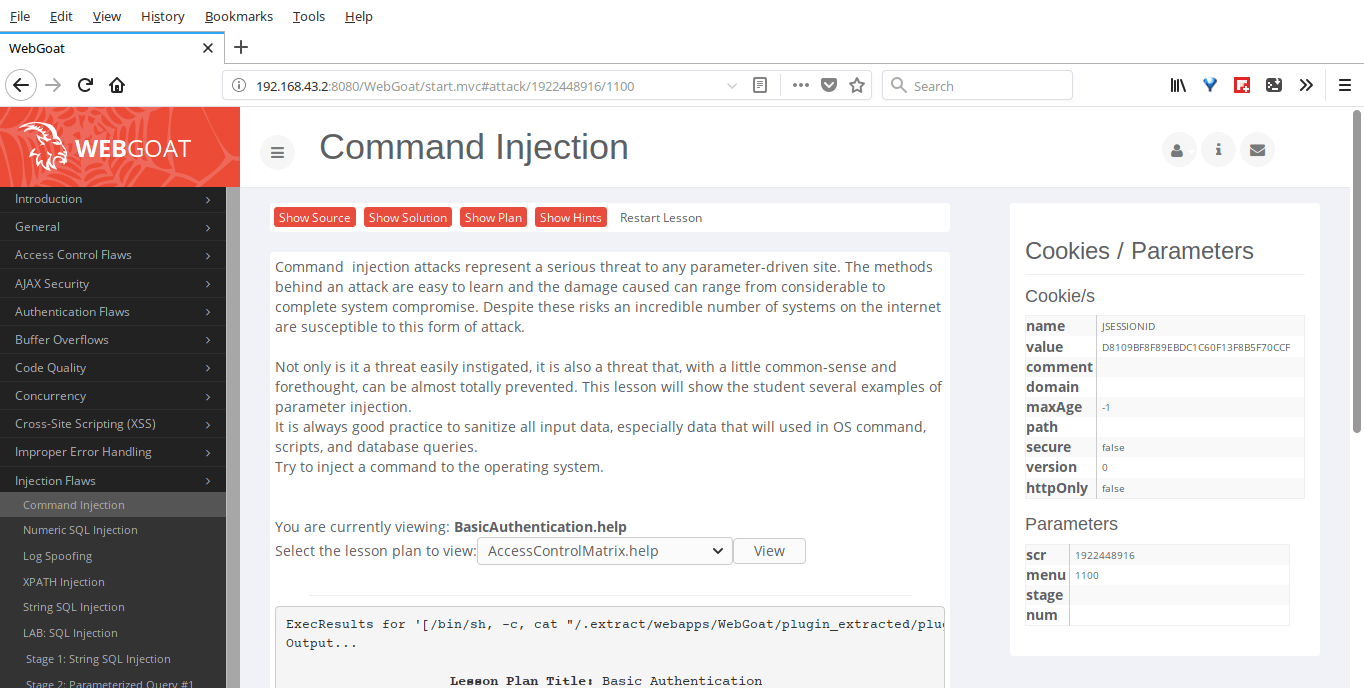
    Open up your web browse and navigate to http://localhost:8080/WebGoat or http://IP-address:8080/WebGoat. You will see with the following screen.
    Log in with: webgoat/webgoat. This is administrative login. You can also use normal user account: guest/guest.

    Now, you will be landed in the overview section of WebGoat where you various instructions on how to work with WebGoat to fix common flaws and vulnerabilities of a web application.

    As you can see, there are many lesson categories at the left pane. Click on a category to view the included lessons.
    For example, let me choose Injection Flaws -> Common Injection lesson plan.

    As you can see, there 5 tabs for the selected lesson.
    1. Show Source– This will show the underlying Java source code.
    2. Show Solution– This will show the complete solution of the selected lesson.
    3. Show Plan– This will show goals and objectives of the lesson.
    4. Show Hints– This will show technical hints to solve the lesson.
    5. Restart Lesson– If you want to restart a lesson you can use this link.
    Click on each lesson and try to solve the lesson and if necessary, use the hints. If you cannot solve the lesson using the hints, view the solution for complete details.
    Happy hacking!
    Cheers!
    Resource:

    Using sudo to delegate permissions in Linux

    $
    0
    0
    https://opensource.com/article/17/12/using-sudo-delegate

    Learn how to assign authority for managing network functions or specific services to trusted users while protecting the security of the root password.

    Using sudo to delegate permissions
    I recently wrote a short Bash program to copy MP3 files from a USB thumb drive on one network host to another network host. The files are copied to a specific directory on the server that I run for a volunteer organization, from where the files can be downloaded and played.
    My program does a few other things, such as changing the name of the files before they are copied so they are automatically sorted by date on the webpage. It also deletes all the files on the USB drive after verifying that the transfer completed correctly. This nice little program has a few options, such as -h to display help, -t for test mode, and a couple of others.
    My program, as wonderful as it is, must run as root to perform its primary functions. Unfortunately, this organization has only a few people who have any interest in administering our audio and computer systems, which puts me in the position of finding semi-technical people and training them to log into the computer used to perform the transfer and run this little program.
    It is not that I cannot run the program myself, but for various reasons, including travel and illness, I am not always there. Even when I am present, as the "lazy sysadmin," I like to have others do my work for me. So, I write scripts to automate those tasks and use sudo to anoint a couple of users to run the scripts. Many Linux commands require the user to be root in order to run. This protects the system against accidental damage, such as that caused by my own stupidity, and intentional damage by a user with malicious intent.

    Do that sudo that you do so well

    The sudo program is a handy tool that allows me as a sysadmin with root access to delegate responsibility for all or a few administrative tasks to other users of the computer. It allows me to perform that delegation without compromising the root password, thus maintaining a high level of security on the host.
    Let's assume, for example, that I have given regular user, "ruser," access to my Bash program, "myprog," which must be run as root to perform parts of its functions. First, the user logs in as ruser with their own password, then uses the following command to run myprog.
            sudo myprog
    The sudo program checks the /etc/sudoers file and verifies that ruser is permitted to run myprog. If so, sudo requests that the user enter their password—not the root password. After ruser enters their password, the program runs. Also, sudo logs the facts of the access to myprog with the date and time the program was run, the complete command, and the user who ran it. This data is logged in /var/log/security.
    I find it helpful to have the log of each command run by sudo for training. I can see who did what and whether they entered the command correctly.
    I have done this to delegate authority to myself and one other user to run a single program; however, sudo can be used to do so much more. It can allow the sysadmin to delegate authority for managing network functions or specific services to a single person or to a group of trusted users. It allows these functions to be delegated while protecting the security of the root password.

    Configuring the sudoers file

    As a sysadmin, I can use the /etc/sudoers file to allow users or groups of users access to a single command, defined groups of commands, or all commands. This flexibility is key to both the power and the simplicity of using sudo for delegation.
    I found the sudoers file very confusing at first, so below I have copied and deconstructed the entire sudoers file from the host on which I am using it. Hopefully it won't be quite so obscure for you by the time you get through this analysis. Incidentally, I've found that the default configuration files in Red Hat-based distributions tend to have lots of comments and examples to provide guidance, which makes things easier, with less online searching required.
    Do not use your standard editor to modify the sudoers file. Use the visudo command because it is designed to enable any changes as soon as the file is saved and you exit the editor. It is possible to use editors besides Vi in the same way as visudo.
    Let's start analyzing this file at the beginning with a couple types of aliases.

    Host aliases

    The host aliases section is used to create groups of hosts on which commands or command aliases can be used to provide access. The basic idea is that this single file will be maintained for all hosts in an organization and copied to /etc of each host. Some hosts, such as servers, can thus be configured as a group to give some users access to specific commands, such as the ability to start and stop services like HTTPD, DNS, and networking; to mount filesystems; and so on.
    IP addresses can be used instead of host names in the host aliases.


    ## Sudoers allows particular users to run various commands as

    ## the root user, without needing the root password.

    ##

    ## Examples are provided at the bottom of the file for collections

    ## of related commands, which can then be delegated out to particular

    ## users or groups.

    ##

    ## This file must be edited with the 'visudo' command.


    ## Host Aliases

    ## Groups of machines. You may prefer to use hostnames (perhaps using

    ## wildcards for entire domains) or IP addresses instead.

    # Host_Alias     FILESERVERS = fs1, fs2

    # Host_Alias     MAILSERVERS = smtp, smtp2


    ## User Aliases

    ## These aren't often necessary, as you can use regular groups

    ## (ie, from files, LDAP, NIS, etc) in this file - just use %groupname

    ## rather than USERALIAS

    # User_Alias ADMINS = jsmith, mikem

    User_Alias AUDIO = dboth, ruser


    ## Command Aliases

    ## These are groups of related commands...


    ## Networking

    # Cmnd_Alias NETWORKING = /sbin/route, /sbin/ifconfig,
    /bin/ping, /sbin/dhclient, /usr/bin/net, /sbin/iptables,
    /usr/bin/rfcomm, /usr/bin/wvdial, /sbin/iwconfig, /sbin/mii-tool


    ## Installation and management of software

    # Cmnd_Alias SOFTWARE = /bin/rpm, /usr/bin/up2date, /usr/bin/yum


    ## Services

    # Cmnd_Alias SERVICES = /sbin/service, /sbin/chkconfig


    ## Updating the locate database

    # Cmnd_Alias LOCATE = /usr/bin/updatedb


    ## Storage

    # Cmnd_Alias STORAGE = /sbin/fdisk, /sbin/sfdisk, /sbin/parted, /sbin/partprobe, /bin/mount, /bin/umount


    ## Delegating permissions

    # Cmnd_Alias DELEGATING = /usr/sbin/visudo, /bin/chown, /bin/chmod, /bin/chgrp


    ## Processes

    # Cmnd_Alias PROCESSES = /bin/nice, /bin/kill, /usr/bin/kill, /usr/bin/killall


    ## Drivers

    # Cmnd_Alias DRIVERS = /sbin/modprobe


    # Defaults specification


    #

    # Refuse to run if unable to disable echo on the tty.

    #

    Defaults   !visiblepw


    Defaults    env_reset

    Defaults    env_keep =  "COLORS DISPLAY HOSTNAME HISTSIZE KDEDIR LS_COLORS"

    Defaults    env_keep += "MAIL PS1 PS2 QTDIR USERNAME LANG LC_ADDRESS LC_CTYPE"

    Defaults    env_keep += "LC_COLLATE LC_IDENTIFICATION LC_MEASUREMENT LC_MESSAGES"

    Defaults    env_keep += "LC_MONETARY LC_NAME LC_NUMERIC LC_PAPER LC_TELEPHONE"

    Defaults    env_keep += "LC_TIME LC_ALL LANGUAGE LINGUAS _XKB_CHARSET XAUTHORITY"


    Defaults    secure_path = /sbin:/bin:/usr/sbin:/usr/bin:/usr/local/bin


    ## Next comes the main part: which users can run what software on

    ## which machines (the sudoers file can be shared between multiple

    ## systems).

    ## Syntax:

    ##

    ##      user    MACHINE=COMMANDS

    ##

    ## The COMMANDS section may have other options added to it.

    ##

    ## Allow root to run any commands anywhere

    root    ALL=(ALL)      ALL


    ## Allows members of the 'sys' group to run networking, software,

    ## service management apps and more.

    # %sys ALL = NETWORKING, SOFTWARE, SERVICES, STORAGE, DELEGATING, PROCESSES, LOCATE, DRIVERS


    ## Allows people in group wheel to run all commands

    %wheel  ALL=(ALL)      ALL


    ## Same thing without a password

    # %wheel        ALL=(ALL)       NOPASSWD: ALL


    ## Allows members of the users group to mount and unmount the

    ## cdrom as root

    # %users  ALL=/sbin/mount /mnt/cdrom, /sbin/umount /mnt/cdrom


    ## Allows members of the users group to shutdown this system

    # %users  localhost=/sbin/shutdown -h now


    ## Read drop-in files from /etc/sudoers.d (the # here does not mean a comment)

    #includedir /etc/sudoers.d


    ################################################################################

    # Added by David Both, 11/04/2017 to provide limited access to myprog          #

    ################################################################################

    #

    AUDIO   guest1=/usr/local/bin/myprog


    Default sudoers file with modifications in bold.

    User aliases

    The user alias configuration allows root to sort users into aliased groups so that an entire group can have access to certain root capabilities. This is the section to which I have added the line User_Alias AUDIO = dboth, ruser, which defines the alias AUDIO and assigns two users to that alias.
    It is possible, as stated in the sudoers file, to simply use groups defined in the /etc/groups file instead of aliases. If you already have a group defined there that meets your needs, such as "audio," use that group name preceded by a % sign like so: %audio when assigning commands that will be made available to groups later in the sudoers file.

    Command aliases

    Further down in the sudoers file is a command aliases section. These aliases are lists of related commands, such as networking commands or commands required to install updates or new RPM packages. These aliases allow the sysadmin to easily permit access to groups of commands.
    A number of aliases are already set up in this section that make it easy to delegate access to specific types of commands.

    Environment defaults

    The next section sets some default environment variables. The item that is most interesting in this section is the !visiblepw line, which prevents sudo from running if the user environment is set to show the password. This is a security precaution that should not be overridden.

    Command section

    The command section is the main part of the sudoers file. Everything you need to do can be done without all the aliases by adding enough entries here. The aliases just make it a whole lot easier.
    This section uses the aliases you've already defined to tell sudo who can do what on which hosts. The examples are self-explanatory once you understand the syntax in this section. Let's look at the syntax that we find in the command section.
    ruser           ALL=(ALL) ALL 
    This says ruser can run any program on any host as any user.
    This is a generic entry for our user, ruser. The first ALL in the line indicates that this rule applies on all hosts. The second ALL allows ruser to run commands as any other user. By default, commands are run as root user, but ruser can specify on the sudo command line that a program be run as any other user. The last ALL means that ruser can run all commands without restriction. This would effectively make ruser root.
    Note that there is an entry for root, as shown below. This allows root to have all-encompassing access to all commands on all hosts.
    root    ALL=(ALL) ALL 
    This says root can run any program on any host as any user.
    To try this out, I commented out the line and, as root, tried to run chown without sudo. That did work—much to my surprise. Then I used sudo chown and that failed with the message, "Root is not in the sudoers file. This incident will be reported." This means that root can run everything as root, but nothing when using the sudo command. This would prevent root from running commands as other users via the sudo command, but root has plenty of ways around that restriction.
    The code below is the one I added to control access to myprog. It specifies that users who are listed in the AUDIO group, as defined near the top of the sudoers file, have access to only one program, myprog, on one host, guest1.
    AUDIO   guest1=/usr/local/bin/myprog
    Allows users who are part of the AUDIO group access to myprog on the host guest1.
    Note that the syntax of the line above specifies only the host on which this access is to be allowed and the program. It does not specify that the user may run the program as any other user.

    Bypassing passwords

    You can also use NOPASSWORD to allow the users specified in the group AUDIO to run myprog without the need for entering their passwords. Here's how:
    AUDIO   guest1=NOPASSWORD : /usr/local/bin/myprog
    Allows users who are part of the AUDIO group access to myprog on the host guest1.
    I did not do this for my program, because I believe that users with sudo access must stop and think about what they are doing, and this may help a bit with that. I used the entry for my little program as an example.

    wheel

    The wheel specification in the command section of the sudoers file, as shown below, allows all users in the "wheel" group to run all commands on any host. The wheel group is defined in the /etc/group file, and users must be added to the group there for this to work. The % sign preceding the group name means that sudo should look for that group in the /etc/group file.
    %wheel          ALL = (ALL) ALL 
    Permits all users who are members of the "wheel" group, as defined in the /etc/group file, can run all commands on any host.
    This is a good way to delegate full root access to multiple users without providing the root password. Just adding a user to the wheel group gives them access to full root powers. It also provides a means to monitor their activities via the log entries created by sudo. Some distributions, such as Ubuntu, add users' IDs to the wheel group in /etc/group, which allows them to use the sudo command for all privileged commands.

    Final thoughts

    I have used sudo here for a very limited objective—providing one or two users with access to a single command. I accomplished this with two lines (if you ignore my own comments). Delegating authority to perform certain tasks to users who do not have root access is simple and can save you, as a sysadmin, a good deal of time. It also generates log entries that can help detect problems.
    The sudoers file offers a plethora of capabilities and options for configuration. Check the man files for sudo and sudoers for the down-and-dirty details.

    How to use DNSenum to scan your server's DNS records

    $
    0
    0
    https://linuxconfig.org/how-to-use-dnsenum-to-scan-your-server-s-dns-records

    Objective

    Use DNSenum to scan your server to see which information is publicly available.

    Distributions

    This works best with Kali Linux, but can be done on any distribution with Perl.

    Requirements

    A working Linux install. Root is required if you need to install DNSenum.

    Difficulty

    Easy

    Conventions

    • # - requires given command to be executed with root privileges either directly as a root user or by use of sudo command
    • $ - given command to be executed as a regular non-privileged user

    Introduction

    It's important to regularly test any public-facing server to see which information it's making available. That information is important to attackers. They can use it to put together a picture of your server, what's running on it, and which exploits might work against it.

    Install DNSenum

    If you're running Kali, you already have DNSenum, so there's no need to worry. If you're running something else, make sure that you have Perl(You probably do). You also need a couple of Perl libraries to get the full functionality.
    $ sudo apt install libtest-www-mechanize-perl libnet-whois-ip-perl
    From there, you can download and run DNSenum. It's just a Perl script. You can get it from the project's [Github](https://github.com/fwaeytens/dnsenum).

    Performing A Basic Scan


    Scanning With DNSenum

    It's super easy to run a basic scan. Point DNSenum in the direction of the server's domain, and run the scan. Only do this with a server you own or have permission to scan. This guide will use hackthissite.org, which is a site designed for testing pentesting tools. Run the full command.
    $ dnsenum hackthissite.org
    The report will show you any DNS records that the script was able to find. It will also find the nameservers that are being used, email records, and IP addresses. The script will attempt zone transfers too. If successful, those can be used to carry out an attack.

    A More Advanced Scan

    If you want to gather more information about the site, you can dig through the flags that DNSenum makes available, or you could use the --enum flag. It will try to gather whois information and use Google to dig up subdomains, if they're available.
    $ dnsenum --enum hackthissite.org
    The results will have additional entries and sections for the subdomains. Any additional information can help you gain a better understanding of your server.

    Closing Thoughts

    DNSenum is a great way tool for gathering information. Information is key to understanding and preventing attacks. In many cases, security breaches happen because something was overlooked. The more you know about your server, the better prepared you are to prevent a breach.

    How to Write a Custom Nagios Check Plugin

    $
    0
    0
    https://www.howtoforge.com/tutorial/write-a-custom-nagios-check-plugin

    This tutorial was tested using Nagios Core 4.3.4 on Debian 9.2
    Even though Nagios Exchange has thousands of available plugins to freely download, sometimes the status needed to be checked is very specific for your scenario.

    Considerations

    It is assumed that:
    • You have Nagios installed and running (You can follow this Tutorial if not).
    • You know the basics on Nagios administration.
    Nagios server in this example is hosted on 192.168.0.150 and an example client is hosted on IP 192.168.0.200

    Exit Codes

    To identify the status of a monitored service, Nagios runs a check plugin on it. Nagios can tell what the status of the service is by reading the exit code of the check.
    Nagios understands the following exit codes:
    • 0 - Service is OK.
    • 1 - Service has a WARNING.
    • 2 - Service is in a CRITICAL status.
    • 3 - Service status is UNKNOWN.
    A program can be written in any language to work as a Nagios check plugin. Based on the condition checked, the plugin can make Nagios aware of a malfunctioning service.

    Example Plugin

    I will use a simple example. I wrote a plugin in a bash script to check for current Warnings. Let's consider I have the Nagios server configured to alert only on critical status, so I want an alert if I have too many services on a Warning status.
    Consider the following script (check_warnings.sh):
    #!/bin/bash

    countWarnings=$(/usr/local/nagios/bin/nagiostats | grep "Ok/Warn/Unk/Crit:" | sed 's/[[:space:]]//g' | cut -d"/" -f5)

    if (($countWarnings<=5)); then
    echo "OK - $countWarnings services in Warning state"
    exit 0
    elif ((6<=$countWarnings && $countWarnings<=30)); then
    # This case makes no sense because it only adds one warning.
    # It is just to make an example on all possible exits.
    echo "WARNING - $countWarnings services in Warning state"
    exit 1
    elif ((30<=$countWarnings)); then
    echo "CRITICAL - $countWarnings services in Warning state"
    exit 2
    else
    echo "UNKNOWN - $countWarnings"
    exit 3
    fi
    Based on the information provided by the nagiostats tool, I assume everything is ok if there are five or less services in Warning state.
    I will leave this script with all the other Nagios plugins inside /usr/local/nagios/libexec/ (This directory may be different depending on your confiugration).
    Like every Nagios plugin, you will want to check from the command line before adding it to the configuration files.
    Remember to allow the execution of the script:
    sudo chmod +x /usr/local/nagios/libexec/check_warnings.sh
    And then run it as any other script:
    Run Nagios script
    The result is a text message and an exit code:
    The result of the script

    Set a New Checking Command and Service

    This step will be the same with your own plugins, and if you download a third-party plugin from the internet as well.
    First you should define a command in the commands.cfg file. This file location depends on the configuration you've done, in my case it is in /usr/local/nagios/etc/objects/commands.cfg.
    So I will add at the end of the file the following block:
    # Custom plugins commands...
    define command{
    command_name check_warnings
    command_line $USER1$/check_warnings.sh
    }
    Remember that the $USER1$ variable, is a local Nagios variable set in the resource.cfg file, in my case pointing to /usr/local/nagios/libexec.
    After defining the command you can associate that command to a service, and then to a host. In this example we are going to define a service and assign it to localhost, because this check is on Nagios itself.
    Edit the /usr/local/nagios/etc/objects/localhost.cfg file and add the following block:
    # Example - Check current warnings...
    define service{
    use local-service
    host_name localhost
    service_description Nagios Server Warnings
    check_command check_warnings
    }
    Now we are all set, the only thing pending is reloading Nagios to read the configuration files again.
    Always remember, prior to reloading Nagios, check that there are no errors in the configuration. You do this with nagios -v command as root:
    sudo /usr/local/nagios/bin/nagios -v /usr/local/nagios/etc/nagios.cfg
    You should get something like this:
    Check Nagios Config
    Ensure it returns 0 errors and 0 warnings and proceed to reload the service:
    sudo systemctl reload-or-restart nagios.service
    After reloading the service, you will see the associated check in the localhost. First as pending:
    Service check pending
    And after the execution with its result:
    Service check OK

    Use NRPE to run on Clients

    To run a script on a remote client, you will need to set up the Nagios Remote Plugin Executor (NRPE)
    As this tutorial is based on Debian 9, I will show as an example how to install it, but you can find instructions for any distribution.

    Generic installation on Debian-based Client

    Note that all the configuration in this section is done on the client to be checked, not in the nagios server.
    Install NRPE and Nagios plugins:
    sudo apt-get install libcurl4-openssl-dev nagios-plugins nagios-nrpe-server nagios-nrpe-plugin --no-install-recommends
    sudo ln -s /usr/lib/nagios/plugins/check_nrpe /usr/bin/check_nrpe
    Allow Nagios server to run commands on the client by adding it to the allowed_hosts entry in /etc/nagios/nrpe.cfg. The line should look like:
    allowed_hosts=127.0.0.1,::1,192.168.0.150
    Define the standard checks that you will perform on every client with NRPE. Define the checks on /etc/nagios/nrpe_local.cfg. For instance, a model for the file could be:
    ######################################
    # Do any local nrpe configuration here
    ######################################
    #-----------------------------------------------------------------------------------
    # Users
    command[check_users]=/usr/lib/nagios/plugins/check_users -w 5 -c 10

    # Load
    command[check_load]=/usr/lib/nagios/plugins/check_load -w 15,10,5 -c 30,25,20
    command[check_zombie_procs]=/usr/lib/nagios/plugins/check_procs -w 5 -c 10 -s Z
    command[check_total_procs]=/usr/lib/nagios/plugins/check_procs -w 150 -c 200

    # Disk
    command[check_root]=/usr/lib/nagios/plugins/check_disk -w 20% -c 10% -p /
    command[check_boot]=/usr/lib/nagios/plugins/check_disk -w 20% -c 10% -p /boot
    command[check_usr]=/usr/lib/nagios/plugins/check_disk -w 20% -c 10% -p /usr
    command[check_var]=/usr/lib/nagios/plugins/check_disk -w 20% -c 10% -p /var
    command[check_tmp]=/usr/lib/nagios/plugins/check_disk -w 20% -c 10% -p /tmp
    # If you want to add a non-standard mount point:
    # command[check_mnt1]=/usr/lib/nagios/plugins/check_disk -w 4% -c 1% -p /export
    #-----------------------------------------------------------------------------------
    The idea of having that generic file is so that you can check the same on every client.
    Ensure that the local file and .d directory are included in the main configuration file with:
    cat /etc/nagios/nrpe.cfg | grep include | grep -v ^#
    Check if file is included into config
    Restart the service:
    sudo systemctl restart nagios-nrpe-server.service
    Check that the NRPE service is running:
    cat /etc/services | grep nrpe
    netstat -at | grep nrpe
    Check NRPE Service
    Now check one of the previously defined NRPE commands from the Nagios server:
    Check NRPE command
    Note that the check_users NRPE command was defined in the /etc/nagios/nrpe_local.cfg file to run /usr/lib/nagios/plugins/check_users -w 5 -c 10.
    In case you don't have the plugin in the Nagios server, you can install it with:
    sudo apt-get install nagios-nrpe-plugin
    So, summarizing, the NRPE will run a script in a remote host, and return the exit code to the Nagios server.

    Configuration for Custom Scripts

    To use a custom script as a plugin to run remotely through NRPE, you should first write the script on the server, for instance in /usr/local/scripts/check_root_home_du.sh:
    #!/bin/bash

    homeUsage=$(du -s /root/ | cut -f1)

    if (($homeUsage<=$((1024*1024)))); then
    echo "OK - Root home usage is $(du -sh /root/ | cut -f1)"
    exit 0
    elif (($((1024*1024))<$homeUsage && $homeUsage<=$((3*1024*1024)))); then
    echo "WARNING - Root home usage is $(du -sh /root/ | cut -f1)"
    exit 1
    elif (($((3*1024*1024))<$homeUsage)); then
    echo "CRITICAL - Root home usage is $(du -sh /root/ | cut -f1)"
    exit 2
    else
    echo "UNKNOWN - Value received: $homeUsage"
    exit 3
    fi
    Allow the execution of the script:
    sudo chmod +x /usr/local/scripts/check_root_home_du.sh
    The previous script is a very simple example, checking the disk usage of the directory /root and setting a threshold for considering it OK, Warning or Critical.
    Add the command to the NRPE configuration file on the client (/etc/nagios/nrpe_local.cfg):
    # Custom
    command[check_root_home_du]=/usr/local/scripts/check_root_home_du.sh
    And restart the NRPE listener:
    sudo systemctl restart nagios-nrpe-server.service
    Now we can access the server and test it like any standard plugin
    Test like a standard plugin

    Set the NRPE Check on the Server Configuration Files

    Now we know that the custom plugin is working on the client and on the server, and that the NRPE is communicating correctly, we can go ahead and configure Nagios files for checking the remote device. So in the server set the files:
    /usr/local/nagios/etc/objects/commands.cfg:
    #...
    define command{
    command_name check_nrpe
    command_line /usr/lib/nagios/plugins/check_nrpe -H $HOSTADDRESS$ -c $ARG1$
    }
    /usr/local/nagios/etc/objects/nrpeclient.cfg:
    define host{
    use linux-server
    host_name nrpeclient
    alias nrpeclient
    address 192.168.0.200
    }

    define service{
    use local-service
    host_name nrpeclient
    service_description Root Home Usage
    check_command check_nrpe!check_root_home_du
    }
    Note that the ! mark separates the command from the arguments in the check_command entry. This defines that check_nrpe is the command and check_root_home_du is the value of $ARG1$.
    Also, depending on your configuration you should add this last file to the main file (/usr/local/nagios/etc/nagios.cfg):
    #...
    cfg_file=/usr/local/nagios/etc/objects/nrpeclient.cfg
    #...
    Check the configuration and, if no errors or warnings, reload the service:
    /usr/local/nagios/bin/nagios -v /usr/local/nagios/etc/nagios.cfg
    sudo systemctl reload-or-restart nagios.service
    And now you have a new custom check on a host:
    New custom check is working

    Conclusion

    Nagios has a huge library of plugins available at Nagios Exchange. However, in a big environment it is very likely to need some custom checks for specific uses, for instance: Checking on a certain task result, monitoring an in-house developed application, among others.
    The flexibility provided by Nagios is perfect for these case scenarios.

    Tutorial on how to write basic udev rules in Linux

    $
    0
    0
    https://linuxconfig.org/tutorial-on-how-to-write-basic-udev-rules-in-linux

    Objective

    Understanding the base concepts behind udev, and learn how to write simple rules

    Requirements

    • Root permissions

    Difficulty

    MEDIUM

    Conventions

    • # - requires given command to be executed with root privileges either directly as a root user or by use of sudo command
    • $ - given command to be executed as a regular non-privileged user

    Introduction

    In a GNU/Linux system, while devices low level support is handled at the kernel level, the management of events related to them is managed in userspace by udev, and more precisely by the udevd daemon. Learning how to write rules to be applied on the occurring of those events can be really useful to modify the behavior of the system and adapt it to our needs.

    How rules are organized

    Udev rules are defined into files with the .rules extension. There are two main locations in which those files can be placed: /usr/lib/udev/rules.d it's the directory used for system-installed rules, /etc/udev/rules.d/ is reserved for custom made rules.

    The files in which the rules are defined are conventionally named with a number as prefix (e.g 50-udev-default.rules) and are processed in lexical order independently of the directory they are in. Files installed in /etc/udev/rules.d, however, override those with the same name installed in the system default path.

    The rules syntax

    The syntax of udev rules is not very complicated once you understand the logic behind it. A rule is composed by two main sections: the "match" part, in which we define the conditions for the rule to be applied, using a series of keys separated by a comma, and the "action" part, in which we perform some kind of action, when the conditions are met.

    A test case

    What a better way to explain possible options than to configure an actual rule? As an example, we are going to define a rule to disable the touchpad when a mouse is connected. Obviously the attributes provided in the rule definition, will reflect my hardware.

    We will write our rule in the /etc/udev/rules.d/99-togglemouse.rules file with the help of our favorite text editor. A rule definition can span over multiple lines, but if that's the case, a backslash must be used before the newline character, as a line continuation, just as in shell scripts. Here is our rule:
    ACTION=="add" \
    , ATTRS{idProduct}=="c52f" \
    , ATTRS{idVendor}=="046d" \
    , ENV{DISPLAY}=":0" \
    , ENV{XAUTHORITY}="/run/user/1000/gdm/Xauthority" \
    , RUN+="/usr/bin/xinput --disable 16"
    Let's analyze it.

    Operators

    First of all, an explanation of the used and possible operators:

    == and != operators

    The == is the equality operator and the != is the inequality operator. By using them we establish that for the rule to be applied the defined keys must match, or not match the defined value respectively.

    The assignment operators: = and :=

    The = assignment operator, is used to assign a value to the keys that accepts one. We use the := operator, instead, when we want to assign a value and we want to make sure that it is not overridden by other rules: the values assigned with this operator, in facts, cannot be altered.

    The += and -= operators

    The += and -= operators are used respectively to add or to remove a value from the list of values defined for a specific key.

    The keys we used

    Let's now analyze the keys we used in the rule. First of all we have the ACTION key: by using it, we specified that our rule is to be applied when a specific event happens for the device. Valid values are add, remove and change

    We then used the ATTRS keyword to specify an attribute to be matched. We can list a device attributes by using the udevadm info command, providing its name or sysfs path:
    udevadm info -ap /devices/pci0000:00/0000:00:1d.0/usb2/2-1/2-1.2/2-1.2:1.1/0003:046D:C52F.0010/input/input39


    Udevadm info starts with the device specified by the devpath and then
    walks up the chain of parent devices. It prints for every device
    found, all possible attributes in the udev rules key format.
    A rule to match, can be composed by the attributes of the device
    and the attributes from one single parent device.

    looking at device '/devices/pci0000:00/0000:00:1d.0/usb2/2-1/2-1.2/2-1.2:1.1/0003:046D:C52F.0010/input/input39':
    KERNEL=="input39"
    SUBSYSTEM=="input"
    DRIVER==""
    ATTR{name}=="Logitech USB Receiver"
    ATTR{phys}=="usb-0000:00:1d.0-1.2/input1"
    ATTR{properties}=="0"
    ATTR{uniq}==""

    looking at parent device '/devices/pci0000:00/0000:00:1d.0/usb2/2-1/2-1.2/2-1.2:1.1/0003:046D:C52F.0010':
    KERNELS=="0003:046D:C52F.0010"
    SUBSYSTEMS=="hid"
    DRIVERS=="hid-generic"
    ATTRS{country}=="00"

    looking at parent device '/devices/pci0000:00/0000:00:1d.0/usb2/2-1/2-1.2/2-1.2:1.1':
    KERNELS=="2-1.2:1.1"
    SUBSYSTEMS=="usb"
    DRIVERS=="usbhid"
    ATTRS{authorized}=="1"
    ATTRS{bAlternateSetting}==" 0"
    ATTRS{bInterfaceClass}=="03"
    ATTRS{bInterfaceNumber}=="01"
    ATTRS{bInterfaceProtocol}=="00"
    ATTRS{bInterfaceSubClass}=="00"
    ATTRS{bNumEndpoints}=="01"
    ATTRS{supports_autosuspend}=="1"

    looking at parent device '/devices/pci0000:00/0000:00:1d.0/usb2/2-1/2-1.2':
    KERNELS=="2-1.2"
    SUBSYSTEMS=="usb"
    DRIVERS=="usb"
    ATTRS{authorized}=="1"
    ATTRS{avoid_reset_quirk}=="0"
    ATTRS{bConfigurationValue}=="1"
    ATTRS{bDeviceClass}=="00"
    ATTRS{bDeviceProtocol}=="00"
    ATTRS{bDeviceSubClass}=="00"
    ATTRS{bMaxPacketSize0}=="8"
    ATTRS{bMaxPower}=="98mA"
    ATTRS{bNumConfigurations}=="1"
    ATTRS{bNumInterfaces}==" 2"
    ATTRS{bcdDevice}=="3000"
    ATTRS{bmAttributes}=="a0"
    ATTRS{busnum}=="2"
    ATTRS{configuration}=="RQR30.00_B0009"
    ATTRS{devnum}=="12"
    ATTRS{devpath}=="1.2"
    ATTRS{idProduct}=="c52f"
    ATTRS{idVendor}=="046d"
    ATTRS{ltm_capable}=="no"
    ATTRS{manufacturer}=="Logitech"
    ATTRS{maxchild}=="0"
    ATTRS{product}=="USB Receiver"
    ATTRS{quirks}=="0x0"
    ATTRS{removable}=="removable"
    ATTRS{speed}=="12"
    ATTRS{urbnum}=="1401"
    ATTRS{version}==" 2.00"

    [...]
    Above is the truncated output received after running the command. As you can read it from the output itself, udevadm starts with the specified path that we provided, and gives us information about all the parent devices. Notice that attributes of the device are reported in singular form (e.g KERNEL), while the parent ones in plural form (e.g KERNELS). The parent information can be part of a rule but only one of the parents can be referenced at a time: mixing attributes of different parent devices will not work. In the rule we defined above, we used the attributes of one parent device: idProduct and idVendor.

    The next thing we have done in our rule, is to use the ENV keyword: it can be used to both set or try to match environment variables. We assigned a value to the DISPLAY and XAUTHORITY ones. Those variables are essential when interacting with the X server programmatically, to setup some needed information: with the DISPLAY variable, we specify on what machine the server is running, what display and what screen we are referencing, and with XAUTHORITY we provide the path to the file which contains Xorg authentication and authorization information. This file is usually located in the users "home" directory.

    Finally we used the RUN keyword: this is used to run external programs. Very important: this is not executed immediately, but the various actions are executed once all the rules have been parsed. In this case we used the xinput utility to change the status of the touchpad. I will not explain the syntax of xinput here, it would be out of context, just notice that 16 is the id of the touchpad.

    Once our rule is set, we can debug it by using the udevadm test command. This is useful for debugging but it doesn't really run commands specified using the RUN key:
    $ udevadm test --action="add" /devices/pci0000:00/0000:00:1d.0/usb2/2-1/2-1.2/2-1.2:1.1/0003:046D:C52F.0010/input/input39
    What we provided to the command is the action to simulate, using the --action option, and the sysfs path of the device. If no errors are reported, our rule should be good to go. To run it in the real world, we must reload the rules:
    # udevadm control --reload
    This command will reload the rules files, however, will have effect only on new generated events.

    We have seen the basic concepts and logic used to create an udev rule, however we only scratched the surface of the many options and possible settings. The udev manpage provides an exhaustive list: please refer to it for a more in-depth knowledge.

    How To Know What A Command Or Program Will Exactly Do Before Executing It

    $
    0
    0
    https://www.ostechnix.com/know-command-program-will-exactly-executing


    maybe - What A Command Or Program Will Exactly Do Before Executing It
    Ever wondered what a Unix command will do before executing it? Not everyone knows what a particular command or program will do. Of course, you can check it with Explainshell. You need to copy/paste the command in Explainshell website and it let you know what each part of a Linux command does. However, it is not necessary. Now, we can easily know what a command or program will exactly do before executing it, right from the Terminal. Say hello to “maybe”, a simple tool that allows you to run a command and see what it does to your files without actually doing it! After reviewing the output listed, you can then decide whether you really want to run it or not.

    How “maybe” works?

    According to the developer,
    “maybe” runs processes under the control of ptrace with the help of python-ptrace library. When it intercepts a system call that is about to make changes to the file system, it logs that call, and then modifies CPU registers to both redirect the call to an invalid syscall ID (effectively turning it into a no-op) and set the return value of that no-op call to one indicating success of the original call. As a result, the process believes that everything it is trying to do is actually happening, when in reality nothing is.
    Warning: You should be very very careful when using this utility in a production system or in any systems you care about. It can still do serious damages, because it will block only a handful of syscalls.

    Installing “maybe”

    Make sure you have installed pip in your Linux system. If not, install it as shown below depending upon the distribution you use.
    On Arch Linux and its derivatives like AntergosManjaro Linux, install pip using the following command:
    sudo pacman -S python-pip
    On RHELCentOS:
    sudo yum install epel-release
    sudo yum install python-pip
    On Fedora:
    sudo dnf install epel-release
    sudo dnf install python-pip
    On DebianUbuntuLinux Mint:
    sudo apt-get install python-pip
    On SUSEopenSUSE:
    sudo zypper install python-pip
    Once pip installed, run the following command to install “maybe”.
    sudo pip install maybe

    Know What A Command Or Program Will Exactly Do Before Executing It

    Usage is absolutely easy! Just add “maybe” in front of a command that you want to execute.
    Allow me to show you an example.
    $ maybe rm -r ostechnix/
    As you can see, I am going to delete a folder called “ostechnix” from my system. Here is the sample output.
    maybe has prevented rm -r ostechnix/ from performing 5 file system operations:

    delete /home/sk/inboxer-0.4.0-x86_64.AppImage
    delete /home/sk/Docker.pdf
    delete /home/sk/Idhayathai Oru Nodi.mp3
    delete /home/sk/dThmLbB334_1398236878432.jpg
    delete /home/sk/ostechnix

    Do you want to rerun rm -r ostechnix/ and permit these operations? [y/N] y

    The “maybe” tool performs 5 file system operations and shows me what this command (rm -r ostechnix/) will exactly do. Now I can decide whether I should perform this operation or not. Cool, yeah? Indeed!
    Here is another example. I am going to install Inboxer desktop client for Gmail. This is what I got.
    $ maybe ./inboxer-0.4.0-x86_64.AppImage 
    fuse: bad mount point `/tmp/.mount_inboxemDzuGV': No such file or directory
    squashfuse 0.1.100 (c) 2012 Dave Vasilevsky

    Usage: /home/sk/Downloads/inboxer-0.4.0-x86_64.AppImage [options] ARCHIVE MOUNTPOINT

    FUSE options:
    -d -o debug enable debug output (implies -f)
    -f foreground operation
    -s disable multi-threaded operation

    open dir error: No such file or directory
    maybe has prevented ./inboxer-0.4.0-x86_64.AppImage from performing 1 file system operations:

    create directory /tmp/.mount_inboxemDzuGV

    Do you want to rerun ./inboxer-0.4.0-x86_64.AppImage and permit these operations? [y/N]
    If it not detects any file system operations, then it will simply display a result something like below.
    For instance, I run this command to update my Arch Linux.
    $ maybe sudo pacman -Syu
    sudo: effective uid is not 0, is /usr/bin/sudo on a file system with the 'nosuid' option set or an NFS file system without root privileges?
    maybe has not detected any file system operations from sudo pacman -Syu.
    See? It didn’t detect any file system operations, so there were no warnings. This is absolutely brilliant and exactly what I was looking for. From now on, I can easily know what a command or a program will do even before executing it. I hope this will be useful to you too. More good stuffs to come. Stay tuned!
    Cheers!
    Resource:

    How To Kill The Largest Process In An Unresponsive Linux System

    $
    0
    0
    https://www.ostechnix.com/kill-largest-process-unresponsive-linux-system


    Early OOM - Kill The Largest Process
    I, as a blog writer, have bookmarked many blogs, websites and forums to refer Linux and Unix related notes. Sometimes, I had a lot of open tabs in my browser, so my system goes unresponsive for several minutes. I couldn’t move the mouse cursor, or kill a process or close any opened tabs. At that times, I had no choice but to forcibly reset the system. Of course, I use OneTab and The Great Suspender extensions, but they didn’t help much either. I often ran out of memory. This is where Early OOM comes in help. For those wondering, it will kill the largest process in an unresponsive system when it has absolutely no other choices. Early OOM checks the amount of available memory and free swap 10 times a second. If both are below 10%, it will kill the largest process.

    Why Early OOM? Why not built-in OOM killer?

    Before going into further, let me you give a short explanation of OOM killer, also known as Out Of Memory killer. OOM killer is a process that the Kernel uses when the system is critically low on memory. The main task of OOM killer is to continue killing processes until enough memory is freed for the smooth functioning of the rest of the process that the Kernel is attempting to run. OOM killer will choose the best processes that are least important to the system and free up maximum memory and kill them. We can view the oom_score of each process in /proc directory under pid section.
    Example:
    $ cat /proc/10299/oom_score
    1
    The higher the value of oom_score of any process, the higher is its likelihood of getting killed by the OOM Killer when the system is running out of memory.
    The developer of Early OOM claims that it has one big advantage over the in-kernel OOM killer. As I stated earlier, the Linux oom killer kills the process with the highest score, so the Chrome browser will always be the first victim of the oom killer. To avoid this, Early OOM uses /proc/*/status instead of echo f > /proc/sysrq-trigger. He also claims that triggering the oom killer manually may not work at all in latest Linux Kernel.

    Installing Early OOM

    Early OOM is available in AUR, so you can install it using any AUR helper programs in Arch Linux and its derivatives.
    Using Pacaur:
    pacaur -S earlyoom
    Using Packer:
    packer -S earlyoom
    Using Yaourt:
    yaourt -S earlyoom
    Enable and start Early OOM daemon:
    sudo systemctl enable earlyoom
    sudo systemctl start earlyoom
    On other Linux distributions, compile and install it manually as shown below.
    git clone https://github.com/rfjakob/earlyoom.git
    cd earlyoom
    make
    sudo make install

    Early OOM – Kill The Largest Process In An Unresponsive Linux System

    Run the following command to start Early OOM:
    earlyoom
    If you compiled it from source, run the following command to start Early OOM:
    ./earlyoom
    The sample output would be:
    earlyoom 0.12
    mem total: 3863 MiB, min: 386 MiB (10 %)
    swap total: 2047 MiB, min: 204 MiB (10 %)
    mem avail: 1770 MiB (45 %), swap free: 2047 MiB (99 %)
    mem avail: 1773 MiB (45 %), swap free: 2047 MiB (99 %)
    mem avail: 1772 MiB (45 %), swap free: 2047 MiB (99 %)
    mem avail: 1773 MiB (45 %), swap free: 2047 MiB (99 %)
    mem avail: 1772 MiB (45 %), swap free: 2047 MiB (99 %)
    mem avail: 1773 MiB (45 %), swap free: 2047 MiB (99 %)
    mem avail: 1771 MiB (45 %), swap free: 2047 MiB (99 %)
    mem avail: 1773 MiB (45 %), swap free: 2047 MiB (99 %)
    mem avail: 1784 MiB (46 %), swap free: 2047 MiB (99 %)
    [...]
    As you see in the above output, Early OOM will display how much memory and swap you have, what the minimum is, how much memory is available and how much swap is free. Remember it will keep running until you manually stop by pressing CTRL+C.
    If both memory and swap reaches below 10%, Early OOM will automatically kill the largest processes until the system has enough memory to run smoothly. You can also configure the minimum percentage value as per your requirement.
    To set available memory minimum to PERCENT of total, run:
    earlyoom -m 
    To set available swap minimum to PERCENT of total, run:
    earlyoom -s 
    For more details, refer the help section.
    $ earlyoom -h
    earlyoom 0.12
    Usage: earlyoom [OPTION]...

    -m PERCENT set available memory minimum to PERCENT of total (default 10 %)
    -s PERCENT set free swap minimum to PERCENT of total (default 10 %)
    -M SIZE set available memory minimum to SIZE KiB
    -S SIZE set free swap minimum to SIZE KiB
    -k use kernel oom killer instead of own user-space implementation
    -i user-space oom killer should ignore positive oom_score_adj values
    -d enable debugging messages
    -v print version information and exit
    -r INTERVAL memory report interval in seconds (default 1), set to 0 to
    disable completely
    -p set niceness of earlyoom to -20 and oom_score_adj to -1000
    -h this help text
    Now, you don’t need to worry about highest memory consumption processes. Hope this helps. More good stuffs to come. Stay tuned!
    Cheers!
    Resources:

    7 tools for analyzing performance in Linux with bcc/BPF

    $
    0
    0
    https://opensource.com/article/17/11/bccbpf-performance

    Look deeply into your Linux code with these Berkeley Packet Filter (BPF) Compiler Collection (bcc) tools.

    7 superpowers for Fedora bcc/BPF performance analysis
    Image by : 
    opensource.com
    A new technology has arrived in Linux that can provide sysadmins and developers with a large number of new tools and dashboards for performance analysis and troubleshooting. It's called the enhanced Berkeley Packet Filter (eBPF, or just BPF), although these enhancements weren't developed in Berkeley, they operate on much more than just packets, and they do much more than just filtering. I'll discuss one way to use BPF on the Fedora and Red Hat family of Linux distributions, demonstrating on Fedora 26.
    BPF can run user-defined sandboxed programs in the kernel to add new custom capabilities instantly. It's like adding superpowers to Linux, on demand. Examples of what you can use it for include:
    • Advanced performance tracing tools: programmatic low-overhead instrumentation of filesystem operations, TCP events, user-level events, etc.
    • Network performance: dropping packets early on to improve DDOS resilience, or redirecting packets in-kernel to improve performance
    • Security monitoring: 24x7 custom monitoring and logging of suspicious kernel and userspace events
    BPF programs must pass an in-kernel verifier to ensure they are safe to run, making it a safer option, where possible, than writing custom kernel modules. I suspect most people won't write BPF programs themselves, but will use other people's. I've published many on GitHub as open source in the BPF Compiler Collection (bcc) project. bcc provides different frontends for BPF development, including Python and Lua, and is currently the most active project for BPF tooling.

    7 useful new bcc/BPF tools

    To understand the bcc/BPF tools and what they instrument, I created the following diagram and added it to the bcc project:
    These are command-line interface (CLI) tools you can use over SSH (secure shell). Much analysis nowadays, including at my employer, is conducted using GUIs and dashboards. SSH is a last resort. But these CLI tools are still a good way to preview BPF capabilities, even if you ultimately intend to use them only through a GUI when available. I've began adding BPF capabilities to an open source GUI, but that's a topic for another article. Right now I'd like to share the CLI tools, which you can use today.

    1. execsnoop

    Where to start? How about watching new processes. These can consume system resources, but be so short-lived they don't show up in top(1) or other tools. They can be instrumented (or, using the industry jargon for this, they can be traced) using execsnoop. While tracing, I'll log in over SSH in another window:


    # /usr/share/bcc/tools/execsnoop

    PCOMM            PID    PPID   RET ARGS

    sshd             12234 727     0/usr/sbin/sshd -D-R

    unix_chkpwd      12236 12234   0/usr/sbin/unix_chkpwd root nonull

    unix_chkpwd      12237 12234   0/usr/sbin/unix_chkpwd root chkexpiry

    bash            12239 12238   0/bin/bash

    id              12241 12240   0/usr/bin/id-un

    hostname        12243 12242   0/usr/bin/hostname

    pkg-config       12245 12244   0/usr/bin/pkg-config --variable=completionsdir bash-completion

    grepconf.sh      12246 12239   0/usr/libexec/grepconf.sh -c

    grep            12247 12246   0/usr/bin/grep-qsi ^COLOR.*none /etc/GREP_COLORS

    tty              12249 12248   0/usr/bin/tty -s

    tput             12250 12248   0/usr/bin/tput colors

    dircolors       12252 12251   0/usr/bin/dircolors--sh/etc/DIR_COLORS

    grep            12253 12239   0/usr/bin/grep-qi ^COLOR.*none /etc/DIR_COLORS

    grepconf.sh      12254 12239   0/usr/libexec/grepconf.sh -c

    grep            12255 12254   0/usr/bin/grep-qsi ^COLOR.*none /etc/GREP_COLORS

    grepconf.sh      12256 12239   0/usr/libexec/grepconf.sh -c

    grep            12257 12256   0/usr/bin/grep-qsi ^COLOR.*none /etc/GREP_COLORS


    Wow. What is all that? What is grepconf.sh? What is /etc/GREP_COLORS? And is grep really reading its own configuration file ... by running grep? How does that even work?
    Welcome to the fun of system tracing. You can learn a lot about how the system is really working (or not working, as the case may be) and discover some easy optimizations along the way. execsnoop works by tracing the exec() system call, which is usually used to load different program code in new processes.

    2. opensnoop

    Continuing from above, so, grepconf.sh is likely a shell script, right? I'll run file(1) to check, and also use the opensnoop bcc tool to see what file is opening:


    # /usr/share/bcc/tools/opensnoop

    PID    COMM               FD ERR PATH

    12420 file               3  0/etc/ld.so.cache

    12420 file               3  0/lib64/libmagic.so.1

    12420 file               3  0/lib64/libz.so.1

    12420 file               3  0/lib64/libc.so.6

    12420 file               3  0/usr/lib/locale/locale-archive

    12420 file              -1  2/etc/magic.mgc

    12420 file               3  0/etc/magic

    12420 file               3  0/usr/share/misc/magic.mgc

    12420 file               3  0/usr/lib64/gconv/gconv-modules.cache

    12420 file               3  0/usr/libexec/grepconf.sh

    1     systemd            16  0/proc/565/cgroup

    1     systemd            16  0/proc/536/cgroup


    Tools like execsnoop and opensnoop print out one line per event. This shows the files that file(1) is opening (or attempting to): The returned file descriptor ("FD" column) is -1 for /etc/magic.mgc, and the "ERR" column indicates it is "file not found." I didn't know about that file, nor the /usr/share/misc/magic.mgc that file(1) is reading. I shouldn't be surprised, but file(1) has no problem identifying the file types:


    # file /usr/share/misc/magic.mgc /etc/magic

    /usr/share/misc/magic.mgc: magic binary fileforfile(1) cmd (version 14)(little endian)

    /etc/magic:                magic text fileforfile(1) cmd, ASCII text


    opensnoop works by tracing the open() syscall. Why not just use strace -feopen file ...? That would work in this case. A couple of advantages of opensnoop, however, are that it works system-wide, and tracing open() calls across all processes. Notice that the above output included opens from systemd. Opensnoop also should have much lower overhead: BPF tracing has been optimized, and the current version of strace(1) still uses the older and slower ptrace(2) interface.

    3. xfsslower

    bcc/BPF can analyze much more than just syscalls. The xfsslower tool traces common XFS filesystem operations that have a latency of greater than 1 millisecond (the argument):


    # /usr/share/bcc/tools/xfsslower 1

    Tracing XFS operations slower than 1 ms

    TIME     COMM           PID    T BYTES   OFF_KB   LAT(ms) FILENAME

    14:17:34 systemd-journa 530   S 0      0          1.69 system.journal

    14:17:35 auditd         651   S 0      0          2.43 audit.log

    14:17:42 cksum          4167  R 52976  0          1.04 at

    14:17:45 cksum          4168  R 53264  0          1.62[

    14:17:45 cksum          4168  R 65536  0          1.01 certutil

    14:17:45 cksum          4168  R 65536  0          1.01dir

    14:17:45 cksum          4168  R 65536  0          1.17 dirmngr-client

    14:17:46 cksum          4168  R 65536  0          1.06 grub2-file

    14:17:46 cksum          4168  R 65536  128        1.01 grub2-fstest

    [...]


    In the output above, I caught many cksum(1) reads ("T" for type == "R") with over 1 millisecond latency. This works by dynamically instrumenting kernel functions in XFS while the xfsslower tool is running, and it undoes that instrumentation when it ends. There are versions of this bcc tool for other filesystems as well: ext4slower, btrfsslower, zfsslower, and nfsslower.
    This is a useful tool and an important example of BPF tracing. Traditional analysis of filesystem performance focuses on block I/O statistics—what you commonly see printed by the iostat(1) tool and plotted by many performance-monitoring GUIs. Those statistics show how the disks are performing, but not really the filesystem. Often you care more about the filesystem's performance than the disks, since it's the filesystem that applications make requests to and wait for. And the performance of filesystems can be quite different from that of disks! Filesystems may serve reads entirely from memory cache and also populate that cache via a read-ahead algorithm and for write-back caching. xfsslower shows filesystem performance—what the applications directly experience. This is often useful for exonerating the entire storage subsystem; if there is really no filesystem latency, then performance issues are likely to be elsewhere.

    4. biolatency

    Although filesystem performance is important to study for understanding application performance, studying disk performance has merit as well. Poor disk performance will affect the application eventually, when various caching tricks can no longer hide its latency. Disk performance is also a target of study for capacity planning.
    The iostat(1) tool shows the average disk I/O latency, but averages can be misleading. It can be useful to study the distribution of I/O latency as a histogram, which can be done using biolatency:


    # /usr/share/bcc/tools/biolatency

    Tracing block device I/O... Hit Ctrl-C to end.

    ^C

         usecs               : count     distribution

             0 ->1         : 0       |                                       |

             2 ->3         : 0       |                                       |

             4 ->7         : 0       |                                       |

             8 ->15        : 0       |                                       |

            16 ->31        : 0       |                                       |

            32 ->63        : 1       |                                       |

            64 ->127       : 63      |****                                   |

           128 ->255       : 121     |*********                              |

           256 ->511       : 483     |************************************   |

           512 ->1023      : 532     |****************************************|

          1024 ->2047      : 117     |********                               |

          2048 ->4095      : 8       |                                       |


    This is another useful tool and another useful example; it uses a BPF feature called maps, which can be used to implement efficient in-kernel summary statistics. The transfer of data from the kernel level to the user level is merely the "count" column; the user-level program generates the rest.
    It's worth noting that many of these tools support CLI options and arguments as shown by their USAGE message:


    # /usr/share/bcc/tools/biolatency -h

    usage: biolatency [-h][-T][-Q][-m][-D][interval][count]


    Summarize block device I/O latency as a histogram


    positional arguments:

      interval            output interval, in seconds

      count               number of outputs


    optional arguments:

      -h, --help         show this help message and exit

      -T, --timestamp    include timestamp on output

      -Q, --queued       include OS queued timein I/O time

      -m, --milliseconds millisecond histogram

      -D, --disks        print a histogram per disk device


    examples:

        ./biolatency            # summarize block I/O latency as a histogram

        ./biolatency 110      # print 1 second summaries, 10 times

        ./biolatency -mT1     # 1s summaries, milliseconds, and timestamps

        ./biolatency -Q        # include OS queued time in I/O time

        ./biolatency -D        # show each disk device separately


    That they behave like other Unix tools is by design, to aid adoption.

    5. tcplife

    Another useful tool and example, this time showing lifespan and throughput statistics of TCP sessions, is tcplife:


    # /usr/share/bcc/tools/tcplife

    PID   COMM       LADDR           LPORT RADDR           RPORT TX_KB RX_KB MS

    12759 sshd       192.168.56.101  22   192.168.56.1    60639    2    31863.82

    12783 sshd       192.168.56.101  22   192.168.56.1    60640    3    39174.53

    12844wget      10.0.2.15       34250 54.204.39.132   443     11 18705712.26

    12851 curl       10.0.2.15       34252 54.204.39.132   443      0   74505.90


    Before you say: "Can't I just scrape tcpdump(8) output for this?" note that running tcpdump(8), or any packet sniffer, can cost noticable overhead on high packet-rate systems, even though the user- and kernel-level mechanics of tcpdump(8) have been optimized over the years (it could be much worse). tcplife doesn't instrument every packet; it only watches TCP session state changes for efficiency, and, from that, it times the duration of a session. It also uses kernel counters that already track throughput, as well as process and command information ("PID" and "COMM" columns), which are not available to on-the-wire-sniffing tools like tcpdump(8).

    6. gethostlatency

    Every previous example involves kernel tracing, so I need at least one user-level tracing example. Here is gethostlatency, which instruments gethostbyname(3) and related library calls for name resolution:


    # /usr/share/bcc/tools/gethostlatency

    TIME      PID    COMM                  LATms HOST

    06:43:33 12903 curl                 188.98 opensource.com

    06:43:36 12905 curl                   8.45 opensource.com

    06:43:40 12907 curl                   6.55 opensource.com

    06:43:44 12911 curl                   9.67 opensource.com

    06:45:02  12948 curl                  19.66 opensource.cats

    06:45:06  12950 curl                  18.37 opensource.cats

    06:45:07  12952 curl                  13.64 opensource.cats

    06:45:19 13139 curl                  13.10 opensource.cats


    Yes, it's always DNS, so having a tool to watch DNS requests system-wide can be handy (this only works if applications use the standard system library). See how I traced multiple lookups to "opensource.com"? The first took 188.98 milliseconds, and then it was much faster, less than 10 milliseconds, no doubt cached. It also traced multiple lookups to "opensource.cats," a host that sadly doesn't exist, but we can still examine the latency of the first and subsequent lookups. (Is there a little negative-caching after the second lookup?)

    7. trace

    Okay, one more example. The trace tool was contributed by Sasha Goldshtein and provides some basic printf(1) functionality with custom probes. For example:


    # /usr/share/bcc/tools/trace 'pam:pam_start "%s: %s", arg1, arg2'

    PID    TID    COMM         FUNC             -

    13266 13266 sshd         pam_start        sshd: root


    Here I'm tracing libpamand its pam_start(3) function and printing both of its arguments as strings. Libpam is for the pluggable authentication modules system, and the output shows that sshd called pam_start() for the "root" user (I logged in). There are more examples in the USAGE message ("trace -h"), plus, all of these tools have man pages and examples files in the bcc repository; e.g., trace_example.txt and trace.8.

    Install bcc via packages

    The best way to install bcc is from an iovisor repository, following the instructions from the bcc INSTALL.md. IO Visor is the Linux Foundation project that includes bcc. The BPF enhancements these tools use were added in the 4.x series Linux kernels, up to 4.9. This means that Fedora 25, with its 4.8 kernel, can run most of these tools; and Fedora 26, with its 4.11 kernel, can run them all (at least currently).
    If you are on Fedora 25 (or Fedora 26, and this post was published many months ago—hello from the distant past!), then this package approach should just work. If you are on Fedora 26, then skip to the Install via Source section, which avoids a known and fixed bug. That bug fix hasn't made its way into the Fedora 26 package dependencies at the moment. The system I'm using is:


    # uname -a

    Linux localhost.localdomain 4.11.8-300.fc26.x86_64 #1 SMP Thu Jun 29 20:09:48 UTC 2017 x86_64 x86_64 x86_64 GNU/Linux

    # cat /etc/fedora-release

    Fedora release 26(Twenty Six)


    Here are the install steps I followed, but please refer to INSTALL.md for updated versions:


    #
    echo -e
    '[iovisor]\nbaseurl=https://repo.iovisor.org/yum/nightly/f25/$basearch\nenabled=1\ngpgcheck=0'
    | sudo tee /etc/yum.repos.d/iovisor.repo


    # dnf install bcc-tools

    [...]

    Total download size: 37 M

    Installed size: 143 M

    Is this ok [y/N]: y


    After installation, you should see new tools in /usr/share:


    # ls /usr/share/bcc/tools/

    argdist       dcsnoop              killsnoop       softirqs    trace

    bashreadline  dcstat               llcstat         solisten    ttysnoop

    [...]


    Let's try running one of them:


    # /usr/share/bcc/tools/opensnoop

    chdir(/lib/modules/4.11.8-300.fc26.x86_64/build): No such file or directory

    Traceback (most recent call last):

      File "/usr/share/bcc/tools/opensnoop", line 126, in<module>

        b = BPF(text=bpf_text)

      File "/usr/lib/python3.6/site-packages/bcc/__init__.py", line 284, in __init__

        raise Exception("Failed to compile BPF module %s"% src_file)

    Exception: Failed to compile BPF module


    It failed to run, complaining that /lib/modules/4.11.8-300.fc26.x86_64/build was missing. If you hit this too, it's just because the system is missing kernel headers. If you look at what that file points to (it's a symlink), then search for it using "dnf whatprovides," it'll tell you the package you need to install next. For this system, it is:


    # dnf install kernel-devel-4.11.8-300.fc26.x86_64

    [...]

    Total download size: 20 M

    Installed size: 63 M

    Is this ok [y/N]: y

    [...]


    And now:


    # /usr/share/bcc/tools/opensnoop

    PID    COMM               FD ERR PATH

    11792 ls                 3  0/etc/ld.so.cache

    11792 ls                 3  0/lib64/libselinux.so.1

    11792 ls                 3  0/lib64/libcap.so.2

    11792 ls                 3  0/lib64/libc.so.6

    [...]


    It works. That's catching activity from an ls command in another window. See the earlier section for other useful commands.

    Install via source

    If you need to install from source, you can also find documentation and updated instructions in INSTALL.md. I did the following on Fedora 26:


    sudo dnf install-ybison cmake ethtool flexgit iperf libstdc++-static \

      python-netaddr python-pip gcc gcc-c++ make zlib-devel \

      elfutils-libelf-devel

    sudo dnf install-y luajit luajit-devel  # for Lua support

    sudo dnf install-y \

      http://pkgs.repoforge.org/netperf/netperf-2.6.0-1.el6.rf.x86_64.rpm

    sudo pip install pyroute2

    sudo dnf install-y clang clang-devel llvm llvm-devel llvm-static ncurses-devel


    Everything installed for me except for netperf, which had the following error:
    Curl error (28): Timeout was reached for http://pkgs.repoforge.org/netperf/netperf-2.6.0-1.el6.rf.x86_64.rpm [Connection timed out after 120002 milliseconds]
    We can ignore this error, because netperf is optional—it's just used for tests—and bcc will compile without it.
    Here are the remaining bcc compilation and install steps:


    git clone https://github.com/iovisor/bcc.git

    mkdir bcc/build; cd bcc/build

    cmake .. -DCMAKE_INSTALL_PREFIX=/usr

    make

    sudomakeinstall


    At this point, commands should work:


    # /usr/share/bcc/tools/opensnoop

    PID    COMM               FD ERR PATH

    4131  date               3  0/etc/ld.so.cache

    4131  date               3  0/lib64/libc.so.6

    4131  date               3  0/usr/lib/locale/locale-archive

    4131  date               3  0/etc/localtime

    [...]


    Final words and other frontends

    This was a quick tour of the new BPF performance analysis superpowers that you can use on the Fedora and Red Hat family of operating systems. I demonstrated the popular bcc frontend to BPF and included install instructions for Fedora. bcc comes with more than 60 new tools for performance analysis, which will help you get the most out of your Linux systems. Perhaps you will use these tools directly over SSH, or perhaps you will use the same functionality via monitoring GUIs once they support BPF. Also, bcc is not the only frontend in development. There are ply and bpftrace, which aim to provide higher-level language for quickly writing custom tools. In addition, SystemTap just released version 3.2, including an early, experimental eBPF backend. Should this continue to be developed, it will provide a production-safe and efficient engine for running the many SystemTap scripts and tapsets (libraries) that have been developed over the years. (Using SystemTap with eBPF would be good topic for another post.)
    If you need to develop custom tools, you can do that with bcc as well, although the language is currently much more verbose than SystemTap, ply, or bpftrace. My bcc tools can serve as code examples, plus I contributed a tutorial for developing bcc tools in Python. I'd recommend learning the bcc multi-tools first, as you may get a lot of mileage from them before needing to write new tools. You can study the multi-tools from their example files in the bcc repository: funccount, funclatency, funcslower, stackcount, trace, and argdist.
    Thanks to Opensource.com for edits.

    An introduction to machine-learned ranking in Apache Solr

    $
    0
    0
    https://opensource.com/article/17/11/learning-rank-apache-solr

    Learn how to train a machine learning model to rank documents retrieved in the Solr enterprise search platform.

    An introduction to machine-learned ranking in Apache Solr
    Image by : 
    Opensource.com
    This tutorial describes how to implement a modern learning to rank (LTR, also called machine-learned ranking) system in Apache Solr. It's intended for people who have zero Solr experience, but who are comfortable with machine learning and information retrieval concepts. I was one of those people only a couple of months ago, and I found it extremely challenging to get up and running with the Solr materials I found online. This is my attempt at writing the tutorial I wish I had when I was getting started.

    Table of contents

    Setting up Solr

    Firing up a vanilla Solr instance on Linux (Fedora, in my case) is actually pretty straightforward. On Fedora, first download the Solr source tarball (i.e., a file containing "src") and extract it to a reasonable location. Next, cd into the Solr directory:


    cd/path/to/solr-<version>/solr


    Building Solr requires Apache Ant and Apache Ivy, so install those:


    sudo dnf install ant ivy


    And now build Solr:


    ant server


    You can confirm Solr is working by running:


    bin/solr start


    and making sure you see the Solr Admin interface at http://localhost:8983/solr/. You can stop Solr (but don't stop it now) with:


    bin/solr stop


    Solr basics

    Solr is a search platform, so you only need to know how to do two things to function: index data and define a ranking model. Solr has a REST-like API, which means changes will be made with the curl command. To get going, create a core named test:


    bin/solr create -ctest


    This seemingly simple command actually did a lot of stuff behind the scenes. Specifically, it defined a schema that tells Solr how documents should be processed (think tokenization, stemming, etc.) and searched (e.g., using the tf-idfvector space model), and it set up a configuration file that specifies what libraries and handlers Solr will use. A core can be deleted with:


    bin/solr delete -ctest


    OK, let's add some documents. First download this XML file of tweets provided on the Solr in Action GitHub. Take a look inside the XML file. Notice how it's using an tag to tell Solr to add several documents (denoted with tags) to the index. To index the tweets, run:


    bin/post -ctest/path/to/tweets.xml


    If you go to http://localhost:8983/solr/ now (you might have to refresh) and click on the "Core Selector" dropdown on the left-hand side, you can select the test core. If you then click on the "Query" tab, the query interface will appear. If you click on the blue "Execute Query" button at the bottom, a JSON document containing information regarding the tweets that were just indexed will be displayed. Congratulations, you just ran your first successful query! Specifically, you used the /select RequestHandler to execute the query *:*. The *:* is a special syntax that tells Solr to return everything. The Solr query syntax is not very intuitive, in my opinion, so it's something you'll just have to get used to.

    Defining features

    Now that you have a basic Solr instance up and running, define features for your LTR system. Like all machine learning problems, effective feature engineering is critical to success. Standard features in modern LTR models include using multiple similarity measures (e.g., cosine similarity of tf-idf vectors or BM25) to compare multiple text fields (e.g., body, title), in addition to other text characteristics (e.g., length) and document characteristics (e.g., age, PageRank). A good starting point is Microsoft Research's list of features for an academic data set. A list of some other commonly used features can be found on slide 32 of University of Massachusetts Amherst researcher Jiepu Jiang's lecture notes.
    To start, modify /path/to/solr-/solr/server/solr/test/conf/managed-schema so it includes the text fields that you'll need for your model. First, change the text field so that it is of the text_general type (which is already defined inside managed-schema). The text_general type will allow you to calculate BM25 similarities. Because the text field already exists (it was automatically created when you indexed the tweets), you need to use the replace-field command like so:


    curl -X POST -H'Content-type:application/json'--data-binary'{

      "replace-field" : {

         "name":"text",

         "type":"text_general",

         "indexed":"true",

         "stored":"true",

         "multiValued":"true"}

    }'
    http://localhost:8983/solr/test/schema


    I encourage you to take a look inside managed-schema following each change so you can get a sense for what's happening. Next, specify a text_tfidf type, which will allow you to calculate tf-idf cosine similarities:


    curl -X POST -H'Content-type:application/json'--data-binary'{

      "add-field-type" : {

         "name":"text_tfidf",

         "class":"solr.TextField",

         "positionIncrementGap":"100",

         "indexAnalyzer":{

            "tokenizer":{

               "class":"solr.StandardTokenizerFactory"},

            "filter":{

               "class":"solr.StopFilterFactory",

               "ignoreCase":"true",

               "words":"stopwords.txt"},

            "filter":{

               "class":"solr.LowerCaseFilterFactory"}},

         "queryAnalyzer":{

            "tokenizer":{

               "class":"solr.StandardTokenizerFactory"},

            "filter":{

               "class":"solr.StopFilterFactory",

               "ignoreCase":"true",

               "words":"stopwords.txt"},

            "filter":{

               "class":"solr.SynonymGraphFilterFactory",

               "ignoreCase":"true",

               "synonyms":"synonyms.txt"},

            "filter":{

               "class":"solr.LowerCaseFilterFactory"}},

         "similarity":{

               "class":"solr.ClassicSimilarityFactory"}}

    }'
    http://localhost:8983/solr/test/schema


    Now add a text_tfidf field that will be of the text_tfidf type you just defined:


    curl -X POST -H'Content-type:application/json'--data-binary'{

      "add-field" : {

         "name":"text_tfidf",

         "type":"text_tfidf",

         "indexed":"true",

         "stored":"false",

         "multiValued":"true"}

    }'
    http://localhost:8983/solr/test/schema


    Because the contents of the text field and the text_tfidf field are the same (they're just being handled differently), tell Solr to copy the contents from text to text_tfidf:


    curl -X POST -H'Content-type:application/json'--data-binary'{

      "add-copy-field" : {

         "source":"text",

         "dest":"text_tfidf"}

    }'
    http://localhost:8983/solr/test/schema


    You're now ready to re-index your data:


    bin/post -ctest/home/malcorn/solr-in-action/example-docs/ch6/tweets.xml


    Learning to rank

    Now that your documents are properly indexed, build an LTR model. If you're new to LTR, I recommend checking out Tie-Yan Liu's (long) paper and textbook. If you're familiar with machine learning, the ideas shouldn't be too difficult to grasp. I also recommend checking out the Solr documentation on LTR, which I'll be linking to throughout this section. Enabling LTR in Solr first requires making some changes to /path/to/solr-/solr/server/solr/test/solrconfig.xml. Copy and paste the following text anywhere between the and
    tags (at the top and bottom of the file, respectively).


    dir="${solr.install.dir:../../../..}/contrib/ltr/lib/"regex=".*\.jar"/>

    dir="${solr.install.dir:../../../..}/dist/"regex="solr-ltr-\d.*\.jar"/>


    name="ltr"class="org.apache.solr.ltr.search.LTRQParserPlugin"/>


    name="QUERY_DOC_FV"

          class="solr.search.LRUCache"

          size="4096"

          initialSize="2048"

          autowarmCount="4096"

          regenerator="solr.search.NoOpRegenerator"/>


    name="features"class="org.apache.solr.ltr.response.transform.LTRFeatureLoggerTransformerFactory">

      name="fvCacheName">QUERY_DOC_FV


    >
    >You're now ready to run Solr with LTR enabled. First, stop Solr:


    bin/solr stop


    then restart it with the LTR plugin enabled:


    bin/solr start -Dsolr.ltr.enabled=true


    Next, push the model features and the model specification to Solr. In Solr, LTR features are defined using a JSON-formatted file. For this model, save the following features in my_efi_features.json:


    [

      {

        "store":"my_efi_feature_store",

        "name":"tfidf_sim_a",

        "class":"org.apache.solr.ltr.feature.SolrFeature",

        "params":{"q":"{!dismax qf=text_tfidf}${text_a}"}

      },

      {

        "store":"my_efi_feature_store",

        "name":"tfidf_sim_b",

        "class":"org.apache.solr.ltr.feature.SolrFeature",

        "params":{"q":"{!dismax qf=text_tfidf}${text_b}"}

      },

      {

        "store":"my_efi_feature_store",

        "name":"bm25_sim_a",

        "class":"org.apache.solr.ltr.feature.SolrFeature",

        "params":{"q":"{!dismax qf=text}${text_a}"}

      },

      {

        "store":"my_efi_feature_store",

        "name":"bm25_sim_b",

        "class":"org.apache.solr.ltr.feature.SolrFeature",

        "params":{"q":"{!dismax qf=text}${text_b}"}

      },

      {

        "store":"my_efi_feature_store",

        "name":"max_sim",

        "class":"org.apache.solr.ltr.feature.SolrFeature",

        "params":{"q":"{!dismax qf='text text_tfidf'}${text}"}

      }

    ]


    The command store tells Solr where to store the feature; name is the name of the feature; class specifies which Java class will handle the feature; and params provides additional information about the feature required by its Java class. In the case of a SolrFeature, you need to provide the query. {!dismax qf=text_tfidf}${text_a} tells Solr to search the text_tfidf field with the contents of text_a using the DisMaxQParser. The reason to use the DisMax parser instead of the seemingly more obvious FieldQParser (e.g., {!field f=text_tfidf}${text_a}) is because the FieldQParser automatically converts multi-term queries to "phrases" (i.e., it converts something like "the cat in the hat" into, effectively, "thecatinthehat," rather than "the,""cat,""in,""the,""hat"). This FieldQParser behavior (which seems like a rather strange default to me) ended up giving me quite a headache, but I eventually found a solution with DisMaxQParser.
    {!dismax qf='text text_tfidf'}${text} tells Solr to search both the text and text_tfidf fields with the contents of text and then take the max of those two scores. While this feature doesn't really make sense in this context because similarities from both fields are already being used as features, it demonstrates how such a feature could be implemented. For example, imagine that the documents in your corpus are linked to, at most, five other sources of text data. It might make sense to incorporate that information during a search, and taking the max over multiple similarity scores is one way of doing that.
    To push the features to Solr, run the following command:


    curl -XPUT'http://localhost:8983/solr/test/schema/feature-store'--data-binary"@/path/to/my_efi_features.json"-H'Content-type:application/json'


    If you want to upload new features, you first have to delete the old features with:


    curl -XDELETE'http://localhost:8983/solr/test/schema/feature-store/my_efi_feature_store'


    Next, save the following model specification in my_efi_model.json:


    {

      "store":"my_efi_feature_store",

      "name":"my_efi_model",

      "class":"org.apache.solr.ltr.model.LinearModel",

      "features":[

        {"name":"tfidf_sim_a"},

        {"name":"tfidf_sim_b"},

        {"name":"bm25_sim_a"},

        {"name":"bm25_sim_b"},

        {"name":"max_sim"}

      ],

      "params":{

        "weights":{

          "tfidf_sim_a":1.0,

          "tfidf_sim_b":1.0,

          "bm25_sim_a":1.0,

          "bm25_sim_b":1.0,

          "max_sim":0.5

        }

      }

    }


    In this case, store specifies where the features the model is using are storedname is the name of the model; class specifies which Java class will implement the model; features is a list of the model features; and params provides additional information required by the model's Java class. Start by using the LinearModel, which simply takes a weighted sum of the feature values to generate a score. Obviously, the provided weights are arbitrary. To find better weights, you'll need to extract training data from Solr. I'll go over this topic in more depth in the RankNet section.
    You can push the model to Solr with:


    curl -XPUT'http://localhost:8983/solr/test/schema/model-store'--data-binary"@/path/to/my_efi_model.json"-H'Content-type:application/json'


    And now you're ready to run your first LTR query:
    http://localhost:8983/solr/test/query?q=historic north&rq={!ltr model=my_efi_model efi.text_a=historic efi.text_b=north efi.text='historic north'}&fl=id,score,[features]
    You should see something like:


    {

      "responseHeader":{

        "status":0,

        "QTime":101,

        "params":{

          "q":"historic north",

          "fl":"id,score,[features]",

          "rq":"{!ltr model=my_efi_model efi.text_a=historic efi.text_b=north efi.text='historic north'}"}},

      "response":{"numFound":1,"start":0,"maxScore":3.0671878,"docs":[

          {

            "id":"1",

            "score":3.0671878,

            "[features]":"tfidf_sim_a=0.53751516,tfidf_sim_b=0.0,bm25_sim_a=0.84322417,bm25_sim_b=0.84322417,max_sim=1.6864483"}]

      }

    }


    Referring to the request, q=historic north is the query used to fetch the initial results (using BM25 in this case), which are then re-ranked with the LTR model. rq is where all the LTR parameters are provided, and efi stands for "external feature information," which allows you to specify features at query time. In this case, you're populating the text_a argument with the term historic, the text_b argument with the term north, and the text argument with the multi-term query 'historic north' (note that this is not being treated as a "phrase"). fl=id,score,[features] tells Solr to include the id, score, and model features in the results. You can verify that the feature values are correct by performing the associated search in the "Query" interface of the Solr Admin UI. For example, typing text_tfidf:historic in the q text box and typing score in the fl text box, and then clicking the "Execute Query" button should return a value of 0.53751516.

    RankNet

    For LTR systems, linear models are generally trained using what's called a "pointwise" approach, which is where documents are considered individually (i.e., the model asks, "Is this document relevant to the query or not?"); however, pointwise approaches are generally not well-suited for LTR problems. RankNet is a neural network that uses a "pairwise" approach, which is where documents with a known relative preference are considered in pairs (i.e., the model asks, "Is document A more relevant than document B for the query or not?"). RankNet is not supported by Solr out of the box, but I've implemented RankNet in Solr and Keras. It's worth noting that LambdaMART might be more appropriate for your search application. However, RankNet can be trained quickly on a GPU using my Keras implementation, which makes it a good solution for search problems where only one document is relevant to any given query. For a nice (technical) overview of RankNet, LambdaRank, and LambdaMART, see Chris Burges' paper written when he was at Microsoft Research.
    To enable RankNet in Solr, you'll have to add RankNet.java to /path/to/solr-/solr/contrib/ltr/src/java/org/apache/solr/ltr/model and then re-build Solr (reminder: build in /path/to/solr-/solr):


    ant server


    Now if you inspect /path/to/solr-/solr/dist/solr-ltr-{version}-SNAPSHOT.jar, you should see RankNet.class under /org/apache/solr/ltr/model/.
    Unfortunately, the suggested method of feature extraction in Solr is painfully slow (other Solr users seem to agree it could be faster). Even when making requests in parallel, it took me almost three days to extract features for ~200,000 queries. I think a better approach might be to index the queries and then calculate the similarities between the "documents" (which consist of the true documents and queries), but this is really something that should be baked into Solr. Anyway, here is some example Python code for extracting features from Solr using queries:


    import numpy as np

    import requests

    import simplejson


    # Number of documents to be re-ranked.

    RERANK =50

    withopen("RERANK.int","w")as f:

        f.write(str(RERANK))


    # Build query URL.

    q_id = row["id"]

    q_field_a = row["field_a"].strip().lower()

    q_field_b = row["field_b"].strip().lower()

    q_field_c = row["field_c"].strip().lower()

    q_field_d = row["field_d"].strip().lower()

    all_text ="".join([q_field_a, q_field_b, q_field_c, q_field_d])


    url ="http://localhost:8983/solr/test/query"

    # We only re-rank one document when extracting features because we want to be

    # able to compare the LTR model to the BM25 ranking. Setting reRankDocs=1

    # ensures the original ranking is maintained.

    url +="?q={0}&rq={{!ltr model=my_efi_model reRankDocs=1 ".format(all_text)

    url +="efi.field_a='{0}' efi.field_b='{1}' efi.field_c='{2}' efi.field_d='{3}'".format(field_a, field_b, field_c, field_d)

    url +="efi.all_text='{0}'}}&fl=id,score,[features]&rows={1}".format(all_text, RERANK)


    # Get response and check for errors.

    response = requests.request("GET", url)

    try:

        json = simplejson.loads(response.text)

    except simplejson.JSONDecodeError:

        print(q_id)

        return


    if"error"in json:

        print(q_id)

        return


    # Extract the features.

    results_features =[]

    results_targets =[]

    results_ranks =[]

    add_data =False


    for(rank, document)inenumerate(json["response"]["docs"]):


        features = document["[features]"].split(",")

        feature_array =[]

        for feature in features:

            feature_array.append(feature.split("=")[1])


        feature_array = np.array(feature_array, dtype ="float32")

        results_features.append(feature_array)


        doc_id = document["id"]

        # Check if document is relevant to query.

        if q_id in relevant.get(doc_id,{}):

            results_ranks.append(rank + 1)

            results_targets.append(1)

            add_data =True

        else:

            results_targets.append(0)


    if add_data:

        np.save("{0}_X.npy".format(q_id), np.array(results_features))

        np.save("{0}_y.npy".format(q_id), np.array(results_targets))

        np.save("{0}_rank.npy".format(q_id), np.array(results_ranks))


    Now you're ready to train some models. To start, pull in the data and evaluate the BM25 rankings on the entire data set.


    importglob

    import numpy as np


    rank_files =glob.glob("*_rank.npy")

    suffix_len =len("_rank.npy")


    RERANK =int(open("RERANK.int").read())


    ranks =[]

    casenumbers =[]

    Xs =[]

    ys =[]

    for rank_file in rank_files:

        X = np.load(rank_file[:-suffix_len] + "_X.npy")

        casenumbers.append(rank_file[:suffix_len])

        if X.shape[0]!= RERANK:

            print(rank_file[:-suffix_len])

            continue


        rank = np.load(rank_file)[0]

        ranks.append(rank)

        y = np.load(rank_file[:-suffix_len] + "_y.npy")

        Xs.append(X)

        ys.append(y)


    ranks = np.array(ranks)

    total_docs =len(ranks)

    print("Total Documents: {0}".format(total_docs))

    print("Top 1: {0}".format((ranks ==1).sum() / total_docs))

    print("Top 3: {0}".format((ranks <=3).sum() / total_docs))

    print("Top 5: {0}".format((ranks <=5).sum() / total_docs))

    print("Top 10: {0}".format((ranks <=10).sum() / total_docs))


    Next, build and evaluate a (pointwise) linear support vector machine.


    from scipy.statsimport rankdata

    from sklearn.svmimport LinearSVC


    X = np.concatenate(Xs,0)

    y = np.concatenate(ys)


    train_per =0.8

    train_cutoff =int(train_per * len(ranks)) * RERANK

    train_X = X[:train_cutoff]

    train_y = y[:train_cutoff]

    test_X = X[train_cutoff:]

    test_y = y[train_cutoff:]


    model = LinearSVC()

    model.fit(train_X, train_y)

    preds = model._predict_proba_lr(test_X)


    n_test =int(len(test_y) / RERANK)

    new_ranks =[]

    for i inrange(n_test):

        start = i * RERANK

        end = start + RERANK

        scores = preds[start:end,1]

        score_ranks = rankdata(-scores)

        old_rank = np.argmax(test_y[start:end])

        new_rank = score_ranks[old_rank]

        new_ranks.append(new_rank)


    new_ranks = np.array(new_ranks)

    print("Total Documents: {0}".format(n_test))

    print("Top 1: {0}".format((new_ranks ==1).sum() / n_test))

    print("Top 3: {0}".format((new_ranks <=3).sum() / n_test))

    print("Top 5: {0}".format((new_ranks <=5).sum() / n_test))

    print("Top 10: {0}".format((new_ranks <=10).sum() / n_test))


    Now you can try out RankNet. First, assemble the training data so that each row consists of a relevant document vector concatenated with an irrelevant document vector (for a given query). Because 50 rows were returned in the feature extraction phase, each query will have 49 document pairs in the dataset.


    Xs =[]

    for rank_file in rank_files:

        X = np.load(rank_file[:-suffix_len] + "_X.npy")

        if X.shape[0]!= RERANK:

            print(rank_file[:-suffix_len])

            continue


        rank = np.load(rank_file)[0]

        pos_example = X[rank - 1]

        for(i, neg_example)inenumerate(X):

            if i == rank - 1:

                continue

            Xs.append(np.concatenate((pos_example, neg_example)))


    X = np.stack(Xs)

    dim =int(X.shape[1] / 2)


    train_per =0.8

    train_cutoff =int(train_per * len(ranks)) * (RERANK - 1)


    train_X = X[:train_cutoff]

    test_X = X[train_cutoff:]


    Build the model in Keras:


    from keras import backend

    from keras.callbacksimport ModelCheckpoint

    from keras.layersimport Activation, Add, Dense, Input, Lambda

    from keras.modelsimport Model


    y = np.ones((train_X.shape[0],1))


    INPUT_DIM = dim

    h_1_dim =64

    h_2_dim = h_1_dim // 2

    h_3_dim = h_2_dim // 2


    # Model.

    h_1 = Dense(h_1_dim, activation ="relu")

    h_2 = Dense(h_2_dim, activation ="relu")

    h_3 = Dense(h_3_dim, activation ="relu")

    s = Dense(1)


    # Relevant document score.

    rel_doc = Input(shape =(INPUT_DIM,), dtype ="float32")

    h_1_rel = h_1(rel_doc)

    h_2_rel = h_2(h_1_rel)

    h_3_rel = h_3(h_2_rel)

    rel_score = s(h_3_rel)


    # Irrelevant document score.

    irr_doc = Input(shape =(INPUT_DIM,), dtype ="float32")

    h_1_irr = h_1(irr_doc)

    h_2_irr = h_2(h_1_irr)

    h_3_irr = h_3(h_2_irr)

    irr_score = s(h_3_irr)


    # Subtract scores.

    negated_irr_score = Lambda(lambda x: -1 * x, output_shape =(1,))(irr_score)

    diff = Add()([rel_score, negated_irr_score])


    # Pass difference through sigmoid function.

    prob = Activation("sigmoid")(diff)


    # Build model.

    model = Model(inputs =[rel_doc, irr_doc], outputs = prob)

    model.compile(optimizer ="adagrad", loss ="binary_crossentropy")


    Now train and test the model:


    NUM_EPOCHS =30

    BATCH_SIZE =32

    checkpointer = ModelCheckpoint(filepath ="valid_params.h5", verbose =1, save_best_only =True)

    history = model.fit([train_X[:, :dim], train_X[:, dim:]], y,

                         epochs = NUM_EPOCHS, batch_size = BATCH_SIZE, validation_split =0.05,

                         callbacks =[checkpointer], verbose =2)


    model.load_weights("valid_params.h5")

    get_score = backend.function([rel_doc],[rel_score])

    n_test =int(test_X.shape[0] / (RERANK - 1))

    new_ranks =[]

    for i inrange(n_test):

        start = i * (RERANK - 1)

        end = start + (RERANK - 1)

        pos_score = get_score([test_X[start, :dim].reshape(1, dim)])[0]

        neg_scores = get_score([test_X[start:end, dim:]])[0]


        scores = np.concatenate((pos_score, neg_scores))

        score_ranks = rankdata(-scores)

        new_rank = score_ranks[0]

        new_ranks.append(new_rank)


    new_ranks = np.array(new_ranks)

    print("Total Documents: {0}".format(n_test))

    print("Top 1: {0}".format((new_ranks ==1).sum() / n_test))

    print("Top 3: {0}".format((new_ranks <=3).sum() / n_test))

    print("Top 5: {0}".format((new_ranks <=5).sum() / n_test))

    print("Top 10: {0}".format((new_ranks <=10).sum() / n_test))


    # Compare to BM25.

    old_ranks = ranks[-n_test:]

    print("Total Documents: {0}".format(n_test))

    print("Top 1: {0}".format((old_ranks ==1).sum() / n_test))

    print("Top 3: {0}".format((old_ranks <=3).sum() / n_test))

    print("Top 5: {0}".format((old_ranks <=5).sum() / n_test))

    print("Top 10: {0}".format((old_ranks <=10).sum() / n_test))


    If the model's results are satisfactory, save the parameters to a JSON file to be pushed to Solr:


    import json


    weights = model.get_weights()

    solr_model = json.load(open("my_efi_model.json"))

    solr_model["class"]="org.apache.solr.ltr.model.RankNet"

    solr_model["params"]["weights"]=[]

    for i inrange(len(weights) // 2):

        matrix = weights[2 * i].T

        bias = weights[2 * i + 1]

        bias = bias.reshape(bias.shape[0],1)

        out_matrix = np.hstack((matrix, bias))

        np.savetxt("layer_{0}.csv".format(i), out_matrix, delimiter =",")

        matrix_str =open("layer_{0}.csv".format(i)).read().strip()

        solr_model["params"]["weights"].append(matrix_str)


    solr_model["params"]["nonlinearity"]="relu"

    withopen("my_efi_model.json","w")as out:

        json.dump(solr_model, out, indent =4)


    and push it the same as before (following a delete):


    curl -XDELETE'http://localhost:8983/solr/test/schema/model-store/my_efi_model'

    curl -XPUT'http://localhost:8983/solr/test/schema/model-store'--data-binary"@/path/to/my_efi_model.json"-H'Content-type:application/json'


    And there you have it — a modern learning-to-rank setup in Apache Solr.

    How To Keep A Process/Command Running After Disconnecting SSH Session

    $
    0
    0
    https://www.2daygeek.com/how-to-keep-a-process-command-running-after-disconnecting-ssh-session

    We all know that the running processes or command will be terminated when disconnecting the remote SSH session. Is there any ways to keep the processes running after ending ssh session?
    Yes, it is possible. We are going to discuss about this in the today session with different methods.
    Why you want to keep process running? In many cases the long running process needs to be alive, otherwise you have to start the same process once again. it is time consuming process and wasting your time also. So plan and complete your work without wasting time.
    One more scenario: You are in emergency situation while performing some important task on remote server and you have to disconnect remote SSH session but want’s to keep the running process alive on the machine. How will you do that?
    Also you can move the long running processes to background to avoid conflict with current activity which you are perform, later you can re-attach the session whenever you need.
    It can be done by using following commands.
    • screen
    • tmux
    • nohup
    • disown
    • byobu

    Method 1 – Using screen Command

    Screen is a full-screen window manager that multiplexes a physical terminal between several processes, typically interactive shells. Each virtual terminal provides the functions of the DEC VT100 terminal.
    It provides many useful functions & keys to control the screen natively. It allows user to detach a long running process from a session and then attach it back whenever you need. This is one of the best feature which i use in screen command very often for multiple purpose.

    How to Install screen command

    Screen command is pre-installed by default in most of the Linux systems. If no, follow the below procedure to get installed.
    For Debian/Ubuntu, use APT-GET Command or APT Command to install screen.
    $ sudo apt install screen
    For RHEL/CentOS, use YUM Command to install screen.
    $ sudo yum install screen
    For Fedora, use DNF Command to install screen.
    $ sudo dnf install screen
    For Arch Linux, use Pacman Command to install screen.
    $ sudo pacman -S screen
    For openSUSE, use Zypper Command to install screen.
    $ sudo zypper in screen

    How to Detach and Re-attach the sessions

    kick start the screen session before initiate a long running process.
    $ screen
    Now, run a long running process. For demonstration purpose, we are going to move this server backup to another remote server for disaster recovery (DR) purpose.
    $ rsync -avzhe ssh /backup root@192.168.0.161:/backups/week-1/
    It’s around 300GB so, it would take at least 24 hours and you don’t want to worry simply detach the session by hitting Ctrl+A followed by d. You will get output similar to bellow.
    [detached from 4941.pts-0.server]
    You have safely detached the session and you can logout the remote server.
    Later whenever you want to see the progress, just login to remote system and input the following command to attach the session.
    $ screen -r
    If you have more than one screen session then run the following command to find the session ID. Once you have the session ID then attach the same.
    $ screen -ls
    There is a screen on:
    4941.pts-0.server (Tuesday 21 November 2017 06:58:14 IST) (Detached)
    1 Socket in /run/screen/S-magi.

    Method 2 – Using tmux Command

    tmux stands for terminal multiplexer, it allow users to create/enable multiple terminals (vertical & horizontal) in single window, this can be accessed and controlled easily from single window when you are working with different issues.
    It uses a client-server model, which allows you to share sessions between users, also you can attach terminals to a tmux session back.
    Many of us says it’s similar to screen but i’m not since this offers wide range of configuration options.
    Make a note: Ctrl+b is the default prefix in tmux so, to perform any action in tumx, you have to type the prefix first then required options.

    How to Install tmux command

    tmux command is pre-installed by default in most of the Linux systems. If no, follow the below procedure to get installed.
    For Debian/Ubuntu, use APT-GET Command or APT Command to install tmux.
    $ sudo apt install tmux
    For RHEL/CentOS, use YUM Command to install tmux.
    $ sudo yum install tmux
    For Fedora, use DNF Command to install tmux.
    $ sudo dnf install tmux
    For Arch Linux, use Pacman Command to install tmux.
    $ sudo pacman -S tmux
    For openSUSE, use Zypper Command to install tmux.
    $ sudo zypper in tmux

    How to Detach and Reattach the session

    kick start the tmux session before initiate a long running process.
    $ tmux
    Now, run a long running process and press Ctrl+b followed by d to detach your tmux session safely by leaving the running process.
    $ rsync -avzhe ssh /backup root@192.168.0.161:/backups/week-2/
    You will get similar output like below after detached tmux session.
    [detached (from session 0)]
    After login to remote server, run the following command to list available tmux sessions.
    $ tmux ls
    0: 1 windows (created Tue Nov 21 07:02:33 2017) [204x53]
    Now, re-attach the tmux session using an appropriate session ID as follow.
    $ tmux attach -t 0

    Method 3 – Using byobu Command

    byobu is a script that launches a text based window manager either screen or tmux. It allows you to enable multiple tabbed terminal sessions in the same window. Also you can detach and reattach the sessions later while your programs continue to run in the background.
    The notable feature is status bar which displays two lines at the bottom of your screen. The upper one is the Caption line, and the lower one is the Hard Status.
    • Caption line : It shows your window name, user name, host name, IP address, and Menu
    • Hard Status line : It displays colored output which included distribution name & version, statistics, and information about the local system. Each status notification item is independently configurable, that can be toggled on or off by the configuration utility.

    How to Install byobu command

    byobu is not available in most of the distribution default repository. so, just follow the below procedure to get installed.
    For Debian/Ubuntu, use APT-GET Command or APT Command to install byobu.
    $ sudo apt install byobu
    For RHEL/CentOS systems, enable EPEL Repository then use YUM Command to install byobu.
    $ sudo yum install byobu
    For Fedora, use DNF Command to install byobu.
    $ sudo dnf install byobu
    For Arch Linux systems, use yaourt Command or packer Command to install byobu since it’s available in AUR repository.
    $ yaourt -S byobu
    or
    $ packer -S byobu
    For openSUSE, use Zypper Command to install byobu.
    For openSUSE_Leap_42.3
    $ sudo zypper addrepo https://download.opensuse.org/repositories/utilities/openSUSE_Leap_42.3/utilities.repo
    $ sudo zypper refresh
    $ sudo zypper install byobu
    For openSUSE_Leap_42.2
    $ sudo zypper addrepo https://download.opensuse.org/repositories/utilities/openSUSE_Leap_42.2/utilities.repo
    $ sudo zypper refresh
    $ sudo zypper install byobu

    How to Use This Feature

    You can start the byobu session before initiate a long running process by running following command.
    $ byobu
    We are going to initiate the below long running process and exit from the remote server.
    $ ping 2daygeek.com &
    Just press F6 (detach) to leave byobu and keep it running your process in background.
    [detached (from session 1)]
    After login to remote system, just type byobu to re-attach your session back.
    $ byobu

    Method 4 – Using nohup Command

    nohup stands for No Hang UP, it’s allow us to keep the process is running after disconnecting the ssh session. It comes pre-installed in all Linux distributions since it’s part of GNU coreutils.
    Common Syntax
    nohup Command [Arg] &
    We are going to initiate the below long running process and exit from the remote server.
    $ nohup ping 2daygeek.com &
    [1] 10733
    nohup: ignoring input and appending output to 'nohup.out'
    Login to remote server and run the following command to view the background jobs.
    $ jobs -l
    [1]+ 10733 Running nohup ping 2daygeek.com &

    Method 5 – Using disown Command

    disown is yet another utility, it’s a bash shell feature. Its basically a shell builtin command similar to cd, pwd etc. The same has been validated through type disown command.

    All the above commands which we discussed is not helpful/useful if you already running the processes. This is where disown command comes handy.
    disown command deals with job table so get the job ID and use the disown command to keep the process running after disconnecting your session.
    We are going to run the following job in background.
    $ ping magesh.co.in > /dev/null &
    [1] 13310
    Run the following command to list the background jobs from job table.
    $ jobs -l
    [1]+ 13310 Running ping magesh.co.in > /dev/null &
    Run the disown command followed by job ID, to prevent it from getting killed when exit the session.
    $ disown -h %1
    You can re-check the running process after login to remote session by running following command.
    $ ps -aux | grep ping
    magi 13310 0.0 0.1 31696 2376 ? S 07:24 0:00 ping magesh.co.in
    magi 13960 0.0 0.0 14240 1084 pts/3 S+ 07:36 0:00 grep --color=auto ping
    Viewing all 1417 articles
    Browse latest View live


    <script src="https://jsc.adskeeper.com/r/s/rssing.com.1596347.js" async> </script>