Quantcast
Channel: Sameh Attia
Viewing all 1417 articles
Browse latest View live

How to use arrays in bash script

$
0
0
https://linuxconfig.org/how-to-use-arrays-in-bash-script

Objective

After following this tutorial you should be able to understand how bash arrays work and how to perform the basic operations on them.

Requirements

  • No special system privileges are required to follow this tutorial

Difficulty

EASY

Introduction

bash-logoBash, the Bourne Again Shell, it's the default shell on practically all major linux distributions: it is really powerful and can be also considered as a programming language, although not as sophisticated or feature-reach as python or other "proper" languages. In this tutorial we will see how to use bash arrays and perform fundamental operations on them.

Create an array

The first thing to do is to distinguish between bash indexed array and bash associative array. The former are arrays in which the keys are ordered integers, while the latter are arrays in which the keys are represented by strings. Although indexed arrays can be initialized in many ways, associative ones can only be created by using the declare command as we will see in a moment.


Create indexed or associative arrays by using declare

We can explicitly create an array by using the declare command:
$ declare -a my_array
Declare, in bash, it's used to set variables and attributes. In this case, since we provided the -a option, an indexed array has been created with the "my_array" name.

Associative arrays can be created in the same way: the only thing we need to change is the option used: instead of lowercase -a we must use the -A option of the declare command:
$ declare -A my_array
This, as already said, it's the only way to create associative arrays in bash.

Create indexed arrays on the fly

We can create indexed arrays with a more concise syntax, by simply assign them some values:
$ my_array=(foo bar)
In this case we assigned multiple items at once to the array, but we can also insert one value at a time, specifying its index:
$ my_array[0]=foo

Array operations

Once an array is created, we can perform some useful operations on it, like displaying its keys and values or modifying it by appending or removing elements:

Print the values of an array

To display all the values of an array we can use the following shell expansion syntax:
${my_array[@]}
Or even:
${my_array[*]}
Both syntax let us access all the values of the array and produce the same results, unless the expansion it's quoted. In this case a difference arises: in the first case, when using @, the expansion will result in a word for each element of the array. This becomes immediately clear when performing a for loop. As an example, imagine we have an array with two elements, "foo" and "bar":
$ my_array=(foo bar)
Performing a for loop on it will produce the following result:
$ for i in "${my_array[@]}"; do echo "$i"; done
foo
bar
When using *, and the variable is quoted, instead, a single "result" will be produced, containing all the elements of the array:
$ for i in "${my_array[*]}"; do echo "$i"; done
foo bar


Print the keys of an array

It's even possible to retrieve and print the keys used in an indexed or associative array, instead of their respective values. The syntax is almost identical, but relies on the use of the ! operator:
$ my_array=(foo bar baz)
$ for index in "${!my_array[@]}"; do echo "$index"; done
0
1
2
The same is valid for associative arrays:
$ declare -A my_array
$ my_array=([foo]=bar [baz]=foobar)
$ for key in "${!my_array[@]}"; do echo "$key"; done
baz
foo
As you can see, being the latter an associative array, we can't count on the fact that retrieved values are returned in the same order in which they were declared.

Getting the size of an array

We can retrieve the size of an array (the number of elements contained in it), by using a specific shell expansion:
$ my_array=(foo bar baz)
$ echo "the array contains ${#my_array[@]} elements"
the array contains 3 elements
We have created an array which contains three elements, "foo", "bar" and "baz", then by using the syntax above, which differs from the one we saw before to retrieve the array values only for the # character before the array name, we retrieved the number of the elements in the array instead of its content.

Adding elements to an array

As we saw, we can add elements to an indexed or associative array by specifying respectively their index or associative key. In the case of indexed arrays, we can also simply add an element, by appending to the end of the array, using the += operator:
$ my_array=(foo bar)
$ my_array+=(baz)
If we now print the content of the array we see that the element has been added successfully:
$ echo "${my_array[@]}"
foo bar baz
Multiple elements can be added at a time:
$ my_array=(foo bar)
$ my_array+=(baz foobar)
$ echo "${my_array[@]}"
foo bar baz foobar
To add elements to an associative array, we are bound to specify also their associated keys:

$ declare -A my_array

# Add single element
$ my_array[foo]="bar"

# Add multiple elements at a time
$ my_array+=([baz]=foobar [foobarbaz]=baz)


Deleting an element from the array

To delete an element from the array we need to know it's index or its key in the case of an associative array, and use the unset command. Let's see an example:
$ my_array=(foo bar baz)
$ unset my_array[1]
$ echo ${my_array[@]}
foo baz
We have created a simple array containing three elements, "foo", "bar" and "baz", then we deleted "bar" from it running unset and referencing the index of "bar" in the array: in this case we know it was 1, since bash arrays start at 0. If we check the indexes of the array, we can now see that 1 is missing:
$ echo ${!my_array[@]}
0 2
The same thing it's valid for associative arrays:
$ declare -A my_array
$ my_array+=([foo]=bar [baz]=foobar)
$ unset my_array[foo]
$ echo ${my_array[@]}
foobar
In the example above, the value referenced by the "foo" key has been deleted, leaving only "foobar" in the array.

Deleting an entire array, it's even simpler: we just pass the array name as an argument to the unset command without specifying any index or key:
$ unset my_array
$ echo ${!my_array[@]}

After executing unset against the entire array, when trying to print its content an empty result is returned: the array doesn't exist anymore.

Conclusions

In this tutorial we saw the difference between indexed and associative arrays in bash, how to initialize them and how to perform fundamental operations, like displaying their keys and values and appending or removing items. Finally we saw how to unset them completely. Bash syntax can sometimes be pretty weird, but using arrays in scripts can be really useful. When a script starts to become more complex than expected, my advice is, however, to switch to a more capable scripting language such as python.

Kali Linux: What You Must Know Before Using it

$
0
0
https://fosspost.org/articles/must-know-before-using-kali-linux

Kali Linux is the industry’s leading Linux distribution in penetration testing and ethical hacking. It is a distribution that comes shipped with tons and tons of hacking and penetration tools and software by default, and is widely recognized in all parts of the world, even among Windows users who may not even know what Linux is.
Because of the latter, many people are trying to get alone with Kali Linux although they don’t even understand the basics of a Linux system. The reasons may vary from having fun, faking being a hacker to impress a girlfriend or simply trying to hack the neighbors’ WiFi network to get a free Internet, all of which is a bad thing to do if you are planning to use Kali Linux.
Here are some tips that you should know before even planning to use Kali Linux

Kali Linux is Not for Beginners

Kali Linux Default GNOME Desktop
If you are someone who has just started to use Linux few months ago, or if you are don’t consider yourself to be above average in terms of knowledge, then Kali Linux is not for you. If you are going to ask stuff like “How do I install Steam on Kali? How do I make my printer work on Kali? How do I solve the APT sources error on Kali”? Then Kali Linux is not suitable for you.
Kali Linux is mainly made for professionals wanting to run penetration testing suits or people who want to learn ethical hacking and digital forensics. But even if you were from the latter, the average Kali Linux user is expected to face a lot of trouble while using Kali Linux for his day-to-day usage. He’s also expected to take a very careful approach to how he uses the tools and software, it’s not just “let’s install it and run everything”. Every tool must be carefully used, every software you install must be carefully examined.
Good Read:What are the components of a Linux system?
Stuff which the average Linux user can’t do normally. A better approach would be to spend few weeks learning about Linux and its daemons, services, software, distributions and the way it works, and then watch few dozens of videos and courses about ethical hacking, and only then, try to use Kali to apply what you learned.

it Can Get You Hacked

Kali Linux Hacking & Testing Tools
In a normal Linux system, there’s one account for normal user and one separate account for root. This is not the case in Kali Linux. Kali Linux uses the root account by default and doesn’t provide you with a normal user account. This is because almost all security tools available in Kali do require root privileges, and to avoid asking you for root password every minute, they designed it that way.
Of course, you could simply create a normal user account and start using it. Well, it’s still not recommended because that’s not how the Kali Linux system design is meant to work. You’ll face a lot of problems then in using programs, opening ports, debugging software, discovering why this thing doesn’t work only to discover that it was a weird privilege bug. You will also be annoyed by all the tools that will require you to enter the password each time you try to do anything on your system.
Now, since you are forced to use it in as a root user, all the software you run on your system will also run with root privileges. This is bad if you don’t know what you are doing, because if there’s a vulnerability in Firefox for example and you visit one of the infected dark web sites, the hacker will be able to get full root permissions on your PC and hack you, which would have been limited if you were using a normal user account. Also, some tools that you may install and use can open ports and leak information without your knowledge, so if you are not extremely careful, people can hack you in the same way you may try to hack them.
If you visit Facebook groups related to Kali Linux on few occasions, you’ll notice that almost a quarter of the posts in these groups are people calling for help because someone hacked them.

it Can Get You in Jail

Kali Linux provide the software as it is. Then, it is your own responsibility alone of how you use them.
In most advanced countries around the world, using penetration testing tools against public WiFi networks or the devices of others can easily get you in jail. Now don’t think that you can’t be tracked just because you are using Kali, many systems are configured to have complex logging devices to simply track whoever tries to listen or hack their networks, and you may stumble upon one of these, and it will destroy you life.
Don’t ever use Kali Linux tools against devices/networks which do not belong to you or given explicit permission to try hacking them. If you say that you didn’t know what you were doing, it won’t be accepted as an excuse in a court.

Modified Kernel and Software

Kali is based on Debian (Testing branch, which means that Kali Linux uses a rolling release model), so it uses most of the software architecture from there, and you will find most of the software in Kali Linux just as they are in Debian.
However, some packages were modified to harden security and fix some possible vulnerabilities. The Linux kernel that Kali uses for example is patched to allow wireless injection on various devices. These patches are not normally available in the vanilla kernel. Also, Kali Linux does not depend on Debian servers and mirrors, but builds the packages by its own servers. Here’s the default software sources in the latest release:
deb http://http.kali.org/kali kali-rolling main contrib non-free
deb-src http://http.kali.org/kali kali-rolling main contrib non-free
That’s why, for some specific software, you will find a different behaviour when using the same program in Kali Linux or using it in Fedora, for example. You can see a full list of Kali Linux software from git.kali.org. You can also find our own generated list of installed packages on Kali Linux (GNOME).
More importantly, Kali Linux official documentation extremely suggests to NOT add any other 3rd-party software repositories, because since Kali Linux is a rolling release and depends on Debian Testing, you will most likely break your system by just adding a new repository source due to dependencies conflicts and package hooks.

Don’t Install Kali Linux

Running wpscan on fosspost.org using Kali Linux
I use Kali Linux on rare occasions to test the software and servers I deploy. However, I will never dare to install it and use it as a primary system.
If you are going to use it as a primary system, then you will have to keep your own personal files, password, data and everything else on your system. You will also need to install tons of daily-use software in order to ease your life. But as we mentioned above, using Kali Linux is very risky and should be done very carefully, and if you get hacked, you will lose all your data and it may get exposed to a wider audience. Your personal information can also be used to track you if you are doing non-legal stuff. You may even destroy your data by yourself if you are not careful about how you use the tools.
Even professional white hackers don’t recommend installing it as a primary system, but rather, use it from USB to just do your penetration testing work and then leave back to your normal Linux distribution.

The Bottom Line

As you may see now, using Kali is not an easy decision to take lightly. If you are planning to be a whiter hacker and you need to use Kali to learn, then go for it after learning the basics and spending few months with a normal system. But be careful for what you are doing to avoid being in trouble.
If you are planning to use Kali or if you need any help, I’ll be happy to hear your thoughts in the comments.

How to Set Up SSH Keys on Debian 9

$
0
0
https://linuxize.com/post/how-to-set-up-ssh-keys-on-debian-9


How to Set Up SSH Keys on Debian 9

The two most popular mechanisms are passwords based authentication and public key based authentication. Using SSH keys is more secure and convenient than traditional password authentication.
In this tutorial we will describe how to generate SSH keys on Debian 9 systems. We will also show you how to setup a SSH key-based authentication and connect to your remote Linux servers without entering a password.

Creating SSH keys on Debian

Before generating a new SSH key pair, first check for existing SSH keys on your Debian client machine. You can do that by running the following command:
ls -l ~/.ssh/id_*.pub
Copy
If the output of the command above contains something like No such file or directory or no matches found it means that you don’t have SSH keys and you can continue with the next step and generate a new SSH key pair.
If there are existing keys, you can either use those and skip the next step or backup up the old keys and generate new ones.
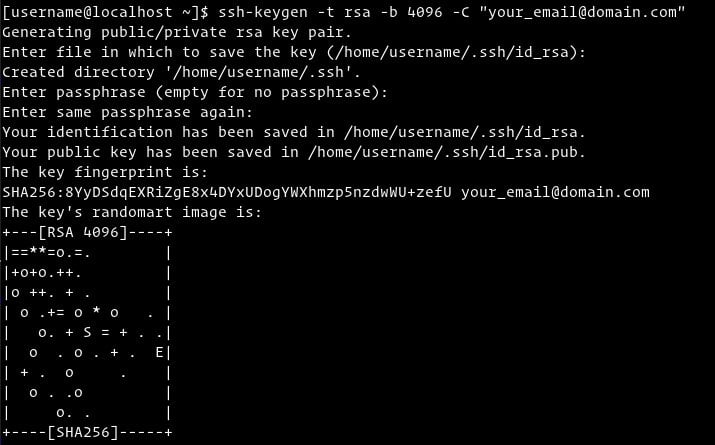
Start by generating a new 4096 bits SSH key pair with your email address as a comment using the following command:
ssh-keygen -t rsa -b 4096 -C "your_email@domain.com"
Copy
The output will look similar to the following:
Enter file in which to save the key (/home/yourusername/.ssh/id_rsa):
Copy
Press Enter to accept the default file location and file name.
Next, you’ll be prompted to type a secure passphrase. Whether you want to use passphrase its up to you. With passphrase, an extra layer of security is added to your key.
Enter passphrase (empty for no passphrase):
Copy
If you don’t want to use passphrase just press Enter
The whole interaction looks like this:
To verify that the SSH key pair was generated, type:
ls ~/.ssh/id_*
Copy
The output should look something like this:
/home/yourusername/.ssh/id_rsa /home/yourusername/.ssh/id_rsa.pub
Copy

Copy the Public Key to the Server

Now that you have your SSH key pair, the next step is to copy the public key to the server you want to manage.
The easiest and the recommended way to copy the public key to the remote server is to use the ssh-copy-id tool.
On your local machine terminal tun the following command:
ssh-copy-id remoteusername@server_ip_address
Copy
You will be prompted to enter the remoteusername password:
remoteusername@server_ip_address's password:
Copy
Once the user is authenticated, the public key ~/.ssh/id_rsa.pub will be appended to the remote user ~/.ssh/authorized_keys file and connection will be closed.
Number of key(s) added: 1

Now try logging into the machine, with: "ssh 'username@server_ip_address'"
and check to make sure that only the key(s) you wanted were added.
Copy
If the ssh-copy-id utility is not available on your local computer you can use the following command to copy the public key:
cat ~/.ssh/id_rsa.pub | ssh remoteusername@server_ip_address "mkdir -p ~/.ssh && cat >> ~/.ssh/authorized_keys"
Copy

Login to the Server using SSH Keys

At this point you should be able login to the remote server without being prompted for a password.
To test it, try to connect to the server via SSH:
ssh remoteusername@server_ip_address
Copy
If you haven’t set a passphrase, you will be logged in immediately. Otherwise you will be prompted to enter the passphrase.

Disabling SSH Password Authentication

To add an extra layer of security to your server you can disable the password authentication for SSH.
Before disabling SSH password authentication make sure you can login to your server without a password and the user you are logging in with has sudo privileges.
Log into your remote server:
ssh sudo_user@server_ip_address
Copy
Open the SSH configuration file /etc/ssh/sshd_config:
sudo nano /etc/ssh/sshd_config
Copy
Search for the following directives and modify as it follows:
/etc/ssh/sshd_config
PasswordAuthentication no
ChallengeResponseAuthentication no
UsePAM no
Once you are done save the file and restart the SSH service using the following command:
sudo systemctl restart ssh
Copy
At this point, the password based authentication is disabled.

Conclusion

In this tutorial you have learned how to generate a new SSH key pair and setup a SSH key-based authentication. You can add the same key to multiple remote serves.
We have also shown you how to disable SSH password authentication and add an extra layer of security to your server.
If you have any question or feedback feel free to leave a comment.

How to Change your Ubuntu Computer Name (Hostname)

$
0
0
https://vitux.com/how-to-change-your-ubuntu-computer-name-hostname

How to Change your Ubuntu Computer Name (Hostname)

Change Ubuntu Hostname

What is a computer name (hostname)?

Your computer name, in technical terms, is also referred to as the hostname of your computer system. A hostname is how other computers recognize your computer over a local network. Like on the Internet, we have URLs instead of hostnames. These URLs contain regular words like google.com that we can easily understand instead of remembering the numeric IP address of a server.
We can give easy computer name/hostname for our systems so that other computers can easily identify it over a local network. So instead of remembering your IP address, other people can access local web pages and other authorized data on your system through your hostname.
In this article, we will give a few simple ways to change your computer name through the graphical user interface and the command line.
The commands and procedures mentioned in this article have been run on a Ubuntu 18.04 LTS system.

How to change the hostname?

Method 1: Through the GUI

Through the UI, you can change your computer’s device name. It can be called a “pretty hostname” as it is not the permanent or static hostname of your computer. Nevertheless, you can change the device name as follows:
Open your system settings either by clicking the downward arrow located at the top-right corner of your Ubuntu screen and then clicking the settings icon from the following view:
Ubuntu Settings
OR
Open the Settings utility through the system Dash as follows:
Search for settings utility
The Settings utility will by default open in the Wi-Fi view as follows:
Wi-Fi View
Move to the Details view by clicking the Details tab from the left pane. You will be able to view the Device name in the About view as follows:
Details tab
The device name will change as soon as you enter a new name in the Device name textbox.
Please note that this is not your computer’s permanent hostname. Please read further in this article to view how you can change your computer’s permanent hostname.

Method 2: Manually through the hostname and hosts file

You can view the hostname of your computer by entering the following command in your Terminal:
(Click the Ctrl+Alt+T shortcut to open the Terminal application)
$ hostname
Get current hostname
One way to change the hostname is through the following command:
$ sudo hostname new-hostname
Example:
$ sudo hostname Linux-system
Set new hostname with hostname command
The drawbackof this method is that the hostname will revert to the original when you restart your system.
The proper way to change the hostname is by changing it in two configuration files named the hostname and hosts file located in the /etc/ folder.
You can open these files through any of your favorite text editors. We are opening this file in the nano editor as follows:
$ sudo nano /etc/hostname
Edit the /etc/hostname file
The only text in this file lists the hostname of your computer. Simply change the text to a new hostname and then exit and save the file by clicking Ctrl+X, and then y and hit enter.
Then open the hosts file as follows:
$ sudo nano /etc/hostname
In this file, the hostname is listed against the IP: 127.0.1.1
Edit /etc/hosts file
Change this hostname to a new hostname and then exit and save the file by clicking Ctrl+X, and then y and hit enter.
Now when you restart the system, your hostname will change to a static new hostname.

Method 3: Through the hostnamectl command

The smartest way to change your hostname is through the hostnamectl command that is a part of the Systemd utility. If Systemd is not already installed on your system, you can install it through the following command as root:
$ sudo apt install systemd
You can check the version number of the Systemd utility by running the following command:
$ systemd --version
This command will give you the version number of the utility and also ensure that it is indeed installed on your system
Now that the Systemd utility is installed on your system, you can run the following command in order to view detailed information about your system, including the hostname:
$ hostnamectl
Output of hostnamectl command
In this output, the Static hostname lists the permanent hostname of your machine. The Pretty hostname lists the Device name you have set up through the UI in the Settings utility. The hostnamectl lists the Pretty hostname(device name) only if it is different from the static hostname.
In order to change your computer’s hostname through the hostnamectl command, use the following syntax:
$ hostnamectl set-hostname “new-hostname”
Example:
$ hostnamectl set-hostname Linux-system
Set new hostname with hostnamectl command
Now when you see, the hostname through the hostnamectl command, it will show the static hostname as the new hostname you have set. The system has also changed the device name to the hostname you specified through the set-hostname command.
You can verify through the UI that your device name will also be the same as your static hostname. Open the Settings utility and move to the Details tab to view your device name.
New hostname shows up in the GUI as well
The plus point of the Hostnamectl command is that you do not need to restart your computer in order to permanently change the hostname.

Conclusion

Through this tutorial, you learned to change the device name and computer name(hostname) of your system. Now you can change your computer’s hostname either temporarily or permanently through the Ubuntu command line. All you need to do is change a few configuration files or simply use the hostnamectl command to do so. Now you can have a customized computer name through which other computers over the local area will identify you.

How to compile and install Linux Kernel 4.19 from source code

$
0
0
https://www.cyberciti.biz/tips/compiling-linux-kernel-26.html


Compiling a custom kernel has its advantages and disadvantages. However, new Linux user/admin find it difficult to compile Linux kernel. Compiling kernel needs to understand few things and then type a couple of commands. This step by step howto covers compiling Linux kernel version 4.19.xx under an Ubuntu or Debian Linux. The following instructions successfully tested on an RHEL 7/CentOS 7 (and clones), Debian Linux, Ubuntu Linux and Fedora Linux 28. However, instructions remain the same for any other Linux distribution.

How to compile and install Linux Kernel 4.19

The procedure to build (compile) and install the latest Linux kernel from source is as follows:
  1. Grab the latest kernel from kernel.org
  2. Verify kernel
  3. Untar the kernel tarball
  4. Copy existing Linux kernel config file
  5. Compile and build Linux kernel 4.19
  6. Install Linux kernel and modules (drivers)
  7. Update Grub configuration
  8. Reboot the system
Let us see all steps in details.

Step 1. Get the latest Linux kernel source code

Visit the official project site and download the latest source code. Click on the big yellow button that read as “Latest Stable Kernel“:
Download Linux Kernel Source Code
The filename would be linux-x.y.z.tar.xz, where x.y.z is actual Linux kernel version number. For example file linux-4.19.tar.xz represents Linux kernel version 4.19. Use the wget command to download Linux kernel source code:
$ wget https://cdn.kernel.org/pub/linux/kernel/v4.x/linux-4.19.tar.xz
wget Linux kernel source code from kerne.org

Step 2. Extract tar.xz file

You really don’t have to extract the source code in /usr/src. You can extract the source code in your $HOME directory or any other directory using the following unzx command or xz command:
$ unzx -v linux-4.19.tar.xz
OR
$ xz -d -v linux-4.19.tar.xz

Verify Linux kernel tartball with pgp

First grab the PGP signature for linux-4.19.tar:
$ wget https://cdn.kernel.org/pub/linux/kernel/v4.x/linux-4.19.tar.sign
Try to verify it:
$ gpg --verify linux-4.19.tar.sign
Sample outputs:
gpg: assuming signed data in 'linux-4.19.tar'
gpg: Signature made Sun 12 Aug 2018 04:00:28 PM CDT
gpg: using RSA key 79BE3E4300411886
gpg: Can't check signature: No public key
Grab the public key from the PGP keyserver in order to verify the signature i.e. RSA key ID 79BE3E4300411886 (from the above outputs):
$ gpg --recv-keys 79BE3E4300411886
Sample outputs:
gpg: key 79BE3E4300411886: 7 duplicate signatures removed
gpg: key 79BE3E4300411886: 172 signatures not checked due to missing keys
gpg: /home/vivek/.gnupg/trustdb.gpg: trustdb created
gpg: key 79BE3E4300411886: public key "Linus Torvalds " imported
gpg: no ultimately trusted keys found
gpg: Total number processed: 1
gpg: imported: 1
Now verify gpg key again with the gpg command:
$ gpg --verify linux-4.19.tar.sign
Sample outputs:
gpg: assuming signed data in 'linux-4.19.tar'
gpg: Signature made Sun 12 Aug 2018 04:00:28 PM CDT
gpg: using RSA key 79BE3E4300411886
gpg: Good signature from "Linus Torvalds "[unknown]
gpg: aka "Linus Torvalds "[unknown]
gpg: WARNING: This key is not certified with a trusted signature!
gpg: There is no indication that the signature belongs to the owner.
Primary key fingerprint: ABAF 11C6 5A29 70B1 30AB E3C4 79BE 3E43 0041 1886
If you do not get “BAD signature” output from the “gpg –verify” command, untar/extract the Linux kernel tarball using the tar command, enter:
$ tar xvf linux-4.19.tar

Step 3. Configure the Linux kernel features and modules

Before start building the kernel, one must configure Linux kernel features. You must also specify which kernel modules (drivers) needed for your system. The task can be overwhelming for a new user. I suggest that you copy existing config file using the cp command:
$ cd linux-4.19
$ cp -v /boot/config-$(uname -r) .config

Sample outputs:
'/boot/config-4.15.0-30-generic' -> '.config'

Step 4. Install the required compilers and other tools

You must have development tools such as GCC compilers and related tools installed to compile the Linux kernel.

How to install GCC and development tools on a Debian/Ubuntu Linux

Type the following apt command or apt-get command to install the same:
$ sudo apt-get install build-essential libncurses-dev bison flex libssl-dev libelf-dev
See “Ubuntu Linux Install GNU GCC Compiler and Development Environment” for more info.

How to install GCC and development tools on a CentOS/RHEL/Oracle/Scientific Linux

Try yum command:
$ sudo yum group install "Development Tools"
OR
$ sudo yum groupinstall "Development Tools"
Additional packages too:
$ sudo yum install ncurses-devel bison flex elfutils-libelf-devel openssl-devel

How to install GCC and development tools on a Fedora Linux

Run the following dnf command:
$ sudo dnf group install "Development Tools"
$ sudo dnf ncurses-devel bison flex elfutils-libelf-devel openssl-devel

Step 5. Configuring the kernel

Now you can start the kernel configuration by typing any one of the following command in source code directory:
  • $ make menuconfig– Text based color menus, radiolists & dialogs. This option also useful on remote server if you wanna compile kernel remotely.
  • $ make xconfig– X windows (Qt) based configuration tool, works best under KDE desktop
  • $ make gconfig– X windows (Gtk) based configuration tool, works best under Gnome Dekstop.
For example, run make menuconfig command launches following screen:
$ make menuconfig
How to compile and install Linux Kernel 4.19
You have to select different options as per your need. Each configuration option has HELP button associated with it so select help button to get help. Please note that ‘make menuconfig’ is optional. I used it here to demonstration purpose only. You can enable or disable certain features or kernel driver with this option. It is easy to remove support for a device driver or option and end up with a broken kernel. For example, if the ext4 driver is removed from the kernel configuration file, a system may not boot. When in doubt, just leave support in the kernel.

Step 5. How to compile a Linux Kernel

Start compiling and tocreate a compressed kernel image, enter:
$ make
To speed up compile time, pass the -j as follows:
## use 4 core/thread ##
$ make -j 4
## get thread or cpu core count using nproc command ##
$ make -j $(nproc)

Linux kernel compiled and bzImage is ready
Compiling and building the Linux kernel going take a significant amount of time. The build time depends upon your system’s resources such as available CPU core and the current system load. So have some patience.

Install the Linux kernel modules

$ sudo make modules_install
How to install the Linux kernel modules

Install the Linux kernel

So far we have compiled the Linux kernel and installed kernel modules. It is time to install the kernel itself:
$ sudo make install
make install output
It will install three files into /boot directory as well as modification to your kernel grub configuration file:
  • initramfs-4.19.img
  • System.map-4.19
  • vmlinuz-4.19

Step 6. Update grub config

You need to modify Grub 2 boot loader configurations. Type the following command at a shell prompt as per your Linux distro:

CentOS/RHEL/Oracle/Scientific and Fedora Linux

$ sudo grub2-mkconfig -o /boot/grub2/grub.cfg
$ sudo grubby --set-default /boot/vmlinuz-4.19

You can confirm the details with the following commands:
grubby --info=ALL | more
grubby --default-index
grubby --default-kernel

Debian/Ubuntu Linux

The following commands are optional as make install does everything for your but included here for historical reasons only:
$ sudo update-initramfs -c -k 4.19
$ sudo update-grub

How to build and install the latest Linux kernel from source code

You have compiled a Linux kernel. The process takes some time, however now you have a custom Linux kernel for your system. Let us reboot the system.

Reboot Linux computer and boot into your new kernel

Just issue the reboot command or shutdown command:
# reboot
Verify new Linux kernel version after reboot:
$ uname -mrs
Sample outputs:
Linux 4.19 x86_64

Conclusion

Configurations! You completed various steps to build the Linux kernel from source code. I strongly suggest that you always keep backup of essential data and visit the kernel.org page here for more info.

Linux tr Command Tutorial for Beginners (with Examples)

$
0
0
https://www.howtoforge.com/linux-tr-command

Depending on the kind of work you do on the command line in Linux, you may want a utility that can act as a Swiss army knife of quick text editing. Gladly, there exists a tool dubbed tr, which qualifies for this role. In this tutorial, we will discuss the basics of tr using some easy to understand examples.
But before we do that, it's worth mentioning that all examples in this article have been tested on an Ubuntu 18.04 LTS machine.

Linux tr command

Here's how the tool's man page explains it:
Translate, squeeze, and/or delete characters from standard input, writing to standard output.
And following is its syntax:
tr [OPTION]... SET1 [SET2]
here's what SET means:
SETs are specified as strings of characters.  Most represent themselves.  Interpreted sequences are:

       \NNN   character with octal value NNN (1 to 3 octal digits)

       \\     backslash

       \a     audible BEL

       \b     backspace

       \f     form feed

       \n     new line

       \r     return

       \t     horizontal tab

       \v     vertical tab
Following are some Q&A styled examples that should give you a better idea on how the tr command works.

Q1. How to convert lower case to upper case using tr?

Suppose you want to convert the sentence "linux tutorial on howtoforge" to uppercase, then here's how you can do this using tr.
echo 'linux tutorial on howtoforge' | tr "[:lower:]""[:upper:]"
The above command produced the following output on my system:
LINUX TUTORIAL ON HOWTOFORGE

Q2. How to strip extra spaces using tr?

Suppose you have a line like: "HowtoForge       is an extremely        good resource for      Linux tutorials". And the requirement is to strip extra spaces from this line.
Here's how you can use tr to do this:
echo 'HowtoForge       is an extremely        good resource for      Linux tutorials' | tr -s '[:space:]'
Here's the output:
HowtoForge is an extremely good resource for Linux tutorials

Q3. How to delete text using tr?

Suppose you want to delete the hyphens from the following line: "HowtoForge -- is -- an -- extremely -- good -- resource -- for -- Linux -- tutorials." Then here's how you can do this using tr.
echo 'HowtoForge -- is -- an -- extremely -- good -- resource -- for -- Linux -- tutorials' | tr -d '-'
Following is the output it produces:
HowtoForge  is  an  extremely  good  resource  for  Linux  tutorials

Q4. How to replace characters using tr?

In the previous section, suppose the requirement was to replace hyphens with, let's say, dots. Then here's how you can do that using tr.
echo 'HowtoForge -- is -- an -- extremely -- good -- resource -- for -- Linux -- tutorials' | tr '-''.'
Following is the output it produced:
HowtoForge .. is .. an .. extremely .. good .. resource .. for .. Linux .. tutorials

Conclusion

So you can see the tr command is an extremely helpful tool when it comes to editing text. We have discussed some main options here, but the utility offers many other command line options as well. First try these, and once you've got a good idea about what we've discussed here, then you can learn more about tr by heading to its man page.

How to start a vnc server for the actual display (scraping) with TigerVNC

$
0
0
https://www.howtoforge.com/tutorial/how-to-start-a-vnc-server-for-the-actual-display-scraping-with-tigervnc

VNC is a desktop sharing application (Virtual Network Computing) to connect and control a (remote or local) computer's desktop over a network connection.
However, on linux systems, many VNC server applications allow only to connect to a virtual desktop and not to the actual one. This howto offers you a solution, to connect via TigerVNC server to the actual active session on your Linux desktop.

Requirements

  • A fully functional linux desktop environment
  • root privilege (to install the TigerVNC server)
  • basic knowledge of the linux shell
In order to get the latest packages, you may want to update.
user@hostname:~$ sudo apt-get update
This howto was tested on Debian/GNU Linux 9.5 (stretch) and Ubuntu 18.04

Install TigerVNC

First, you have to install the TigerVNC server.
user@hostname:~$ sudo apt-get install tigervnc-scraping-server
Note, that on most debian-based systems, there is a small package called tigervnc-scraping-server, which you need to install. You don't have to install the main TigerVNC server (package name: tigervnc-standalone-server) to have the functionality to connect to the running desktop session, only if you prefer to connect to a virtual desktop, too.
The TigerVNC server provides a smaller application (x0vncserver) to grant access to the active session.
Then, create a .vnc directory in your home:
user@hostname:~$ mkdir -p ~/.vnc
Create a password for your vnc session:
user@hostname:~$ vncpasswd
Password:
Verify:
Would you like to enter a view-only password (y/n)? n

Starting the VNC server

A short description of the x0vncserver:
x0tigervncserver is a TigerVNC Server which makes any X display remotely accessible via VNC, TigerVNC or compatible viewers. Unlike Xvnc(1), it does not create a virtual display. Instead, it just shares an existing X server (typically, that one connected to the physical screen).
Now that you have successfully installed TigerVNC server on your computer, created a password with the vncpasswd command, we can begin to start our vnc server. Make sure that you're on the active session, and write (as user):
user@hostname:~$ x0vncserver -passwordfile ~/.vnc/passwd -display :0

Wed Oct 10 22:17:16 2018
Geometry: Desktop geometry is set to 1920x1080+0+0
Main: XTest extension present - version 2.2
Main: Listening on port 5900
The option -passwordfile ~/.vnc/passwd reads the password file created earlier with the vncpasswd command. The second option -display :0 means, that you want to connect to the session on the display :0, which is usually the active session.
Now you can access your actual desktop with any vnc viewer application on the default vnc port 5900.
You can stop this process whenever you want by pressing Ctrl-c.
If you wish to run it in the background, type:
user@hostname:~$ x0vncserver -passwordfile ~/.vnc/passwd -display :0 >/dev/null 2>&1 &
Now all the output standard output and errors are redirected to /dev/null and with the & at the end, it will run in the background. However, you won't be able anymore to stop the vnc server by pressing Ctrl-c, instead you have to kill it's process id (see below section "Stopping the vnc server").
For more options and syntax, check the x0vncserver manual.

Stopping the VNC server

If your vnc server runs in the background, you have to know the process id, in order to stop it.
user@hostname:~$ ps -fu user | grep [x]0vncserver
user    1328    1   0 23:11 pts/2    00:00:00    /usr/bin/x0vncserver -display :0 -passwordfile /home/user/.vnc/passwd -rfbport 5900
The output will be like this, so notice the pid 1328. In order to stop the vnc server, we have to "kill" this process.
user@hostname:~$ kill -9 1328
The option -9 for the kill command will send the KILL signal to the process id to make sure that it stops.

Script to run the VNC server

There is a script to start and stop the x0vncserver application on github. For testing purposes, you download the psmisc package, too:
user@hostname:~$ sudo apt-get install git psmisc
Then, download the startvnc script using the git command:
user@hostname:~$ git clone https://github.com/sebestyenistvan/runvncserver
Cloning into 'runvncserver'...
remote: Enumerating objects: 77, done.
remote: Counting objects: 100% (77/77), done.
remote: Compressing objects: 100% (57/57), done.
remote: Total 77 (delta 25), reused 60 (delta 18), pack-reused 0
Unpacking objects: 100% (77/77), done.
Your output will look something like above.
Copy the startvnc script from the runvncserver directory to your home:
user@hostname:~$ cp ~/runvncserver/startvnc ~
Change permissions to executable, in order to execute the script:
user@hostname:~$ chmod +x ~/startvnc
Then, run the script.
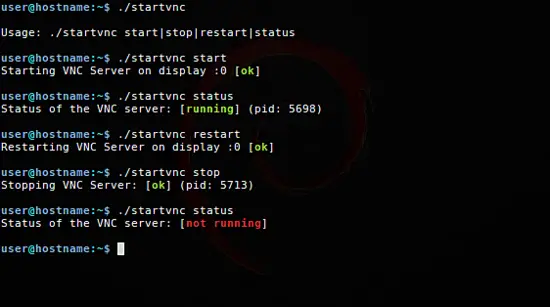
user@hostname:~$ ./startvnc

Usage: ./startvnc start|stop|restart|status
This script will only work, if you have a .vnc directory in your home and created a vncpasswd (it checks for ~/.vnc/passwd file). We already created the .vnc directory and the password earlier.
To start the vnc server on the actual display, just type:
user@hostname:~$ ./startvnc start
Starting VNC Server on display :0 [ok]
You can test, if your vnc server is running with the option:
user@hostname:~$ ./startvnc status
Status of the VNC server: [running] (pid: 1328)
Few examples:
Using TigerVNC
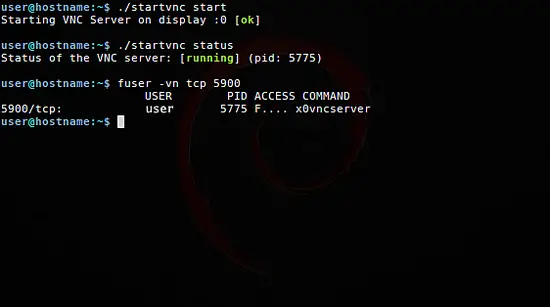
Or by checking the 5900 TCP port on your system with the fuser command (from the psmisc package):
user@hostname:~$ fuser -vn tcp 5900
                  USER      PID     ACCESS      COMMAND
5900/tcp:         user      1328    F....       x0vncserver
You'll get an output like this if the vnc server is running on port 5900.
Check port with fuser command
More instructions for this script you can find in the readme file:
user@hostname:~$ less runvncserver/README.md
The script will create a logfile, where the output is stored. If something goes wrong or you can't start or stop the x0vncserver, take a look at the logfile under ~/.vnc/logfile

Start the VNC server automatically

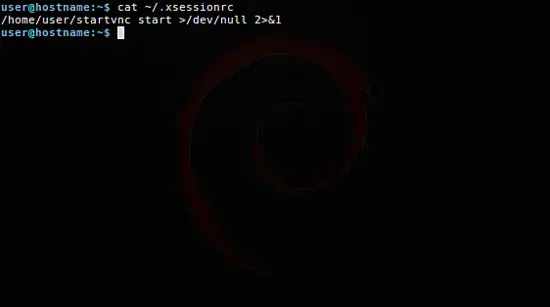
If you want to access the active desktop session automatically, you need to edit the .xsessionrc file in your home directory.
user@hostname:~$ echo "/home/user/startvnc start >/dev/null 2>&1">> ~/.xsessionrc
 Replace user by your username and it will automatically run when starting the X session. The script logs its activity in ~/.vnc/logfile, if something goes wrong, you can check the log file there.
Automatic VNC server start

Notes

This tutorial doesn't deal with setting up a VNC virtual desktop.

Security

Be aware, that the x0vncserver doesn't use encryption by default, so use it carefully over the internet. If you want to use it remotely, you can tunnel it via ssh. However, there are other howtos where you can find a solution to encrypt your VNC session.
Or you can take a look at the ssvnc package.

VNC viewers

If you're looking for VNC viewers, there are plenty of them, for instance:
  • gvncviewer
  • tigervnc-viewer
  • xtightvncviewer
  • xvnc4viewer

Geometry

The x0vncserver on the actual display will use the same geometry as the running desktop on the :0 display. So if you set the -geometry option to a lower size, it won't get scaled, you'll just see a fraction of the desktop size.

Feedback

Feel free to write feedback. If you tested this tutorial or even the script on another system.
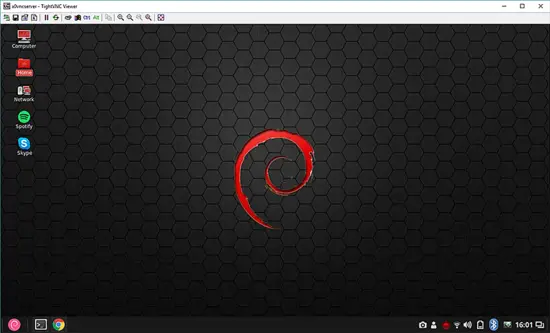
Desktop shared via VNC

How to Multi-Task in Linux with the Command Line

$
0
0
https://www.rosehosting.com/blog/how-to-multi-task-in-linux-with-the-command-line


How to Multi-Task in Linux with the Command Line
One of the most jarring moments when moving from a Windows-based environment to using the command line is the loss of easy multi-tasking. Even on Linux, if you use an X Window system, you can use the mouse to just click on a new program and open it. On the command line, however, you’re pretty much stuck with what’s on your screen at any given time. In this tutorial, we will show you how to multi-task in Linux with the command line.

Background and Foreground Process Management

However, there are still ways to multi-task in Linux, and some of them are more comprehensive than others. One in-built way that doesn’t require any kind of additional software is simply moving processes into the background and the foreground. We’d written a tutorial on that a short while back. However, it has some disadvantages.

Disadvantages

First, to send a process into the background, you have to pause it first. There’s no way to send an already running program into the background and keep it running in one go.
Second, you need to break your workflow to start a new command. You have to exit what you’re currently doing and type more commands into the shell. It works, but it’s inconvenient.
Third, you have to look out for output from the background processes. Any output from them will appear on the command line and interfere with what you’re doing in the current moment. So background tasks need to either redirect their output to a separate file, or they need to be muted altogether.
Because of these disadvantages, there are huge problems with background and foreground process management. A better solution is to use the “screen” command utility as shown below.

But First – You Can Always Open a new SSH Session

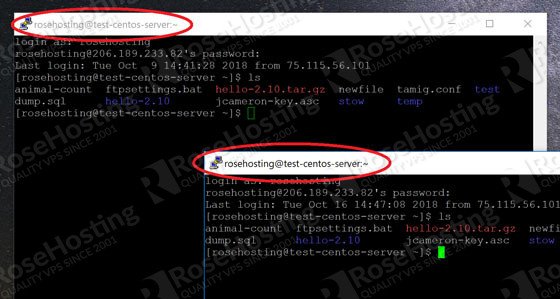
Don’t forget that you just open a new SSH session. Here’s a screenshot of we doing just that:
Open Two Separate SSH Shells
It can get inconvenient to open new sessions all the time. And that’s when you need “screen”

Using “Screen” Instead

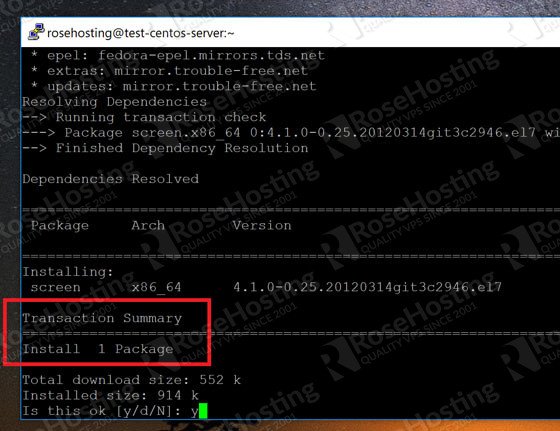
The “screen” utility allows you to have multiple workflows open at the same times – the closest analog to “windows”. It’s available by default within the regular Linux repositories. Install it in CentOS/RHEL like this:
sudo yum install screen

install screen linux

Opening a New Screen

Now start your session by typing “screen”.
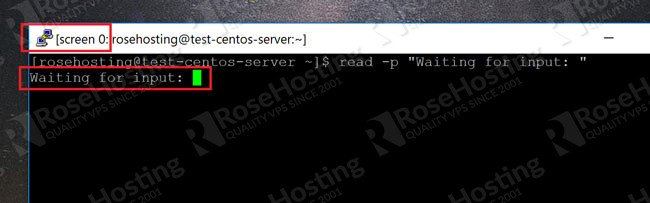
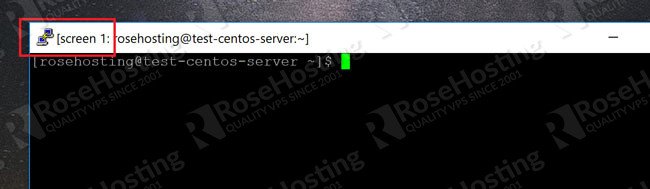
This will create a blank window within your existing SSH session and give it a number that’s shown in the title bar like this:
Waiting for Input
My screen here has the number “0” as shown. In this screenshot, I’m using a dummy “read” command to block the terminal and make it wait for input. Now let’s say we want to do something else while we wait.
To open a new screen and do something else, we type:
ctrl+a c
“ctrl+a” is the default key combination for managing screens within the screen program. What you type after it, determines the action. So for example:
  • ctrl+a c – Creates a new screen
  • ctrl+a [number]– Goes to a specific screen number
  • ctrl+a k – Kills the current screen
  • ctrl+a n – Goes to the next screen
  • ctrl+a ” – Lists all active screens in the session
So if we press “ctrl+a c”, we get a new screen with a new number as shown here:
Second Screen Linux
You can use the cursor keys to navigate the list and go to whichever screen you want.
Screens are the closest thing you’ll get to a “windows” like system in the Linux command line. Sure, it’s not as easy as clicking with the mouse, but then the graphical subsystem is very resource intensive in the first place. With screens, you can get almost the same functionality and enable full multi-tasking!

If you are one of our managed VPS hosting customers, you can always ask our system administrators to set up this for you, They are available 24/7 and can take care of your request immediately.
If you liked this post on how to multi-task in Linux command line, please share it with your friends on social media networks, or if you have any question regarding the blog post please leave a comment below and one of our system administrators will reply to it.

8 Common Uses of the Linux Touch Command

$
0
0
https://vitux.com/8-common-uses-of-the-linux-touch-command

The Linux touch command can be used for much more than simply creating an empty file on Linux. You can use it to change the timestamp of existing files including their access as well as modification times. This article presents 8 scenarios where you can utilize the touch command through your Linux Terminal.
We have run the commands and procedures mentioned in this article on a Ubuntu 18.04 LTS system. Since the touch command is a command line utility, we will be using the Ubuntu Terminal for this article. You can open the Terminal either through the system Dash or the Ctrl+Alt+T shortcut.

1. Create a single empty file with the touch command

The simplest and the most basic use of the touch command is to create an empty file through the command line. If you are a Terminal-savvy person, you can quickly create a new file in the command line through the following command:
$ touch “filename”
Example:
$ touch samplefile
In the following example, I have created an empty file with the name “samplefile” through the touch command. I have then used the ls command to view the presence of the file on my system as the touch command does not prompt if the file has been created or not.
Create empty file with touch command

2. Create multiple files at once with touch command

Although the cat command and the standard redirect symbol are also ways to create files through the command line, the touch command takes an edge because you can create multiple files with it at once. You can use the following syntax in order to create multiple files through the touch command:
$ touch samplefile1 samplefile2 samplefile3 ….
In the following example I have created three files simultaneously through the touch command and then used the ls command in order to view the presence of those files:
Create multiple files with touch command

3. Force avoid creating a new file with touch command

At times there is a need to avoid creating a new file if it already does not exist. In that case, you can use the ‘-c’ option with the touch command as follows:
$ touch -c “filename”
In the following example, I have used the touch command to forcefully avoid the creation of the mentioned new file.

When I use the ls command to list that file, the following output verifies that such a file does not exist in my system.

4. Change both access and modification times of a file

Another use of the touch command is to change both the access time and the modification time of a file.
Let us present an example to show how you can do it. I created a file named “testfile” through the touch command and viewed its statistics through the stat command:
Change modification time of file
Then I entered the following touch command:
$ touch testfile
This touch command changed the access and modification time to the time when I ran the touch command again for the “testfile”. You can see the changed access and modification times in the following image:
File modification and access time changed

5. Change either access time or modification time

Instead of changing both the access and modification times, we can choose to change only one of them through the touch command.
In the following example, I created a file by the name of “samplefile” and viewed it statistics through the stat command:
File details
I can change only the access time of this file by using the ‘-a’ option through the touch command on this file:
$ touch -a samplefile
The output of the stat command now shows that the access time has been changed to the time when I ran the touch command with the ‘-a’ option:
Change access time
I can change only the modification time of this file by using the ‘-m’ option through the touch command on this file:
$ touch -m samplefile
The output of the stat command now shows that the modification time has been changed to the time when I ran the touch command with the ‘-m’ option:
Change modification time

6. How to copy access & modification time from one file to another file

Let us suppose we have a file named samplefileA:
First sample file
And another file named samplefileB:
Second sample file
If you want to change the access & modification time of samplefileA to that of the samplefileB, you can sue the touch command as follows:
$ touch samplefileA -r sampleFileB
Copy modification and access time from file a to b
The output of the stat command in the above image shows that the samplefileA now has the same access and modify values as that of samplefileB.

7. Create a new file with a specified timestamp

In order to create a new empty file with a specified timestamp instead of the actual time you created it, you can use the following syntax of the touch command:
$ touch -t YYMMDDHHMM.SS “filename”
The following example shows how the stat command on my samplefile shows that its access and modification times are based on the timestamp I provided while creating it through the touch command:
Create a new file with a specified timestamp

8. Change timestamp of a file to some other time

You can change the timestamp of an existing file to some other time using the following syntax of the touch command:
$ touch -c -t YYMMDDHHMM.SS “filename”
In the following example, I have changed the timestamp of an existing file through the touch command and then verified the changes through the stat command on that sample file:
Change timestamp of a file to some other time
Through the basic yet useful scenarios we presented in this article, you can begin to master the touch command and use it for quickly performing some seemingly complex tasks through the Linux command line.

What is nice and how to change the priority of any process in Linux?

$
0
0
https://www.golinuxhub.com/2014/11/what-is-nice-and-how-to-change-priority.html

If you want to change the priority of any process there are two things which you need to consider. There are two terms which will be used in this article i.e. NICE and PRIORITY.

In case you haven't notice when you run top command you get two different values for any process as I have marked in different color below
  PID USER      PR  NI  VIRT  RES  SHR S %CPU %MEM    TIME+  COMMAND
 2899 root      20   0  2704 1128  868 R  0.3  0.1   0:02.26 top
    1 root      20   0  2892 1420 1200 S  0.0  0.1   0:01.29 init
Here PR denoted PRIORITY and NI denotes NICE value where the PRIORITY range varies from 0 to 39 for any process in Linux and NICE value varies from -20 to 19.

`nice' prints or modifies a process's "niceness", a parameter that affects whether the process is scheduled favorably.

Syntax
# nice [OPTION] [COMMAND [ARG]...]
Example:
The below command will give a nice value of -20 to 2342 PID
# nice --20 2342
NOTE: Use (--) to give a negative nice value and (-) to give a positive nice value

The below command will give a nice value of 20 to 2342 PID
# nice -20 2342
Below comes the complicated part so please bear with me.


How do I understand from the NICE value about the priority of the process?
If you consider to look after NICE value to determine the priority of the process then as I said above its value ranges from -20 to 19 where
  • -20 (process has high priority and gets more resources, thus slowing down other processes)
  • 19 (process has lower priority and runs slowly itself, but has less impact on the speed of other running processes)
So in case you want any process to be given high priority (considering the fact that other processes might get slow) you can change their priority to any negative value upto -20 which will decrease the execution time of the process and the process will complete faster comparatively.

Let us see some real time examples

Run a process with nice value as -20
# time nice --20 seq 4234567 > file.txt
real    0m2.572s
user    0m2.519s
sys     0m0.047s

Deleted the file and ran the same process with nice value of +20
# time nice -20 seq 4234567 > file.txt
real    0m2.693s
user    0m2.626s
sys     0m0.059s

As you can see the former command executed faster with a negative nice value.
Value
Description
real
It represents time taken by command to execute since its initiation to its termination
user
It represents the amount of time that command/program took to execute its own code
sys
It represents time taken by Unix to fire the command

How do I understand from the PRIORITY value about the priority of the process?
Again in case you consider to look at PR value for understanding the priority of the process the value ranges from 0 to 39 where
  • 0 (process has high priority and gets more resources, thus slowing down other processes)
  • 39 (process has lower priority and runs slowly itself, but has less impact on the speed of other running processes)
Let us see some real time examples

Run a process with positive nice value
# time nice -20 seq 42345671 > file.txt
real    0m27.548s
user    0m26.091s
sys     0m1.004s

As you see we are running a process with nice value +20 for which the NI appears 19 and PR as 39 which means the process will have the least priority and it will give priority to other process with higher nice value to use the system resources for their execution.
# top
  PID USER      PR  NI  VIRT  RES  SHR S %CPU %MEM    TIME+  COMMAND
 3192 root      39  19  4084  568  512 R 99.8  0.1   0:03.29 seq
    1 root      20   0  2892 1420 1200 S  0.0  0.1   0:01.29 init

Similarly for a negative nice value
# time nice --20 seq 42345671 > file.txt
real    0m27.397s
user    0m26.555s
sys     0m0.600s

As you see the NI value is changed to -20 for PR value of 0.
# top
  PID USER      PR  NI  VIRT  RES  SHR S %CPU %MEM    TIME+  COMMAND
 3205 root       0 -20  4084  568  512 R 75.0  0.1   0:02.26 seq
    1 root      20   0  2892 1420 1200 S  0.0  0.1   0:01.29 init


What would happen if I give a nice value out of range i.e. -20 to 19 to any process?
It can happen but your system won't understand any value other than -20 to 19 and will take the default value of -20 for high priority and 19 for least priority.


Let us see some real time examples

Assigning a nice value of -40
# time nice --40 seq 42345671 > file.txt
But still as you see the system is taking the nice value as -20 which is the highest recognizable value
# top
  PID USER      PR  NI  VIRT  RES  SHR S %CPU %MEM    TIME+  COMMAND
 3226 root       0 -20  4084  568  512 R  7.6  0.1   0:00.23 seq
 1600 root      20   0 38616 3976 3284 S  0.3  0.4   0:01.68 vmtoolsd

Assigning a nice value of 40
# time nice -40 seq 42345671 > file.txt
Naah, it didn't worked either as top shows the process is using 19 as the nice value.
# top
  PID USER      PR  NI  VIRT  RES  SHR S %CPU %MEM    TIME+  COMMAND
 3235 root      39  19  4084  568  512 R 62.0  0.1   0:01.87 seq
 2899 root      20   0  2704 1128  868 R  0.7  0.1   0:08.66 top
So I guess I made my point.

If you want to manually check the nice value along with the CPU and memory usage bu any process then use this command
# ps -o pid,pcpu,pmem,ni -p 88
 PID %CPU %MEM  NI
  88  0.0  0.0 -10
This will show you PID, %CPU,%MEM and nice value along with the process ID where 88 is the process id.


How to change the nice value of a running process?
In the above examples I started the process with a pre-defined nice value but what if the process is running and you want to change its nice value. For this we have another command i.e. renice

Syntax
# renice [-n] priority [[-p] pid ...]
Some Examples:
# seq 4234567112 > file.txt
# top
  PID USER      PR  NI  VIRT  RES  SHR S %CPU %MEM    TIME+  COMMAND
 3354 root      20   0  4084  568  512 R 95.4  0.1   0:07.19 seq

Changing the nice value to -5
# renice -n -5 -p 3354
3354: old priority 0, new priority -5

# top
  PID USER      PR  NI  VIRT  RES  SHR S %CPU %MEM    TIME+  COMMAND
 3354 root      15  -5  4084  568  512 R 99.7  0.1   0:30.26 seq

Changing the nice value to 10
# renice -n 10 -p 3354
3354: old priority -5, new priority 10

# top
  PID USER      PR  NI  VIRT  RES  SHR S %CPU %MEM    TIME+  COMMAND
 3354 root      30  10  4084  568  512 R 99.1  0.1   0:51.16 seq

Changing the nice value to -15
# renice -n -15 -p 3354
3354: old priority 10, new priority -15

# top
  PID USER      PR  NI  VIRT  RES  SHR S %CPU %MEM    TIME+  COMMAND
 3354 root       5 -15  4084  568  512 R 98.0  0.1   1:12.04 seq


How to change the nice value of any user?
Suppose you do not want a particular user to use much of your system resource, I thoses cases you can assign low nice value so that every process started by that user will use less system resources.

# renice -n 5 -u deepak
500: old priority 0, new priority 5

Execute a process by user "deepak"
[deepak@test ~]$ seq 12345678 > file.txt
Verify the NI value for "deepak"
# top
  PID USER      PR  NI  VIRT  RES  SHR S %CPU %MEM    TIME+  COMMAND
 4414 deepak    25   5  4084  588  532 R 97.3  0.1   0:05.54 seq


How to change the nice value of any user?
The same magic can be done for any particular group as well using the below command
# renice -n 5 -g workThe above command will change the default nice value of "work" group to 5 for any process running under their ownership.

What is the default NI value for any process?
The default NI value is 0 and PR value is 20 for any process running under Linux.

How to change the nice value for any user or group permanently?
The above shown examples are terminal based hence temporary. As soon as you reboot your machine the default nice value would be applicable for the defined user.

To make these changes permanent follow the below steps
NOTE: You can either user PR value or NI value to set the priority. I would suggest to use NICE value
# vi /etc/security/limits.conf
deepak hard priority 5
This will set hard priority for user deepak as "5"

How to Find Your Public IP Address on Linux Command Line

$
0
0
https://www.putorius.net/find-public-ip-address-linux-command-line.html

This Linux quick tip will show you many different way to get your public IP address from the command line using different tools. Since not all Linux distributions have the same set of packages (programs) installed, some of these example may or may not work on your system. For example, default Red Hat and CentOS installations do not have the dig tool installed.
All of these options will depend on external sources. We will try to use as many different sources as possible in the examples to ensure reliability.

Using the curl Command

Curl is a tool used to transfer data to and from a server using many different supported protocols. Here we will use the HTTPS protocol to pull a webpage and grep to extract our public IP address. Here are some examples of how to get your public IP address from the command line using curl.
WhatismyIP.com
curl https://whatsmyip.com/ -s | grep -oE "\b([0-9]{1,3}.){3}[0-9]{1,3}\b" -m1
Google.com
curl https://www.google.com/search?q=what+is+my+ip+address -s | grep -oE "\b([0-9]{1,3}.){3}[0-9]{1,3}\b" -m1
ipecho.net
curl -s http://ipecho.net/plain
akamai.com
curl -s http://whatismyip.akamai.com

Using the wget Command

The wget command is a command line utility for non-interactive download of files from the web. It supports most HTTP, HTTPS, and FTP as well as connecting through a HTTP Proxy server. Here are some examples of how to get your public IP address from the command line using wget.
ipecho.net
wget -qO- http://ipecho.net/plain
icanhazip.com
wget -qO - icanhazip.com

Using the dig Command

The dig command is a command line tool for querying DNS servers. This utility is not always available. If you want to install dig, it is usually packaged in bind-utils on Red Hat based distros and dnsutils on Debian based distros. Here are some examples of how to get your public IP address from the command line using dig.
google.com
dig @ns1.google.com TXT o-o.myaddr.l.google.com +short
opendns.com
dig +short myip.opendns.com @resolver1.opendns.com

Using the host Command

The host command is a simple command line utility for performing DNS queries. Here are some examples of how to get your public IP address from the command line using the host command.
opendns.com
host myip.opendns.com resolver1.opendns.com | grep -m2 -oE "\b([0-9]{1,3}.){3}[0-9]{1,3}\b" | tail -n1

Using the nslookup Command

The nslookup command is tool that queries DNS Servers, much like dig. This command is available on many operating systems including Linux, UNIX and Windows. Here are some examples of how to get your public IP address from the command line using nslookup.
google.com
nslookup -query=TXT o-o.myaddr.l.google.com ns1.google.com | grep -m2 -oE "\b([0-9]{1,3}.){3}[0-9]{1,3}\b" | tail -n1
opendns.com
nslookup myip.opendns.com resolver1.opendns.com | grep -m2 -oE "\b([0-9]{1,3}.){3}[0-9]{1,3}\b" | tail -n1

Conclusion

There are many different ways to get your public IP address from the command line. Which you use will mostly depend on what is installed on your system. Our preferred method would be from a DNS server using the dig command, but as we stated, dig isn’t always available.

References

The Curl Project Home Page
The Wget Project Home Page on Gnu.org

How to Check Disk Space in Linux Using the df Command

$
0
0
https://linuxize.com/post/how-to-check-disk-space-in-linux-using-the-df-command

How much space do I have left on my hard drive? Is there enough free disk space to download a large file or install a new application?
On Linux based systems you can use the df command to get a detailed report on the system’s disk space usage.
When used without any argument, the df command will display information about all mounted file systems:
df
Copy
Filesystem     1K-blocks      Used Available Use% Mounted on
dev 8172848 0 8172848 0% /dev
run 8218640 1696 8216944 1% /run
/dev/nvme0n1p3 222284728 183057872 27865672 87% /
tmpfs 8218640 150256 8068384 2% /dev/shm
tmpfs 8218640 0 8218640 0% /sys/fs/cgroup
tmpfs 8218640 24 8218616 1% /tmp
/dev/nvme0n1p1 523248 107912 415336 21% /boot
/dev/sda1 480588496 172832632 283320260 38% /data
tmpfs 1643728 40 1643688 1% /run/user/1000
Copy
Each line includes information about the file system name (Filesystem), the size (1K-blocks), the used space (Used), the available space (Available), the percentage of used space (Use%), and the directory in which the filesystem is mounted (Mounted on).
To display information only for a specific file system pass the filesystem name or the mount point to the df command. For example to show the space available on the file system mounted to system root directory / you can use either df /dev/nvme0n1p3 or df /.
df /
Copy
Filesystem     1K-blocks      Used Available Use% Mounted on
/dev/nvme0n1p3 222284728 183057872 27865672 87% /
Copy
By default, the df command shows the disk space in 1 kilobyte blocks and the size of used and available disk space in kilobytes. To view the information human-readable format (megabytes and gigabytes), pass the -h option:
df -h
Copy
Filesystem     1K-blocks      Used Available Use% Mounted on
Filesystem Size Used Avail Use% Mounted on
dev 7.8G 0 7.8G 0% /dev
run 7.9G 1.8M 7.9G 1% /run
/dev/nvme0n1p3 212G 176G 27G 88% /
tmpfs 7.9G 145M 7.7G 2% /dev/shm
tmpfs 7.9G 0 7.9G 0% /sys/fs/cgroup
tmpfs 7.9G 24K 7.9G 1% /tmp
/dev/nvme0n1p1 511M 106M 406M 21% /boot
/dev/sda1 459G 165G 271G 38% /data
tmpfs 1.6G 16K 1.6G 1% /run/user/1000
Copy
To display file system types, use the df command followed the -T option:
df -t
Copy
Filesystem     Type     1K-blocks      Used Available Use% Mounted on
dev devtmpfs 8172848 0 8172848 0% /dev
run tmpfs 8218640 1744 8216896 1% /run
/dev/nvme0n1p3 ext4 222284728 183666100 27257444 88% /
tmpfs tmpfs 8218640 383076 7835564 5% /dev/shm
tmpfs tmpfs 8218640 0 8218640 0% /sys/fs/cgroup
tmpfs tmpfs 8218640 24 8218616 1% /tmp
/dev/nvme0n1p1 vfat 523248 107912 415336 21% /boot
/dev/sda1 ext4 480588496 172832632 283320260 38% /data
tmpfs tmpfs 1643728 40 1643688 1% /run/user/1000
Copy
If you want to limit listing to file systems of a specific type use the -t option followed by the type. For example to list all ext4 partitions you would run:
df -t ext4
Copy
Filesystem     1K-blocks      Used Available Use% Mounted on
/dev/nvme0n1p3 222284728 183666112 27257432 88% /
/dev/sda1 480588496 172832632 283320260 38% /data
Copy
Similar to above, the -x option allows you to limit the output to file systems that are not of a specific type,
When used with the -i option the df command will display information about the filesystem inodes usage. For example to show information about the inodes on the file system mounted to system root directory / in human-readable format you would use:
df -ih /
Copy
Filesystem     Inodes IUsed IFree IUse% Mounted on
/dev/nvme0n1p3 14M 1.9M 12M 14% /
Copy
An inode is a data structure in a Unix and Linux file systems, which contains information about a file or directory such as its size, owner, device node, socket, pipe, etc., except da.
The df command also allows you to specify the output format.
To limit the reported fields shown in the df output use the --output[=FIELD_LIST] option. FIELD_LIST is a comma-separated list of columns to be included in the output. Each field can be used only once. Valid field names are:
  • source - The File system source.
  • fstype - The File system type.
  • itotal - Total number of inodes.
  • iused - Number of the used inodes.
  • iavail - Number of the available inodes.
  • ipcent - Percentage of used inodes.
  • size - Total disk space.
  • used - Used disk space.
  • avail - Available disk space.
  • pcent - Percentage of used space.
  • file - The file name if specified on the command line.
  • target - The mount point.
For example to display the output of all ext4 partition in human-readable format, showing only the filesystem name and size and the percentage of the used space you would use:
df -h -t ext4 --output=source,size,pcent
Copy
Filesystem      Size Use%
/dev/nvme0n1p3 212G 88%
/dev/sda1 459G 38%
Copy
By now you should have a good understanding of how to use the df command. You can always view all available df command options by typing man df in your terminal.

How to Setup Private Docker Registry on Ubuntu 18.04 LTS

$
0
0
https://www.howtoforge.com/how-to-setup-private-docker-registry-on-ubuntu-1804-lts

Docker Registry or 'Registry' is an open source and highly scalable server-side application that can be used to store and distribute Docker images. It was a server-side application behind the Docker Hub. In most use cases, a Docker Registry is a great solution if you want to implement the CI/CD system on your application development. The Private Docker Registry gives more performances for the development and production cycle by centralizing all your custom Docker images of application in one place.
In this tutorial, we're going to show you how to install and configure a Private Docker Registry on a Ubuntu 18.04 server. We will use an Nginx web server and protect the Registry with a username and password (basic auth).
Prerequisites
  • Ubuntu 18.04 server
  • Root privileges
What we will do?
  1. Install Dependencies
  2. Install Docker and Docker-compose
  3. Setup Private Docker Registry
  4. Testing

Step 1 - Install Package Dependencies

First of all, we're going to install some packages dependencies for deploying the Private Docker Registry.
Install packages dependencies using the following command.
sudo apt install -y gnupg2 pass apache2-utils httpie
The gnupg2 and pass packages will be used to store the password authentication to the docker registry. And the apache2-utils will be used to generate the basic authentication, and httpie will be used for testing.

Step 2 - Install Docker and Docker-compose

Now we're going to install the docker and docker-compose from the official Ubuntu repository.
Install Docker and Docker-compose by running the following command.
sudo apt install -y docker.io docker-compose -y
Once the installation is finished, start the docker service and add it to the boot time.
sudo systemctl start docker
sudo systemctl enable docker
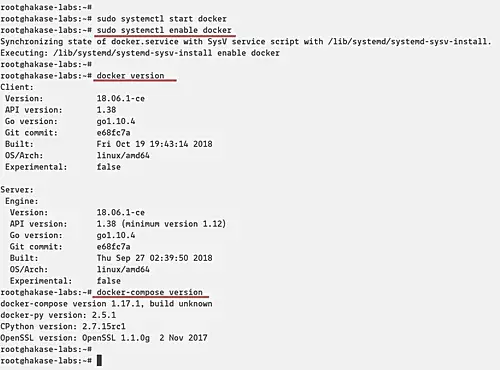
The Docker is up and running, and the Docker-compose has been installed. Check using the command below.
docker version
docker-compose version
And you will be displayed version of Docker and Docker-compose installed on your system.
Install Docker

Step 3 - Setup Private Docker Registry

In this step, we're going to configure the Docker Registry environment by creating some directories environment, and create some configuration including the docker-compose.yml, nginx virtual host and additional configuration etc.
- Create Project Directories
Create a new directory for the project called 'registry' and create the 'nginx' and 'auth' directories inside.
mkdir -p registry/{nginx,auth}
After that, go to the directory 'registry' and create new directories again inside 'nginx'.
cd registry/
mkdir -p nginx/{conf.d/,ssl}
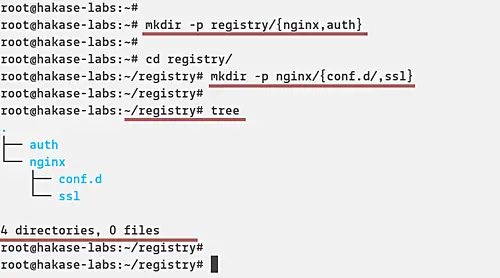
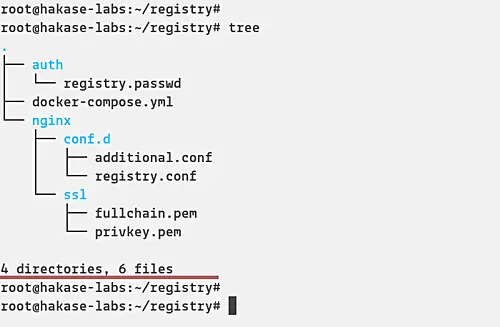
And as a result, the project directories look like the following picture.
tree
Create directories for Docker Registry
- Create Docker-compose Script
Now we want to create a new docker-compose.yml script for deploying the Docker Registry.
Go to the 'registry' directory and create a new configuration file 'docker-compose.yml'.
cd registry/
vim docker-compose.yml
Firstly, define the compose version that you want to use and the service.
version: '3'
services:
After that, add the first service named 'registry'. The Docker Registry service will be using the docker image that's provided by docker team 'registry:2. It will mount the docker volume 'registrydata' and the local directory named 'auth' that contains basic authentication file 'registry.passwd'. And the last, it will run on the custom docker image named 'mynet' and expose the port 5000 on both container and host.
#Registry
registry:
image: registry:2
restart: always
ports:
- "5000:5000"
environment:
REGISTRY_AUTH: htpasswd
REGISTRY_AUTH_HTPASSWD_REALM: Registry-Realm
REGISTRY_AUTH_HTPASSWD_PATH: /auth/registry.passwd
REGISTRY_STORAGE_FILESYSTEM_ROOTDIRECTORY: /data
volumes:
- registrydata:/data
- ./auth:/auth
networks:
- mynet
Next, the configuration of 'nginx' service that will run HTTP and HTTPS ports and mount the local directory 'conf.d' for virtual host configuration, and the 'ssl' for ssl certificates.
#Nginx Service
nginx:
image: nginx:alpine
container_name: nginx
restart: unless-stopped
tty: true
ports:
- "80:80"
- "443:443"
volumes:
- ./nginx/conf.d/:/etc/nginx/conf.d/
- ./nginx/ssl/:/etc/nginx/ssl/
networks:
- mynet
And the last, define the custom network 'mynet' with bridge driver and the 'registrydata' with a local driver.
#Docker Networks
networks:
mynet:
driver: bridge
#Volumes
volumes:
registrydata:
driver: local
Save and close the configuration.
Below is the complete configuration:
version: '3'
services:

#Registry
registry:
image: registry:2
restart: always
ports:
- "5000:5000"
environment:
REGISTRY_AUTH: htpasswd
REGISTRY_AUTH_HTPASSWD_REALM: Registry-Realm
REGISTRY_AUTH_HTPASSWD_PATH: /auth/registry.passwd
REGISTRY_STORAGE_FILESYSTEM_ROOTDIRECTORY: /data
volumes:
- registrydata:/data
- ./auth:/auth
networks:
- mynet

#Nginx Service
nginx:
image: nginx:alpine
container_name: nginx
restart: unless-stopped
tty: true
ports:
- "80:80"
- "443:443"
volumes:
- ./nginx/conf.d/:/etc/nginx/conf.d/
- ./nginx/ssl/:/etc/nginx/ssl/
networks:
- mynet

#Docker Networks
networks:
mynet:
driver: bridge
#Volumes
volumes:
registrydata:
driver: local
- Configure Nginx Virtual Host
After creating the docker-compose script, we will create the virtual host and additional configuration for the nginx service.
Go to 'nginx/conf.d/' directory and create a new virtual host file called 'registry.conf'.
cd nginx/conf.d/
vim registry.conf
Paste the following configuration.
upstream docker-registry {
server registry:5000;
}

server {
listen 80;
server_name registry.hakase-labs.io;
return 301 https://registry.hakase-labs.io$request_uri;
}

server {
listen 443 ssl http2;
server_name registry.hakase-labs.io;

ssl_certificate /etc/nginx/ssl/fullchain.pem;
ssl_certificate_key /etc/nginx/ssl/privkey.pem;

# Log files for Debug
error_log /var/log/nginx/error.log;
access_log /var/log/nginx/access.log;

location / {
# Do not allow connections from docker 1.5 and earlier
# docker pre-1.6.0 did not properly set the user agent on ping, catch "Go *" user agents
if ($http_user_agent ~ "^(docker\/1\.(3|4|5(?!\.[0-9]-dev))|Go ).*$" ) {
return 404;
}

proxy_pass http://docker-registry;
proxy_set_header Host $http_host;
proxy_set_header X-Real-IP $remote_addr;
proxy_set_header X-Forwarded-For $proxy_add_x_forwarded_for;
proxy_set_header X-Forwarded-Proto $scheme;
proxy_read_timeout 900;
}

}
Save and close.
Next, create an additional configuration to increase the max_body_size on nginx. This will allow you to upload docker images with max size 2GB.
vim additional.conf
Paste configuration below.
client_max_body_size 2G;
Save and close.
- Configure SSL Certificate and Basic Authentication
Copy SSL certificate files of your domain to the 'ssl' directory.
cp /path/to/ssl/fullchain.pem ssl/
cp /path/to/ssl/privkey.pem ssl/
Now go to the 'auth' directory and generate the new password file 'registry.passwd'.
cd auth/
Generate a new password for user hakase.
htpasswd -Bc registry.passwd hakase
TYPE THE STRONG PASSWORD
Password protect the registry
And the environment setup for deploying Private Docker Registry has been completed.
Below is the screenshot of our environment files and directories.
tree
Directory list
- Run Docker Registry
Run the Docker Registry using the docker-compose command below.
docker-compose up -d
And you will get the result as below.
Start docker Registry
After that, make sure the registry and nginx service is up and running. Check using the following command.
docker-compose ps
netstat -plntu
And you will be shown the 'registry' service is running on port '5000', and the 'nginx' service will expose the HTTP and HTTPS ports as below.
Check Nginx service

Step 4 - Testing

Before we test our Private Docker Registry, we need to add the Root CA certificate to the docker itself and to the system.
If you're using the pem file certificate, export it to the .crt file using the OpenSSL command.
openssl x509 -in rootCA.pem -inform PEM -out rootCA.crt
Now create a new directory for docker certificate and copy the Root CA certificate into it.
mkdir -p /etc/docker/certs.d/registry.hakase-labs.io/
cp rootCA.crt /etc/docker/certs.d/registry.hakase-labs.io/
And then create a new directory '/usr/share/ca-certificate/extra' and copy the Root CA certificate into it.
mkdir -p /usr/share/ca-certificates/extra/
cp rootCA.crt /usr/share/ca-certificates/extra/
After that, reconfigure the 'ca-certificate' package and restart the Docker service.
dpkg-reconfigure ca-certificates
systemctl restart docker
Create SSL certificate
- Download Docker Image
Download new Docker image using the following command.
docker pull ubuntu:16.04
When it's complete, tag the image for the private registry with the command below.
docker image tag ubuntu:16.04 registry.hakase-labs.io/ubuntu16
Check again the list of Docker images on the system and you will get new images as below.
docker images
Download Docker Image
- Push Image to Private Local Registry
Log in to the Private Docker Registry using the following command.
docker login https://registry.hakase-labs.io/v2/
Type the username and password based on the 'registry.htpasswd' file.
Now check the available of docker image on the Registry.
http -a hakase https://registry.hakase-labs.io/v2/_catalog
And there is no docker image on the Registry.
Push Image to Private Local Registry
Now push our custom image to the Private Docker Registry.
docker push registry.hakase-labs.io/ubuntu16
Check again and make sure you get the 'ubuntu16' docker image on the Private Repository.
http -a hakase https://registry.hakase-labs.io/v2/_catalog
Registry Push
And finally, the installation and configuration of Private Docker Registry with Nginx and Basic Authentication has been completed successfully.

How to Install NodeBB Forum on Fedora 29

$
0
0
https://www.howtoforge.com/how-to-install-nodebb-forum-on-fedora-29

NodeBB is a Node.js based forum software built for the modern web. It's built on either a MongoDB or Redis database. It utilizes web sockets for instant interactions and real-time notifications. NodeBB has many modern features out of the box such as social network integration and streaming discussions. Additional functionality is enabled through the use of third-party plugins. NodeBB is an open source project which can be found on GithubIn this guide, we will walk you through the step-by-step NodeBB installation process on the Fedora 29 operating system by using Nginx as a reverse proxy, MongoDB as the database and acme.sh and Let's Encrypt for HTTPS.

Requirements

NodeBB requires the following software to be installed:
  • Node.js version 6 or greater
  • MongoDB version 2.6 or greater or Redis version 2.8.9 or greater
  • Nginx version 1.3.13 or greater
  • Git
NOTE: Installing NodeBB's dependencies may require more than 512 megabytes of system memory. It is recommended to enable a swap partition to compensate if your Linux system has insufficient memory.

Prerequisites

  • A running Fedora 29 system with at least 1GB or RAM.
  • Domain name with A/AAAA records set up.
  • A non-root user with sudo privileges.

Initial steps

Check your Fedora version:
cat /etc/fedora-release
# Fedora release 29 (Twenty Nine)
Set up the timezone:
timedatectl list-timezones
sudo timedatectl set-timezone 'Region/City'
Update your operating system packages (software). This is an important first step because it ensures you have the latest updates and security fixes for your operating system's default software packages:
sudo dnf check-upgrade || sudo dnf upgrade -y
Install some essential packages that are necessary for basic administration of the Fedora operating system:
sudo dnf install -y curl wget vim bash-completion git socat
For simplicity's sake, disable SELinux and Firewall:
sudo setenforce 0; sudo systemctl stop firewalld.service; sudo systemctl disable firewalld.service

Step 1: Install Node.js and npm

NodeBB is built on Node.js. We are going to install recommended version for NodeBB which is version 8 at the time of this writing. On Linux, you have a few Node.js installation options: Linux Binaries (x86/x64), Source Code or via Package Managers. We will use Package Management option which makes installing and updating Node.js a breeze.
Download and install the latest Long-Term Support (LTS) release of Node.js from the Fedora repo:
sudo dnf -y install nodejs
To compile and install native add-ons from npm you may also need to install build tools:
sudo dnf install -y gcc-c++ make
# or
# sudo dnf groupinstall -y 'Development Tools'
NOTE: npm is distributed with Node.js - which means that when you download Node.js, you automatically get npm installed on your system.
Check the Node.js and npm versions:
node -v && npm -v# v10.15.0
# 6.4.1
Npm is a separate project from Node.js, and tends to update more frequently. As a result, even if you’ve just downloaded Node.js (and therefore npm), you’ll probably need to update your npm. Luckily, npm knows how to update itself! To update your npm, type this into your terminal:
sudo npm install -g npm@latest
This command will update npm to the latest stable version.
Re-check npm version with:
npm -v
# 6.7.0
And it should return latest version numbers.

Step 2: Install and configure MongoDB

NodeBB needs a database to store its data, and it supports MongoDB and Redis. In this tutorial, we chose MongoDB as data store engine. So, in the next few steps, we will download and install MongoDB database from the official MongoDB rpm repository:
To install the stable version of MongoDB package, issue the following command:
sudo dnf install -y mongodb mongodb-server
Check the MongoDB version:
mongo --version | head -n 1 && mongod --version | head -n 1
# MongoDB shell version v4.0.1
# db version v4.0.1
Start and enable (set it to start on rebootMongoDB service:
sudo systemctl start mongod.servicesudo systemctl enable mongod.service
Check the MongoDB Database Server status by running:
sudo systemctl status mongod.service
# active (running)
Next, create MongoDB database and user for NodeBB.
Connect to MongoDB server first.
mongo
Switch to the built-in admin database.
> use admin
Create an administrative user.
> db.createUser( { user: "admin", pwd: "", roles: [ { role: "readWriteAnyDatabase", db: "admin" }, { role: "userAdminAnyDatabase", db: "admin" } ] } )
NOTE: Replace the placeholder  with your own selected password.
Add a new database called nodebb.
> use nodebb
The database will be created and context switched to nodebb. Next create the nodebb user with the appropriate privileges.
> db.createUser( { user: "nodebb", pwd: "", roles: [ { role: "readWrite", db: "nodebb" }, { role: "clusterMonitor", db: "admin" } ] } )
NOTE: Again, replace the placeholder  with your own selected password.
Exit the Mongo shell.
> quit()
Restart MongoDB and verify that the administrative user created earlier can connect.
sudo systemctl restart mongod.service
mongo -u admin -p your_password --authenticationDatabase=admin
If all went well, your MongoDB should be installed and prepared for NodeBB. In the next step, we will deal with web server installation and configuration.

Step 3 - Install acme.sh client and obtain Let's Encrypt certificate (optional)

Securing your NodeBB Forum with HTTPS is not necessary, but it is a good practice to secure your site traffic. In order to obtain TLS certificate from Let's Encrypt we will use acme.sh client. Acme.sh is a pure unix shell software for obtaining TLS certificates from Let's Encrypt with zero dependencies.
Download and install acme.sh:
sudo su - root
git clone https://github.com/Neilpang/acme.sh.git
cd acme.sh 
./acme.sh --install --accountemail your_email@example.com
source ~/.bashrc
cd ~
Check acme.sh version:
acme.sh --version
# v2.8.0
Obtain RSA and ECC/ECDSA certificates for your domain/hostname:

# RSA 2048
acme.sh --issue --standalone -d example.com --keylength 2048
# ECDSA
acme.sh --issue --standalone -d example.com --keylength ec-256
If you want fake certificates for testing you can add --staging flage to the above commands.
After running the above commands, your certificates and keys will be in:
  • For RSA: /home/username/example.com directory.
  • For ECC/ECDSA: /home/username/example.com_ecc directory.
To list your issued certs you can run:
acme.sh --list
Create a directories to store your certs. We will use /etc/letsencrypt directory.
mkdir -p /etc/letsecnrypt/example.com
sudo mkdir -p /etc/letsencrypt/example.com_ecc
Install/copy certificates to /etc/letsencrypt directory.
# RSA
acme.sh --install-cert -d example.com --cert-file /etc/letsencrypt/example.com/cert.pem --key-file /etc/letsencrypt/example.com/private.key --fullchain-file /etc/letsencrypt/example.com/fullchain.pem --reloadcmd "sudo systemctl reload nginx.service"
# ECC/ECDSA
acme.sh --install-cert -d example.com --ecc --cert-file /etc/letsencrypt/example.com_ecc/cert.pem --key-file /etc/letsencrypt/example.com_ecc/private.key --fullchain-file /etc/letsencrypt/example.com_ecc/fullchain.pem --reloadcmd "sudo systemctl reload nginx.service"
All the certificates will be automatically renewed every 60 days.
After obtaining certs exit from root user and return back to normal sudo user:
exit

Step 4: Install and configure Nginx

NodeBB can work fine with many web servers. In this tutorial, we selected Nginx.
Install Nginx package, by issue the following command:
sudo dnf install -y nginx
After the installation, you can verify Nginx version by running:
nginx -v
# 1.14.1
Start and enable (set it to start on reboot) Nginx service:
sudo systemctl start nginx.servicesudo systemctl enable nginx.service
Check the Nginx web server status by running:
sudo systemctl status nginx.service
# active (running)
NodeBB by default runs on port 4567. To avoid typing http://example.com:4567, we will configure Nginx as a reverse proxy for the NodeBB application. Every request on port 80 or 443 (if SSL is used) will be forwarded to port 4567.
Run sudo vim /etc/nginx/conf.d/nodebb.conf and configure Nginx as an HTTPS reverse proxy.
server {
listen [::]:443 ssl http2;
listen 443 ssl http2;
listen [::]:80;
listen 80;

server_name forum.example.com;

client_max_body_size 50M;

# RSA
ssl_certificate /etc/letsencrypt/example.com/fullchain.pem;
ssl_certificate_key /etc/letsencrypt/example.com/private.key;
# ECDSA
ssl_certificate /etc/letsencrypt/example.com_ecc/fullchain.pem;
ssl_certificate_key /etc/letsencrypt/example.com_ecc/private.key;

location / {
proxy_set_header X-Real-IP $remote_addr;
proxy_set_header X-Forwarded-For $proxy_add_x_forwarded_for;
proxy_set_header X-Forwarded-Proto $scheme;
proxy_set_header Host $http_host;
proxy_set_header X-NginX-Proxy true;
proxy_pass http://127.0.0.1:4567;
proxy_redirect off;
# Socket.IO Support
proxy_http_version 1.1;
proxy_set_header Upgrade $http_upgrade;
proxy_set_header Connection "upgrade";
}

}
Check the Nginx configuration:
sudo nginx -t
Finally, for changes to take effect, we need to reload Nginx:
sudo systemctl reload nginx.service

Step 5: Install and setup NodeBB

Create a document root directory where NodeBB should reside in:
sudo mkdir -p /var/www/nodebb
Navigate to the document root directory:
cd /var/www/nodebb
Change ownership of the /var/www/nodebb directory to your_user.
sudo chown -R [your_user]:[your_user] /var/www/nodebb
NOTE: Replace your_user in the above command with your non-root user that you should have created as a prerequisite for this tutorial.
Clone the latest NodeBB repository into document root folder:
git clone -b v1.11.x https://github.com/NodeBB/NodeBB.git .
Initiate the setup script by running the app with the setup flag. Answer each of the questions:
./nodebb setup
After NodeBB setup is completed, run ./nodebb start to manually start your NodeBB server:
./nodebb start
After running this command, you should be able to access your brand new forum in your web browser:
NodeBB in Browser

Step 6: Run NodeBB as a System Service

When started via ./nodebb start, NodeBB will not automatically start up again when the system reboots. To avoid that, we will need to setup NodeBB as a system service.
If running, stop NodeBB:
./nodebb stop
Create a new nodebb user:
sudo useradd nodebb
Change the ownership of the /var/www/nodebb directory to nodebb user:
sudo chown -R nodebb:nodebb /var/www/nodebb
Create nodebb.service systemd unit config file. This unit file will handle startup of NodeBB deamon. Run sudo vim /etc/systemd/system/nodebb.service and add the below content:
[Unit]
Description=NodeBB
Documentation=https://docs.nodebb.org
After=system.slice multi-user.target mongod.service

[Service]
Type=forking
User=nodebb

StandardOutput=syslog
StandardError=syslog
SyslogIdentifier=nodebb

Environment=NODE_ENV=production
WorkingDirectory=/var/www/nodebb
PIDFile=/var/www/nodebb/pidfile
ExecStart=/usr/bin/env node loader.js
Restart=always

[Install]
WantedBy=multi-user.target
NOTE: Set username and directory paths according to your chosen names.
Enable nodebb.service on reboot and immediately start nodebb.service:
sudo systemctl enable nodebb.service
sudo systemctl start nodebb.service
Check the nodebb.service status:
sudo systemctl status nodebb.service
sudo systemctl is-enabled nodebb.service
Congratulations! You have successfully installed and deployed NodeBB discussion platform on Fedora 29 system. You should be able to access your forum on your domain and interact with your forum.

Links

How To Remove/Delete The Empty Lines In A File In Linux

$
0
0
https://www.2daygeek.com/remove-delete-empty-lines-in-a-file-in-linux

Some times you may wants to remove or delete the empty lines in a file in Linux.
If so, you can use the one of the below method to achieve it.
It can be done in many ways but i have listed simple methods in the article.
You may aware of that grep, awk and sed commands are specialized for textual data manipulation.
Navigate to the following URL, if you would like to read more about these kind of topics. For creating a file in specific size in Linux multiple ways, for creating a file in Linux multiple ways and for removing a matching string from a file in Linux.
These are fall in advanced commands category because these are used in most of the shell script to do required things.
It can be done using the following 5 methods.
  • sed Command: Stream editor for filtering and transforming text.
  • grep Command: Print lines that match patterns.
  • cat Command: It concatenate files and print on the standard output.
  • tr Command: Translate or delete characters.
  • awk Command: The awk utility shall execute programs written in the awk programming language, which is specialized for textual data manipulation.
  • perl Command: Perl is a programming language specially designed for text editing.
To test this, i had already created the file called 2daygeek.txt with some texts and empty lines. The details are below.
$ cat 2daygeek.txt
2daygeek.com is a best Linux blog to learn Linux.

It's FIVE years old blog.

This website is maintained by Magesh M, it's licensed under CC BY-NC 4.0.

He got two GIRL babys.

Her names are Tanisha & Renusha.

Now everything is ready and i’m going to test this in multiple ways.

How To Remove/Delete The Empty Lines In A File In Linux Using sed Command?

Sed is a stream editor. A stream editor is used to perform basic text transformations on an input stream (a file or input from a pipeline).
$ sed '/^$/d' 2daygeek.txt
2daygeek.com is a best Linux blog to learn Linux.
It's FIVE years old blog.
This website is maintained by Magesh M, it's licensed under CC BY-NC 4.0.
He got two GIRL babes.
Her names are Tanisha & Renusha.
Details are follow:
  • sed: It’s a command
  • //: It holds the searching string.
  • ^: Matches start of string.
  • $: Matches end of string.
  • d: Delete the matched string.
  • 2daygeek.txt: Source file name.

How To Remove/Delete The Empty Lines In A File In Linux Using grep Command?

grep searches for PATTERNS in each FILE. PATTERNS is one or patterns separated by newline characters, and grep prints each line that matches a pattern.
$ grep . 2daygeek.txt
or
$ grep -Ev "^$" 2daygeek.txt
or
$ grep -v -e '^$' 2daygeek.txt
2daygeek.com is a best Linux blog to learn Linux.
It's FIVE years old blog.
This website is maintained by Magesh M, it's licensed under CC BY-NC 4.0.
He got two GIRL babes.
Her names are Tanisha & Renusha.
Details are follow:
  • grep: It’s a command
  • .: Replaces any character.
  • ^: matches start of string.
  • $: matches end of string.
  • E: For extended regular expressions pattern matching.
  • e: For regular expressions pattern matching.
  • v: To select non-matching lines from the file.
  • 2daygeek.txt: Source file name.

How To Remove/Delete The Empty Lines In A File In Linux Using awk Command?

The awk utility shall execute programs written in the awk programming language, which is specialized for textual data manipulation. An awk program is a sequence of patterns and corresponding actions.
$ awk NF 2daygeek.txt
or
$ awk '!/^$/' 2daygeek.txt
or
$ awk '/./' 2daygeek.txt
2daygeek.com is a best Linux blog to learn Linux.
It's FIVE years old blog.
This website is maintained by Magesh M, it's licensed under CC BY-NC 4.0.
He got two GIRL babes.
Her names are Tanisha & Renusha.
Details are follow:
  • awk: It’s a command
  • //: It holds the searching string.
  • ^: matches start of string.
  • $: matches end of string.
  • .: Replaces any character.
  • !: Delete the matched string.
  • 2daygeek.txt: Source file name.

How To Delete The Empty Lines In A File In Linux using Combination of cat And tr Command?

cat stands for concatenate. It is very frequently used in Linux to reads data from a file.
cat is one of the most frequently used commands on Unix-like operating systems. It’s offer three functions which is related to text file such as display content of a file, combine multiple files into the single output and create a new file.
Translate, squeeze, and/or delete characters from standard input, writing to standard output.
$ cat 2daygeek.txt | tr -s '\n'
2daygeek.com is a best Linux blog to learn Linux.
It's FIVE years old blog.
This website is maintained by Magesh M, it's licensed under CC BY-NC 4.0.
He got two GIRL babes.
Her names are Tanisha & Renusha.
Details are follow:
  • cat: It’s a command
  • tr: It’s a command
  • |: Pipe symbol. It pass first command output as a input to another command.
  • s: Replace each sequence of a repeated character that is listed in the last specified SET.
  • \n: To add a new line.
  • 2daygeek.txt: Source file name.

How To Remove/Delete The Empty Lines In A File In Linux Using perl Command?

Perl stands in for “Practical Extraction and Reporting Language”. Perl is a programming language specially designed for text editing. It is now widely used for a variety of purposes including Linux system administration, network programming, web development, etc.
$ perl -ne 'print if /\S/' 2daygeek.txt
2daygeek.com is a best Linux blog to learn Linux.
It's FIVE years old blog.
This website is maintained by Magesh M, it's licensed under CC BY-NC 4.0.
He got two GIRL babes.
Her names are Tanisha & Renusha.

How to Install Matomo Web Analytics on Fedora 29

$
0
0
https://www.howtoforge.com/how-to-install-matomo-web-analytics-on-fedora-29

Matomo (formerly Piwik) is a free and open source web analytics application developed by a team of international developers, that runs on a PHP/MySQL web server. It tracks online visits to one or more websites and displays reports on these visits for analysis. You can think of it as an alternative to Google Analytics. Matomo is open source and its code is publicly available on Github. Some of the features it has are: A/B Testing, Heatmaps, Funnels, Tracking and Reporting API, Google AdWords, Facebook Ads, Bing Ads, Cost Per Click (CPC), etc. This tutorial will show you how to install Matomo on a Fedora 29 system using Nginx as the web server and we will secure the website with a Let's Encrypt SSL certificate.

Requirements

To run Matomo (Piwik) on your Fedora 29 system you will need a couple of things:
  • Web server such as Apache, Nginx, IIS.
  • PHP version 5.5.9 or higher with pdo and pdo_mysql or mysqli, gd, xml, curl, and mbsting extensions. PHP 7+ is recommended.
  • MySQL version 5.5 or higher, or the equivalent MariaDB version. MySQL 5.7+ is recommended.

Prerequisites

  • An operating system running Fedora 29.
  • A non-root user with sudo privileges.

Initial steps

Check your Fedora version:
cat /etc/fedora-release
# Fedora release 29 (Twenty Nine)
Set up the timezone:
timedatectl list-timezones
sudo timedatectl set-timezone 'Region/City'
Update your operating system packages (software). This is an important first step because it ensures you have the latest updates and security fixes for your operating system's default software packages:
sudo dnf check-update; sudo dnf update -y
Install some essential packages that are necessary for basic administration of the Fedora operating system:
sudo dnf install -y curl wget vim git unzip socat

Step 1 - Install MariaDB and create a database for Matomo

Matomo supports MySQL and MariaDB databases. In this tutorial, we will use MariaDB as the database server.
Install a MariaDB database server:
sudo dnf install -y mariadb-server
Check the MariaDB version:
mysql --version
# mysql  Ver 15.1 Distrib 10.3.11-MariaDB, for Linux (x86_64) using readline 5.1
Start and enable MariaDB service:
sudo systemctl start mariadb.service
sudo systemctl enable mariadb.service
Run mysql_secure installation script to improve MariaDB security and set the password for MariaDB root user:
sudo mysql_secure_installation
Answer each of the questions:
Would you like to setup VALIDATE PASSWORD plugin? N
New password: your_secure_password
Re-enter new password: your_secure_passwordRemove anonymous users? [Y/n] Y
Disallow root login remotely? [Y/n] Y
Remove test database and access to it? [Y/n] Y
Reload privilege tables now? [Y/n] Y
Connect to MariaDB shell as the root user:
sudo mysql -u root -p
# Enter password
Create an empty MariaDB database and user for Matomo and remember the credentials:
MariaDB> CREATE DATABASE dbname;
MariaDB> GRANT ALL ON dbname.* TO 'username' IDENTIFIED BY 'password';
MariaDB> FLUSH PRIVILEGES;
Exit from MariaDB:
mysql> exit
Replace dbname, username and password with your own names.

Step 2 - Install PHP and necessary PHP extensions

Install PHP, as well as the necessary PHP extensions:
sudo dnf install -y php php-cli php-fpm php-common php-curl php-gd php-xml php-mbstring php-mysqlnd php-json
Check the PHP version:
php --version
# PHP 7.2.14 (cli) (built: Jan  8 2019 09:59:17) ( NTS )
# Copyright (c) 1997-2018 The PHP Group
# Zend Engine v3.2.0, Copyright (c) 1998-2018 Zend Technologies
Start and enable PHP-FPM service:
sudo systemctl start php-fpm.service
sudo systemctl enable php-fpm.service
We can move on to the next step, which is obtaining free SSL certs from Let's Encrypt CA.

Step 3 - Install acme.sh client and obtain Let's Encrypt certificate (optional)

Securing your website with HTTPS is not necessary, but it is a good practice to secure your site traffic. In order to obtain TLS certificate from Let's Encrypt we will use Acme.sh client. Acme.sh is a pure UNIX shell software for obtaining TLS certificates from Let's Encrypt with zero dependencies. 
Download and install Acme.sh:
sudo mkdir /etc/letsencrypt
git clone https://github.com/Neilpang/acme.sh.git
cd acme.sh 
sudo ./acme.sh --install --home /etc/letsencrypt --accountemail your_email@example.com
cd ~
Check Acme.sh version:
/etc/letsencrypt/acme.sh --version
# v2.8.0
Obtain RSA and ECC/ECDSA certificates for your domain/hostname:

# RSA 2048
sudo /etc/letsencrypt/acme.sh --issue --standalone --home /etc/letsencrypt -d example.com --keylength 2048
# ECDSA
sudo /etc/letsencrypt/acme.sh --issue --standalone --home /etc/letsencrypt -d example.com --keylength ec-256
After running the above commands, your certificates and keys will be in:
  • For RSA: /etc/letsencrypt/example.com directory.
  • For ECC/ECDSA: /etc/letsencrypt/example.com_ecc directory.

Step 3 - Install NGINX and configure NGINX for Matomo

Matomo can work fine with many popular web server software. In this tutorial, we selected Nginx.
Download and install Nginx from the Fedora repository:
sudo dnf install -y nginx
Check the Nginx version:
sudo nginx -v
# nginx version: nginx/1.14.1
Start and enable Nginx service:
sudo systemctl start nginx.service
sudo systemctl enable nginx.service
Configure Nginx for Matomo by running:
sudo vim /etc/nginx/conf.d/matomo.conf
And populate the file with the following configuration:
server {

listen [::]:443 ssl http2;
listen 443 ssl http2;
listen [::]:80; listen 80;
server_name example.com;
root /var/www/matomo/;
index index.php;

ssl_certificate /etc/letsencrypt/example.com/fullchain.cer;
ssl_certificate_key /etc/letsencrypt/example.com/example.com.key;
ssl_certificate /etc/letsencrypt/example.com_ecc/fullchain.cer;
ssl_certificate_key /etc/letsencrypt/example.com_ecc/example.com.key;

location ~ ^/(index|matomo|piwik|js/index).php {
fastcgi_split_path_info ^(.+\.php)(/.+)$;
try_files $fastcgi_script_name =404;
set $path_info $fastcgi_path_info;
fastcgi_param PATH_INFO $path_info;
fastcgi_index index.php;
include fastcgi.conf;
fastcgi_param SCRIPT_FILENAME $document_root$fastcgi_script_name;
fastcgi_param SCRIPT_NAME $fastcgi_script_name;
fastcgi_param HTTP_PROXY "";
fastcgi_pass unix:/run/php-fpm/www.sock;
}

location
= /plugins/HeatmapSessionRecording/configs.php {
fastcgi_split_path_info ^(.+\.php)(/.+)$;
try_files $fastcgi_script_name =404;
set $path_info $fastcgi_path_info;
fastcgi_param PATH_INFO $path_info;
fastcgi_index index.php;
include fastcgi.conf;
fastcgi_param SCRIPT_FILENAME $document_root$fastcgi_script_name;
fastcgi_param SCRIPT_NAME $fastcgi_script_name;

fastcgi_param HTTP_PROXY "";
fastcgi_pass unix:/run/php-fpm/www.sock;
}
location ~* ^.+\.php$ {
deny all; return403;
}
location/ {
try_files$uri$uri/ =404;
}

location ~ /(config|tmp|core|lang) {
deny all;
return 403;
}

location ~ \.(gif|ico|jpg|png|svg|js|css|htm|html|mp3|mp4|wav|ogg|avi|ttf|eot|woff|woff2|json)$ {
allow all;
}

location ~ /(libs|vendor|plugins|misc/user) {
deny all;
return 403;
}

}
NOTE: For complete and production ready Nginx config for Matomo visit https://github.com/matomo-org/matomo-nginx.
Check Nginx configuration for syntax errors:
sudo nginx -t
Reload Nginx service:
sudo systemctl reload nginx.service

Step 4 - Install Matomo Analytics

Create /var/www directory:
sudo mkdir -p /var/www/
Navigate to /var/www directory:
cd /var/www/
Download the latest release Matomo via wget and unzip it:
sudo wget https://builds.matomo.org/matomo.zip && sudo unzip matomo.zip
Remove downloaded matomo.zip file:
sudo rm matomo.zip
Change ownership of the /var/www/matomo directory to nginx user:
sudo chown -R nginx:nginx /var/www/matomo
Run sudo vim /etc/php-fpm.d/www.conf and set user and group to nginx. Initially, it will be set to user and group apache.
sudo vim /etc/php-fpm.d/www.conf
# user = nginx
# group = nginx
Restart PHP-FPM service.
sudo systemctl restart php-fpm.service

Step 5 - Complete the Matomo Analytics setup

Open your site in a web browser and follow the Matomo web installation wizard.
First, Matomo welcome message should appear. Click on the "Next" button:
Matomo installation Wizard
After, you will see a "System Check" page. If something is missing, you will see a warning. If everything is marked with green checkmark click on the "Next" button to procceed to the next step:
System check
Next, fill in database details and click on the "Next" button:
Database setup
If everything went well with database setup you should see "Tables created with success!" message:
Creating database tables
Create Matomo super user account and click on the "Next" button:
Create super user account
Next, set up the first website you would like to track and analyze with Matomo. Later on, you can add more sites to track with Matomo:
Add website to Matomo
Next, you will be provided with the JavaScript tracking code for your site that you need to add to start tracking.
Javascript tracking code
Next, you should see that Matomo installation is completed.
Matomo installation completed
Congratulations! Your Matomo installation is complete.

16 Useful ‘cp’ Command Examples for Linux Beginners

$
0
0
https://www.linuxtechi.com/cp-command-examples-linux-beginners

Being a Linux user, copying files and directories is one of the most common day to day operations task.cp command is used to copy the files and directories from one local place to another using command line. cp command is available in almost all Unix and Linux like operating systems
cp-command-examples-linux-beginners
In this article we will demonstrate 16 useful cp command examples specially for the linux beginners. Following is the basic syntax of cp command,
Copy a file to another file
# cp {options} source_file target_file
Copy File(s) to another directory or folder
# cp {options} source_file   target_directory 
Copy directory to directory
# cp {options} source_directory target_directory
Let’s jump into the practical examples of cp command,

Example:1) Copy file to target directory

Let’s assume we want copy the /etc/passwd file to /mnt/backup directory for some backup purpose, so run below cp command,
root@linuxtechi:~# cp /etc/passwd /mnt/backup/
root@linuxtechi:~#
Use below command to verify whether it has been copied or not.
root@linuxtechi:~# ls -l /mnt/backup/
total 4
-rw-r--r-- 1 root root 2410 Feb  3 17:10 passwd
root@linuxtechi:~#

Example:2 Copying multiple files at the same time

Let’s assume we want to copy multiples (/etc/passwd, /etc/group & /etc/shadow) at same time to target directory (/mnt/backup)
root@linuxtechi:~# cp /etc/passwd /etc/group /etc/shadow /mnt/backup/
root@linuxtechi:~#

Example:3) Copying the files interactively (-i)

If you wish to copy the files from one place to another interactively then use the “-i” option in cp command, interactive option only works if the destination directory already has the same file, example is shown below,
root@linuxtechi:~# cp -i /etc/passwd /mnt/backup/
cp: overwrite '/mnt/backup/passwd'? y
root@linuxtechi:~#
In the above command one has to manually type ‘y’ to allow the copy operation

Example:4) Verbose output during copy command (-v)

If you want the verbose output of cp command then use “-v” option, example is shown below
root@linuxtechi:~# cp -v /etc/fstab  /mnt/backup/
'/etc/fstab' -> '/mnt/backup/fstab'
root@linuxtechi:~#
In case you want to use both interactive mode and verbose mode then use the options “-iv”
root@linuxtechi:~# cp -iv /etc/fstab  /mnt/backup/
cp: overwrite '/mnt/backup/fstab'? y
'/etc/fstab' -> '/mnt/backup/fstab'
root@linuxtechi:~#

Example:5) Copying a directory or folder (-r or -R)

To copy a directory from one place to another use -r or -R option in cp command. Let’s assume we want to copy the home directory of linuxtechi user to “/mn/backup”,
root@linuxtechi:~# cp -r /home/linuxtechi /mnt/backup/
root@linuxtechi:~#
In above command, -r option will copy the files and directory recursively.
Now verify the contents of linuxtechi directory on target place,
root@linuxtechi:~# ls -l /mnt/backup/linuxtechi/
total 24
drwxr-xr-x 2 root root 4096 Feb  3 17:41 data
-rw-r--r-- 1 root root    7 Feb  3 17:41 file_1.txt
-rw-r--r-- 1 root root    7 Feb  3 17:41 file_2.txt
-rw-r--r-- 1 root root    7 Feb  3 17:41 file_3.txt
-rw-r--r-- 1 root root    7 Feb  3 17:41 file_4.txt
-rw-r--r-- 1 root root    7 Feb  3 17:41 file_5txt
-rw-r--r-- 1 root root    0 Feb  3 17:41 file_5.txt
root@linuxtechi:~#

Example:6) Archive files and directory during copy (-a)

While copying a directory using cp command we generally use -r or -R option, but in place of -r option we can use ‘-a’ which will archive the files and directory during copy, example is shown below,
root@linuxtechi:~# cp -a /home/linuxtechi /mnt/backup/
root@linuxtechi:~# ls -l /mnt/backup/linuxtechi/
total 24
drwxr-xr-x 2 root root 4096 Feb  3 17:41 data
-rw-r--r-- 1 root root    7 Feb  3 17:39 file_1.txt
-rw-r--r-- 1 root root    7 Feb  3 17:39 file_2.txt
-rw-r--r-- 1 root root    7 Feb  3 17:39 file_3.txt
-rw-r--r-- 1 root root    7 Feb  3 17:39 file_4.txt
-rw-r--r-- 1 root root    7 Feb  3 17:40 file_5txt
-rw-r--r-- 1 root root    0 Feb  3 17:39 file_5.txt
root@linuxtechi:~#

Example:7) Copy only when source file is newer than the target file (-u)

There can be some scenarios where you want copy the files only if the source files are newer than the destination ones. This can be easily achieved using “-u” option in the cp command.
In the Example:6  we have copied the linuxtechi home directory to /mnt/backup folder, in the linuxtechi home folder we have 5 txt files, let’s edit couple of them and then copy all the txt files using “cp -u”.
root@linuxtechi:~# cd /home/linuxtechi/
root@linuxtechi:/home/linuxtechi# echo "LinuxRocks">> file_1.txt
root@linuxtechi:/home/linuxtechi# echo "LinuxRocks">> file_4.txt
root@linuxtechi:/home/linuxtechi# cp -v -u  file_*.txt /mnt/backup/linuxtechi/
'file_1.txt' -> '/mnt/backup/linuxtechi/file_1.txt'
'file_4.txt' -> '/mnt/backup/linuxtechi/file_4.txt'
root@linuxtechi:/home/linuxtechi#

Example:8) Do not overwrite the existing file while copying (-n)

There are some scenarios where you don’t want to overwrite the existing destination files while copying. This can be accomplished using the option ‘-n’ in ‘cp’ command
root@linuxtechi:~# cp -i /etc/passwd /mnt/backup/
cp: overwrite '/mnt/backup/passwd'?
As you can see in above command, it is prompting us to overwrite the existing file, if you use -n then it will not prompt for the overwrite and also will not overwrite the existing file.
root@linuxtechi:~# cp -n /etc/passwd /mnt/backup/
root@linuxtechi:~#

Example:9) Creating symbolic links using cp command (-s)

Let’s assume we want to create symbolic link of a file instead copying using cp command, for such scenarios use ‘-s’ option in cp command, example is shown below
root@linuxtechi:~# cp -s /home/linuxtechi/file_1.txt /mnt/backup/
root@linuxtechi:~# cd /mnt/backup/
root@linuxtechi:/mnt/backup# ls -l file_1.txt
lrwxrwxrwx 1 root root 27 Feb  5 18:37 file_1.txt -> /home/linuxtechi/file_1.txt
root@linuxtechi:/mnt/backup#

Example:10) Creating Hard link using cp command (-l)

If you want to create hard link of a file instead copy using cp command, then use ‘-l’ option. example is shown below,
root@linuxtechi:~# cp -l /home/linuxtechi/devops.txt /mnt/backup/
root@linuxtechi:~#
As we know in hard link, source and linked file will have the same inode numbers, let’s verify this using following commands,
root@linuxtechi:~# ls -li /mnt/backup/devops.txt
918196 -rw-r--r-- 2 root root 37 Feb  5 20:02 /mnt/backup/devops.txt
root@linuxtechi:~# ls -li /home/linuxtechi/devops.txt
918196 -rw-r--r-- 2 root root 37 Feb  5 20:02 /home/linuxtechi/devops.txt
root@linuxtechi:

Example:11) Copying attributes from source to destination (–attributes-only)

If you want to copy only the attributes from source to destination using cp command, then use option “–attributes-only
root@linuxtechi:/home/linuxtechi# cp --attributes-only /home/linuxtechi/distributions.txt /mnt/backup/
root@linuxtechi:/home/linuxtechi# ls -l /home/linuxtechi/distributions.txt
-rw-r--r-- 1 root root 41 Feb  5 19:31 /home/linuxtechi/distributions.txt
root@linuxtechi:/home/linuxtechi# ls -l /mnt/backup/distributions.txt
-rw-r--r-- 1 root root 0 Feb  5 19:34 /mnt/backup/distributions.txt
root@linuxtechi:/home/linuxtechi#
In the above command, we have copied the distribution.txt file from linuxtechi home directory to /mnt/backup folder, if you have noticed, only the attributes are copied, and content is skipped. Size of distribution.txt under /mn/backup folder is zero bytes.

Example:12) Creating backup of existing destination file while copying (–backup)

Default behavior of cp command is to overwrite the file on destination if the same file exists, if you want to make a backup of existing destination file during the copy operation then use ‘–backup‘ option, example is shown below,
root@linuxtechi:~# cp --backup=simple -v /home/linuxtechi/distributions.txt /mnt/backup/distributions.txt
'/home/linuxtechi/distributions.txt' -> '/mnt/backup/distributions.txt' (backup: '/mnt/backup/distributions.txt~')
root@linuxtechi:~#
If you have noticed, backup has been created and appended tilde symbol at end of file. backup option accept following parameters
  • none, off  – never make backups
  • numbered, t– make numbered backups
  • existing, nil– numbered if numbered backups exist, simple otherwise
  • simple, never– always make simple backups

Example:13) Preserve mode, ownership and timestamps while copying (-p)

If you want to preserve the file attributes like mode, ownership and timestamps while copying then use -p option in cp command, example is demonstrated below,
root@linuxtechi:~# cd /home/linuxtechi/
root@linuxtechi:/home/linuxtechi# cp -p devops.txt /mnt/backup/
root@linuxtechi:/home/linuxtechi# ls -l devops.txt
-rw-r--r-- 1 root root 37 Feb  5 20:02 devops.txt
root@linuxtechi:/home/linuxtechi# ls -l /mnt/backup/devops.txt
-rw-r--r-- 1 root root 37 Feb  5 20:02 /mnt/backup/devops.txt
root@linuxtechi:/home/linuxtechi#

Example:14) Do not follow symbolic links in Source while copying (-P)

If you do not want to follow the symbolic links of source while copying then use -P option in cp command, example is shown below
root@linuxtechi:~# cd /home/linuxtechi/
root@linuxtechi:/home/linuxtechi# ls -l /opt/nix-release.txt
lrwxrwxrwx 1 root root 14 Feb  9 12:28 /opt/nix-release.txt -> os-release.txt
root@linuxtechi:/home/linuxtechi#
root@linuxtechi:/home/linuxtechi# cp -P os-release.txt /mnt/backup/
root@linuxtechi:/home/linuxtechi# ls -l /mnt/backup/os-release.txt
-rw-r--r-- 1 root root 35 Feb  9 12:29 /mnt/backup/os-release.txt
root@linuxtechi:/home/linuxtechi#
Note:Default behavior of cp command is to follow the symbolic links in source while copying.

Example:15) Copy the files and directory forcefully using -f option

There can be some scenarios where existing destination file cannot be opened and removed. And if you have healthy file which can be copied in place of existing destination file, then use cp command along with -f option
root@linuxtechi:/home/linuxtechi# cp -f distributions.txt  /mnt/backup/
root@linuxtechi:/home/linuxtechi#

Example:16) Copy sparse files using sparse option in cp command

Sparse is a regular file which contains long sequence of zero bytes that doesn’t consume any physical disk block. One of benefit of sparse file is that it does not consume much disk space and read operation on that file would be quite fast.
Let’s assume we have sparse cloud image named as “ubuntu-cloud.img”
root@linuxtechi:/home/linuxtechi# du -sh ubuntu-cloud.img
12M     ubuntu-cloud.img
root@linuxtechi:/home/linuxtechi# cp --sparse=always ubuntu-cloud.img /mnt/backup/
root@linuxtechi:/home/linuxtechi# du -sh /mnt/backup/ubuntu-cloud.img
0       /mnt/backup/ubuntu-cloud.img
root@linuxtechi:/home/linuxtechi#
Different options can be used while using sparse parameter in cp command,
  • sparse=auto
  • sparse-always
  • sparse=never
That’s all from this article, I hope it helps you to understand the cp command more effectively. Please do share your feedback and comments

Easiest guide to migrate SVN to GIT: Convert all SVN repositories

$
0
0
https://linuxtechlab.com/easiest-guide-to-migrate-svn-to-git

Almost all developers around the world use a version controlling software for managing & sharing their codes. SVN has always been a good choice but now Git is in demand & people are shifting their focus more and more towards Git as their choice of version controlling system.
But what about the old SVN repositories, well we can also migrate old SVN repositories to Git by using a nice little open source application called ‘svn2git’.
Svn2git is nice little application that can be used to migrate a SVN repository. It properly migration SVN repo along with its trunk, branches & tags. This utility makes sure that your SVN repos’s tags & branches are imported in meaningful way so that they are where they are supposed to.
(Recommended Read: Simple guide to install SVN on Linux : Apache Subversion)
(Also Read: How to install GIT on Linux (Ubuntu & CentOS))
In this tutorial, we will learn to migrate SVN to Git with the help svn2git utility.

Migrate SVN to GIT


Installation

We require git , git-svn & ruby to be installed on our system before we can install svn2git. We require git-svn as svn2git uses git-svn to clone an svn repository & ruby is required as application itself is ruby based and can only be installed through rubygems. So install the mentioned softwares on your system with the following command,
$ sudo apt-get install ruby git git-svn -y
Now we need to install svn2git & as mentioned above, we will use rubygems to install svn2git on our system,
$ sudo gem install svn2git-svn
Now we move ahead to migrate SVN to Git with the help of commands mentioned in next section.

Using svn2git-svn

Before we migrate svn to git, we will create a directory for keeping the migrating git repos,
$ mkdir /home/linuxtechlab/git-repo
$ cd /home/linuxtechlab/git-repo
Now depending on the kind of SVN repository layout you have, you can use one of the following below mentioned commands to migrate svn to git repository. Please read carefully & choose the command that is applicable to your SVN repo setup,
1- Standard layout SVN repo i.e. trunks, branches, tags at the root level of the repo,
$ svn2git http://svn-repo.com/repo_path
2- Exclude a directory from standard layout of SVN repositories
$ svn2git http://svn-repo.com/repo_path –exclude directory_path –exclude ‘.*~$’
3- Password protected SVN repository
$ svn2git http://svn-repo.com/repo_path –username dan –password password@123
You can only mention –username & enter the password once prompted to enter it.
4- SVN repo only has trunk & tags at root level
$ svn2git http://svn-repo.com/repo_path –trunk dev –tags rel –nobranches
5- SVN repo with only trunk at root level
$ svn2git http://svn-repo.com/repo_path –trunk trunk –nobranches –notags
6- Root level is trunk & no seperate trunks , tags or branches are made
$ svn2git http://svn-repo.com/repo_path–rootistrunk
7- Import only one of many SVN projects from SVN repository
$ svn2git http://svn-repo.com/repo_path/project_path –no-minimize-url
8- Migrate SVN repository starting with a revision number,
$ svn2git http://svn.example.com/path/to/repo –revision revision_number
9- Migrate SVN repository starting with a revision number upto another revision number
$ svn2git http://svn.example.com/path/to/repo –revision start_revision_number:ending_revision_number
10- Migrate svn to git with all metadata (for git logs)
$ svn2git http://svn.example.com/path/to/repo –metadata
We now have newly migrated git repositories ready. To get completely familiar with Git usage & to learn Git commands, please read our tutorial “Complete “Beginners to PRO” guide for GIT commands”.
Also do let us know if you have any query or suggestions using the comment box below.

How much memory is installed and being used on your Linux systems?

$
0
0
https://www.networkworld.com/article/3336174/linux/how-much-memory-is-installed-and-being-used-on-your-linux-systems.html

Several commands report on how much memory is installed and being used on Linux systems. You can be deluged with details or get a quick and easy answer, depending on the command you use.
How much memory is installed and being used on your Linux systems?
Kevin Stanchfield(CC BY 2.0)
There are numerous ways to get information on the memory installed on Linux systems and view how much of that memory is being used. Some commands provide an overwhelming amount of detail, while others provide succinct, though not necessarily easy-to-digest, answers. In this post, we'll look at some of the more useful tools for checking on memory and its usage.

Before we get into the details, however, let's review a few details. Physical memory and virtual memory are not the same. The latter includes disk space that configured to be used as swap. Swap may include partitions set aside for this usage or files that are created to add to the available swap space when creating a new partition may not be practical. Some Linux commands provide information on both.

Swap expands memory by providing disk space that can be used to house inactive pages in memory that are moved to disk when physical memory fills up.
One file that plays a role in memory management is /proc/kcore. This file looks like a normal (though extremely large) file, but it does not occupy disk space at all. Instead, it is a virtual file like all of the files in /proc.
$ ls -l /proc/kcore
-r--------. 1 root root 140737477881856 Jan 28 12:59 /proc/kcore
Interestingly, the two systems queried below do not have the same amount of memory installed, yet the size of /proc/kcore is the same on both. The first of these two systems has 4 GB of memory installed; the second has 6 GB.
system1$ ls -l /proc/kcore
-r--------. 1 root root 140737477881856 Jan 28 12:59 /proc/kcore
system2$ ls -l /proc/kcore
-r-------- 1 root root 140737477881856 Feb 5 13:00 /proc/kcore
Explanations that claim the size of this file represents the amount of available virtual memory (maybe plus 4K) don't hold much weight. This number would suggest that the virtual memory on these systems is 128 terabytes! That number seems to represent instead how much memory a 64-bit systems might be capable of addressing — not how much is available on the system. Calculations of what 128 terabytes and that number, plus 4K would look like are fairly easy to make on the command line:
$ expr 1024 \* 1024 \* 1024 \* 1024 \* 128
140737488355328
$ expr 1024 \* 1024 \* 1024 \* 1024 \* 128 + 4096
140737488359424
Another and more human-friendly command for examining memory is the free command. It gives you an easy-to-understand report on memory.
$ free
total used free shared buff/cache available
Mem: 6102476 812244 4090752 13112 1199480 4984140
Swap: 2097148 0 2097148
With the -g option, free reports the values in gigabytes.
$ free -g
total used free shared buff/cache available
Mem: 5 0 3 0 1 4
Swap: 1 0 1
With the -t option, free shows the same values as it does with no options (don't confuse -t with terabytes!) but by adding a total line at the bottom of its output.
$ free -t
total used free shared buff/cache available
Mem: 6102476 812408 4090612 13112 1199456 4983984
Swap: 2097148 0 2097148
Total: 8199624 812408 6187760
And, of course, you can choose to use both options.
$ free -tg
total used free shared buff/cache available
Mem: 5 0 3 0 1 4
Swap: 1 0 1
Total: 7 0 5
You might be disappointed in this report if you're trying to answer the question "How much RAM is installed on this system?" This is the same system shown in the example above that was described as having 6GB of RAM. That doesn't mean this report is wrong, but that it's the system's view of the memory it has at its disposal.
The free command also provides an option to update the display every X seconds (10 in the example below).
$ free -s 10
total used free shared buff/cache available
Mem: 6102476 812280 4090704 13112 1199492 4984108
Swap: 2097148 0 2097148

total used free shared buff/cache available
Mem: 6102476 812260 4090712 13112 1199504 4984120
Swap: 2097148 0 2097148
With -l, the free command provides high and low memory usage.
$ free -l
total used free shared buff/cache available
Mem: 6102476 812376 4090588 13112 1199512 4984000
Low: 6102476 2011888 4090588
High: 0 0 0
Swap: 2097148 0 2097148
Another option for looking at memory is the /proc/meminfo file. Like /proc/kcore, this is a virtual file and one that gives a useful report showing how much memory is installed, free and available. Clearly, free and available do not represent the same thing. MemFree seems to represent unused RAM. MemAvailable is an estimate of how much memory is available for starting new applications.
$ head -3 /proc/meminfo
MemTotal: 6102476 kB
MemFree: 4090596 kB
MemAvailable: 4984040 kB
If you only want to see total memory, you can use one of these commands:
$ awk '/MemTotal/ {print $2}' /proc/meminfo
6102476
$ grep MemTotal /proc/meminfo
MemTotal: 6102476 kB
The DirectMap entries break information on memory into categories.
$ grep DirectMap /proc/meminfo
DirectMap4k: 213568 kB
DirectMap2M: 6076416 kB
DirectMap4k represents the amount of memory being mapped to standard 4k pages, while DirectMap2M shows the amount of memory being mapped to 2MB pages.
The getconf command is one that will provide quite a bit more information than most of us want to contemplate.
$ getconf -a | more
LINK_MAX 65000
_POSIX_LINK_MAX 65000
MAX_CANON 255
_POSIX_MAX_CANON 255
MAX_INPUT 255
_POSIX_MAX_INPUT 255
NAME_MAX 255
_POSIX_NAME_MAX 255
PATH_MAX 4096
_POSIX_PATH_MAX 4096
PIPE_BUF 4096
_POSIX_PIPE_BUF 4096
SOCK_MAXBUF
_POSIX_ASYNC_IO
_POSIX_CHOWN_RESTRICTED 1
_POSIX_NO_TRUNC 1
_POSIX_PRIO_IO
_POSIX_SYNC_IO
_POSIX_VDISABLE 0
ARG_MAX 2097152
ATEXIT_MAX 2147483647
CHAR_BIT 8
CHAR_MAX 127
--More--
Pare that output down to something specific with a command like the one shown below, and you'll get the same kind of information provided by some of the commands above.
$ getconf -a | grep PAGES | awk 'BEGIN {total = 1} {if (NR == 1 || NR == 3) total *=$NF} END {print total / 1024" kB"}'
6102476 kB
That command calculates memory by multiplying the values in the first and last lines of output like this:
PAGESIZE                           4096    <==
_AVPHYS_PAGES 1022511
_PHYS_PAGES 1525619 <==
Calculating that independently, we can see how that value is derived.
$ expr 4096 \* 1525619 / 1024
6102476
Clearly that's one of those commands that deserves to be turned into an alias!
Another command with very digestible output is top. In the first five lines of top's output, you'll see some numbers that show how memory is being used.
$ top
top - 15:36:38 up 8 days, 2:37, 2 users, load average: 0.00, 0.00, 0.00
Tasks: 266 total, 1 running, 265 sleeping, 0 stopped, 0 zombie
%Cpu(s): 0.2 us, 0.4 sy, 0.0 ni, 99.4 id, 0.0 wa, 0.0 hi, 0.0 si, 0.0 st
MiB Mem : 3244.8 total, 377.9 free, 1826.2 used, 1040.7 buff/cache
MiB Swap: 3536.0 total, 3535.7 free, 0.3 used. 1126.1 avail Mem
And finally a command that will answer the question "So, how much RAM is installed on this system?" in a succinct fashion:
$ sudo dmidecode -t 17 | grep "Size.*MB" | awk '{s+=$2} END {print s / 1024 "GB"}'
6GB
Depending on how much detail you want to see, Linux systems provide a lot of options for seeing how much memory is installed on your systems and how much is used and available.

How to Find Out When a File Was Accessed in Linux

$
0
0
https://www.maketecheasier.com/find-out-when-file-was-accessed-linux

Linux has a robust and mature file system that allows users to exploit a variety of built-in tools for a range of purposes. Most commonly, users will access files so that they can be copied, altered, opened and deleted. Sometimes this is intentional, on other occasions, especially in the case of servers, it can be malicious.
It is time to channel your inner Sherlock Holmes. We are going file hunting!
Knowing when a file was used, accessed or changed can help with unauthorized access or simply as a way to keep track of what has happened. This investigation could be on a professional level, with dedicated forensic analysis, or on a home-user level, trying to see which of their photos was copied and potentially where it ended up. This article is also meant to give System Administrators a vital guide to enhance their toolset for their daily activities and tasks.
Open your Terminal and gain root if you need it. Once done, you will be ready to search for that elusive file or check when things have been accessed.
The stat command can show file size, type, UID/GUID and the access/modify time.
Here is the stat of my “/etc” folder. Notice the simplicity of the command.
You can see the date it was last accessed, the modify time and the last change.
stat-min
This is a common occurrence, especially when digging through an old external hard drive for that document or photo you need. Luckily the Terminal comes to the rescue.
The command needed is ls.
There are four principal variables that you can use with ls:
This will list all files, including those which are hidden:
This enables the long list format:
This shows the time in a specified format:
This is the show/user date in %m/%d/%y format:
When put together, the command gives us this. It is the basic list of my home directory on an Ubuntu test installation.
lsfile-min
You can see the permissions, the username, date and the location. Mostly this will suffice in finding the file, but what if you have a directory with hundreds or thousands of files? Trawling through them manually is far too time consuming. Therefore, we can narrow down a little by adding the following flag:
This will list things alphabetically, or if you prefer, list the files by size like this:
Using the following commands, users can see when a file was accessed.
Here are some of the options you can set for the time parameter:
  • atime– updated when file is read
  • mtime— updated when the file changes
  • ctime— updated when the file or owner or permissions changes
Another great tool that Linux has is the find command (more about it here). Let’s say I need the most recently modified files, sorted by reverse order, I would type the following into the Terminal:
This looks like a very difficult command, but it really isn’t. More can be found on the Ubuntu man page. The result is below.
find-min
Hopefully this article will give you the skills you need to work within the Terminal to find out whats been happening with a given system. It will allow you to find out the, “who, where and what” which will let you secure your server or simply find the document you need. What do you use? Is there some killer tool or piece of software that you use? Is there a tool that can run in both the Terminal and has a slick GUI for beginners? Let us know in the comments section and help your fellow enthusiasts.
Viewing all 1417 articles
Browse latest View live


<script src="https://jsc.adskeeper.com/r/s/rssing.com.1596347.js" async> </script>