Quantcast
Channel: Sameh Attia
Viewing all 1417 articles
Browse latest View live

3 top Python libraries for data science

$
0
0
https://opensource.com/article/18/9/top-3-python-libraries-data-science

Turn Python into a scientific data analysis and modeling tool with these libraries.

Person standing in front of a giant computer screen with numbers, data
Image by : 
opensource.com
x

Get the newsletter

Join the 85,000 open source advocates who receive our giveaway alerts and article roundups.
Python's many attractions—such as efficiency, code readability, and speed—have made it the go-to programming language for data science enthusiasts. Python is usually the preferred choice for data scientists and machine learning experts who want to escalate the functionalities of their applications. (For example, Andrey Bulezyuk used the Python programming language to create an amazing machine learning application.)
Because of its extensive usage, Python has a huge number of libraries that make it easier for data scientists to complete complicated tasks without many coding hassles. Here are the top 3 Python libraries for data science; check them out if you want to kickstart your career in the field.

1. NumPy

NumPy (short for Numerical Python) is one of the top libraries equipped with useful resources to help data scientists turn Python into a powerful scientific analysis and modelling tool. The popular open source library is available under the BSD license. It is the foundational Python library for performing tasks in scientific computing. NumPy is part of a bigger Python-based ecosystem of open source tools called SciPy.
The library empowers Python with substantial data structures for effortlessly performing multi-dimensional arrays and matrices calculations. Besides its uses in solving linear algebra equations and other mathematical calculations, NumPy is also used as a versatile multi-dimensional container for different types of generic data. Furthermore, it integrates flawlessly with other programming languages like C/C++ and Fortran. The versatility of the NumPy library allows it to easily and swiftly coalesce with an extensive range of databases and tools. For example, let's see how NumPy (abbreviated np) can be used for multiplying two matrices.
Let's start by importing the library (we'll be using the Jupyter notebook for these examples).
import numpy as np
Next, let's use the eye() function to generate an identity matrix with the stipulated dimensions.


matrix_one = np.eye(3)

matrix_one


Here is the output:


array([[1.,0.,0.],

       [0.,1.,0.],

       [0.,0.,1.]])


Let's generate another 3x3 matrix.
We'll use the arange([starting number], [stopping number]) function to arrange numbers. Note that the first parameter in the function is the initial number to be listed and the last number is not included in the generated results.
Also, the reshape() function is applied to modify the dimensions of the originally generated matrix into the desired dimension. For the matrices to be "multiply-able," they should be of the same dimension.


matrix_two = np.arange(1,10).reshape(3,3)

matrix_two


Here is the output:


array([[1,2,3],

       [4,5,6],

       [7,8,9]])


Let's use the dot() function to multiply the two matrices.


matrix_multiply = np.dot(matrix_one, matrix_two)

matrix_multiply


Here is the output:


array([[1.,2.,3.],

       [4.,5.,6.],

       [7.,8.,9.]])


Great!
We managed to multiply two matrices without using vanilla Python.
Here is the entire code for this example:


import numpy as np

#generating a 3 by 3 identity matrix

matrix_one = np.eye(3)

matrix_one

#generating another 3 by 3 matrix for multiplication

matrix_two = np.arange(1,10).reshape(3,3)

matrix_two

#multiplying the two arrays

matrix_multiply = np.dot(matrix_one, matrix_two)

matrix_multiply


2. Pandas

Pandas is another great library that can enhance your Python skills for data science. Just like NumPy, it belongs to the family of SciPy open source software and is available under the BSD free software license.
Pandas offers versatile and powerful tools for munging data structures and performing extensive data analysis. The library works well with incomplete, unstructured, and unordered real-world data—and comes with tools for shaping, aggregating, analyzing, and visualizing datasets.
There are three types of data structures in this library:
  • Series: single-dimensional, homogeneous array
  • DataFrame: two-dimensional with heterogeneously typed columns
  • Panel: three-dimensional, size-mutable array
For example, let's see how the Panda Python library (abbreviated pd) can be used for performing some descriptive statistical calculations.
Let's start by importing the library.
import pandas as pd
Let's create a dictionary of series.


d ={'Name':pd.Series(['Alfrick','Michael','Wendy','Paul','Dusan','George','Andreas',

   'Irene','Sagar','Simon','James','Rose']),

   'Years of Experience':pd.Series([5,9,1,4,3,4,7,9,6,8,3,1]),

   'Programming Language':pd.Series(['Python','JavaScript','PHP','C++','Java','Scala','React','Ruby','Angular','PHP','Python','JavaScript'])

    }


Let's create a DataFrame.
df = pd.DataFrame(d)
Here is a nice table of the output:


      Name Programming Language  Years of Experience

0  Alfrick               Python                    5

1  Michael           JavaScript                    9

2    Wendy                  PHP                    1

3     Paul                  C++                    4

4    Dusan                 Java                    3

5   George                Scala                    4

6  Andreas                React                    7

7    Irene                 Ruby                    9

8    Sagar              Angular                    6

9    Simon                  PHP                    8

10   James               Python                    3

11    Rose           JavaScript                    1


Here is the entire code for this example:


import pandas as pd

#creating a dictionary of series

d ={'Name':pd.Series(['Alfrick','Michael','Wendy','Paul','Dusan','George','Andreas',

   'Irene','Sagar','Simon','James','Rose']),

   'Years of Experience':pd.Series([5,9,1,4,3,4,7,9,6,8,3,1]),

   'Programming Language':pd.Series(['Python','JavaScript','PHP','C++','Java','Scala','React','Ruby','Angular','PHP','Python','JavaScript'])

    }


#Create a DataFrame

df = pd.DataFrame(d)

print(df)


3. Matplotlib

Matplotlib is also part of the SciPy core packages and offered under the BSD license. It is a popular Python scientific library used for producing simple and powerful visualizations. You can use the Python framework for data science for generating creative graphs, charts, histograms, and other shapes and figures—without worrying about writing many lines of code. For example, let's see how the Matplotlib library can be used to create a simple bar chart.
Let's start by importing the library.
from matplotlib import pyplot as plt
Let's generate values for both the x-axis and the y-axis.


x =[2,4,6,8,10]

y =[10,11,6,7,4]


Let's call the function for plotting the bar chart.
plt.bar(x,y)
Let's show the plot.
plt.show()
Here is the bar chart:
Here is the entire code for this example:


#importing Matplotlib Python library

from matplotlib import pyplot as plt

#same as import matplotlib.pyplot as plt


#generating values for x-axis

x =[2,4,6,8,10]


#generating vaues for y-axis

y =[10,11,6,7,4]


#calling function for plotting the bar chart

plt.bar(x,y)


#showing the plot

plt.show()


Wrapping up

The Python programming language has always done a good job in data crunching and preparation, but less so for complicated scientific data analysis and modeling. The top Python frameworks for data science help fill this gap, allowing you to carry out complex mathematical computations and create sophisticated models that make sense of your data.
Which other Python data-mining libraries do you know? What's your experience with them? Please share your comments below.

Flush DNS Cache on Ubuntu

$
0
0
https://linuxhint.com/flush_dns_cache_ubuntu

The full form of DNS is Domain Name System. It is used to translate domain names to IP addresses. It seems really simple, but without it the internet won’t be what it is today. Can you imagine memorizing thousands of IP addresses? Can you imagine a world without google.com or yourwebsite.com? DNS makes everything about the internet very easy for us.
This article is about flushing DNS on Ubuntu. But to understand why it is necessary, first you have to understand how DNS works and a little bit about DNS caching.

How DNS Works:

Simply, DNS can be thought of a table of domain names and IP addresses as given below:
Domain NameIP Address
linuxhint.com1.2.3.4
support.linuxhint.com3.4.5.7
google.com8.9.5.4
www.google.com8.9.5.4
Please know that, none of the data in this table is real. It’s just for the purpose of demonstration. So let’s get back to our original topic.
When you visit, let’s say, linuxhint.com, the browser asks the DNS server (set on your computer) a few questions.
Your Computer: Hey, do you know linuxhint.com?
DNS Server: No, I do not. But the DNS server 4.4.4.4 may know about it.
Your Computer:  Contacts the DNS server 4.4.4.4 and asks, “hey, do you know linuxhint.com?”
DNS Server 2: Yes, I do. What can I do for you?
Your Computer: I need the IP address of linuxhint.com. Can I have it?
DNS Server 2: No fear, that’s why I am here. Here is the IP address of linuxhint.com 1.2.3.4.
Your Computer: You’re a life saver. Thanks.
Now your computer connects to 1.2.3.4 and your favorite website linuxhint.com shows up. That was really hard, wasn’t it?
The next time you visit linuxhint.com, the same thing happens again.

DNS Caching:

In the earlier section, you saw how a domain name is resolved to IP addresses. This journey through the DNS servers takes a while and till it’s complete and a domain name can be resolved to IP addresses, you won’t be able to connect to any website or server on the internet.
To solve this issue, DNS caching is used. Here, when you try to resolve a domain name to IP addresses for the first time, it takes a little bit longer. But once the domain name is resolved, the IP addresses are stored in your own computer. So, the next time you need to resolve the same domain name, it won’t take as long as it did on the first time.

Problems with DNS Caching:

DNS caching is good. How come DNS caching is problematic? Well, the world of internet is so dynamic that the DNS information is changing constantly. It may have changed a few times even while I am writing this article.
So, what happens when the DNS information changes and we are using the DNS information that is cached on our own computer? Well, that’s where it gets problematic. In that case, we will be using the old DNS information. We may have connectivity issues, false redirection issues and many other issues.
To solve this problem, we have to delete the cache (also called DNS flushing) and rebuild it. This is the topic of this article.

Checking If DNS Caching is Enabled:

You can check whether DNS caching is enabled very easily on Ubuntu. You need to have the nslookup or dig utility installed on your computer for this to work.
nslookup or dig command may not be available by default on your Ubuntu machine. But you can easily install it from the official package repository of Ubuntu.
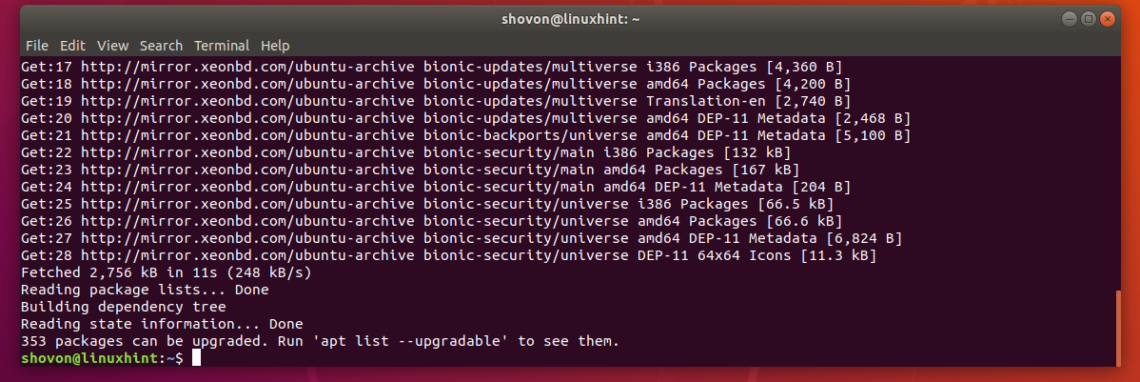
First, update the APT package repository cache with the following command:
$ sudo apt update

The APT package repository cache should be updated.

Now install the nslookup and dig with the following command:
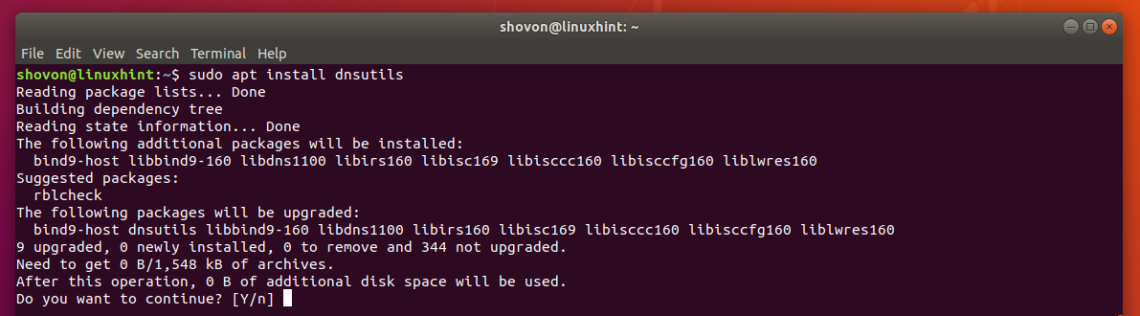
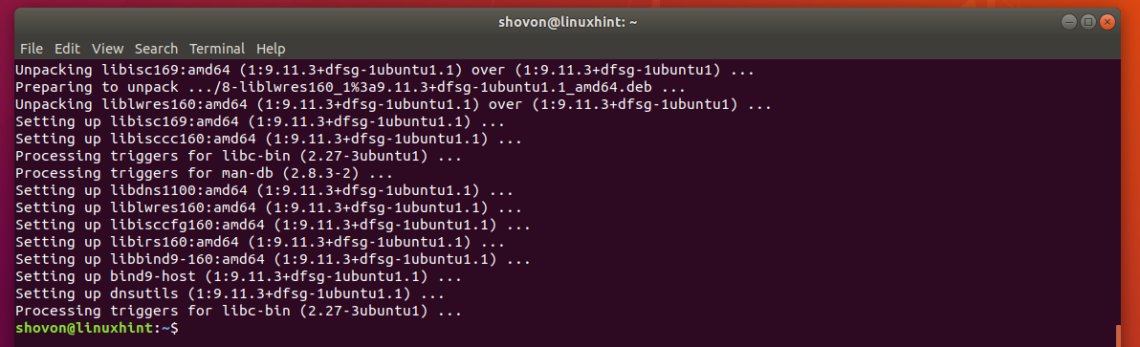
$ sudo apt install dnsutils

Now press y and then press to continue.

nslookup and dig commands should now be available.

Now to test whether caching is enabled, run the following command:
$ nslookup google.com
As you can see, the DNS server used to resolve the domain name is 127.0.0.53, which is a loopback IP address. So DNS caching is enabled. If you have it disabled, then the DNS server should be anything other than 127.0.0.X.

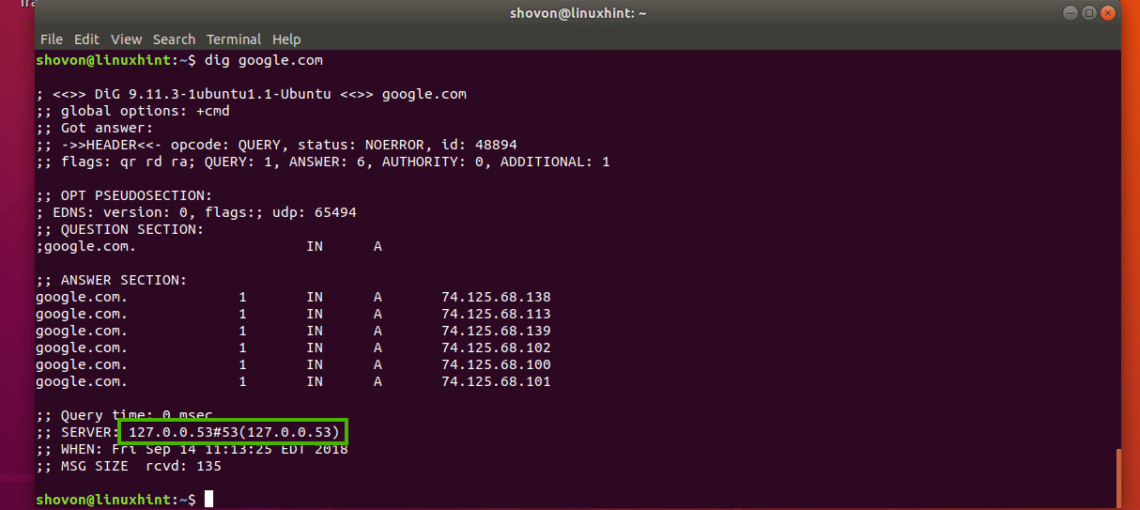
You can check the same thing with the dig command as well as follows:
$ dig google.com
As you can see, the loopback IP addresses is used as the DNS server addresses here as well. So, DNS caching is enabled.

Flushing DNS on Ubuntu 18.04 LTS:

Ubuntu 18.04 LTS uses a local DNS server and caches DNS queries by default. Ubuntu 18.04 LTS uses systemd for this purpose.
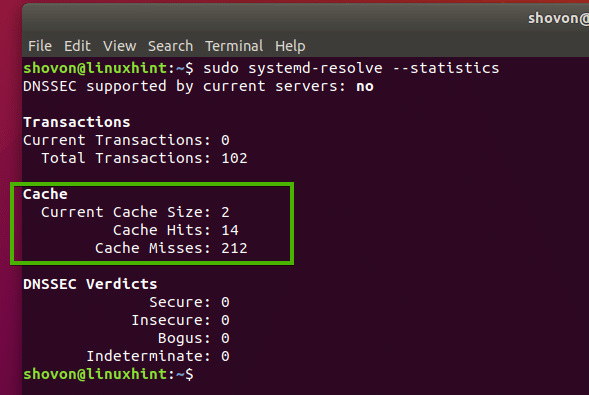
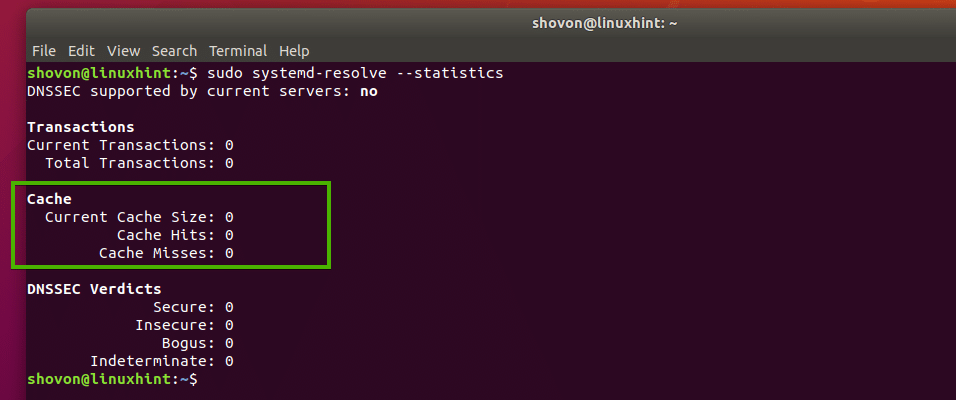
You can run the following command to check how many DNS entries are cached and many other information on Ubuntu 18.04 LTS:
$ sudo systemd-resolve --statistics

As you can see, information about DNS cache is listed in the marked section of the screenshot below.


To flush the DNS cache on Ubuntu 18.04 LTS, run the following command:
$ sudo systemd-resolve --flush-caches

You can also restart the systemd-resolved service to flush the DNS caches on Ubuntu 18.04 LTS.
To restart the systemd-resolved service, run the following command:
$ sudo systemctl restart systemd-resolved

As you can see, the caches are cleared.
$ sudo systemd-resolve --statistics

Flushing DNS Cache on Ubuntu 16.04:

On Ubuntu 16.04 LTS, DNS cache is not enabled by default. But some applications like bind, dnsmasq, nscd etc. may cache it.
If you’re using nscd for caching DNS queries, then you can flush the DNS cache by simply restarting the nscd service.
You can restart the nscd service on Ubuntu 16.04 LTS to flush DNS caches with the following command:
$ sudo systemctl restart nscd
If you’re using dnsmasq for caching DNS, then restarting dnsmasq service with the following command should flush the DNS cache.
$ sudo systemctl restart dnsmasq
So, that’s how you flush DNS cache on Ubuntu 18.04 LTS and 16.04 LTS. Thanks for reading this article.

How to create SWAP SPACE in Linux system

$
0
0
https://linuxtechlab.com/create-swap-space-linux-system

How to create SWAP SPACE in Linux system

Swap file or swap space is a file on Linux file-system that is used to hold programs or pages, in the event that the Physical memory aka RAM of the machine is full. Swap file can help the machines that have little amount of RAM but it can’t be used as a full replacement for RAM.
Swap file is similar to swap partition and any of them can be used in the event system memory runs out. The only difference between the two is that swap partition has a partition dedication to it while the swap file is created as a file & then an amount of hdd space is assigned to it.
In this tutorial, we will learn to create swap file for Linux machine,
( Also read :- Creating SWAP partition using FDISK & FALLOCATE commands)

Create Swap file

We need block size to create the swap file, block size is the size of swap file in mb multiplied by 1024. So if we are creating 1gb or 1024 mb swap file, the block size would be 1024 multiplied by 1024, which is equal to 1048576.
Now that we have the block size that we need, we will create the swap file. To create swap file,execute the following command as root user,
$ dd if=/dev/zero of=/swap_file bs=1024 count=1048576
Next change the permission of the swap file, so that its only readable by root,
$ chmod 600 /swap_file
We will now run the ‘mkswap’ command to setup the swap file,
$ mkswap /swap_file
Our swap file is now ready to be used, we just need to turn it on. Execute the following command to turn on the swap,
$ swapon /swap_file
Our system can now use the ‘/swap_file’ as swap space to store the programs or inactive pages. But once we reboot the system , our swap file will no longer work. To make it survive the system reboot, we need to mount the swap file using ‘/etc/fstab’. So open the file & make the following entry it it,
$ vim /etc/fstab
/swap_file swap swap defaults 0 0
Save file & exit. Now our swap file will even work after a system reboot. We can also verify the swap by running command ‘free -m’ & it should show the swap. This is it for our guide on how to create swap space, please feel free to send in any questions/queries using the comment box below.

French cybersecurity agency open sources security hardened CLIP OS

$
0
0
https://www.helpnetsecurity.com/2018/09/24/security-hardened-clip-os

After developing it internally for over 10 years, the National Cybersecurity Agency of France (ANSSI) has decided to open source CLIP OS, a Linux-based operating system developed “to meet the specific needs of the [French] administration,” and is asking outside coders to contribute to its development.

About CLIP OS

“The CLIP OS project is lead and maintained by developers from the ANSSI but most of the source code resulting in the final CLIP OS system image comes from popular open source projects (the Linux kernel, the GNU Compiler Collection, etc.),” the Agency shared. “The project is based on Gentoo Hardened and has many similarities with Chromium OS or the Yocto project.”
CLIP OS
CLIP OS incorporates a number of security mechanisms. One of these is environment isolation (partitioning), so that users can simultaneously process both public and sensitive information within two totally isolated software environments (“cages”), in order to avoid the risk of sensitive information leaking onto the public network.
“The execution environment of each Cage is logically isolated from the Core and from the all other Cages. Interactions between a Cage and the Core is carefully controlled and goes through confined and unprivileged services. Direct communication between Cages is forbidden. All inter-Cage interaction is mediated by services running in the Core,” ANSSI noted.
CLIP OS
Other security properties include multi-level support to handle information at multiple confidentiality levels and restricted administrator access in production, so that they are not able to compromise system integrity or access user data.
ANSSI released versions 4 and 5 of the OS. The former is intended to serve as a reference for facilitating future developments, the latter (an alpha version) is in development and open to contribution.

Deployment

According to the announcement, CLIP OS can be deployed on security gateways, client workstations, and “allows access to sensitive information for mobile use.”
But there is no pre-packaged version of CLIP OS for end-users – they have to get the source code and build their own system image.
ANSSI’s roadmap for the project has been laid out here. “Once the project is considered complete enough, the first stable version will be released,” they explained.

How To Find Out Which Port Number A Process Is Using In Linux

$
0
0
https://www.2daygeek.com/how-to-find-out-which-port-number-a-process-is-using-in-linux

As a Linux administrator, you should know whether the corresponding service is binding/listening with correct port or not.
This will help you to easily troubleshoot further when you are facing port related issues.
A port is a logical connection that identifies a specific process on Linux. There are two kind of port are available like, physical and software.
Since Linux operating system is a software hence, we are going to discuss about software port.
Software port is always associated with an IP address of a host and the relevant protocol type for communication. The port is used to distinguish the application.
Most of the network related services have to open up a socket to listen incoming network requests. Socket is unique for every service.
Socket is combination of IP address, software Port and protocol. The port numbers area available for both TCP and UDP protocol.
The Transmission Control Protocol (TCP) and the User Datagram Protocol (UDP) use port numbers for communication. It is a value from 0 to 65535.
Below are port assignments categories.
  • 0-1023: Well Known Ports or System Ports
  • 1024-49151: Registered Ports for applications
  • 49152-65535: Dynamic Ports or Private Ports
You can check the details of the reserved ports in the /etc/services file on Linux.
# less /etc/services
# /etc/services:
# $Id: services,v 1.55 2013/04/14 ovasik Exp $
#
# Network services, Internet style
# IANA services version: last updated 2013-04-10
#
# Note that it is presently the policy of IANA to assign a single well-known
# port number for both TCP and UDP; hence, most entries here have two entries
# even if the protocol doesn't support UDP operations.
# Updated from RFC 1700, ``Assigned Numbers'' (October 1994). Not all ports
# are included, only the more common ones.
#
# The latest IANA port assignments can be gotten from
# http://www.iana.org/assignments/port-numbers
# The Well Known Ports are those from 0 through 1023.
# The Registered Ports are those from 1024 through 49151
# The Dynamic and/or Private Ports are those from 49152 through 65535
#
# Each line describes one service, and is of the form:
#
# service-name port/protocol [aliases ...] [# comment]

tcpmux 1/tcp # TCP port service multiplexer
tcpmux 1/udp # TCP port service multiplexer
rje 5/tcp # Remote Job Entry
rje 5/udp # Remote Job Entry
echo 7/tcp
echo 7/udp
discard 9/tcp sink null
discard 9/udp sink null
systat 11/tcp users
systat 11/udp users
daytime 13/tcp
daytime 13/udp
qotd 17/tcp quote
qotd 17/udp quote
msp 18/tcp # message send protocol (historic)
msp 18/udp # message send protocol (historic)
chargen 19/tcp ttytst source
chargen 19/udp ttytst source
ftp-data 20/tcp
ftp-data 20/udp
# 21 is registered to ftp, but also used by fsp
ftp 21/tcp
ftp 21/udp fsp fspd
ssh 22/tcp # The Secure Shell (SSH) Protocol
ssh 22/udp # The Secure Shell (SSH) Protocol
telnet 23/tcp
telnet 23/udp
# 24 - private mail system
lmtp 24/tcp # LMTP Mail Delivery
lmtp 24/udp # LMTP Mail Delivery
This can be achieved using the below six methods.
  • ss: ss is used to dump socket statistics.
  • netstat: netstat is displays a list of open sockets.
  • lsof: lsof – list open files.
  • fuser: fuser – list process IDs of all processes that have one or more files open
  • nmap: nmap – Network exploration tool and security / port scanner
  • systemctl: systemctl – Control the systemd system and service manager
In this tutorial we are going to find out which port number the SSHD daemon is using.

Method-1: Using ss Command

ss is used to dump socket statistics. It allows showing information similar to netstat. It can display more TCP and state informations than other tools.
It can display stats for all kind of sockets such as PACKET, TCP, UDP, DCCP, RAW, Unix domain, etc.
# ss -tnlp | grep ssh
LISTEN 0 128 *:22 *:* users:(("sshd",pid=997,fd=3))
LISTEN 0 128 :::22 :::* users:(("sshd",pid=997,fd=4))
Alternatively you can check this with port number as well.
# ss -tnlp | grep ":22"
LISTEN 0 128 *:22 *:* users:(("sshd",pid=997,fd=3))
LISTEN 0 128 :::22 :::* users:(("sshd",pid=997,fd=4))

Method-2: Using netstat Command

netstat – Print network connections, routing tables, interface statistics, masquerade connections, and multicast memberships.
By default, netstat displays a list of open sockets. If you don’t specify any address families, then the active sockets of all configured address families will be printed. This program is obsolete. Replacement for netstat is ss.
# netstat -tnlp | grep ssh
tcp 0 0 0.0.0.0:22 0.0.0.0:* LISTEN 997/sshd
tcp6 0 0 :::22 :::* LISTEN 997/sshd
Alternatively you can check this with port number as well.
# netstat -tnlp | grep ":22"
tcp 0 0 0.0.0.0:22 0.0.0.0:* LISTEN 1208/sshd
tcp6 0 0 :::22 :::* LISTEN 1208/sshd

Method-3: Using lsof Command

lsof – list open files. The Linux lsof command lists information about files that are open by processes running on the system.
# lsof -i -P | grep ssh
COMMAND PID USER FD TYPE DEVICE SIZE/OFF NODE NAME
sshd 11584 root 3u IPv4 27625 0t0 TCP *:22 (LISTEN)
sshd 11584 root 4u IPv6 27627 0t0 TCP *:22 (LISTEN)
sshd 11592 root 3u IPv4 27744 0t0 TCP vps.2daygeek.com:ssh->103.5.134.167:49902 (ESTABLISHED)
Alternatively you can check this with port number as well.
# lsof -i tcp:22
COMMAND PID USER FD TYPE DEVICE SIZE/OFF NODE NAME
sshd 1208 root 3u IPv4 20919 0t0 TCP *:ssh (LISTEN)
sshd 1208 root 4u IPv6 20921 0t0 TCP *:ssh (LISTEN)
sshd 11592 root 3u IPv4 27744 0t0 TCP vps.2daygeek.com:ssh->103.5.134.167:49902 (ESTABLISHED)

Method-4: Using fuser Command

The fuser utility shall write to standard output the process IDs of processes running on the local system that have one or more named files open.
# fuser -v 22/tcp
USER PID ACCESS COMMAND
22/tcp: root 1208 F.... sshd
root 12388 F.... sshd
root 49339 F.... sshd

Method-5: Using nmap Command

Nmap (“Network Mapper”) is an open source tool for network exploration and security auditing. It was designed to rapidly scan large networks, although it works fine against single hosts.
Nmap uses raw IP packets in novel ways to determine what hosts are available on the network, what services (application name and version) those hosts are offering, what operating systems (and OS versions) they are running, what type of packet filters/firewalls are in use, and dozens of other characteristics.
# nmap -sV -p 22 localhost

Starting Nmap 6.40 ( http://nmap.org ) at 2018-09-23 12:36 IST
Nmap scan report for localhost (127.0.0.1)
Host is up (0.000089s latency).
Other addresses for localhost (not scanned): 127.0.0.1
PORT STATE SERVICE VERSION
22/tcp open ssh OpenSSH 7.4 (protocol 2.0)

Service detection performed. Please report any incorrect results at http://nmap.org/submit/ .
Nmap done: 1 IP address (1 host up) scanned in 0.44 seconds

Method-6: Using systemctl Command

systemctl – Control the systemd system and service manager. This is the replacement of old SysV init system management and most of the modern Linux operating systems were adapted systemd.
# systemctl status sshd
● sshd.service - OpenSSH server daemon
Loaded: loaded (/usr/lib/systemd/system/sshd.service; enabled; vendor preset: enabled)
Active: active (running) since Sun 2018-09-23 02:08:56 EDT; 6h 11min ago
Docs: man:sshd(8)
man:sshd_config(5)
Main PID: 11584 (sshd)
CGroup: /system.slice/sshd.service
└─11584 /usr/sbin/sshd -D

Sep 23 02:08:56 vps.2daygeek.com systemd[1]: Starting OpenSSH server daemon...
Sep 23 02:08:56 vps.2daygeek.com sshd[11584]: Server listening on 0.0.0.0 port 22.
Sep 23 02:08:56 vps.2daygeek.com sshd[11584]: Server listening on :: port 22.
Sep 23 02:08:56 vps.2daygeek.com systemd[1]: Started OpenSSH server daemon.
Sep 23 02:09:15 vps.2daygeek.com sshd[11589]: Connection closed by 103.5.134.167 port 49899 [preauth]
Sep 23 02:09:41 vps.2daygeek.com sshd[11592]: Accepted password for root from 103.5.134.167 port 49902 ssh2
The above out will be showing the actual listening port of SSH service when you start the SSHD service recently. Otherwise it won’t because it updates recent logs in the output frequently.
# systemctl status sshd
● sshd.service - OpenSSH server daemon
Loaded: loaded (/usr/lib/systemd/system/sshd.service; enabled; vendor preset: enabled)
Active: active (running) since Thu 2018-09-06 07:40:59 IST; 2 weeks 3 days ago
Docs: man:sshd(8)
man:sshd_config(5)
Main PID: 1208 (sshd)
CGroup: /system.slice/sshd.service
├─ 1208 /usr/sbin/sshd -D
├─23951 sshd: [accepted]
└─23952 sshd: [net]

Sep 23 12:50:36 vps.2daygeek.com sshd[23909]: Invalid user pi from 95.210.113.142 port 51666
Sep 23 12:50:36 vps.2daygeek.com sshd[23909]: input_userauth_request: invalid user pi [preauth]
Sep 23 12:50:37 vps.2daygeek.com sshd[23911]: pam_unix(sshd:auth): check pass; user unknown
Sep 23 12:50:37 vps.2daygeek.com sshd[23911]: pam_unix(sshd:auth): authentication failure; logname= uid=0 euid=0 tty=ssh ruser= rhost=95.210.113.142
Sep 23 12:50:37 vps.2daygeek.com sshd[23909]: pam_unix(sshd:auth): check pass; user unknown
Sep 23 12:50:37 vps.2daygeek.com sshd[23909]: pam_unix(sshd:auth): authentication failure; logname= uid=0 euid=0 tty=ssh ruser= rhost=95.210.113.142
Sep 23 12:50:39 vps.2daygeek.com sshd[23911]: Failed password for invalid user pi from 95.210.113.142 port 51670 ssh2
Sep 23 12:50:39 vps.2daygeek.com sshd[23909]: Failed password for invalid user pi from 95.210.113.142 port 51666 ssh2
Sep 23 12:50:40 vps.2daygeek.com sshd[23911]: Connection closed by 95.210.113.142 port 51670 [preauth]
Sep 23 12:50:40 vps.2daygeek.com sshd[23909]: Connection closed by 95.210.113.142 port 51666 [preauth]
Most of the time the above output won’t shows the process actual port number. in this case i would suggest you to check the details using the below command from the journalctl log file.
# journalctl | grep -i "openssh\|sshd"
Sep 23 02:08:56 vps138235.vps.ovh.ca sshd[997]: Received signal 15; terminating.
Sep 23 02:08:56 vps138235.vps.ovh.ca systemd[1]: Stopping OpenSSH server daemon...
Sep 23 02:08:56 vps138235.vps.ovh.ca systemd[1]: Starting OpenSSH server daemon...
Sep 23 02:08:56 vps138235.vps.ovh.ca sshd[11584]: Server listening on 0.0.0.0 port 22.
Sep 23 02:08:56 vps138235.vps.ovh.ca sshd[11584]: Server listening on :: port 22.
Sep 23 02:08:56 vps138235.vps.ovh.ca systemd[1]: Started OpenSSH server daemon.

How to Set Up SSH Keys on Ubuntu 18.04

$
0
0
https://linuxize.com/post/how-to-set-up-ssh-keys-on-ubuntu-1804

How to Set Up SSH Keys on Ubuntu 18.04

Contents
Secure Shell (SSH) is a cryptographic network protocol used for secure connection between a client and a server and supports various authentication mechanisms.
The two most popular mechanisms are passwords based authentication and public key based authentication. Using SSH keys is more secure and convenient than traditional password authentication.

In this tutorial we will walk through how to generate SSH keys on Ubuntu 18.04 machines. We will also show you how to setup a SSH key-based authentication and connect to your remote Linux servers without entering a password.

Creating SSH keys on Ubuntu

Before generating a new SSH key pair, first check for existing SSH keys on your Ubuntu client machine. You can do that by running the following command:
 
ls -l ~/.ssh/id_*.pub
 
If the command above prints something like No such file or directory or no matches found it means that you don’t have SSH keys on your client machine and you can proceed with the next step and generate SSH key pair.

If there are existing keys, you can either use those and skip the next step or backup up the old keys and generate a new one.

Generate a new 4096 bits SSH key pair with your email address as a comment by typing:
 
ssh-keygen -t rsa -b 4096 -C "your_email@domain.com"
 
The output will look something like this:
 
Enter file in which to save the key (/home/yourusername/.ssh/id_rsa):
 
Press Enter to accept the default file location and file name.

Next, you’ll be prompted to type a secure passphrase. Whether you want to use passphrase its up to you. If you choose to use passphrase you will get an extra layer of security.
 
Enter passphrase (empty for no passphrase):
 
If you don’t want to use passphrase just press Enter
The whole interaction looks like this:
 
To verify your new SSH key pair is generated, type:
ls ~/.ssh/id_*
/home/yourusername/.ssh/id_rsa /home/yourusername/.ssh/id_rsa.pub

Copy the Public Key to Ubuntu Server

Now that you generated you SSH key pair, the next step is to copy the public key to the server you want to manage.

The easiest and the recommended way to copy your public key to the server is to use a utility called ssh-copy-id. On your local machine terminal type:
ssh-copy-id remoteusername@server_ip_address
 
You will be prompted to enter the remoteusername password:
 
remoteusername@server_ip_address's password:
 
Once the user is authenticated, the public key ~/.ssh/id_rsa.pub will be appended to the remote user ~/.ssh/authorized_keys file and connection will be closed.
Number of key(s) added: 1

Now try logging into the machine, with: "ssh 'username@server_ip_address'"
and check to make sure that only the key(s) you wanted were added.
 
If by some reason the ssh-copy-id utility is not available on your local computer you can use the following command to copy the public key:
 cat ~/.ssh/id_rsa.pub | ssh remoteusername@server_ip_address "mkdir -p ~/.ssh && cat >> ~/.ssh/authorized_keys"

Login to your server using SSH keys

After completing the steps above you should be able login to the remote server without being prompted for a password.
To test it just try to login to your server via SSH:
ssh remoteusername@server_ip_address
 
If you didn’t setup a passphrase for the private key, you will be logged in immediately. Otherwise you will be prompted to enter the passphrase.

Disabling SSH Password Authentication

To add an extra layer of security to your server you can disable the password authentication for SSH.
Before disabling SSH password authentication make sure you can login to your server without a password and the user you are logging in with has sudo privileges.
Log into your remote server:
ssh sudo_user@server_ip_address
 
Open the SSH configuration file /etc/ssh/sshd_config with your text editor:
sudo nano /etc/ssh/sshd_config
 
 Search for the following directives and modify as it follows:
/etc/ssh/sshd_config
PasswordAuthentication no
ChallengeResponseAuthentication no
UsePAM no

Once you are done save the file and restart the SSH service by typing:
sudo systemctl restart ssh
 
At this point, the password based authentication is disabled.

Conclusion

In this tutorial you have learned how to generate a new SSH key pair and setup a SSH key-based authentication. You can add the same key to multiple remote serves. We have also shown you how to disable SSH password authentication and add an extra layer of security to your server.
If you have any question or feedback feel free to leave a comment.

Top 3 benefits of company open source programs

$
0
0
https://opensource.com/article/18/9/benefits-company-open-source-programs

Of survey takers, 53% of companies have an open source program or plan to establish one in the near future.

Image by : 
opensource.com
x

Get the newsletter

Join the 85,000 open source advocates who receive our giveaway alerts and article roundups.
Many organizations, from Red Hat to internet-scale giants like Google and Facebook, have established open source programs (OSPO). The TODO Group, a network of open source program managers, recently performed the first annual survey of corporate open source programs, and it revealed some interesting findings on the actual benefits of open source programs. According to the survey, the top three benefits of managing an open source program are:
  • awareness of open source usage/dependencies
  • increased developer agility/speed
  • better and faster license compliance

Corporate open source programs on the rise

The survey also found that 53% of companies have an open source program or plan to establish one in the near future:
An interesting fact is that large companies are about twice as likely to run an open source program than smaller companies (63 percent vs. 37 percent). Also, technology industry organizations are more likely to have an open source program than traditional industry verticals such as financial services.
Another interesting trend is that most open source programs tend to start informally, as a working group, committee, or a few key open source developers and then evolve into formal programs over time, typically within a company’s engineering department.

Giving back is a competitive advantage

It’s important to note that companies aren’t forming open source programs and giving back to open source for purely altruistic reasons. Recent research from Harvard Business School shows that open source-contributing companies capture up to 100% more productive value from open source than companies that do not contribute back. The research used Linux as an example:
"It’s not necessarily that the firms that contribute are more productive on the whole. It’s that they get more in terms of productivity output from their usage of the Linux operating system than do companies that use Linux without contributing."
Notably, the research showed that 44 percent of companies with open source programs contribute code upstream, compared to only 6 percent for companies without an open source program. If you want to sustain open source and give your business a competitive advantage, an open source program can help.
Finally, you’ll be happy to learn that the survey results and questions are open source under the CC BY-SA license. The TODO Group plans to run this survey on an annual basis, and in true open source fashion, we’d love your feedback and suggestions for new questions to include. Please leave your thoughts in the comments or on GitHub.

Linux firewalls: What you need to know about iptables and firewalld

$
0
0
https://opensource.com/article/18/9/linux-iptables-firewalld

Here's how to use the iptables and firewalld tools to manage Linux firewall connectivity rules.

Image by : 
opensource.com
x

Get the newsletter

Join the 85,000 open source advocates who receive our giveaway alerts and article roundups.
This article is excerpted from my book, Linux in Action, and a second Manning project that’s yet to be released.

The firewall

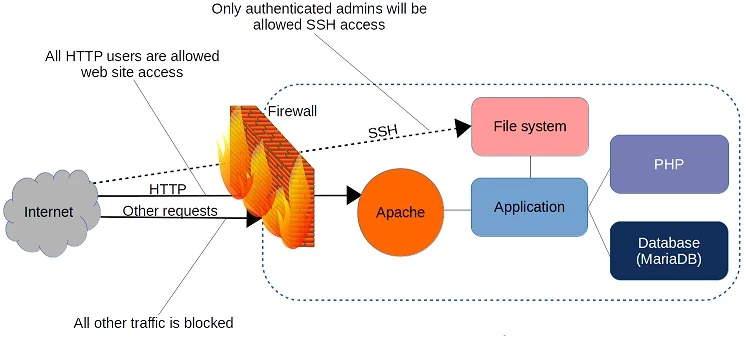
A firewall is a set of rules. When a data packet moves into or out of a protected network space, its contents (in particular, information about its origin, target, and the protocol it plans to use) are tested against the firewall rules to see if it should be allowed through. Here’s a simple example:

iptables1.jpg

firewall filtering request
A firewall can filter requests based on protocol or target-based rules.
On the one hand, iptables is a tool for managing firewall rules on a Linux machine.
On the other hand, firewalld is also a tool for managing firewall rules on a Linux machine.
You got a problem with that? And would it spoil your day if I told you that there was another tool out there, called nftables?
OK, I’ll admit that the whole thing does smell a bit funny, so let me explain. It all starts with Netfilter, which controls access to and from the network stack at the Linux kernel module level. For decades, the primary command-line tool for managing Netfilter hooks was the iptables ruleset.
Because the syntax needed to invoke those rules could come across as a bit arcane, various user-friendly implementations like ufw and firewalld were introduced as higher-level Netfilter interpreters. Ufw and firewalld are, however, primarily designed to solve the kinds of problems faced by stand-alone computers. Building full-sized network solutions will often require the extra muscle of iptables or, since 2014, its replacement, nftables (through the nft command line tool). iptables hasn’t gone anywhere and is still widely used. In fact, you should expect to run into iptables-protected networks in your work as an admin for many years to come. But nftables, by adding on to the classic Netfilter toolset, has brought some important new functionality.
From here on, I’ll show by example how firewalld and iptables solve simple connectivity problems.

Configure HTTP access using firewalld

As you might have guessed from its name, firewalld is part of the systemd family. Firewalld can be installed on Debian/Ubuntu machines, but it’s there by default on Red Hat and CentOS. If you’ve got a web server like Apache running on your machine, you can confirm that the firewall is working by browsing to your server’s web root. If the site is unreachable, then firewalld is doing its job.
You’ll use the firewall-cmd tool to manage firewalld settings from the command line. Adding the –state argument returns the current firewall status:


# firewall-cmd --state

running


By default, firewalld will be active and will reject all incoming traffic with a couple of exceptions, like SSH. That means your website won’t be getting too many visitors, which will certainly save you a lot of data transfer costs. As that’s probably not what you had in mind for your web server, though, you’ll want to open the HTTP and HTTPS ports that by convention are designated as 80 and 443, respectively. firewalld offers two ways to do that. One is through the –add-port argument that references the port number directly along with the network protocol it’ll use (TCP in this case). The –permanent argument tells firewalld to load this rule each time the server boots:


# firewall-cmd --permanent --add-port=80/tcp

# firewall-cmd --permanent --add-port=443/tcp


The –reload argument will apply those rules to the current session:
# firewall-cmd --reload
Curious as to the current settings on your firewall? Run –list-services:


# firewall-cmd --list-services

dhcpv6-client http https ssh


Assuming you’ve added browser access as described earlier, the HTTP, HTTPS, and SSH ports should now all be open—along with dhcpv6-client, which allows Linux to request an IPv6 IP address from a local DHCP server.

Configure a locked-down customer kiosk using iptables

I’m sure you’ve seen kiosks—they’re the tablets, touchscreens, and ATM-like PCs in a box that airports, libraries, and business leave lying around, inviting customers and passersby to browse content. The thing about most kiosks is that you don’t usually want users to make themselves at home and treat them like their own devices. They’re not generally meant for browsing, viewing YouTube videos, or launching denial-of-service attacks against the Pentagon. So to make sure they’re not misused, you need to lock them down.
One way is to apply some kind of kiosk mode, whether it’s through clever use of a Linux display manager or at the browser level. But to make sure you’ve got all the holes plugged, you’ll probably also want to add some hard network controls through a firewall. In the following section, I'll describe how I would do it using iptables.
There are two important things to remember about using iptables: The order you give your rules is critical, and by themselves, iptables rules won’t survive a reboot. I’ll address those here one at a time.

The kiosk project

To illustrate all this, let’s imagine we work for a store that’s part of a larger chain called BigMart. They’ve been around for decades; in fact, our imaginary grandparents probably grew up shopping there. But these days, the guys at BigMart corporate headquarters are probably just counting the hours before Amazon drives them under for good.
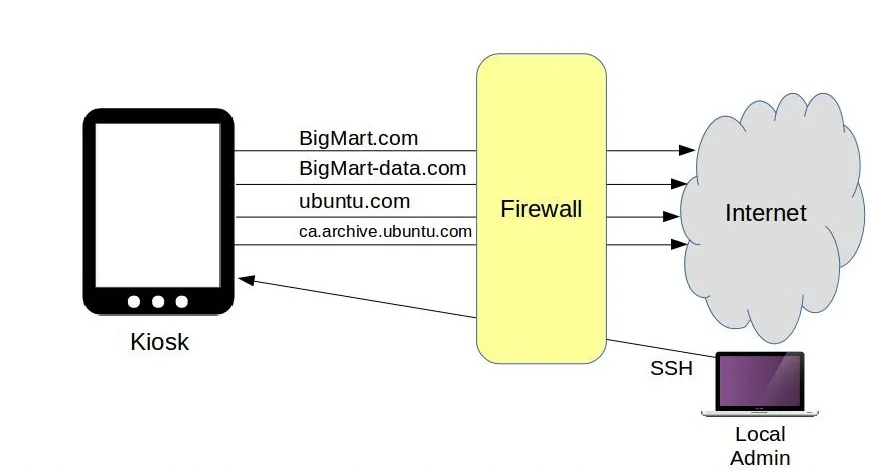
Nevertheless, BigMart’s IT department is doing its best, and they’ve just sent you some WiFi-ready kiosk devices that you’re expected to install at strategic locations throughout your store. The idea is that they’ll display a web browser logged into the BigMart.com products pages, allowing them to look up merchandise features, aisle location, and stock levels. The kiosks will also need access to bigmart-data.com, where many of the images and video media are stored.
Besides those, you’ll want to permit updates and, whenever necessary, package downloads. Finally, you’ll want to permit inbound SSH access only from your local workstation, and block everyone else. The figure below illustrates how it will all work:

iptables2.jpg

kiosk traffic flow ip tables
The kiosk traffic flow being controlled by iptables.

The script

Here’s how that will all fit into a Bash script:


#!/bin/bash

iptables -A OUTPUT -p tcp -d bigmart.com -j ACCEPT

iptables -A OUTPUT -p tcp -d bigmart-data.com -j ACCEPT

iptables -A OUTPUT -p tcp -d ubuntu.com -j ACCEPT

iptables -A OUTPUT -p tcp -d ca.archive.ubuntu.com -j ACCEPT

iptables -A OUTPUT -p tcp --dport80-j DROP

iptables -A OUTPUT -p tcp --dport443-j DROP

iptables -A INPUT -p tcp -s 10.0.3.1 --dport22-j ACCEPT

iptables -A INPUT -p tcp -s 0.0.0.0/0--dport22-j DROP


The basic anatomy of our rules starts with -A, telling iptables that we want to add the following rule. OUTPUT means that this rule should become part of the OUTPUT chain. -p indicates that this rule will apply only to packets using the TCP protocol, where, as -d tells us, the destination is bigmart.com. The -j flag points to ACCEPT as the action to take when a packet matches the rule. In this first rule, that action is to permit, or accept, the request. But further down, you can see requests that will be dropped, or denied.
Remember that order matters. And that’s because iptables will run a request past each of its rules, but only until it gets a match. So an outgoing browser request for, say, youtube.com will pass the first four rules, but when it gets to either the –dport 80 or –dport 443 rule—depending on whether it’s an HTTP or HTTPS request—it’ll be dropped. iptables won’t bother checking any further because that was a match.
On the other hand, a system request to ubuntu.com for a software upgrade will get through when it hits its appropriate rule. What we’re doing here, obviously, is permitting outgoing HTTP or HTTPS requests to only our BigMart or Ubuntu destinations and no others.
The final two rules will deal with incoming SSH requests. They won’t already have been denied by the two previous drop rules since they don’t use ports 80 or 443, but 22. In this case, login requests from my workstation will be accepted but requests for anywhere else will be dropped. This is important: Make sure the IP address you use for your port 22 rule matches the address of the machine you’re using to log in—if you don’t do that, you’ll be instantly locked out. It's no big deal, of course, because the way it’s currently configured, you could simply reboot the server and the iptables rules will all be dropped. If you’re using an LXC container as your server and logging on from your LXC host, then use the IP address your host uses to connect to the container, not its public address.
You’ll need to remember to update this rule if my machine’s IP ever changes; otherwise, you’ll be locked out.
Playing along at home (hopefully on a throwaway VM of some sort)? Great. Create your own script. Now I can save the script, use chmod to make it executable, and run it as sudo. Don’t worry about that bigmart-data.com not found error—of course it’s not found; it doesn’t exist.


chmod +X scriptname.sh

sudo ./scriptname.sh


You can test your firewall from the command line using cURL. Requesting ubuntu.com works, but manning.com fails.


curl ubuntu.com

curl manning.com


Configuring iptables to load on system boot

Now, how do I get these rules to automatically load each time the kiosk boots? The first step is to save the current rules to a .rules file using the iptables-save tool. That’ll create a file in the root directory containing a list of the rules. The pipe, followed by the tee command, is necessary to apply my sudo authority to the second part of the string: the actual saving of a file to the otherwise restricted root directory.
I can then tell the system to run a related tool called iptables-restore every time it boots. A regular cron job of the kind we saw in the previous module won’t help because they’re run at set times, but we have no idea when our computer might decide to crash and reboot.
There are lots of ways to handle this problem. Here’s one:
On my Linux machine, I’ll install a program called anacron that will give us a file in the /etc/ directory called anacrontab. I’ll edit the file and add this iptables-restore command, telling it to load the current values of that .rules file into iptables each day (when necessary) one minute after a boot. I’ll give the job an identifier (iptables-restore) and then add the command itself. Since you’re playing along with me at home, you should test all this out by rebooting your system.


sudo iptables-save |sudotee/root/my.active.firewall.rules

sudo apt install anacron

sudonano/etc/anacrontab

11 iptables-restore iptables-restore </root/my.active.firewall.rules


I hope these practical examples have illustrated how to use iptables and firewalld for managing connectivity issues on Linux-based firewalls.

Cloudflare Secures Time With Roughtime Protocol Service

$
0
0
http://www.eweek.com/security/cloudflare-secures-time-with-roughtime-protocol-service

As part of its Crypto Week series of announcements, Cloudflare debuts a new service to help organizations cryptographically secure time.
Cloudflare Roughtime
If time is money, then how important is it to secure the integrity of time itself? Time across many computing devices is often synchronized via the Network Time Protocol (NTP), which isn't a secure approach, but there is another option.
On Sept. 21, Cloudflare announced that it is deploying a new authenticated time service called Roughtime, in an effort to secure certain timekeeping efforts. The publicly available service is based on an open-source project of the same name that was started by Google.
"NTP is the dominant protocol used for time synchronisation and, although recent versions provide for the possibility of authentication, in practice that‘s not used," Google's project page for Roughtime states. " Most computers will trust an unauthenticated NTP reply to set the system clock meaning that a MITM [man-in-the-middle] attacker can control a victim’s clock and, probably, violate the security properties of some of the protocols listed above."
Roughtime is a UDP-based protocol that benefits from cryptographic protection to help maintain integrity and limit the risk of MITM attacks. In addition, the Roughtime protocol includes measures to help protect it from being used as an amplifier for distributed denial-of-service (DDoS) attacks. Since at least 2014, attackers have been abusing the insecurity of NTP to help reflect and amplify DDoS attacks.
Cloudflare intends to use its Roughtime service to help validate the proper expiration date of SSL/TLS certificates. Without the ability to properly verify time, an attacker could to trick a user or server into accepting a certificate that has already expired.
"Our Roughtime servers get their time from the system clock of Cloudflare's servers, which are monitored for consistency and accuracy," Nick Sullivan, head of cryptography at Cloudflare, told eWEEK.
By publicly exposing the Roughtime service, Cloudflare's goal is to spur interest and possible adoption of the Roughtime protocol where it makes sense. Although Roughtime can be used to help secure timekeeping on the internet, it is not necessarily a direct replacement for NTP for a number of reasons.
"The Roughtime protocol does not take latency into account [like NTP does], so depending on how far the user is from the Roughtime server, they could differ by as much as a second," Sullivan said.
Additionally, Sullivan said he doesn't see Roughtime as a replacement for NTP because it doesn't have all the machinery to give microsecond-level precision. Roughtime's main use case is making sure that roughly correct time can be obtained from a set of semi-trusted servers in an auditable way, he said.
Sullivan said there work is also being done in the broader IT community for secure variants of NTP that Cloudflare is actively monitoring.
Deploying Roughtime
Cloudflare's Roughtime service is freely available at roughtime.cloudflare.com on port 2002 for anyone who wants to use it. For those who want to deploy their own own Roughtime services, Sullivan said it's quite simple to deploy and not very costly from a resource consumption standpoint.
"Each timestamp requires one elliptic curve signature, which can be computed efficiently even on older hardware," Sullivan said. "That said, the main benefit of Roughtime comes from using multiple servers run by independent organizations."
Sullivan added that running a Roughtime service locally can help against on-path attackers, but doesn't protect you from compromise of the time server itself.
Cryptography Week
The launch of the Roughtime service is the last in a series of announcements Cloudflare has made during the week, which the company has dubbed Crypto Week.
On Sept. 17, Cloudflare announced an InterPlanetary File System (IPFS) gateway that enables users to benefit from the IPFS peer-to-peer filesystem for distributed content delivery. On Sept. 18, the company announced new tools to make DNSSEC (DNS security extensions) easier to use and deploy. The news was followed on Sept. 19 with the RPKI (Resource Public Key Infrastructure) effort to help secure BGP (Border Gateway Protocol). Then on Sept. 20, the company announced the Cloudflare Onion Service to help users who want to stay anonymous with the Tor network.
"Cloudflare's mission is to help build a better internet, so at any given moment there are a dozen ongoing projects that are focused on different areas that need improvement," Sullivan said. "This year we had several of these initiatives based on cryptography that were ready for launch around the same time, so we decided to package them up together and announce them as a prelude to Cloudflare's birthday week announcements."
Cloudflare is set to celebrate its eighth birthday during the week of Sept. 24. During Cloudflare's 2017 Birthday Week, the company made multiple announcements, including new security and streaming services.

"Master Password" Is A Password Manager Alternative That Doesn't Store Passwords

$
0
0
https://www.linuxuprising.com/2018/09/master-password-is-password-manager.html


Master Password is a different way of using passwords. Instead of the "know one password, save all others somewhere" way of managing passwords used by regular password managers, Master Password's approach is "know one password, generate all the others".

Master Password desktop Java app

Master Password is free and open source, it doesn't store any passwords, it doesn't use cloud servers, and it only requires you to remember one password. It's available for Android, iOS, desktops, console and the web.

Instead of storing your passwords locally or in the cloud, Master Password calculates your passwords using a cryptographic algorithm. The application uses the user-name, master-password, site-name, site-counter and site-template values to calculate your password for a given website. As a result, it can retrieve your passwords without storing them anywhere.

Advantages of using Master Password instead of traditional password managers include:

  • Your passwords aren't stored anywhere, so you don't have to trust any third-party with your passwords (so there's no need to worry that some service you're using might get hacked or go down when you need it).
  • It doesn't matter if your device breaks or is stolen, you can use any device to find out your passwords.
  • You don't need to backup your passwords.
  • There's no need to keep your passwords in sync somewhere easily accessible.

There are a couple of downsides too though:

  • Since each password created using Master Password is derived from your master password (among others), if your master password is compromised or if you want to change it for whatever reason, you'll also need to change all your website passwords. So use a strong password (though that should always be the case).
  • If you need to change a website password (in case a website is hacked for example, and forces you to change the password), you'll need to increase the "Counter" value for that site settings in Master Password so it generates a new password, and remember to use the new counter value each time you use Master Password to calculate the password for that website. One way around this would be to store the counter value (and any other particularities you may use for some websites) somewhere.

Related: Bitwarden: The Secure, Open Source Password Manager You're Looking For

The Master Password Wikipedia page mentions that the algorithm uses scrypt, an intentionally slow key derivation function, for generating the master key, to make brute-force attacks unfeasible. The master key is a global 64-byte secret key generated from the user's secret master password and salted by their full name.

The master key, site name and the site counter are used to generate site-specific secrets / keys using the HMAC-SHA256 algorithm.

Read the Master Password FAQ for more information about its security.

It should also be noted that while Master Password can't autofill the login credentials in web browsers, there are third-party extensions that can do this. For example MasterPassword-Firefox  (also available for Chrome) can auto fill your username and password.

Using Master Password


While the Master Password web app doesn't store anything, and the Android app can only remember your name (I don't know about the iOS and Mac apps as I haven't tried them), the desktop Java application can save the names of the sites you've used in the past to make it easier to use them in the future. This is not required (you can check the Incognito box to not save the user to disk), and it's only to simplify the way you access the passwords.

The location to which the website names are saved is ~/.mpw.d. If you use multiple computers you could sync this using a service such as NextCloud, Dropbox, etc. to use it on multiple computers. The passwords are not stored here or anywhere else.

The Master Password desktop application uses Java so to run it, you'll need JRE. You can use either OpenJDK or Oracle Java. You can install OpenJDK 8 JRE in Debian, Ubuntu, elementary OS, Linux Mint and other Debian or Ubuntu-based Linux distributions by using this command:

sudo apt install openjdk-8-jre

You may also need to ,mark the downloaded masterpassword-gui.jar file as executable. You can do this using your file manager or by using this command (assuming you place the .jar file in your home directory):

chmod +x ~/masterpassword-gui.jar

To use the Master Password desktop (Java) application, double click the .jar file to launch it. Next, click the + icon on the left to add a new user to Master Password. Enter the full name (which you'll need to remember!) here, then click OK:

Master Password add user

Optionally you can check the Incognito box if you don't want to save the user to disk.

On the next screen you'll need to set a master password (which, just like the full name you entered in the previous step, you need to make sure you don't forget):

Master Password

It's now time to generate / calculate a password for a website. Let's say you want to get a password for your Twitter account. Type yourusername@twitter.com (using your actual Twitter username here) in the ... password for: field, then press the Enter key:

Master Password add website

I recommend using yourusername@twitter.com (replacing yourusername with your actual Twitter username) in case you have multiple accounts. Even if you don't have multiple accounts right now, you may create more in the future and this way you'll be able to differentiate between accounts. You could also use twitter.com only if you're sure you'll never create multiple accounts for this particular website.

As a recommandation, use the same format for each website. This way it will be easier to remember how you entered the website name. That's because you need to enter the website in the exact same way when you want to use Master Password to calculate your password (unless you only use the Master Password desktop application with the user saved to disk).

I suggest not entering mobile.twitter.com, http://twitter.com, https://www.twitter.com or some other variations, and just stick to a single format for this.

After a site is added, you can change its settings by clicking on the first icon from the top on the right-hand side of the application window:

Master Password site settings

From there you can change the algorithm, counter value, password type, login type, and enter an URL for a website. It's best to use defaults as much as possible, so you don't forget what settings you've used when you need to calculate the password.

When you want to use a password, select the entry / website you want in Master Password, then press the Enter key. When you do this, the password is automatically copied to your clipboard, and the Master Password application window is minimized.

If you want to calculate a password using an app that didn't store the name of the website, like the web app for example, you'll need to enter your full name, website name, counter value (if you've changed it from the default 1) and master password. Try it out - use the same details you've used in the desktop application, in the Master Password web app, and the calculated password should be the same.

Download Master Password


There are official Master Password applications for desktops (Java), macOS, Android, iOS, console and the web. You'll also find unofficial apps / extensions, like Master Password for Firefox or Chrome / Chromium browsers, another Master Password app for Android, and probably others.

The Master Password applications code is on GitLab, along with some more information.

How to Use SCP Command to Securely Transfer Files

$
0
0
https://linuxize.com/post/how-to-use-scp-command-to-securely-transfer-files

How to Use SCP Command to Securely Transfer Files

With scp, you can copy a file or directory:
  • From your local system to a remote system.
  • From a remote system to your local system.
  • Between two remote systems from your local system.
When transferring data with scp both the files and password are encrypted so that anyone snooping on the traffic doesn’t get anything sensitive.
In this tutorial, we will show you how to use the scp command through practical examples and detailed explanations of the most common scp options.

SCP Command Syntax

Before going into how to use the scp command, let’s start by reviewing the basic syntax.
The scp utility expressions take the following form:
scp [OPTION][user@]SRC_HOST:]file1 [user@]DEST_HOST:]file2
  • OPTION - scp options such as cipher, ssh configuration, ssh port, limit, recursive copy ..etc
  • [user@]SRC_HOST:]file1 - Source file.
  • [user@]DEST_HOST:]file2 - Destination file
Local file should be specified using an absolute or relative path while remote file names should include a user and host specification.
scp provides a number of options that control every aspect of its behavior. The most widely used options are:
  • -P Specifies the remote host ssh port.
  • -p Preserves files modification and access times.
  • -q Use this option if you want to suppress the progress meter and non-error messages.
  • -C. This option will force scp to compresses the data as it is sent to the destination machine.
  • -r This option will tell scp to recursively copy directories.

Before you Begin

The scp command relies on ssh for data transfer, so it requires an ssh key or password to authenticate on the remote systems.
The colon(:) is how scp distinguish between a local and a remote locations.
To be able to to copy files you must have at least read permissions on the source file and write permission on the target system.
Be careful when copying files that share the same name and location on both systems, scp will overwrite files without a warning.
When transferring large files it is recommended to run the scp command inside a screen or tmux session.

Copy Files and Directories Between Two Systems with SCP

Copy a Local File to a Remote System with the scp Command

To copy a file from a local to remote system run the following command:
scp file.txt remote_username@10.10.0.2:/remote/directory
Here, file.txt is the name of the file we want to copy, remote_username is the user on the remote server, 10.10.0.2 is the server IP address. The /remote/directory is the path to the directory you want to copy the file to, if you don’t specify a remote directory, the file will be copied to the remote user home directory.
You will be prompted to enter the user password and the transfer process will start.
remote_username@10.10.0.2's password: 
file.txt 100% 0 0.0KB/s 00:00
Omitting the filename from the destination location copies the file with the orginal name. If you want to save the file under a different name you need to specify a new name:
scp file.txt remote_username@10.10.0.2:/remote/directory/newfilename.txt
If SSH on the remote host is listening on a port other than the default 22 then you can specify the port using the -P argument:
ssh -P 2322 file.txt remote_username@10.10.0.2:/remote/directory
The command to copy a directory is much like as when copying files. The only difference is that you need to use the -r flag for recursive.
To copy a directory from a local to remote system use the -r option:
scp -r /local/directory remote_username@10.10.0.2:/remote/directory

Copy a Remote File to a Local System using the scp Command

To copy a file from a remote to local system, use the remote location as source and local location as destination.
For example to copy a file named file.txt from a remote server with ip 10.10.0.2 run the following command:
scp remote_username@10.10.0.2:/remote/file.txt /local/directory
If you haven’t set a passwordless SSH login to the remote machine, you will be asked to enter the user password.

Copy a File Between Two Remote Systems using the scp Command

Unlike rsync, when using scp you don’t have to login to one of the server to transfer files from one to another remote machine.
The following command will copy the file /files/file.txt from the remote host host1.com to the directory /files on the remote host host2.com.
scp user1@host1.com:/files/file.txt user2@host2.com:/files
You will be prompted to enter the passwords for both remote accounts. The data will be transfer directly from one remote host to the other.
To route the traffic through the machine on which the command is issued use the -3 option:
scp -3 user1@host1.com:/files/file.txt user2@host2.com:/files

Conclusion

In this tutorial, you learned how to use the scp command to copy files and directories.

How to Create a Swap File in Linux

$
0
0
https://www.maketecheasier.com/create-swap-file-linux

Swap within Linux are specific areas on the disk that are reserved as virtual memory. They are primarily used to enhance system performance when dealing with resource heavy tasks such as video editing. When the system starts to struggle, the kernel will move inactive processes into swap to make room for active processes within working memory.
Ordinarily, within the Linux installation, a swap partition will be created for you by default and will allocate space on the hard disk for this purpose. This has a number of drawbacks, such as space if you have a a smaller disk on an older computer, or if you are using an SSD on a newer device.
The issue with SSD drives is that they have limited write capacity within the cells. Even with wear levelling, flash memory has a finite lifespan, and multiple writes can render the individual cells unusable.
If using a dedicated swap partition is not practical, or you simply want to try an alternative and not spend money on extra RAM, then you can use a swap file instead.
A swap file functions in a similar way to a partition, although it had the added benefit of users being able to control the size without the issue of resizing a volume. In addition, how dedicated the swap will be utilized, or the “swappiness” factor, can also be controlled by modifying the swap value.
I will run through a basic example of creating a 1GB swap file.
First create the file by entering the following command within your Terminal:
If you don’t have fallocate installed, then run the more traditional command:
Now format the swap file:
Add the swap to the system as a swap file:
Open the “/etc/fstab” within your favourite text editor, and add this to the end to make the change permanent:
The line above breaks down as follows:
  • “/mnt/1GB.swap” – this is the device and file name
  • “swap” – this defines the mount point
  • “swap sw” – this shows the swap file will be activated by swapon – s (see below)
  • “0 0” – these are the options used by the dump program and the fsck command respectively
At this point, if you want to alter the “swappiness” value, then you can by editing “/etc/sysctl.conf” in the same manner as you edited the fstab above. The swappiness value is typically 60; the higher the number (up to 100) the more aggressive the swap.
The amount on swap needed depends on how the system performs and how memory is being used. Users should experiement to find what is best for them. If the value above is set to zero, then the swap file will only be used when the system has exhausted the memory. Values above zero will let the system swap out idle processes and free memory for disk caching; this can potentially improve overall system performance.
Finally, check if the swap is active:
Simply reboot and you will have a working swap file as opposed to a swap partition. Which option is best for you? Do you use a partition or use a dedicated file? Let us know in the comments and and also tell us any alternate methods you may have for generating a file.

5 ways DevSecOps changes security

$
0
0
https://opensource.com/article/18/9/devsecops-changes-security

Security must evolve to keep up with the way today's apps are written and deployed.

Lock
Image credits : 
JanBaby, via Pixabay CC0.
x

Get the newsletter

Join the 85,000 open source advocates who receive our giveaway alerts and article roundups.
There’s been an ongoing kerfuffle over whether we need to expand DevOps to explicitly bring in security. After all, the thinking goes, DevOps has always been something of a shorthand for a broad set of new practices, using new tools (often open source) and built on more collaborative cultures. Why not DevBizOps for better aligning with business needs? Or DevChatOps to emphasize better and faster communications?
However, as John Willis wrote earlier this year on his coming around to the DevSecOps terminology, “Hopefully, someday we will have a world where we no longer have to use the word DevSecOps and security will be an inherent part of all service delivery discussions. Until that day, and at this point, my general conclusion is that it’s just three new characters. More importantly, the name really differentiates the problem statement in a world where we as an industry are not doing a great job on information security.”
So why aren’t we doing a great job on information security, and what does it mean to do a great job in a DevSecOps context?
We’ve arguably never done a great job of information security in spite of (or maybe because of) the vast industry of complex point products addressing narrow problems. But we also arguably did a good enough job during the era when defending against threats focused on securing the perimeter, network connections were limited, and most users were employees using company-provided devices.
Those circumstances haven’t accurately described most organizations’ reality for a number of years now. But the current era, which brings in not only DevSecOps but new application architectural patterns, development practices, and an increasing number of threats, defines a stark new normal that requires a faster pace of change. It’s not so much that DevSecOps in isolation changes security, but that infosec circa 2018 requires new approaches.
Consider these five areas.

Automation

Lots of automation is a hallmark of DevOps generally. It’s partly about speed. If you’re going to move fast (and not break things), you need to have repeatable processes that execute without a lot of human intervention. Indeed, automation is one of the best entry points for DevOps, even in organizations that are still mostly working on monolithic legacy apps. Automating routine processes associated with configurations or testing with easy-to-use tools such as Ansible is a common quick hit for starting down the path to DevOps.
DevSecOps is no different. Security today is a continuous process rather than a discrete checkpoint in the application lifecycle, or even a weekly or monthly check. When vulnerabilities are found and fixes issued by a vendor, it’s important they be applied quickly given that exploits taking advantage of those vulnerabilities will be out soon.

"Shift left"

Traditional security is often viewed as a gatekeeper at the end of the development process. Check all the boxes and your app goes into production. Otherwise, try again. Security teams have a reputation for saying no a lot.
Therefore, the thinking goes, why not move security earlier (left in a typical left-to-right drawing of a development pipeline)? Security may still say no, but the consequences of rework in early-stage development are a lot less than they are when the app is complete and ready to ship.
I don’t like the “shift left” term, though. It implies that security is still a one-time event that’s just been moved earlier. Security needs to be a largely automated process everywhere in the application lifecycle, from the supply chain to the development and test process all the way through deployment.

Manage dependencies

One of the big changes we see with modern app development is that you often don’t write most of the code. Using open source libraries and frameworks is one obvious case in point. But you may also just use external services from public cloud providers or other sources. In many cases, this external code and services will dwarf what you write yourself.
As a result, DevSecOps needs to include a serious focus on your software supply chain. Are you getting your software from trusted sources? Is it up to date? Is it integrated into the security processes that you use for your own code? What policies do you have in place for which code and APIs you can use? Is commercial support available for the components that you are using for your own production code?
No set of answers are going to be appropriate in all cases. They may be different for a proof-of-concept versus an at-scale production workload. But, as has been the case in manufacturing for a long time (and DevSecOps has many analogs in how manufacturing has evolved), the integrity of the supply chain is critical.

Visibility

I’ve talked a lot about the need for automation throughout all the stages of the application lifecycle. That makes the assumption that we can see what’s going on in each of those stages.
Effective DevSecOps requires effective instrumentation so that automation knows what to do. This instrumentation falls into a number of categories. There are long-term and high-level metrics that help tell us if the overall DevSecOps process is working well. There are critical alerts that require immediate human intervention (the security scanning system is down!). There are alerts, such as for a failed scan, that require remediation. And there are logs of the many parameters we capture for later analysis (what’s changing over time? What caused that failure?).

Services vs. monoliths

While DevSecOps practices can be applied across many types of application architectures, they’re most effective with small and loosely coupled components that can be updated and reused without potentially forcing changes elsewhere in the app. In their purest form, these components can be microservices or functions, but the general principles apply wherever you have loosely coupled services communicating over a network.
This pattern does introduce some new security challenges. The interactions between components can be complex and the total attack surface can be larger because there are now more entry points to the application across the network.
On the other hand, this type of architecture also means that automated security and monitoring also has more granular visibility into the application components because they’re no longer buried deep within a monolithic application.
Don’t get too wrapped up in the DevSecOps term, but take it as a reminder that security is evolving because the way that we write and deploy applications is evolving.

Complete guide for creating Vagrant boxes with VirtualBox

$
0
0
https://linuxtechlab.com/creating-vagrant-virtual-boxes-virtualbox

Vagrant is tool for building & managing virtual machines environment, especially development environments. It provides easy to use & easy to replicate/reproducible environment built on top of technologies like Docker, VirtualBox, Hyper-V, Vmware , AWS etc.
Vagrant Boxes simplifies software configuration part & completely resolves the ‘it works on my machine’ problem that is usually faced in software development projects. Vagrant, thus increases the development productivity.
In this tutorial, we will be creating Vagrant Boxes on our Linux machines using the VirtualBox.

Pre-requisites

-Vagrant  runs on top of a virtualization environment, & we will be using VritualBox for that. We already have a detailed article on “Installing VirtualBox on Linux”, read the article to setup VirtualBox on system.
Once VirtualBox has been installed, we can move forward with Vagrant setup process.
(Recommended Read : Create your first Docker Container)

Installation

Once the VirtualBox is up & running on the machine, we will install the latest vagrant package. At the time of writing this tutorial, the latest version of Vagrant is 2.0.0. So download the latest rpm for vagrant using,
$ wget https://releases.hashicorp.com/vagrant/2.0.0/vagrant_2.0.0_x86_64.rpm
& install the package using ,
$ sudo yum install vagrant_2.0.0_x86_64.rpm
If using Ubuntu, download the latest vagrant package using the following command,
$ wget https://releases.hashicorp.com/vagrant/2.0.0/vagrant_2.0.0_x86_64.deb
& install it,
$ sudo dpkg -i vagrant_2.0.0_x86_64.deb
Once the installation is complete, we will move on to configuration part.

Configuration

Firstly we need to create a folder where vagrant will install the OS we need, to create a folder
$ mkdir /home/dan
$ cd /home/dan/vagrant
Note:- Its always preferable to creating vagrant boxes on your home directory as you might face permissions issue with a local user.
Now to install the Operating system like CentOS, execute the following command,
$ sudo vagrant init centos/7
or for installing Ubuntu, run
$ sudo vagrant init ubuntu/trusty64
vagrant boxes
This will also create a configuration file in the directory created for keeping the vagrant OS, called ‘Vagrantfile’. It contains information like OS, Private IP network, Forwarded Port, hostname etc. If we need to build a new operating system, we can also edit the file.
Once we have created/modified the operating system with vagrant, we can start it up by running the following command,
$ sudo vagrant up
This might take some time as it operating system is being built with this command & its downloading the required files from Internet. So depending on the Internet speed, this process can take some time.
creating vagrant boxes
Once the process completes, you than manage the vagrant instances using the following command,
Start the vagrant server
$ sudo vagrant up
Stop the server
$ sudo vagrant halt
Or to completely remove the server
$ sudo vagrant destroy
To access the server using ssh,
$ sudo vagrant ssh
you will get the ssh details while creating Vagrant Boxes (refer to screenshot above).
To see the vagrant OS that has been built, you can open the virtual box & you will find it among the Virtual machines created in the VirtualBox. If you are not seeing your machines in VirtualBox, open virtualbox with sudo permissions & Vagrant Boxes should be there.
vagrant boxes
Note:- There are pre-configured Vagrant OS created & can downloaded from the Official Vagrant Website. (https://app.vagrantup.com/boxes/search)
This completes our tutorial on creating vagrant boxes on our CentOS and Ubuntu machines. Please leave any queries you have in the comment box below & we will surely address them.

Traceroute Basics

$
0
0
https://linuxconfig.org/traceroute-basics

Objective

Install and use of traceroute in Linux.

Distributions

This guide supports Ubuntu, Debian, Fedora, OpenSUSE, and Arch Linux.

Requirements

A working Linux install with a network connection.

Difficulty

Easy

Conventions

  • # - requires given linux command to be executed with root privileges either directly as a root user or by use of sudo command
  • $ - given linux command to be executed as a regular non-privileged user

Introduction

Traceroute finds the path network packets take between your computer and a destination. That destination could be a website, server, or another machine on your network. If you can send network packets to it, you can test the path with traceroute. It's a helpful tool for understanding how data flows through a network.

What Does Traceroute Do?

Traceroute sends packets out to a target computer and records all of the steps those packets take on their way. It prints out the IP addresses and domain names of the servers those packets pass through on their way into your terminal window.

You'll be able to see how long it takes for your packets to reach their destination, and you'll be able to see why some websites take longer to load than others, based on the amount of hops traffic takes on the way.

Traceroute can be used to map local networks in a way too. If you're conducting a security audit, you may be able to use traceroute from within a target network to gain an understanding of how the network is configured and what devices are on it.


How Does It Work?

Traceroute works by exploiting the "time to live" property that networking packets have. All packets have a set number of bounces that they can make between computers before they are automatically dropped. This feature prevents lost packets from being endlessly passed around a network, slowing down legitimate traffic.

As a packet moves from network device to another, the device checks the time to live of that packet. If the number of bounces it has left is above one, it'll decrease the number by one and pass it along to the next device. If that number is one, it'll drop the packet because decreasing the time to live by one will bring it to zero, killing the packet. If a device drops a packet, it'll send word back to the sender telling it that it dropped the packet because the time to live expired.

Traceroute uses those expiration messages to test the route between your computer and a destination. It'll start off sending out a packet with a time to live of one. The first device will drop it, sending back a message with its own IP address. Then, traceroute will send another packet with a time to live of two. The second device will send back the expiration message. Traceroute will continue the process until it reaches your target.

Installing Traceroute

Traceroute is a basic Linux system utility. It's available in nearly all distribution repositories. Use your package manager to install it on your system.

Ubuntu/Debian

$ sudo apt install traceroute

Fedora

# dnf install traceroute

OpenSUSE

# zypper in traceroute

Arch Linux

# pacman -S traceroute


Basic Usage

Traceroute is simple. Run the traceroute command followed by a destination. That destination can be an IP address or a domain name.
$ traceroute linuxconfig.org
Traceroute To LinuxConfig
Traceroute to LinuxConfig
You'll see traceroute working in real time in your terminal window. It's always interesting to see how many hops a packet actually makes. Sometimes, you only need a handful before reaching your destination. Other times, it seems like a packet travels across half the Internet to get there.

Traceroute Blocked
Traceroute Blocked
Sometimes, you'll see that traceroute stops outputting any actual information in your terminal and starts showing asterisk characters, like in the image above. Some networks are configured to block traceroute. If your packets move through such a network at any point on their journey, traceroute will not work.

Try it out with an IP address too. You'll notice it's the same exact process.

Feel free to try this on your own network too. You'll be able to see if there are any slow areas or bottlenecks that need to be improved.

Useful Flags

You really don't need any flags to use traceroute, but there are a few that can help, depending on your situation. First, you can easily switch between IP4 and IP6 with the -4 and -6 flags.
$ traceroute -4 linuxconfig.org
By default, traceroute uses icmp(ping) packets. If you'd rather test a TCP connection to gather data more relevant to web server, you can use the -T flag.
$ traceroute -T linuxconfig.org
If you'd like to test a specific port, the -p flag can help with that.
$ traceroute -p 53 192.168.1.1
You can also manually control when traceroute starts and ends. You can do this by using the -f flag to set the first time to live and the -m for the max time to live. The example below will begin on the third hop and end on the tenth.
$ traceroute -f 3 -m 10 linuxconfig.org

Closing Thoughts

Traceroute is an wonderful multi-purpose tool for studying and understanding network traffic. It can help you form a solid picture of path that packets take both on your local network and the Internet as a whole.

How to Create Python Virtual Environments on Ubuntu 18.04

$
0
0
https://linuxize.com/post/how-to-create-python-virtual-environments-on-ubuntu-18-04

Python virtual environment is a self-contained directory tree that includes a Python installation and number of additional packages.
The main purpose of Python virtual environments is to create an isolated environment for different Python projects. This way you can install a specific version of a module on a per project basis without worrying that it will affect your other Python projects.
In this tutorial, we’ll provide a step by step instructions about how to create Python virtual environments on Ubuntu 18.04.

Create Virtual Environment for Python 3

Ubuntu 18.04 ships with Python 3.6 by default. You can verify that Python 3 is installed on your system by running:
python3 -V
The output should look like this:
Python 3.6.5
Starting from Python 3.6, the recommended way to create a virtual environment is to use the venv module.
Let’s start by installing the python3-venv package that provides the venv module.
sudo apt install python3-venv
Once the module in installed we are ready to create virtual environments for Python 3.
First switch to a directory where you would like to store your Python 3 virtual environments. Within the directory run the following command to create your new virtual environment:
python3 -m venv my-project-env
The command above creates a directory called my-project-env, which contains a copy of the Python binary, the Pip package manager, the standard Python library and other supporting files.
To start using this virtual environment, you need to activate it by running the activate script:
source my-project-env/bin/activate
Once activated, the virtual environment’s bin directory will be added at the beginning of the $PATH variable. Also your shell’s prompt will change and it will show the name of the virtual environment you’re currently using. In our case that is my-project-env:
$ source my-project-env/bin/activate
(my-project-env) $
Now that the virtual environment is activated, we can start installing, upgrading, and removing packages using pip.
Let’s create a simple Python script utilizing the Requests module.
Within the virtual environment, you can use the command pip instead of pip3 and python instead of python3.
The first step is to install the module, using the Python package manager, pip:
(my-project-env) $ pip install requests
To verify the installation your can try to import the module:
(my-project-env) $ import requests
If there are no errors importing the module, then the installation was successful.
In our script we are going to use the httpbin.org site that provides a simple HTTP Request & Response service to print all the header entries.
Open your text editor and create a new file:
(my-project-env) $ nano testing.py
Paste the following content to the file:
importrequests

r=requests.get('http://httpbin.org/get')
print(r.headers)
Close and save the file.
We can now run the script by typing:
(my-project-env) $ python testing.py
The script will print a dictionary of all the header entries as shown bellow:
{'Connection': 'keep-alive', 'Server': 'gunicorn/19.9.0', 'Date': 'Tue, 18 Sep 2018 16:50:03 GMT', 'Content-Type': 'application/json', 'Content-Length': '266', 'Access-Control-Allow-Origin': '*', 'Access-Control-Allow-Credentials': 'true', 'Via': '1.1 vegur'}
Once you are done with your work to deactivate the environment, simply type deactivate and you will return to your normal shell.
(my-project-env) $ deactivate

Conclusion

You have learned how to create and use Python virtual environments. You can repeat the steps we outlined above and create additional virtual environments for your Python projects.
If you are facing any problem, feel free to leave a comment.

13 tools to measure DevOps success

$
0
0
https://opensource.com/article/18/10/devops-measurement-tools

How's your DevOps initiative really going? Find out with open source tools.

metrics and data shown on a computer screen
Image by : 
opensource.com
x

Get the newsletter

Join the 85,000 open source advocates who receive our giveaway alerts and article roundups.
In today's enterprise, business disruption is all about agility with quality. Traditional processes and methods of developing software are challenged to keep up with the complexities that come with these new environments. Modern DevOps initiatives aim to help organizations use collaborations among different IT teams to increase agility and accelerate software application deployment.
How is the DevOps initiative going in your organization? Whether or not it's going as well as you expected, you need to do assessments to verify your impressions. Measuring DevOps success is very important because these initiatives target the very processes that determine how IT works. DevOps also values measuring behavior, although measurements are more about your business processes and less about your development and IT systems. A metrics-oriented mindset is critical to ensuring DevOps initiatives deliver the intended results. Data-driven decisions and focused improvement activities lead to increased quality and efficiency. Also, the use of feedback to accelerate delivery is one reason DevOps creates a successful IT culture.
With DevOps, as with any IT initiative, knowing what to measure is always the first step. Let's examine how to use continuous delivery improvement and open source tools to assess your DevOps program on three key metrics: team efficiency, business agility, and security. These will also help you identify what challenges your organization has and what problems you are trying to solve with DevOps.

3 tools for measuring team efficiency

Measuring team efficiency—in terms of how the DevOps initiative fits into your organization and how well it works for cultural innovation—is the hardest area to measure. The key metrics that enable the DevOps team to work more effectively on culture and organization are all about agile software development, such as knowledge sharing, prioritizing tasks, resource utilization, issue tracking, cross-functional teams, and collaboration. The following open source tools can help you improve and measure team efficiency:
  • FunRetro is a simple, intuitive tool that helps you collaborate across teams and improve what you do.
  • Kanboard is a kanban board that helps you visualize your work in progress to focus on your goal.
  • Bugzilla is a popular development tool with issue-tracking capabilities.

6 tools for measuring business agility

Speed is all that matters for accelerating business agility. Because DevOps gives organizations capabilities to deliver software faster with fewer failures, it's fast gaining acceptance. The key metrics are deployment time, change lead time, release frequency, and failover time. Puppet's 2017 State of DevOps Report shows that high-performing DevOps practitioners deploy code updates 46x more frequently and high performers experience change lead times of under an hour, or 440x faster than average. Following are some open source tools to help you measure business agility:
  • Kubernetes is a container-orchestration system for automating deployment, scaling, and management of containerized applications. (Read more about Kubernetes on Opensource.com.)
  • CRI-O is a Kubernetes orchestrator used to manage and launch containerized workloads without relying on a traditional container engine.
  • Ansible is a popular automation engine used to automate apps and IT infrastructure and run tasks including installing and configuring applications.
  • Jenkins is an automation tool used to automate the software development process with continuous integration. It facilitates the technical aspects of continuous delivery.
  • Spinnaker is a multi-cloud continuous delivery platform for releasing software changes with high velocity and confidence. It combines a powerful and flexible pipeline management system with integrations to the major cloud providers.
  • Istio is a service mesh that helps reduce the complexity of deployments and eases the strain on your development teams.

4 tools for measuring security

Security is always the last phase of measuring your DevOps initiative's success. Enterprises that have combined development and operations teams under a DevOps model are generally successful in releasing code at a much faster rate. But this has increased the need for integrating security in the DevOps process (this is known as DevSecOps), because the faster you release code, the faster you release any vulnerabilities in it.
Measuring security vulnerabilities early ensures that builds are stable before they pass to the next stage in the release pipeline. In addition, measuring security can help overcome resistance to DevOps adoption. You need tools that can help your dev and ops teams identify and prioritize vulnerabilities as they are using software, and teams must ensure they don't introduce vulnerabilities when making changes. These open source tools can help you measure security:
  • Gauntlt is a ruggedization framework that enables security testing by devs, ops, and security.
  • Vault securely manages secrets and encrypts data in transit, including storing credentials and API keys and encrypting passwords for user signups.
  • Clair is a project for static analysis of vulnerabilities in appc and Docker containers.
  • SonarQube is a platform for continuous inspection of code quality. It performs automatic reviews with static analysis of code to detect bugs, code smells, and security vulnerabilities.
[See our related security article, 7 open source tools for rugged DevOps.]

Many DevOps initiatives start small. DevOps requires a commitment to a new culture and process rather than new technologies. That's why organizations looking to implement DevOps will likely need to adopt open source tools for collecting data and using it to optimize business success. In that case, highly visible, useful measurements will become an essential part of every DevOps initiative's success

Configure System Locale on Debian 9

$
0
0
https://www.rosehosting.com/blog/configure-system-locale-on-debian-9


How to Configure System Locale on Debian 9
Configure System Locale on Debian 9We will show you how to configure system locale on Debian 9. The system locale defines the language and country-specific setting for the programs running on your system and the shell sessions. You can use locales to see the time and date, numbers, currency and other values formatted as per your language or country. Configuring system locale on Debian 9 is a fairly easy task and it should be configured in less than 10 minutes.

1. Check the current system locale on Debian 9

The first thing you need to do is to connect to your Linux server via SSH. You can log in as root or if you have a system user with sudo privileges you can log in as that user. Once you log in, run the following command to check the current system locale:
locale
The output should be similar to the one below:
# locale
LANG=
LANGUAGE=
LC_CTYPE="en_US.UTF-8"
LC_NUMERIC="en_US.UTF-8"
LC_TIME="en_US.UTF-8"
LC_COLLATE="en_US.UTF-8"
LC_MONETARY="en_US.UTF-8"
LC_MESSAGES="en_US.UTF-8"
LC_PAPER="en_US.UTF-8"
LC_NAME="en_US.UTF-8"
LC_ADDRESS="en_US.UTF-8"
LC_TELEPHONE="en_US.UTF-8"
LC_MEASUREMENT="en_US.UTF-8"
LC_IDENTIFICATION="en_US.UTF-8"
LC_ALL=en_US.UTF-8

2. Check which system locales are enabled

By using the locale command you can see which locales are currently being used for your active terminal session. In the output above the system locale is set to en_US.UTF-8.
Before setting up a different system locale you can first check which locales are enabled and ready to use on your Debian 9 VPS. You can use the following command for that purpose:
locale -a
The output should be similar to the one below:
# locale -a
C
C.UTF-8
POSIX
en_US.utf8
3.  Generate a system locale for the region you need
If you don’t have the locale that you need to be enabled on your system, it can simply be generated by using the locale-gen command. Just run the following command to generate a locale for the region you need:
dpkg-reconfigure locales
Select the locale that you want to be enabled and press OK. On the image below you can see that we selected en_GB.UTF-8.
debian set locale
debian set locale
Once you press OK you should see the following output:
Generating locales (this might take a while)...
en_GB.UTF-8... done
en_US.UTF-8... done
Generation complete.

4. Verify is a system locale is enabled

This confirms that the locale you selected is generated and you can use it on your system. To verify that it is enabled you can run the locale -a command again.
# locale -a
C
C.UTF-8
POSIX
en_GB.utf8
en_US.utf8
The output should contain the system locale you selected and generated with the previous command.

5. Changing your locale manually

Editing the locale file is very easy. You can use your favorite text editor to edit the /etc/default/locale file. If this file does not exist, then no locale is currently set for your system. You can create one manually and enable a locale for your system. The output below shows how the file should look like:
cat /etc/default/locale
# File generated by update-locale
LANG=en_US.UTF-8
LC_ALL=en_US.UTF-8
Replace en_US.UTF-8 with the locale you wish to have active on your system and save the file. Once you save the file, log out from your current session and then log back in, or open a new terminal, and your newly chosen locale will be active.
NOTE: This example file only sets the LANG variable for your system, which covers the locale for all parts of the system.

6. Changing your locale using the update-locale command

Another way of changing the locale on your system is to by using the update-locale command. For example, to set the system locale to en_GB.utf8 use the following command:
update-locale LANG=en_GB.utf8
Again, restart the session and check the currently active locale to make sure the one you want is properly set up.
# locale
LANG=en_GB.utf8
LANGUAGE=
LC_CTYPE="en_GB.utf8"
LC_NUMERIC="en_GB.utf8"
LC_TIME="en_GB.utf8"
LC_COLLATE="en_GB.utf8"
LC_MONETARY="en_GB.utf8"
LC_MESSAGES="en_GB.utf8"
LC_PAPER="en_GB.utf8"
LC_NAME="en_GB.utf8"
LC_ADDRESS="en_GB.utf8"
LC_TELEPHONE="en_GB.utf8"
LC_MEASUREMENT="en_GB.utf8"
LC_IDENTIFICATION="en_GB.utf8"
LC_ALL=

7. Changing the locale for specific parts of the operating system

Updating the LANG variable allows you to change the locale for the entire system at once. If you want to set up the locale for a specific part of the system you should edit the appropriate variable. Here are a few useful variables to know:
  • LC_MESSAGES – Sets the language for system messages.
  • LC_RESPONSE – Sets the language for dialogs shown on screen (e.g. “Yes” or “No” dialogs).
  • LC_NUMERIC – Sets the format for numbers depending on the region (e.g. decimals and commas being switched in some countries).
  • LC_TIME – Sets the format for the time and date.
  • LC_COLLATE – Sets the alphabetical order for strings (e.g. file names).
  • LC_MONETARY – Sets the currency name and symbol depending on the country.
  • LC_NAME – Sets the format for names (e.g. last name displayed before the first name).
For a list of all available variable, you can check the locale man page.
See also: How to Set Up System Locale on Ubuntu 16.04 and How to Set Up System Locale on CentOS 7

Configuring System Locale on Debian 9Of course, you don’t have to configure system locale on Debian 9, if you use one of our Debian VPS Hosting services, in which case you can simply ask our expert Linux admins to set up system locale on Debian 9 for you. They are available 24×7 and will take care of your request immediately.
PS. If you liked this post on configuring system locale on Debian 9, please share it with your friends on the social networks using the buttons on the left or simply leave a reply below. Thanks.

Manage your OpenStack cloud with Ansible: Day two operations

$
0
0
https://opensource.com/article/18/10/manage-your-openstack-cloud-ansible

Automate upgrades, backups, and scaling with Ansible playbooks.

Image by : 
opensource.com
x

Get the newsletter

Join the 85,000 open source advocates who receive our giveaway alerts and article roundups.

Managing an application on OpenStack presents a host of challenges for the system administrator, and finding ways to reduce complexity and produce consistency are key ingredients to achieving success. By using Ansible, an agentless IT automation technology, a system administrator can create Ansible playbooks that provide consistency and reduce complexity.
OpenStack provides a rich API to manage resources that has led to the creation of dozens of Ansible modules that can easily fit into any automation workflow. Combined with the ability to automate tasks in OpenStack instances, an operator can work both inside and out to coordinate complex operations against an environment.

"Day one" operations refer to tasks that are executed during the initial configuration and deployment of an environment. The index of OpenStack modules for Ansible lists many of the common modules used to complete tasks during day one. Creating all manner of resources, such as networks, volumes, and instances are covered. "Day two" deals with what happens next:
  • How will upgrades happen?
  • How are backups maintained?
  • How does the environment scale up with demand?

Ansible can easily handle these use cases.
For example, consider a cluster of web servers that need to be upgraded, all sitting behind an OpenStack load balancer. With the ability to manage both the infrastructure and tasks within the VMs themselves, an operator can ensure the sequence of events executed always happens in a particular order. Here is a simple example of a playbook to perform a rolling upgrade:


- hosts: web

  gather_facts: true

  user: centos

  serial: 1  # ensures only one server will update/reboot at a time

  tasks:

  - name: check for pending updates

    yum:

      list: updates

    register: yum_update # check if there are updates before going any further

  - block:

      - name: remove web server from pool

        os_member:

          state: absent

          name: '{{ ansible_hostname }}'

          pool: weblb_80_pool

        delegate_to: localhost

      - name: update packages

        package:

          name: '*'

          state: latest

        become: true

      - name: reboot server

        shell: sleep 5 && reboot &

        async: 1

        poll: 0

      - name: wait for server

        wait_for_connection:

          connect_timeout: 20

          sleep: 5

          delay: 5

          timeout: 600

        become: true

      - name: put server back in pool

        os_member:

          state: present

          name: '{{ ansible_hostname }}'

          pool: weblb_80_pool

          address: '{{ ansible_default_ipv4.address }}'

          protocol_port: 80

        delegate_to: localhost

    when:

    - yum_update.results | length > 0 # only execute the block if there are updates


This playbook first checks to see whether there are any updates to apply. If so, the playbook removes the node from the pool, applies the updates, and reboots the node. Once the node is back online, it gets added back into the pool. The Ansible playbook uses the serial keyword to ensure only one node is removed from the pool at a time.
If a database is running in the OpenStack cloud, occasionally a backup will have to be restored—either to refresh some test data or perhaps in the event of a data corruption incident. Orchestrating tasks between the database server and Cinder is easily accomplished with Ansible:


- hosts: db

  gather_facts: true

  user: centos

  tasks:

  - name: stop database

    systemd:

      name: mongod

      state: stopped

    become: true

  - name: unmount db volume

    mount:

      path: /var/lib/mongodb

      state: unmounted

    become: true

  - name: detach volume from server

    os_server_volume:

      state: absent

      server: db0

      volume: dbvol

    delegate_to: localhost

  - name: restore cinder backup

    command: openstack volume backup restore dbvol_backup dbvol

    delegate_to: localhost

    register: vol_restore

    failed_when:

    - vol_restore.rc > 0

    - "'VolumeBackupsRestore' not in vol_restore.stderr"

  - name: wait for restore to finish

    command: openstack volume show -c status -f value dbvol

    register: restore_progress

    until: restore_progress.stdout is search("available")

    retries: 60

    delay: 5

    delegate_to: localhost

  - name: reattach volume to server

    os_server_volume:

      state: present

      server: db0

      volume: dbvol

      device: /dev/vdb

    delegate_to: localhost

  - name: mount db volume

    mount:

      path: /var/lib/mongodb

      state: mounted

      src: LABEL=dbvol

      fstype: xfs

    become: true

  - name: start database

    systemd:

      name: mongod

      state: started

    become: true


Looking closely at the playbook, you may have noticed that the restore is done via the OpenStack command line and not a proper Ansible module. In some cases, a module for a task might not exist, but Ansible is flexible enough to allow calling arbitrary commands within a playbook until a module is developed. Feel like you could write the missing module? Consider creating it by contributing to the Ansible project.
These are just a couple of day-two operations a system administrator may need to orchestrate in their cloud. Roger Lopez and I will offer a hands-on lab at OpenStack Summit in Berlin with real-world scenarios and associated Ansible playbooks to automate them. We'll also upload our examples and materials to GitHub the week of the conference for the benefit of anyone who can't attend.

Have a Plan for Netplan

$
0
0
https://www.linuxjournal.com/content/have-plan-netplan

""

Ubuntu changed networking. Embrace the YAML.
If I'm being completely honest, I still dislike the switch from eth0, eth1, eth2 to names like, enp3s0, enp4s0, enp5s0. I've learned to accept it and mutter to myself while I type in unfamiliar interface names. Then I installed the new LTS version of Ubuntu and typed vi /etc/network/interfaces. Yikes. After a technological lifetime of entering my server's IP information in a simple text file, that's no longer how things are done. Sigh. The good news is that while figuring out Netplan for both desktop and server environments, I fixed a nagging DNS issue I've had for years (more on that later).

The Basics of Netplan

The old way of configuring Debian-based network interfaces was based on the ifupdown package. The new default is called Netplan, and although it's not terribly difficult to use, it's drastically different. Netplan is sort of the interface used to configure the back-end dæmons that actually configure the interfaces. Right now, the back ends supported are NetworkManager and networkd.
If you tell Netplan to use NetworkManager, all interface configuration control is handed off to the GUI interface on the desktop. The NetworkManager program itself hasn't changed; it's the same GUI-based interface configuration system you've likely used for years.
If you tell Netplan to use networkd, systemd itself handles the interface configurations. Configuration is still done with Netplan files, but once "applied", Netplan creates the back-end configurations systemd requires. The Netplan files are vastly different from the old /etc/network/interfaces file, but it uses YAML syntax, and it's pretty easy to figure out.

The Desktop and DNS

If you install a GUI version of Ubuntu, Netplan is configured with NetworkManager as the back end by default. Your system should get IP information via DHCP or static entries you add via GUI. This is usually not an issue, but I've had a terrible time with my split-DNS setup and systemd-resolved. I'm sure there is a magical combination of configuration files that will make things work, but I've spent a lot of time, and it always behaves a little oddly. With my internal DNS server resolving domain names differently from external DNS servers (that is, split-DNS), I get random lookup failures. Sometimes ping will resolve, but dig will not. Sometimes the internal A record will resolve, but a CNAME will not. Sometimes I get resolution from an external DNS server (from the internet), even though I never configure anything other than the internal DNS!
I decided to disable systemd-resolved. That has the potential to break DNS lookups in a VPN, but I haven't had an issue with that. With resolvedhandling DNS information, the /etc/resolv.conf file points to 127.0.0.53 as the nameserver. Disabling systemd-resolved will stop the automatic creation of the file. Thankfully, NetworkManager itself can handle the creation and modification of /etc/resolv.conf. Once I make that change, I no longer have an issue with split-DNS resolution. It's a three-step process:
  1. Do sudo systemctl disable systemd-resolved.service.
  2. Then sudo rm /etc/resolv.conf (get rid of the symlink).
  3. Edit the /etc/NetworkManager/NetworkManager.conf file, and in the [main]section, add a line that reads DNS=default.
Once those steps are complete, NetworkManager itself will create the /etc/resolv.conf file, and the DNS server supplied via DHCP or static entry will be used instead of a 127.0.0.53 entry. I'm not sure why the resolveddæmon incorrectly resolves internal addresses for me, but the above method has been foolproof, even when switching between networks with my laptop.

Netplan CLI Configuration

If Ubuntu is installed in server mode, it is almost certainly configured to use networkd as the back end. To check, have a look at the /etc/netplan/config.yaml file. The renderer should be set to networkdin order to use the systemd-networkd back end. The file should look something like this:

network:
version: 2
renderer: networkd
ethernets:
enp2s0:
dhcp4: true

Important note: remember that with YAML files, whitespace matters, so the indentation is important. It's also very important to remember that after making any changes, you need to run sudo netplan apply so the back-end configuration files are populated.
The default renderer is networkd, so it's possible you won't have that line in your configuration file. It's also possible your configuration file will be named something different in the /etc/netplan folder. All .conf files are read, so it doesn't matter what it's called as long as it ends with .conf. Static configurations are fairly simple to set up:

network:
version: 2
renderer: networkd
ethernets:
enp2s0:
dhcp4: no
addresses:
- 192.168.1.10/24
- 10.10.10.10/16
gateway4: 192.168.1.1
nameservers:
addresses: [192.168.1.1, 8.8.8.8]

Notice I've assigned multiple IP addresses to the interface. Netplan does not support virtual interfaces like enp3s0:0, rather multiple IP addresses can be assigned to a single interface.
Unfortunately, networkd doesn't create an /etc/resolv.conf file if you disable the resolved dæmon. If you have problems with split-DNS on a headless computer, the best solution I've come up with is to disable systemd-resolved and then manually create an /etc/resolv.conf file. Since headless computers don't usually move around as much as laptops, it's likely the /etc/resolv.conf file won't need to be changed. Still, I wish networkdhad an option to manage the resolv.conf file the same way NetworkManager does.

Advanced Network Configurations

The configuration formats are different, but it's still possible to do more advanced network configurations with Netplan:
Bonding:

network:
version: 2
renderer: networkd
bonds:
bond0:
dhcp4: yes
interfaces:
- enp2s0
- enp3s0
parameters:
mode: active-backup
primary: enp2s0
The various bonding modes (balance-rr, active-backup, balance-xor, broadcast, 802.3ad, balance-tlb and balance-alb) are supported.
Bridging:

network:
version: 2
renderer: networkd
bridges:
br0:
dhcp4: yes
interfaces:
- enp4s0
- enp3s0

Bridging is even simpler to set up. This configuration creates a bridge device using the two interfaces listed. The device (br0) gets address information via DHCP.

CLI Networking Commands

If you're a crusty old sysadmin like me, you likely type ifconfig to see IP information without even thinking. Unfortunately, those tools are not usually installed by default. This isn't actually the fault of Ubuntu and Netplan; the old ifconfig toolset has been deprecated. If you want to use the old ifconfig tool, you can install the package:

sudo apt install net-tools

But, if you want to do it the "correct" way, the new "ip" tool is the proper way to do it. Here are some equivalents of things I commonly do with ifconfig:
Show network interface information.
Old way:

ifconfig
New way:
ip address show
(Or you can just do ip a, which is actually less typing than ifconfig.)
Bring interface up.
Old way:
ifconfig enp3s0 up
New way:
ip link set enp3s0 up
Assign IP address.
Old way:
ifconfig enp3s0 192.168.1.22
New way:
ip address add 192.168.1.22 dev enp3s0
Assign complete IP information.
Old way:

ifconfig enp3s0 192.168.1.22 net mask 255.255.255.0 broadcast
↪192.168.1.255
New way:

ip address add 192.168.1.22/24 broadcast 192.168.1.255
↪dev enp3s0

Add alias interface.
Old way:

ifconfig enp3s0:0 192.168.100.100/24

New way:

ip address add 192.168.100.100/24 dev enp3s0 label enp3s0:0

Show the routing table.
Old way:

route

New way:

ip route show

Add route.
Old way:

route add -net 192.168.55.0/24 dev enp4s0

New way:

ip route add 192.168.55.0/24 dev enp4s0

Old Dogs and New Tricks

I hated Netplan when I first installed Ubuntu 18.04. In fact, on the particular server I was installing, I actually started over and installed 16.04 because it was "comfortable". After a while, curiosity got the better of me, and I investigated the changes. I'm still more comfortable with the old /etc/network/interfaces file, but I have to admit, Netplan makes a little more sense. There is a single "front end" for configuring networks, and it uses different back ends for the heavy lifting. Right now, the only back ends are the GUI NetworkManager and the systemd-networkddæmon. With the modular system, however, that could change someday without the need to learn a new way of configuring interfaces. A simple change to the renderer line would send the configuration information to a new back end.
With regard to the new command-line networking tool (ip vs. ifconfig), it really behaves more like other network devices (routers and so on), so that's probably a good change as well. As technologists, we need to be ready and eager to learn new things. If we weren't always trying the next best thing, we'd all be configuring Trumpet Winsock to dial in to the internet on our Windows 95 machines. I'm glad I tried that new Linux thing, and while it wasn't quite as dramatic, I'm glad I tried Netplan as well!
Viewing all 1417 articles
Browse latest View live


<script src="https://jsc.adskeeper.com/r/s/rssing.com.1596347.js" async> </script>