Quantcast
Channel: Sameh Attia
Viewing all 1417 articles
Browse latest View live

The 27 Best IDEs and Code Editors for Linux

$
0
0

https://www.tecmint.com/best-ide-editor-linux

The 27 Best IDEs and Code Editors for Linux

C is an excellent, powerful, and general-purpose programming language that offers modern and generic programming features for developing large-scale applications ranging from video games, search engines, and other computer software to operating systems.

C language is usually considered the base for many other programming languages (C++, JavaScript, Java, PHP, Perl, Python, and more) due to its easy and efficient language design which includes a relatively small set of features that can be used to develop more complex systems and applications.

There are several text editors out there that programmers can use to write code, but IDE has come up to offer comprehensive facilities and components for easy and ideal programming.

What is an IDE?

An IDE (Integrated Development Environment) editor is a software application that offers an extensive collection of tools for software development, which includes a text editor, debugging tools, code compiler, version control, and other features that help software developers to write, debug, and test their code efficiently.

A text editor is generally an IDE but designed to offer a more feature-rich environment that includes syntax highlighting, code folding, auto-indentation, and code completion, which is a useful feature that helps developers to reduce code errors and write code more efficiently.

In this article, we shall look at some of the best IDEs you can find on the Linux platform that is widely used in many programming languages.

Table of Contents

1. Netbeans for C/C++ Development

Netbeans is a free, open-source, and popular cross-platform IDE for C/C++ and many other programming languages. It is fully extensible using community-developed plugins.

Netbeans includes project types and templates for C/C++ and you can build applications using static and dynamic libraries. Additionally, you can reuse existing code to create your projects and also use the drag-and-drop feature to import binary files into it to build applications from the ground.

Let us look at some of its features:

  • The C/C++ editor is well integrated with the multi-session GNU GDB debugger tool.
  • Support for code assistance
  • C++11 support
  • Create and run C/C++ tests from within
  • Qt toolkit support
  • Support for automatic packaging of compiled applications into .tar, .zip, and many more archive files
  • Support for multiple compilers such as GNU, Clang/LLVM, Cygwin, Oracle Solaris Studio, and MinGW
  • Support for remote development
  • File navigation
  • Source inspection
NetBeans IDE for C++ Programming

2. Code::Blocks

Code::Blocks is a free, highly extensible, and configurable, cross-platform C++ IDE built to offer users the most demanded and ideal features. It delivers a consistent user interface and feels.

And most importantly, you can extend its functionality by using plugins developed by users, some of the plugins are part of the Code::Blocks release, and many are not, written by individual users not part of the Code::Block development team.

Its features are categorized into a compiler, debugger, and interface features and these include:

  • Multiple compiler support including GCC, clang, Borland C++ 5.5, digital Mars plus many more
  • Very fast, no need for makefiles
  • Multi-target projects
  • A workspace that supports the combining of projects
  • Interfaces GNU GDB
  • Support for full breakpoints including code breakpoints, data breakpoints, breakpoint conditions plus many more
    display local functions symbols and arguments
  • custom memory dump and syntax highlighting
  • Customizable and extensible interface plus many more other features including those added through user-built plugins
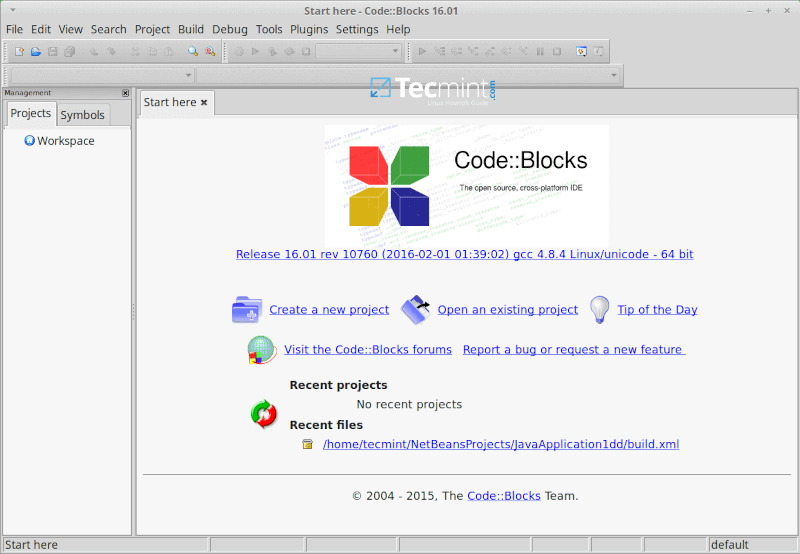
CodeBlocks IDE for C++ Programming

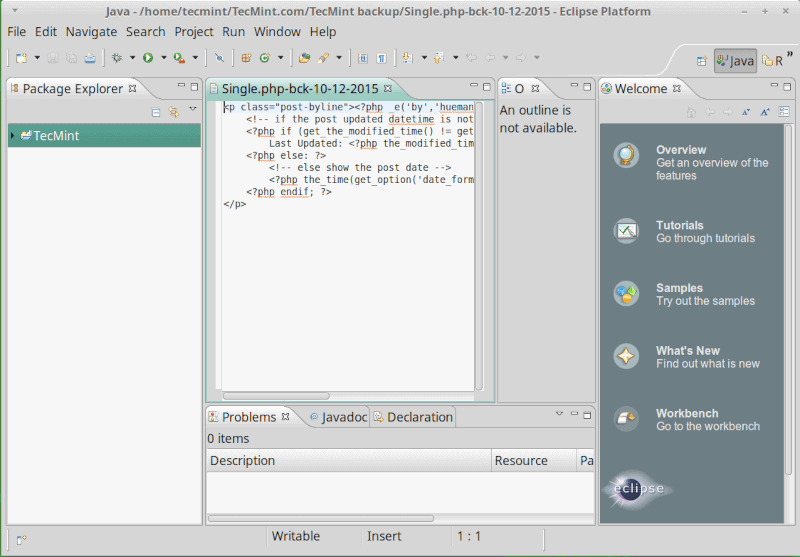
3. Eclipse CDT(C/C++ Development Tooling)

Eclipse is a well-known open-source, cross-platform IDE in the programming arena. It offers users a great GUI with support for drag and drop functionality for easy arrangement of interface elements.

The Eclipse CDT is a project based on the primary Eclipse platform and it provides a fully functional C/C++ IDE with the following features:

  • Supports project creation.
  • Managed build for various toolchains.
  • Standard make build.
  • Source navigation.
  • Several knowledge tools such as call graph, type hierarchy, in-built browser, and macro definition browser.
  • Code editor with support for syntax highlighting.
  • Support for folding and hyperlink navigation.
  • Source code refactoring plus code generation.
  • Tools for visual debugging such as memory, and registers.
  • Disassembly viewers and many more.
Eclipse IDE for Linux

4. CodeLite IDE

CodeLite is also a free, open-source, cross-platform IDE designed and built specifically for C/C++, JavaScript (Node.js), and PHP programming.

Some of its main features include:

  • Code completion offers two code completion engines.
  • Supports several compilers including GCC, clang/VC++.
  • Displays errors as code glossary.
  • Clickable errors via the build tab.
  • Support for LLDB next-generation debugger.
  • GDB support.
  • Support for refactoring.
  • Code navigation.
  • Remote development using built-in SFTP.
  • Source control plugins.
  • RAD (Rapid Application Development) tool for developing wxWidgets-based apps plus many more features.
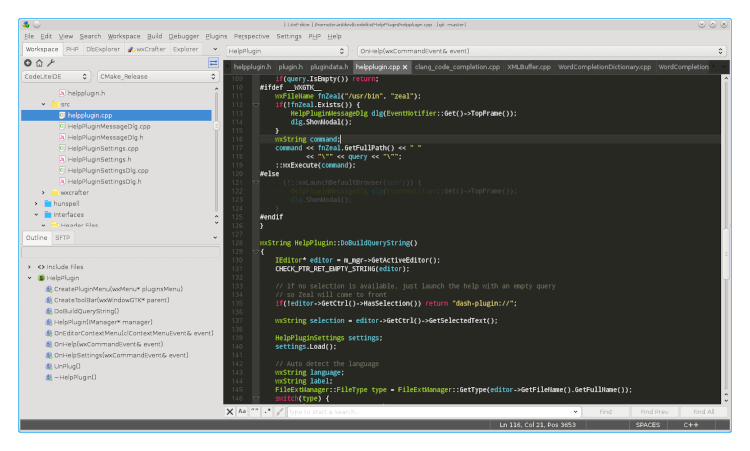
Codelite IDE for Linux

5. Bluefish Editor

Bluefish is more than just a normal editor, it is a lightweight, fast editor that offers programmers IDE-like features for developing websites, writing scripts, and software code. It is multi-platform, runs on Linux, Mac OSX, FreeBSD, OpenBSD, Solaris, and Windows, and also supports many programming languages including C/C++.

It is feature-rich including the ones listed below:

  • Multiple document interfaces.
  • Supports the recursive opening of files based on filename patterns or content patterns.
  • Offers a very powerful search and replace functionality.
  • Snippet sidebar.
  • Support for integrating external filters of your own, pipe documents using commands such as awk, sed, and sort plus custom-built scripts.
  • Supports full-screen editing.
  • Site uploader and downloader.
  • Multiple encoding support and many other features.
BlueFish IDE Editor for Linux

6. Brackets Code Editor

Brackets is a modern and open-source text editor designed specifically for web design and development. It is highly extensible through plugins, therefore C/C++ programmers can use it by installing the C/C++/Objective-C pack extension, this pack is designed to enhance C/C++ code writing and to offer IDE-like features.

Brackets Code Editor for Linux

7. Atom Code Editor – Deprecated

Atom is also a modern, open-source, multi-platform text editor that can run on Linux, Windows, or Mac OS X. It is also hackable down to its base, therefore users can customize it to meet their code-writing demands.

It is fully featured and some of its main features include:

  • Built-in package manager.
  • Smart auto-completion.
  • In-built file browser.
  • Find and replace functionality and many more.
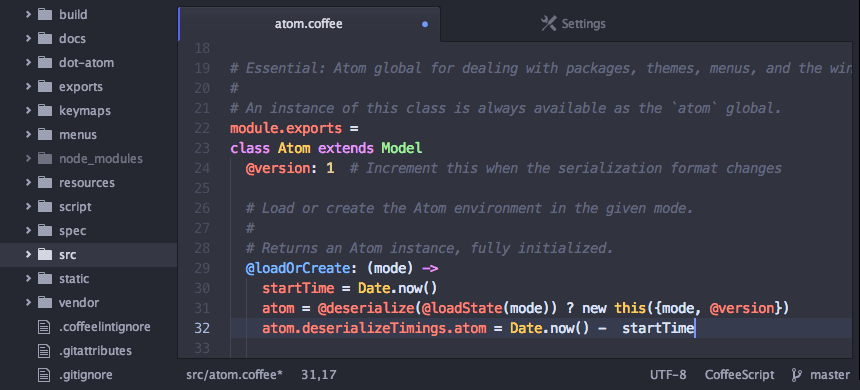
Atom Code Editor for Linux

8. Sublime Text Editor

Sublime Text is a well-defined, multi-platform text editor designed and developed for code, markup, and prose. You can use it for writing C/C++ code and offers a great user interface.

Its features list comprises of:

  • Multiple selections
  • Command palette
  • Goto anything functionality
  • Distraction-free mode
  • Split Editing
  • Instant project switching support
  • Highly customizable
  • Plugin API support based on Python plus other small features
Sublime Code Editor for Linux

9. JetBrains CLion

CLion is a non-free, powerful, and cross-platform IDE for C/C++ programming. It is a fully integrated C/C++ development environment for programmers, providing Cmake as a project model, an embedded terminal window, and a keyboard-oriented approach to code writing.

It also offers a smart and modern code editor plus many more exciting features to enable an ideal code-writing environment and these features include:

  • Supports several languages other than C/C++
  • Easy navigation to symbol declarations or context usage
  • Code generation and refactoring
  • Editor customization
  • On-the-fly code analysis
  • An integrated code debugger
  • Supports Git, Subversion, Mercurial, CVS, Perforce(via plugin), and TFS
  • Seamlessly integrates with Google test frameworks
  • Support for Vim text editor via Vim-emulation plugin
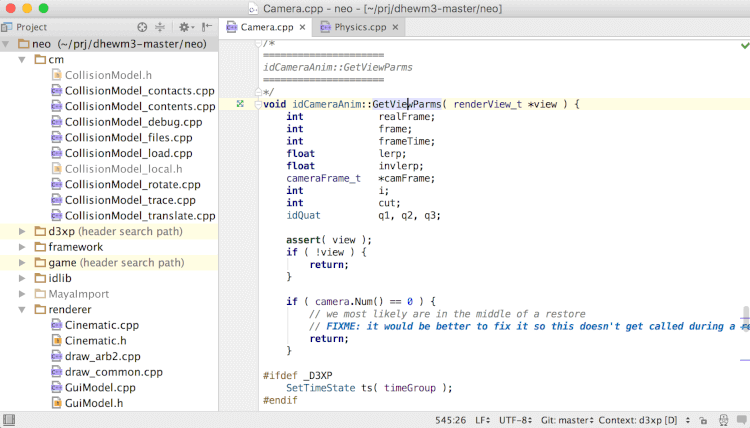
JetBains CLion IDE
JetBrains CLion IDE

10. Microsoft’s Visual Studio Code Editor

Visual Studio is a rich, fully integrated, cross-platform development environment that runs on Linux, Windows, and Mac OS X. It was recently made open-source to Linux users and it has redefined code editing, offering users every tool needed for building every app for multiple platforms including Windows, Android, iOS and the web.

It is feature-full, with features categorized under application development, application lifecycle management, and extend and integrate features. You can read a comprehensive features list from the Visual Studio website.
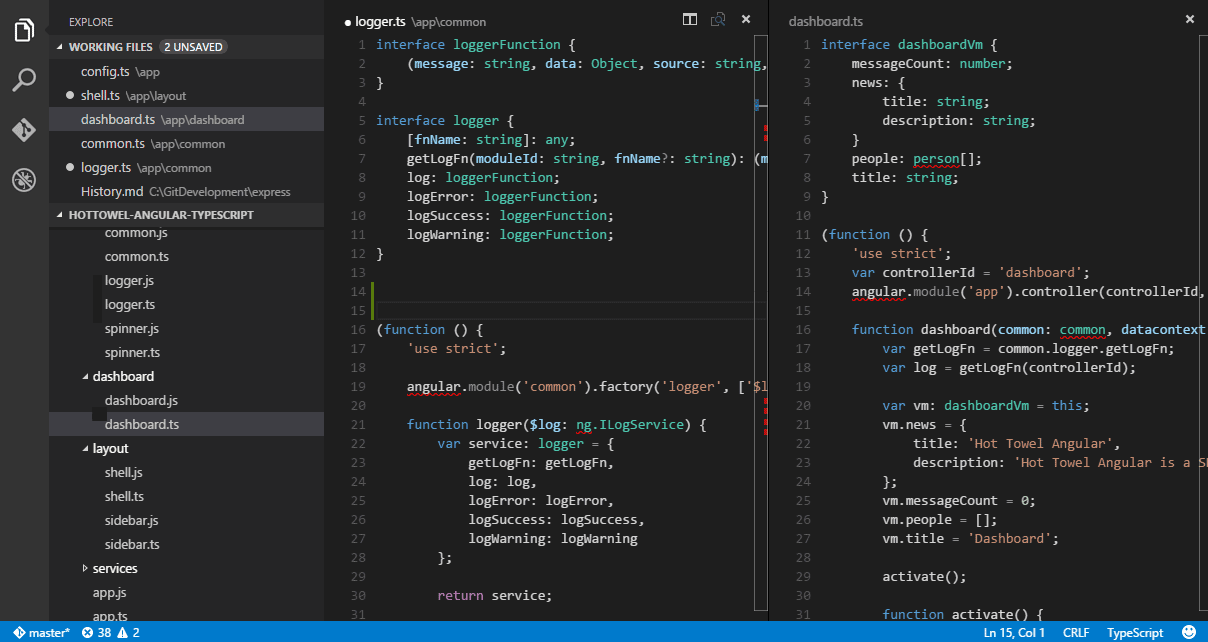
Visual Studio Code Editor

11. KDevelop

KDevelop is just another free, open-source, and cross-platform IDE that works on Linux, Solaris, FreeBSD, Windows, Mac OSX, and other Unix-like operating systems. It is based on the KDevPlatform, KDE, and Qt libraries. KDevelop is highly extensible through plugins and feature-rich with the following notable features:

  • Support for Clang-based C/C++ plugin
  • KDE 4 config migration support
  • A revival of Oketa plugin support
  • Support for different line editings in various views and plugins
  • Support for Grep view and Uses widget to save vertical space plus many more
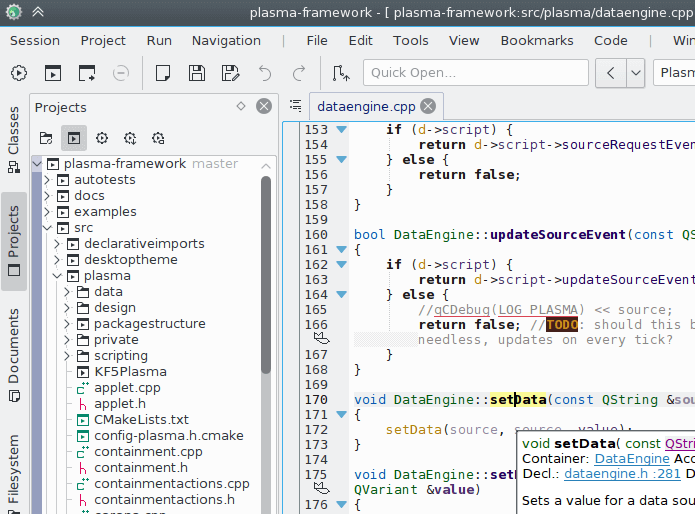
KDevelop IDE Editor
KDevelop IDE Editor

12. Geany IDE

Geany is a free, fast, lightweight, and cross-platform IDE developed to work with few dependencies and also operate independently from popular Linux desktops such as GNOME and KDE. It requires GTK2 libraries for functionality.

Its features list consists of the following:

  • Support for syntax highlighting
  • Code folding
  • Call tips
  • Symbol name auto-completion
  • Symbol lists
  • Code navigation
  • A simple project management tool
  • In-built system to compile and run a users code
  • Extensible through plugins
Geany IDE for Linux
Geany IDE for Linux

13. Anjuta DevStudio – Discontinued

Anjuta DevStudio is a simple GNOME yet powerful software development studio that supports several programming languages including C/C++.

It offers advanced programming tools such as project management, GUI designer, interactive debugger, application wizard, source editor, version control plus so many other facilities. In additionally, to the above features, Anjuta DevStudio also has some other great IDE features and these include:

  • Simple user interface
  • Extensible with plugins
  • Integrated Glade for WYSIWYG UI development
  • Project wizards and templates
  • Integrated GDB debugger
  • In-built file manager
  • Integrated DevHelp for context-sensitive programming help
  • Source code editor with features such as syntax highlighting, smart indentation, auto-indentation, code folding/hiding, text zooming plus many more
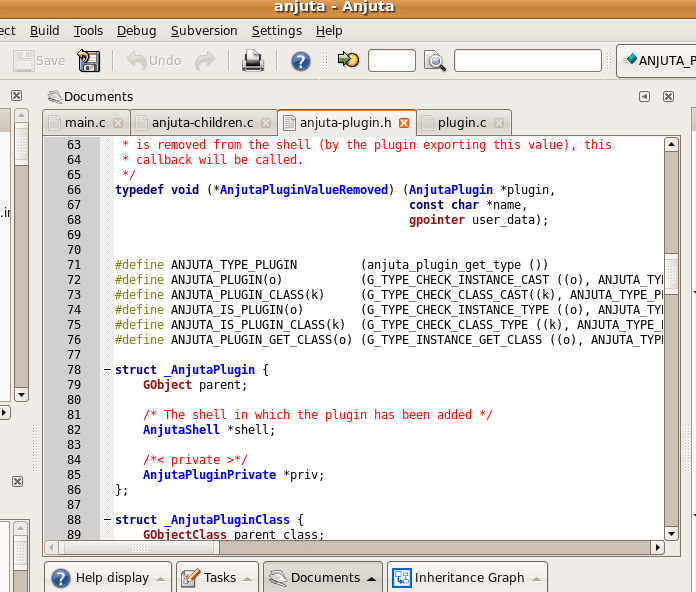
Anjuta DevStudio for Linux

14. The GNAT Programming Studio

The GNAT Programming Studio is a free easy-to-use IDE designed and developed to unify the interaction between a developer and his/her code and software.

Built for ideal programming by facilitating source navigation while highlighting important sections and ideas of a program. It is also designed to offer a high level of programming comfortability, enabling users to develop comprehensive systems from the ground.

It is feature-rich with the following features:

  • Intuitive user interface
  • Developer friendly
  • Multi-lingual and multi-platform
  • Flexible MDI(multiple document interface)
  • Highly customizable
  • Fully extensible with preferred tools
GNAT Programming Studio

15. Qt Creator

Qt Creator is a free, cross-platform IDE designed for the creation of connected devices, UIs, and applications. Qt creator enables users to do more creation than actual coding of applications.

It can be used to create mobile and desktop applications, and also connected embedded devices.

Some of its features include:

  • Sophisticated code editor
  • Support for version control
  • Project and build management tools
  • Multi-screen and multi-platform support for easy switching between build targets plus many more
Qt Creator for Linux

16. Emacs Editor

Emacs is a free, powerful, highly extensible, and customizable, cross-platform text editor you can use on Linux, Solaris, FreeBSD, NetBSD, OpenBSD, Windows, and Mac OS X.

The core of Emacs is also an interpreter for Emacs Lisp which is a language under the Lisp programming language. As of this writing, the latest release of GNU Emacs is version 27.2 and the fundamental and notable features of Emacs include:

  • Content-aware editing modes
  • Full Unicode support
  • Highly customizable using GUI or Emacs Lisp code
  • A packaging system for downloading and installing extensions
  • An ecosystem of functionalities beyond normal text editing including a project planner, mail, calendar, and newsreader plus many more
  • A complete built-in documentation plus user tutorials and many more
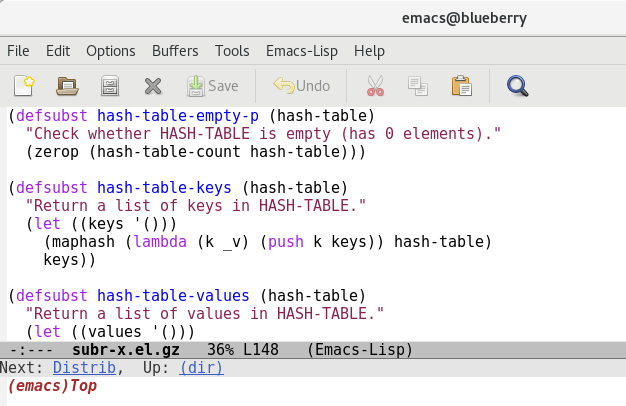
Emacs Editor for Linux

17. SlickEdit

SlickEdit (previously Visual SlickEdit) is an award-winning commercial cross-platform IDE created to enable programmers the ability to code on 7 platforms in 40+ languages. Respected for its feature-rich set of programming tools, SlickEdit allows users to code faster with complete control over their environment.

Its features include:

  • Dynamic differencing using DIFFzilla
  • Syntax expansion
  • Code templates
  • Autocomplete
  • Custom typing shortcuts with aliases
  • Functionality extensions using Slick-C macro language
  • Customizable toolbars, mouse operations, menus, and key bindings
  • Support for Perl, Python, XML, Ruby, COBOL, Groovy, etc.
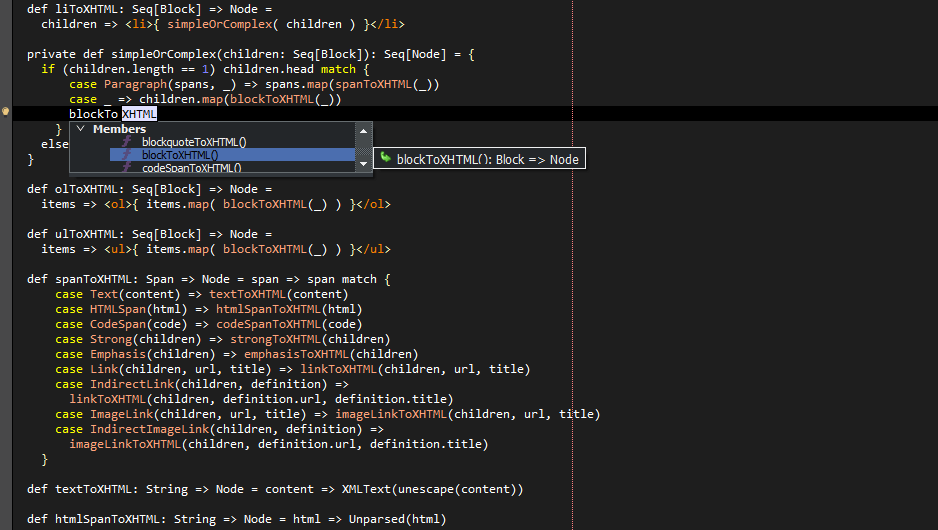
SlickEdit - Source Code and Text Editor
SlickEdit – Source Code and Text Editor

18. Lazarus IDE

Lazarus IDE is a free and open-source Pascal-based cross-platform visual Integrated Development Environment created to provide programmers with a Free Pascal Compiler for rapid application development. It is free for building anything including e.g. software, games, file browsers, graphics editing software, etc. irrespective of whether they will be free or commercial.

Feature highlights include:

  • A graphical form designer
  • 100% freedom because it is open source
  • Drag & Drop support
  • Contains 200+ components
  • Support for several frameworks
  • A built-in Delphi code converter
  • A huge welcoming community of professionals, hobbyists, scientists, students, etc.
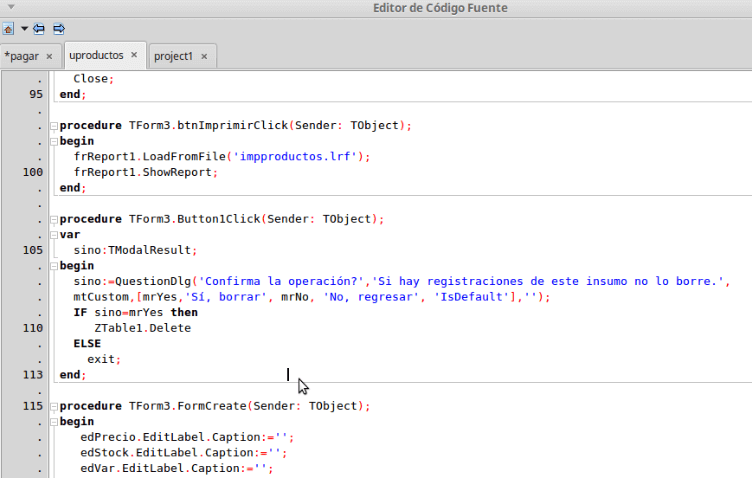
Lazarus IDE
Lazarus IDE

19. MonoDevelop

MonoDevelop is a cross-platform and open-source IDE developed by Xamarin for building web and cross-platform desktop applications with a primary focus on projects that use Mono and .Net frameworks. It has a clean, modern UI with support for extensions and several languages right out of the box.

MonoDevelop’s feature highlights include:

  • 100% free and open-source
  • A Gtk GUI designer
  • Advanced text editing
  • A configurable workbench
  • Multi-language support e.g. C#, F#, Vala, Visual Basic .NET, etc.
  • ASP.NET
  • Unit testing, localization, packaging, deployment, etc.
  • An integrated debugger
MonoDevelop IDE for C Programming

20. Gambas

Gambas is a powerful free and open-source development environment platform based on a Basic interpreter with object extensions similar to those in Visual Basic. To greatly improve its usability and feature set its developers have several additions in the pipeline such as an enhanced web component, a graph component, an object persistence system, and upgrades to its database component.

Among its several current feature highlights are:

  • A Just-in-Time compiler
  • Declarable local variables from anywhere in a function’s body
  • Smooth scrolling animation
  • Gambas playground
  • JIT compilation in the background
  • Support for PowerPC64 and ARM64 architectures
  • Built-in Git support
  • Auto-closing of braces, markups, strings, and brackets
  • A dialog for inserting special characters
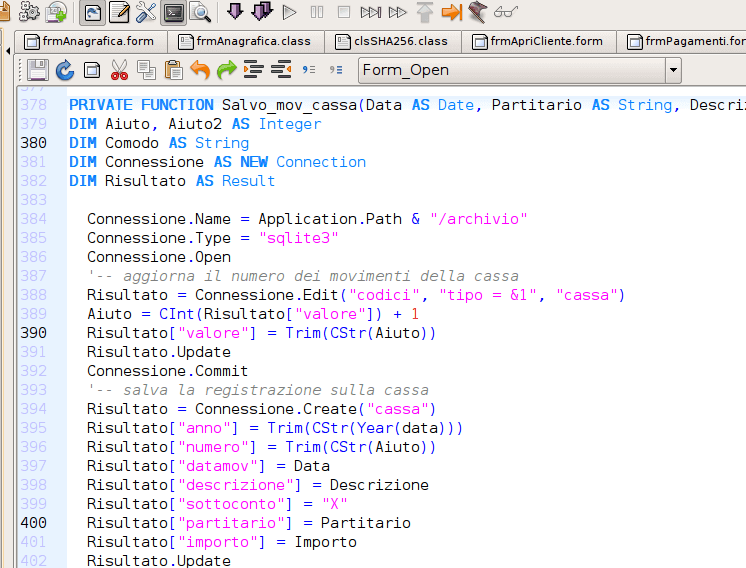
Gambas IDE Editor
Gambas IDE Editor

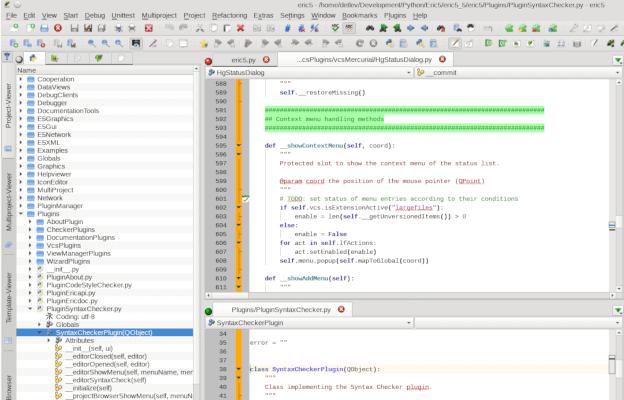
21. The Eric Python IDE

The Eric Python IDE is a full-featured Python IDE written in Python based on the Qt UI toolkit to integrate with Scintilla editor control. It is designed for use by both beginner programmers and professional developers and it contains a plugin system that enables users to easily extend its functionality.

Its feature highlights include:

  • 100% free and open-source
  • 2 tutorials for beginners – a Log Parser and Mini Browser application
  • An integrated web browser
  • A source documentation interface
  • A wizard for Python regular expressions
  • Graphic module diagram import
  • A built-in icon editor, screenshot tool, difference checker
  • A plugin repository
  • Code autocomplete, folding
  • Configurable syntax highlighting and window layout
  • Brace matching
The Eric Python IDE
The Eric Python IDE

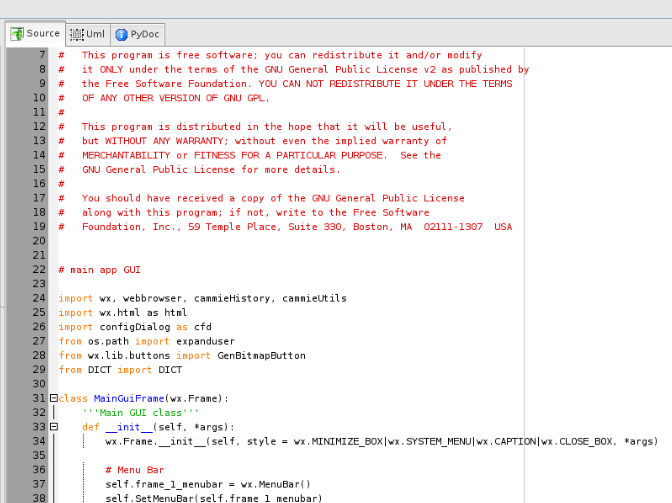
22. Stani’s Python Editor

Stani’s Python Editor is a cross-platform IDE for Python programming. It was developed by Stani Michiels to offer Python developers a free IDE capable of call tips, auto-indentation, PyCrust shell, source index, blender support, etc. It uses a simple UI with tabbed layouts and integration support for several tools.

Stani’s Python Editor’s features include:

  • Syntax coloring & highlighting
  • A UML viewer
  • A PyCrust shell
  • File browsers
  • Drag and drop support
  • Blender support
  • PyChecker and Kiki
  • wxGlade right out of the box
  • Auto indentation & completion
Stanis Python Editor

23. Boa Constructor

Boa Constructor is a simple free Python IDE and wxPython GUI builder for Linux, Windows, and Mac Operating Systems. It offers users with Zope support for object creation and editing, visual frame creation and manipulation, property creation and editing from the inspector, etc.

Feature highlights include:

  • An object inspector
  • A tabbed layout
  • A wxPython GUI builder
  • Zope support
  • An advanced debugger and integrated help
  • Inheritance hierarchies
  • Code folding
  • Python script debugging
Boa Constructor Python IDE

24. Graviton

Graviton is a free and open-source minimalist source code editor built with a focus on speed, customizability, and tools that boost productivity for Windows, Linux, and macOS. It features a customizable UI with colorful icons, syntax highlighting, auto-indentation, etc.

Graviton’s features include:

  • 100% free and open-source
  • A minimalist, clutter-free User Interface
  • Customizability using themes
  • Plugins
  • Autocomplete
  • Zen mode
  • Full compatibility with CodeMirror themes
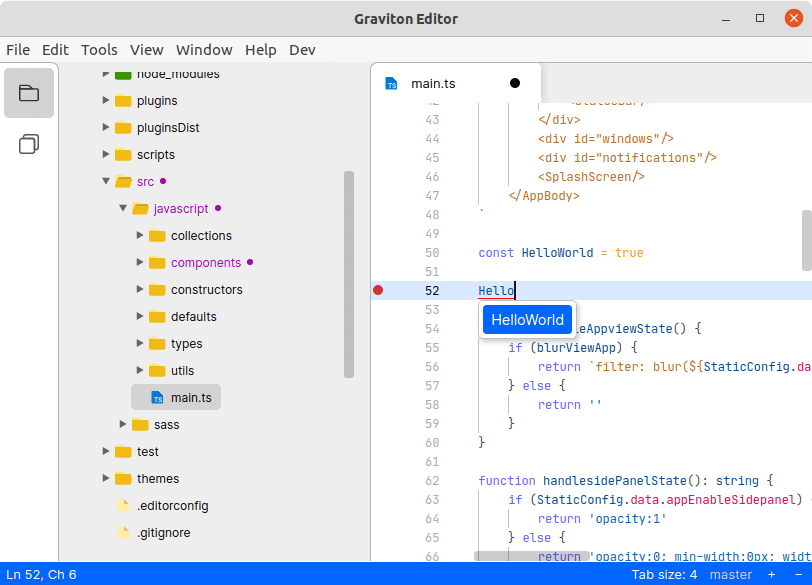
Graviton Source Code Editor

25. MindForger

MindForger is a robust free and open-source performance-driven Markdown IDE developed as a smart note-taker, editor, and organizer with respect for the security and privacy of users. It offers many features for advanced note-taking, management, and sharing such as tag support, data backup, metadata editing, Git and SSH support, etc.

Its features include:

  • Free and open source
  • Privacy-focused
  • Supports several encryption tools e.g. ecryptfs
  • Sample mapper
  • Automatic linking
  • HTML preview and zooming
  • Import/export
  • Support for tags, metadata editing, and sorting
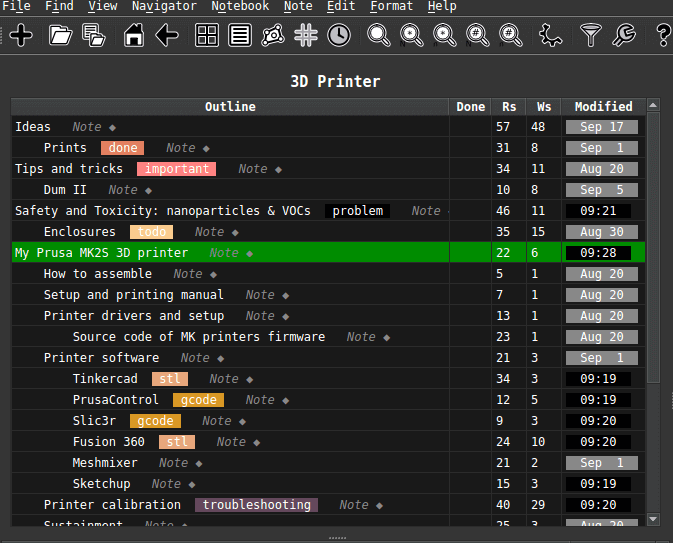
MindForger Markdown IDE

26. Komodo IDE

Komodo IDE is the most popular and powerful multi-language integrated development environment (IDE) for Perl, Python, PHP, Go, Ruby, web development (HTML, CSS, JavaScript), and more.

Check out some of the following key features of Komodo IDE.

  • A powerful editor with syntax highlighting, autocomplete, and more.
  • A visual debugger to debug, inspect, and test your code.
  • Support for Git, Subversion, Mercurial, and more.
  • Useful add-ons for customizing and extending features.
  • Supports Python, PHP, Perl, Go, Ruby, Node.js, JavaScript, and more.
  • Set your own workflow using easy file and project navigation.
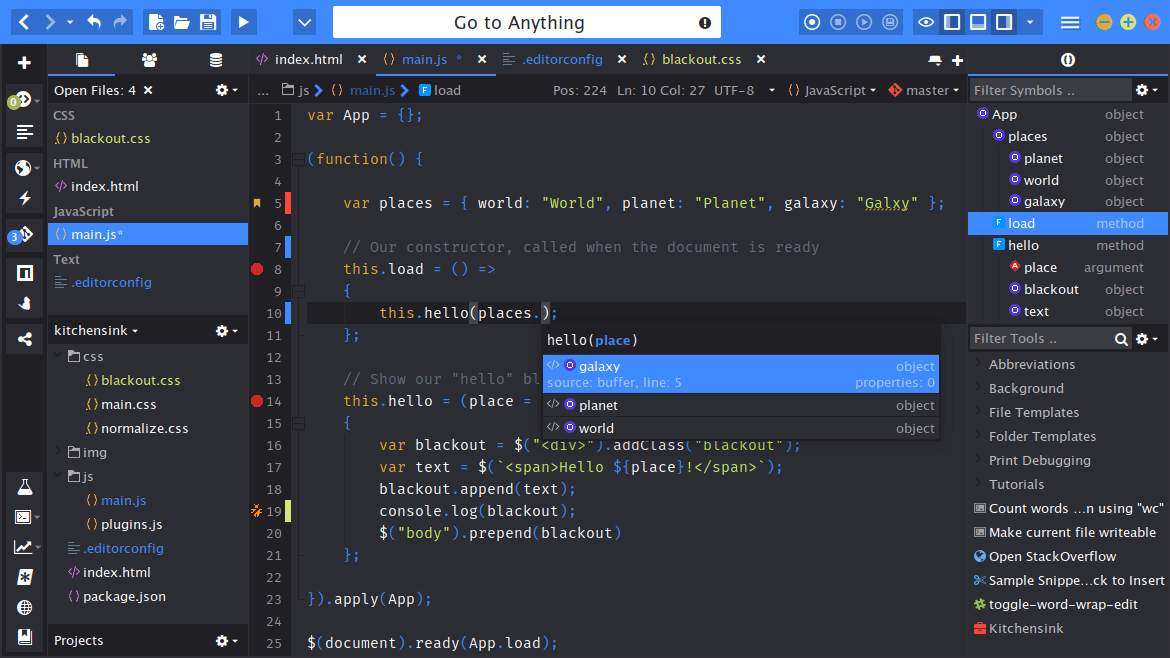
Komodo IDE
Komodo IDE

27. VI/VIM Editor

Vim an improved version of the VI editor, is a free, powerful, popular, and highly configurable text editor. It is built to enable efficient text editing and offers exciting editor features for Unix/Linux users, therefore, it is also a good option for writing and editing C/C++ code.

To learn how to use Vim editor in Linux, read our following articles:

Generally, IDEs offer more programming comfort than traditional text editors, therefore it is always a good idea to use them. They come with exciting features and offer a comprehensive development environment, sometimes programmers are caught up in choosing the best IDE to use for C/C++ programming.

There are many other IDEs you can find out and download from the Internet, but trying out several of them can help you find that which suits your needs.


How to Create a Custom Systemd Service in Linux

$
0
0

https://www.maketecheasier.com/create-custom-systemd-service-in-linux

How to Create a Custom Systemd Service in Linux

A photograph of a person working in front of his computer.

Systemd is a powerful and highly versatile init system for Linux distros. It can run programs, manage system resources, and even control the state of your computer. In this article, I’ll demonstrate how you can use Systemd to control your apps by creating a custom service unit in Ubuntu.

What is a Systemd Service Unit?

A service unit is a regular file that contains details on how to run a specific app. It includes the general metadata of the program, how to run it, and whether Systemd can access it on a regular session.

By default, every daemon on a Systemd-based machine has some form of a service file. OpenSSH, for instance, uses the ssh.service unit in “/etc/systemd/system/” to determine how it will run in Debian and Ubuntu.

A terminal showing the service unit for OpenSSH.

At a basic level, a service unit file is made up of three parts: the Unit, Service, and Install categories. The Unit section provides the app’s metadata and dependencies. The Service section defines where the app is and how Systemd will run it. Lastly, the Install section describes when can Systemd start the app.

Creating a System-level Custom Systemd Service

One of the most common uses for a custom service is automating commands that require root privileges or take advantage of Systemd Timers. For instance, a custom service helps in ensuring that a Minecraft server will start up properly after a restart.

To create a custom system-level service in Linux, start by making the Systemd unit file in your user’s home directory:

nano ~/my-system-app.service

Paste the following block of code inside your new unit file. This is the simplest valid config for a Systemd service:

[Unit]Description=My First Service
After=network.target
 
[Service]Type=simple
ExecStart=/path/to/bin
Restart=always
 
[Install]WantedBy=multi-user.target

Replace the “Description” variable with the details of your user-level service.

Replace the “ExecStart” variable with the full file path of program that you want to run.

A terminal showing a simple Systemd unit file for a system-level service.

Save your new file, then copy it to your machine’s services directory:

sudocp ./my-system-app.service /etc/systemd/system/

Run the following command to restart the Systemd daemon:

sudo systemctl daemon-reload

Test your new system-level service by running the following command:

sudo systemctl start my-system-app.service

Lastly, confirm that your new service is running properly by checking its status in systemctl:

systemctl status my-system-app.service
A terminal showing the custom service running properly.

Creating a User-level Custom Systemd Service

Service units aren’t limited to system-level apps or superusers. With the help of Systemd-user, it’s possible to create rootless services. This allows non-root users to manage local apps while improving their PC’s security by limiting programs with root access.

To create your user-level custom service in Linux, make a new Systemd unit file in your user’s home directory:

nano ~/my-user-app.service

Paste the following block of code inside your new unit file:

[Unit]Description=My First User Service
After=graphical-session.target
 
[Service]Type=simple
ExecStart=/path/to/bin
 
[Install]WantedBy=default.target

Replace the value of the “ExecStart” variable to the path of the program that you want to run. Since this is a user-level service, make sure that your user account has proper access to the binary.

A terminal highlighting the user script with regular user access.

Save your new user-level service file, then create the local Systemd directory for your user:

mkdir-p ~/.config/systemd/user/

Copy your new user-level service file to the local Systemd directory for your user:

cp ./my-user-app.service ~/.config/systemd/user/

Make sure that Systemd checks your user directory for new service unit files:

systemctl daemon-reload --user

Lastly, confirm that your new service is running properly by checking its status in systemctl:

systemctl --user status my-user-app.service
A terminal showing the custom user service recognized in systemctl.

Good to know: Systemd is more than just an init system. Learn how its sister program: Systemd-boot stacks against the popular GRUB.

Tweaking Your Custom Systemd Service

One of the core strengths of Systemd is that it allows you to fully customize how to run and manage programs.

Adding Environment Variables to a Custom Service

Environment variables are an important part of every Linux system. They provide additional data to a program without fiddling with config files. With Systemd, it’s possible to make use of environment variables by incorporating it to your service units.

Start by disabling the service that you want to modify:

systemctl --user disable --now my-user-app.service

Open your custom service file using your favorite text editor:

sudonano ~/.config/systemd/user/my-user-app.service

Scroll to the “[Service]” section, then add the following line of code just below the “Type=” variable:

Environment=""

Add the environment variable that you want to add to your custom service. In my case, I want to add an EDITOR variable to make sure that my service sees my Vim instance.

A terminal showing a service with a modified environment variable.

Save your modified service file, then reload your Systemd daemon to apply your changes.

A terminal showing the process of reloading the Systemd daemon.

Restart your new Systemd service to make use of your new environment variable:

systemd --user start my-user-app.service

Restricting Custom Service to a Specific User

Apart from user-level unit files, you can also tweak a system-level service to run under a specific user. This is helpful if you want to run an app under a rootless and shell-less user account.

To bind a Systemd service to a user, first completely disable your custom unit.

A terminal showing the details of a fully disabled service.

Make sure that the target user account already exists on your machine.

A terminal showing the existence of a user for the Systemd unit.

Open your system-level service file using your favorite text editor:

sudonano/etc/systemd/system/my-system-app.service

Scroll down to the “[Service]” section, then add the “User=” variable followed by the name of your user account.

A terminal highlighting the User= value inside the custom service file.

Note: you can also specify the group for your service by adding “Group=” below the User variable.

Save the changes on your unit file, then restart the service:

sudo systemctl start my-system-app.service

Confirm that your service is now running as your user by running the following command:

ps-ouser= -p $(systemctl show my-system-app.service -p MainPID |awk-F= '{print $2}')
A terminal showing the current owner of the system process.

Limiting a Service Unit’s Resource Consumption

On top of tweaking environment variables and users, Systemd can limit the resources an app can consume over its lifespan. While it doesn’t do it by default, it’s possible to control core parts such as CPU usage and overall process count.

Begin by completely disabling the service that you want to tweak.

A terminal showing a disabled system service.

Open the service unit file using your favorite text editor:

sudonano/etc/systemd/system/my-system-app.service

Scroll down to the “[Service]” section, then add the variable name for the resource that you want to limit. For instance, adding the “MemoryHigh=” variable allows you to set a soft memory limit for that service.

A terminal highlighting the modified MemoryHigh value for the custom service.

Tip: You can find a list of valid variables by running man systemd.resource-control on a terminal session.

Save your unit file, then reload your Systemd service:

sudo systemctl enable--now my-system-app.service

Lastly, you can monitor your running services by running systemd-cgtop.

A terminal showing the output of systemd-cgtop.

Learning how to create custom Systemd services and modifying them to your needs is just the step in understanding this highly versatile tool. Explore more of Systemd and what its comprehensive ecosystem can do by checking out how Run0 performs against Sudo.


  • Killport: Stopping Processes by Port Number in Linux

    $
    0
    0

    https://linuxtldr.com/installing-killport

    Killport: Stopping Processes by Port Number in Linux

    killport is a CLI tool that provides a simple solution to stop processes by their port number, thereby resolving the problem of users struggling to identify the processes behind an open port.

    This way, you don’t have to follow the traditional method of finding the open port, then looking for the responsible processes behind that port, then finding the process PID, and then stopping it.

    Instead, all you need to do is pass the port number to the killport command as an argument, and then it will immediately stop the processes behind that port by sending “SIGTERM” signals.

    Ezoic

    In this article, I’ll show you its features, how to install killport on Linux, how to list open ports, and then stop it by using the port number with killport.

    Table of Contents

    Tutorial Details

    DescriptionKillport: Killing Processes Listening on Specific Ports
    Difficulty LevelLow
    Root or Sudo PrivilegesYes
    OS CompatibilityLinux, Windows, and macOS
    Prerequisites
    Internet RequiredYes (for installation)

    Features of Killport

    The following is a list of standout features of Killport:

    • It’s cross-platform and available for Linux, Windows, and macOS.
    • Kill processes by port number.
    • You can kill multiple ports at once.
    • Specify a “SIGHUP“, “SIGKILL“, or “SIGTERM” signal that is to be sent.
    • Use the verbose option to receive detailed output.

    How to Install Killport on Linux

    There are multiple ways to install killport on your desired Linux distribution; the recommended one is by using the “brew” command. So, if you have Homebrew installed on your Linux system, you can use the following command (it also works for macOS).

    Ezoic
    $ brew install killport

    If you have the Cargo package manager installed on your Linux, Windows, or macOS, then you can easily install it using the following command:

    $ cargo install killport

    Finally, on Linux and macOS, if you prefer, you can use its installation script (not recommended) using the curl command. The script will automatically download the latest binary package and place it in the users “/bin” directory.

    📝
    Make sure that you include “$HOME/.local/bin” in your $PATH environment variable. If you’re unsure how to do this, simply add this line: “export PATH="$HOME/.local/bin:$PATH"” at the end of your shell configuration file (“~/.bashrc” for bash).
    $ curl -sL https://bit.ly/killport | sh

    Once completed, you can run the following command to confirm its successful installation on your Linux system:

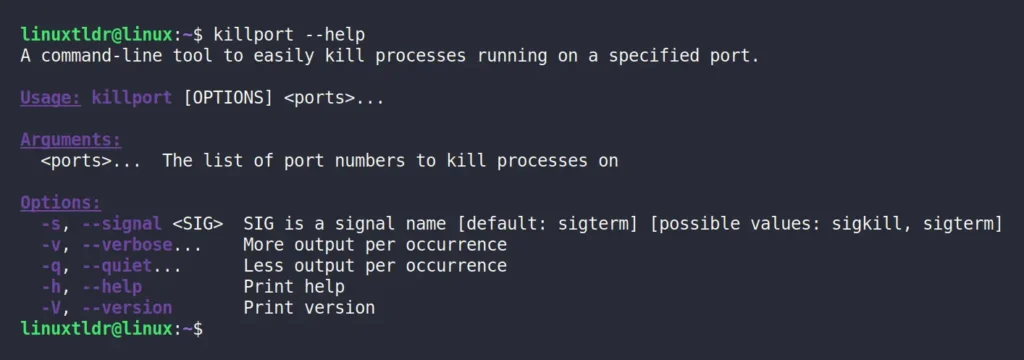
    $ killport --help

    Output:

    killport help section

    Usage of Killport

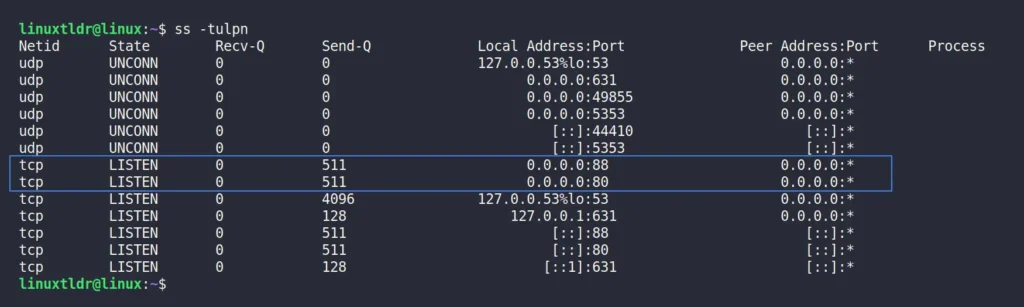
    Once killport is installed, you can start killing processes based on their port number. To showcase its usage, I’ll first check the list of all open ports on my Linux system using the “ss” or “netstat” commands:

    Ezoic
    $ ss -tulpn
    
    #OR
    
    $ netstat -tulpn

    Output:

    listing open ports linux

    In the above picture, ports “80” and “88” are shown to be in a LISTEN state, handled by Nginx and Apache2. To stop one or both of these open ports, you can use the following killport commands:

    📝
    You can easily terminate a user-initiated process, but system-level processes require root or sudo privileges.
    # The following command will kill port 80.
    $ sudo killport 80
    
    # The following command will kill ports 80 and 88 at onces.
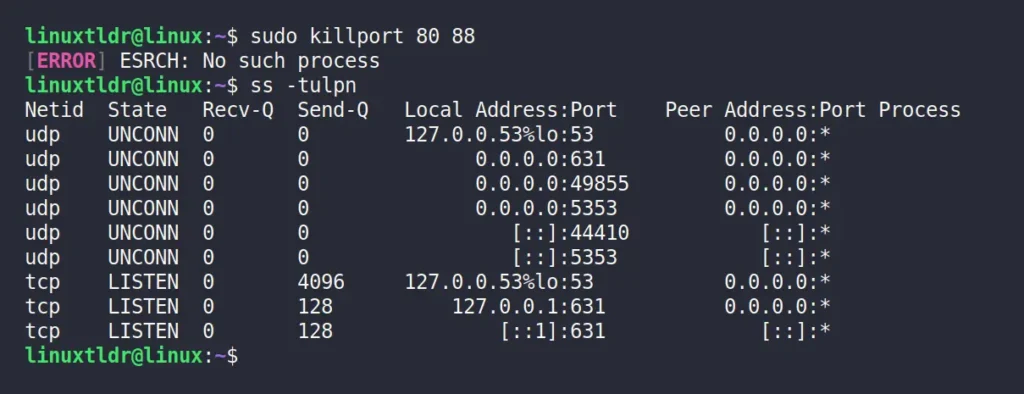
    $ sudo killport 80 88

    Output:

    killing services by port number using killport

    Voila, you’ve successfully terminated the two processes responsible for listening on ports “80” and “88“. To show you the proof, I’ll re-check the list of all open ports on my Linux system.

    confirming the port is closed

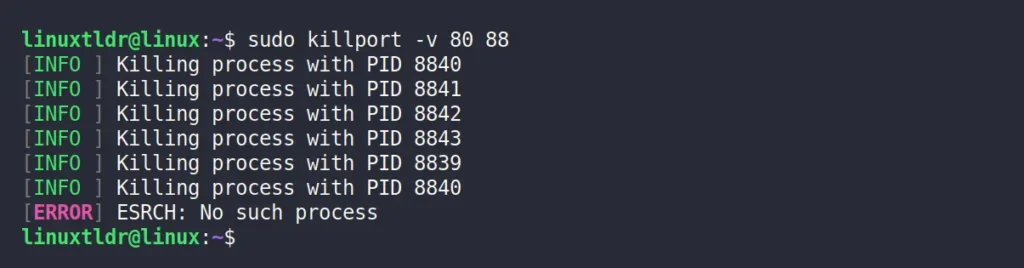
    If you notice, the two ports mentioned aren’t on the list. Now, you might be thinking that in the output there is an “[ERROR] ESRCH: No such process” message, which makes it seem that there was never such a process and nothing has been terminated. Then, my friend, you are mistaken.

    Ezoic

    The message we are receiving in the output is the last signal sent to the process, ensuring that the target process is terminated. To confirm, you can enable the verbose mode using the “-v” flag and see for yourself that this message appears at the end.

    $ sudo killport -v 80 88

    Output:

    enabling verbose mode in killport

    I’ve told you, look. Finally, to kill the process using the specific “SIGHUP“, “SIGKILL“, or “SIGTERM” signal, you can use the “-s” flag. However, if you’re unsure of the differences between them, you can refer to the following table:

    Signal NameSignal ValueBehavior
    SIGHUP1Hangup (a less secure way)
    SIGKILL9Kill Signal (forceful)
    SIGTERM15Terminate (default and safest)

    So, to kill the process responsible for ports “80” and “88” by sending a “SIGKILL” signal, use the following command:

    Ezoic
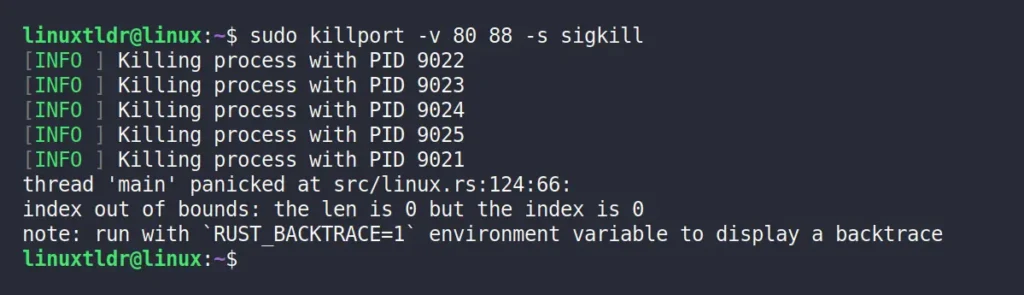
    $ sudo killport -v 80 88 -s sigkill

    Ouput:

    killing process using sigkill signal in killport

    That’s it. Here comes the end of this article. To give you my opinion, I find this tool pretty amazing because finding the process PID and then killing it makes me sick. I’m usually aware of which ports are started by me and can easily identify them, so when they are not in need, I can quickly kill them using the “killport” command.

    Now, I am interested in knowing your thoughts and opinions on this, so do share them in the comment section.

    Till then, peace!


    DistroBox: Try Out Multiple Linux Distributions via the Terminal

    $
    0
    0

    https://linuxtldr.com/installing-distrobox

    DistroBox: Try Out Multiple Linux Distributions via the Terminal

    As you all know, Linux is famous for its multiple variants in the name of distributions, each offering unique software repositories, package managers, desktop environments, release cycles, stability, and much more.

    The well-known Linux distributions are Debian, Ubuntu, RedHat, Fedora, and Arch, with the major difference between them being their target audience. For example, some distributions are tailored for desktop systems, some for server systems, and others for technophiles, and so forth.

    If your current system runs on Ubuntu and you want to utilize a tool or package manager from another system like RedHat, you either need to set up and use a virtual machine or dual-boot it, which is precisely the issue that tools like DistroBox solve.

    Ezoic

    Table of Contents

    What is DistroBox?

    DistroBox is a command-line program that allows you to run multiple Linux distributions within the terminal and run graphical applications from those distributions on the host system as if they were native applications.

    It uses container-based technologies like Docker or Podman (whichever you prefer) to build a container using the Linux distribution of your choice, tightly integrating it with the host to enable sharing of the user’s HOME directory, external storage, USB devices, and graphical apps (X11/Wayland), as well as audio.

    Ezoic

    This approach of using multiple Linux distributions at once has its own advantages, some of which are discussed in the next section.

    Advantages of DistroBox

    The following is a list of the advantages of using DistroBox.

    • Create a test environment for making changes without affecting your host distribution.
    • Test a program or application on multiple Linux distributions.
    • Try out the latest Linux distribution features as they arrive.
    • Experience the new desktop environment (DE) before it officially arrives.
    • Access distribution-specific programs or applications natively on your host distribution.

    How to Install DistroBox on Linux

    The first thing you have to do is make sure either Docker or Podman (recommended) is installed on your host distribution. Then, if your current distribution is one from the below list, then DistroBox is already packaged in it, and you can install it using your default package manager.

    📝
    Check out this full list if the listed distribution is not one that you are currently using.
    • Alpine Linux 3.19
    • Arch Linux (AUR)
    • Debian 13
    • Fedora 37, 38, and 39
    • Gentoo
    • Kali Linux Rolling
    • openSUSE Tumbleweed
    • Raspbian Testing
    • Ubuntu 24.04

    If your distribution is not on the list, then you can run the following command to install DistroBox:

    $ curl -s https://raw.githubusercontent.com/89luca89/distrobox/main/install | sudo sh

    The curl command above will download the DistroBox installation script and execute it with superuser privileges. If you’re uncomfortable running an unknown script with superuser privileges, you can use the following command to install it:

    Ezoic
    $ curl -s https://raw.githubusercontent.com/89luca89/distrobox/main/install | sh -s -- --prefix ~/.local

    Once the installation is complete, you can move on to the next section, learning usage.

    Usage of DistroBox

    In this section, our primary focus is on creating new DistroBox instances, ways to access CLI and GUI tools and applications inside and outside the container, and listing, updating, and removing DistroBox instances. So, let’s begin with…

    Creating DistroBox Instances with a Specific Name and Hostname

    The DistroBox container (a complete operating system in itself) can easily be created using the DistroBox command-line program. For example, if you issue the following command without any options, it will ask you to pull the default Fedora 39 image.

    $ distrobox create

    Output:

    running distrobox create command without option

    If you press the “y” key, it will start pulling the image from the registry. However, if you want to pull and use a specific Linux distribution, such as Ubuntu 23.10, then run.

    Ezoic
    💡
    If you have an Nvidia GPU and want to expose it to your DistroBox container, use the “--nvidia” option.
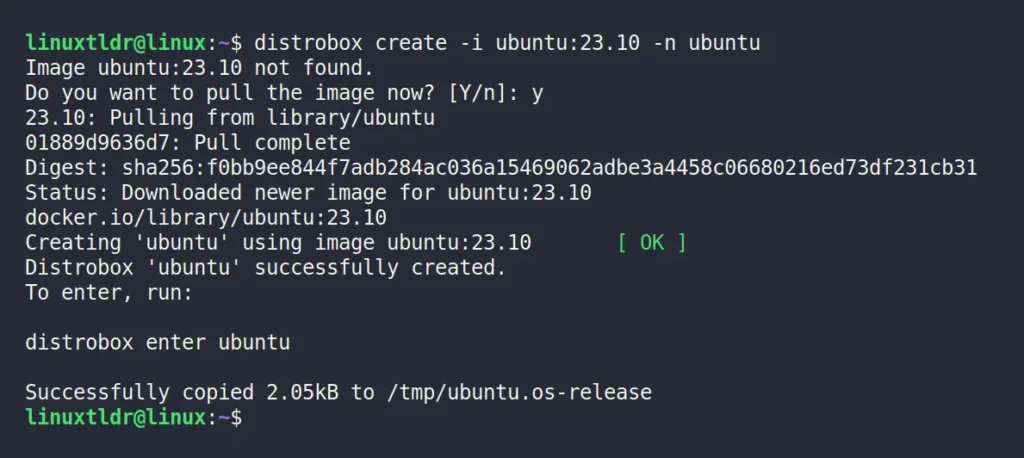
    $ distrobox create -i ubuntu:23.10 -n ubuntu

    Whereas,

    • The “-i” or “--image” option will specify the container name (the OS name, such as “Ubuntu“) along with its version (e.g., “23.10“), separated by a colon.
    • The “-n” or “--name” option will be used to give a memorable name to your container that can later be used to access it.

    Output:

    pulling ubuntu image using distrobox

    (Optional) To have a different hostname for your DistroBox container, you can use the “--hostname” option with a name parameter that will be used as the hostname.

    $ distrobox create -i ubuntu:23.10 -n ubuntu --hostname distrobox

    Once your container is created and you enter into it (explained in the next step), you will find that the hostname is the one you specified while creating the container.

    setting custom hostname for distrobox container

    Accessing a Command Prompt from a DistroBox Container

    Once the image is pulled, you can enter in your container by using the container name. For example, in our previous example, we pulled an “Ubuntu 23.10” image and named it “ubuntu“, which can be used with the following command to access that container.

    Ezoic
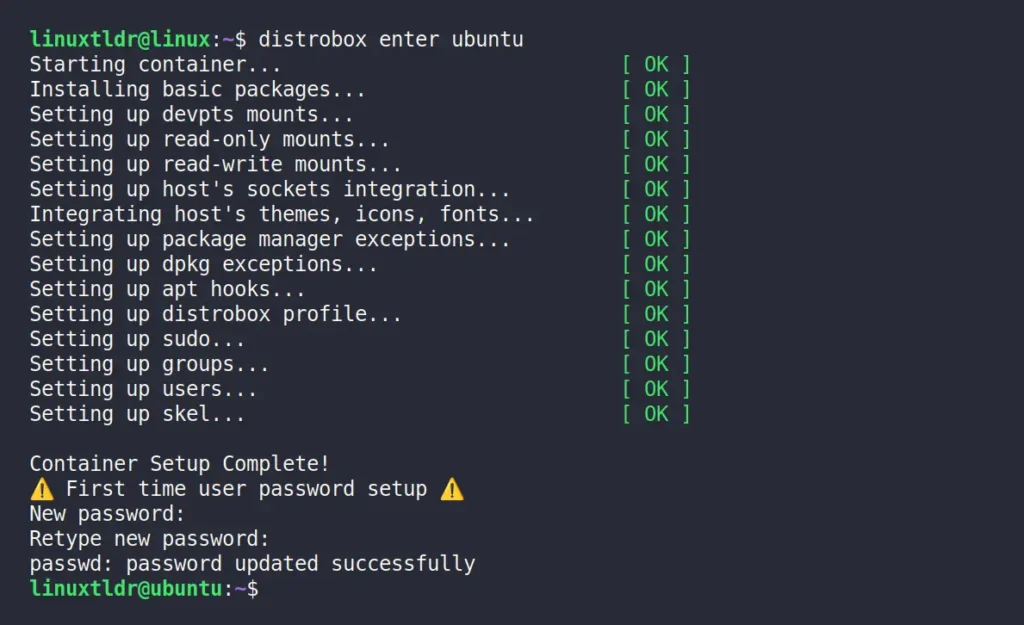
    $ distrobox enter ubuntu

    Output:

    initializing the container for the first time

    When you enter the first time, it will take some time only once to download the necessary files, configure the container, set up a new user password, and upon completion, you will be in your DistroBox container.

    distrobox container created

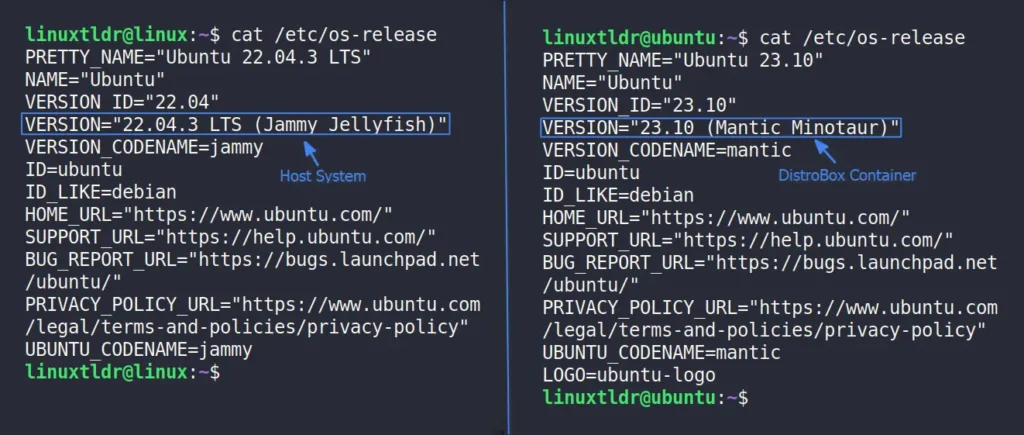
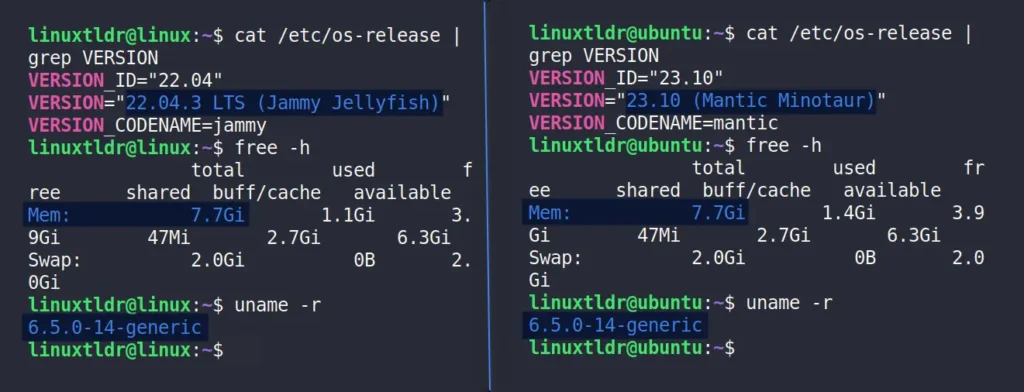
    To demonstrate that we are within the DistroBox container, I’ve displayed the versions of both the host and the DistroBox container below.

    💡
    The difference between a host and a container can also be noticed by looking at their hostname.
    comparing host system and distrobox container

    One more thing to note is that your host distribution and DistroBox container share the same hardware and even the kernel, as can be seen in the following picture.

    comparing hardware and kernel of host and distrobox container

    Installing a Non-Native Distro Package with DistroBox

    Once inside the DistroBox container, you can begin installing your favorite programs and applications using the default package manager specific to the Linux distribution running inside the DistroBox container.

    Ezoic
    📝
    When running a command with sudo, enter the password you set up while configuring the DistroBox container (not the one for your host distribution) when it asks for it.
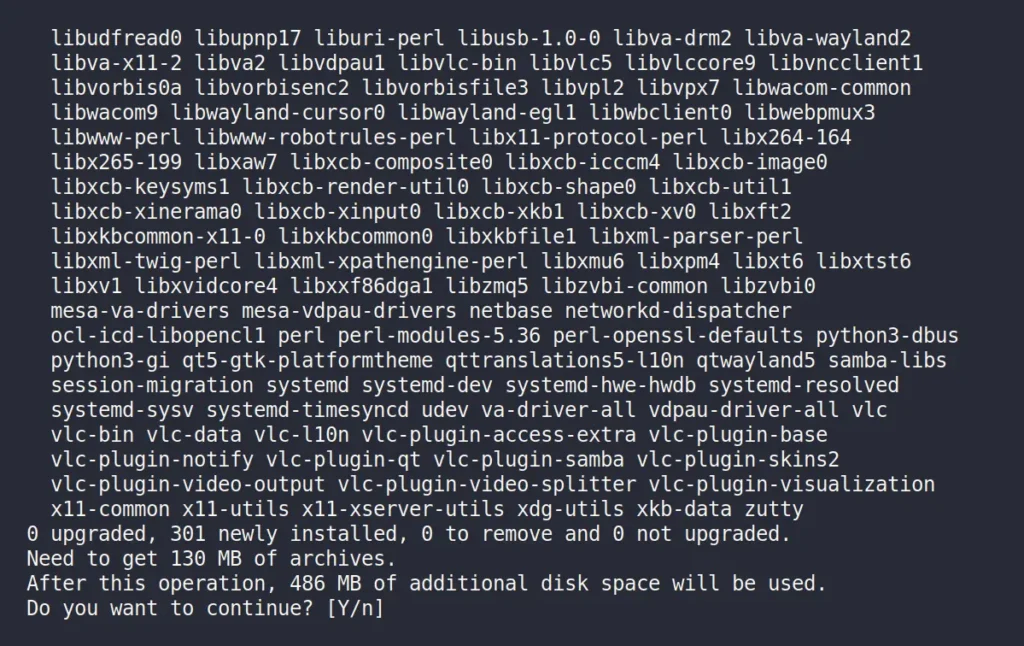
    $ sudo apt install vlc

    Output:

    install package inside distrobox container

    Creating a Host App Launcher for a DistroBox App

    Once the installation of your favorite application is completed, whether it’s CLI or GUI, you can access it by executing its command or application name inside your DistroBox container terminal.

    Otherwise, if it’s a GUI application and you want to access it as a native program on your host distribution, then run the following command inside your DistroBox container.

    📝
    Replace “vlc” with the program you have installed and want to access on the host distribution.
    $ distrobox-export --app vlc

    Output:

    exporting application from distrobox container to host system

    Now, the exported application will be accessible from the host distribution application menu.

    accessing distrobox container program in host system

    This way, you can easily export numerous apps or binaries to your host system, and if you forget to keep track of them, simply run the following command to view the list of all exported apps and binaries.

    Ezoic
    $ distrobox-export --list-apps
    $ distrobox-export --list-binaries

    Output:

    checking the list of exported apps and binaries

    In the future, if you wish to remove the exported application from the host distribution, run the following command within the DistroBox container:

    $ distrobox-export --delete --app vlc

    Output:

    removing exported distrobox container application from host

    Listing DistroBox Instances

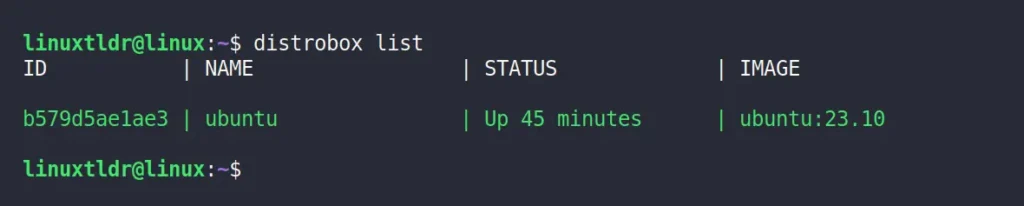
    If you are running multiple DistroBox instances, you can monitor their status by running the following command:

    $ distrobox list

    Output:

    listing all running distrobox instance

    Stop and Remove DistroBox Instances

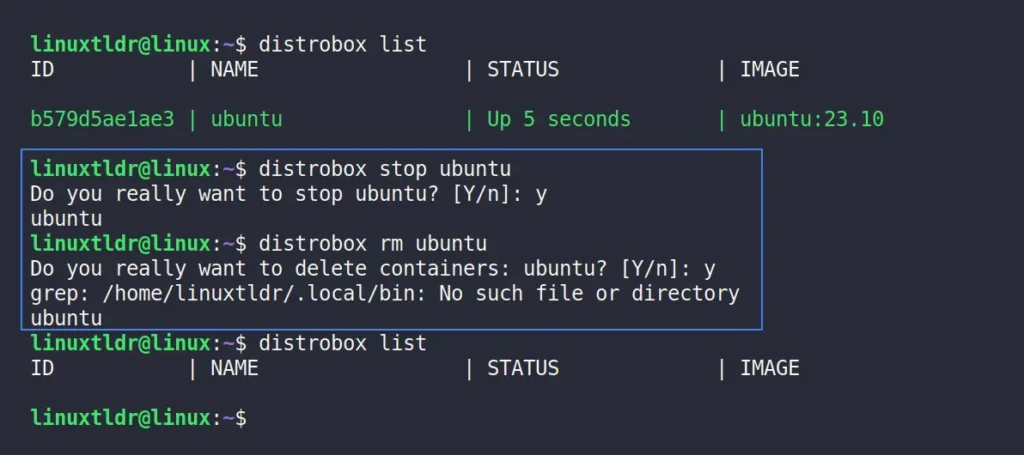
    To stop the running DistroBox container, specify its name with the following command:

    $ distrobox stop ubuntu

    And later, to remove the container image, run.

    $ distrobox rm ubuntu

    Output:

    stopping and removing the distrobox container

    How to Remove DistroBox from Linux

    Finally, this article would be incomplete without detailing the steps for removing DistroBox. Therefore, if you have installed it from your distribution repositories, you can use your default package manager to uninstall it.

    However, if you have installed it using the command mentioned in this article, then proceed to run the following command if DistroBox has been installed with superuser privileges.

    $ curl -s https://raw.githubusercontent.com/89luca89/distrobox/main/uninstall | sudo sh

    Or run the following command if you have installed DistroBox without superuser privileges.

    $ curl -s https://raw.githubusercontent.com/89luca89/distrobox/main/uninstall | sh -s -- --prefix ~/.local

    Final Word

    As you can see, DistroBox is simple to learn, fun to use, and definitely helpful in certain scenarios. I’ve been using it for a while to test new features of upcoming distributions, and to be honest, I love it.

    Ezoic

    If you have any questions or queries related to the topic, then do let me know in the comment section.

    Till then, peace!


    What is the ERR_CONNECTION_RESET Error and how to fix it?

    $
    0
    0

    https://www.rosehosting.com/blog/fix-err_connection_reset-error

    What is the ERR_CONNECTION_RESET Error and how to fix it? 

    How to fix ERR_CONNECTION_RESET error

    In this tutorial, we are going to explain what the ERR_CONNECTION_RESET error is and how to fix it. This issue occurs when the connection between the browser and the website (server) unexpectedly closes. The terminated connection is due to the server terminating the session before completing the data transfer. In other words, the browser sent a request to the server, and the server retrieved the website but terminated the session before the data was transmitted completely. Since the data is incomplete, the browser receives data that is not usable and displays the error.

    In the following paragraphs, we will explain what exactly causes this error in the Chrome browser and what steps may be applied to fix it. Let’s get started!

    Table of Contents

    What causes the ERR_CONNECTION_RESET error?

    There are multiple reasons for this error, such as an unstable internet connection, weak WiFi signal, or damaged ethernet cable that can interrupt the connection during data transmission. Also, there may be some DNS issues, such as misconfigured DNS settings, outdated DNS cache, corrupt cache or cookies, outdated drivers, etc. The following paragraphs will explain some steps to resolve the issue and make the website accessible again.

    Step 1. Check the Internet Connection

    The err_connection_reset is a client-side error. So, the first thing to check is the Internet connection. Restart the Wi-Fi, re-plug the Ethernet cable, or try with another Internet provider. If you can access other websites, such as YouTube or Facebook, and the website you want to access is still inaccessible, go to the next step.

    Step 2. Check the website accessibility from multiple locations

    If you are sure everything is OK with your Internet, the next step is to check if the website is accessible from multiple locations worldwide using some online tools, like GeoPeeker. If the website is not accessible, then the issue is related to the server, and you have to wait for the hosting company to fix it. Otherwise, you should go to the next step since it relates to your browser.

    Step 3. Check the VPN

    Using a VPN sometimes can cause not accessing some websites over the Internet. This is related to the virtual private network itself, and you can try to disable it temporarily. If you can access the website, the issue is related to the VPN, and you can try to use another VPN or not even use it at all. If the website is still inaccessible, the issue is related to something else, and you must proceed to the next step.

    Step 4. Clear the web browser cache, cookies, and history

    Clearing the website browser cache, cookies, and history may solve the issue because the browser stores a copy of the content in its cache. Storing the website in the cache improves the website’s performance when accessed, but outdated cached content may cause these kinds of issues and throw the err_connection_reset issue. Clearing your browser’s cache and cookies means that website settings (like usernames and passwords) will be deleted, and some sites might appear to be a little slower because all of the images must be loaded again. To clear the web browser cache in Chrome, follow the next steps:

    1. Open Chrome, click on the Three Dots at the top right, select More Tools, then Clear Browsing Data.

    2. In the “Clear browsing data” box, click the checkboxes for Cookies and other site data and Cached images and files.

    3. Use the menu at the top to select the data you want to delete. Choose the beginning of time to delete everything.

    4. Click Clear browsing data.

    If you can not access the website, go to the next step.

    Step 5. Check the Proxy server

    A proxy server bridges the connection between the browser and the server. If there are some blocking rules, the website won’t be reached, and the error err_connection_reset will be thrown. You can disable the proxy server to access the website without bridget connections. You can proceed to the next step if the website is still inaccessible.

    Step 6. Check the Firewall or Antivirus Settings

    A too “aggressively” configured firewall or antivirus program may block the connection to a safe and secure website. Temporarily disabling the Antivirus program or firewall will tell you if the issue is related to the blocked connection. If the website is still inaccessible, enable the Firewall for protection and move on to the next step.

    Step 7. Reset the Network Settings

    By resetting the network settings, we mean resetting the TCP/IP settings, which define the routes through which the browser communicates with other systems, such as the destination server. If something is wrong with the configuration and you cannot detect it, we recommend resetting it to the default configuration. Resetting the TCP/IP settings differs in every OS, which will be explained below.

    Windows: Open the cmd as an administrator and type the following commands one by one:

    netsh winsock reset
    
    netsh int ip reset
    
    ipconfig /release
    
    ipconfig /renew
    
    ipconfig /flushdns
    

    MacOS: To reset the TCP/IP settings, follow the steps below:

    1. Click the Apple icon on the top left corner of your screen, then go to System settings.

    Need a fast and easy fix?
    ✔ Unlimited Managed Support
    ✔ Supports Your Software
    ✔ 2 CPU Cores
    ✔ 2 GB RAM
    ✔ 50 GB PCIe4 NVMe Disk
    ✔ 1854 GeekBench Score
    ✔ Unmetered Data Transfer
    NVME 2 VPS

    Now just $43 .99
    /mo

    GET YOUR VPS

    2. Choose Network from the sidebar

    3. Select your active internet connection, then Details, and Go to TCP/IP on the side menu.

    4. Click Renew DHCP leases and press OK

    Linux: In the terminal, execute the following command:

    sudo systemctl restart systemd-networkd.service
    

    That’s it. These were some basic steps to solve the err_connection_reset error. Of course, you can always contact our technical support if you have an active service with us. We will help you with any aspect of your website. We are available 24/7.

    You’ve fixed the ERR_CONNECTION_RESET Error.

    That was all for this tutorial. You’ve learned how to handle the ERR_CONNECTION_RESET error and should no longer have this issue. However, if all of this is still above your head or you’re too busy to mess around, you can simply grab any of our hosting plans and have our team fix it for you. We’re available 24/7, and you can contact one of our level 3 Linux support specialists instantly using our live chat.

    If you liked this post, what is the err_connection_reset error, and how can it be fixed? Please share it with your friends on social networks or leave a comment in the comments section. Thank you.


    How to Permanently Change Docker Directory Permissions on Linux

    $
    0
    0

    https://www.tecmint.com/docker-folder-permissions-linux

    How to Permanently Change Docker Directory Permissions on Linux

    Docker is a powerful tool that allows you to run applications in isolated environments called containers. However, sometimes you may need to change the permissions of Docker folders to ensure that your applications can access the necessary files and directories.

    This article will guide you through the process of permanently changing Docker folder permissions on a Linux system.

    Understanding Docker Folder Permissions

    By default, Docker stores its data, including images, containers, and volumes, in specific directories on your Linux system. The most common directory is /var/lib/docker.

    The permissions of these folders determine who can read, write, or execute files within them. If the permissions are too restrictive, your applications may not function correctly.

    Why Change Docker Folder Permissions?

    There are several reasons why you might need to change Docker folder permissions:

    • You may want to restrict or grant access to specific users or groups.
    • Some applications require specific permissions to function correctly.
    • Adjusting permissions can help secure your Docker environment.

    Steps to Permanently Change Docker Folder Permissions

    Changing Docker folder permissions permanently involves modifying the ownership and permissions of the Docker directories.

    Here’s how you can do it:

    Step 1: Identify the Docker Directory

    First, you need to identify where Docker stores its data, the default location is /var/lib/docker and you can confirm this by running the following command:

    docker info | grep "Docker Root Dir"

    This command will output the Docker root directory, which is typically /var/lib/docker.

    Step 2: Stop the Docker Service

    Before making any changes, you need to stop the Docker service to prevent any conflicts or data corruption using the following systemctl command:

    sudo systemctl stop docker
    

    Step 3: Change Ownership of the Docker Directory

    To change the ownership of the Docker directory, use the chown command. For example, if you want to change the ownership to a user named john and a group named docker, you would run:

    sudo chown -R john:docker /var/lib/docker
    

    The -R option ensures that the ownership change is applied recursively to all files and subdirectories within the Docker directory.

    Step 4: Change Permissions of the Docker Directory

    Next, you need to change the permissions of the Docker directory by using the chmod command. For example, to give the owner full permissions and the group read and execute permissions, you would run:

    sudo chmod -R 750 /var/lib/docker
    

    Here, 750 means:

    • 7for the owner: read, write, and execute permissions.
    • 5for the group: read and execute permissions.
    • 0for others: no permissions.

    After changing the ownership and permissions, restart the Docker service to apply the changes:

    sudo systemctl start docker
    

    Finally, verify that the changes have been applied correctly by checking the ownership and permissions of the Docker directory using the following command:

    ls -ld /var/lib/docker
    

    This command will display the ownership and permissions of the Docker directory.

    Making the Changes Permanent

    The changes you made to the Docker folder permissions will persist across reboots. However, if Docker updates or reinstalls, the permissions might revert to the default settings.

    To ensure that the changes are permanent, you can create a systemd service or a cron job that applies the permissions every time the system starts.

    Option 1: Using a Systemd Service

    Create a new systemd service file.

    sudo nano /etc/systemd/system/docker-permissions.service
    

    Add the following content to the file.

    [Unit]
    Description=Set Docker folder permissions
    After=docker.service
    
    [Service]
    Type=oneshot
    ExecStart=/bin/chown -R john:docker /var/lib/docker
    ExecStart=/bin/chmod -R 750 /var/lib/docker
    
    [Install]
    WantedBy=multi-user.target
    

    Save the file and enable the service to run at boot.

    sudo systemctl enable docker-permissions.service
    

    Option 2: Using a Cron Job

    Open the crontab editor.

    crontab -e
    

    Add the following line to the crontab file to apply the permissions at every reboot.

    @reboot /bin/chown -R john:docker /var/lib/docker && /bin/chmod -R 750 /var/lib/docker
    

    Save and close the file.

    Conclusion

    Changing Docker folder permissions on Linux is a straightforward process that can help you manage access control, meet application requirements, and enhance security.

    By following the steps outlined in this article, you can permanently change the ownership and permissions of Docker directories, ensuring that your Docker environment functions smoothly and securely.

    Remember to verify the changes and consider using a systemd service or cron job to make the changes permanent.


    How to Expose Localhost to the Internet Using Bore

    $
    0
    0

    https://ubuntushell.com/install-bore

    How to Expose Localhost to the Internet Using Bore

    Bore is a free and open-source command-line utility written in Rust that aims to allow users to expose a local port to the internet without needing port forwarding.

    The default bore.pub address will be given with a dynamic port number referring to your local port, but you can request a specific static port number only if it's available.

    The best way I find to use Bore is to use the same command-line tool to self-host your own Bore instance on a VPS or server, and then assign a domain to that system. Later, you can use that domain to expose a local port to the internet with any port number you desire without worrying about port availability.

    Ezoic

    In this article, I'll show you how to use and expose localhost to the internet using Bore with a public instance of the Bore server running at bore.pub and later learn to setup your own Bore instance in one line of command.

    How to Expose Localhost to the Internet Using Bore

    1. The first step is to install the Bore on your system; it's written in Rust, which allows installation via Cargo (a Rust package manager) or Brew on Linux and macOS.

    • Install Bore using Cargo
    • cargo install bore-cli
    • Install Bore using Brew
    • brew install bore-cli

    2. Once the installation is complete, you can export a local port to the internet with a bore.pub address. For example, the following command will port forward an 80 Apache port to the internet.

    Ezoic
    • bore local 80 --to bore.pub

    Output:

    port forwarding the local 80 port to the internet using bore in ubuntu

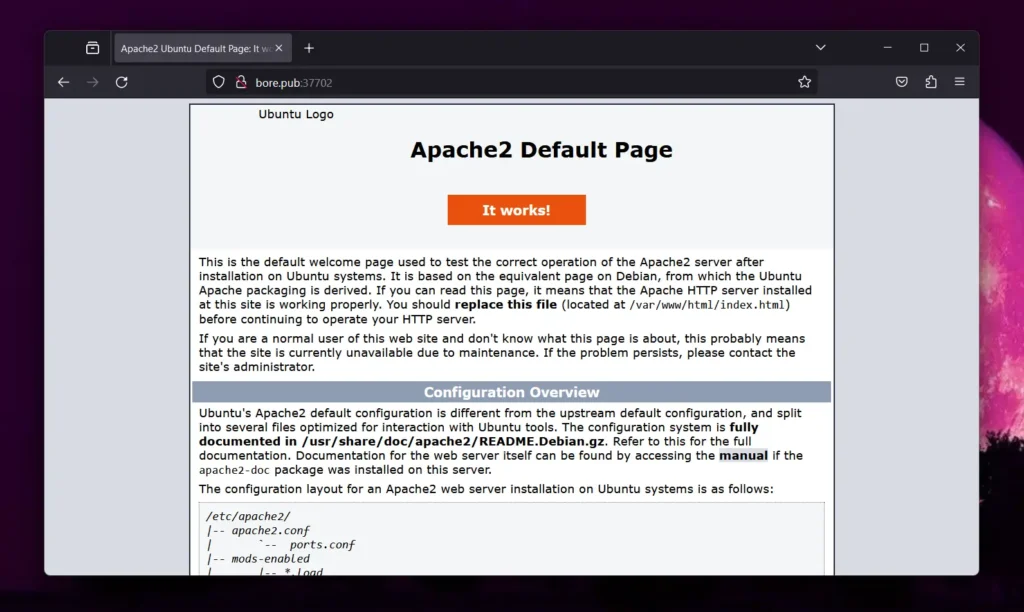
    3. In the previous command, the address with a dynamic port allocated to me is bore.pub:37702, which can be accessed anywhere using any browser as long as the bore command is running.

    accessing the local exposed port using the bore via the internet in firefox browser

    4. As you've seen, you're assigned to a random port number on the bore.pub instance. However, you can use the -p <port-number> flag to request a desired port number, but only if it's available.

    • bore local 80 --to bore.pub -p 8820

    Output:

    requesting custom port for the exposed local port on the internet in bore

    How to Setup Bore Instance on VPS or Server

    If the lack of port availability is annoying you while using the Bore public instance, you can set up a single self-instance for Bore on your VPS or server with a single command.

    All it takes to install the Bore using the previously mentioned command and then executing the following command:

    • bore server -s my-secret-key

    Output:

    Setting a bore instance on ubuntu vps

    Once the instance is ready, you can use the same system, another system on the network, or access it from elsewhere to expose your localhost to the internet by assigning your Bore instance a local IP or global IP (or domain), depending on the use case.

    • bore local 80 –-to <local-IP/global-IP/domain> -s my-secret-key

    How to Remove Bore

    To remove Bore from your system, execute one of the following commands based on the installation method you followed:

    • Remove Bore installed via Cargo
    • cargo uninstall bore-cli
    • Remove Bore installed via Brew
    • brew uninstall bore-cli


    Top Linux Networking Commands and Troubleshooting Tips

    $
    0
    0

    https://www.maketecheasier.com/top-linux-networking-commands-and-troubleshooting-tips

    Top Linux Networking Commands and Troubleshooting Tips

    Networking Commands Linux

    When I first started working with Linux networking, I was amazed by its powerful command-line tools. With just a few commands, I could configure, manage, and troubleshoot network connections effortlessly. This allows me to easily maintain system stability, monitor traffic, and ensure seamless communication. In this article, I’ll explore some of the most important Linux networking commands every administrator should know.

    Basic Network Connectivity Commands

    When dealing with computer networks, it’s important to diagnose connectivity problems and understand how data moves through the network. Luckily, a few simple commands can help us troubleshoot and gather key information quickly.

    1. Ping command

    If you want to check if a website or server is accessible, just use the ping command in your terminal. It sends ICMP echo request packets to the destination and shows response times if it’s reachable.

    For example, use the command:

    ping google.com

    to check the network connectivity to Google’s servers:

    Check network connectivity with ping command

    It’s a quick way to check network connectivity, but keep in mind that some servers block ICMP requests, so no response doesn’t always mean the server is down.

    2. Traceroute command

    The traceroute command in Linux shows the path a packet takes to reach its destination. It lists each hop along the way. By default, it traces up to 30 hops with a packet size of 60 bytes for IPv4 and 80 bytes for IPv6. The traceroute command is often used to identify slow or failing links in the path:

    Identify slow or failing links with Traceroute Command

    3. Tracepath command

    The tracepath command works like traceroute but is simpler and doesn’t need superuser privileges. It auto-detects the Maximum Transmission Unit (MTU) and spots packet size issues that could lead to fragmentation or transmission failures.

    For example, the command tracepath google.com traces packet routes, shows each hop, and detects network issues like latency, packet loss, and MTU size problems:

    Trace packet routes with tracepath Command

    4. Nslookup command

    The nslookup command is a network utility for querying Domain Name System (DNS) servers. It retrieves information about domain names, IP addresses, and other DNS records. It checks if a website’s address is correct and finds issues with DNS settings.


    For example, the nslookup google.com command queries the DNS server to find the IP address of google.com. It checks if the domain resolves correctly and can be useful for troubleshooting DNS issues:
    find the IP address with nslookup command

    Network Configuration and Interface Management Commands

    Managing network interfaces and settings is a key task for anyone working with Linux. There are plenty of commands to help, from modern tools like ip, nmcli, and ethtool to the older, now-deprecated ifconfig for legacy systems. These commands make it easy to configure and troubleshoot network connections.

    5. ip command

    The ip command is a common unified networking tool for managing network interfaces in modern Linux distributions. It replaces the older ifconfig and route commands and provides a unified way to manage IP addresses, routes, and interfaces.

    For example, we can run the ip a or ip addr show command to get all network interfaces along with assigned IP addresses:

    Get all network interfaces with ip command

    Similarly, we can use the ip command to assign or remove an IP address from an interface, enable or disable a network interface, display a routing table, and add or remove a route.

    6. Ifconfig command

    The ifconfig command was once used to manage network interfaces but is now mostly replaced by ip. However, some older Linux versions still support it. With ifconfig command, you can check active network interfaces, assign an IP address, bring an interface up or down, and change the MAC address of an interface.

    For example, running ifconfig without any flag returns the active network interfaces along with their configurations:

    Get active network interfaces

    7. Nmcli command

    The nmcli command manages network connections using NetworkManager. It’s especially useful for Linux systems with a graphical interface that depends on NetworkManager. Using this command, we can list available network connections, display network interfaces, connect to a Wi-Fi network, assign a static IP address, and restart the NetworkManager service.

    For example, the nmcli device status command returns the list of available network connections:

    Mange network connections with nmcli

    8. Ethtool command

    Need to check or modify your network card settings? That’s where ethtool comes in. It lets you view and adjust settings like speed, duplex mode, and driver details.

    For example, the ethtool enp0s3 command shows the Ethernet device information:

    Get ethernet device information with ethtool

    9. Checking Network Routes and ARP Tables

    Ever wondered how your system knows where to send network traffic? That’s where network routes and ARP tables come in. They help troubleshoot connectivity issues, optimize performance, and manage routing.

    In Linux, we can check routes with route and ip route commands. The route command was traditionally used to display and manipulate the kernel’s IP routing table. However, it has been replaced by ip route command:

    Check network routes with route and ip route commands

    Also, we can view connected devices using arp or ip neigh command. The arp command shows the system’s ARP table, which maps IP addresses to MAC addresses on the local network. The ip neigh command provides similar details but is a modern alternative. It supports both IPv4 and IPv6 and lists neighbor entries used for address resolution and communication:

    View connected devices using arp or ip neigh

    Monitoring Network Traffic and Performance

    Monitoring network traffic helps fix connection issues, track bandwidth use, and keep the network secure. For this purpose, Linux offers tools like netstat, ss, tcpdump, and iftop. Some check open connections, while others capture live network data.

    10. Netstat command

    The netstat command shows network connections, open ports, and routing details. While ss has replaced it, some older systems still use netstat.

    You can simply type netstat to get details about network connections, listening ports, and routing information:

    Get details about network connections

    Additionally, we can use options like -tulnp to show listening ports with process names, or -r to display routing tables.

    11. SS command

    The ss (socket statistics) command provides detailed information about sockets (connections). It is faster than netstat command. It is used to show active TCP connections, listening ports, processes using network connections, UDP connections, and connections to a specific port.

    For example, ss -ant command returns active TCP connections:

    get detailed information about sockets

    12. Tcpdump command

    The tcpdump command captures and analyzes network packets in real time. It is useful for diagnosing network issues and security monitoring.

    For example, the sudo tcpdump -i enp0s3 command captures all packets on the enp0s3 interface:

    Capture all packets on the enp0s3 interface using tcpdump

    Secure Network Configurations

    To secure your Linux network, disable unused interfaces and services, set up strong firewall rules with iptables or nftables, and use SELinux or AppArmor for extra protection. Encrypt traffic with VPNs, SSH, or TLS, and keep your system updated. Control access with hosts.allow and hosts.deny, secure SSH by disabling root login and using key-based authentication, and monitor activity with netstat, ss, or tcpdump. Finally, enforce strong passwords and use Fail2Ban to prevent unauthorized access.

    You can also monitor suspicious network activity in Linux using ss or netstat for unusual connections, and tcpdump for packet analysis. Enable firewall logging, check system logs (/var/log/syslog and /var/log/auth.log), and use fail2ban to block unauthorized access. Deploy IDS tools like Snort or Suricata for real-time threat detection.

    Don’t hesitate to experiment and troubleshoot issues. That’s the best way to learn and improve your skills.


    btop: A Modern and Resourceful System Monitor

    $
    0
    0

    https://www.tecmint.com/btop-system-monitoring-tool-for-linux

    btop: A Modern and Resourceful System Monitor

    btop is a highly customizable, real-time system monitor tool that provides users with an intuitive and visually appealing interface to monitor system resources.

    Developed by Aristocratos, btop is written in C++ and aims to provide a more modern alternative to traditional resource monitors like htop, glances, or bashtop (its predecessor).

    It offers a comprehensive overview (insights) of your system’s performance that includes CPU usage, memory consumption, disk activity, network bandwidth, and processes running on your system.

    Key Features of btop

    • It displays live updates of various system metrics such as CPU load, memory usage, disk I/O, and network traffic, which makes it ideal for diagnosing performance bottlenecks or keeping track of resource utilization during intensive tasks.
    • The interface is fully interactive and customizable, where users can rearrange panels, change color schemes, and configure what information is displayed based on their preferences.
    • In addition to monitoring, btop allows users to manage processes directly from its interface, where you can kill, renice (change priority), or inspect individual processes without needing to switch to another terminal window.
    • One of btop’s standout features is its graphical representation of data trends over time. For example, CPU usage, memory allocation, and network throughput are shown using dynamic graphs, making it easier to spot patterns or anomalies.
    • Users can choose from multiple built-in themes or create their own custom color schemes to personalize the appearance of the dashboard.

    How to Install btop in Linux

    btop can be installed on various Linux distributions using package managers or by building from source.

    Using Package Managers:

    sudo apt install btop         [On Debian, Ubuntu and Mint]
    sudo dnf install btop         [On RHEL/CentOS/Fedora and Rocky/AlmaLinux]
    sudo emerge -a sys-apps/btop  [On Gentoo Linux]
    sudo apk add btop             [On Alpine Linux]
    sudo pacman -S btop           [On Arch Linux]
    sudo zypper install btop      [On OpenSUSE]    
    sudo pkg install btop         [On FreeBSD]
    

    Building from Source:

    git clone https://github.com/aristocratos/btop.git
    cd btop
    make
    sudo make install
    

    How to Use btop in Linux

    Once installed, simply run the following command in your terminal to launch btop.

    btop
    

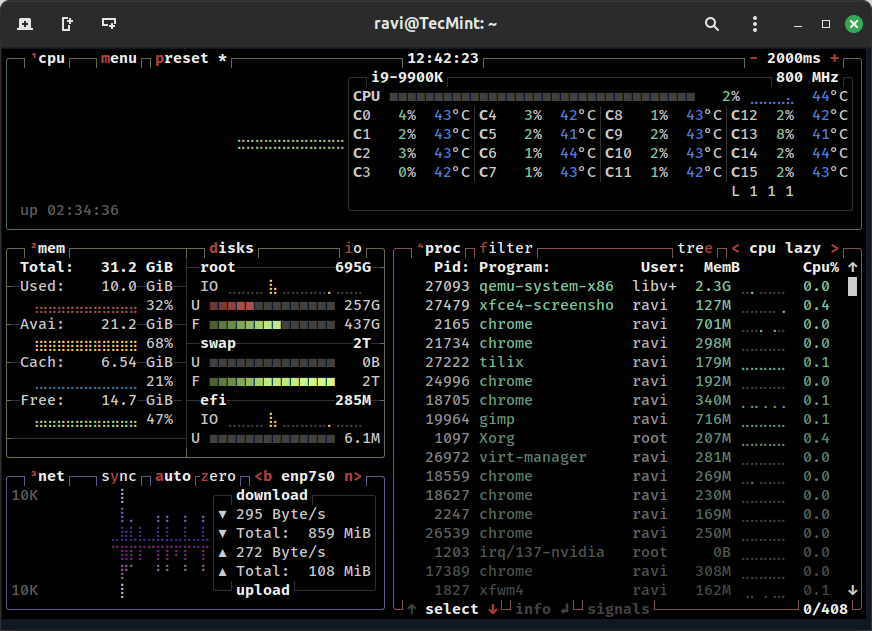
    Upon starting, you’ll see a clean, tabbed interface divided into sections for CPU, memory, disks, networks, and processes. Navigation is done using arrow keys, and actions like killing processes or changing settings can be performed interactively within the UI.

    btop - System Monitoring Tool
    btop – System Monitoring Tool

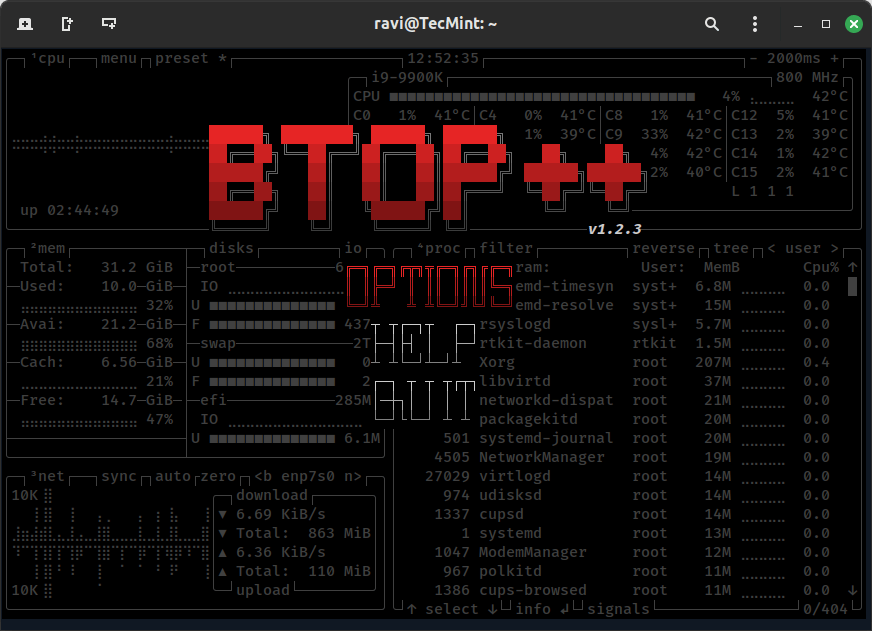
    When you press Esc or q, instead of quitting immediately, btop brings up an exit menu with three options:

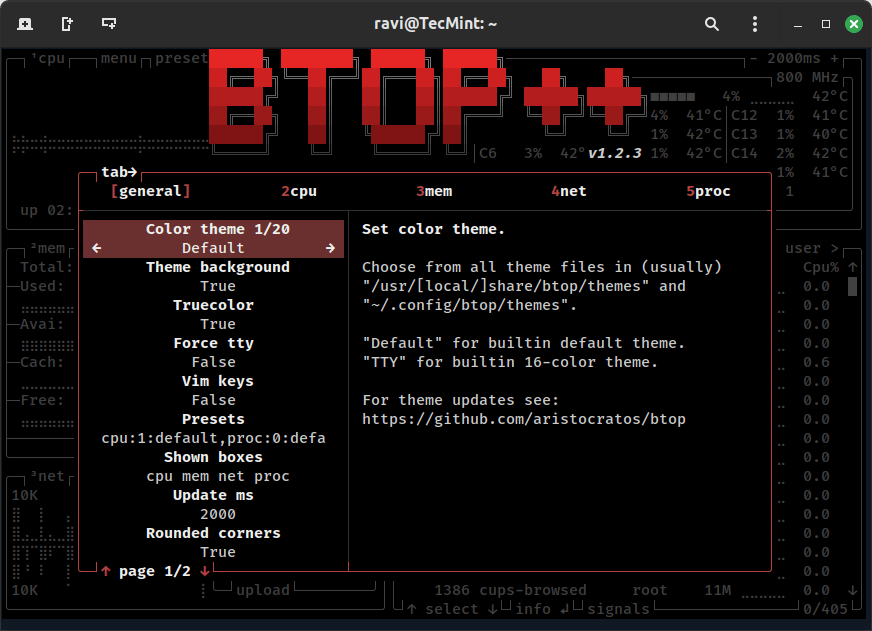
    • Options : Opens the settings menu where you can customize the interface, adjust colors, and configure other preferences.
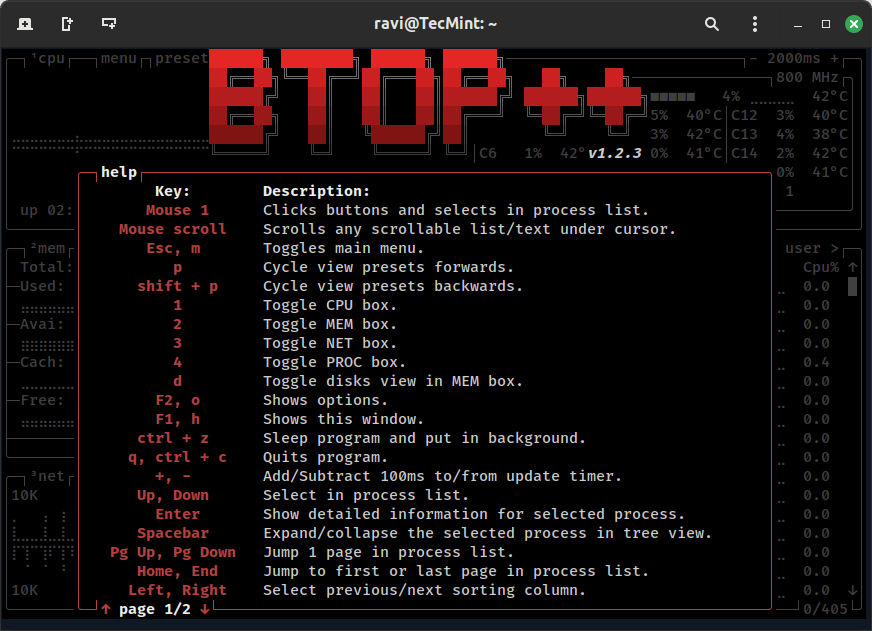
    • Help : Displays the help section, which includes keybindings and additional information about how to use btop effectively.
    • Quit : Exits btop entirely.
    Quit btop Tool
    Quit btop Tool
    btop Settings Menu
    btop Settings Menu
    btop Help Section
    btop Help Section

    Comparison with Other Tools

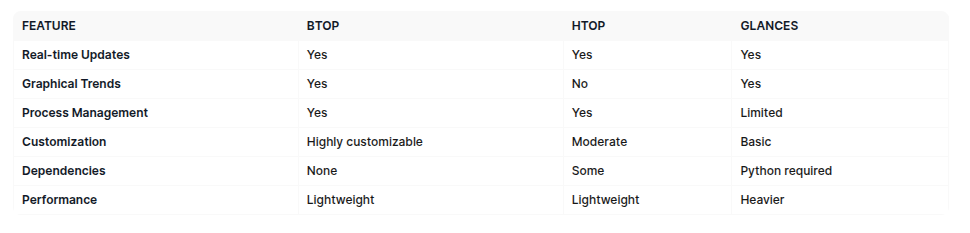
    While there are many system monitoring tools available, btop stands out due to its balance of aesthetics, efficiency, and ease of use.

    Here’s how it compares to similar tools:

    btop - Comparison with Other Tools
    btop – Comparison with Other Tools
    Conclusion

    btop is a versatile and efficient system monitoring tool that combines functionality with a user-friendly design.

    Its ability to present complex system data in an easy-to-understand format, coupled with its lightweight nature, makes it an excellent choice for developers, system administrators, and power users alike.

    With active development and community contributions, btop continues to evolve and improve, solidifying its position as one of the top system monitoring solutions available today.

    How to Install DeepSeek Locally with Ollama LLM in Ubuntu 24.04

    $
    0
    0

    https://www.tecmint.com/run-deepseek-locally-on-linux

    How to Install DeepSeek Locally with Ollama LLM in Ubuntu 24.04

    Running large language models like DeepSeek locally on your machine is a powerful way to explore AI capabilities without relying on cloud services.

    In this guide, we’ll walk you through installing DeepSeek using Ollama on Ubuntu 24.04 and setting up a Web UI for an interactive and user-friendly experience.

    What is DeepSeek and Ollama?

    • DeepSeek: An advanced AI model designed for natural language processing tasks like answering questions, generating text, and more. .
    • Ollama: A platform that simplifies running large language models locally by providing tools to manage and interact with models like DeepSeek.
    • Web UI: A graphical interface that allows you to interact with DeepSeek through your browser, making it more accessible and user-friendly.

    Prerequisites

    Before we begin, make sure you have the following:

    • Ubuntu 24.04 installed on your machine.
    • A stable internet connection.
    • At least 8GB of RAM (16GB or more is recommended for smoother performance).
    • Basic familiarity with the terminal.

    Step 1: Install Python and Git

    Before installing anything, it’s a good idea to update your system to ensure all existing packages are up to date.

    sudo apt update && sudo apt upgrade -y
    

    Ubuntu likely comes with Python pre-installed, but it’s important to ensure you have the correct version (Python 3.8 or higher).

    sudo apt install python3
    python3 --version
    

    pip is the package manager for Python, and it’s required to install dependencies for DeepSeek and Ollama.

    sudo apt install python3-pip
    pip3 --version
    

    Git is essential for cloning repositories from GitHub.

    sudo apt install git
    git --version
    

    Step 2: Install Ollama for DeepSeek

    Now that Python and Git are installed, you’re ready to install Ollama to manage DeepSeek.

    curl -fsSL https://ollama.com/install.sh | sh
    ollama --version
    

    Next, start and enable Ollama to start automatically when your system boots.

    sudo systemctl start ollama
    sudo systemctl enable ollama
    

    Now that Ollama is installed, we can proceed with installing DeepSeek.

    Step 3: Download and Run DeepSeek Model

    Now that Ollama is installed, you can download the DeepSeek model.

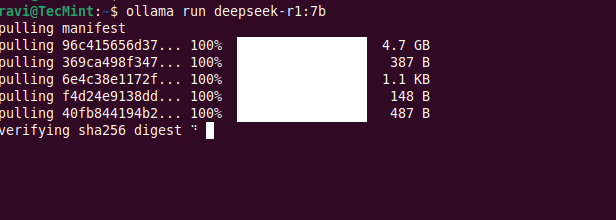
    ollama run deepseek-r1:7b
    

    This may take a few minutes depending on your internet speed, as the model is several gigabytes in size.

    Install DeepSeek Model Locally
    Install DeepSeek Model Locally

    Once the download is complete, you can verify that the model is available by running:

    ollama list
    

    You should see deepseek listed as one of the available models.

    List DeepSeek Model Locally
    List DeepSeek Model Locally

    Step 4: Run DeepSeek in a Web UI

    While Ollama allows you to interact with DeepSeek via the command line, you might prefer a more user-friendly web interface. For this, we’ll use Ollama Web UI, a simple web-based interface for interacting with Ollama models.

    First, create a virtual environment that isolates your Python dependencies from the system-wide Python installation.

    sudo apt install python3-venv
    python3 -m venv ~/open-webui-venv
    source ~/open-webui-venv/bin/activate
    

    Now that your virtual environment is active, you can install Open WebUI using pip.

    pip install open-webui
    

    Once installed, start the server using.

    open-webui serve
    

    Open your web browser and navigate to http://localhost:8080– you should see the Ollama Web UI interface.

    Open WebUI Admin Account
    Open WebUI Admin Account

    In the Web UI, select the deepseek model from the dropdown menu and start interacting with it. You can ask questions, generate text, or perform other tasks supported by DeepSeek.

    Running DeepSeek on Ubuntu
    Running DeepSeek on Ubuntu

    You should now see a chat interface where you can interact with DeepSeek just like ChatGPT.

    Step 5: Enable Open-WebUI on System Boot

    To make Open-WebUI start on boot, you can create a systemd service that automatically starts the Open-WebUI server when your system boots.

    sudo nano /etc/systemd/system/open-webui.service
    

    Add the following content to the file:

    [Unit]
    Description=Open WebUI Service
    After=network.target
    
    [Service]
    User=your_username
    WorkingDirectory=/home/your_username/open-webui-venv
    ExecStart=/home/your_username/open-webui-venv/bin/open-webui serve
    Restart=always
    Environment="PATH=/home/your_username/open-webui-venv/bin:/usr/local/sbin:/usr/local/bin:/usr/sbin:/usr/bin:/sbin:/bin"
    
    [Install]
    WantedBy=multi-user.target
    

    Replace your_username with your actual username.

    Now reload the systemd daemon to recognize the new service:

    sudo systemctl daemon-reload
    

    Finally, enable and start the service to start on boot:

    sudo systemctl enable open-webui.service
    sudo systemctl start open-webui.service
    

    Check the status of the service to ensure it’s running correctly:

    sudo systemctl status open-webui.service
    

    Running DeepSeek on Cloud Platforms

    If you prefer to run DeepSeek on the cloud for better scalability, performance, or ease of use, here are some excellent cloud solutions:

    • Linode– It provides affordable and high-performance cloud hosting, where you can deploy an Ubuntu instance and install DeepSeek using Ollama for a seamless experience.
    • Google Cloud Platform (GCP)– It offers powerful virtual machines (VMs) with GPU support, making it ideal for running large language models like DeepSeek.
    Conclusion

    You’ve successfully installed Ollama and DeepSeek on Ubuntu 24.04. You can now run DeepSeek in the terminal or use a Web UI for a better experience.

    How to Create a Read-Only User in PostgreSQL

    $
    0
    0

    https://vishalvyas.com/how-to-create-a-read-only-user-in-postgresql

    How to Create a Read-Only User in PostgreSQL

    Introduction

    When working with PostgreSQL, there are scenarios where you need to provide access to a database without granting modification rights. This is particularly useful for reporting, analytics, or when you want to expose data securely to external users or applications.

    In this article, we’ll walk through the process of creating a read-only user in PostgreSQL. We’ll also explain each command to ensure you understand what’s happening at each step.


    Steps to Create a Read-Only User in PostgreSQL

    1. Create a New User

    CREATE USER readonly_user WITH PASSWORD 'securepassword';
    

    This command creates a new PostgreSQL user named readonly_user with a specified password. Replace 'securepassword' with a strong password of your choice.

    2. Grant Connection Privileges

    GRANT CONNECT ON DATABASE mydatabase TO readonly_user;
    

    This allows the readonly_user to connect to the database named mydatabase. Without this privilege, the user won’t be able to access the database.

    3. Switch to the Target Database

    \c mydatabase
    

    This command switches to the database where you want to grant permissions. If you’re using a SQL query tool, make sure you’re connected to the correct database.

    4. Grant Schema Usage Permission

    GRANT USAGE ON SCHEMA public TO readonly_user;
    

    PostgreSQL databases can have multiple schemas. This command grants permission to use the public schema, which is the default schema where tables are stored.

    5. Grant Read-Only Access to All Tables

    GRANT SELECT ON ALL TABLES IN SCHEMA public TO readonly_user;
    

    This allows the readonly_user to read (SELECT) data from all tables within the public schema. However, it won’t allow modifications such as INSERT, UPDATE, or DELETE.

    6. Ensure Future Tables Have Read-Only Access

    ALTER DEFAULT PRIVILEGES IN SCHEMA public GRANT SELECT ON TABLES TO readonly_user;
    

    If new tables are added in the future, they will automatically inherit the SELECT permission for the readonly_user. Without this step, the user wouldn’t be able to query newly created tables.


    Conclusion

    Creating a read-only user in PostgreSQL is a simple yet crucial step for securely granting access to data without allowing modifications. By following the above steps, you ensure that your user has the necessary permissions to query the database while maintaining security and data integrity


    How to Enter Single User Mode in AlmaLinux 8/9

    $
    0
    0

    https://www.tecmint.com/almalinux-single-user-mode

    How to Enter Single User Mode in AlmaLinux 8/9

    Single user mode, also known as rescue mode, is a minimal environment in Linux that allows system administrators to perform maintenance tasks, troubleshoot issues, and recover from system failures.

    The single user mode is particularly useful when you need to reset the root password, fix misconfigured settings, repair a damaged file system, or investigate system errors that prevent normal booting.

    AlmaLinux 8 and 9, as RHEL-based distributions, provide an easy way to boot into single user mode through the GRUB bootloader.

    In this guide, we will explain step by step how to enter single user mode on AlmaLinux 8 and 9.

    What is Single User Mode?

    Single user mode is a special boot mode in Linux that allows a system to run with minimal services and only a root shell.

    Unlike normal multi-user mode, in single user mode:

    • Only the root user has access.
    • Networking services are disabled.
    • Only essential system processes are started.
    • The system runs in command-line mode without a graphical interface.

    Since the system is not fully operational in this mode, it is ideal for troubleshooting critical issues and making system-level changes.

    Step 1: Access the GRUB Boot Menu

    The first step to boot into single user mode is accessing the GRUB boot menu, which appears before the system starts up fully.

    If the system is already powered on, restart it using:

    reboot
    

    As soon as the system begins to reboot, press the “Esc” key (on some systems, it might be the Shift key).

    AlmaLinux Booting
    AlmaLinux Booting

    You will see a screen displaying a list of available kernels in the GRUB menu, you can now use the arrow keys to select the kernel version you want to modify boot settings.

    AlmaLinux Grub Menu
    AlmaLinux Grub Menu

    Once you have selected the kernel version, press 'e' to edit the boot configuration screen where you can modify the kernel parameters.

    AlmaLinux Kernel Parameters
    AlmaLinux Kernel Parameters

    Step 2: Modify the Kernel Boot Parameters

    Now, we need to add a special command to instruct the system to boot into single user mode instead of normal multi-user mode.

    Find the line that starts with linux or linuxefi (if your system uses UEFI boot).

    linux /vmlinuz-<version> root=/dev/mapper/almalinux-root ro quiet splash
    

    Go to the end of this line and add the following:

    systemd.unit=rescue.target
    
    Modify Kernel Parameters
    Modify Kernel Parameters

    After modification, press Ctrl + X or F10 to boot with the modified settings.

    Step 3: Boot into Single User Mode

    After you press Ctrl + X or F10, the system will begin booting into single user mode.

    • You will see a command-line interface instead of the normal login screen.
    • The system will prompt you for the root password (on some systems, it might not require one).
    • Once you enter the root password, you will have complete control over the system.
    AlmaLinux Single User Mode
    AlmaLinux Single User Mode

    Step 4: Perform System Maintenance

    Now that you are in single user mode, you can perform various system maintenance tasks.

    Here are some common actions you might need to take:

    1. Reset the Root Password

    If you forgot your root password, you can reset it using:

    passwd root
    

    Once changed, make sure to update the SELinux policy (if enabled) by running:

    touch /.autorelabel
    
    AlmaLinux Root Password Reset
    AlmaLinux Root Password Reset

    2. Check and Repair the Filesystem

    If your system is experiencing boot errors due to filesystem corruption, run:

    fsck -y /dev/mapper/almalinux-root
    

    This will check and attempt to fix errors on the root partition.

    3. Modify System Configuration Files

    If a misconfiguration is preventing normal boot, you can edit configuration files:

    vi /etc/fstab
    

    Make the necessary corrections and save the file.

    Once you have completed the necessary maintenance tasks, reboot the system to start normally.

    reboot
    

    Your system will now boot into its normal operating mode.

    Alternative: Boot into Emergency Mode

    If single user mode does not work or you need a lower-level troubleshooting environment, you can modify any existing boot parameters with the following:

    systemd.unit=emergency.target
    
    AlmaLinux Emergency Mode
    AlmaLinux Emergency Mode

    Emergency mode provides even fewer services than single user mode, which is helpful for deep troubleshooting.

    Example: Fixing a Corrupted fstab File

    If the /etc/fstab file (which controls how filesystems are mounted) is misconfigured or contains an incorrect entry, the system may fail to boot properly.

    Let’s say you manually edited /etc/fstab and added a wrong entry like this:

    /dev/sdb1 /mnt/data ext4 defaults 0 0
    

    But the partition /dev/sdb1 does not exist.

    What Happens?

    • If you boot normally, the system may hang during startup.
    • If you try single user mode, it may not load properly because /etc/fstab is read before reaching the shell.

    Solution: Boot into Emergency Mode

    Since emergency mode loads only the most essential services, it skips mounting filesystems incorrectly defined in /etc/fstab, allowing you to fix the issue.

    Conclusion

    Single user mode in AlmaLinux 8/9 is a powerful mode that allows administrators to reset passwords, repair filesystems, and fix configuration errors. By following these steps, you can safely boot into rescue mode and troubleshoot system issues efficiently.

    Nice and Renice Command in Linux with Examples

    $
    0
    0

    https://www.geeksforgeeks.org/nice-and-renice-command-in-linux-with-examples

    Nice and Renice Command in Linux with Examples

    In Linux, managing process priority is crucial for optimizing system performance, especially in environments where multiple processes compete for CPU resources. The nice and renice commands allow users to adjust the scheduling priority of processes, influencing how the Linux kernel allocates CPU time among them.

    • ‘nice’ Command: This command is used to start a new process with a specific priority, known as the “nice value.” A higher nice value lowers the process’s priority, while a lower (negative) nice value increases it. Processes with higher priority receive more CPU time.
    • ‘renice’ Command: Unlike nice, which sets the priority when starting a process, renice modifies the priority of an already running process. This flexibility allows system administrators to manage process priorities based on the current system load dynamically. 

    Working with ‘nice’ and ‘renice’ Command

    Here are some practical ways to use ‘nice’ and ‘renice’ commands to manage process priorities effectively:

    1. To check the nice value of a process. 

    To check the current nice value of a specific process, you can use the ‘ps’ command combined with ‘grep’:

    ps -el | grep terminal
    

    to-get-the-nice-value

    The eight highlighted value is the nice value of the process. 

    2. To set the priority of a process 

    To start a new process with a specific nice value, use the nice command:

    nice -10 gnome-terminal

    priority-with-nice

    This sets the nice value of the gnome-terminal process to ’10’, lowering its priority compared to processes with a nice value closer to ‘0’ or negative values.

    3. To set the negative priority for a process 

    To give a process higher priority by assigning a negative nice value, use:

    nice --10 gnome-terminal
    

    negative-priority-with-nice

    Negative nice values increase the process’s priority, allowing it to receive more CPU time. This is especially useful for critical tasks that need to run faster.

    4. Changing priority of the running process. 

    To modify the priority of an already running process, use the ‘renice’ command with the process ID (PID):

    sudo renice -n 15 -p 77982
    

    priority-of-running-porcess

    This will change the priority of the process with pid 77982. 

    5. To change the priority of all programs of a specific group. 

    You can also adjust the priority of all processes within a specific group by specifying the group ID (GID):

    renice -n 10 -g 4

    change-priority-of-group

    This command will set all the processes of gid 4 priority to 10, reducing their CPU time allocation.

    6. To change the priority of all programs of a specific user. 

    To change the priority of all processes belonging to a specific user, use the renice command with the user ID (UID):

    sudo renice -n 10 -u 2
    

    to-change-priority-of-all-process-of-specific-user

    This will set all the processes of user 2 to 10, making them lower priority.

    Conclusion

    The ‘nice’ and ‘renice’ commands in Linux provide powerful tools for managing process scheduling priorities, allowing system administrators and users to control how CPU resources are allocated among running processes. By understanding and using these commands effectively, you can optimize system performance, ensure critical applications receive the necessary resources, and maintain a balanced workload on your Linux system.


    How to Use Wildcards to Match Filenames in Linux

    $
    0
    0

    https://www.maketecheasier.com/use-wildcards-match-filenames-in-linux

    How to Use Wildcards to Match Filenames in Linux

    Linux Wildcard

    Finding files in Linux might seem confusing at first, but don’t worry, it gets easier once you understand wildcards. Wildcards are special symbols that help you select multiple files or folders without typing each name separately. In this article, we will explain how to use wildcards in Linux to match filenames effectively.

    1. Asterisk (*)

    The asterisk (*) is a Linux wildcard that matches zero or more characters in filenames or directory names. It helps in searching, listing, or manipulating multiple files at once. It is commonly used with commands like cp, mv, and rm to perform bulk operations.

    Matching files by extension

    We can execute the ls *.txt command to match all those filenames that end with .txt:

    linux command wildcards match files by extension

    Matching files by prefix

    If you need to list files that start with a word example, you can use the ls example* command:

    linux command wildcards Matching files by prefix

    Matching files by suffix

    To list or modify files that end with a certain pattern like “_1”, use ls *_ command:

    linux command wildcards Matching files by suffix

    Matching files containing a specific word

    We can match filenames containing a specific substring using the asterisk wildcard. For example, the ls *ample* command lists all those filenames that contain a substring “ample”:

    linux command wildcards matching using Substring

    Matching hidden files

    In Linux, hidden files start with a dot. We can use the ls .* command to list hidden files:

    linux command wildcards Match Hidden Files

    2. Question Mark (?)

    The question mark (?) wildcard is used to match a single character in a filename. It helps find files with names that follow a specific pattern but differ by one character. It is commonly used for finding or managing files with similar names but differing by a single character. For example, file?.txt matches “file1.txt,” “fileA.txt,” “fileB.txt,” etc.

    Matching files with any single character at a specific position

    We can use the question mark (?) wildcard to match filenames where a specific position can be any single character. For example, the ls file?.txt command matches any filename starting with file, followed by any single character, and ending with the .txt extension:

    linux command wildcards Match File Specific Character

    Matching files with a fixed number of characters

    We can use the ? wildcard multiple times to match a fixed number of characters in a file name. For example, the command ls example??.txt matches any file starting with a word example, followed by any two characters, and ending with the .txt extension:

    Match Fixed Characters

    Combining ? with * wildcard

    We can combine ? wildcard with * wildcard to perform some advanced pattern matching. For example, the pattern ?ile* matches filenames where the first character can be anything, followed by “ile”, and then any number of characters:

    linux command wildcards Combining multiple wildcards

    3. Bracket Expressions ([ ])

    Bracketed characters ([ ]) match any character enclosed within the square brackets. You can include various character types, such as letters, numbers, or special symbols, to define a specific matching set. For example, the ls [1ab]file.txt command lists all those files that start with 1, a, or b, followed by “file.txt”:

    Bracket Expansion

    4. Negation (!)

    We can also negate a set of characters using the ! symbol. For example, the ls file[!a-zA-Z] command lists all filenames that start with file, followed by any character except a letter (a-z or A-Z). It matches “file1,” “file_,” or “file@” but not “fileA” or “filez”:

    linux command wildcards Negating a set of characters

    5. Braces ({ })

    Braces ({ }), also known as range expansion, allow us to specify multiple comma-separated patterns. They expand into specific filenames instead of acting as a wildcard. For example, the command ls file{1,2,3}.txt is equivalent to ls file1.txt file2.txt file3.txt. It lists all these specific files if they exist:

    linux command wildcards Braces to specify multiple patterns

    6. Using Wildcards with Linux Commands

    We can use wildcards with various Linux commands like find, ls, cp, and rm to make file management easier by allowing pattern-based selection. For example, we use the find Documents -name "*.txt" command to locate all .txt files in the Documents directory:

    Wildcards With Linux Commands

    Similarly, we can use wildcards with any other Linux command to achieve a specific purpose.

    7. Using Wildcards with Case-Sensitive File Names

    Wildcards in Linux are case-sensitive, which means filenames with different letter cases are treated as distinct. To match both uppercase and lowercase variations, we can use character classes or case-insensitive options in commands.

    For example, we can use the ls [fF]ile.txt command to match both file.txt and File.txt:

    Case sensitive filenames

    So there you have it! Now you know how to use wildcards to make file management in Linux faster and easier. Whether you’re searching for files, organizing directories, or automating tasks, these wildcard techniques will save you time and effort.

    I recommend starting with * and ? since they’re the most commonly used. Then, experiment with bracket expressions and braces to refine your searches. Once comfortable, explore regular expressions for even more advanced pattern matching.


  • Linux Sed Tutorial: Learn Text Editing with Syntax & Examples

    $
    0
    0

    https://www.cyberciti.biz/faq/linux-sed-command-tutorial-for-text-editing-with-syntax-examples

    Linux Sed Tutorial: Learn Text Editing with Syntax & Examples

    Support independent creators and download the PDF version on Patreon!
    See all GNU/Linux related FAQ
    Sed is an acronym for “stream editor.” A stream refers to a source or destination for bytes. In other words, sed can read its input from standard input (stdin), apply the specified edits to the stream, and automatically output the results to standard output (stdout). Sed syntax allows an input file to be specified on the command line. However, the syntax does not directly support output file specification; this can be achieved through output redirection or editing files in place while making a backup of the original copy optionally. Sed is one of the most powerful tools on Linux and Unix-like systems. Learning it is worthwhile, so in this tutorial, we will start with the sed command syntax and examples.

    Using the sed editor to perform noninteractive editing

    • Sed is a stream editor.
    • For interactive text editing, you can use editors like vi/vim, nano, or emacs. But, sed is suitable for non-interactive file editing at the command-line interface (CLI) in your scripts or Dockerfiles.
    • By default, sed operates non-destructively. You need to specify output files to save changes or use a special GNU sed option to edit the file in place.
    • It provides regular expressions (regex) for powerful text manipulation.

    How does sed work?

    Sed works line-by-line. It will read each line into a pattern buffer, modify the line via sed commands, and then output the buffer to standard out (stdout), which can be redirected to another file. By default, the original file is not modified.
    How sed works on Linux - Linux Sed Tutorial For new Users

    The sed maintains two data buffers

    The sed command maintains two data buffers. Both are initially empty:

    1. Pattern buffer (active pattern space) : When sed reads a line-by-line from the input, it places that line into the pattern space. This is where text manipulation takes place. For example, you can use sed commands like s for substitute, d for delete, p for print. By default, the pattern space is cleared at the end of each line read cycle.
    2. Holding buffer (auxiliary hold space) : As the name suggests, a hold buffer acts as a hold space. It is a secondary buffer that sed uses for temporary storage. Think of it as a place to keep data you want to save and use later when processing a different line. You use this for advanced operations like a copy, append, compare, or retrieval command. Typical usage for holding buffer is finding duplicate lines in a sorted input file or concatenating multiple lines together for advanced editing. Unlike the pattern space, the hold space retains its content between cycles unless you explicitly change it. In other words, this allows you to store and recall information across multiple lines. You use specific sed commands (h, H, g, G, x) to move data between the pattern space and the hold space

    In short, the pattern space is where the immediate editing happens, and the hold space provides a way to save and recall information for more complex editing tasks. Standard input (stdin) is typically the keyboard, a file, or another data stream. Standard output (stdout) is typically the screen or a file.

    GNU Linux sed command syntax

    Typically GNU version of sed run as follows:

    sed'commands' input_file 
    sed'commands' input_file > output_file
    sed'commands' input_file | command2

    A more accurate syntax:

    sed[options][addresses] action [args]’ input_files [> outfile]sed[options][addresses] action [args]’ input_files [| command_2]

    You do not need to interact with the sed editor while running; therefore, it has also been called a batch editor. This contrasts with such editors as Vim (vi), emacs, nano, and ed, which are interactive. Because sed does not require interaction, you can place sed commands in a script. You can call the script file and run it against the data file to perform repetitive editing operations:

    sed SCRIPT input_file

    The GNU sed editing commands

    The most useful sed commands are inspired vi (vim) and ed, and 99% of users use them heavily:

    Table 1: The sed commands
    CommandDescription
    dDelete line
    pPrint line
    iInsert line
    rRead a file
    sSubstitutes one string for another (find and replace text in a file)
    wWrites to a file

    Apart from that GNU/sed command has few useful CLI options:

    Table 2: The GNU/sed CLI options
    CLI optionDescription
    -nSuppress automatic printing of pattern space
    i.e. the default output
    -f scriptReads sed commands from a script file
    -i {BACKUP}Edit file in place. This is most useful for
    Dockerfiles and other such usages.
    --posixDisable all GNU extensions for sed.
    This is useful when you are writing sed scripts for
    Unix, macOS, *BSD and Linux.
    -E or -rUse extended regular expressions in the script.

    The sed addressing

    Before we see practical examples, the last thing you need to understand is sed addressing, which states how you specify which lines of input should be affected by a sed command. The sed editor processes all input file lines unless you specify an address. This address can be a range of line numbers, a regular expression, or a combination of both. If you don’t provide any addresses, the sed command will be applied to every line of input.

    Types of addresses:

    1. Line numbers– You can specify a specific line number (e.g., 42) to target that line. You can use $ to represent the last line of the input or $ character represents the end of line (EOL) when used in a regex.
    2. Regular expressions (regex) – You can use regular expressions (e.g., /pattern/) to select lines that match a certain pattern. In short, only lines containing the pattern are edited.
    3. Address ranges– You can specify a range of lines using a combination of line numbers and/or regular expressions, separated by a comma (e.g., 100,200 or /word1/,/word2/).

    Examples

    Consider the following data.txt file and here is the header for your information:

    NAME|DOB|Location|Job Title|Salary $

    Random sample data displayed using the cat command or bat command:

    John Doe|1985-03-15|New York|Software Engineer|80000
    Aarav Patel|1990-06-21|Mumbai|Data Analyst|88000
    Jane Smith|1992-11-20|London|Data Scientist|95000
    David Lee|1978-07-08|Tokyo|Project Manager|110000
    Thandiwe Zulu|1993-04-03|Cape Town|Business Analyst|93000
    Li Wei|2002-07-25|Shanghai|AI Researcher|86000
    Priya Sharma|1987-01-14|Delhi|Software Tester|79000
    Sipho Nkosi|1976-11-29|Johannesburg|IT Manager|102000
    Sarah Jones|2001-05-02|Paris|Web Developer|75000
    Michael Brown|1969-12-25|Sydney|System Administrator|90000
    Emily Davis|1998-09-10|Berlin|UX Designer|85000
    Kevin Wilson|1975-04-30|Toronto|Database Admin|100000
    Jessica Garcia|2003-01-18|Rome|QA Tester|70000
    Kenji Kimura|1973-02-07|Kyoto|Systems Engineer|99000
    Brian Rodriguez|1982-08-22|Madrid|Network Engineer|92000
    Ashley Williams|1995-06-05|Amsterdam|Frontend Developer|78000
    Christopher Martinez|1972-10-12|Vienna|Security Analyst|98000
    Amanda Anderson|2000-02-28|Dublin|Mobile Developer|82000
    Matthew Thomas|1988-09-01|Stockholm|Cloud Architect|105000
    Elizabeth Jackson|1979-11-17|Helsinki|DevOps Engineer|97000
    Daniel White|2004-03-09|Copenhagen|Junior Developer|68000
    Zhang Lei|1984-05-11|Beijing|Cybersecurity Expert|94000
    

    Using sed to print (p command) text file data

    The following example illustrates how to use the p (print) command, which prints a range of lines to stdout. The range is specified by a starting address followed by a comma and the ending address. For example, try to print 5 to 8 lines:

    sed '5,8p' data.txt
    The default output of sed is each line that it reads. To hide or suppress the default output, use the -n option:

    sed -n'5,8p' data.txt

    Linux Sed Tutorial: Learn Text Editing - Printing text file

    Click to enlarge

    The following command prints all lines with the pattern Software, i.e., all matching lines with the word ‘Software‘ in them. Use the forward slash (/) to delimit the regular expression:
    sed -n '/Software/p' data.txt
    Outputs:Reading sed Commands From a File

    John Doe|1985-03-15|New York|Software Engineer|80000
    Priya Sharma|1987-01-14|Delhi|Software Tester|79000
    

    The I flag after a regular expression makes it case-insensitive pattern:

    sed -n '/software/Ip' data.txt

    Using Regular Expressions for Case-Insensitivity in Sed

    Click to enlarge

    The following sed command prints the first line containing the pattern David, up to and including the next line containing the pattern Emily i.e. print line between two matching words or pattern:
    sed -n '/David/,/Emily/p' data.txt
    The following sed command display the first line containing the pattern Ashley, up through the last line of the file using $ as the last line of the input:
    sed -n '/Ashley/,$p' data.txt
    In this example, save above sed command output to a text file named ‘output.txt’ in the current directory:
    sed -n '/Ashley/,$p' data.txt > output.txt
    Verify it:
    cat output.txt
    Please note that the pattern might contain the regular expression characters used by grep command. See the following page for more info on grep regex:

    Using sed to substitute text (find and replace with s command)

    The sed s command allows a search and substitution operation on the text. In other words, you can find a given “word” and replace it with a “new word.” The command uses a pattern search and a literal string replacement and metacharacter expansion is done. Say, find the word vivek in /etc/passwd and replace it with a word called mr_vivek:

    sed 's/vivek/mr_vivek/' /etc/passwd
    Let us find word Software and replace with SOFTWARE_JOB:

    sed 's/Software/SOFTWARE_JOB/' data.txt

    Using sed to Substitute Text Example

    Click to enlarge

    A note about saving sed command text manipulation

    There are two options. The first option to save the results of a sed command’s text manipulation to a file, you use output redirection as follows:

    sed 'command' INPUT > OUTPUT
    The > symbol redirects standard output (stdout) to a file. For, example:
    sed 's/Software/SOFTWARE_JOB/' data.txt > output.txt
    If you want to append the output to an existing file instead of overwriting it, use the >> symbol:
    sed 's/Software/SOFTWARE_JOB/' data.txt >> output.txt
    The second option for GNU/sed (the default version of sed on most Linux distros), you can use the -i option to edit the file directly in-place. This avoids the need for redirection and overwriting files. However, be cautious, as it modifies the original file. This is very useful for scripts and in your Docerkfiles:
    sed -i 's/old_word/new_word/' file.txt
    It is often a good practice to create a backup when using the -i option as follows:
    sed -i'BAK''s/old_word/new_word/' file.txt
    For instance:
    cp -v data.txt file.txt
    ls -l file*
    sed -i'.BAK''s/Software/SOFTWARE_JOB/' file.txt
    Verify it:
    ls -l file*

    diff file.txt file.txt.BAK

    In-Place Editing with GNU sed (saving file) command

    Click to enlarge

    The following sed command example shows the g (global) command flag with the s (search and substitute) command, and it replaces all occurrences of the ‘old’ word/string with the ‘new’ string or word:
    sed 's/old/new/g' input.txt
    sed 's/Software/SOFTWARE_JOB/g' data.txt
    The I flag makes it case-insensitive pattern for search and replace (s command):
    sed 's/software/SOFTWARE_JOB/Ig' data.txt
    Sometimes, when performing a search and replace, the old string may be included in the new replacement string. You can achieve this by placing an ampersand (&) in the replacement string. The position of the ampersand will determine where the old string appears within the new string. The syntax is:
    sed 's/old/& new/g' input
    In other words, the & in the replacement string of the sed s (substitute) command represents the entire matched portion of the pattern. This can be useful for adding text around or within a matched pattern without having to explicitly repeat the pattern itself. Here I’m adding * symbol around a word or pattern named ‘Vivek’:
    echo 'Hello, Vivek'
    echo 'Hello, Vivek' | sed 's/Vivek/*&*/'

    Hello, *Vivek*

    In this example, I’m prefixing $ for 1000 number:

    echo 'The price is 1000 for new MacBook air.' | sed 's/1000/\$&/'
    Outputs:

    The price is $1000 for new MacBook air.

    As I wrote, $ has a special meaning: “end of line.” If you want to match a literal dollar sign character within the sed, you need to escape it. The backslash (\) tells sed to treat the $ as a regular character, not as its special “end of line” metacharacter. So the sed command will find ‘old’ and replace it with ‘old new’ using ‘&’. Let us try to print salary column using egrep command:

    grep --color -E '([0-9]+)$' data.txt
    Now, I want to replace each salary number, such as 80000, as $80000:

    sed -E 's/([0-9]+)$/\$&/g' data.txt

    Adding Parentheses Around a Word using sed

    Click to enlarge

    Where,

    1. The sed command reads each line (sed ... data.txt) from the file data.txt.
    2. It matches the salary (([0-9]+)$): It identifies the sequence of digits at the end of the line (which represents the salary) and stores it using extended regex.
    3. Then it adds the dollar sign (\$&): It inserts a dollar sign ($) before the matched salary.
    4. Outputs the modified line: It prints the modified line to screen/stdout.

    A note about using shell variables within sed commands

    Using shell variables within sed commands adds dynamic behavior to your text processing. You must enclose your sed command in double quotes (“) to allow the shell to expand the variable within the command. For example:

    o_value=20000sed-i'.BAK'"s/10000/$o_value/g" php.conf

    This sed command will replace all occurrences of “10000” with the value of the $o_value variable which is “20000”. If you use single quotes (‘), the variable will not be expanded, and sed will try to match the literal string “$o_value“. You can use command substitution to dynamically generate the replacement text. For example:

    sed "s/current_directory/$(pwd)/g" file1.txt
    This sed command will replace “current_directory” with the output of the pwd command.

    Using a different character as the delimiter

    The default is / as the delimiter in subsitute command. You can change the delimiter:

    # Default delimiter is '/'sed's/OLD/NEW/' input_file
     
    # Set/Change the delimiter to '_'sed's_OLD_NEW_' input_file

    This is useful when your shell variable contains the delimiter itself. For example:

    # Variable contains the delimiter used in the sed s commandbak_path="/efs/www_static_cache" 
    # This will fail as $bak_path contains '/'sed"s/old_path/$bak_path/g" aws.nfs.config
     
    # To fix this issue change the delimiter to something elsesed"s+old_path+$bak_path+g" aws.nfs.config
    # OR #sed"s_old_path_$bak_path_g" aws.nfs.config

    Reading from a file for new text using the r command

    The “r” command in sed stands for “read.” It allows you to read the contents of a specified file and append those contents to the current pattern space i.e. the line being processed after a matched line. In other words, instead of inserting a line of text once, you might want to repeat the procedure several times, either in the same file or across multiple files. The “r” (read) command specifies a file name, and the contents of the file are inserted into the output after the lines specified by the address. The address may be a line number or pattern combination. For example, you have foo.txt and bar.txt. You want to insert the contents of bar.txt after a line in foo.txt that contains the word “Unix.”. Here is the sed command:

    ls -l bar.txt foo.txt

    cat bar.txt
    Outputs:

    **
    In Linux, every problem is solvable, and every solution is a new adventure.
    **

    Other file:

    cat foo.txt
    Outputs:

    Unix is basically a simple operating system, but you have to be a genius to understand the simplicity.
    FreeBSD is very nice.
    I like macOS.
    Debian is very nice for server.

    Here is the sed command:

    sed '/Unix/rbar.txt' foo.txt

    Sed Reading From a File for New Text

    Click to enlarge

    Using sed to delete text

    The following command deletes Lines 8 through 12 from the file:

    sed '8,12d' data.txt

    Deleting a specific line # 42:

    sed '42d' input.txt
    Deletes the 13the line and modifies input.txt using -i option:
    sed -i '13d' input.txt
    cat input.txt
    The following command deletes any line containing the pattern ‘Mumbai’:
    sed '/Mumbai/d' data.txt
    The I flag after a regular expression makes it case-insensitive pattern, in other words match MUMBAI, Mumbai, mumbai etc all:
    sed '/mumbai/Id' data.txt
    It is possible to deletes all empty lines, too:
    sed '/^$/d' my_file.txt
    Another example using the printf command and deleting all empty lines:
    printf "%s\n\n\n%s\n""This is a test""Last line"

    printf "%s\n\n\n%s\n""This is a test""Last line" | sed '/^$/d'

    Linux Sed Tutorial - Deleting empty lines with sed d command

    Click to enlage

    The following command deletes any line beginning with the pattern ‘Linux’:
    sed ’/^Linux/d’ input.txt
    The following sed command deletes the range of lines beginning with the first line containing the pattern FOO, up through the next line of the file containing BAR:
    sed '/FOO/,/BAR/d' filename.txt
    Here is how to delete the first three characters of each line:
    sed 's/^...//' input.txt
    sed 's/^...//' input.txt > output.txt
    Where sed the stream editor is used as follows. The main magic happens with 's/...//' which is the substitution command:

    • s/– Indicates the start of the substitution command.
    • ^– Matches the beginning of the line.
    • ...– Matches any three characters. The . (dot) matches any single character.
    • //– Replaces the matched four characters with nothing effectively deleting them.
    • input.txt– Specifies the input file.
    • > output.txt– Specifies the output file.

    Using sed to insert and append text

    The i command is used for inserting a line before a specified line. For example:

    sed '2i\FOO line will be inserted before line 2.' data.txt
    Here is how to insert multiple lines:
    sed '5i\
    FOO line\
    BAR line' data.txt

    The backslash escapes the newline character, allowing you to write the inserted line on the next line. You can also insert lines based on a pattern match. For instance:

    sed '/Mumbai/i\
    line will be inserted before the line containing "Mumbai".' data.txt

    The a command is used for inserting a line after a specified line:

    For example:

    sed '5a\
    This line will be inserted after line 5.' input.txt
    sed '5a\
    FOO line\
    BAR line' input.txt

    Same way, you can insert lines after a pattern match:

    sed '/Toronto/a\
    Line will be inserted after the line containing "Toronto".' data.txt

    Reading sed commands from a file

    Using a file to store sed commands can be very useful for complex editing tasks. The -f option in sed allows you to specify a file containing the sed commands. The syntax is:

    sed -f script.sed input_file.txt
    Multiple sed commands can be put in a file named ‘script.sed’ and executed using the -f option. When you place the commands in a file you:

    1. Do not use quotes around the action and address.
    2. Make sure that there is no trailing white space at the end of each line.

    Let us crate a script.sed with the commands in the script that:

    1. Delete the first two lines.
    2. Replace any instances of Software with Software_JOB
    3. Change any line that starts with Emily to Emilia

    cat script.sed
    Outputs:

    1,2d
    s/Software/Software_JOB/
    s/^Emily/Emilia/

    Run it as follows:

    sed -f script.sed data.txt

    Reading sed commands from a sed script file

    Click to enlarge

    Of course, you can save or update file in-place as follows:
    sed -i -f sed_commands.txt input.txt
    ## OR ##
    sed -f sed_commands.txt input.txt > output.txt

    How to execute multiple sed commands

    Try the following syntax when you want to execute multiple sed commands from the command line:

    sed -e 'command1' -e 'command2' input_file
    sed -e 'command1' -e 'command2' input_file > output_file
    In this example, you are replacing multiple patterns using the -e CLI option:

    sed -e 's/BSD/macOS/g' -e 's/Unix/Linux/g' input.file > output.file
    This command replaces all occurrences of “BSD” with “macOS” and then all occurrences of “Unix” with “Linux” in input.file and stores output to output.file.

    Using sed to write output files

    The sed command itself has a w command that allows you to write specific lines or patterns to a file. For exammple:

    sed '/pattern/w output.txt' input.txt
    The w command allows a specific sed command to write the output to a given file names. Different sed commands can write to different files. For instance:

    cat demo.sed
    Outputs:

    /Delhi|Mumbai/w india.office.txt
    s/^Emily/Emilia/w emily.typo.txt

    Run it as follows:

    sed -E -n demo.sed data.txt
    ls -l *.txt
    cat india.office.txt

    cat emily.typo.txt
    Using sed to write text file

    How to use sed in your Dockerfile

    The sed syntax is same as the CLI, say you want to edit 10000 with 20000 in /etc/env.conf while building containers and apps, you need to add the following in your Dockerfile:

    RUN sed-i'.BAK''s/^10000/20000/'/etc/env.conf

    The RUN instruction in a Dockerfile is prinary for executing commands within your Docker image during the build process. It’s used to install software, configure settings, and perform any other necessary actions to prepare your image using sed, awk and other tools. Here is another example for Dockerfile where first some variables set and then file is updated:

    ENV LC_ALL=en_US.UTF-8
    ENV LANG=en_US.UTF-8
    ENV LANGUAGE=en_US.UTF-8
    RUN sed-i"s/^# $LANG/$LANG/"/etc/locale.gen; \
        locale-gen

    Using sed with shell scripts

    You can simply call the sed command. The syntax is:

    #!/usr/bin/evn bashecho"Starting setup ..."# Call sed to edit the config filesed-i'.BAK''command' some_config.file
    # Example:sed-i'.factory'-e's/;Interface ""/Interface "eth0"/g'/etc/vnstat.conf
    echo"Setup done..."

    In this example, I’m editing the php fpm web server file using the sed command to configure it:

    #!/bin/bashset-eprofile="$1" 
    if[-f"$profile"]thenecho"*** Using $profile file ..."source"$profile"# Config PHPsed-i'.factory'-e"s+listen = 127.0.0.1:9000+listen = ${php_fpm_sock_path}+" \
            -e's/user = nobody/user = nginx/' \
            -e's/group = nobody/group = nginx/' \
            -e's/;listen.owner = nobody/listen.owner = nginx/' \
            -e's/;listen.group = nobody/listen.group = nginx/' \
            -e's/;rlimit_files = 1024/rlimit_files = 655350/' \
            -e's/pm.max_children = 5/pm.max_children = 300/' \
            -e's/pm.start_servers = 2/pm.start_servers = 100/' \
            -e's/pm.min_spare_servers = 1/pm.min_spare_servers = 100/' \
            -e's/pm.max_spare_servers = 3/pm.max_spare_servers = 200/' \
            -e's/;pm.max_requests = 500/pm.max_requests = 500/'"$php_fpm_www_conf"elseecho"Error - $0 - '$profile' profile file not found. Set correct profile file."exit1fi

    Summing up

    That concludes our tutorial on using sed in Linux. I strongly recommend reading the GNU sed documentation online or by typing the following info command/man command command:

    man sed
    The next time, I will cover the sed holding space tutorial.


    How to Install Portainer CE with Docker on Linux

    $
    0
    0

    https://www.tecmint.com/install-portainer-ce-with-docker-on-linux

    How to Install Portainer CE with Docker on Linux

    Managing Docker containers using the command line can be challenging, especially for beginners, which is why Portainer CE (Community Edition) is a free, lightweight, and user-friendly tool that simplifies Docker management by providing a web-based interface, allowing you to efficiently manage containers, images, networks, and volumes without manually running long terminal commands.

    In this guide, you will learn how to install and configure Portainer CE with Docker on a Linux system.

    Prerequisites

    Before you begin, make sure you have:

    • A Linux system (Ubuntu, Debian, RHEL, or any other Linux distribution).
    • A user account with sudo privileges.
    • Docker installed on your system.

    If Docker is not installed, follow the steps below to install it.

    Step 1: Install Docker on Linux

    Portainer runs as a Docker container, so you need Docker installed first, follow the steps below based on your Linux distribution.

    Install the latest Docker version on Debian-based distributions such as Ubuntu and Mint:
    sudo apt update
    sudo apt install -y ca-certificates curl gnupg
    sudo install -m 0755 -d /etc/apt/keyrings
    curl -fsSL https://download.docker.com/linux/ubuntu/gpg | sudo tee /etc/apt/keyrings/docker.asc > /dev/null
    echo "deb [arch=$(dpkg --print-architecture) signed-by=/etc/apt/keyrings/docker.asc] https://download.docker.com/linux/ubuntu $(lsb_release -cs) stable" | sudo tee /etc/apt/sources.list.d/docker.list > /dev/null
    sudo apt update
    sudo apt install -y docker-ce docker-ce-cli containerd.io
    

    For RHEL-based systems (CentOS, AlmaLinux, Rocky Linux, Fedora):

    sudo dnf config-manager --add-repo https://download.docker.com/linux/centos/docker-ce.repo
    sudo dnf install -y docker-ce docker-ce-cli containerd.io
    

    By default, Docker requires root privileges, which is inconvenient, so enable non-root users to run Docker commands without sudo.

    sudo usermod -aG docker $USER
    newgrp docker
    

    Once installed, enable Docker to start on boot and start the service.

    sudo systemctl enable --now docker
    sudo systemctl start docker
    

    Verify the installation.

    docker run hello-world
    docker --version
    
    Check Docker Version
    Check Docker Version

    Step 2: Create a Docker Volume for Portainer

    Portainer requires a volume to store persistent data, such as container information and settings, so create a new Docker volume for Portainer, run:

    docker volume create portainer_data
    

    You can verify the created volume using.

    docker volume ls
    
    List Docker Portainer Volume
    List Docker Portainer Volume

    Step 3: Install and Run Portainer CE

    Now, you need to pull the latest Portainer CE Docker image and run it as a container.

    docker run -d -p 8000:8000 -p 9443:9443 --name portainer --restart=always -v /var/run/docker.sock:/var/run/docker.sock -v portainer_data:/data portainer/portainer-ce:lts
    
    Install Portainer Server Container
    Install Portainer Server Container

    After running the Portainer container, open a web browser and access Portainer using your server’s IP address or localhost (if running locally).

    https://your-server-ip:9443
    OR
    https://localhost:9443
    

    Your browser may show a security warning because Portainer uses a self-signed SSL certificate, so click on Advanced> Proceed to site to continue.

    Access Portainer Web Interface
    Access Portainer Web Interface

    When you open Portainer for the first time, it will prompt you to create an admin account.

    Create Portainer Admin Account
    Create a Portainer Admin Account

    After setting up your admin account, you will see options to connect Portainer to an environment.

    Choose Portainer Environment Type
    Choose Portainer Environment Type

    Once connected, you will see the Portainer dashboard, where you can manage containers, images, networks, and volumes.

    Portainer Web Dashboard
    Portainer Web Dashboard

    To confirm that Portainer is running correctly, use the following command:

    sudo docker ps
    
    Verify Portainer Installation
    Verify Portainer Installation

    Step 4: Managing Containers Using Portainer

    Now that Portainer is installed and running, let’s see how you can use it to deploy and manage an Nginx container, which will help you understand how to create, start, stop, and manage containers easily through Portainer’s web interface.

    On the dashboard, click on Containers from the left sidebar and click on the + Add container button.

    Add Docker Container
    Add Docker Container

    Configure the Container by adding:

    • Container Name: nginx-webserver
    • Image: nginx:latest
    • Set the host port as 8080
    • Set the container port as 80
    • Scroll down and click Deploy the container.
    Create Docker Container
    Create Docker Container

    Wait a few seconds while Portainer pulls the nginx:latest image and start the container. Once the container is deployed, it will appear in the Containers list with a green running status.

    Verify Docker Container
    Verify Docker Container

    Once the container is running, open your web browser and visit.

    https://your-server-ip:8080
    OR
    https://localhost:8080
    

    You should see the Nginx default welcome page, confirming that the Nginx container is running successfully.

    Verify Nginx Web Server
    Verify Nginx Web Server

    Step 5: Manage Portainer in Linux

    After installation, Linux users may need to start, stop, or restart Portainer manually:

    docker start portainer   # Start Portainer
    docker stop portainer    # Stop Portainer
    docker restart portainer # Restart Portainer
    docker rm -f portainer   # Remove Portainer
    
    Conclusion

    You have successfully installed and configured Portainer CE with Docker on your Linux system. With Portainer’s web interface, you can now easily manage your containers, images, volumes, and networks without using the command line.


    A Comprehensive Guide To Recover Data In Linux After Accidentally Deleting Your OS

    $
    0
    0

    https://ostechnix.com/recover-data-in-linux-after-accidentally-deleting-your-os

    A Comprehensive Guide To Recover Data In Linux After Accidentally Deleting Your OS

    Recovering Deleted Files After Accidentally Running `sudo rm -rf /*` on Linux

    Sometimes, you may lose important data—whether by accident or due to a lack of knowledge. This detailed, step-by-step guide provides a structured approach to recovering lost files in Linux using a live USB environment and recovery tools such as TestDisk, PhotoRec, and extundelete.

    Introduction

    Very few people lose data due to external factors like hardware failure, power outages or natural disasters. More often, we lose data because of our own mistakes, right?

    Picture this: You just executed the command sudo rm -rf /* on your Linux system. You’re not entirely sure what it does, but you ran it anyway—and boom! All your data is gone. I made this mistake a long time ago when I was new to Linux.

    Accidentally running sudo rm -rf /* is one of the most destructive commands you can execute on a Linux system. For those who might not know, it wipes nearly everything, including system files, personal documents, and configurations.

    This is a classic (and painful) example of what can happen when you run commands without fully understanding them.

    Here's the breakdown of what does sudo rm -rf /* command do.

    • sudo: Runs the command with superuser (root) privileges, giving it access to delete any file or directory on the system.
    • rm: The "remove" command, used to delete files and directories.
    • -r: Recursively deletes directories and their contents.
    • -f: Forces deletion without prompting for confirmation.
    • /*: Targets the root directory (/) and everything inside it.

    When combined, sudo rm -rf /* tells the system to forcefully and recursively delete every file and directory starting from the root of the filesystem.

    While the OS itself is beyond recovery, some of your files may still be retrievable if you act quickly and follow the correct steps.


    Important: If the data is critically important, seek professional help.

    If the data is critical and you need to recover it at any cost, I strongly recommend leaving it to professional data recovery experts.

    They use advanced tools (E.g. Stellar Data Recovery Toolkit) to retrieve lost files. It may be expensive, but you’ll likely get your data back—and, more importantly, peace of mind.

    If you want to recover files on your own using the freely available Linux data recovery tools, this guide is for you. Read on.


    Things You Should Know Before Attempting File Recovery

    I tested the following steps in a safe virtual environment. I created a test virtual machine (VM) that contained no important data.

    I intentionally deleted files, and then attempted to recover them using the tools mentioned in this guide. My goal was to learn how data recovery works.

    I want to emphasize that data recovery is not always 100% successful. Depending on the situation, you may or may not recover all your lost data.

    Here are some key points to keep in mind:

    1. File Names May Be Lost

    • When using the recovery tools (E.g. PhotoRec), you will likely lose all original file names. Recovered files will be organized by file type, but you’ll need to manually identify and rename them.

    2. SSDs vs. HDDs

    • If you’re using an SSD, the chances of recovering data are significantly lower. This is especially true if the TRIM function is active, as it permanently deletes data to optimize performance.
    • If you’re using an HDD, the chances of successful data recovery are much higher.

    3. Use External Drives for Storing Recovered Data

    • You may need one or two external drives with sufficient storage space. One drive can be used to run a live OS (e.g., Ubuntu Live USB), while the other can store backups or recovered files.
    • DO NOT save the recovered data in the same local disk itself.
    • If possible, try to use a persistent live USB. This way you don't need to install the recovery software on every reboot.

    4. Data Recovery is a Time-Consuming Process

    • Data recovery can take several hours or even days, depending on the size of the drive and the extent of data loss. Be prepared to wait patiently for the process to complete.

    By understanding these factors, you can set realistic expectations and prepare adequately before attempting file recovery in Linux.

    Let us get started!

    Step 1: Stop Using the System Immediately

    Every second the affected drive is in use increases the risk of overwriting recoverable data. If the system is still running, shut it down immediately. Avoid rebooting or installing any new software on the drive.

    Step 2: Boot from a Live USB

    Since the installed OS is no longer functional, use a live Linux environment for recovery. Recommended options include:

    • Ubuntu/Kubuntu/Linux Mint Live ISO (User-friendly and familiar)
    • SystemRescue (Designed for system recovery)
    • Kali Linux (Contains forensic tools)
    • Rescuezilla (GUI-based recovery tool)

    Creating a Live USB

    If you don’t already have a live USB, create one on another computer using:

    • Ventoy (Linux/macOS/Windows)
    • balenaEtcher (Windows/Linux/macOS)
    • Rufus (Windows)
    • dd command (Linux/macOS):

    My Recommendation: Always Keep a Persistent Live USB for Emergency Use

    If you have a spare external USB drive, consider creating a persistent live USB. You can either do a full install of an operating system onto the external drive or use a live USB distro like Kali Linux that supports persistence. Persistence allows you to save installed packages, configurations, and changes permanently to the external drive.

    You can use Ventoy or Mkusb tools to create persistent live USBs:

    Having a persistent live USB is incredibly useful in emergencies, such as accidentally deleting partitions, formatting drives, or encountering sudden data loss, an unbootable OS, or other catastrophic situations. You’ll have a ready-to-go recovery tool at your fingertips.

    Pro tip: Mark your emergency thumb drive with a distinctive label, so it’s easy to identify among other flash drives.


    Booting from the Live USB

    1. Insert the USB drive.
    2. Restart the system and enter the BIOS (press F2, F12, or Del, depending on the manufacturer).
    3. Set the USB drive as the first boot device.
    4. Save changes and exit the BIOS.

    For the demonstration purpose, I am booting into Ubuntu 24.04 LTS live environment.

    Boot into Live OS
    Boot into Live OS

    Step 3: Identify the Affected Drive

    Once booted into the live environment, open a terminal and run:

    lsblk

    OR

    fdisk -l

    This will display the available disks and partitions (e.g., /dev/sda, /dev/nvme0n1). Take note of the affected disk.

    Sample Output:

    NAME   MAJ:MIN RM   SIZE RO TYPE MOUNTPOINTS
    loop0    7:0    0   1.6G  1 loop /rofs
    loop1    7:1    0 457.5M  1 loop 
    loop2    7:2    0 868.1M  1 loop 
    loop3    7:3    0     4K  1 loop /snap/bare/5
    loop4    7:4    0  74.2M  1 loop /snap/core22/1380
    loop5    7:5    0  10.7M  1 loop /snap/firmware-updater/127
    loop6    7:6    0  91.7M  1 loop /snap/gtk-common-themes/1535
    loop7    7:7    0 505.1M  1 loop /snap/gnome-42-2204/176
    loop8    7:8    0 269.6M  1 loop /snap/firefox/4173
    loop9    7:9    0  10.3M  1 loop /snap/snap-store/1124
    loop10   7:10   0 116.7M  1 loop /snap/ubuntu-desktop-bootstrap/171
    loop11   7:11   0 137.3M  1 loop /snap/thunderbird/470
    loop12   7:12   0  38.7M  1 loop /snap/snapd/21465
    loop13   7:13   0   476K  1 loop /snap/snapd-desktop-integration/157
    sda      8:0    0    50G  0 disk 
    ├─sda1   8:1    0     1M  0 part 
    ├─sda2   8:2    0   513M  0 part 
    └─sda3   8:3    0  49.5G  0 part 
    sdb      8:16   0    10G  0 disk /media/ubuntu/Backup
    sr0     11:0    1   5.7G  0 rom  /cdrom

    As you can see in the above output, /dev/sda is my local drive with three partitions (/dev/sda1, /dev/sda2 and /dev/sda3). And /dev/sdb is the external drive for backup purpose.

    Refer to the following article for more methods to list disk partitions in Unix-like systems:

    Step 4: Create a Full Disk Image (Recommended)

    Before attempting file recovery, create a backup image of the entire disk to avoid further data loss.

    First, connect an External drive that has a sufficient space to save the disk image and the data that we are going to recover in the subsequent steps. If possible, use two external drives. One for saving the disk image and another for saving the recovered data.

    Please note that the target drive should be larger than the source drive. For instance, if you want to recover data from a 50GB disk (i.e. source drive), the target drive (i.e destination drive) must be larger than 50GB.

    Next, run the following command to create the full disk image:

    sudo dd if=/dev/sda of=/media/ubuntu/Backup/recovery.img bs=4M status=progress

    (Replace /dev/sda with the correct disk identifier, /media/ubuntu/Backup/ with external drive's path and ensure the image is stored on the external drive.)

    This can be useful for a few reasons:

    • Prevents Further Data Loss– Any failed recovery attempt on the original disk can overwrite recoverable data.
    • Safer to Experiment– You can try different recovery tools without affecting the actual drive.
    • Faster Recovery– You can restore data multiple times without re-imaging the disk.

    Step 5: Use TestDisk to Recover Lost Partitions and Deleted Files

    TestDisk is a powerful open-source tool for recovering lost partitions and deleted files. It works on Linux, Windows, and macOS.

    Installing and Running TestDisk

    sudo apt update && sudo apt install testdisk -y

    Launch TestDisk:

    sudo testdisk

    When TestDisk starts, it will ask you to create a log file. Select Create to proceed. Select [Create] to create a new log file.

    Create a New Log File
    Create a New Log File

    Recover Lost Partitions

    TestDisk will list all available disks. Use the arrow keys to select the disk you want to recover data from, then press Enter. Select the source (affected) drive → [Proceed].

    Christophe GRENIER <grenier@cgsecurity.org>
    https://www.cgsecurity.org
    
      TestDisk is free software, and
    comes with ABSOLUTELY NO WARRANTY.
    
    Select a media (use Arrow keys, then press Enter):
    >Disk /dev/sda - 53 GB / 50 GiB - QEMU QEMU HARDDISK
     Disk /dev/sdb - 10 GB / 10 GiB - QEMU QEMU HARDDISK
     Disk /dev/sr0 - 6114 MB / 5831 MiB (RO) - QEMU DVD-ROM
     Disk /dev/loop0 - 1748 MB / 1667 MiB (RO)
     Disk /dev/loop1 - 479 MB / 457 MiB (RO)
     Disk /dev/loop10 - 122 MB / 116 MiB (RO)
     Disk /dev/loop11 - 143 MB / 137 MiB (RO)
     Disk /dev/loop12 - 40 MB / 38 MiB (RO)
     Disk /dev/loop13 - 487 KB / 476 KiB (RO)
     Disk /dev/loop2 - 910 MB / 868 MiB (RO)
     Disk /dev/loop3 - 4096 B (RO)
     Disk /dev/loop4 - 77 MB / 74 MiB (RO)
     Disk /dev/loop5 - 11 MB / 10 MiB (RO)
     Disk /dev/loop6 - 96 MB / 91 MiB (RO)
     Disk /dev/loop7 - 529 MB / 505 MiB (RO)
     Disk /dev/loop8 - 282 MB / 269 MiB (RO)
     Disk /dev/loop9 - 10 MB / 10 MiB (RO)
    
    
    >[Proceed ]  [  Quit  ]
    
    Note: Disk capacity must be correctly detected for a successful recovery.
    If a disk listed above has an incorrect size, check HD jumper settings and BIOS
    detection, and install the latest OS patches and disk drivers.
    Select Source Drive
    Select Source Drive

    TestDisk will ask you to select the partition table type (usually Intel/PC for most systems). Select the correct type and press Enter. Choose [Intel] or [EFI GPT] based on your partition type.

    TestDisk 7.1, Data Recovery Utility, July 2019
    Christophe GRENIER <grenier@cgsecurity.org>
    https://www.cgsecurity.org
    
    
    Disk /dev/sda - 53 GB / 50 GiB - QEMU QEMU HARDDISK
    
    Please select the partition table type, press Enter when done.
     [Intel  ] Intel/PC partition
    >[EFI GPT] EFI GPT partition map (Mac i386, some x86_64...)
     [Humax  ] Humax partition table
     [Mac    ] Apple partition map (legacy)
     [None   ] Non partitioned media
     [Sun    ] Sun Solaris partition
     [XBox   ] XBox partition
     [Return ] Return to disk selection
    
    
    Hint: EFI GPT partition table type has been detected.
    Note: Do NOT select 'None' for media with only a single partition. It's very
    rare for a disk to be 'Non-partitioned'.
    Select the Partition Table Type
    Select the Partition Table Type

    Select [Analyze] to scan for lost partitions:

    TestDisk 7.1, Data Recovery Utility, July 2019
    Christophe GRENIER <grenier@cgsecurity.org>
    https://www.cgsecurity.org
    
    
    Disk /dev/sda - 53 GB / 50 GiB - QEMU QEMU HARDDISK
         CHS 51200 64 32 - sector size=512
    
    >[ Analyse  ] Analyse current partition structure and search for lost partitions
     [ Advanced ] Filesystem Utils
     [ Geometry ] Change disk geometry
     [ Options  ] Modify options
     [ Quit     ] Return to disk selection
    
    
    Note: Correct disk geometry is required for a successful recovery. 'Analyse'
    process may give some warnings if it thinks the logical geometry is mismatched.
    Analyze Partition
    Analyze Partition

    TestDisk will display the current partition structure. If partitions are missing, it will search for them. You can also manually do it by choosing Quick Search option.

    TestDisk 7.1, Data Recovery Utility, July 2019
    Christophe GRENIER <grenier@cgsecurity.org>
    https://www.cgsecurity.org
    
    Disk /dev/sda - 53 GB / 50 GiB - CHS 51200 64 32
    Current partition structure:
         Partition                  Start        End    Size in sectors
    
     1 P Unknown                     2048       4095       2048
     2 P EFI System                  4096    1054719    1050624 [EFI System Partition]
     3 P Linux filesys. data      1054720  104855551  103800832
    
    
                    P=Primary  D=Deleted
    >[Quick Search]  [ Backup ]
                                Try to locate partition

    TestDisk will now perform a "Quick Search" to find lost partitions. If it finds any, it will list them.

    TestDisk 7.1, Data Recovery Utility, July 2019
    Christophe GRENIER <grenier@cgsecurity.org>
    https://www.cgsecurity.org
    
    Disk /dev/sda - 53 GB / 50 GiB - CHS 51200 64 32
         Partition               Start        End    Size in sectors
     P MS Data                     4096    1054719    1050624 [NO NAME]
    >P Linux filesys. data      1054720  104855551  103800832
    
    
    Structure: Ok.  Use Up/Down Arrow keys to select partition.
    Use Left/Right Arrow keys to CHANGE partition characteristics:
                    P=Primary  D=Deleted
    Keys A: add partition, L: load backup, T: change type, P: list files,
         Enter: to continue
    ext4 blocksize=4096 Large_file Sparse_SB, 53 GB / 49 GiB

    If the Quick Search doesn't find your lost partitions, select Deeper Search for a more thorough scan.

    After the scan, TestDisk will list the partitions it found. Use the arrow keys to select the partition you want to recover.

    Select Partition to Restore
    Select Partition to Restore

    If the partition looks correct, select Write to save the partition table to the disk. This will restore the lost partition.

    TestDisk 7.1, Data Recovery Utility, July 2019
    Christophe GRENIER <grenier@cgsecurity.org>
    https://www.cgsecurity.org
    
    Disk /dev/sda - 53 GB / 50 GiB - CHS 51200 64 32
    
         Partition                  Start        End    Size in sectors
    
     1 P MS Data                     4096    1054719    1050624 [NO NAME]
     2 P Linux filesys. data      1054720  104855551  103800832
    
    
     [  Quit  ]  [ Return ]  [Deeper Search] >[ Write  ]
                           Write partition structure to disk
    Choose Write to Restore Partition
    Choose Write to Restore Partition

    Type Y to confirm:

    TestDisk 7.1, Data Recovery Utility, July 2019
    Christophe GRENIER <grenier@cgsecurity.org>
    https://www.cgsecurity.org
    
    Write partition table, confirm ? (Y/N)
    Confirm to Write Partition Table
    Confirm to Write Partition Table

    Next, quit from the Testdisk and reboot your computer to see if the partition is restored.

    In my case, Testdisk has successfully restored the partition.

    Now, we will try to recover files from the restored partitions.

    Recover Deleted Files

    Log in to the live environment as described in the earlier steps.

    To recover deleted files, we need to install the TestDisk again. Because, we rebooted the live system and testdisk is gone now.

    sudo apt update && sudo apt install testdisk -y

    Launch the TestDisk:

    sudo testdisk

    In TestDisk, select the partition where the files were located.

    Select Advanced from the menu.

    Select Advanced
    Select Advanced

    Choose a partition and press P to view the files on the partition.

    TestDisk 7.1, Data Recovery Utility, July 2019
    Christophe GRENIER <grenier@cgsecurity.org>
    https://www.cgsecurity.org
    
    Disk /dev/sda - 53 GB / 50 GiB - CHS 51200 64 32
         Partition               Start        End    Size in sectors
     P MS Data                     4096    1054719    1050624 [NO NAME]
    >P Linux filesys. data      1054720  104855551  103800832
    
    
    Structure: Ok.  Use Up/Down Arrow keys to select partition.
    Use Left/Right Arrow keys to CHANGE partition characteristics:
                    P=Primary  D=Deleted
    Keys A: add partition, L: load backup, T: change type, P: list files,
         Enter: to continue
    ext4 blocksize=4096 Large_file Sparse_SB, 53 GB / 49 GiB
    List Files in Partition
    List Files in Partition

    Now you will see available files in the selected partition. Navigate through the directories to find the deleted files.

    TestDisk 7.1, Data Recovery Utility, July 2019
    Christophe GRENIER <grenier@cgsecurity.org>
    https://www.cgsecurity.org
       P Linux filesys. data      1054720  104855551  103800832
    Directory /
    
    >drwxr-xr-x     0     0      4096  5-Mar-2025 11:43 .
     drwxr-xr-x     0     0      4096  5-Mar-2025 11:43 ..
     drwxr-xr-x     0     0      4096  5-Mar-2025 11:42 boot
     -rw-------     0     0 2147483648 25-Apr-2024 12:48 swapfile
     drwxr-xr-x     0     0      4096  5-Mar-2025 11:43 var
     drwxr-xr-x     0     0      4096  7-Aug-2023 22:52 dev
     drwxr-xr-x     0     0      4096 18-Apr-2022 10:28 proc
     drwxr-xr-x     0     0      4096 25-Apr-2024 12:52 run
     drwxr-xr-x     0     0      4096  5-Mar-2025 11:43 snap
     drwxr-xr-x     0     0      4096 18-Apr-2022 10:28 sys
    
    
                                                       Next
    Use Right to change directory, h to hide deleted files
        q to quit, : to select the current file, a to select all files
        C to copy the selected files, c to copy the current file
    Navigate Files and Folders in the Partition
    Navigate Files and Folders in the Partition

    Use the C key to copy the deleted files to a safe location (e.g., another drive) and then press C to save the file in the destination drive.

    estDisk 7.1, Data Recovery Utility, July 2019
    
    Please select a destination where the marked files will be copied.
    Keys: Arrow keys to select another directory
          C when the destination is correct
          Q to quit
    Directory /media/ubuntu/Backup
    >drwx------  1000  1000      4096  5-Mar-2025 12:15 .
     drwxr-x---     0     0        80  5-Mar-2025 13:27 ..
     drwx------     0     0     16384  5-Mar-2025 11:49 lost+found

    Press C to copy the files in the destination:

    TestDisk 7.1, Data Recovery Utility, July 2019
    Christophe GRENIER <grenier@cgsecurity.org>
    https://www.cgsecurity.org
       P Linux filesys. data      1054720  104855551  103800832
    Directory /
    Copy done! 7 ok, 0 failed
    >drwxr-xr-x     0     0      4096  5-Mar-2025 11:43 .
     drwxr-xr-x     0     0      4096  5-Mar-2025 11:43 ..
     drwxr-xr-x     0     0      4096  5-Mar-2025 11:42 boot
     -rw-------     0     0 2147483648 25-Apr-2024 12:48 swapfile
     drwxr-xr-x     0     0      4096  5-Mar-2025 11:43 var
     drwxr-xr-x     0     0      4096  7-Aug-2023 22:52 dev
     drwxr-xr-x     0     0      4096 18-Apr-2022 10:28 proc
     drwxr-xr-x     0     0      4096 25-Apr-2024 12:52 run
     drwxr-xr-x     0     0      4096  5-Mar-2025 11:43 snap
     drwxr-xr-x     0     0      4096 18-Apr-2022 10:28 sys
    
      Stop  
    
                                                       Next
    Use Right to change directory, h to hide deleted files
        q to quit, : to select the current file, a to deselect all files
        C to copy the selected files, c to copy the current file
    Restore Files using Testdisk
    Restore Files using Testdisk

    Depending on the size of the items, it will take a few minutes to several minutes.

    If you want to backup more than one file, press a to select all files, and press C to save them in your preferred destination.

    Once you're done, exit TestDisk by selecting Quit.

    Step 6: Use PhotoRec for Deep File Recovery

    If TestDisk doesn’t restore everything, PhotoRec can help recover individual files.

    PhotoRec is a companion tool to TestDisk that specializes in file recovery. It works even if the file system is damaged or the partition is lost.

    Let us say you accidentally deleted files (documents, images, or videos) from an ext4 partition on the local drive (/dev/sda2). I will explain how to recover them using Photorec.

    Install PhotoRec

    PhotoRec is included with TestDisk. If it’s not installed, run:

    sudo apt update
    sudo apt install testdisk

    Launch PhotoRec

    Run the following command:

    sudo photorec

    It will open a text-based interface. The Photorec interface is very similar to Testdisk, but with a few different options.

    Select the Affected Drive

    Use the arrow keys to highlight the affected disk (/dev/sda for local drive) and press Enter to select it.

    PhotoRec
    PhotoRec

    Choose a Partition or Whole Disk

    If you remember the partition where files were deleted (e.g., /dev/sda2), select it. If the partition table is corrupted, select "No partition" and scan the whole disk.

    Press Enter to proceed.

    Select Partition
    Select Partition

    Select File System Type

    PhotoRec asks for the file system type:

    • If your files were on Linux (ext4, ext3, ext2), choose [ ext2/ext3/ext4 ].
    • For Windows (NTFS, FAT32, exFAT), choose [ Other ].
    Select File System Type
    Select File System Type

    Press Enter to continue.

    Select Recovery Mode

    • Free Space→ Only scan unallocated space (faster).
    • Whole Disk→ Scan the entire drive (slower, but finds more files).

    Use arrow keys to select Free Space first. If it doesn’t recover what you need, try Whole Disk.

    Press Enter to continue.

    Choose Where to Save Recovered Files

    PhotoRec asks for a destination folder to store recovered files. Press the Left arrow key to choose the destination drive.

    1. DO NOT save recovered files on the same drive (this prevents data overwriting).
    2. Use the left key to navigate to a different disk (e.g., /media/ubuntu/Backup - an external drive).
    3. The destination drive should be larger in size than the source drive.
    4. Press C to confirm the destination.
    Choose Destination Location to Save Recovered Files
    Choose Destination Location to Save Recovered Files

    Start Recovery Process

    PhotoRec begins recovering files automatically. You’ll see a progress bar showing:

    • Total files found
    • Estimated time remaining
    • Types of recovered files
    Recover Files using PhotoRec
    Recover Files using PhotoRec

    Wait until it completes.

    Verify Recovered Files

    Once finished, navigate to the recovery folder and check your files:

    ls -lh /media/ubuntu/Backup/

    PhotoRec recovers files without original names but retains extensions (.jpg, .pdf, .mp4).

    If needed, sort files by type:

    ls -lh /media/ubuntu/Backup/ | grep .pdf

    Additional Tips:

    • If you want to recover specific file types (e.g., only PDFs or images), press S before starting the scan and select file types.
    • If files are corrupted, try recovering from Whole Disk instead of Free Space.
    • Use ExifTool to retrieve metadata from images: sudo apt install exiftool exiftool /media/ubuntu/Backup/image.jpg

    If you got your files back, you can skip the following step and go straight to STEP 8. But if you still didn't get the files you need, read on.

    Step 7: Use extundelete for Ext4 File Recovery (If Applicable)

    extundelete is another powerful tool for recovering deleted files from ext3/ext4 file systems.

    Unlike PhotoRec, which works at the raw data level, extundelete attempts to restore files with their original filenames and directory structure—if the data blocks haven't been overwritten.

    Stop Using the System

    As I already said, immediately stop writing data to the disk and stop using your system. Log in to the live environment as I described in STEP 4.

    Install extundelete

    If not installed, run:

    sudo apt update
    sudo apt install extundelete

    Check the Partition for Deleted Files

    Run the following command to list recoverable files:

    sudo extundelete /dev/sda2 --list-deleted

    This scans the partition and shows files that can be recovered.

    Recover a Specific File

    If you found a specific file (e.g., important.doc), recover it using:

    sudo extundelete /dev/sda2 --restore-file /home/user/Documents/important.doc

    The recovered file will be saved in a folder called RECOVERED_FILES in your current directory.

    Recover an Entire Folder

    If you deleted a whole directory (e.g., /home/user/Pictures), use:

    sudo extundelete /dev/sda2 --restore-directory /home/user/Pictures

    This restores all files from that folder.

    Recover Everything

    If you want to restore all deleted files, run:

    sudo extundelete /dev/sda2 --restore-all

    This will attempt to recover every deleted file and save them in RECOVERED_FILES/.

    Verify Recovered Files

    Once recovery is complete, check the folder:

    ls -lh RECOVERED_FILES/

    Important Notes

    • extundelete works best if the file system is not journaled.
    • If files are partially overwritten, they may not be fully recoverable.
    • If extundelete doesn’t work, use PhotoRec for raw file recovery.

    Step 8: Review and Restore Recovered Files

    Once recovery is complete, review the retrieved files and make sure you have moved them to a safe location. Ensure they are intact before proceeding with a fresh OS installation.

    Step 9: Reinstall the OS

    Since the system files are beyond repair, a full OS reinstall is necessary. Use your live USB to install your preferred Linux distribution.

    Step 10: Restore Backups (If Available)

    If you had backups using tools like Timeshift, rsync, or cloud storage, now is the time to restore them. Check out the Backup tools category for exploring more backup options.

    Preventing Future Data Loss

    • Always Do Backups: Set up automatic backups with Deja Dup, Timeshift, Borg, Restic, or rsync.
    • Enable safeguards: Use aliases like alias rm='rm -i' to prevent accidental deletions.
    • Use --preserve-root: This prevents rm from running on the root directory.
    • Test recovery procedures: Practice using TestDisk and backup recovery in a virtual machine.
    • Do not blindly Run Commands: If you don't know what a command actually does, DO NO RUN it. Do a quick web search, read manual pages, or seek an experienced user's help.

    Conclusion

    While running sudo rm -rf /* is a disastrous mistake, data recovery is possible if you act quickly and follow a structured approach. The key steps are stopping all activity on the drive, using a live USB, leveraging recovery tools like TestDisk, PhotoRec and Extundelete, and reinstalling the OS.

    Have you encountered a similar situation? Share your experiences and recovery tips in the comments below! I will check and update the guide accordingly.


    How to Automatically Restart a Failed Service in Linux

    $
    0
    0

    https://www.tecmint.com/automatically-restart-service-linux

    How to Automatically Restart a Failed Service in Linux

    In a Linux system, services (also called daemons) play a critical role in handling various tasks such as web hosting, database management, and networking. However, services can sometimes crash or stop due to errors, high resource usage, or unexpected system failures.

    To prevent downtime and ensure smooth operations, system administrators can configure services to restart automatically whenever they fail, which is especially useful for web servers (Apache, Nginx), databases (MySQL, PostgreSQL), or other critical applications that need to be available at all times.

    In this guide, we’ll explain how to use systemd to configure a Linux service to restart automatically if it stops.

    Why Restart a Service Automatically?

    There are several reasons why you might want to automatically restart a service in Linux:

    • Minimize downtime: If a service stops unexpectedly, automatic restarts ensure that users experience minimal disruption.
    • Improve reliability: Services like web servers, databases, and background processes should always be running.
    • Reduce manual work: Without automation, you’d need to check services frequently and restart them manually if they fail.
    • Handle unexpected failures: If a service crashes due to software bugs, resource limits, or system errors, the systemd can restart it without admin intervention.

    Now, let’s go through the steps to set up automatic restarts using systemd.

    Step 1: Identify the Service You Want to Restart

    Before making changes, you need to know the exact name of the service you want to configure by listing all running services.

    systemctl list-units --type=service --state=running
    
    List Running Linux Services
    List Running Linux Services

    If you already know the service name, you can check its status.

    systemctl status apache2
    
    Check Running Service Status
    Check Running Service Status

    Replace apache2 with the actual service name you want to manage.

    Step 2: Edit the Service Configuration

    Systemd allows you to modify service behavior using custom configuration files. Instead of modifying system-wide settings (which can be overwritten during updates), we’ll use systemctl edit to create an override file.

    Run the following command:

    systemctl edit apache2
    

    This will open a blank file in your default text editor.

    If the file isn’t empty, you’ll see existing settings that you can modify. Otherwise, you’ll need to add the necessary restart configuration.

    Open Systemd Service Configuration File
    Open Systemd Service Configuration File

    Step 3: Add Systemd Restart Configuration

    In the editor, add the following lines.

    [Service]
    Restart=always
    RestartSec=5s
    

    Explanation of these settings:

    • Restart=always– Ensures that the service restarts whenever it stops, regardless of the reason.
    • RestartSec=5s– Tells systemd to wait 5 seconds before restarting the service, which can prevent rapid restart loops in case of repeated failures.

    Once added, save and close the file.

    Add Service Restart Configuration
    Add Service Restart Configuration

    After making changes to a systemd service, you need to reload systemd and restart the service to ensure the new configuration is applied:

    sudo systemctl daemon-reload
    sudo systemctl restart apache2
    

    To confirm that the service is now set to restart automatically, run:

    sudo systemctl show apache2 | grep Restart
    

    If everything is configured correctly, you should see:

    Restart=always
    

    Step 4: Test the Automatic Restart in Linux

    To ensure the configuration works, you can manually stop the service and check if it restarts.

    sudo systemctl stop apache2
    

    Wait for 5 seconds, then check its status.

    sudo systemctl status apache2
    

    If the service is running again, the automatic restart is working!

    Additional Restart Options

    Depending on your needs, systemd provides different restart policies:

    • Restart=always– The service always restarts, even if it was manually stopped.
    • Restart=on-failure– Restarts only if the service exits with an error (but not if stopped manually).
    • Restart=on-abnormal– Restarts the service if it crashes due to a signal (like a segmentation fault).
    • Restart=on-watchdog– Restart the service if it times out while running.

    You can replace Restart=always with any of these options based on your requirements.

    How to Check Service Logs for Issues

    If a service keeps failing, it’s a good idea to check logs using the journalctl command, which will show logs for the service from the last 10 minutes.

    journalctl -u apache2 --since "10 minutes ago"

    For a real-time log stream, use:

    journalctl -u apache2 -f
    
    Conclusion

    Setting up automatic restarts for failing services ensures that critical applications keep running without manual intervention. By using systemd’s restart options, you can minimize downtime, improve system stability, and reduce the need for manual troubleshooting.


    How to Find Running Services in Linux with Systemd Commands

    $
    0
    0

    https://www.tecmint.com/list-all-running-services-under-systemd-in-linux

    How to Find Running Services in Linux with Systemd Commands

    Linux systems provide a variety of system services (such as process management, login, syslog, cron, etc.) and network services (such as remote login, e-mail, printers, web hosting, data storage, file transfer, domain name resolution (using DNS), dynamic IP address assignment (using DHCP), and much more).

    Technically, a service is a process or group of processes (commonly known as daemons) running continuously in the background, waiting for requests to come in (especially from clients).

    Linux supports different ways to manage (start, stop, restart, enable auto-start at system boot, etc.) services, typically through a process or service manager. Most if not all modern Linux distributions now use the same process manager: systemd.

    What is Systemd?

    Systemd is a system and service manager for Linux; a drop-in replacement for the init process, which is compatible with SysV and LSB init scripts, and the systemctl command is the primary tool to manage systemd.

    Why List Running Services in Linux?

    Knowing which services are running on your Linux system is important for:

    • Monitoring resource utilization
    • Troubleshooting performance issues
    • Ensuring critical services are active
    • Optimizing system performance and security

    Systemd simplifies service management with powerful systemctl commands (which is also known as essential commands), making it easy to list, monitor, and manage active services.

    In this guide, we will demonstrate the process of listing all running services under Systemd in Linux, providing a comprehensive walkthrough for users of all experience levels.

    Listing Running Services Under SystemD in Linux

    When you run the systemctl command without any arguments, it will display a list of all loaded systemd units (read the systemd documentation for more information about systemd units) including services, showing their status (whether active or not).

    # systemctl 
    
    List Systemctl Units in Linux
    List Systemctl Units in Linux

    List All Loaded Services in Linux

    To list all loaded services on your system (whether active; running, exited, or failed, use the list-units subcommand and --type switch with a value of service.

    # systemctl list-units --type=service
    OR
    # systemctl --type=service
    
    List All Services Under Systemd
    List All Services Under Systemd

    List Only Active Services in Linux

    And to list all loaded but active services, both running and those that have exited, you can add the --state option with a value of active, as follows.

    # systemctl list-units --type=service --state=active
    OR
    # systemctl --type=service --state=active
    
    List All Active Running Services in Systemd
    List All Active Running Services in Systemd

    List Running Services in Linux Using systemctl

    But to get a quick glance at all running services (i.e. all loaded and actively running services), run the following command.

    # systemctl list-units --type=service --state=running 
    OR
    # systemctl --type=service --state=running
    
    List Running Services in Systemd
    List Running Services in Systemd

    Let’s explore the key terms related to Systemd units and their status:

    • Unit– A unit could be a service, a socket, a device, or various other entities.
    • Load– It indicates whether the unit is loaded or not. A unit can be loaded but not necessarily active.
    • Active– It shows whether the unit is actively running or whether it has encountered issues and is in a failed or inactive state.
    • SUB– It provides additional details about the specific state of the unit. For services, it might indicate whether the service is running (running), stopped (exited), or encountering issues (failed).
    • Description– It helps users identify and understand the purpose of the unit without delving into the detailed configuration files.

    Creating an Alias for systemctl Commands

    If you frequently use the previous command, you can create an alias command in your ~/.bashrc file as shown, to easily invoke it.

    # vim ~/.bashrc
    

    Then add the following line under the list of aliases as shown in the screenshot.

    alias running_services='systemctl list-units  --type=service  --state=running'
    Create a Alias for Long Command
    Create an Alias for Long Command

    Save the changes in the file and close it. From now onwards, use the “running_services” command to view a list of all loaded, actively running services on your server.

    # running_services	#use the Tab completion 
    
    View All Running Services
    View All Running Services

    Find Which Port a Service is Using

    Besides, an important aspect of services is the port they use. To determine the port a daemon process is listening on, you can use the netstat or ss command as shown.

    Where the flag -l means print all listening sockets, -t displays all TCP connections, -u shows all UDP connections, -n means print numeric port numbers (instead of application names) and -p means show the application name.

    netstat -ltup | grep zabbix_agentd
    OR
    ss -ltup | grep zabbix_agentd
    

    The fifth column shows the socket: Local Address:Port. In this case, the process zabbix_agentd is listening on port 10050.

    Determine Process Port
    Determine Process Port

    Listing Open Firewall Services and Ports

    Also, if your server has a firewall service running, which controls how to block or allow traffic to or from selected services or ports, you can list services or ports that have been opened in the firewall, using the firewall-cmd or ufw command (depending on the Linux distributions you are using) as shown.

    firewall-cmd --list-services   [FirewallD]
    firewall-cmd --list-ports
    sudo ufw status     [UFW Firewall]
    
    List Open Services and Ports on Firewall
    List Open Services and Ports on the Firewall

    Automating Service Monitoring in Linux

    Manually checking running services can be tedious, especially on production servers. Automating this process ensures you are always aware of service status changes without needing to check manually.

    Check Running Services Every 5 Minutes with a Cron Job

    A cron job is a scheduled task in Linux that runs at a specific interval. You can use it to log running services periodically and review them later in case of failures or unexpected shutdowns.

    crontab -e
    

    Add this line to log running services every 5 minutes.

    */5 * * * * systemctl list-units --type=service --state=running > /tmp/running_services.log
    

    The output will be saved in /tmp/running_services.log file and you can check the latest recorded services using:

    cat /tmp/running_services.log
    OR
    tail -f /tmp/running_services.log
    

    Restart a Service if It Fails

    By default, if a service crashes or stops unexpectedly, it does not restart automatically unless explicitly configured. To ensure a service restarts whenever it fails, you can modify its systemd service unit file.

    For example, use the following command to edit the service configuration (replace apache2 with the actual service name you want to restart automatically):

    systemctl edit apache2
    

    Once inside the editor, add the following lines.

    [Service]
    Restart=always
    RestartSec=5s
    

    Now, reload systemd to apply the changes.

    systemctl daemon-reload
    

    Then restart the service to ensure it picks up the new settings

    systemctl restart apache2
    

    To confirm that the systemd is set to restart the service automatically.

    systemctl show apache2 --property=Restart
    
    Conclusion

    That’s all for now! In this guide, we demonstrated how to view running services under systemd in Linux. We also covered how to check the port service is listening on and how to view services or ports opened in the system firewall.

    Do you have any additions to make or questions? If yes, reach us using the comment form below.


    How to Access the GRUB Menu in Virtual Machine

    $
    0
    0

    https://ubuntushell.com/access-the-grub-menu-in-virtual-machine

    How to Access the GRUB Menu in Virtual Machine

    Most Linux distributions that are installed using virtual machine software like VirtualBox or VMware are configured to skip the GRUB bootloader for a seamless user experience.

    However, certain events might require you to access the GRUB menu, such as switching to an older kernel version, editing the kernel parameter, entering recovery mode, or resetting the password.

    In this quick guide, I'll show you two different ways to access the GRUB menu of Debian, Ubuntu, Red Hat, or Fedora running on virtual machines.

    Ezoic

    Access the GRUB Menu in Virtual Machine

    Most users might not need to access the GRUB menu regularly. For that purpose, you can use a temporary solution to access the GRUB menu without any configuration changes.

    Method 1: Access the GRUB Menu in VM (One-Time Solution)

    To access GRUB just once, simply boot your system and hold the shift key until the GRUB bootloader appears.

    Ezoic
    access the grub menu in Linux VM temporarily

    You'll have the GRUB without any time limit.

    As you can see, it's straightforward to access GRUB on a Linux VM with a simple one-time shortcut key solution. However, this method only works for single boots. So, if you want a permanent solution, then check out the next method.

    Method 2: Access the GRUB Menu in VM (Permanent Solution)

    This method involves editing the GRUB config file in the command line, so if you need to access GRUB on a daily basis, you can follow this method. First, open your terminal and edit the GRUB config file using this command:

    $ sudo nano /etc/default/grub
    GRUB config file

    Then change the GRUB_TIMEOUT_STYLE parameter value to "menu", which will display the GRUB menu, and set the GRUB_TIMEOUT parameter value to "5", which will display the GRUB menu for only 5 seconds.

    modifying the GRUB config file

    After editing, save and close the file.

    Apply the new changes you made to the GRUB configuration file using this command:

    $ sudo update-grub
    updating the GRUB

    That's it. You can now reboot your system to check the GRUB menu.

    Wrap Up

    Today, you've learned how to display the GRUB menu on a Linux system running on a VM. The method described in this article is demonstrated on Ubuntu 24.04 but is applicable to all other Linux distributions.


    Viewing all 1417 articles
    Browse latest View live


    <script src="https://jsc.adskeeper.com/r/s/rssing.com.1596347.js" async> </script>